How to set up Reservation
Reservations allow guests to book a table in advance for a specific date and time. This helps staff manage table availability and prepare for arriving parties.
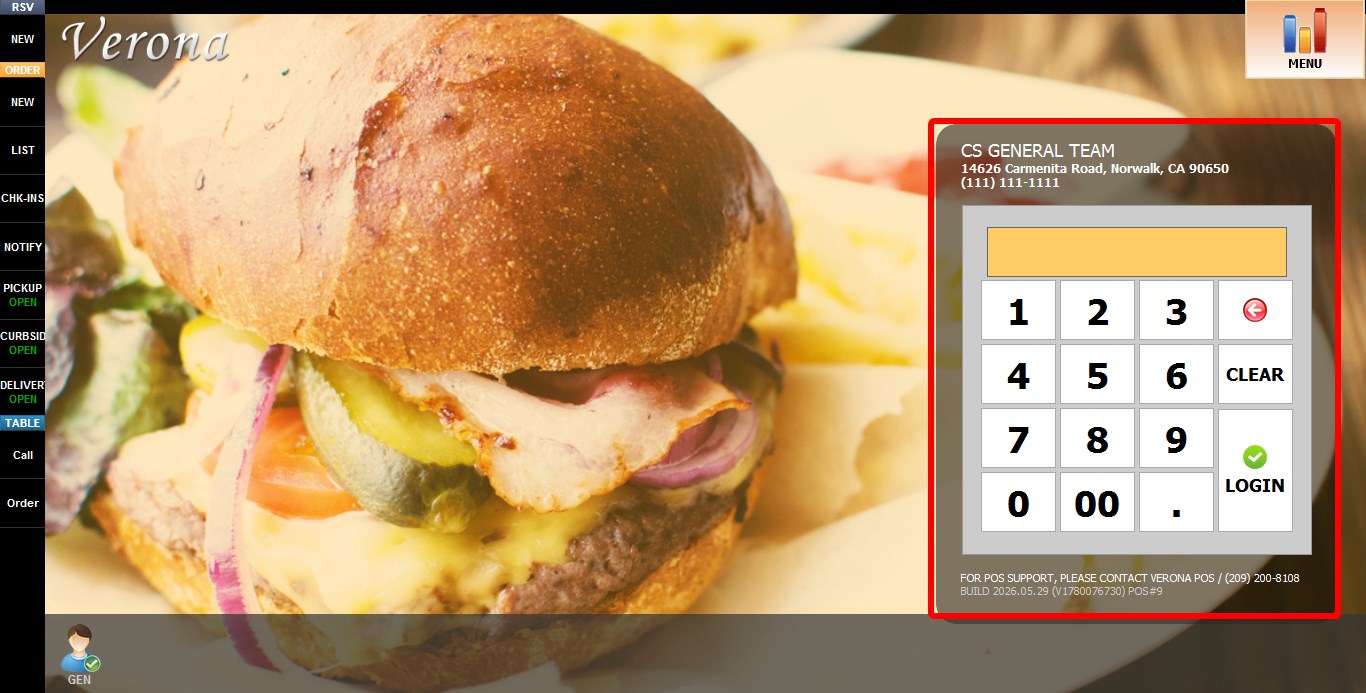
Go to the Sales Screen
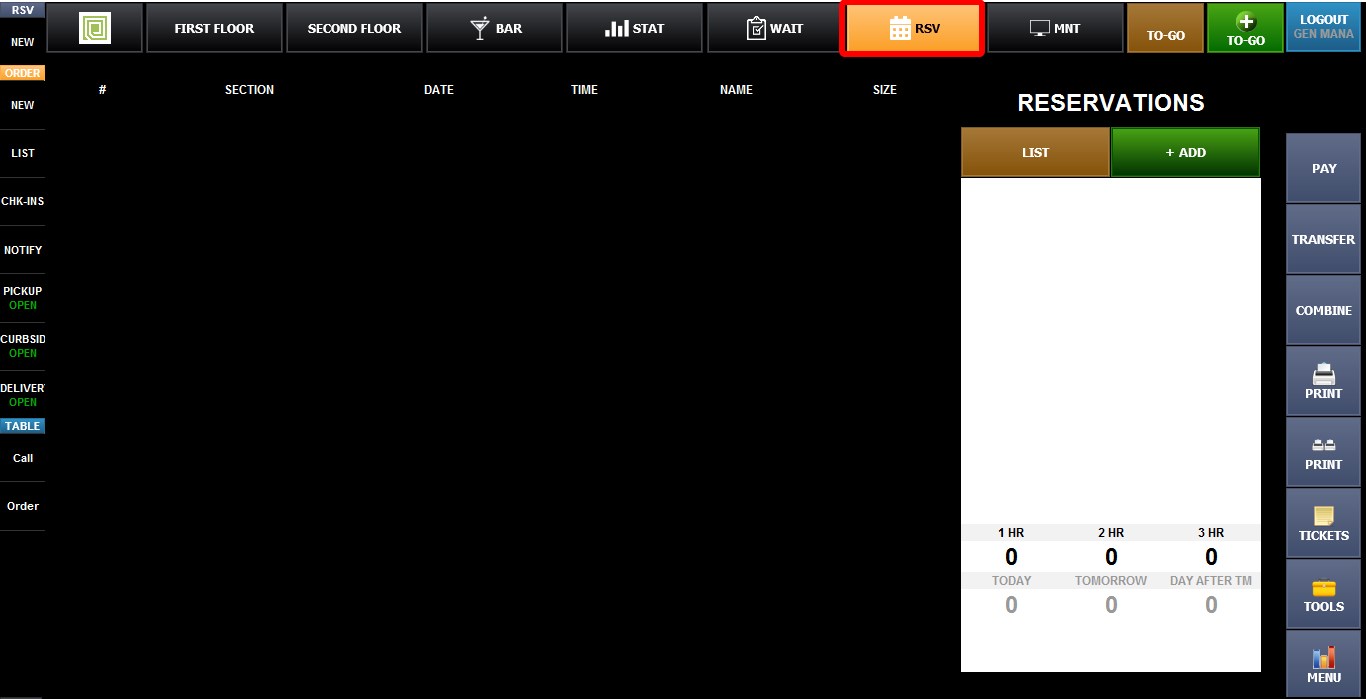
Click RSV (Reservation).
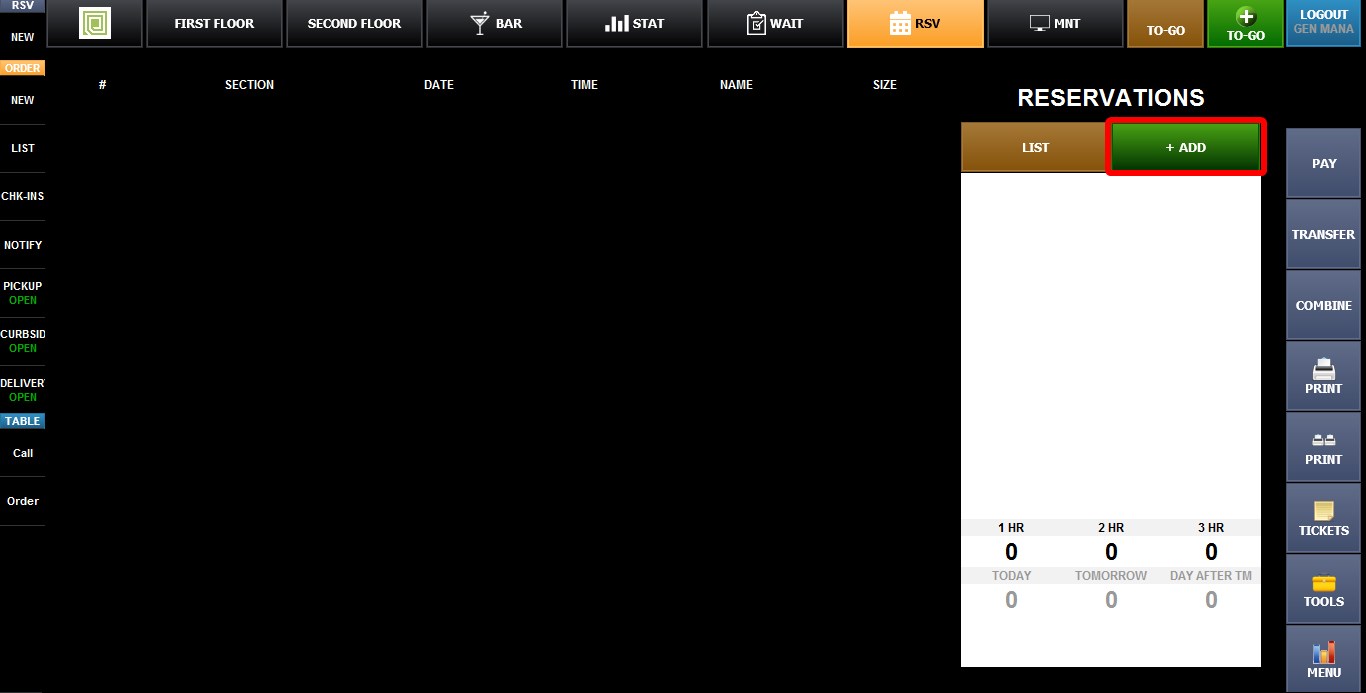
Click +ADD button. The Reservation screen will open.
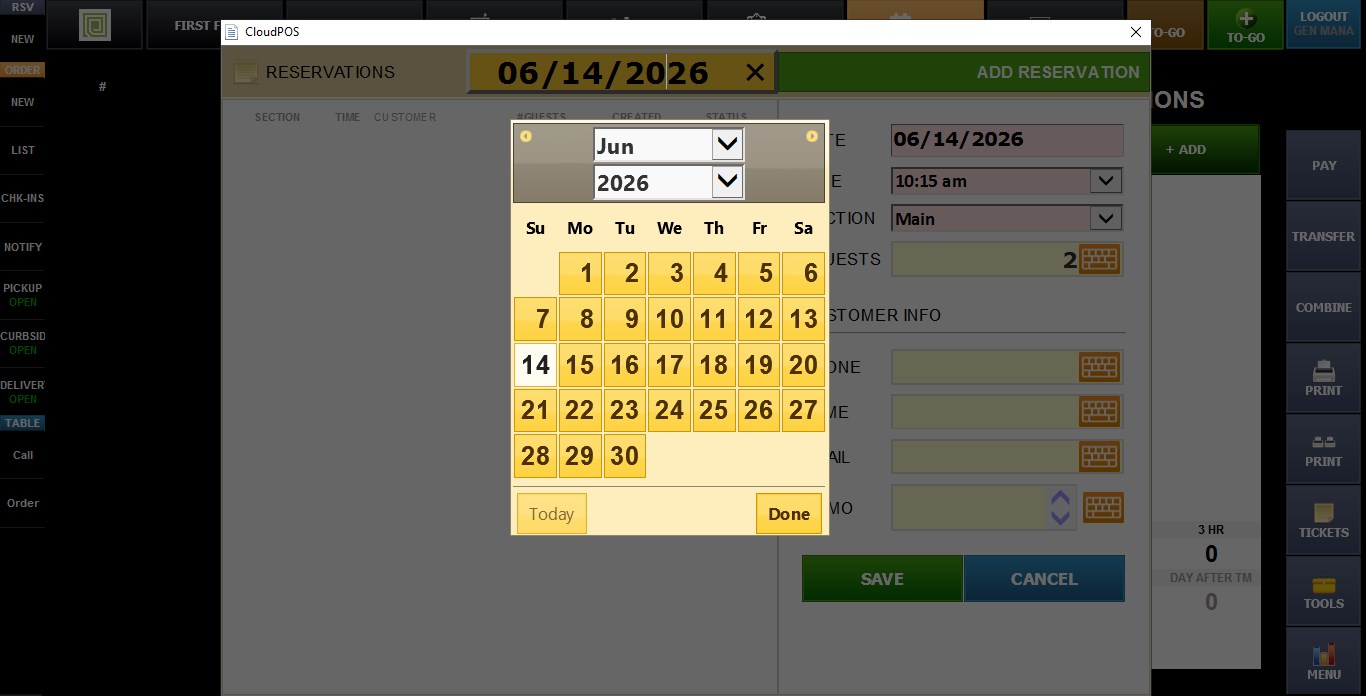
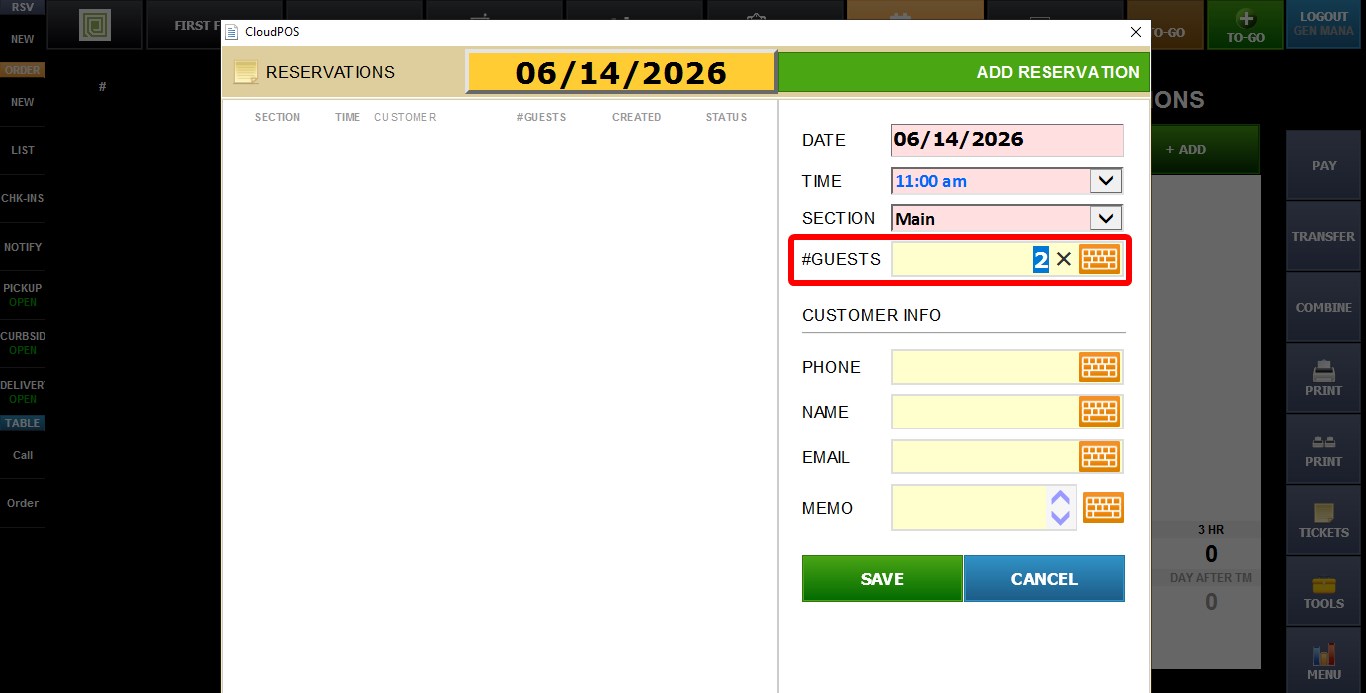
DATE: Click to open a calendar and select the reservation date.
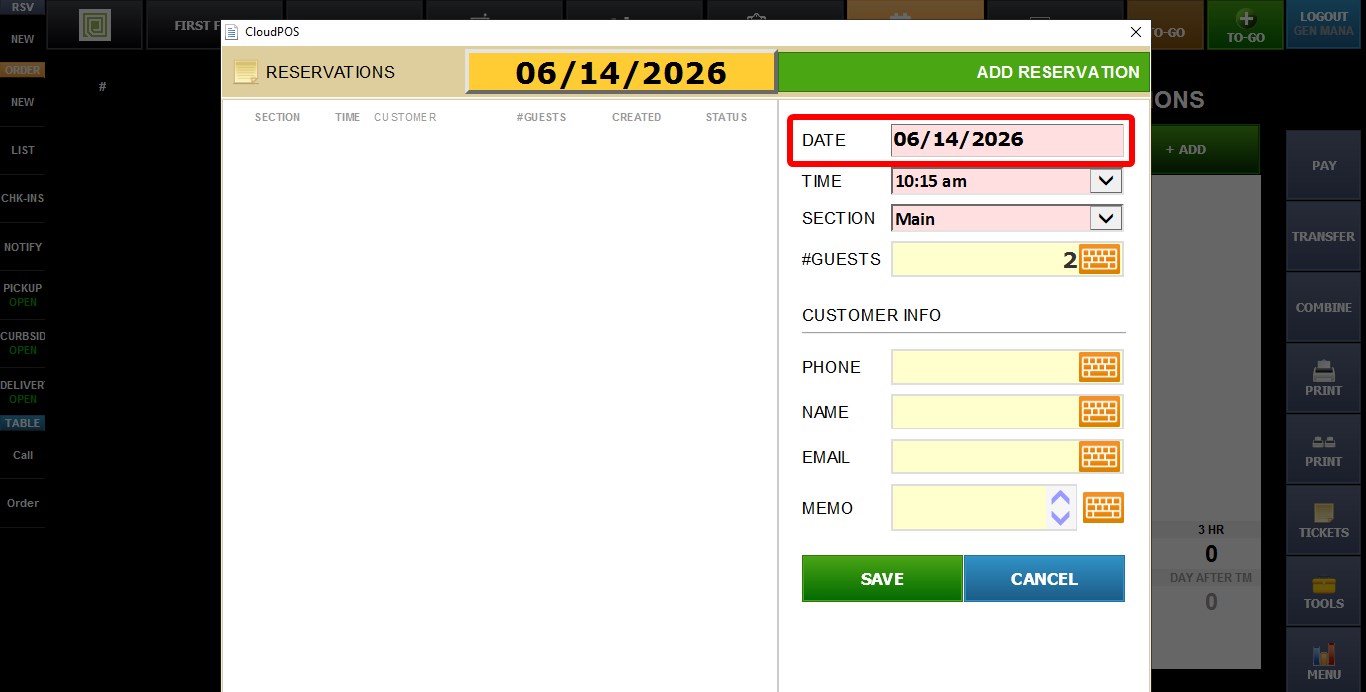
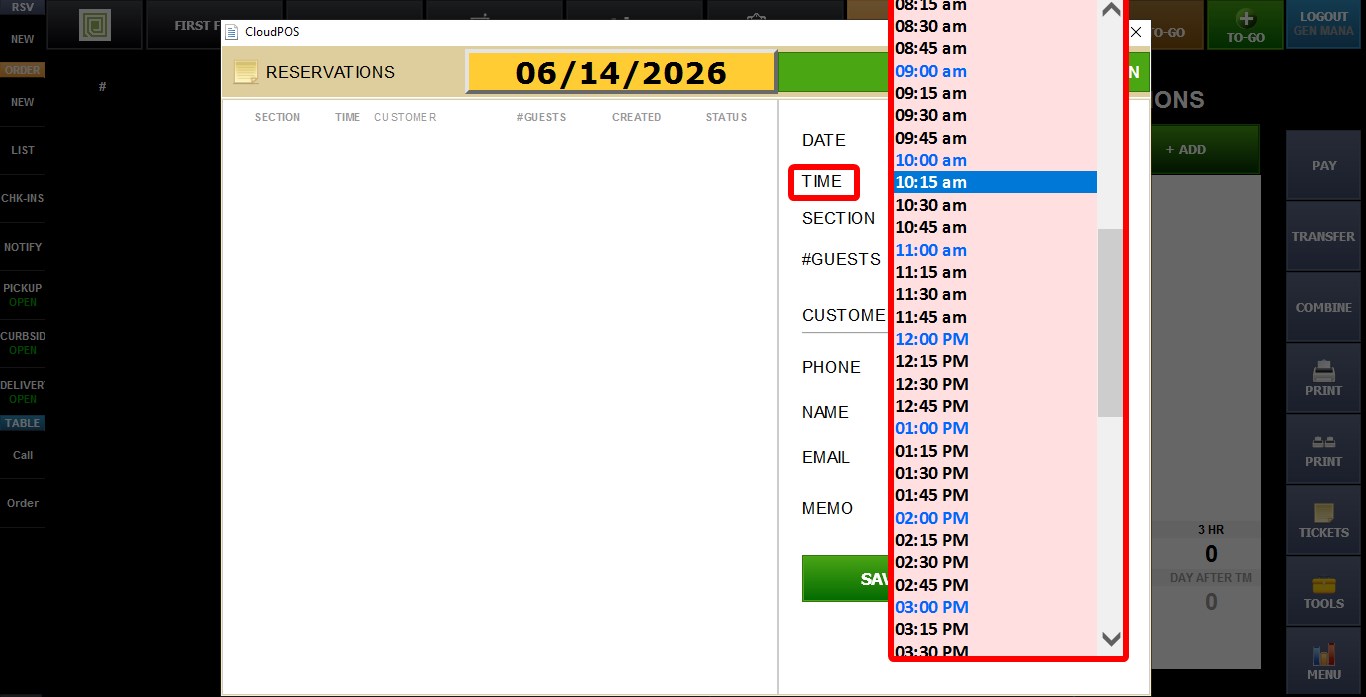
TIME: Select the reservation time. Available times are listed in 15-minute increments.
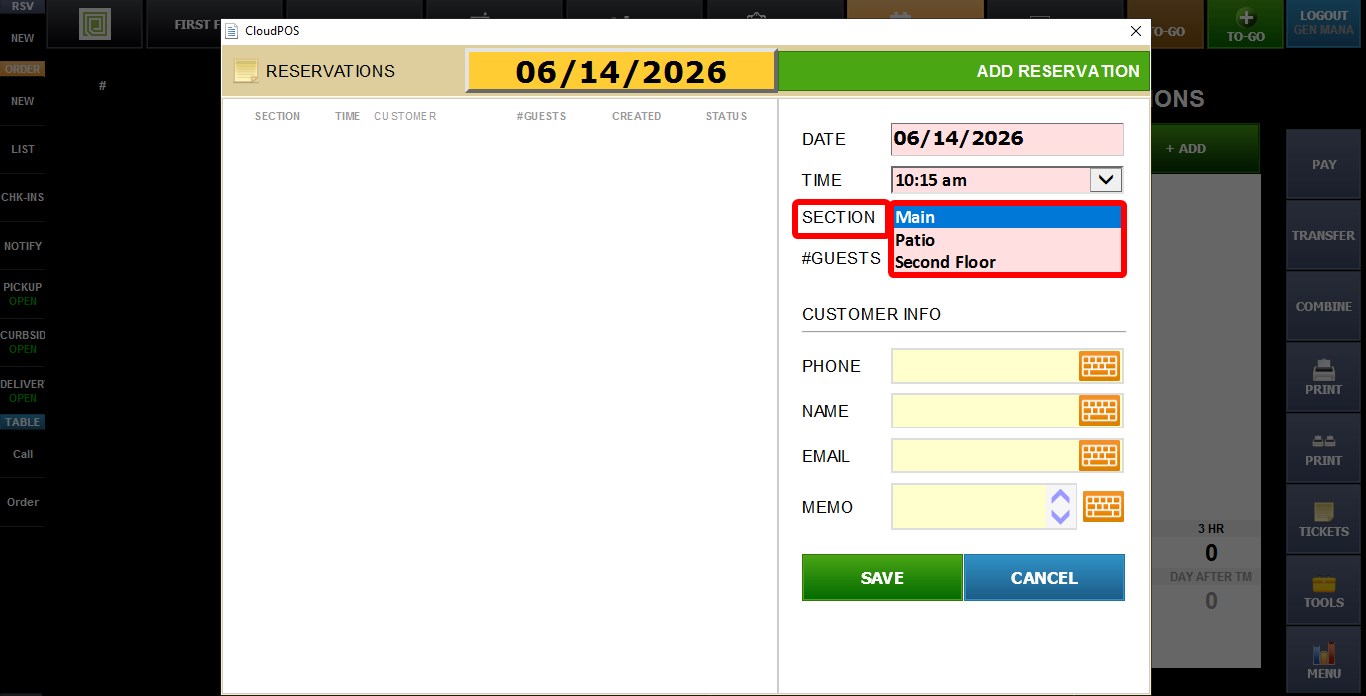
SECTION: Select the preferred seating section for the reservation.
GUESTS: Enter the number of guests included in the reservation.
CUSTOMER INFO
PHONE: Customer phone number.
EMAIL: Customer email address.
MEMO: Optional notes related to the reservation.
NAME: Customer name.
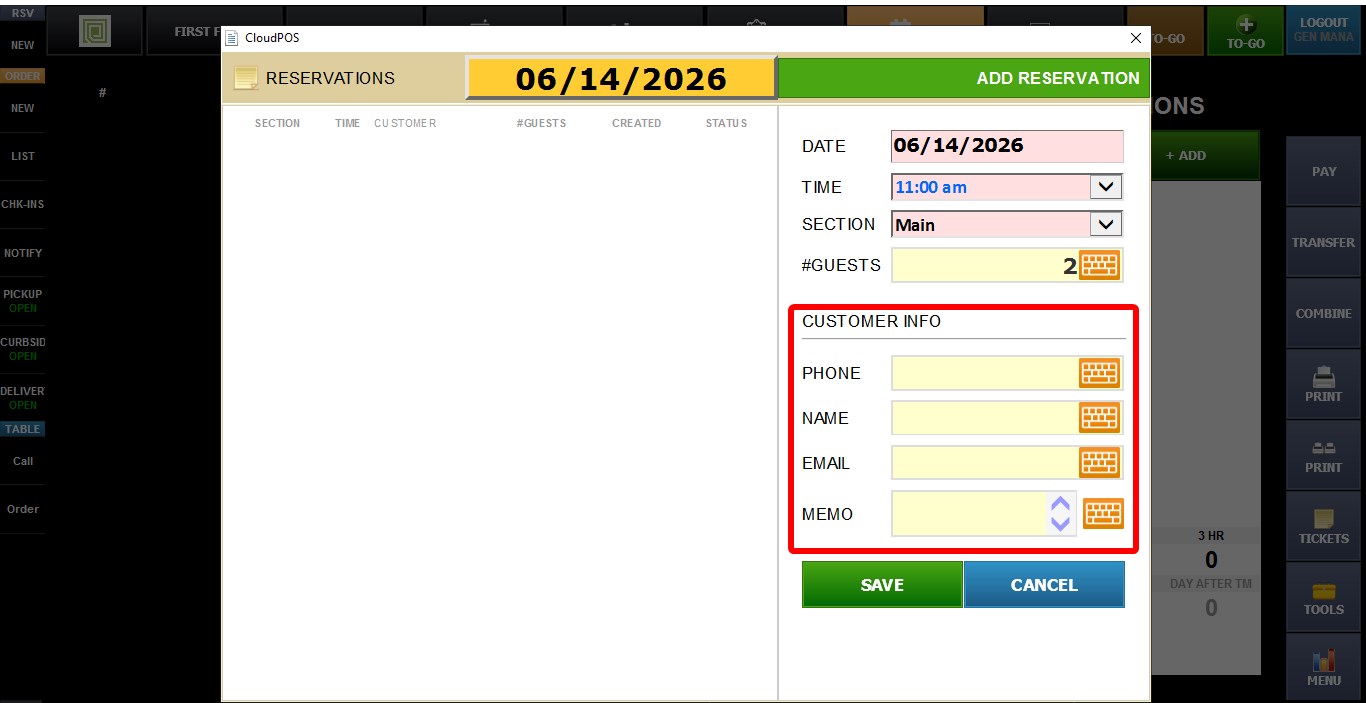
Hint: Only NAME and PHONE are required to create a reservation. EMAIL and MEMO are optional.
After entering the required information, click SAVE.
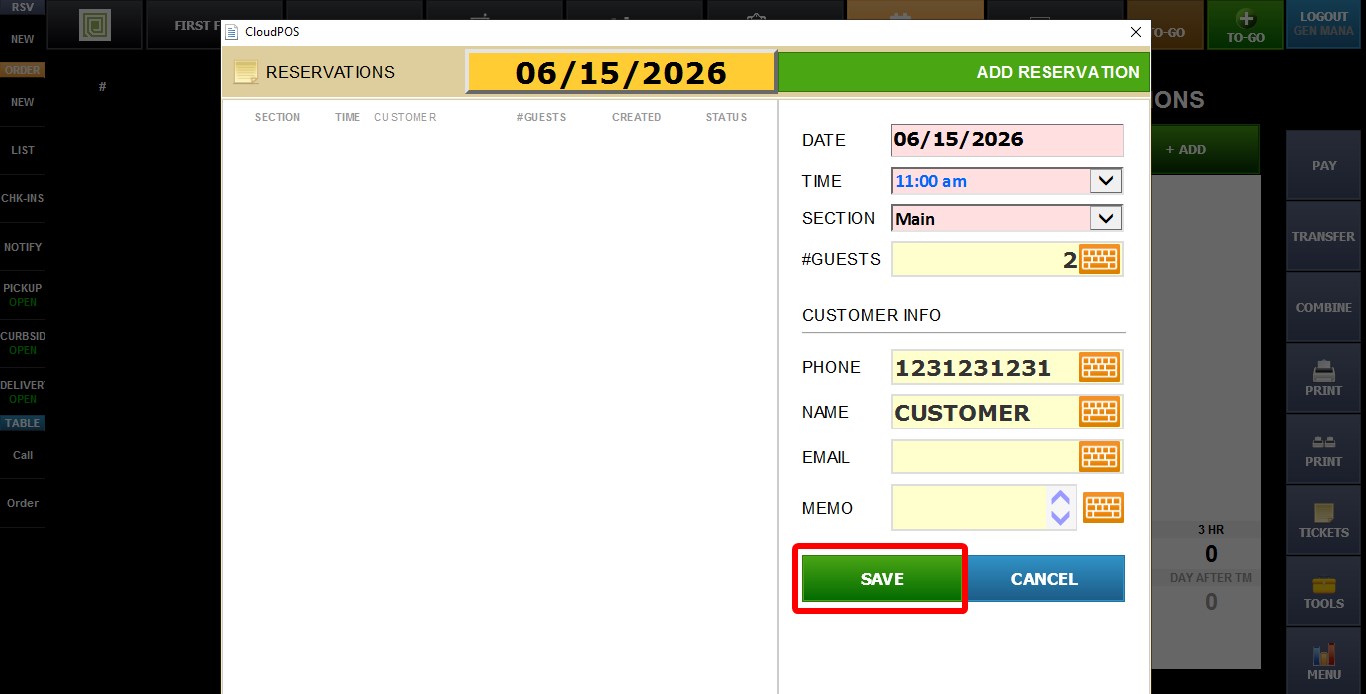
RESULT:
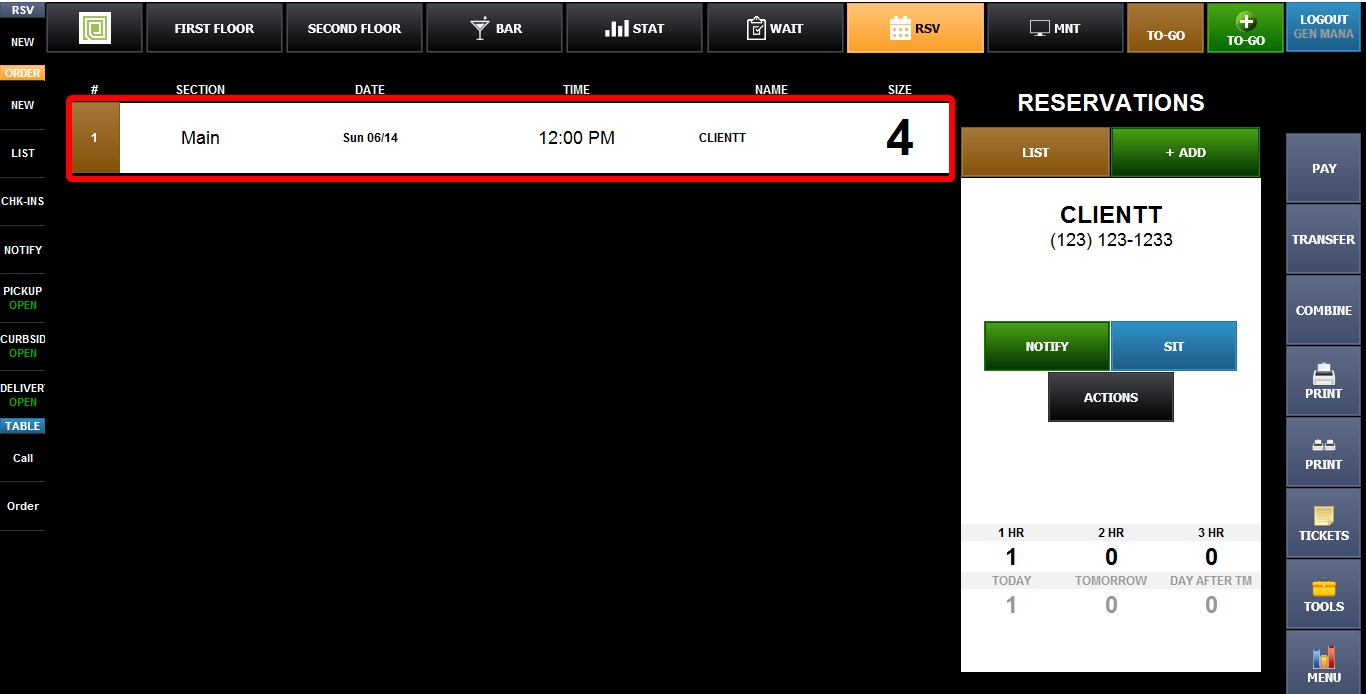
The reservation will be added to the reservation list and will be available on the selected date and time. See the Managing Reservation KB to see how to manage the reservatiosn