Online Ordering
The Online Ordering settings control the online ordering site of the store: which menu is shown, how items and categories are displayed, how far in advance customers can order, special instructions, notifications, customer verification, and loyalty earning.
MENU > SETTINGS > MENU11 > ORDER > ONLINE ORDERING
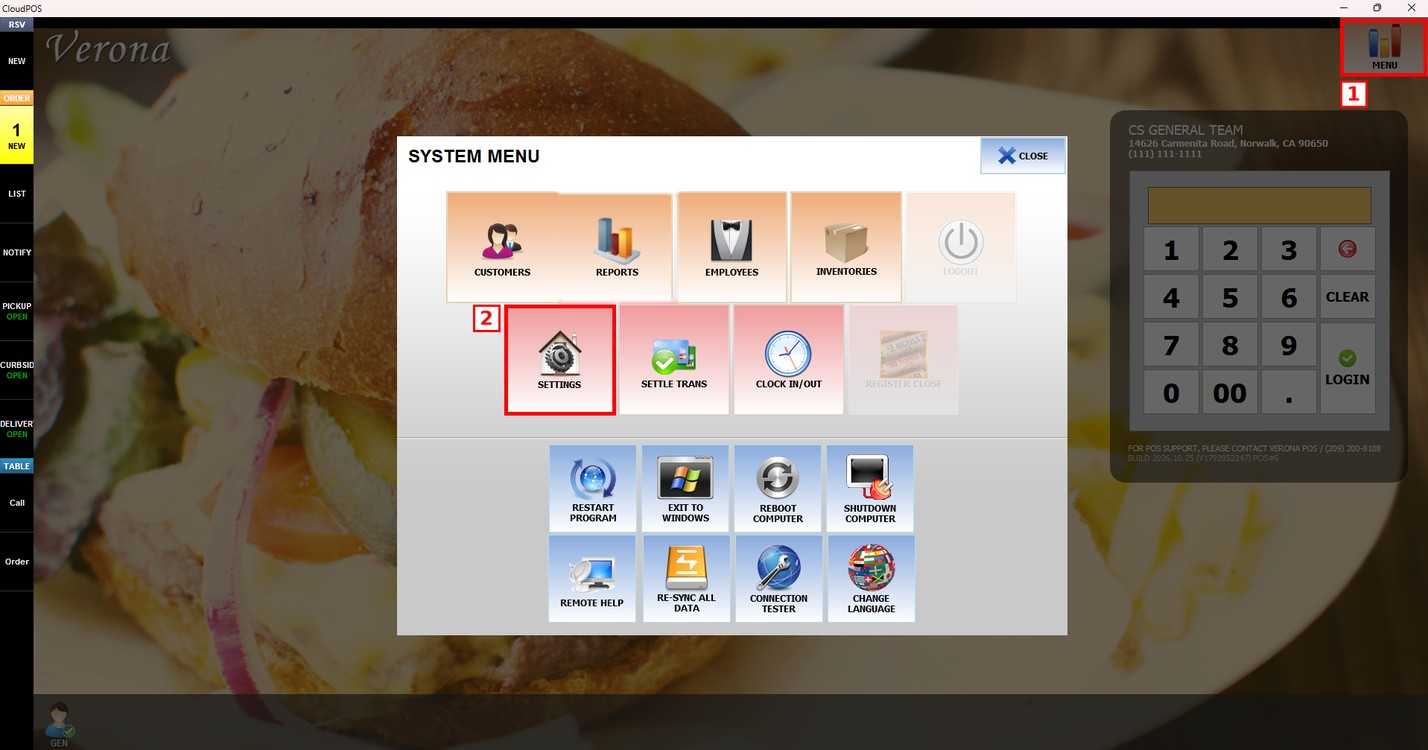
Go to MENU and press SETTINGS.
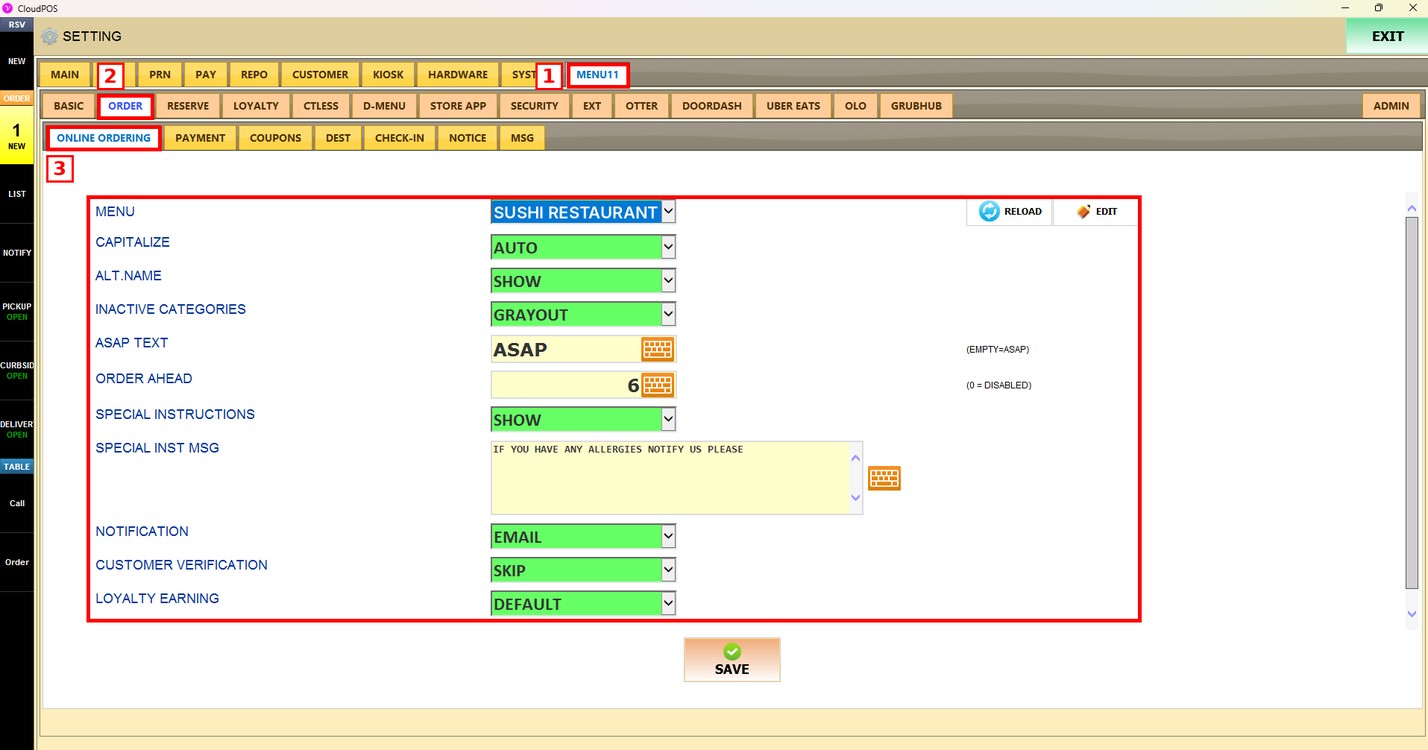
Press the MENU11 tab, then the ORDER subtab, and then ONLINE ORDERING.
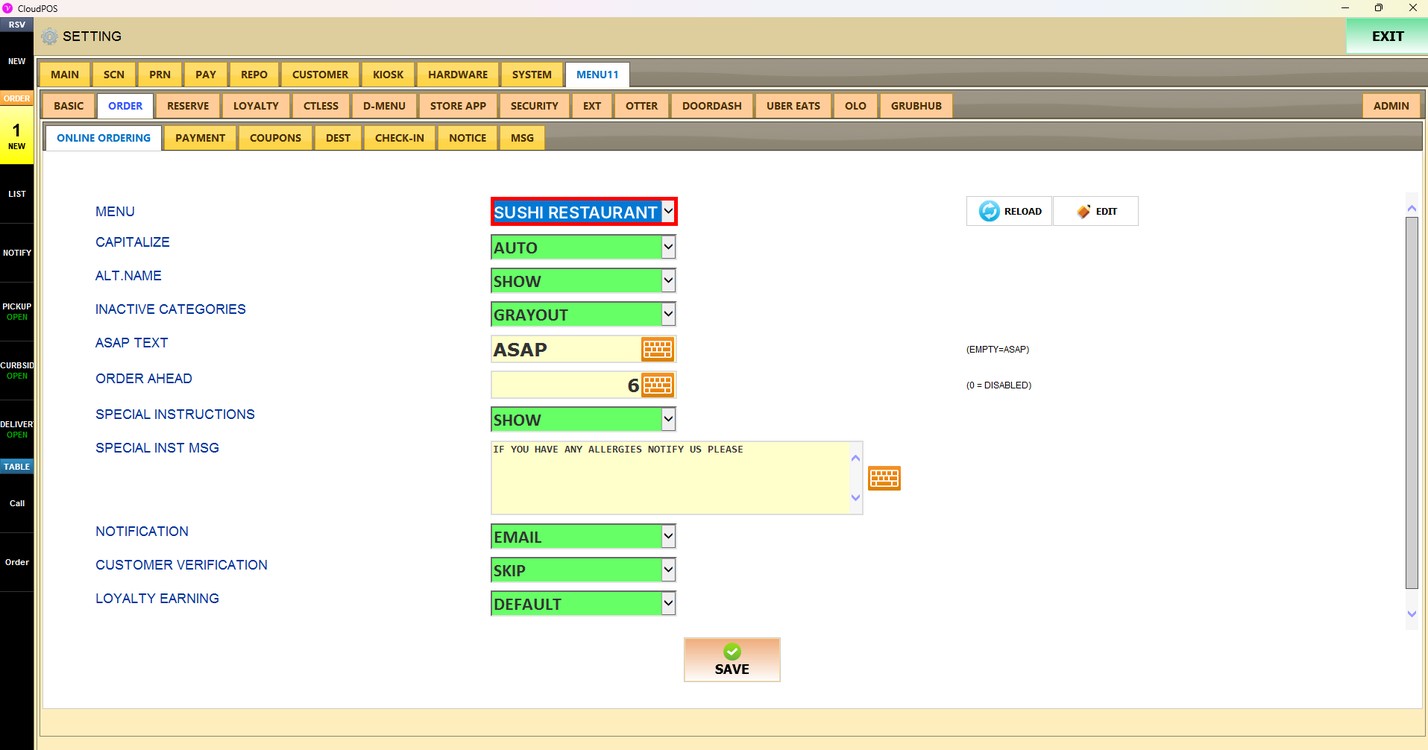
Menu:
Sets which menu is shown on the online ordering site. Choose the menu from the list.
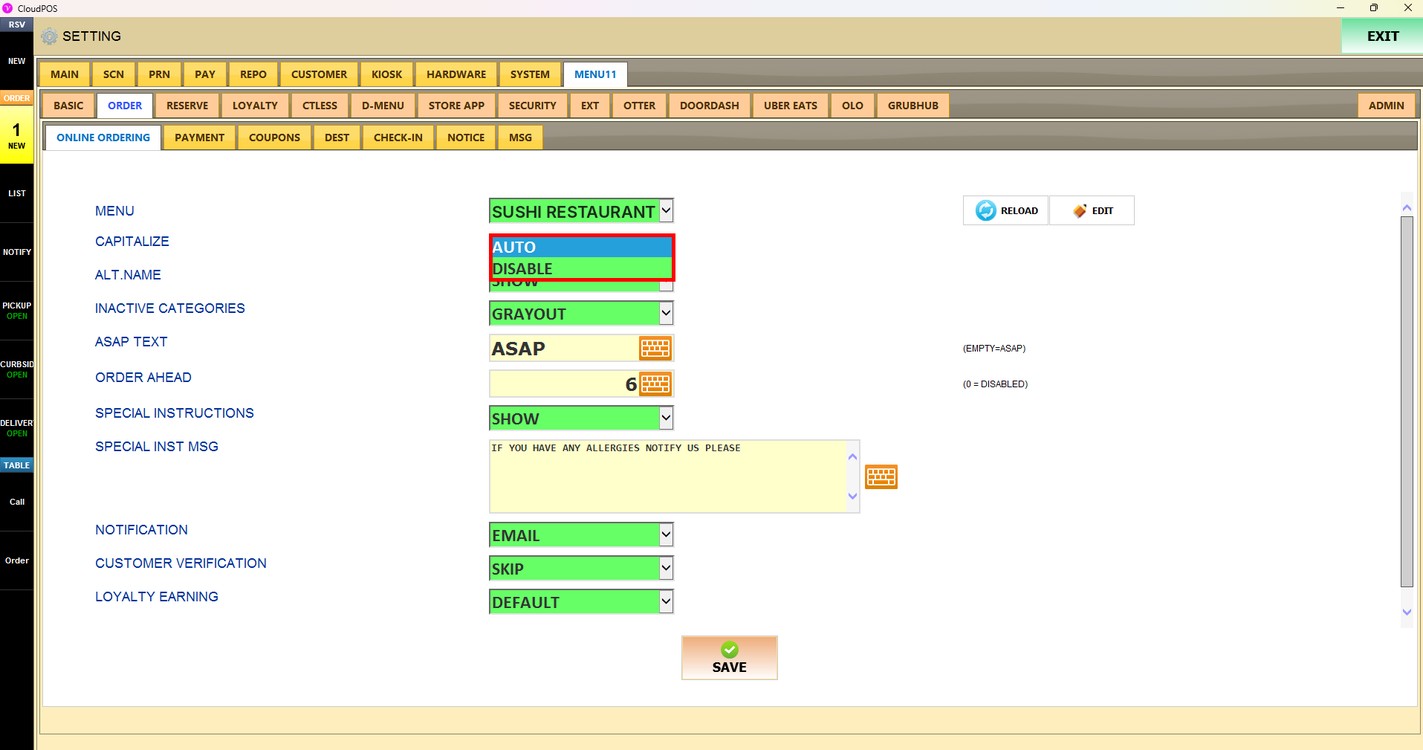
Capitalize:
Sets how the menu text is shown on the online ordering site.
1. AUTO: The menu text is capitalized automatically.
2. DISABLE: The menu text is shown exactly as it is written in the menu.
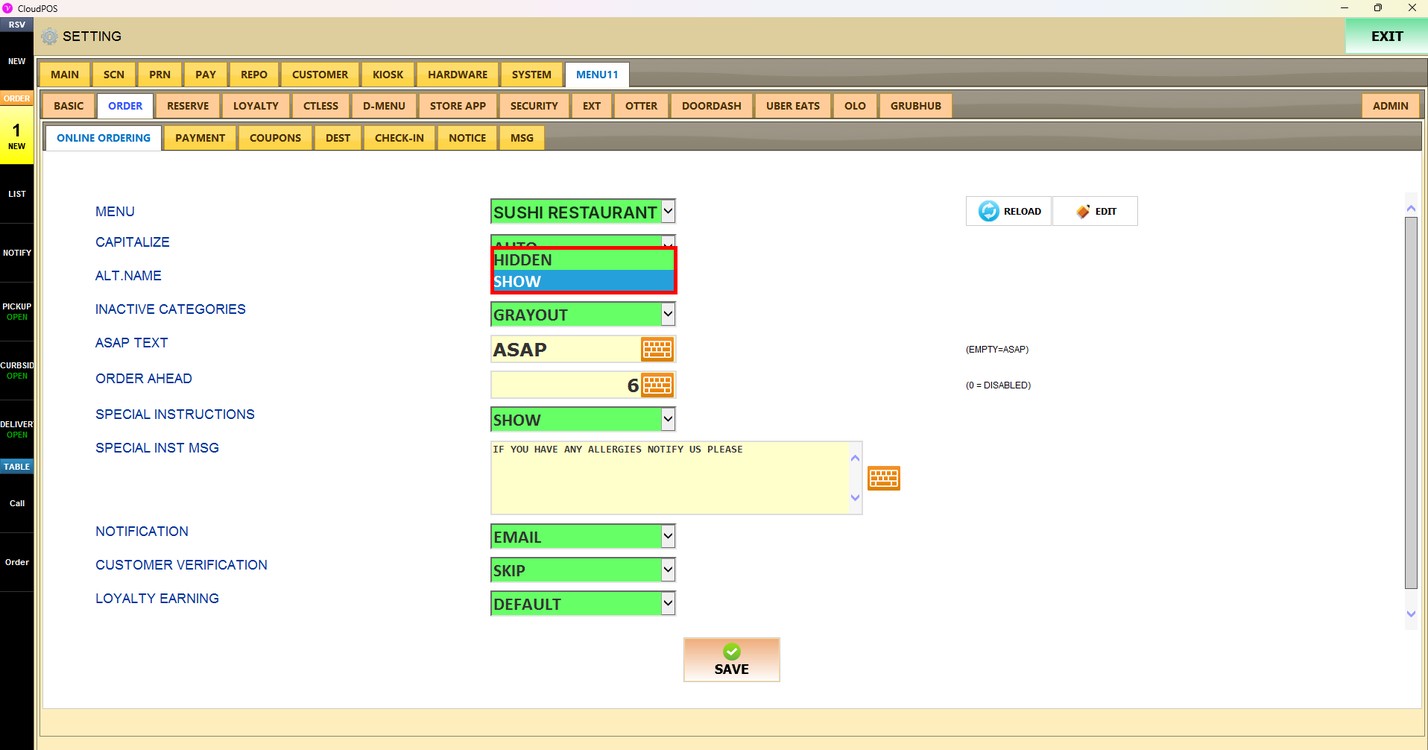
Alt. Name:
Shows or hides the alternative name of the menu items. Choose SHOW or HIDDEN.
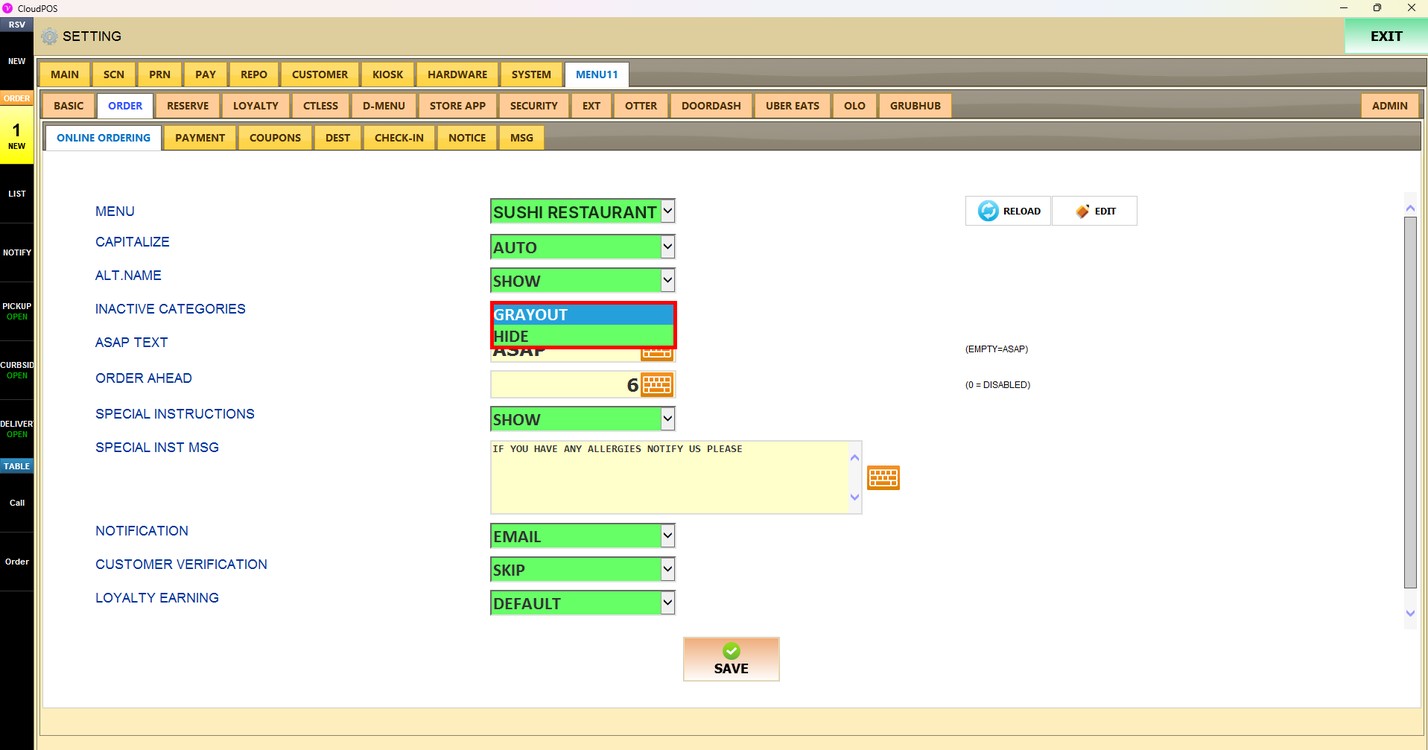
Inactive Categories:
Sets how inactive categories are shown on the online ordering site.
1. GRAYOUT: Inactive categories are shown as gray buttons and cannot be selected.
2. HIDE: Inactive categories are hidden from the menu.
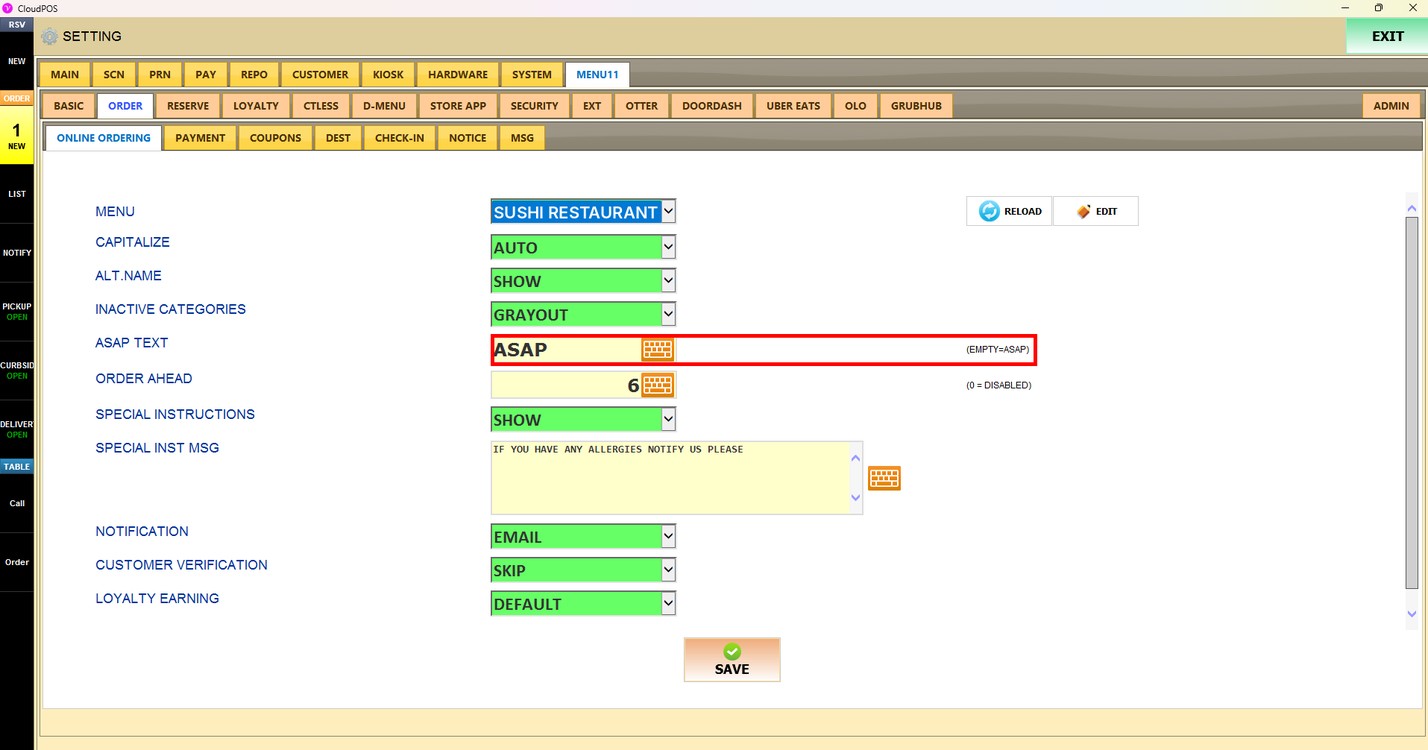
ASAP Text:
Changes the ASAP text shown on the online ordering site. Press the keyboard icon to enter the text. Leave it empty to show the default text, ASAP.
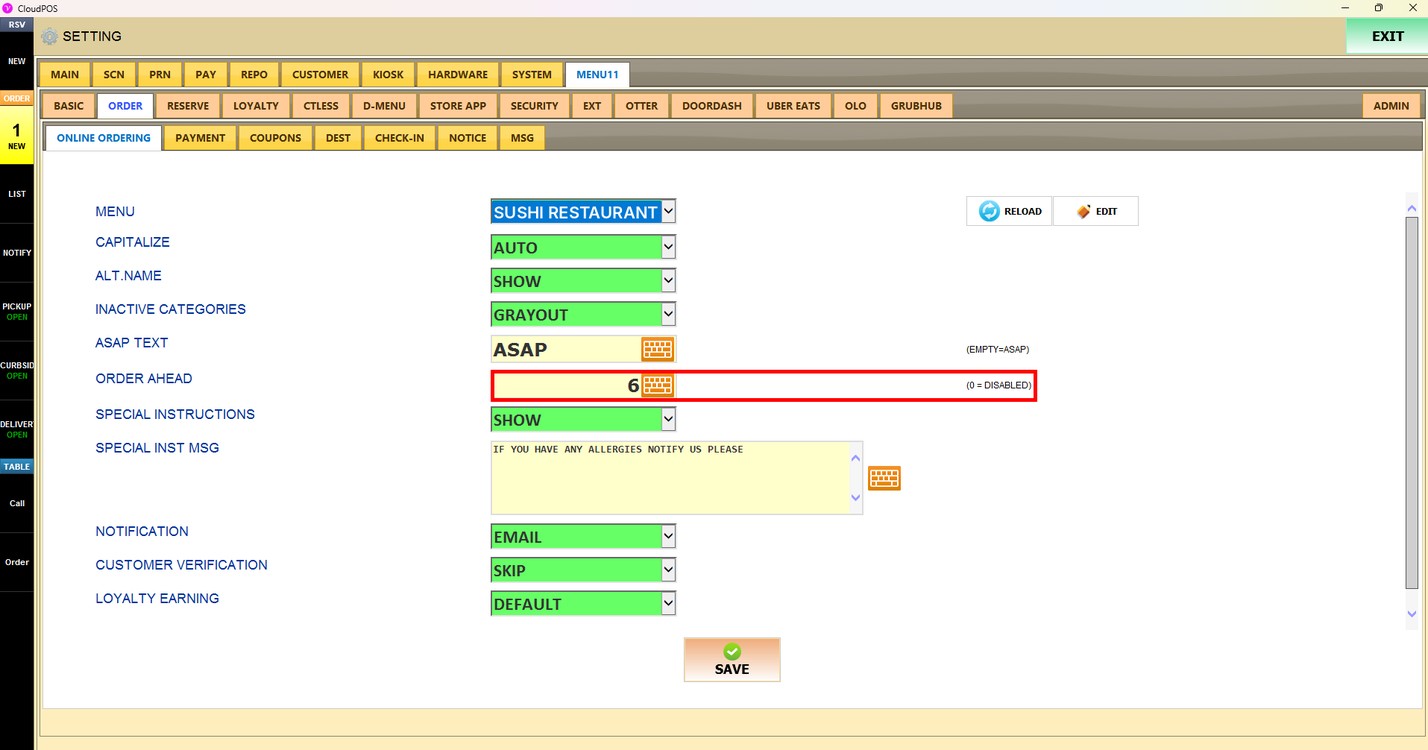
Order Ahead:
Sets how many days in advance customers can place an order. Press the keyboard icon to enter the number of days. Enter 0 to disable Order Ahead, so customers can only order ASAP.
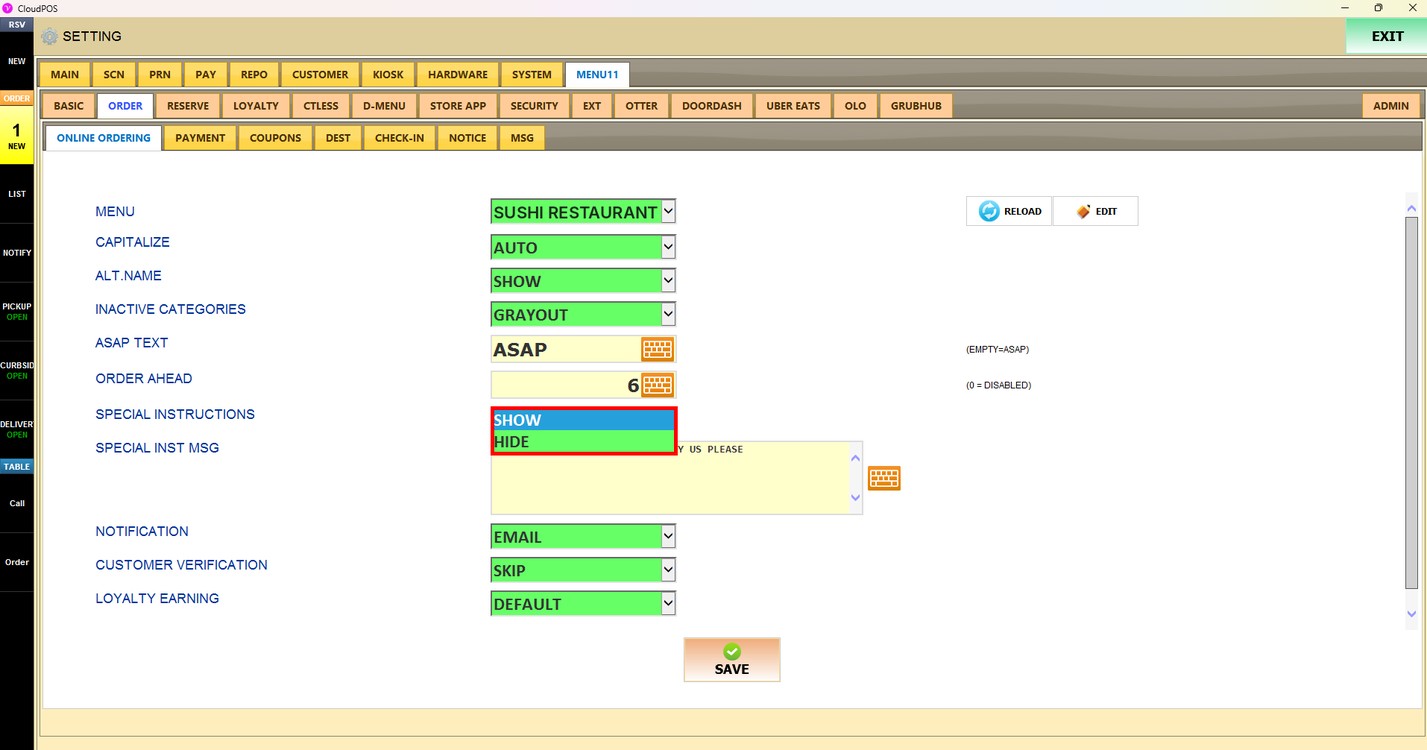
Special Instructions:
Allows the customer to add special instructions (a memo) to the order. Choose SHOW or HIDE.
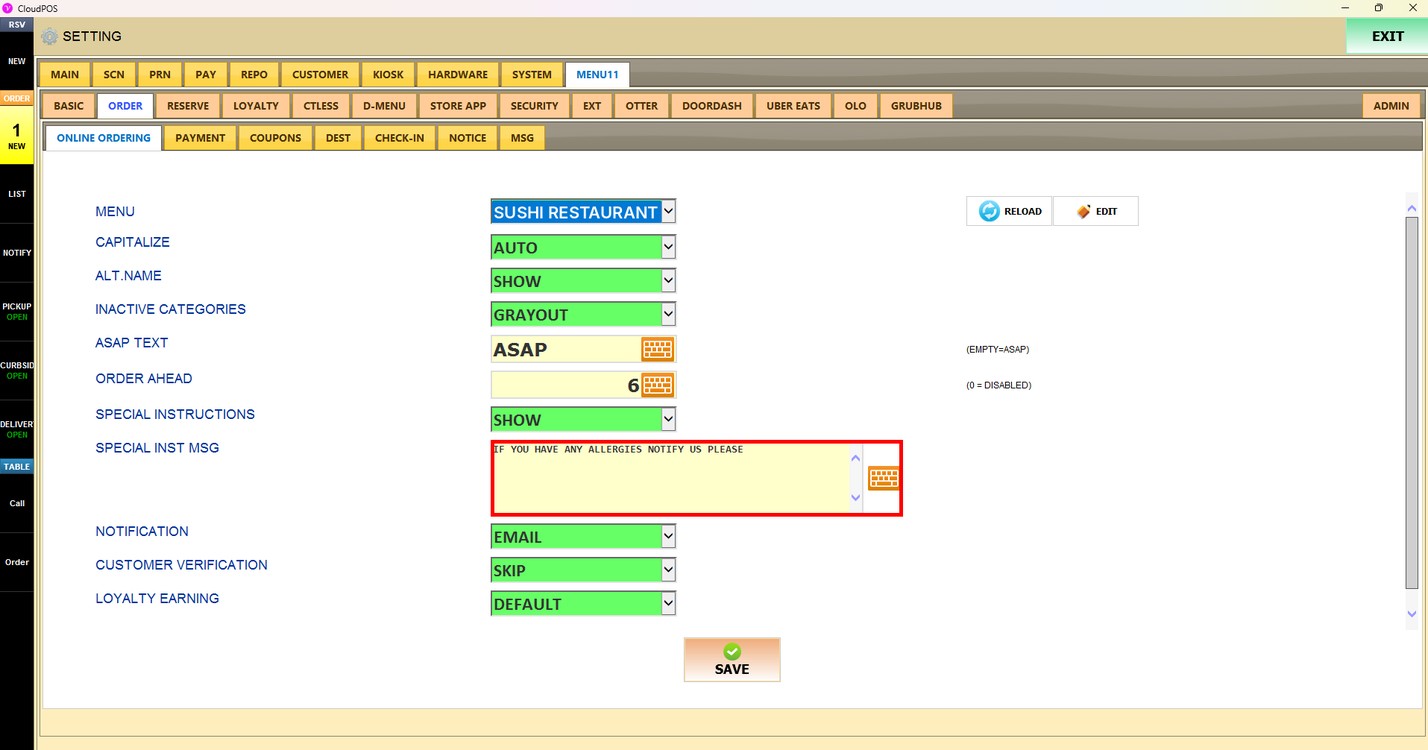
Special Inst Msg:
Sets a message shown to the customer in the special instructions. Press the keyboard icon to enter the message.
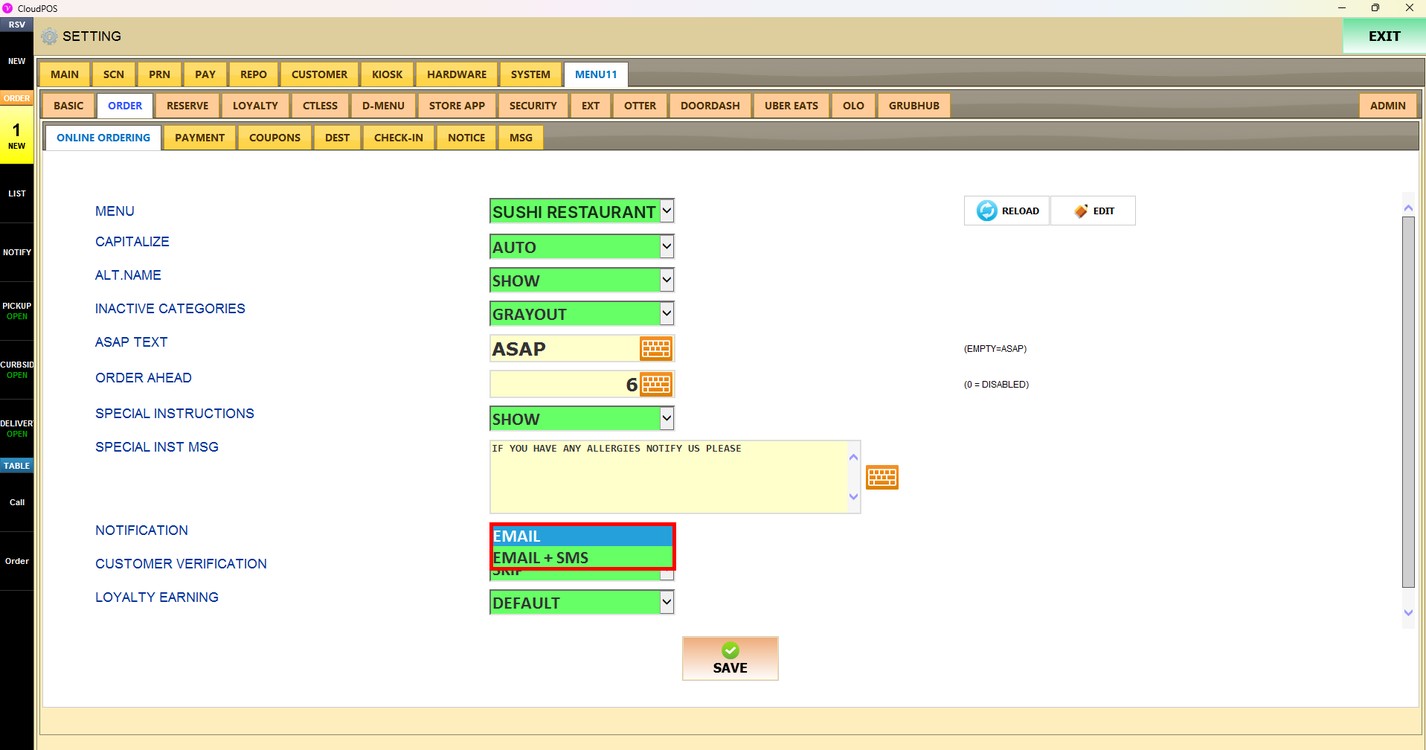
Notification:
Sets how the online ordering site sends notifications to the customer.
1. EMAIL: Notifications are sent by email only.
2. EMAIL + SMS: Notifications are sent by email and text message (SMS).
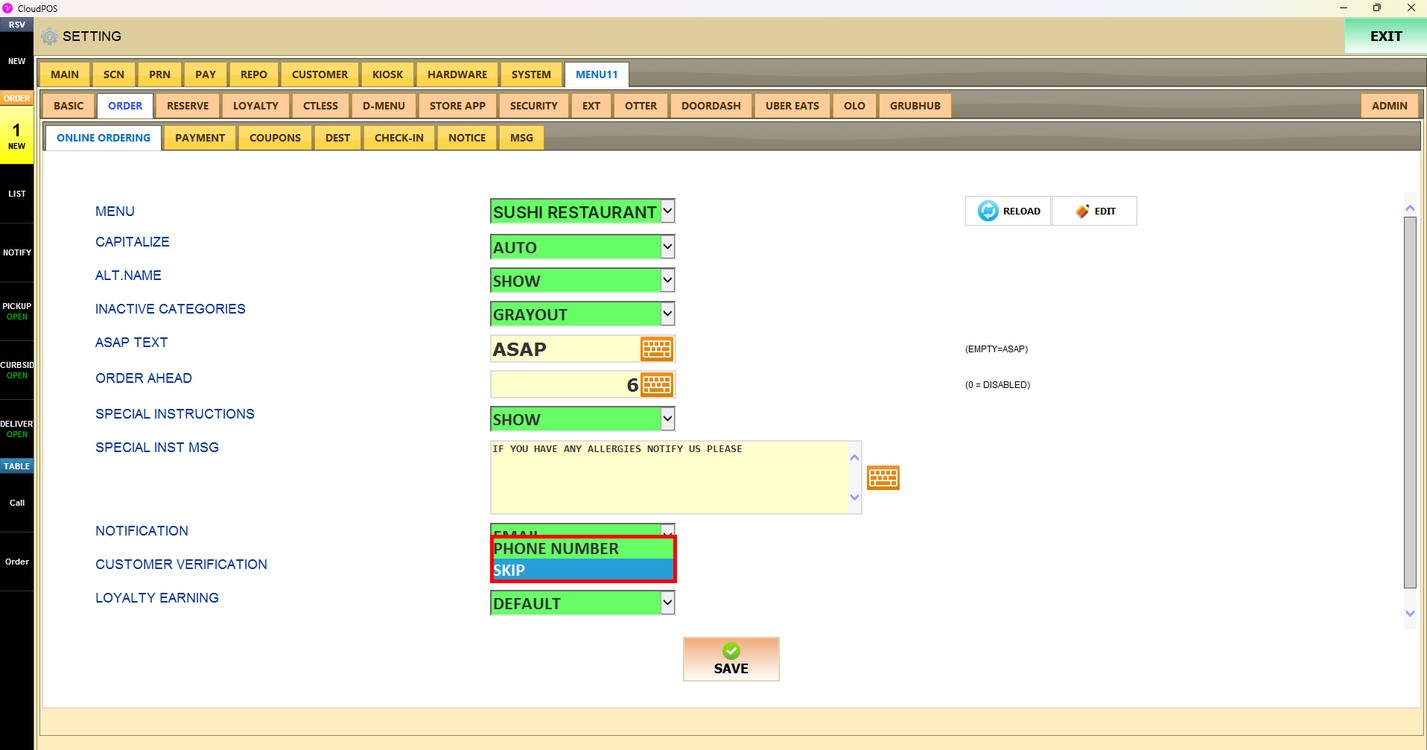
Customer Verification:
Sets whether the customer must be verified before the payment.
1. PHONE NUMBER: The online ordering site sends a text message with a number to the customer's phone. The customer must enter the matching number before the payment.
2. SKIP: The customer is not verified.
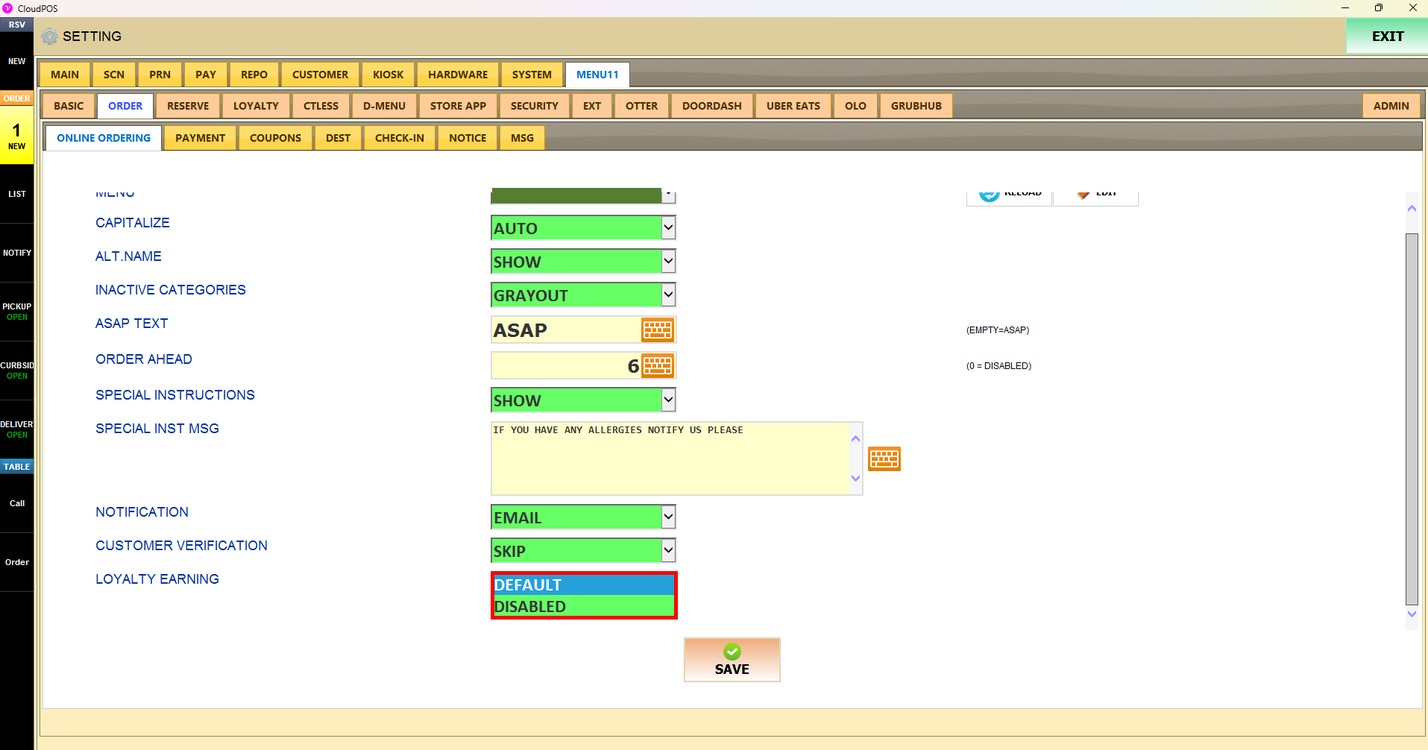
Loyalty Earning:
Sets whether customers earn loyalty points on online orders.
1. DEFAULT: Customers earn loyalty points as set in the loyalty settings.
2. DISABLED: Customers do not earn loyalty points on online orders.
Press SAVE to apply the changes.
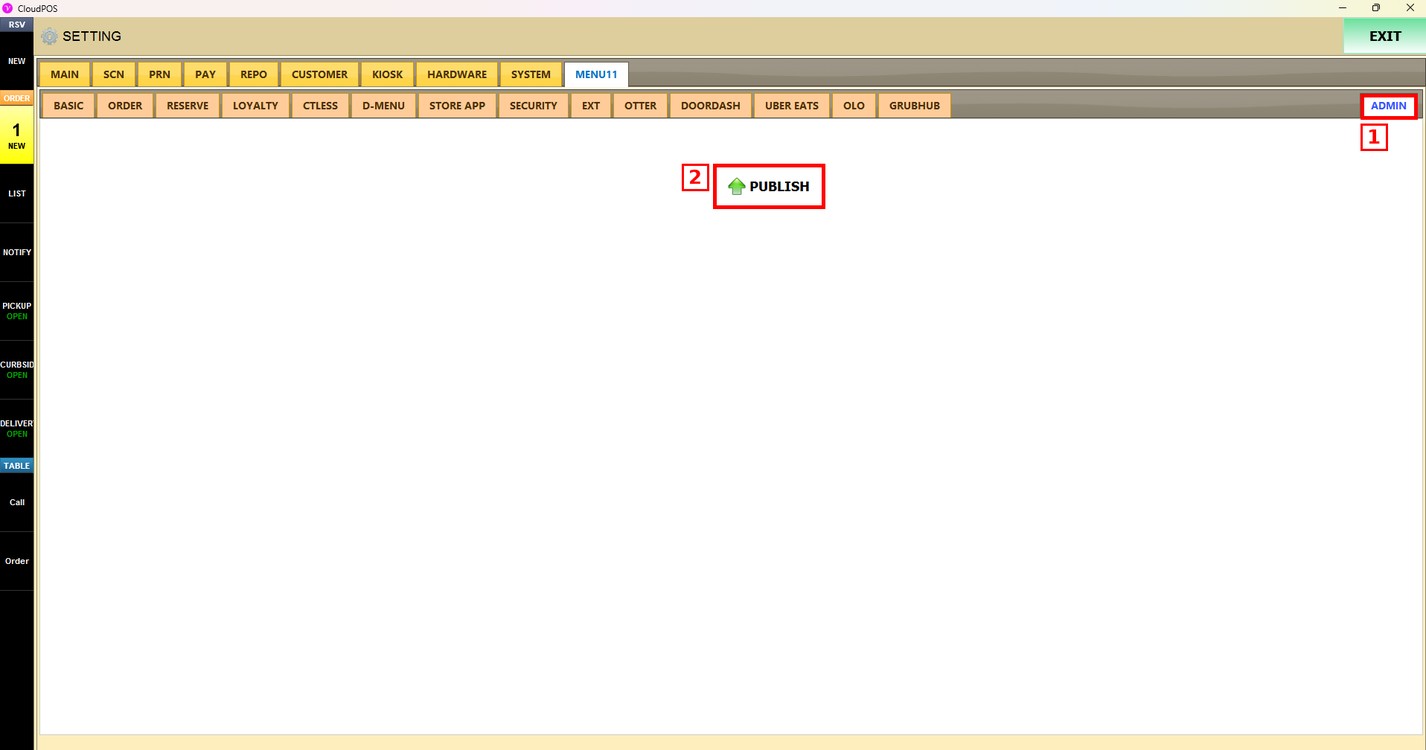
Publish the changes:
After saving, press the ADMIN tab and press PUBLISH. The changes are updated on the online ordering site only after they are published.