Coupon
The Online Ordering Coupons feature allows you to create and manage promotional offers for customers placing orders through your online ordering site. From this section, you can enable coupon functionality, create coupon codes, define promotional offers, and set conditions that determine when a coupon can be used.
Main Screen>MENU>SETTINGS>MENU11>ORDER>COUPONS
From the Main Screen, click MENU and then SETTINGS.
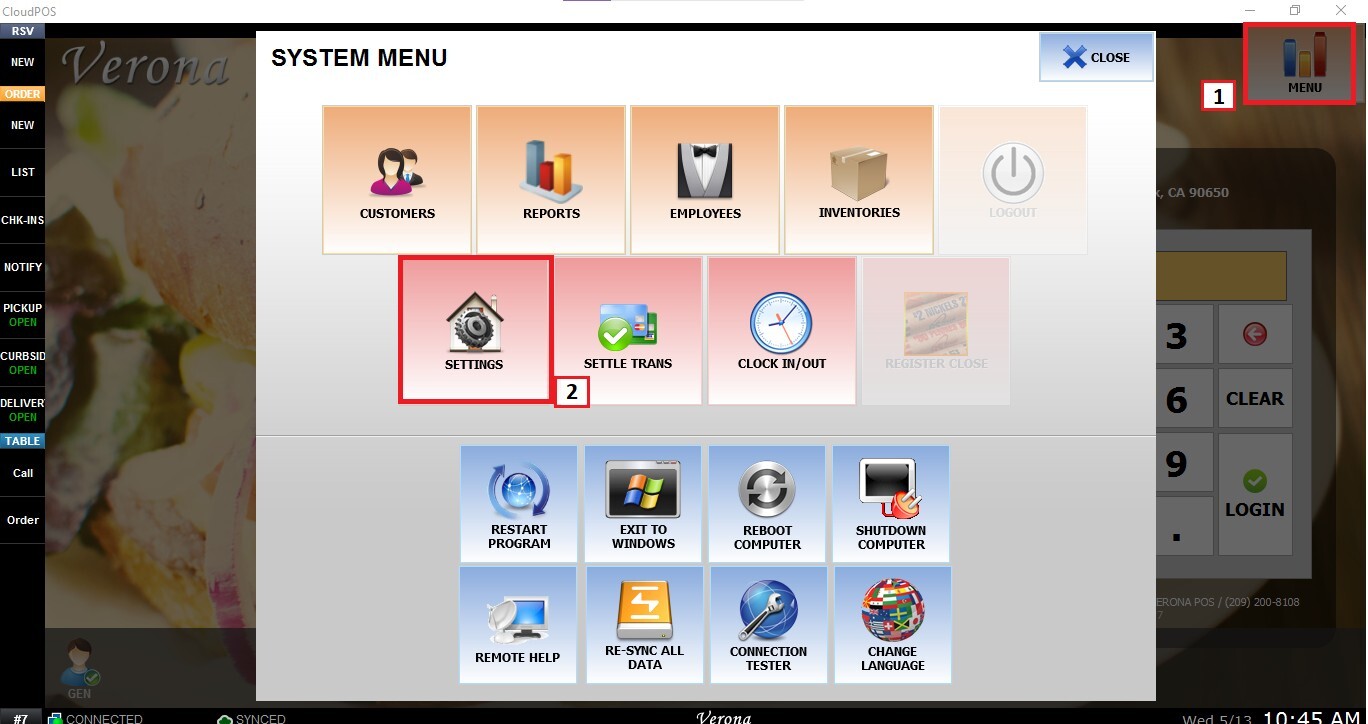
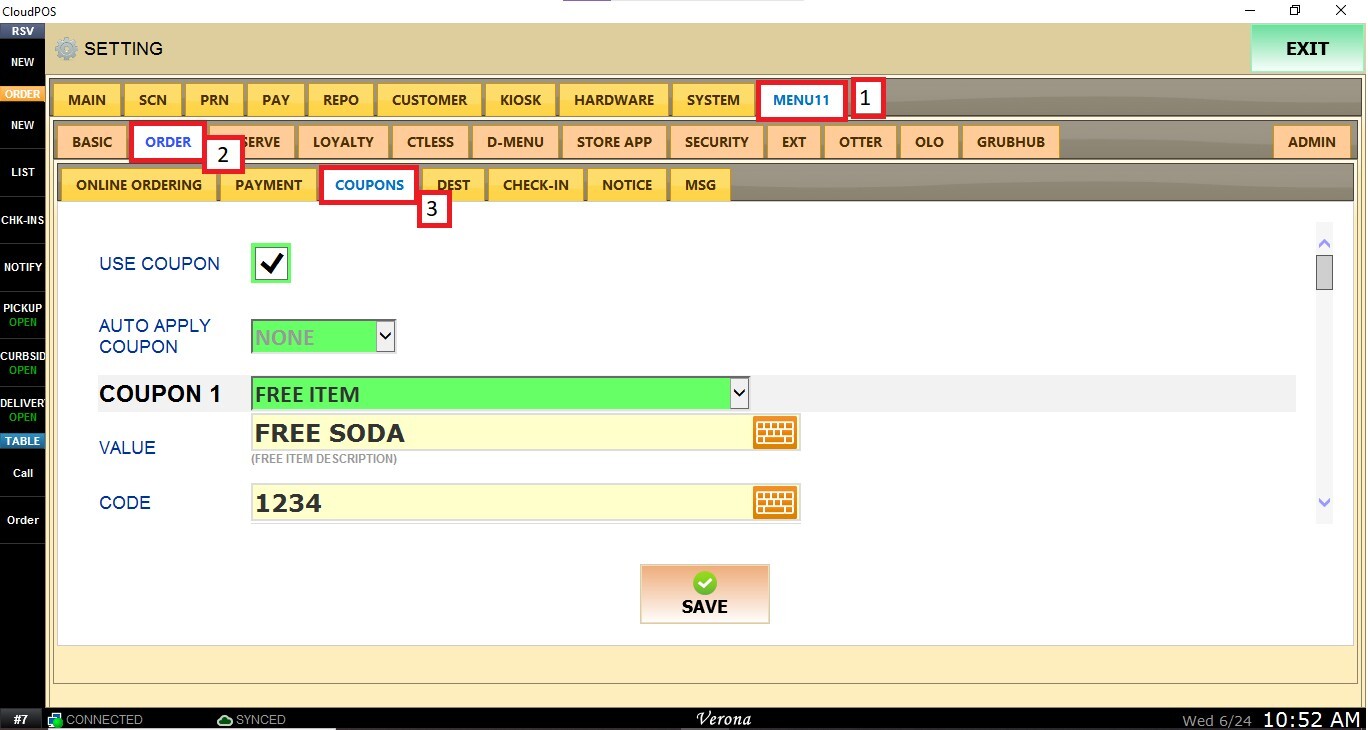
Go to MENU11, select ORDER, and open the COUPONS tab.
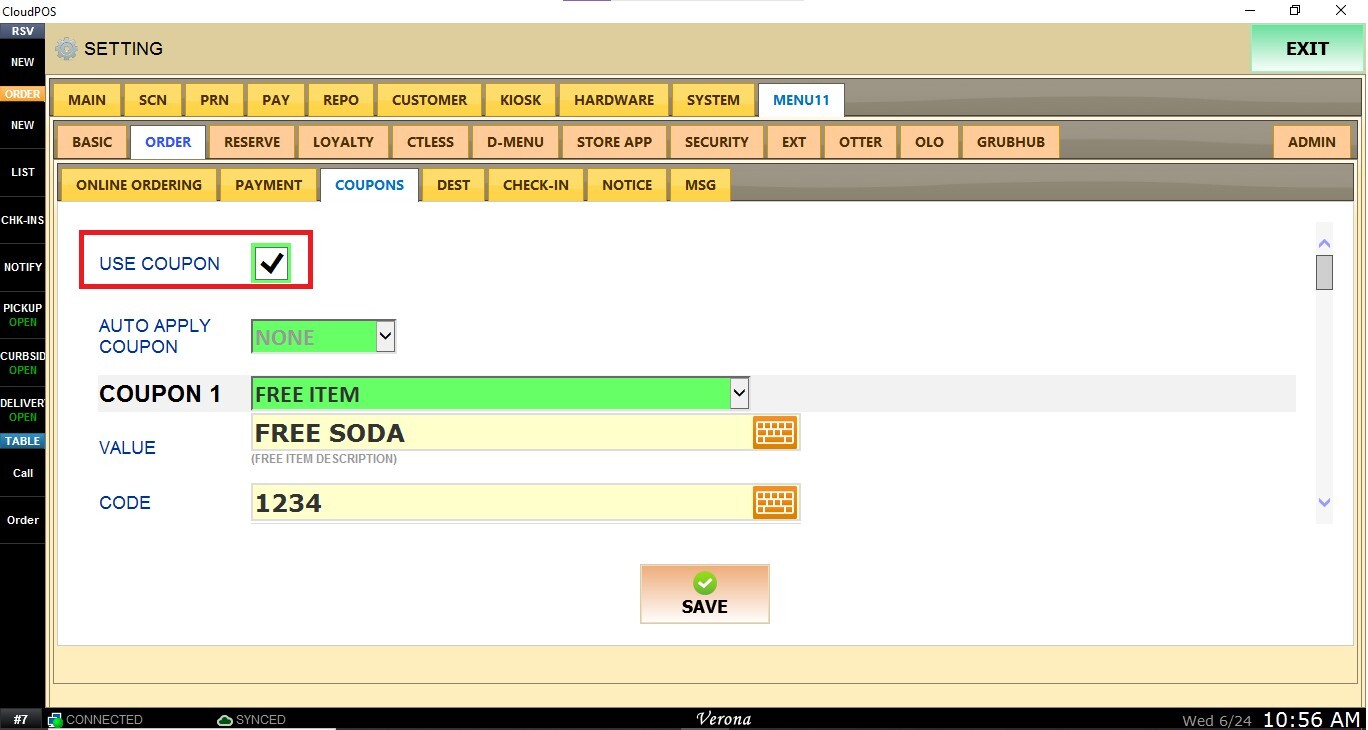
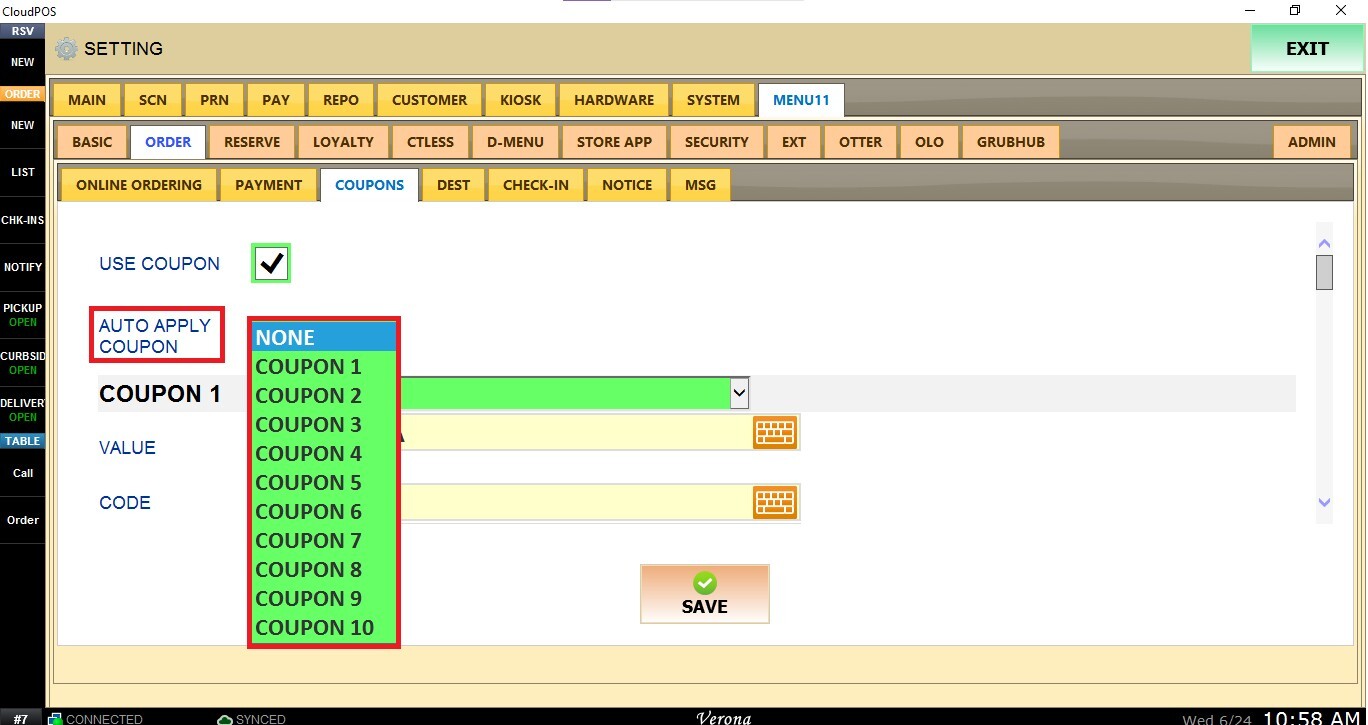
Enable the USE COUPON checkbox to allow customers to redeem coupons online. Once enabled, customers will be able to enter coupon codes during checkout.
The AUTO APPLY COUPON option allows you to automatically apply a selected coupon to all qualifying online orders without requiring customers to enter a coupon code.
Select a coupon from the AUTO APPLY COUPON drop-down menu. When enabled, the selected promotion will be automatically applied whenever the coupon's conditions are met.
Creating a Coupon
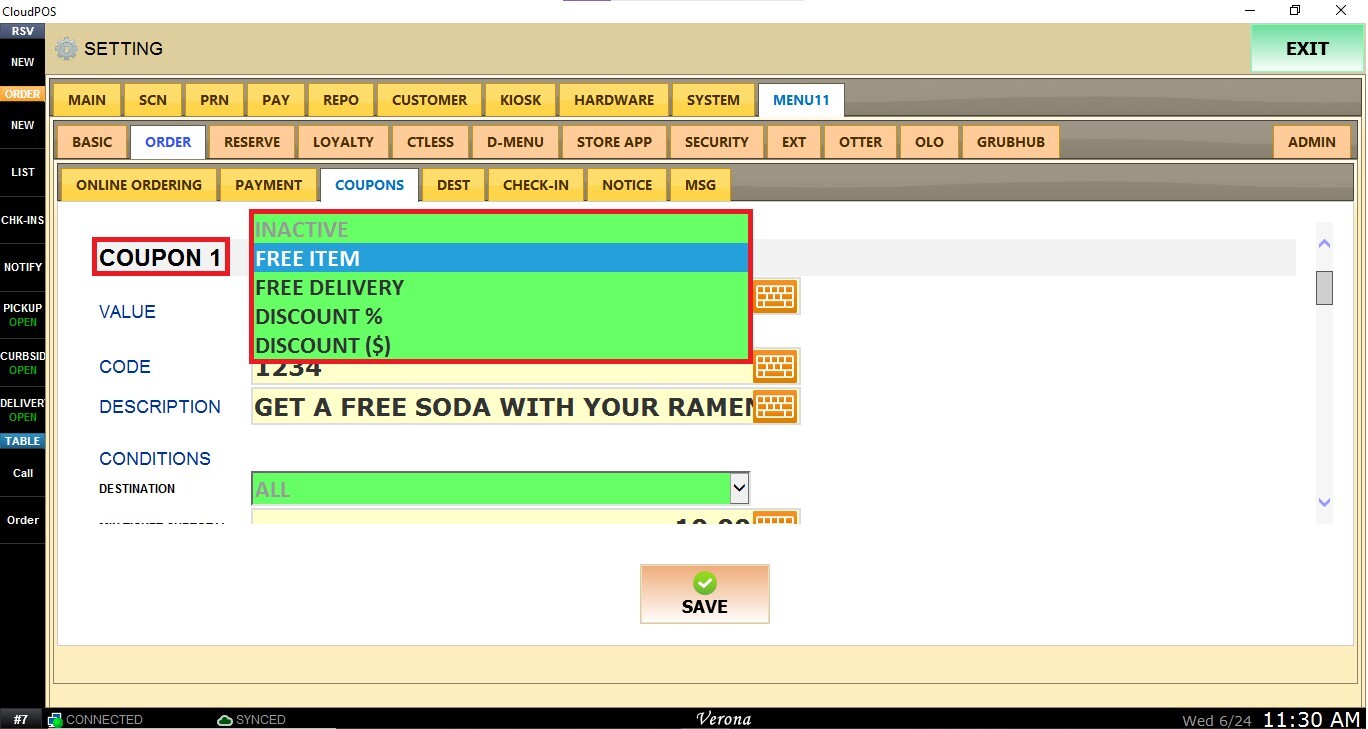
To create a new online ordering coupon, first select the desired coupon type from the drop-down menu. Available options include:
FREE ITEM: Provides a specific item at no charge when the coupon is applied.
FREE DELIVERY: Provides a specific item at no charge when the coupon is applied.
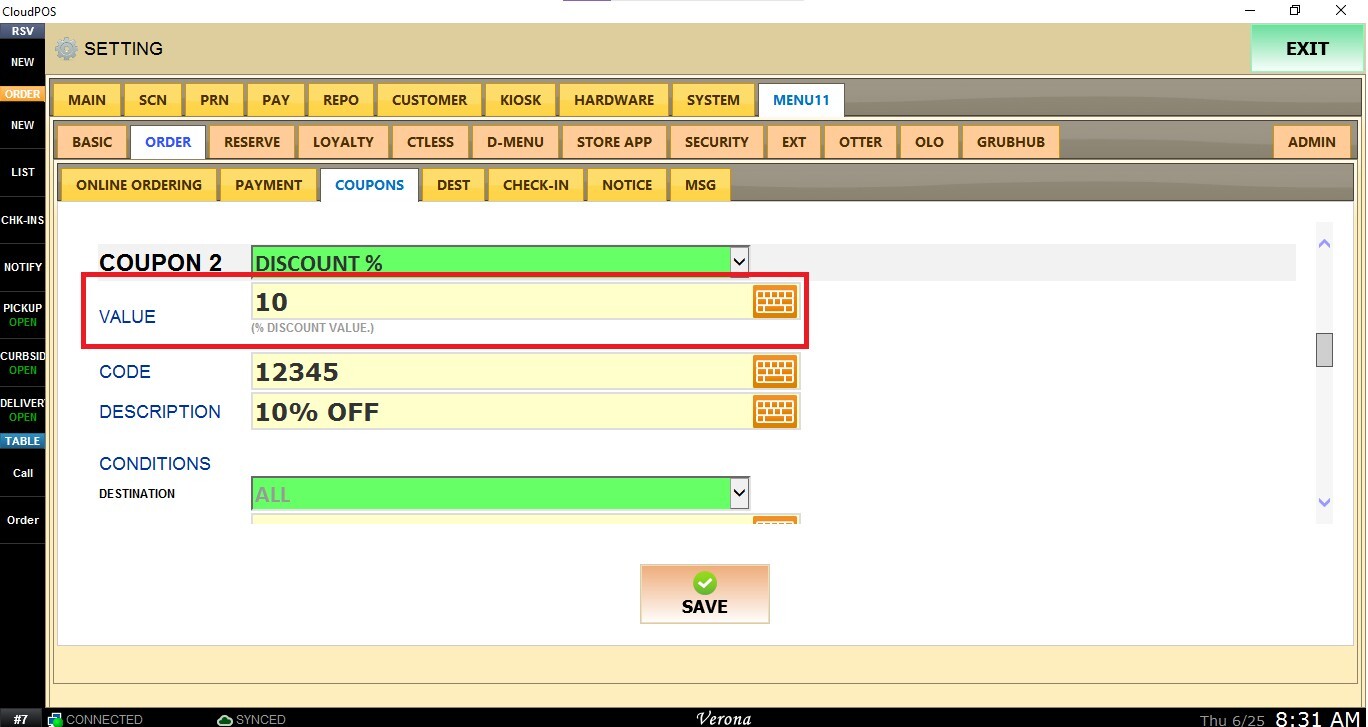
DISCOUNT %: Applies a percentage discount to the order.
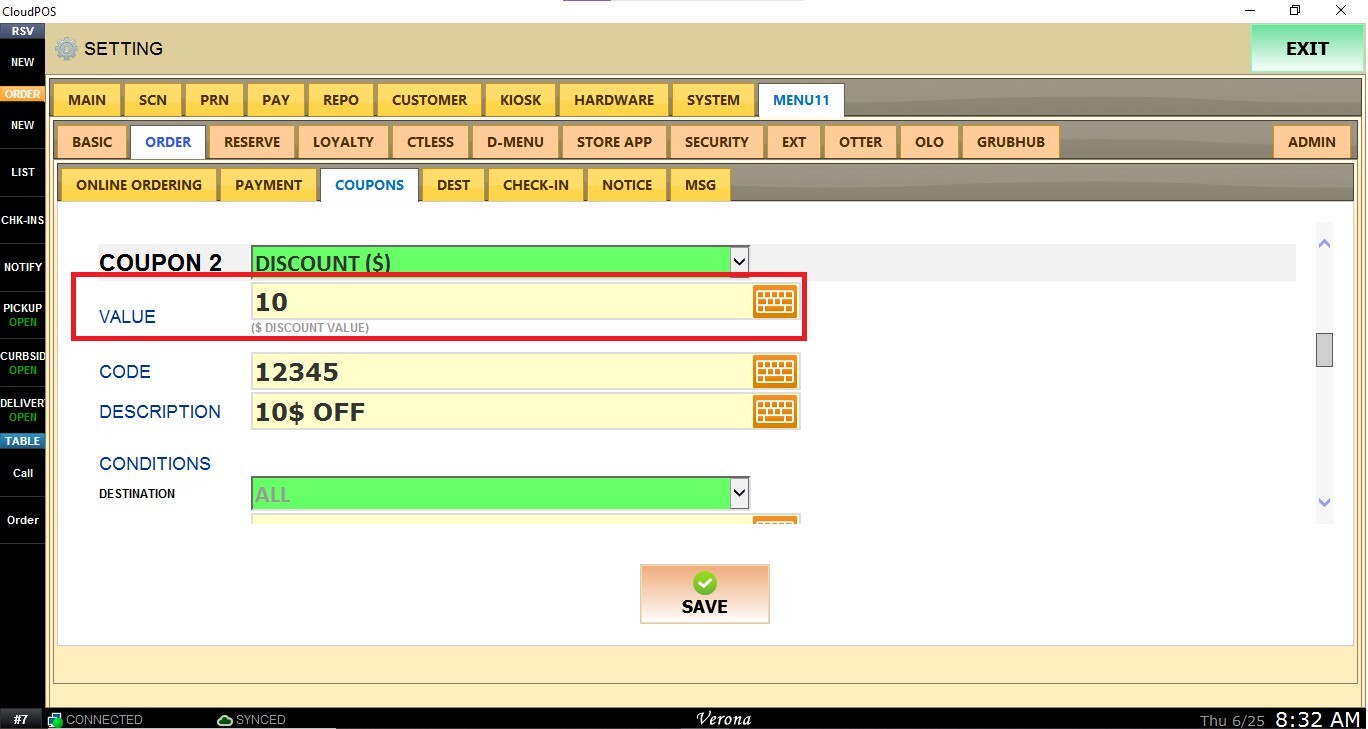
DISCOUNT $: Applies a fixed dollar amount discount to the order.
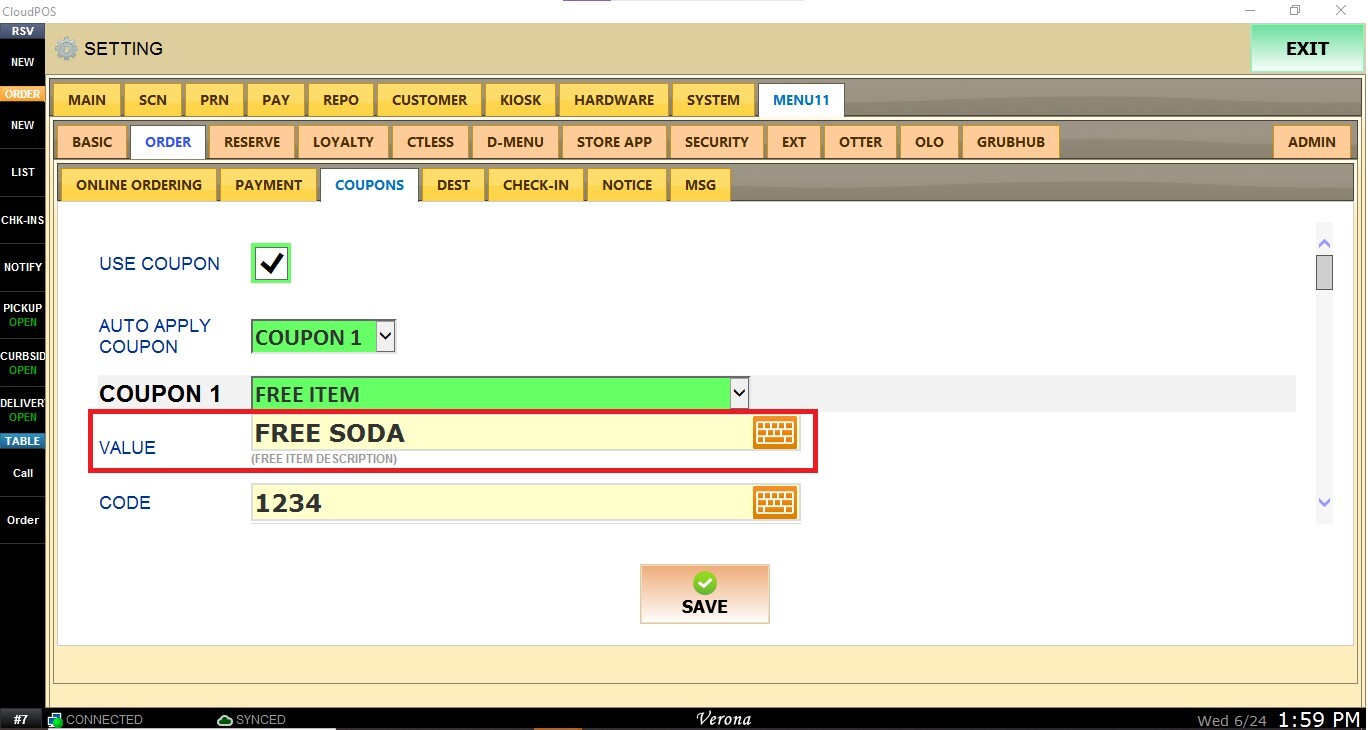
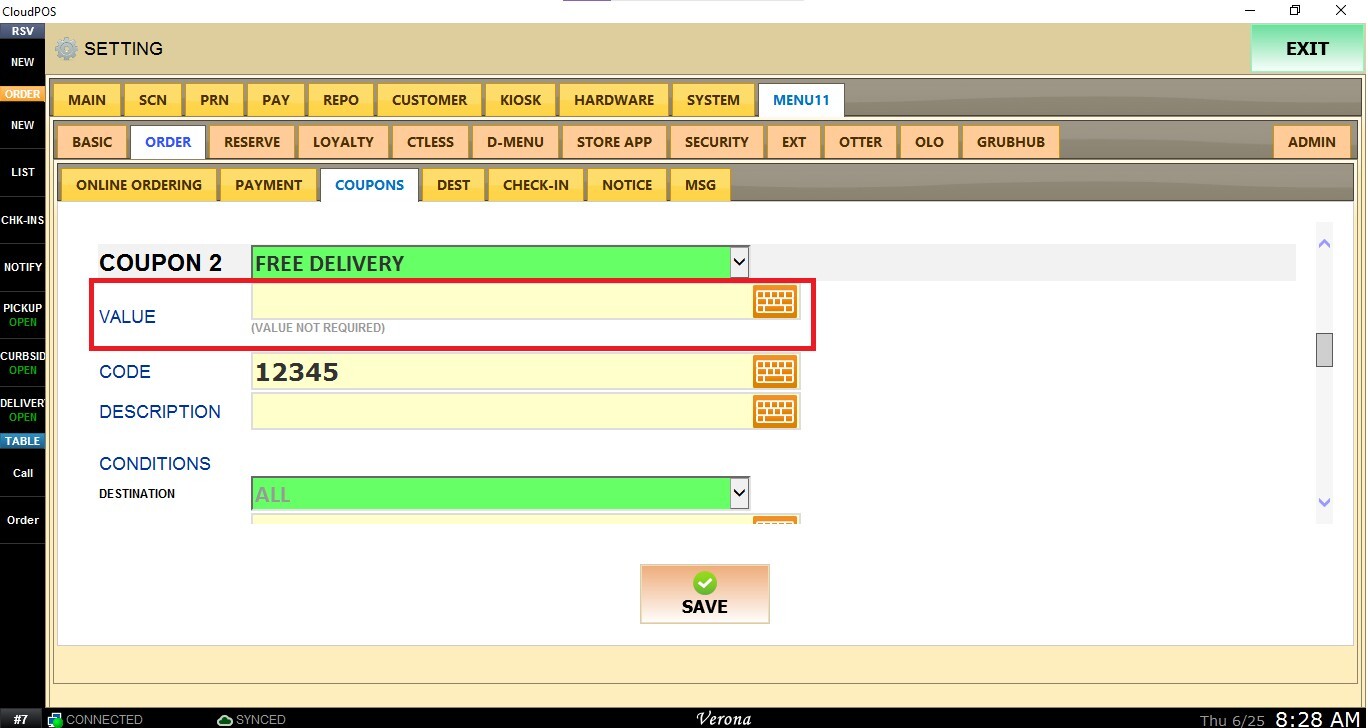
The VALUE field specifies the reward or discount applied when the coupon code is used. The required value depends on the selected coupon type:
FREE ITEM VALUE: Enter the name or description of the item that will be given for free.
FREE DELIVERY VALUE: Not required. Leave this field blank.
DISCOUNT % VALUE: Enter the percentage amount.
DISCOUNT $ VALUE: Enter the discount amount.
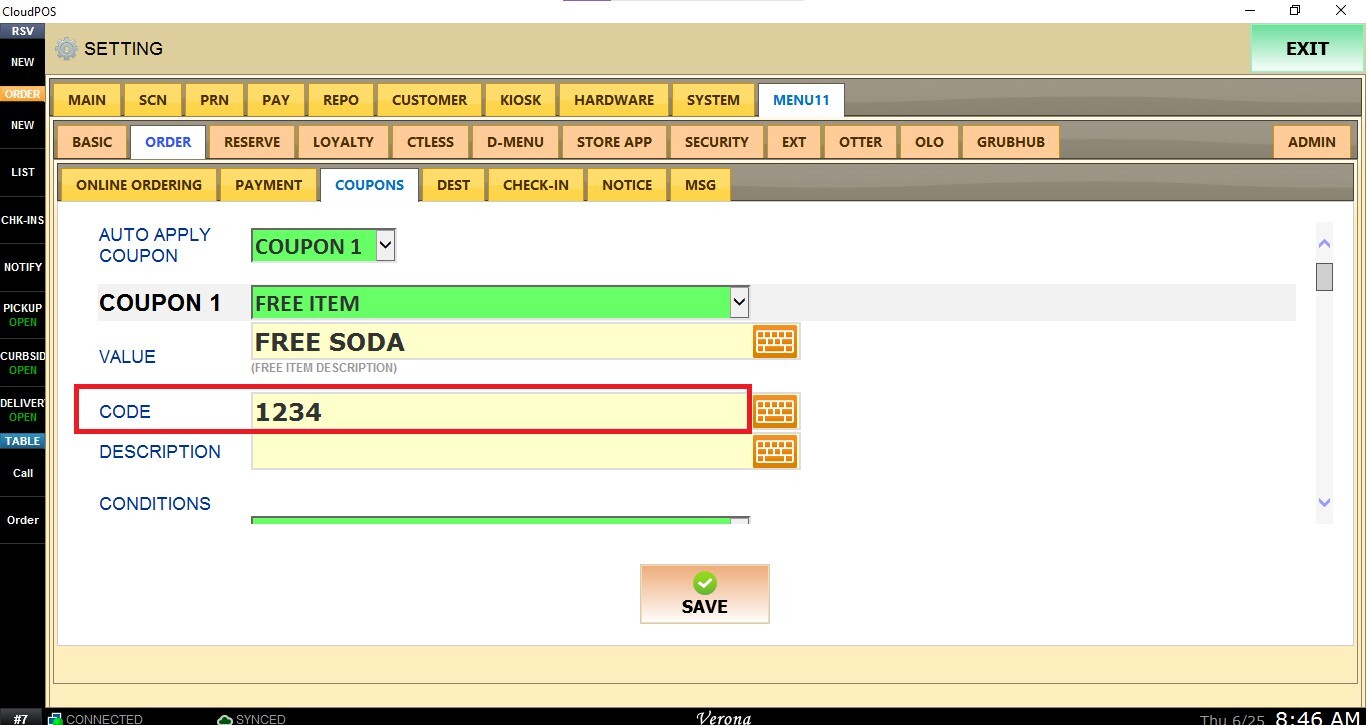
The CODE field defines the coupon code customers must enter during checkout to redeem the offer. Choose a unique and easy-to-remember code.
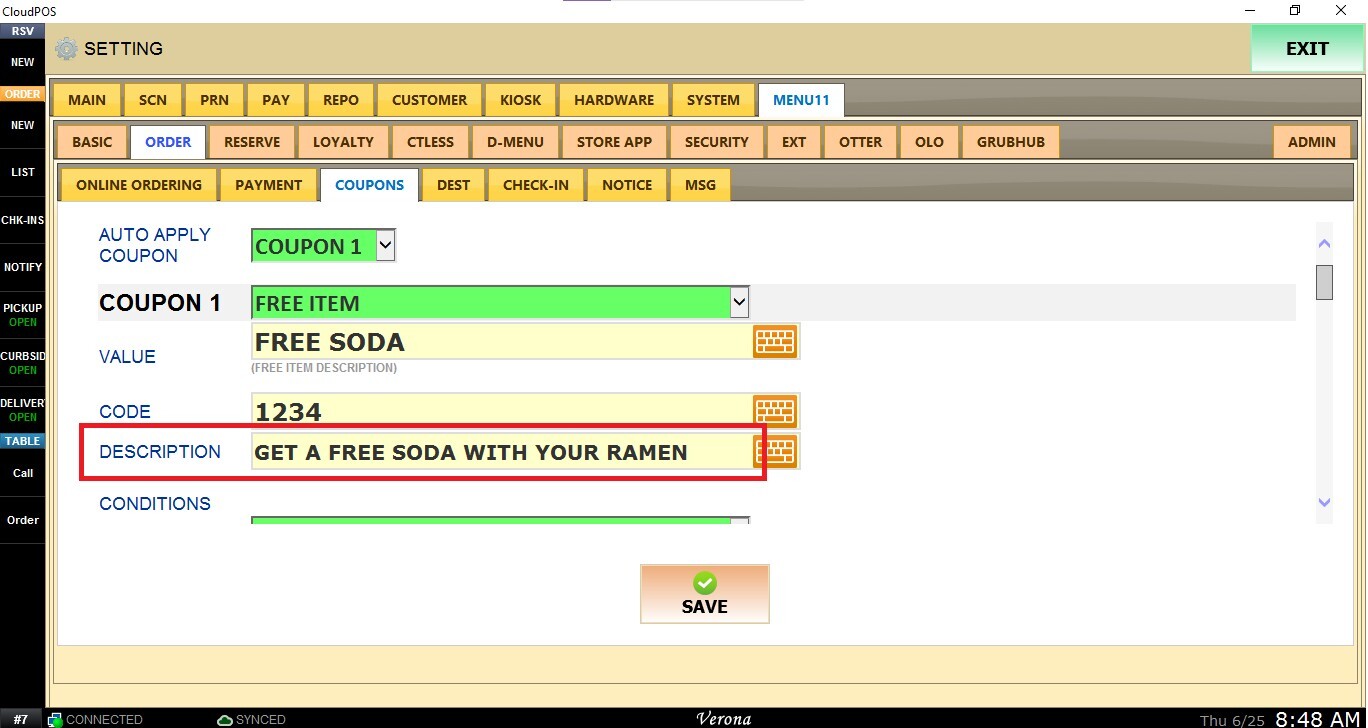
The DESCRIPTION field allows you to define the promotional offer associated with the coupon.
Coupon Conditions
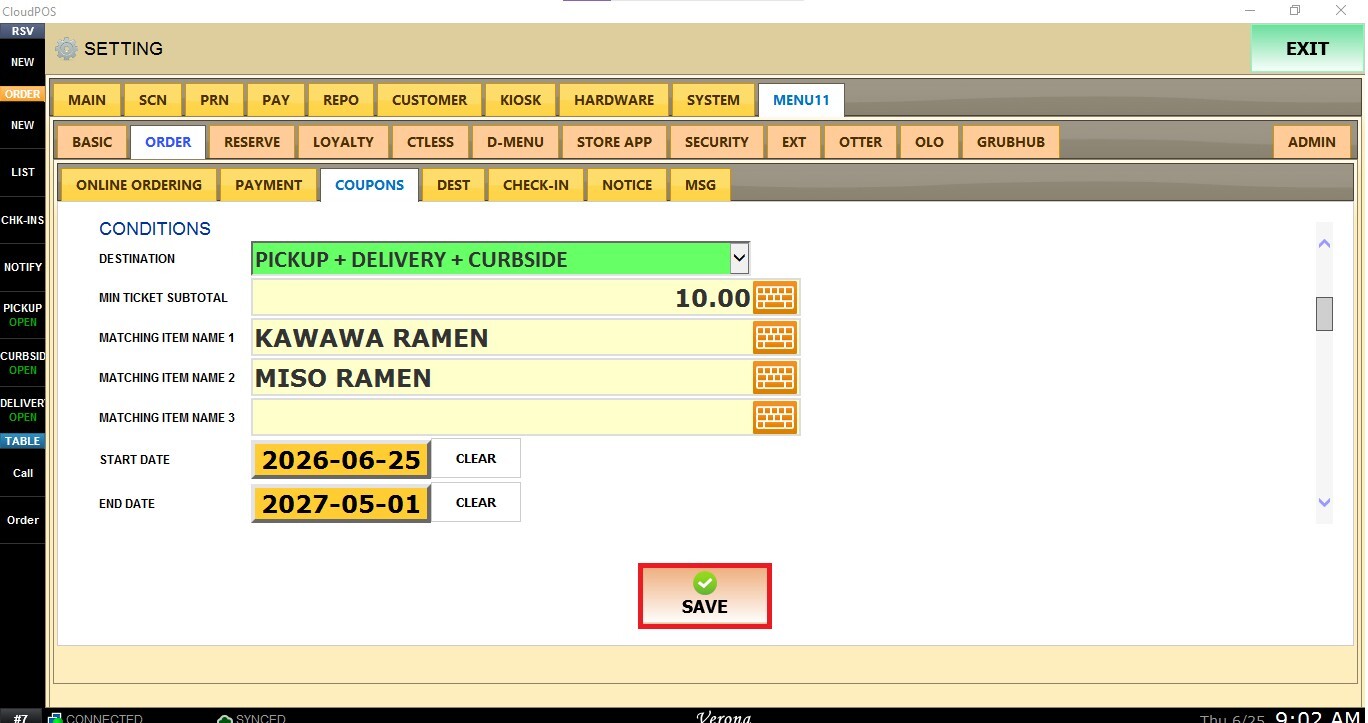
The CONDITIONS allow you to control when and how a coupon can be applied.
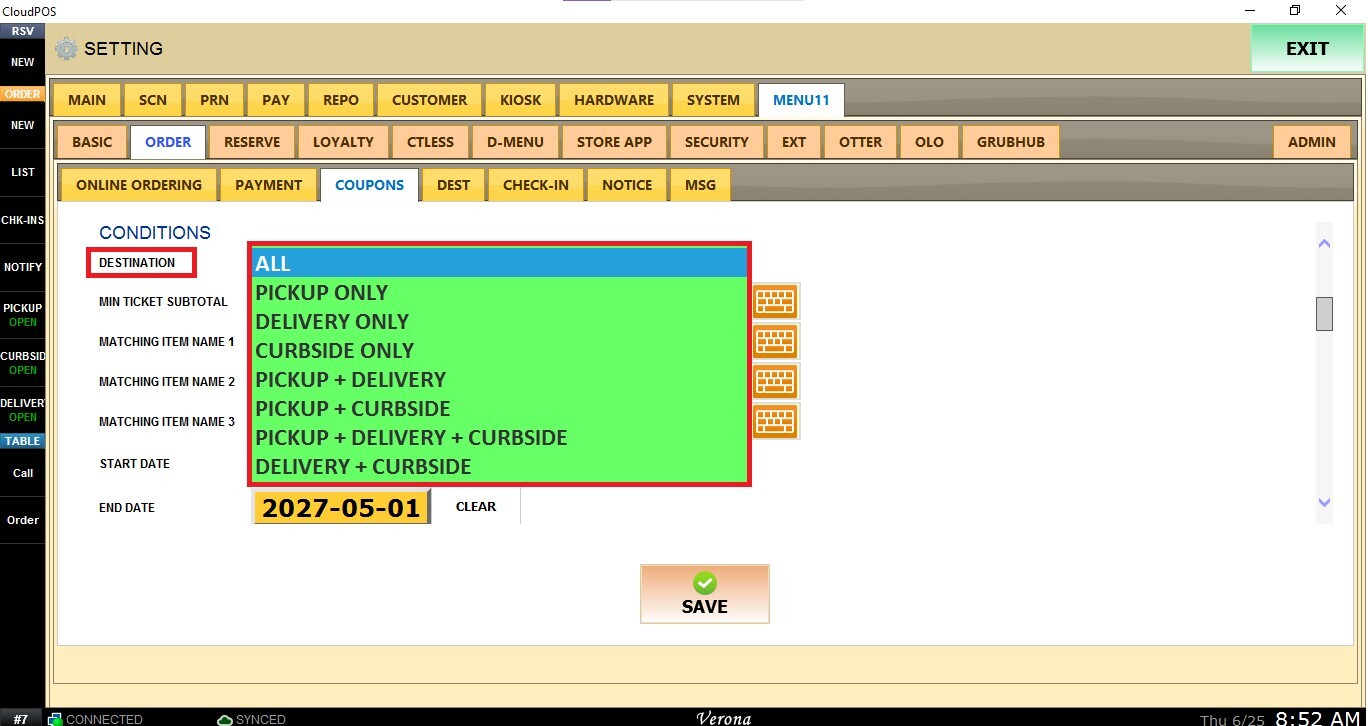
DESTINATION: Restricts the coupon to specific order types.
Select one of the available options from the drop-down menu.
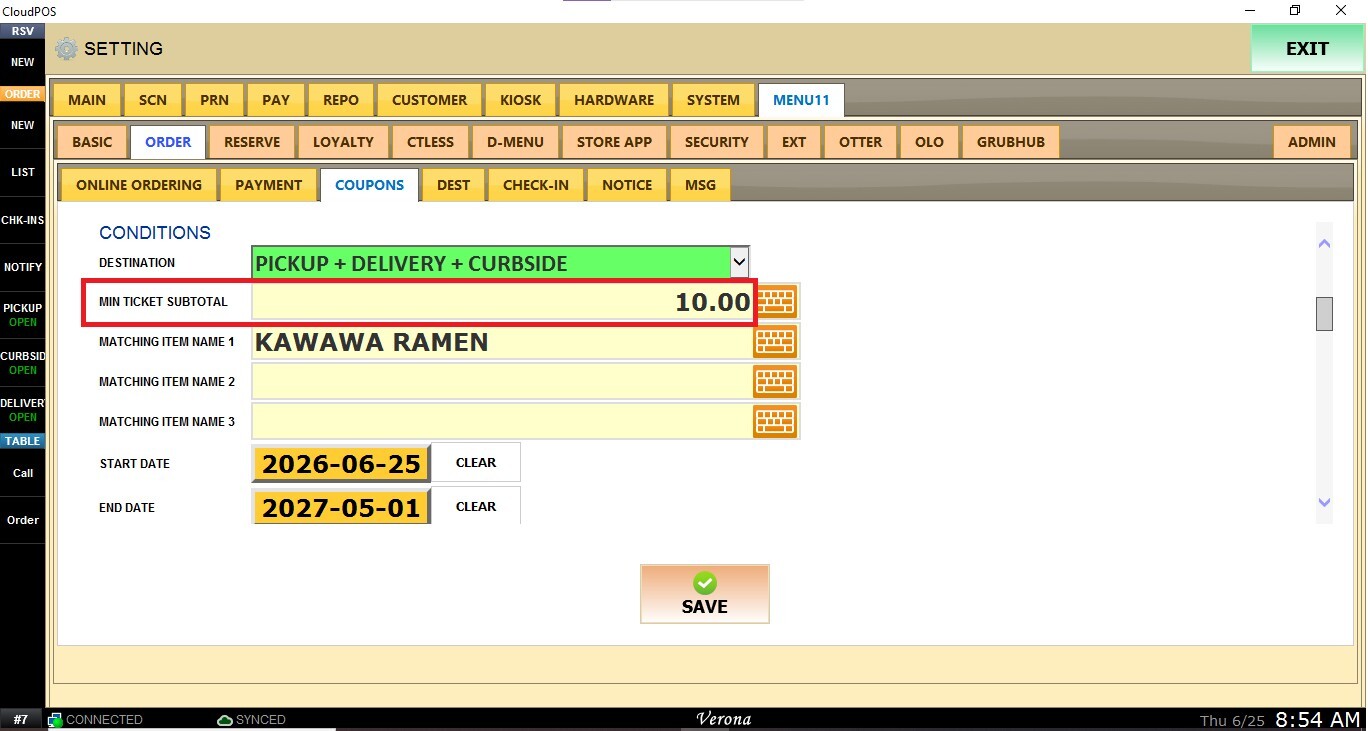
MINIMUM TICKET SUBTOTAL: Requires the order subtotal to meet a minimum purchase amount before the coupon can be applied.
Enter the minimum required value in the field.
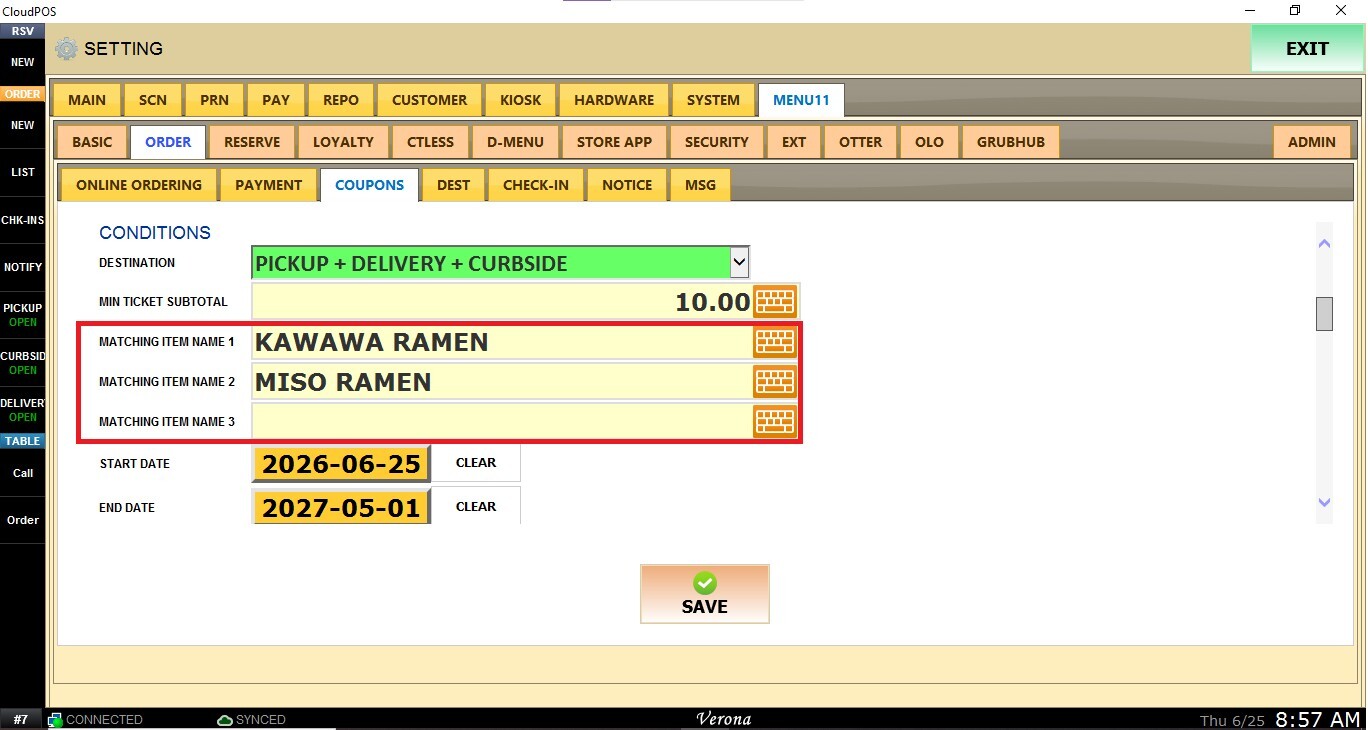
MATCHING ITEM NAME: You may require specific menu items to be included in the order before the coupon becomes valid.
Up to three matching item conditions can be configured.
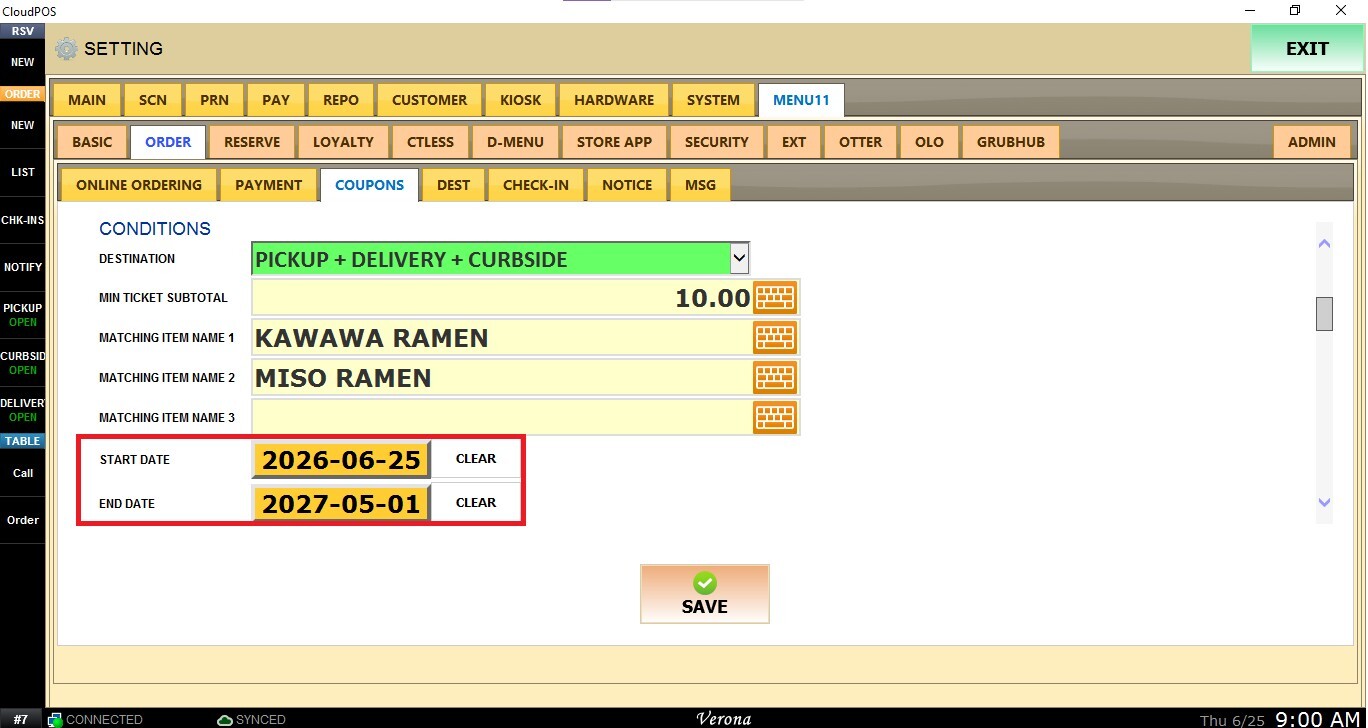
Define the promotion period during which the coupon is valid using the calendar to select:
START DATE: The first day the coupon can be used.
END DATE: The last day the coupon can be redeemed.
After creating the coupon, click SAVE.
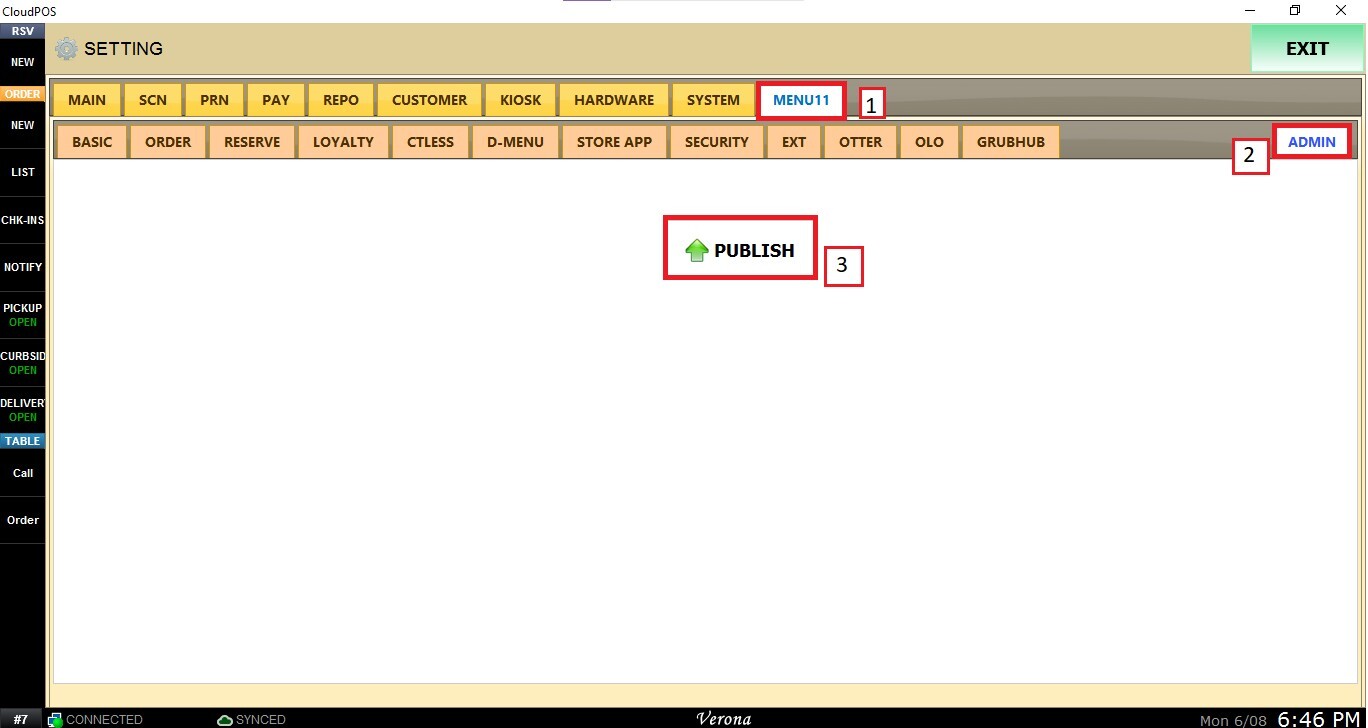
Then navigate to the MENU11 tab, select ADMIN, and click PUBLISH to apply the changes.
Using Coupons Online
Customers can redeem coupons directly during checkout.
Enter the coupon code in the designated coupon field.
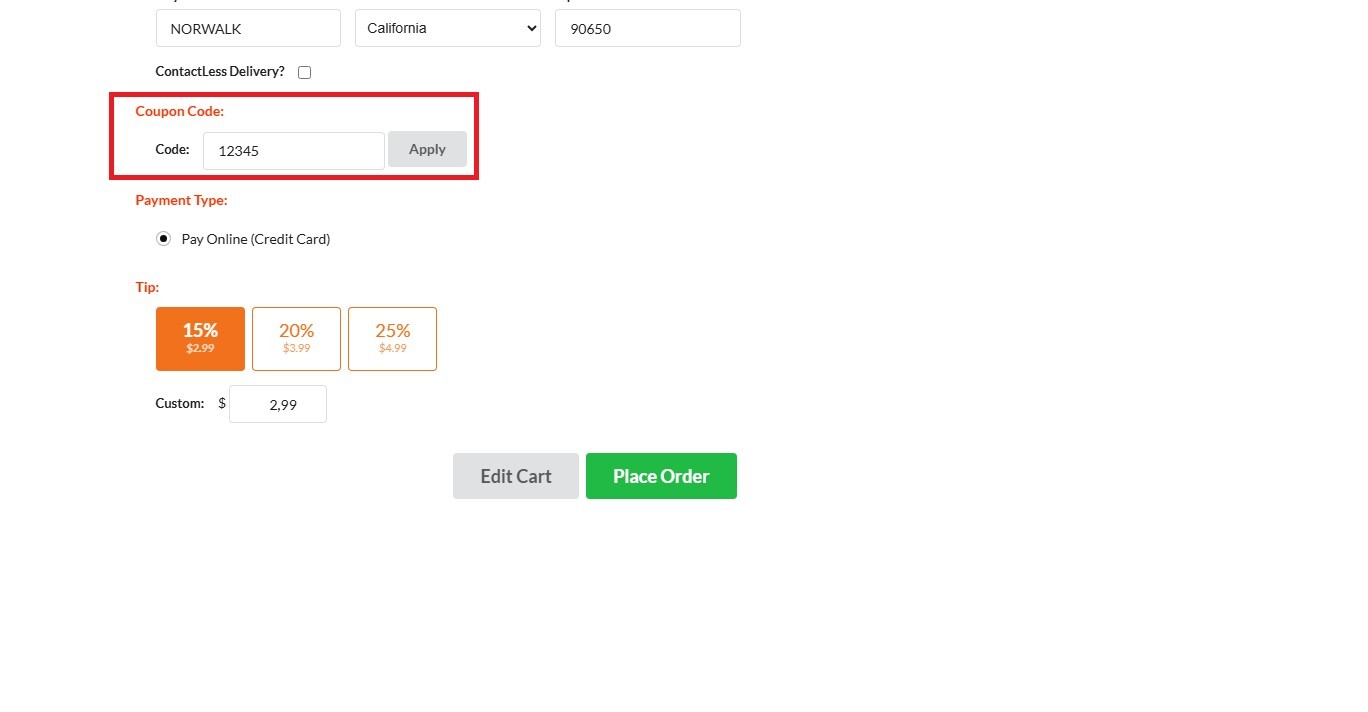
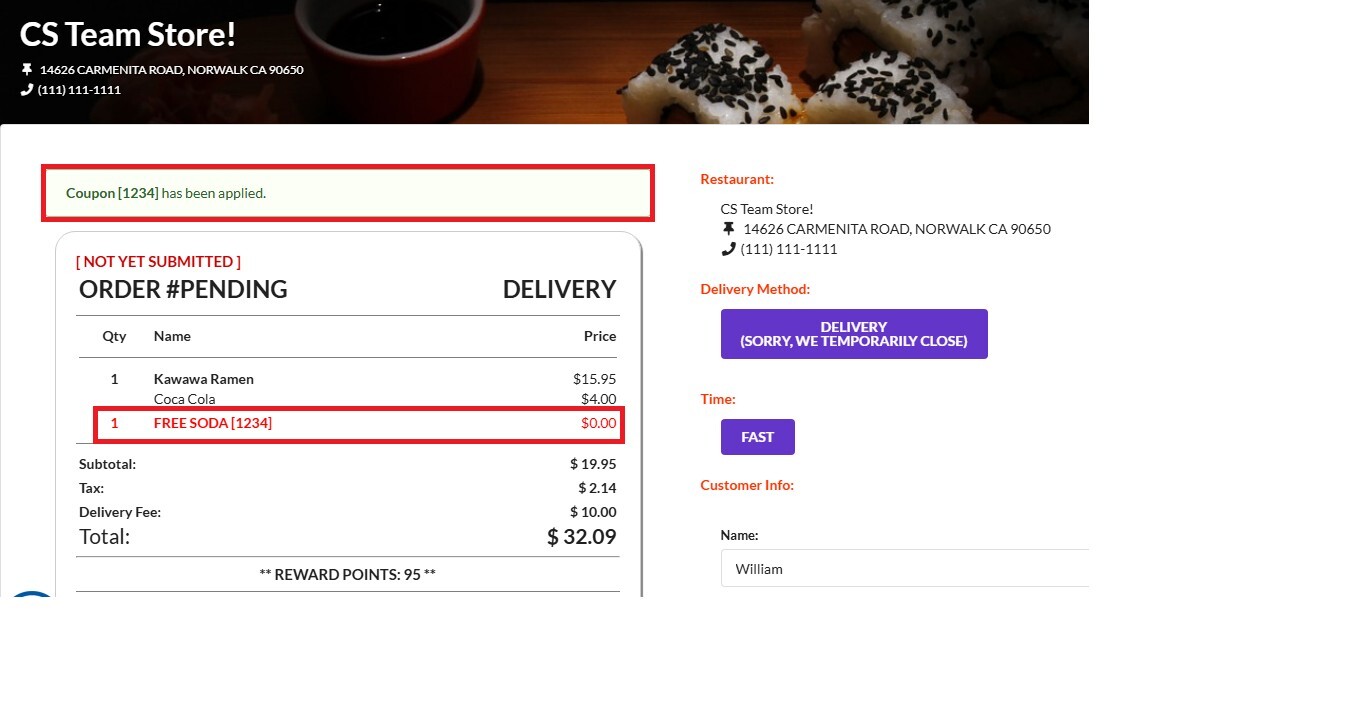
Apply the coupon. If all coupon conditions are met, the discount or promotion will be applied automatically.
Result: