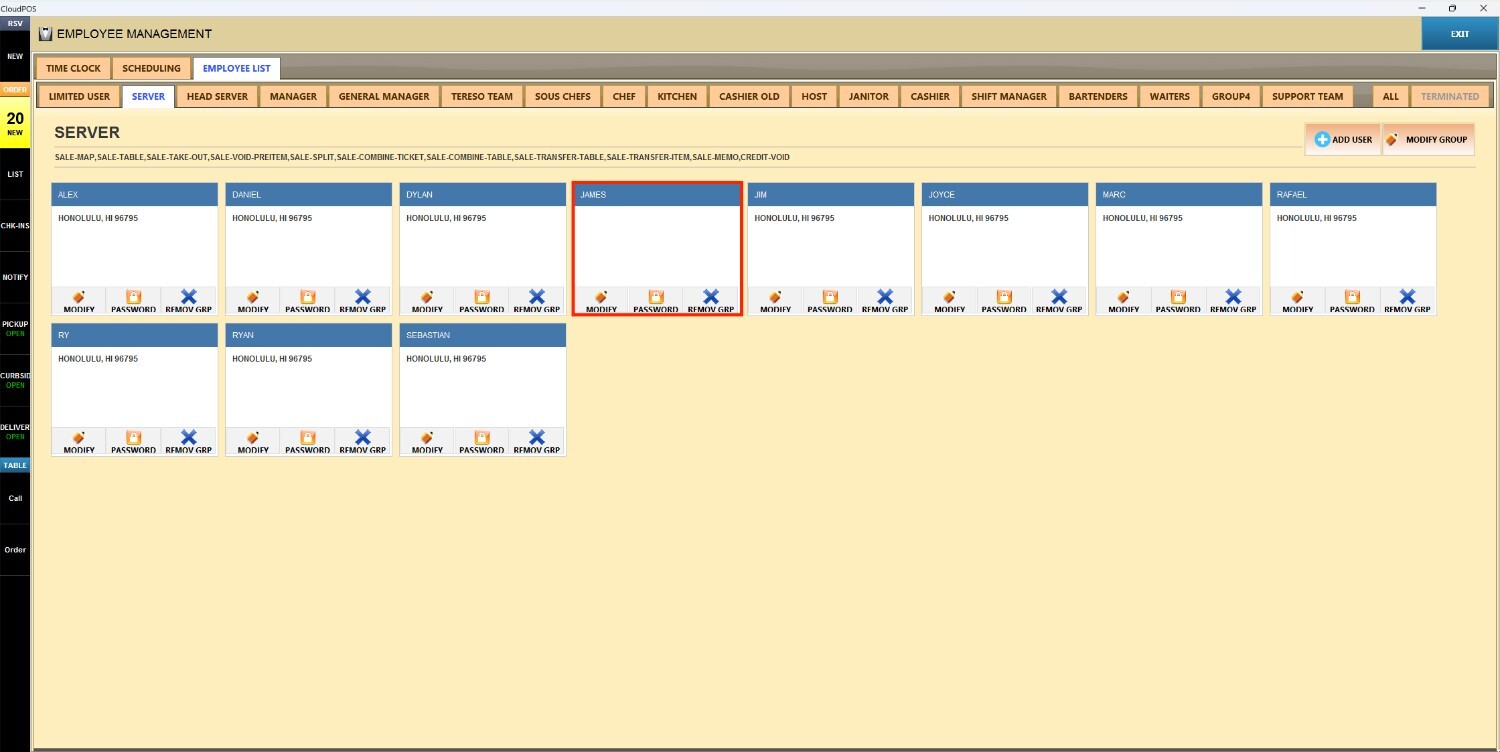
Adding a New Employee
This guide explains how to add a new staff member to the system.
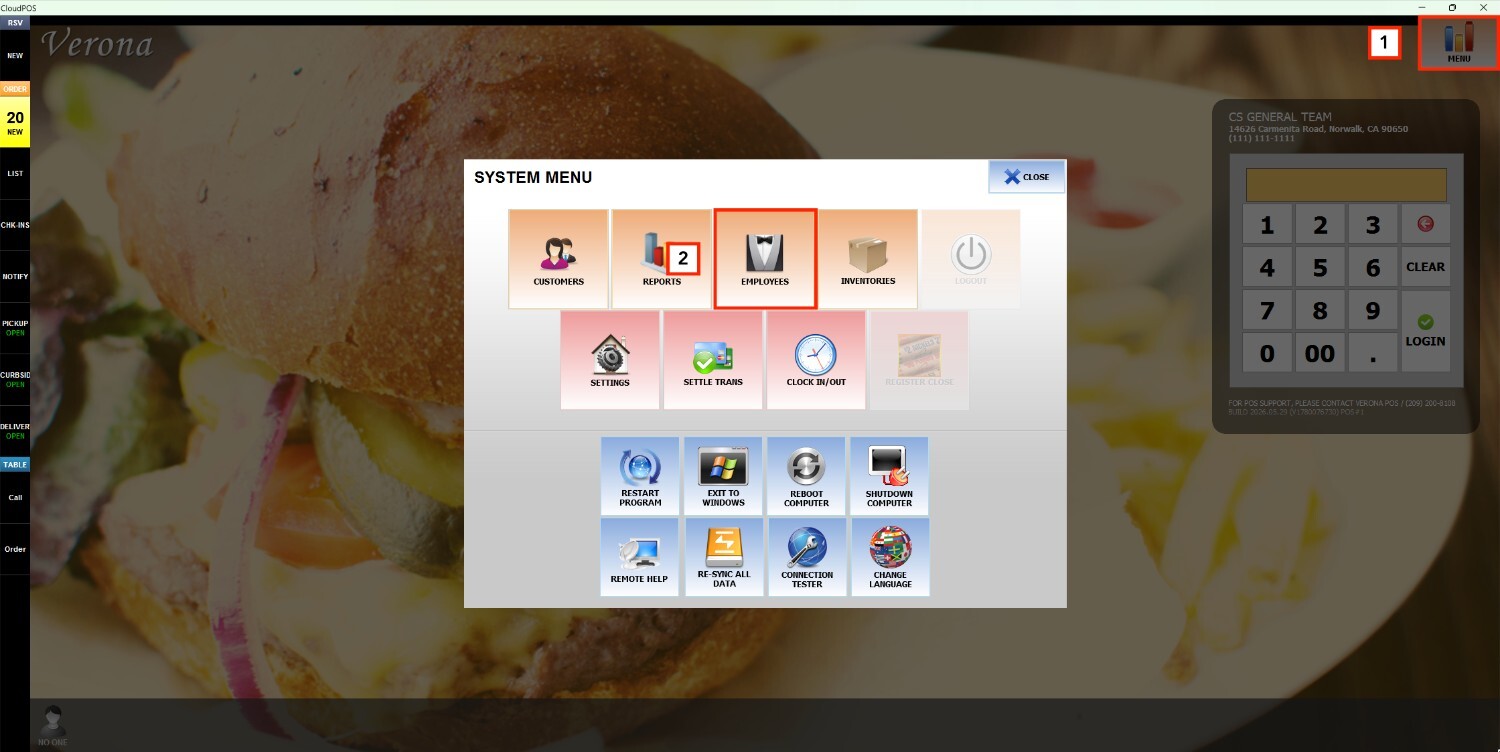
Main Screen> MENU> EMPLOYEES> EMPLOYEE LIST
On the Main Screen, go to MENU and press EMPLOYEES.
On the EMPLOYEE LIST, you'll find all the employee groups that have been created in the system.
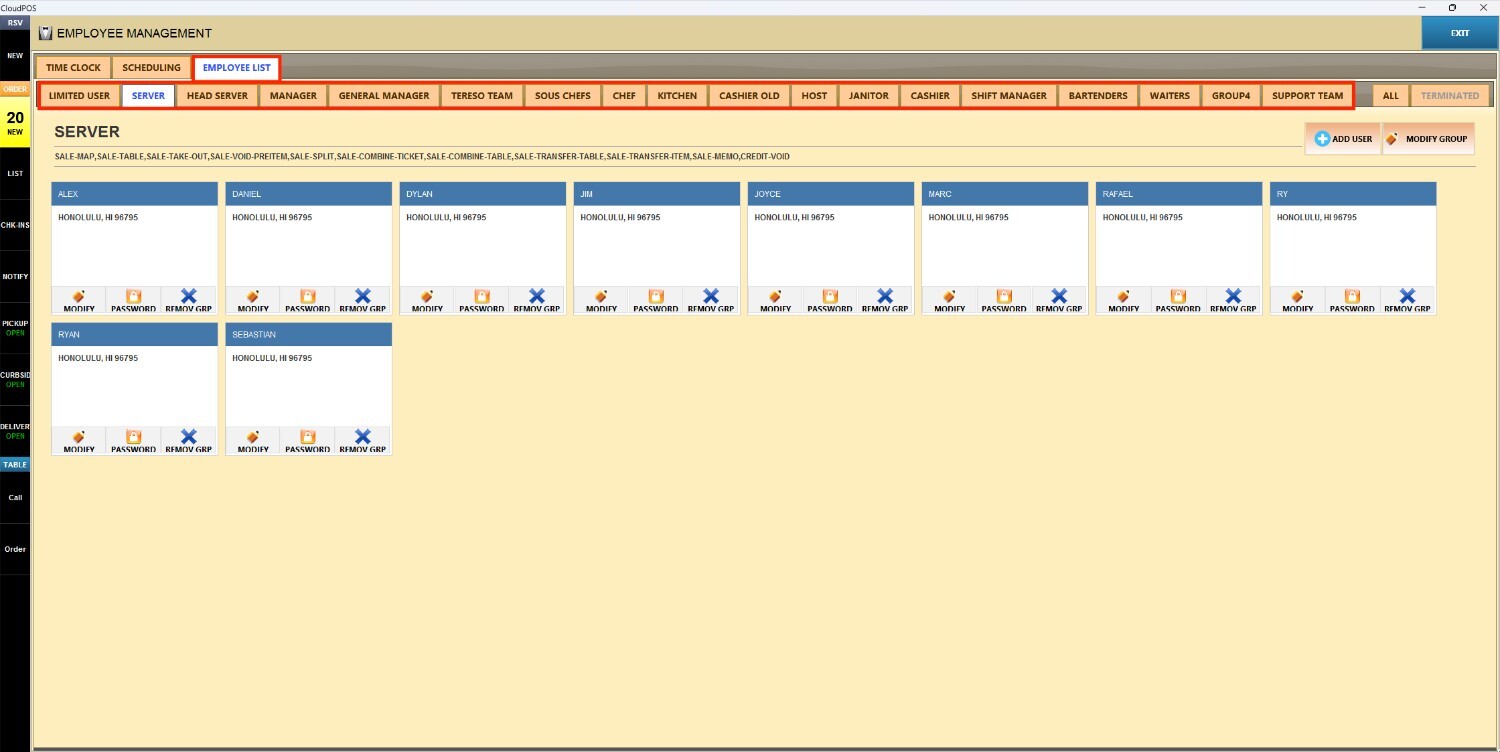
Note: The groups are preconfigured in the system. To update their names or adjust permissions, refer to Modify Employee Groups and Permissions.
To add a new employee, select any of the groups and press ADD USER.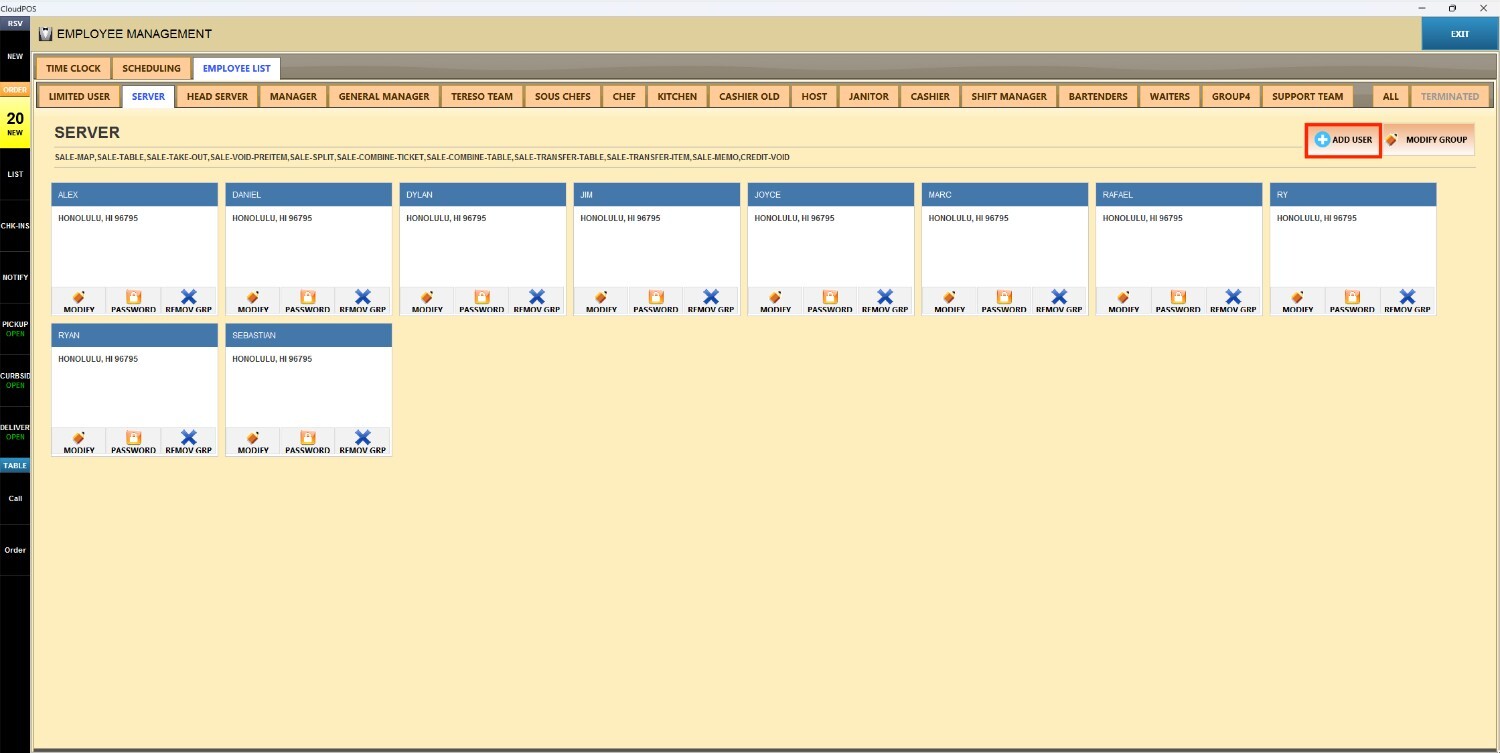
Press ADD NEW USER to continue.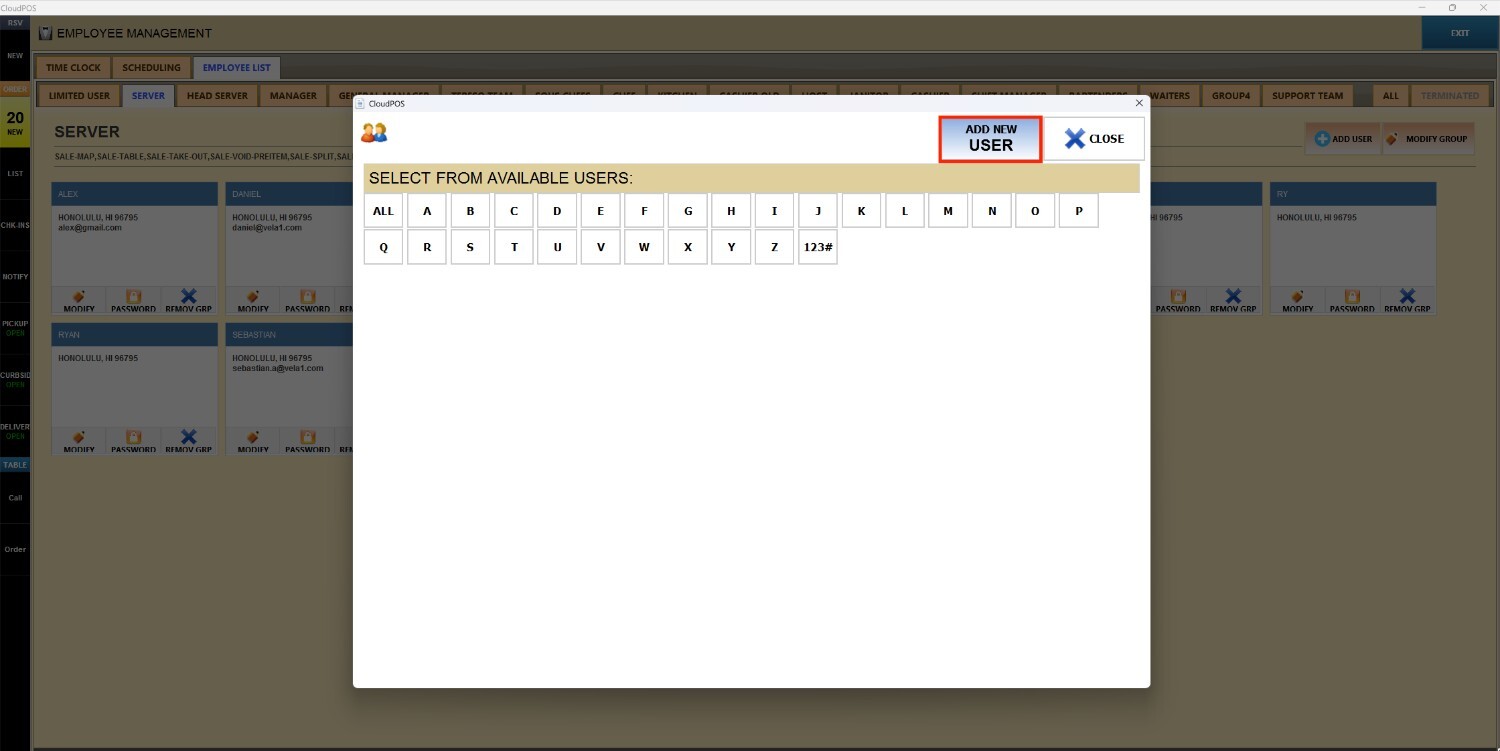
The USER INFORMATION screen will open to fill in the basic details.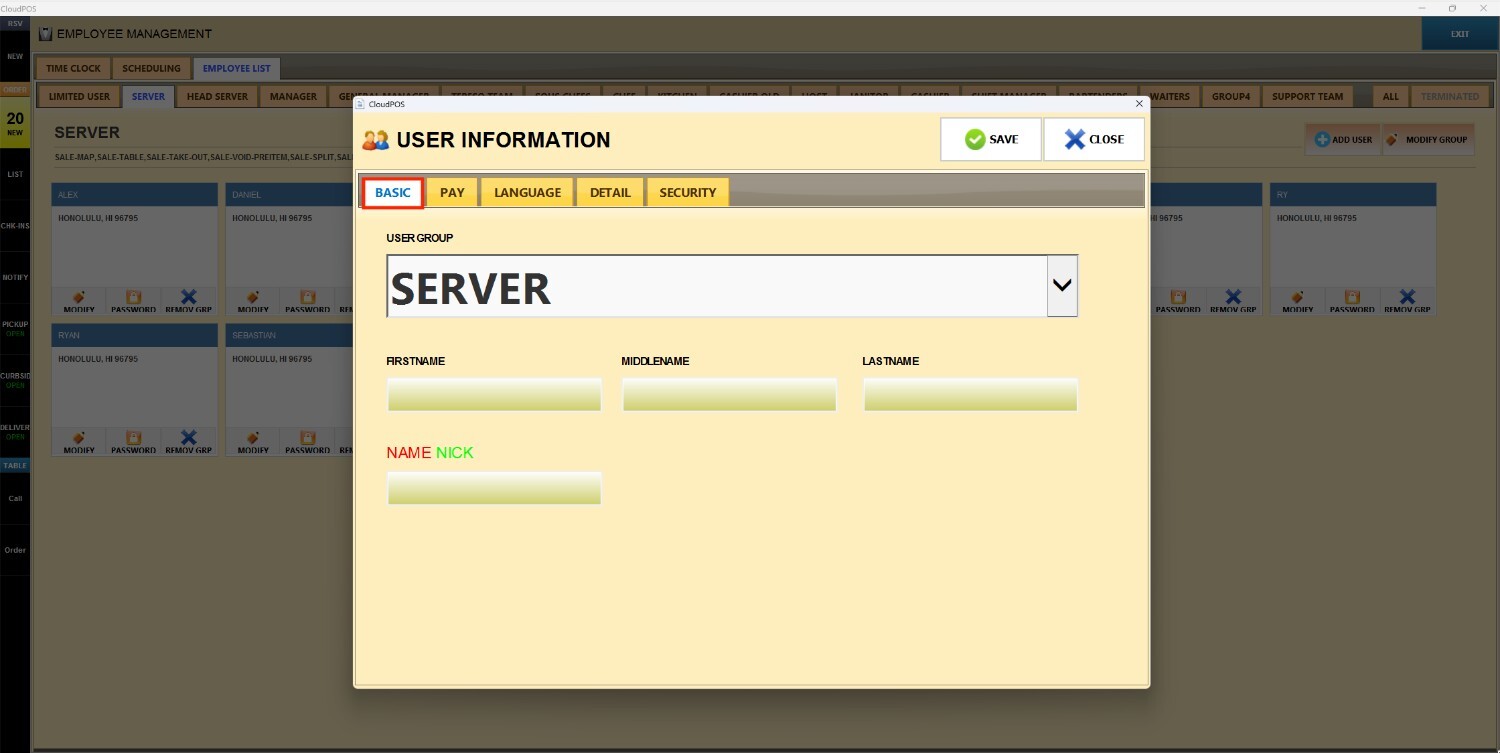 Hint: Additional information can be entered on the DETAIL, SECURITY, PAY, LANGUAGE, and PERMISSION tabs, but only the employee's first name is required to create the user.
Press SAVE, and the new user will be placed within the group you selected.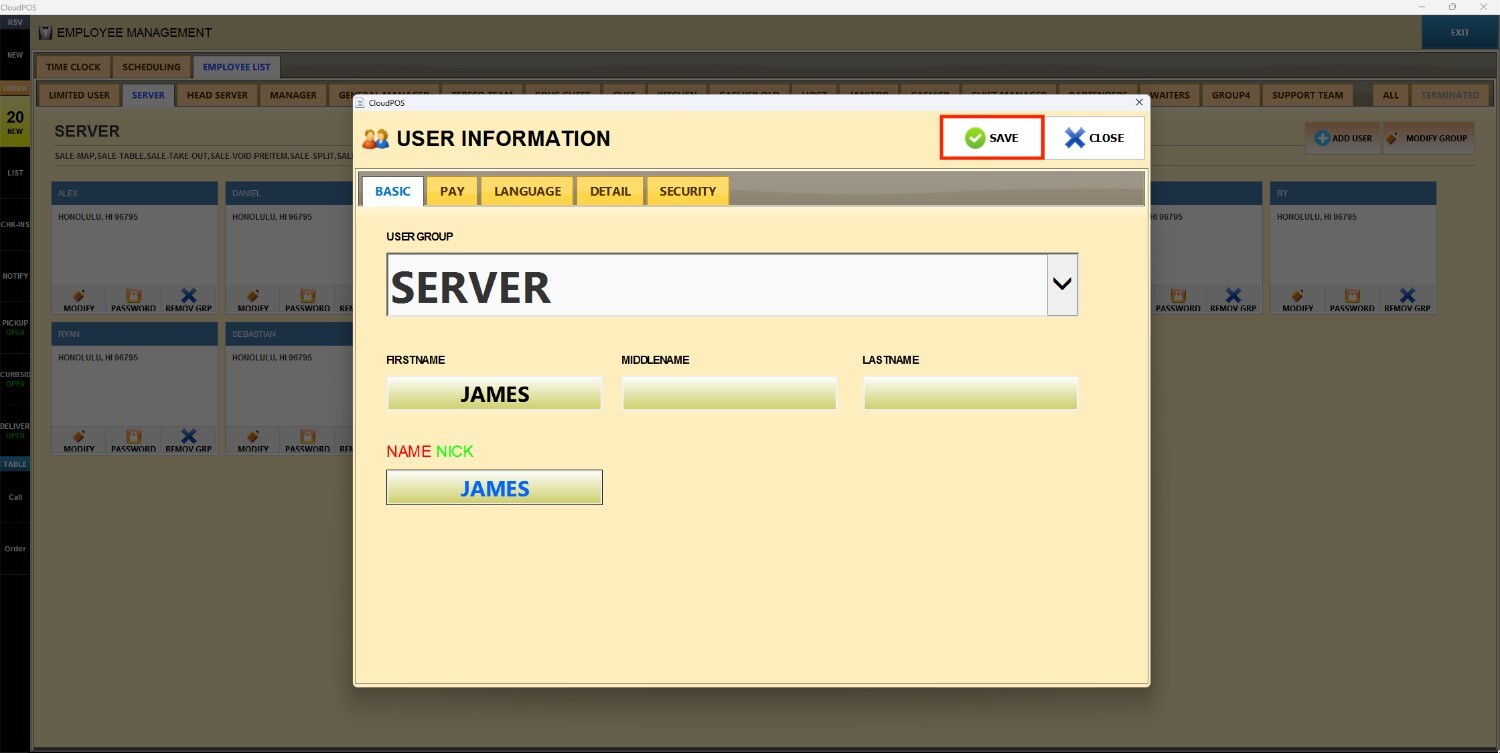
Result: