Features
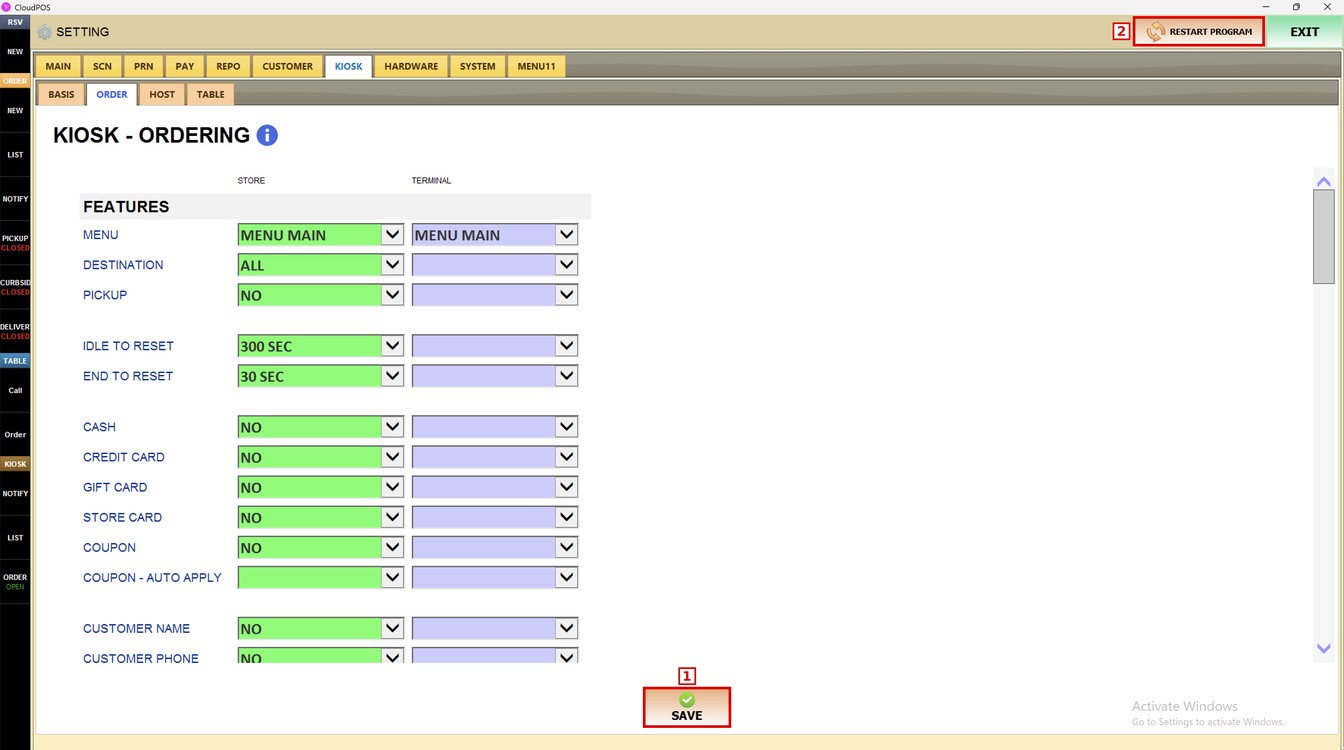
The Features settings control what customers can do when they order at the kiosk: which menu they see, the destination, payment options, coupons, the customer information requested and how long the kiosk waits before going back to the start screen.
Main Screen> MENU> SETTINGS> KIOSK> ORDER> FEATURES
Go to MENU and press SETTINGS.
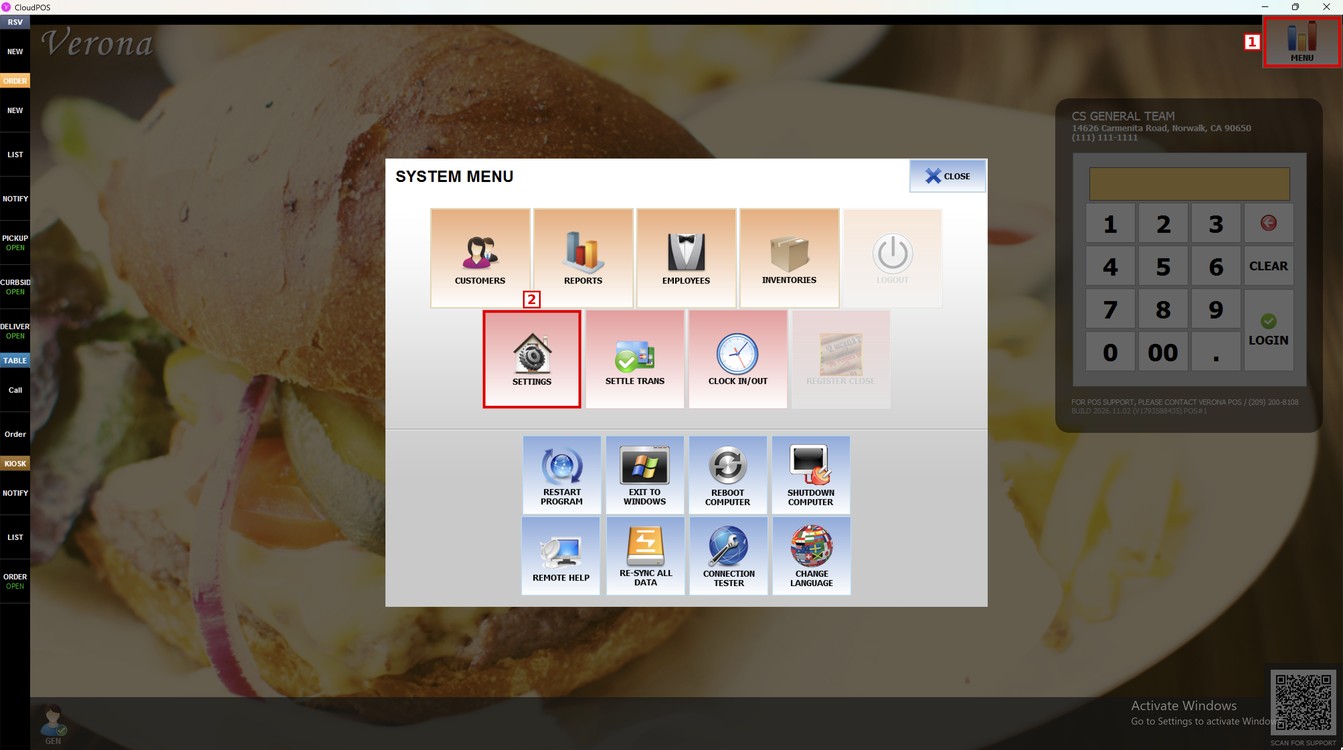
Open the KIOSK tab and press ORDER. The FEATURES section is at the top of the KIOSK - ORDERING screen.
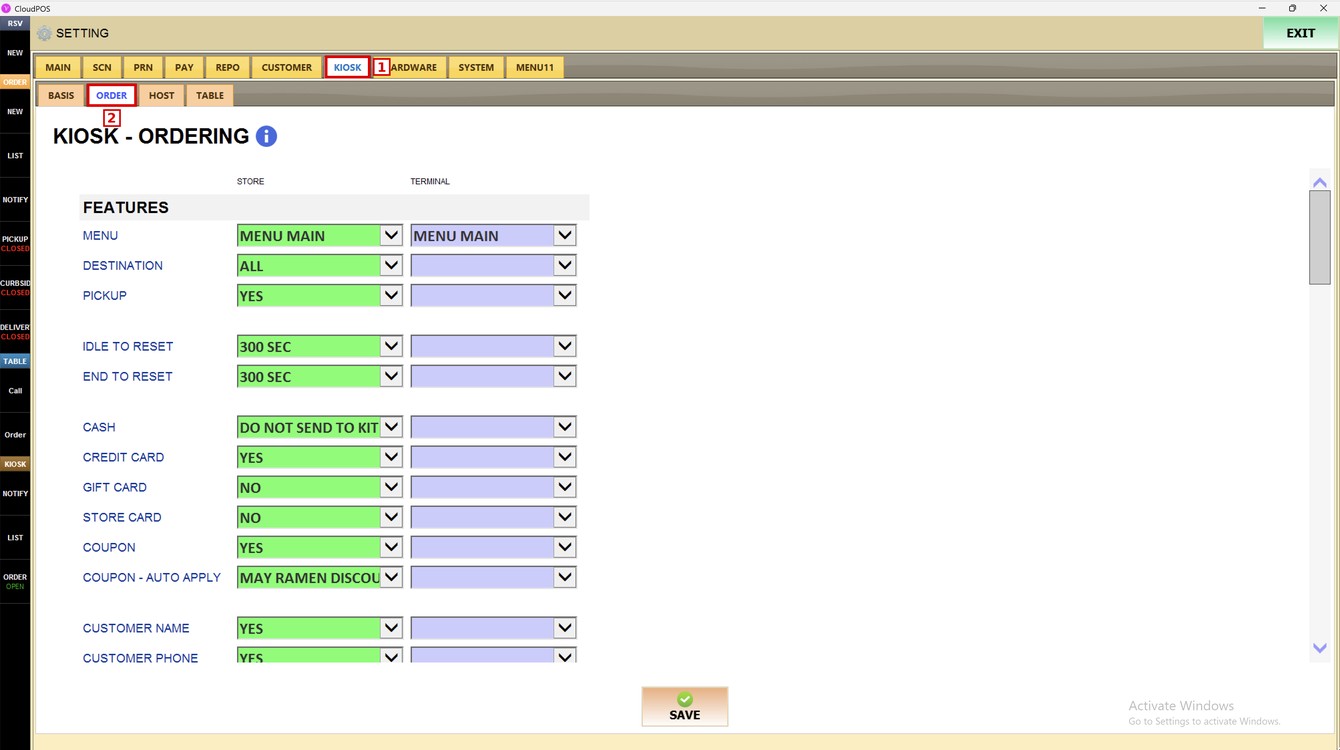
Store and Terminal:
Each setting has two columns:
1. STORE: the setting used by all the kiosks of the store.
2. TERMINAL: the setting used only by this kiosk. Leave it empty to use the store setting.
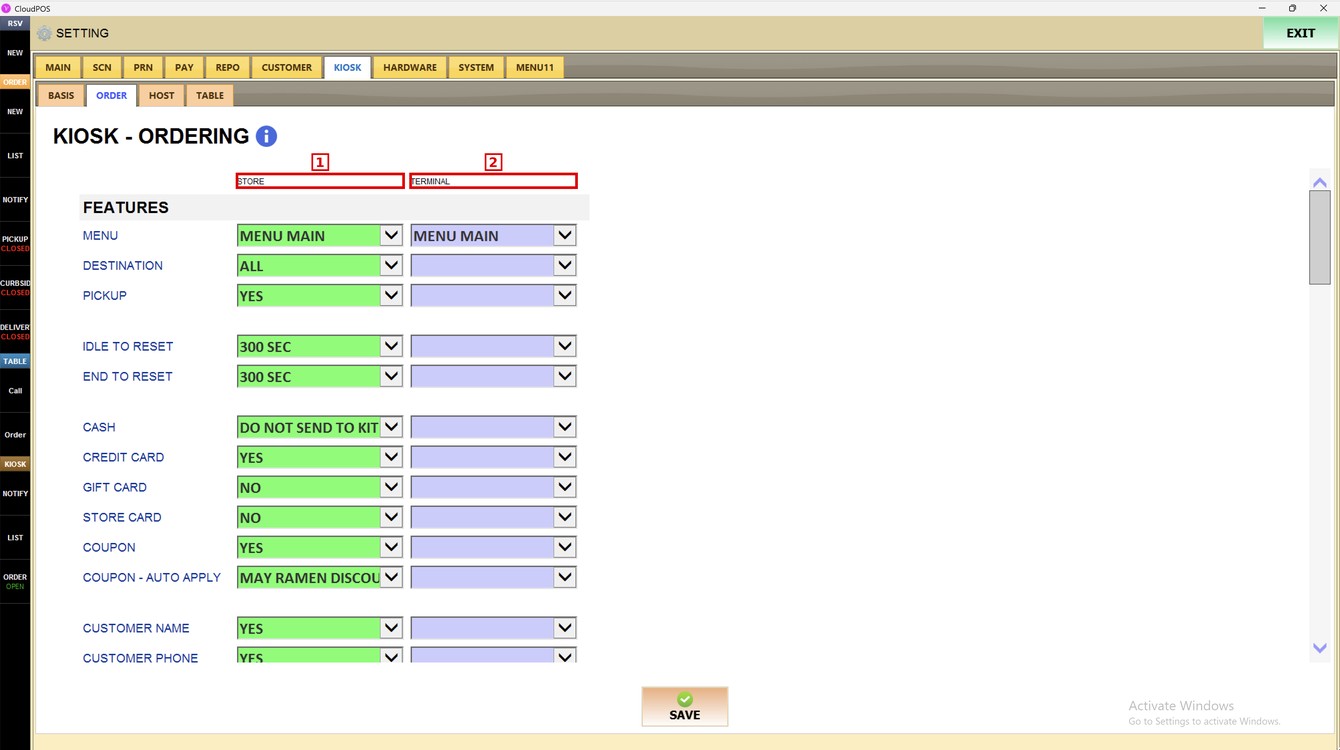
Menu:
Sets which menu the kiosk shows.
1. MENU MAIN: shows the main menu.
2. MENU #1, #2, #3: shows one of the other menus of the store.
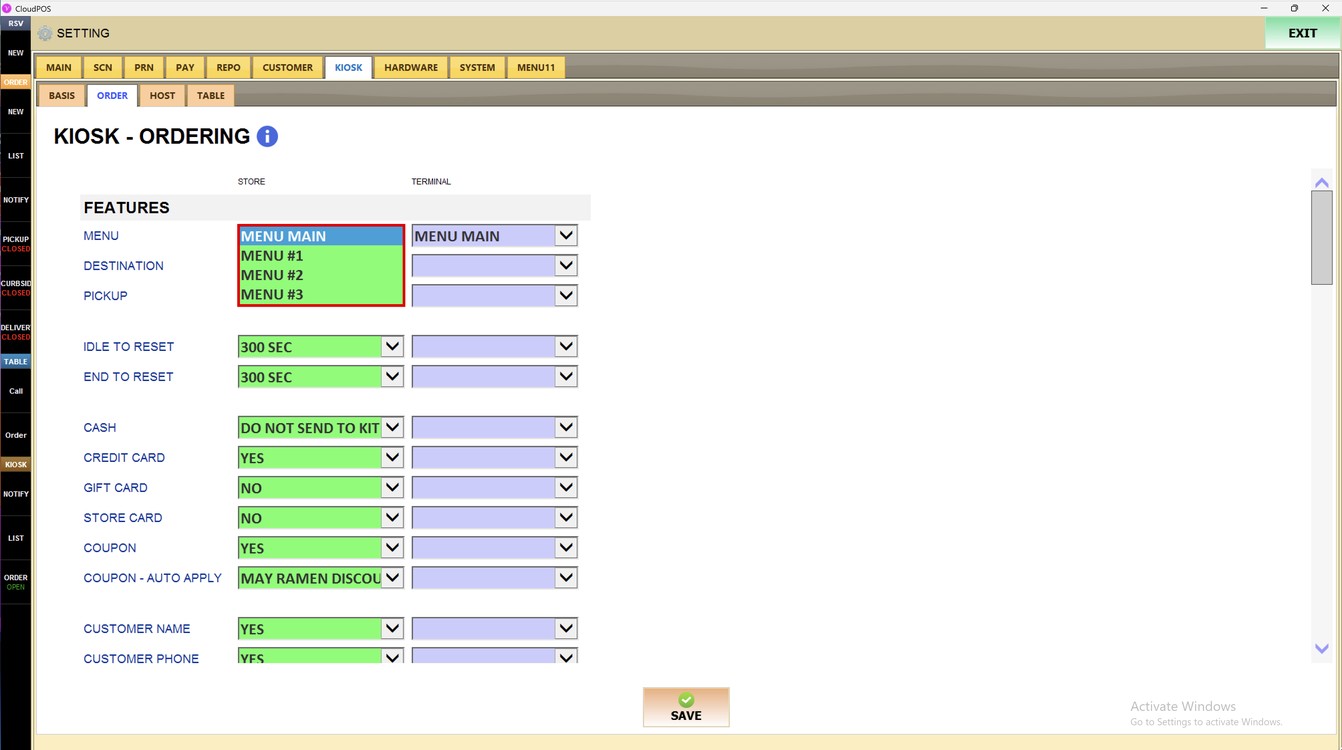
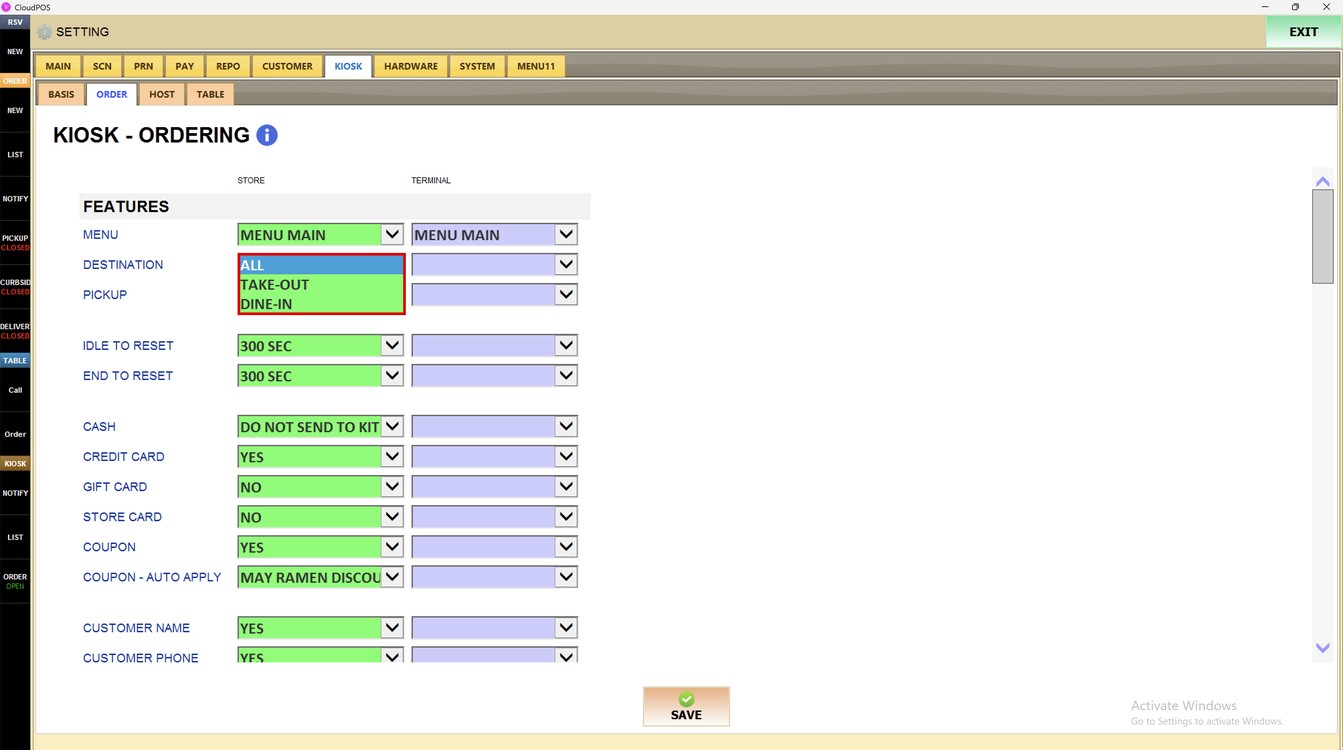
Destination:
Sets the order types the customer can choose.
1. ALL: the customer chooses take-out or dine-in.
2. TAKE-OUT: all kiosk orders are take-out.
3. DINE-IN: all kiosk orders are dine-in.
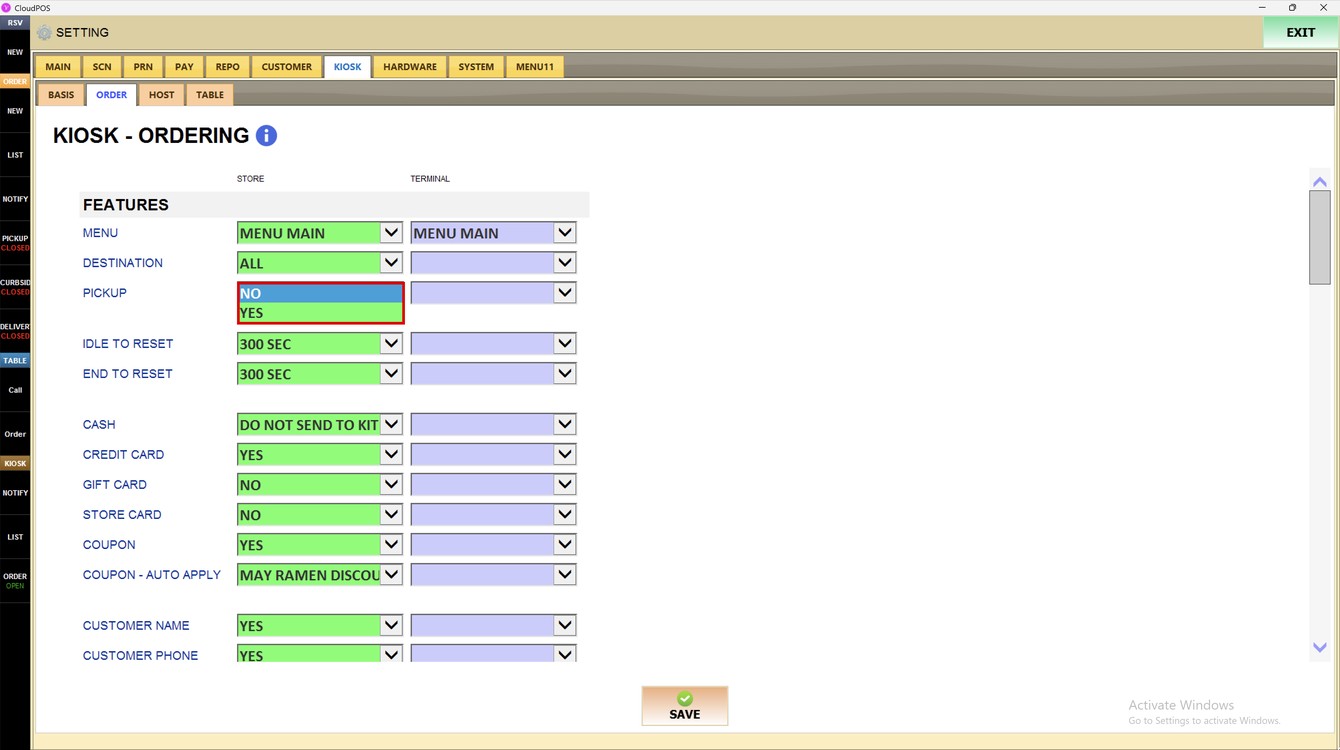
Pickup:
Sets whether the pickup option is offered on the kiosk.
1. NO: pickup is not offered.
2. YES: pickup is offered.
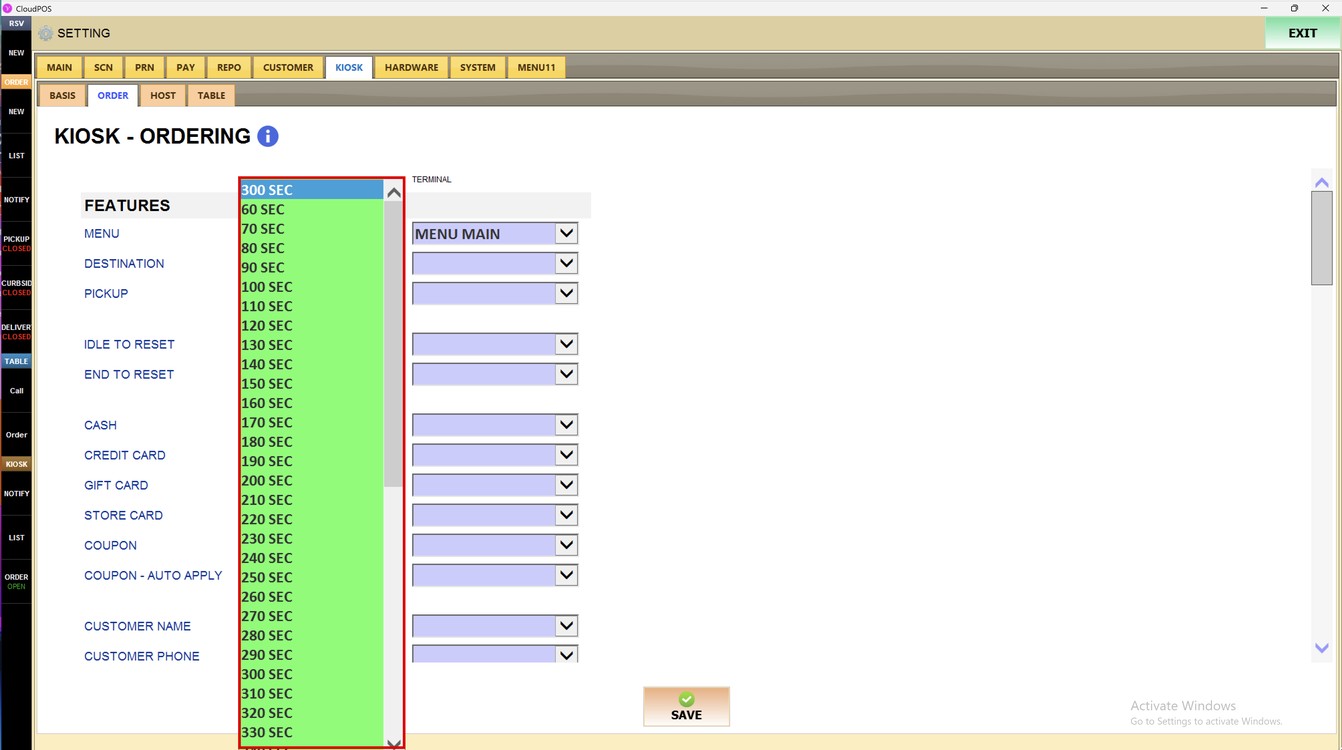
Idle to Reset:
Sets how many seconds the kiosk waits without activity before it goes back to the start screen.
1. 5 SEC TO 300 SEC AND MORE: select the number of seconds.
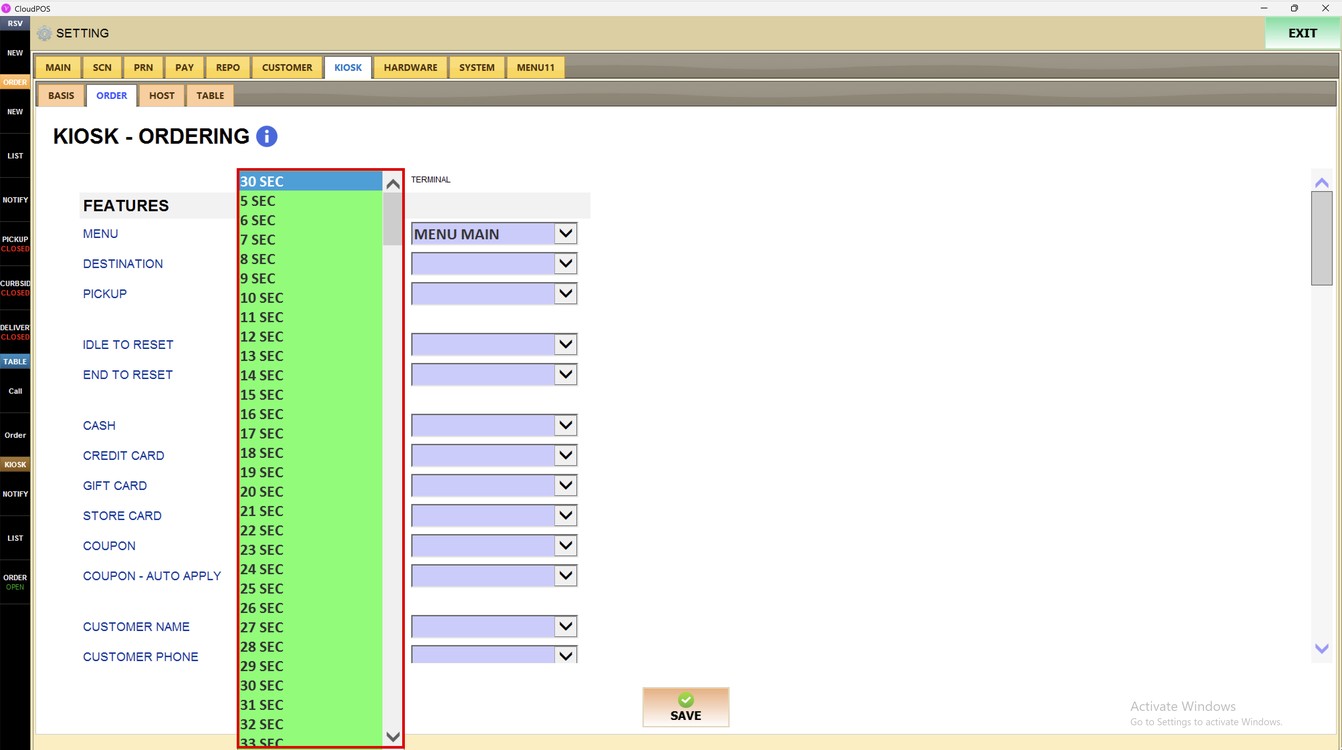
End to Reset:
Sets how many seconds the kiosk waits after an order is finished before it goes back to the start screen.
1. 5 SEC AND MORE: select the number of seconds.
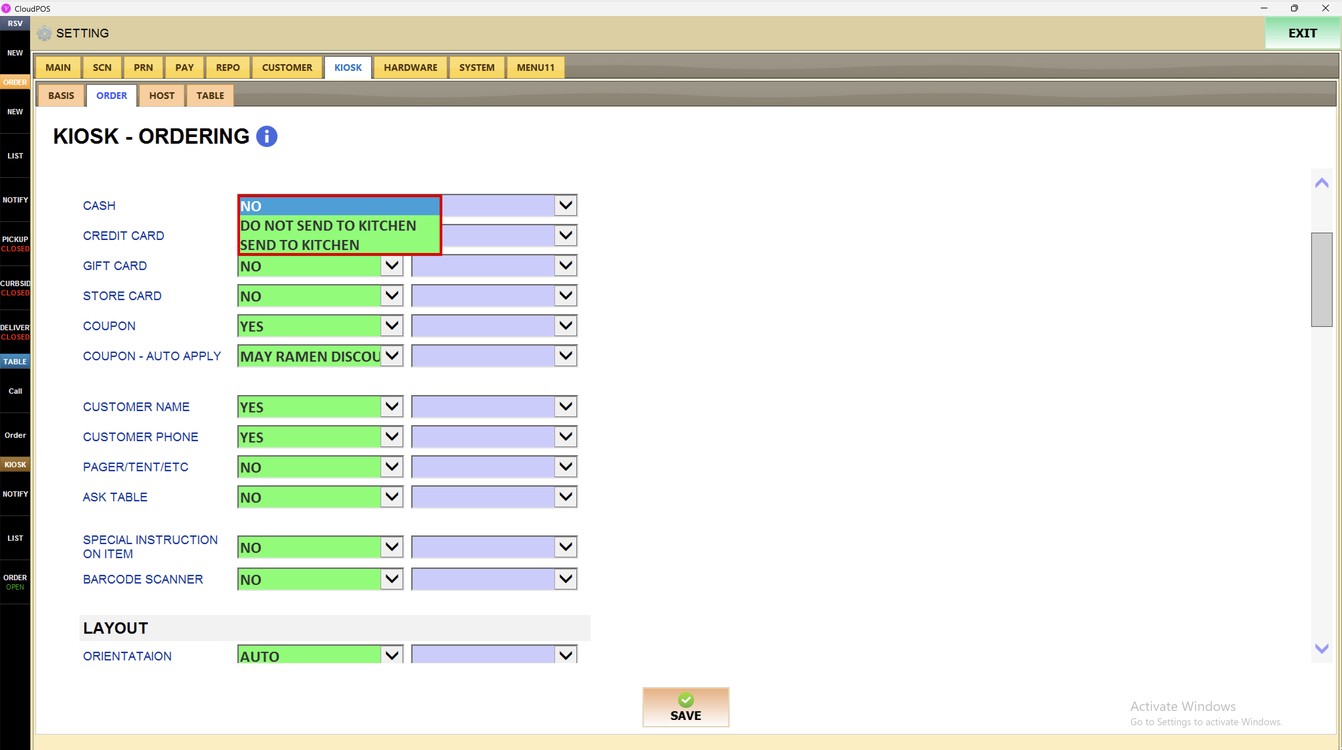
Cash:
Sets whether customers can choose to pay with cash.
1. NO: cash is not offered.
2. DO NOT SEND TO KITCHEN: cash is offered, and the order is not sent to the kitchen until it is paid at the counter.
3. SEND TO KITCHEN: cash is offered, and the order is sent to the kitchen right away.
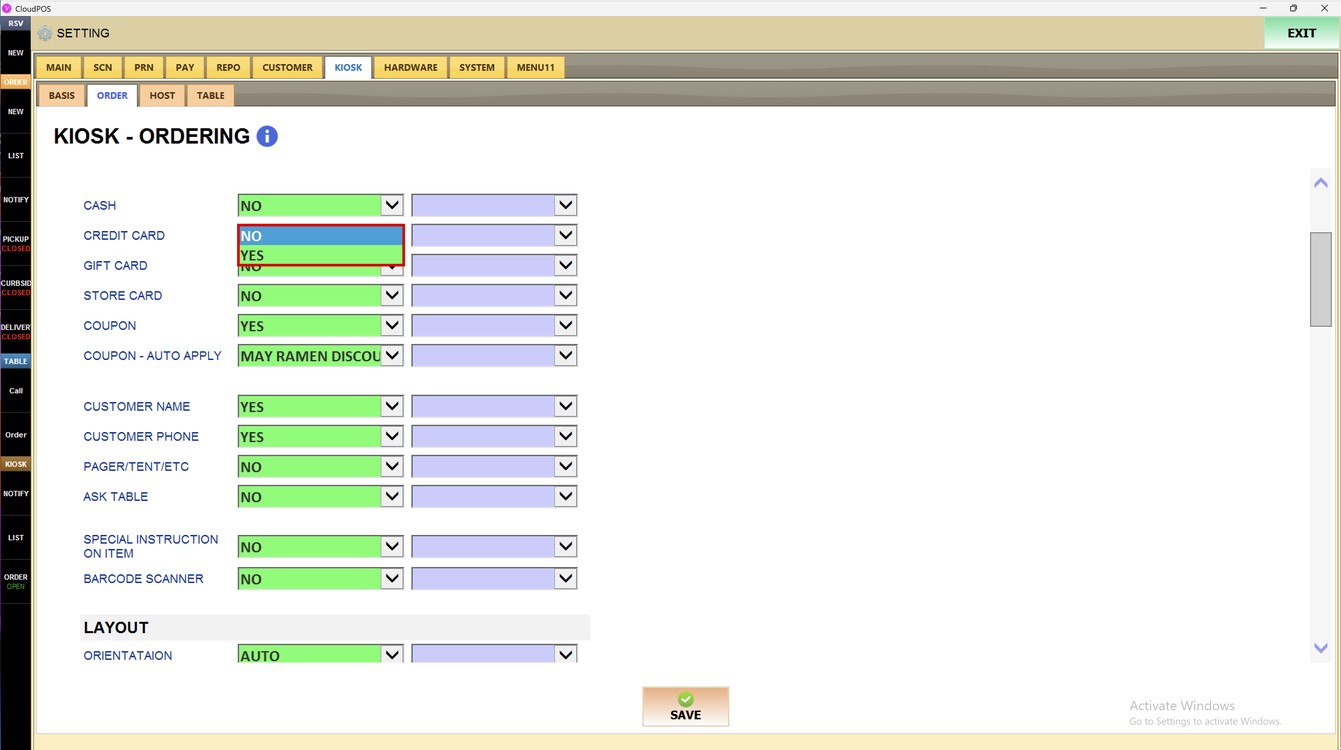
Credit Card:
Sets whether customers can pay with a credit card.
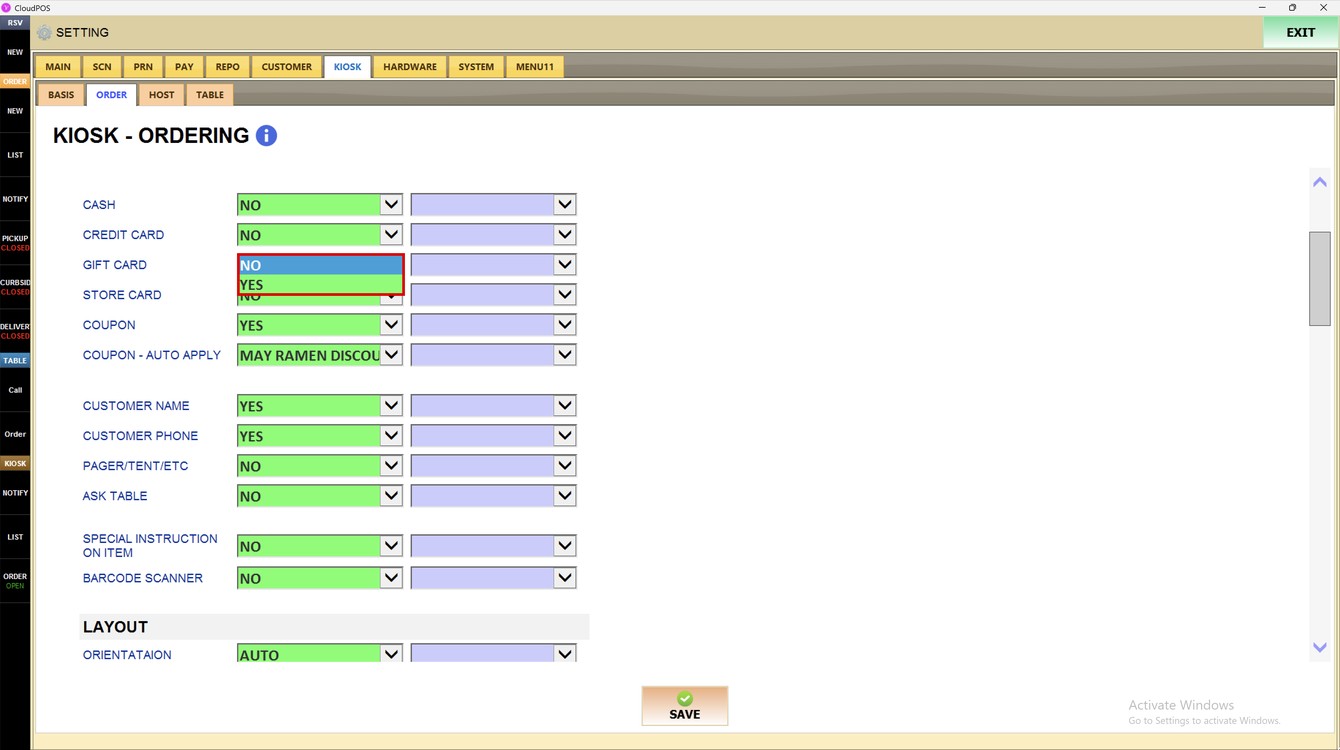
Gift Card:
Sets whether customers can pay with a gift card.
1. NO: gift card payment is not available on the kiosk.
2. YES: gift card payment is available on the kiosk.
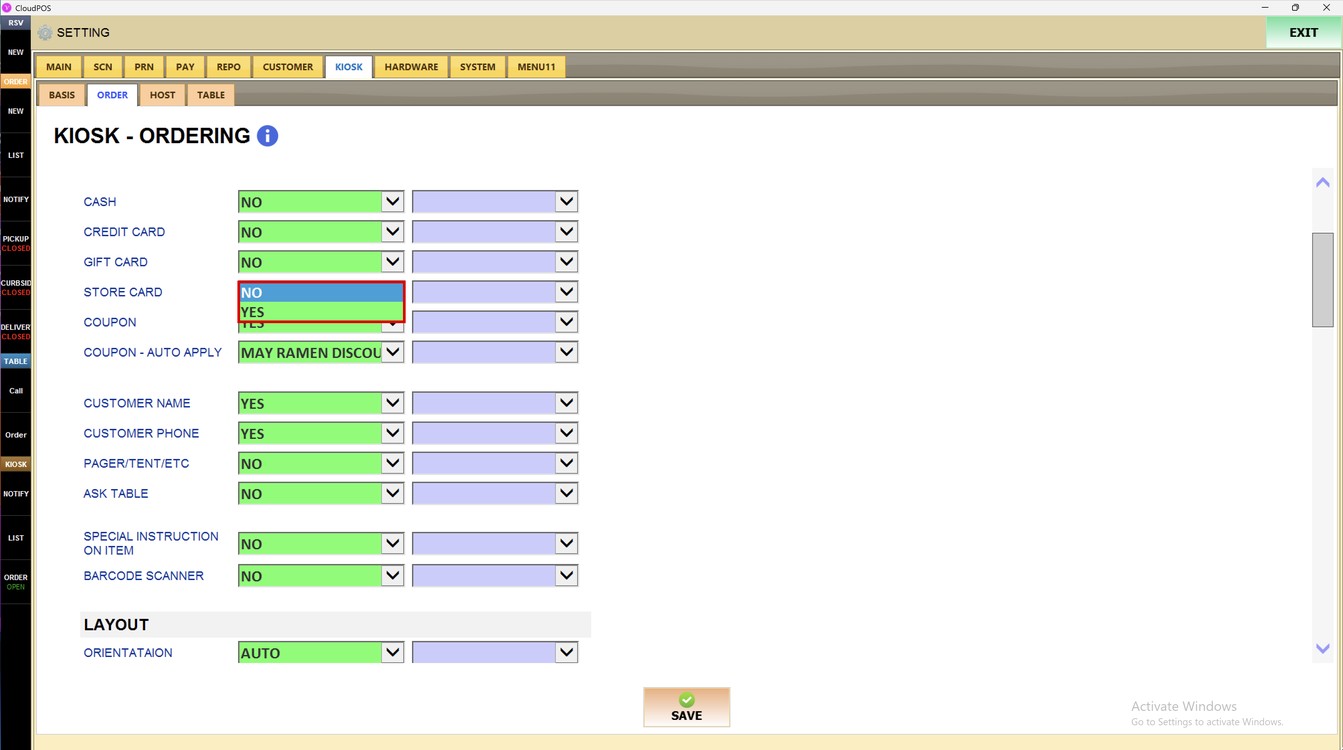
Store Card:
Sets whether customers can pay with a store card.
1. NO: store card payment is not available on the kiosk.
2. YES: store card payment is available on the kiosk.
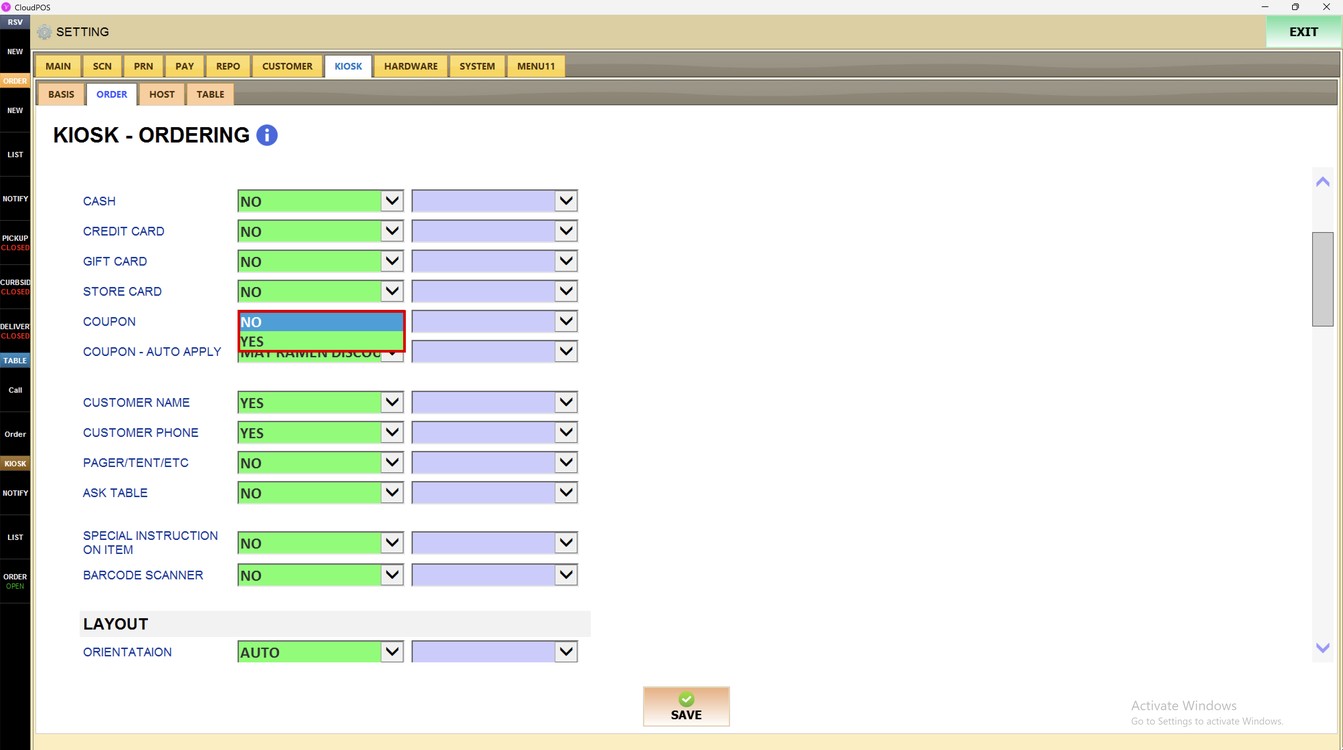
Coupon:
Sets whether customers can use coupons.
1. NO: coupon entry is not available on the kiosk.
2. YES: coupon entry is available on the kiosk.
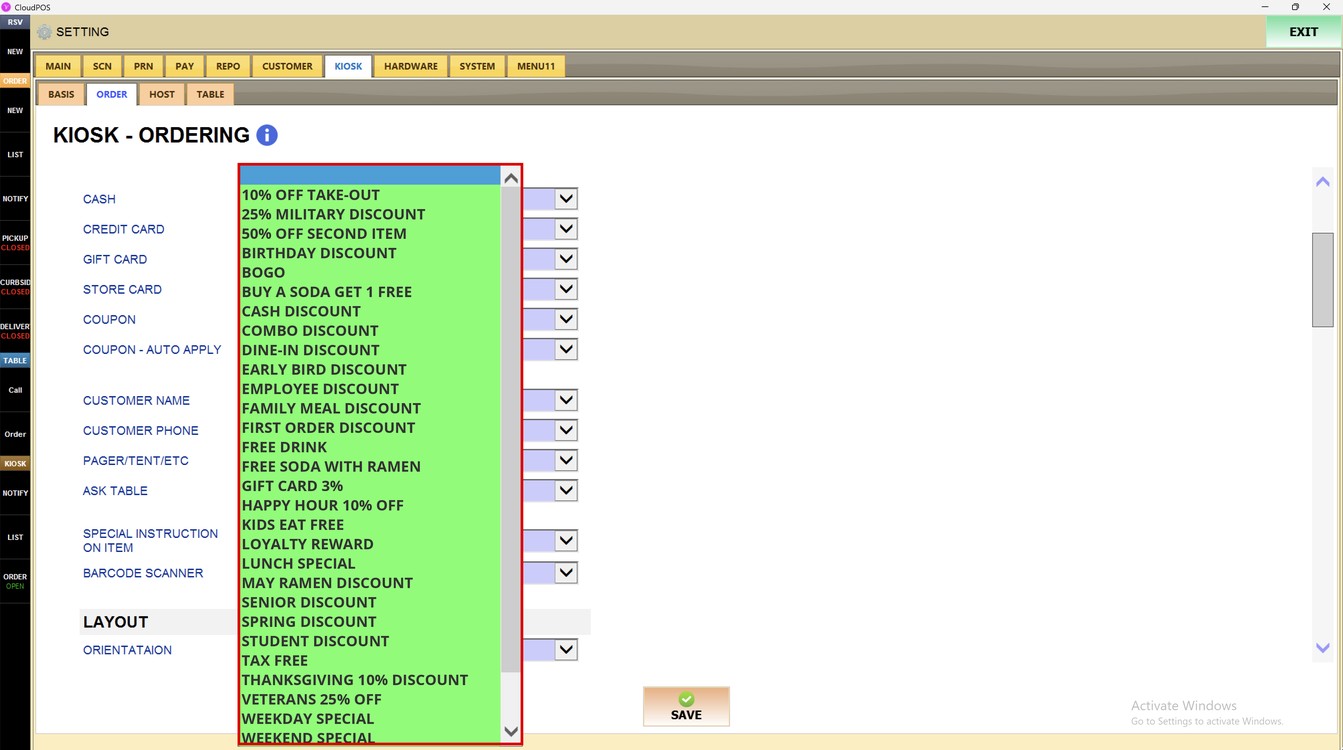
Coupon - Auto Apply:
Select a coupon to apply it automatically to every kiosk order. Leave it empty if no coupon should be applied automatically.
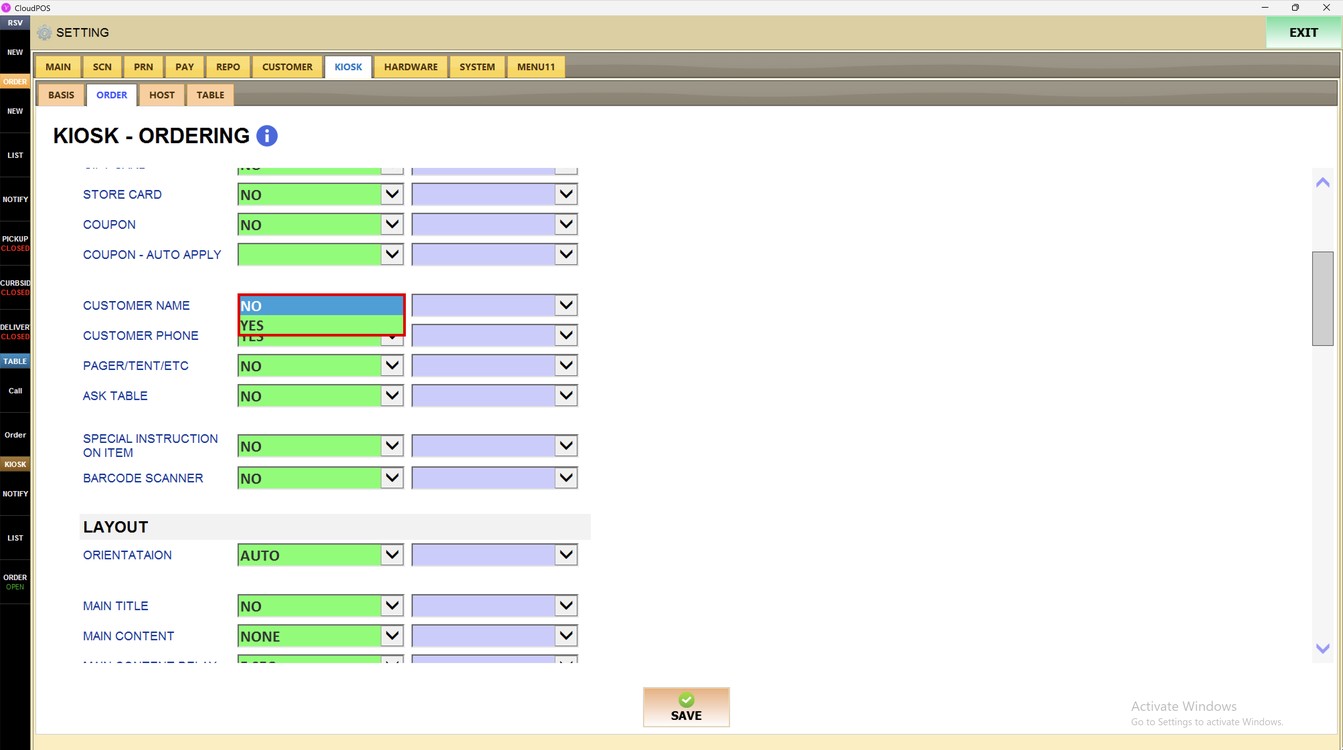
Customer Name:
Sets whether the kiosk asks for the customer name.
1. NO: the name is not requested.
2. YES: the customer enters a name.
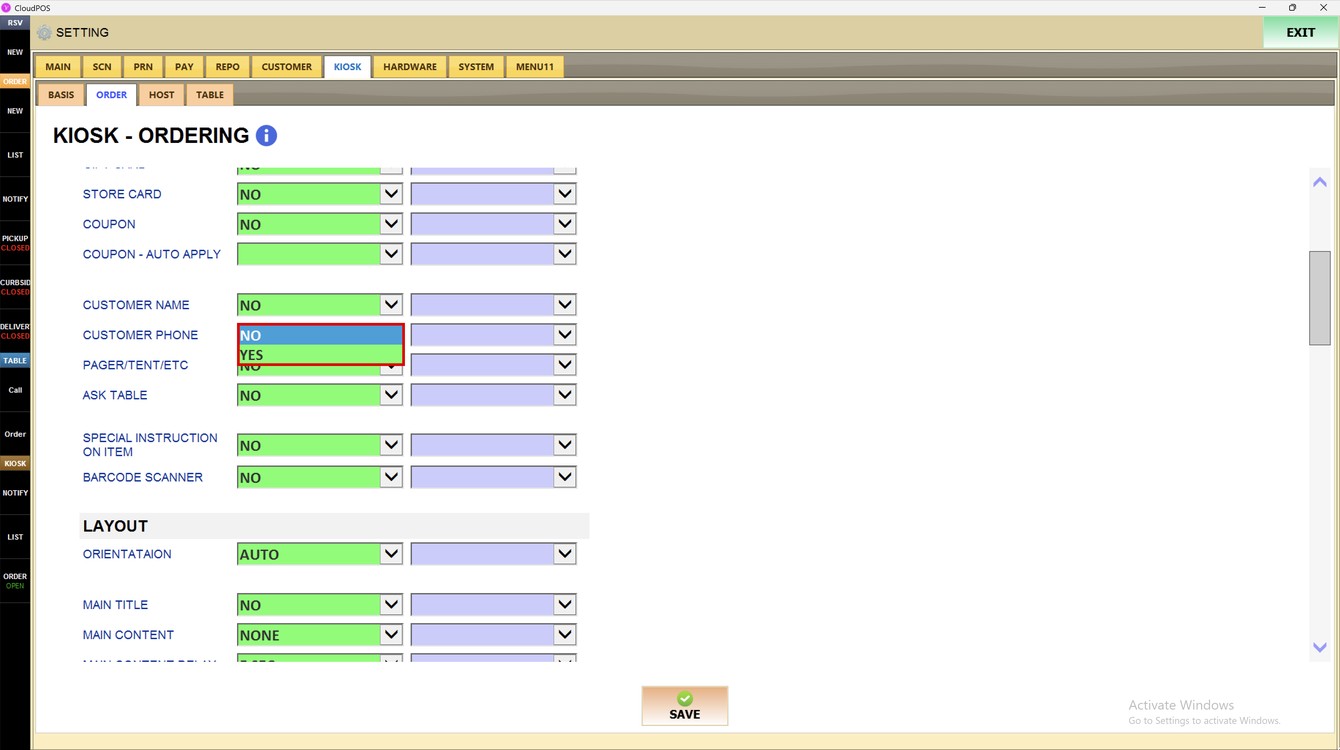
Customer Phone:
Sets whether the kiosk asks for the customer's phone number.
1. NO: the phone number is not requested.
2. YES: the customer enters a phone number.
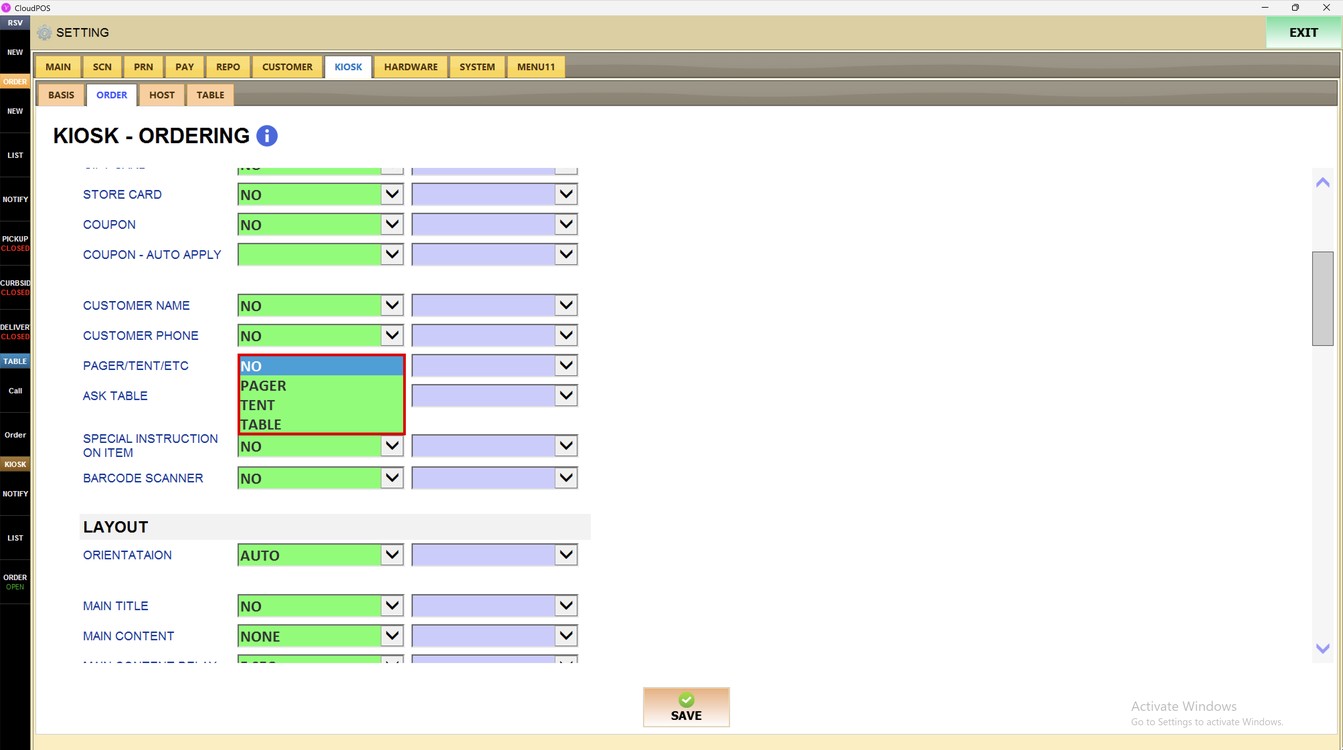
Pager/Tent/Etc:
Sets whether the customer enters a number to identify the order.
1. NO: no number is requested.
2. PAGER: the customer enters a pager number.
3. TENT: the customer enters a table tent number.
4. TABLE: the customer enters a table number.
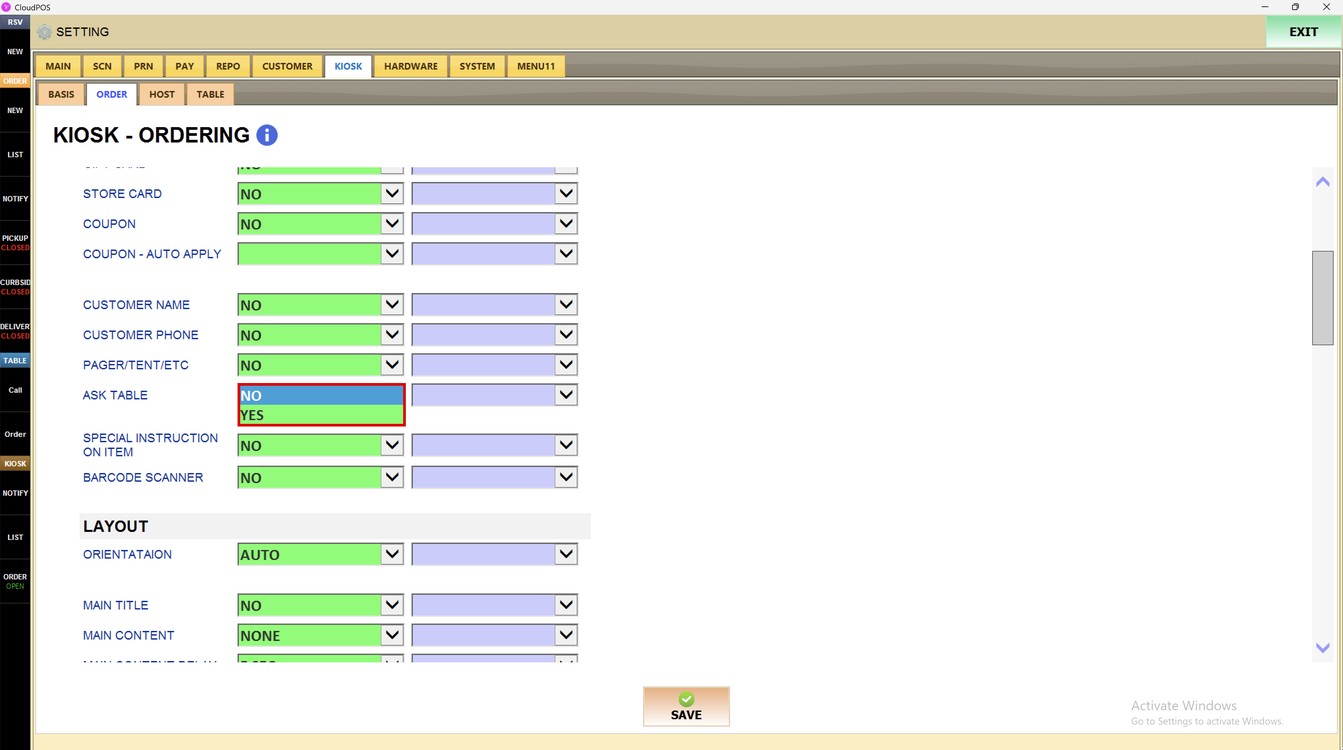
Ask Table:
Sets whether the kiosk asks for the table number.
1. NO: the table is not requested.
2. YES: the customer enters the table number.
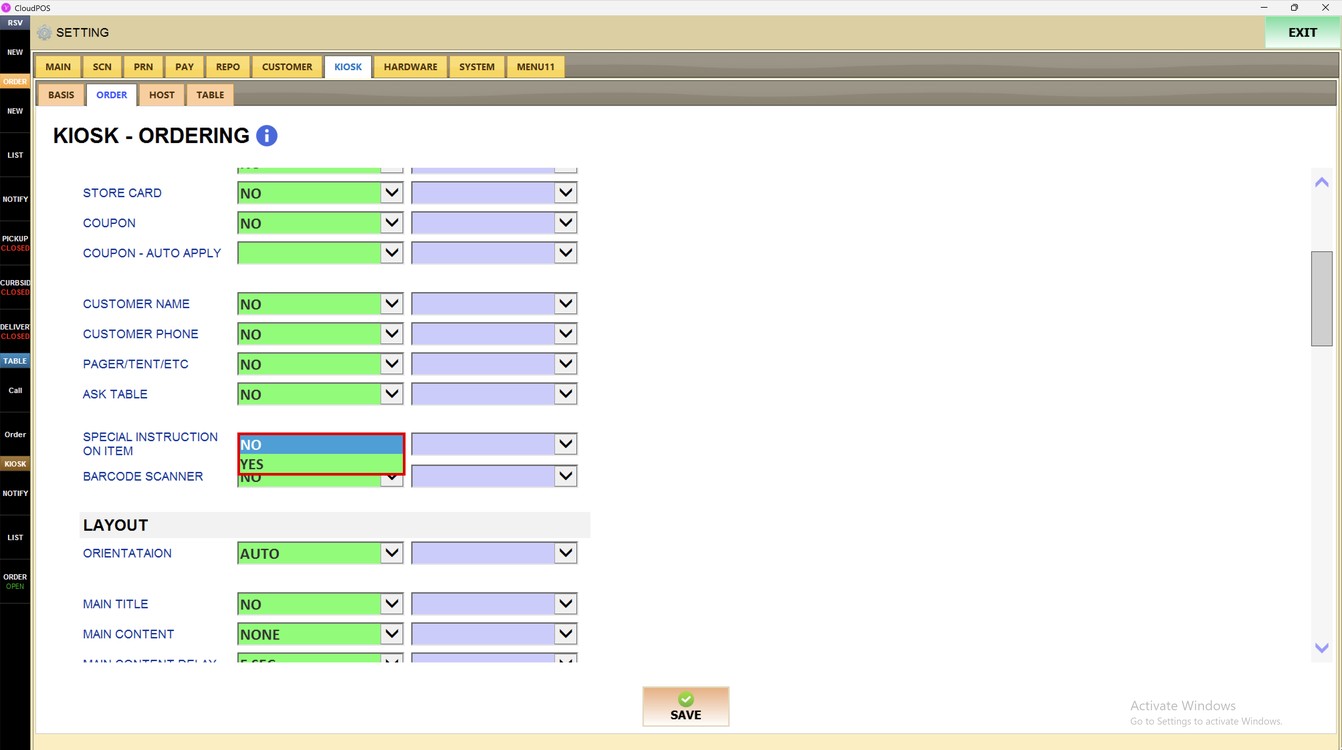
Special Instruction on Item:
Sets whether customers can add special instructions to an item.
1. NO: special instructions are not allowed.
2. YES: customers can add special instructions.
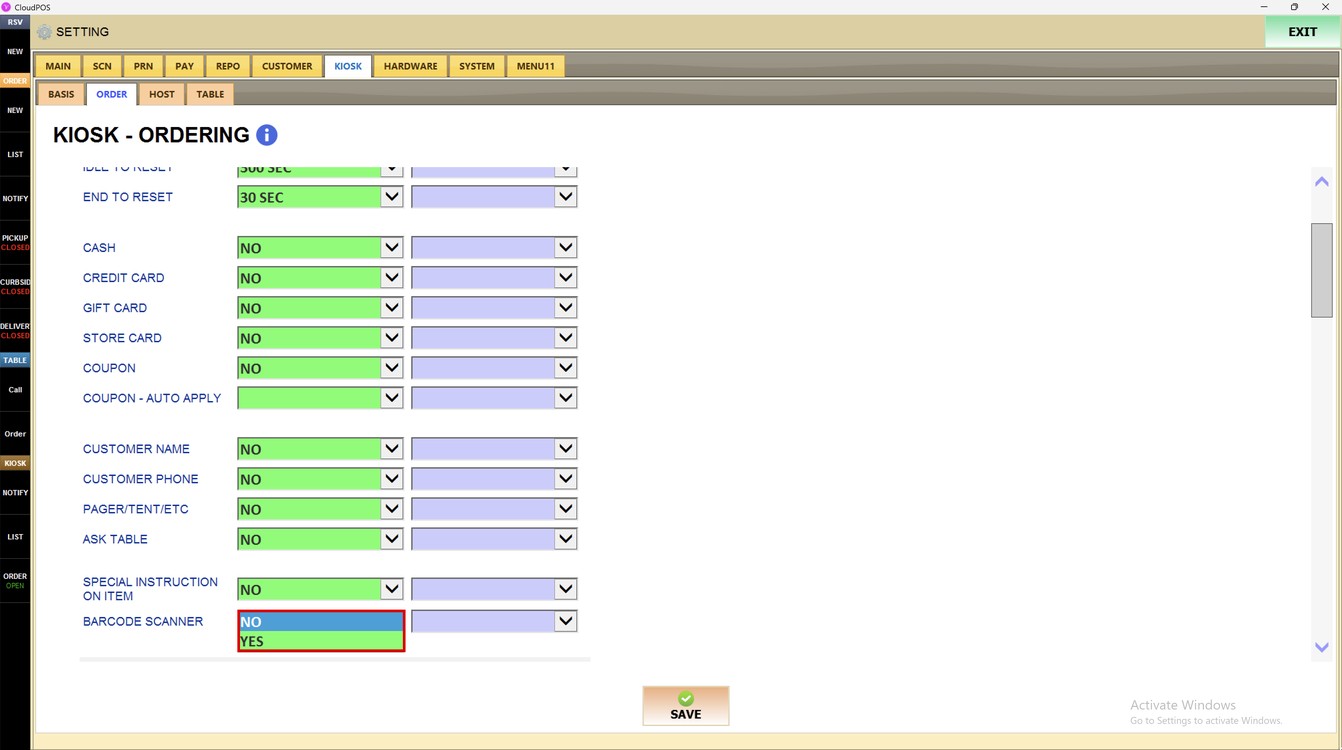
Barcode Scanner:
Sets whether the kiosk can scan barcodes.
1. NO: the barcode scanner is not used.
2. YES: customers can scan barcodes at the kiosk.
Press SAVE and then RESTART PROGRAM to apply the changes.
To learn how to set the kiosk screen layout, please refer to the Layout Guide.