Ordering
This section of the online page is where the merchant manages the store's online ordering.
ONLINE ORDERING> ORDERING
From the online page, click ONLINE ORDERING in the left menu.
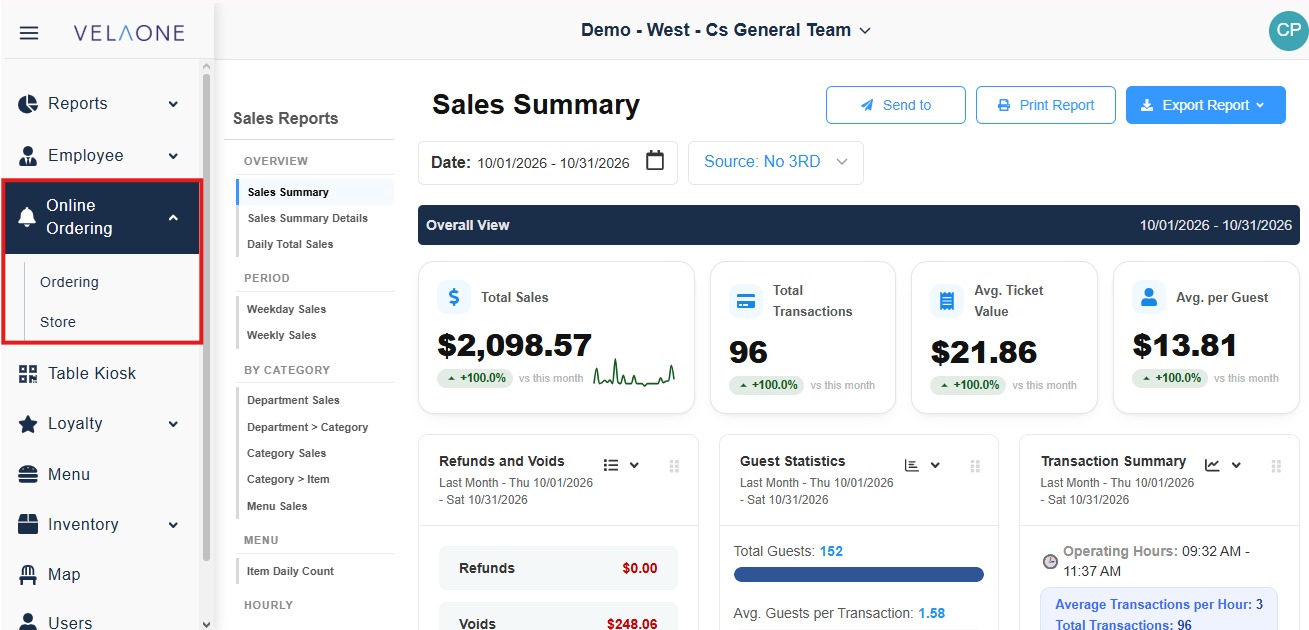
Select ORDERING to open the ONLINE ORDER panel, which contains the ORDERING LIST, DELIVERY LIST and QR ORDER tabs.
Ordering List
This section is where the merchant reviews and handles the orders that come in from online ordering.
Click ORDERING LIST, then use the DATE field to select the day to review.
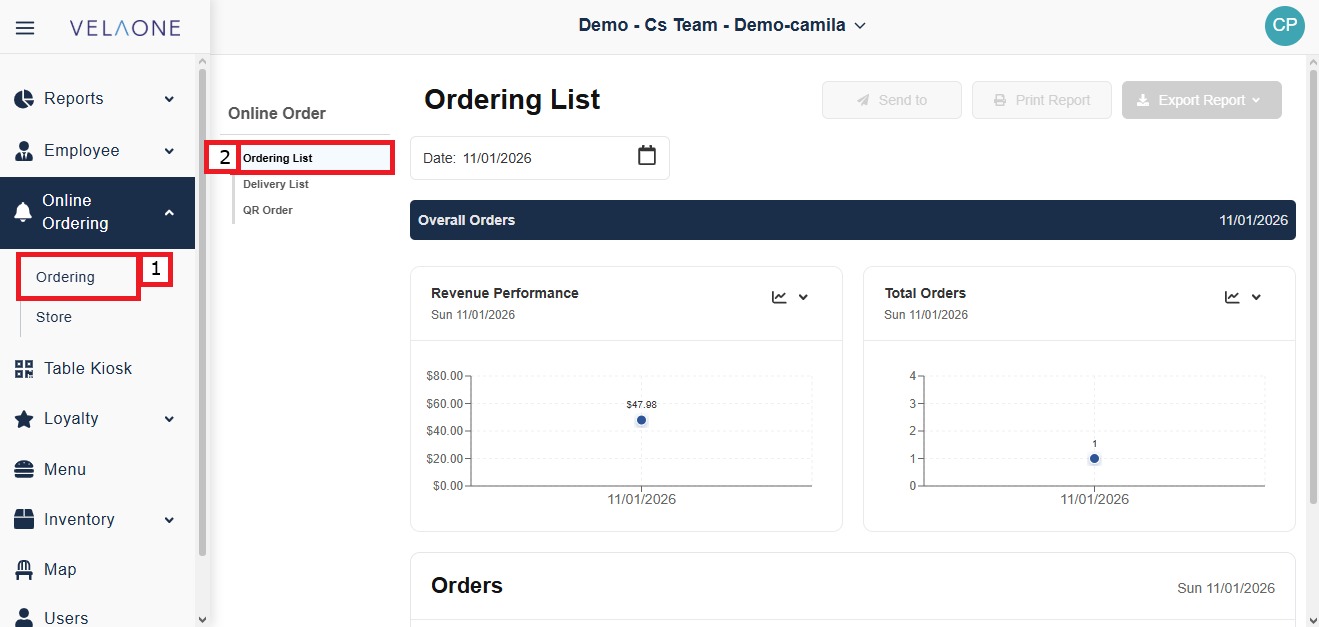
The Revenue Performance chart shows the revenue from online orders for the selected date, and the Total Orders chart shows how many online orders were received.
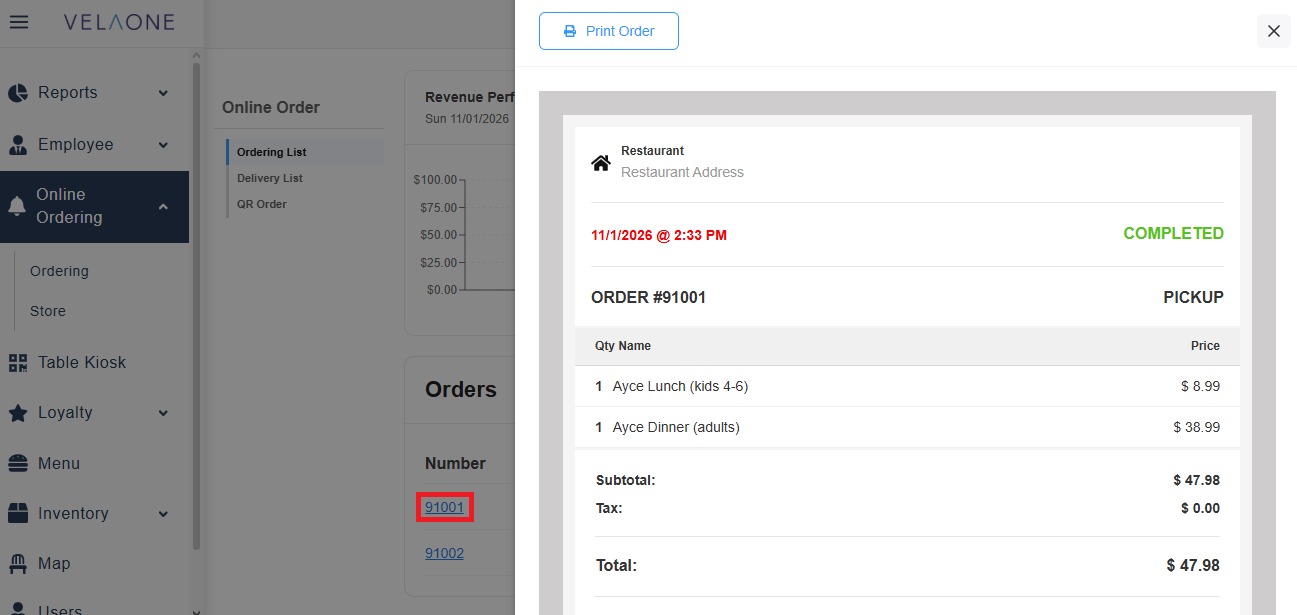
The Orders list shows each online order with its date and time, the customer who placed it, the tip, the total and the status of the order.
Delivery List
This section is where the merchant follows the delivery and pickup details of online orders.
Click DELIVERY LIST. The Active User chart shows the number of active users for the selected date, and the Total Orders Per Day chart shows the number of orders received each day.
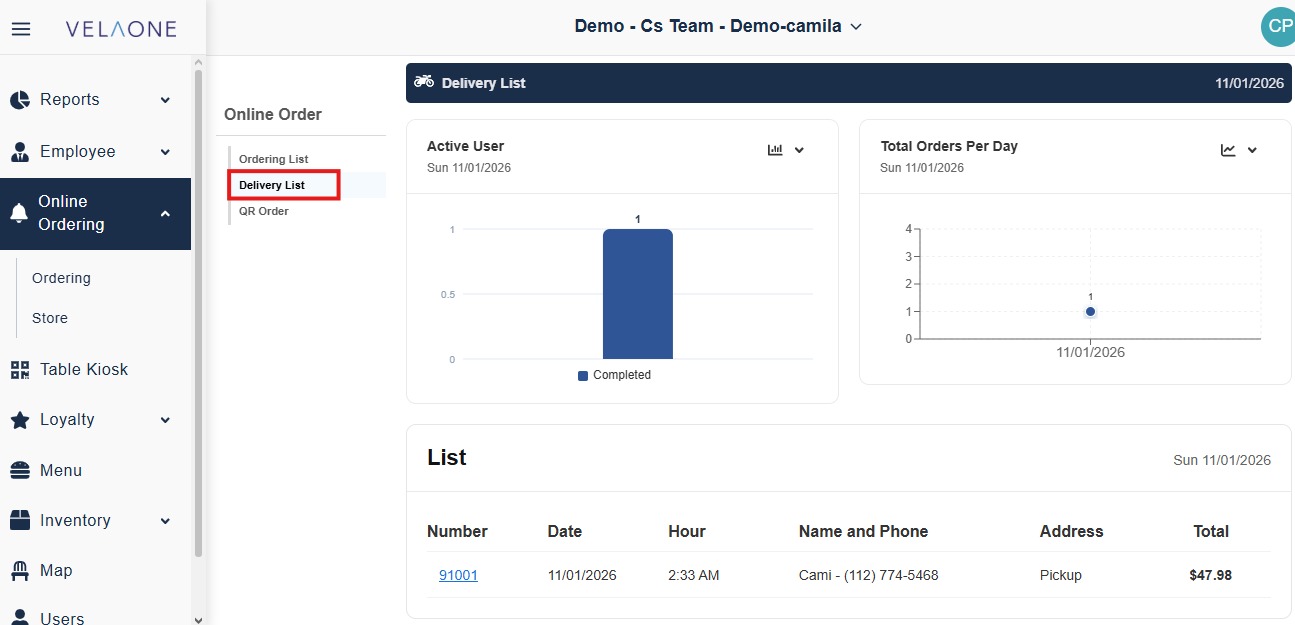
The List table shows the information of each order in the columns Number, Date, Hour, Name and Phone, Address and Total. The Address column shows the delivery destination, or Pickup when the customer collects the order at the store.
QR Order
This section is where the merchant sets up QR codes for contactless dining.
Click QR ORDER.
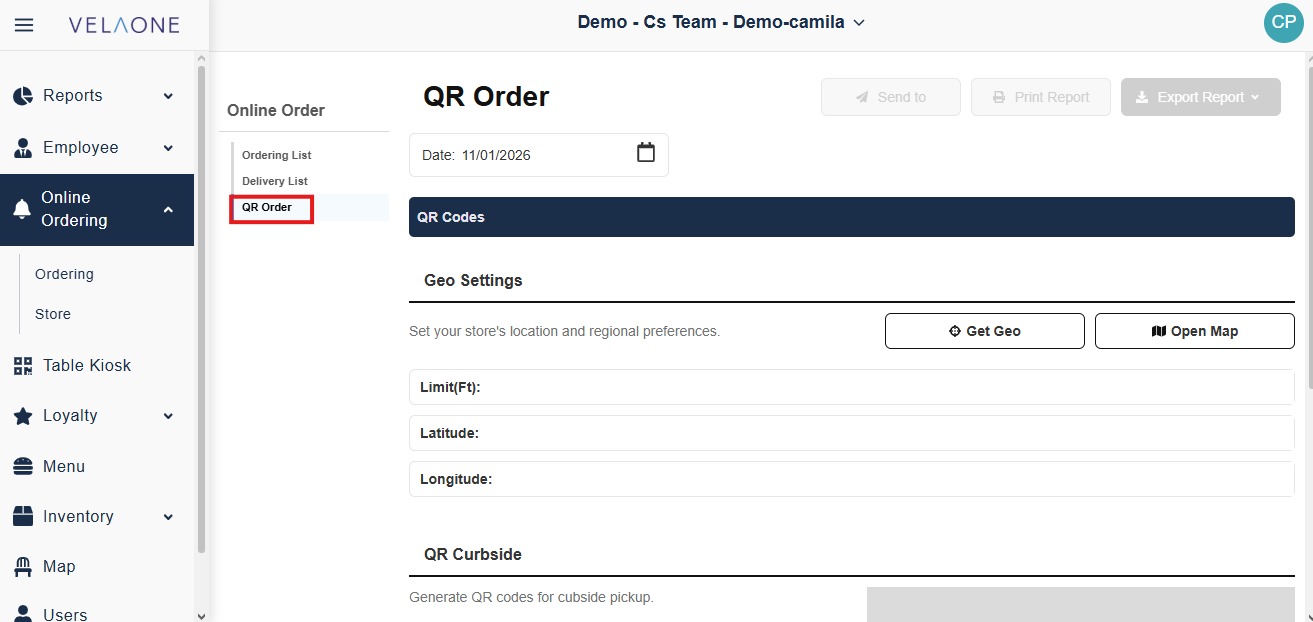
Geo Settings
This section sets the store's location for QR ordering.
GET GEO fills in the store's current location in the Latitude and Longitude fields.
OPEN MAP opens a map to locate the store.
LIMIT(FT) sets the distance, in feet, from the store within which customers can place orders using the QR codes.
LATITUDE and LONGITUDE hold the coordinates of the store's location.
QR Curbside
This section generates QR codes for curbside pickup.
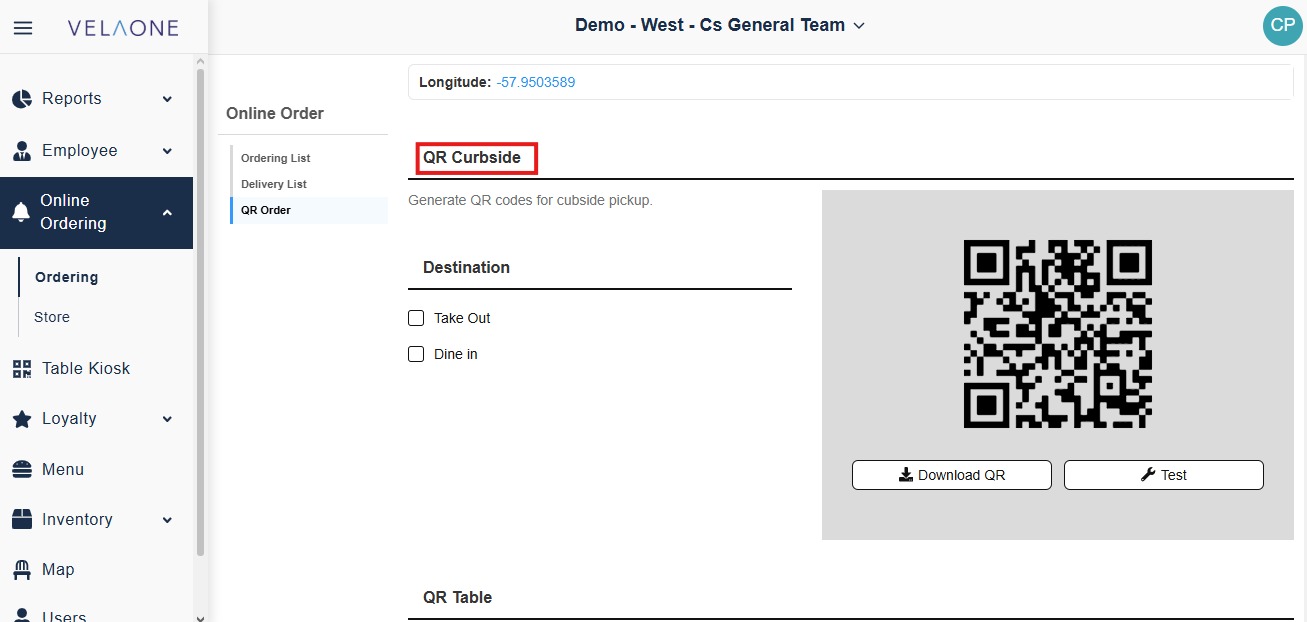
Under Destination, select TAKE OUT, DINE IN or both to set the order types available through the curbside QR code.
Once generated, the QR code can be tested from this page.
QR Table
This section generates QR codes for table service.
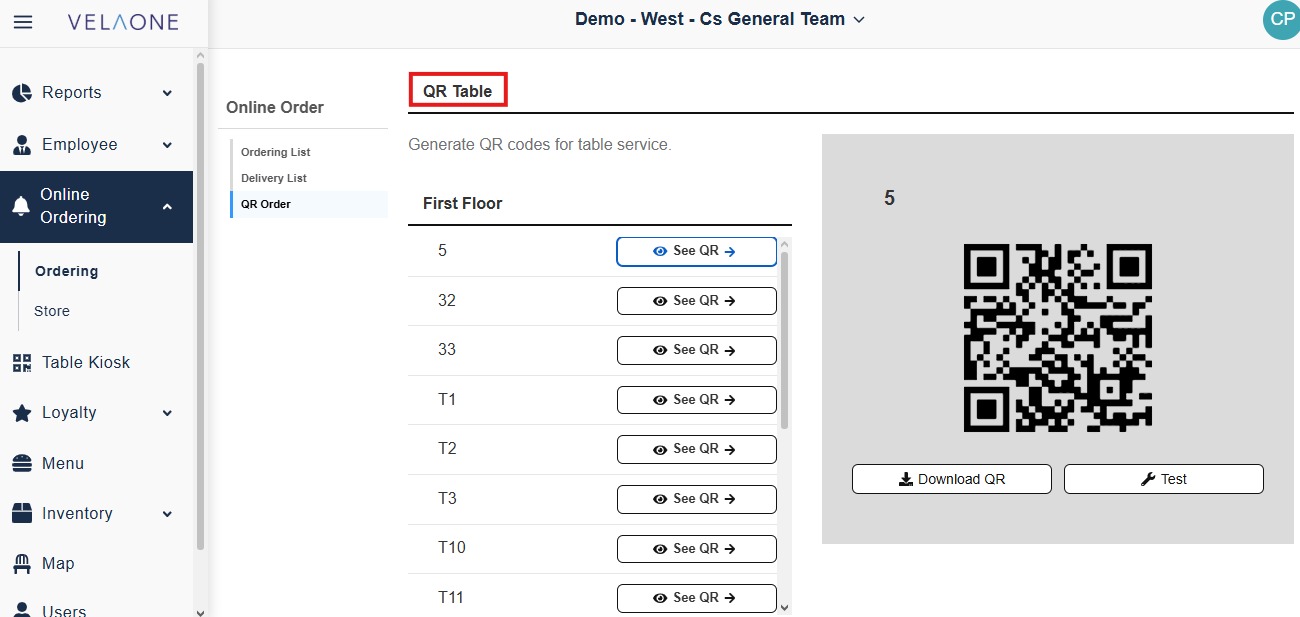
Customers scan the table QR code to order from their table without staff assistance. Once the QR is generated it can be tested from this page.