Item Return
This guide explains how to return items from a closed ticket. The system creates a new refund ticket with the returned items, records the reason for the return, and refunds the amount to the customer using the selected payment method.
Main Screen > TICKETS > CLOSED TICKETS > Select Ticket > RETURN > PROCESS > PAY
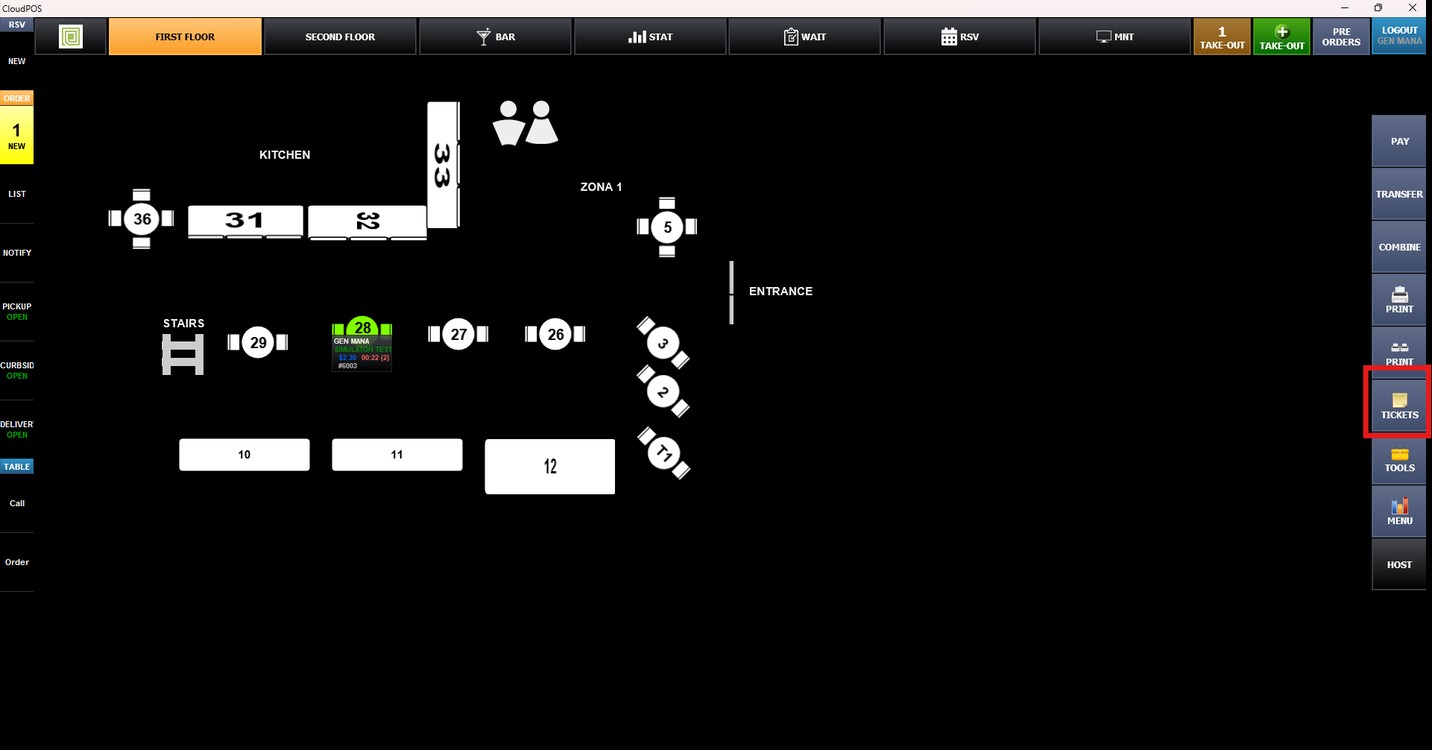
From the Main Screen, press TICKETS.
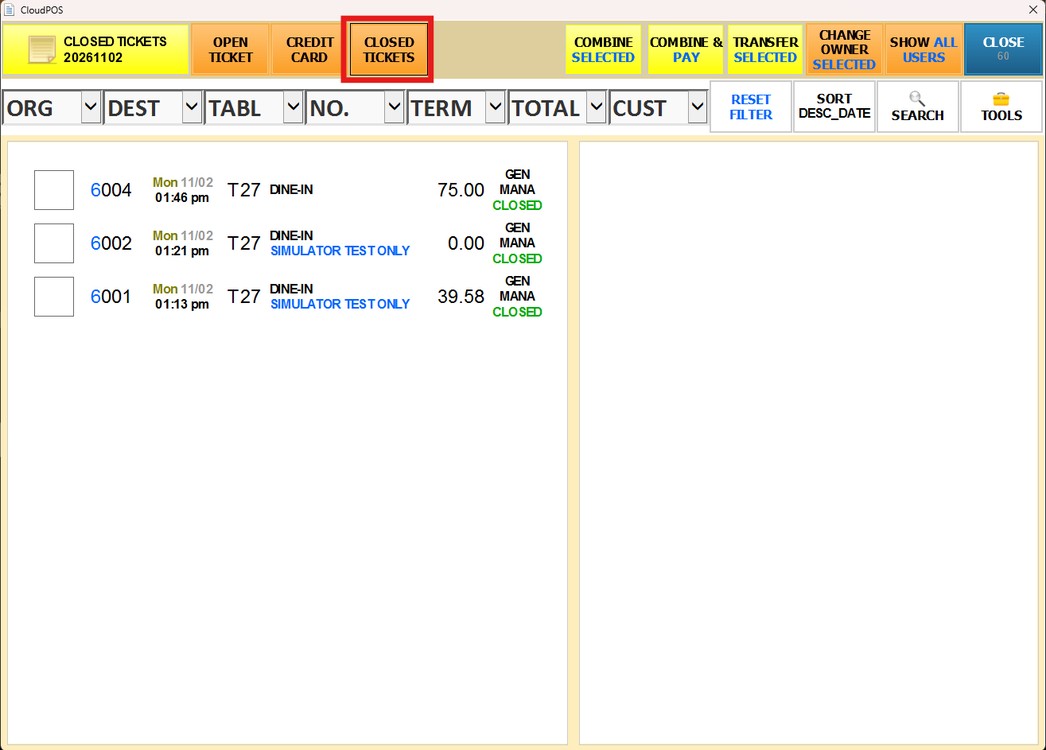
Press CLOSED TICKETS to display all tickets that have already been paid.
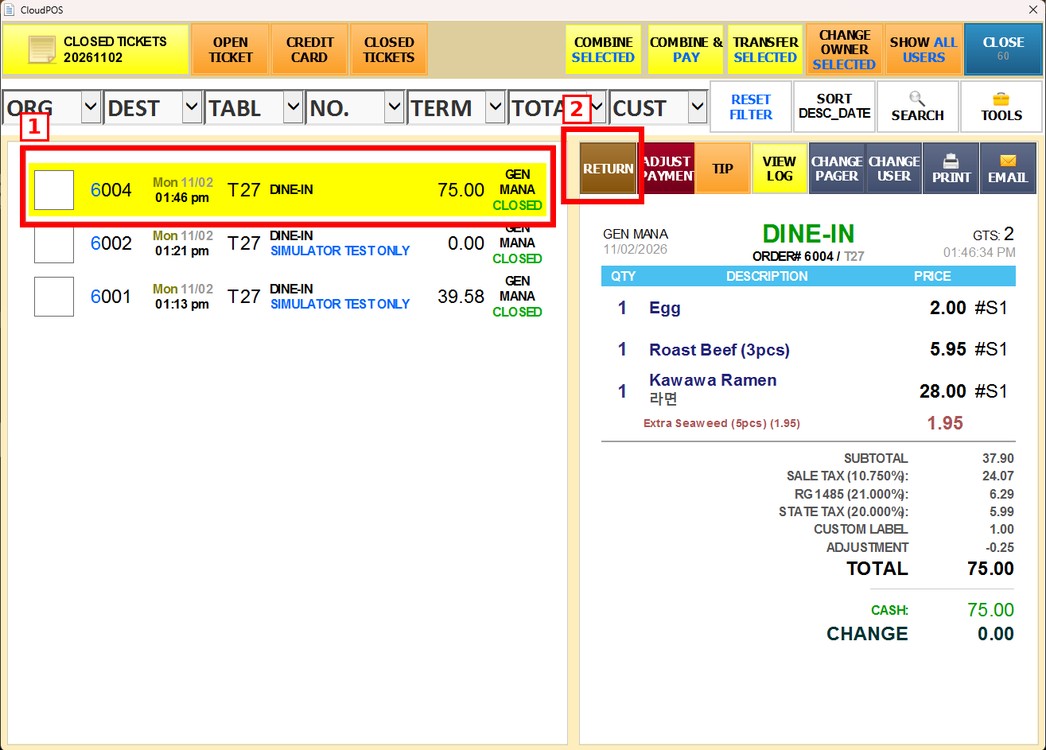
Select the ticket that contains the items to be returned and press RETURN
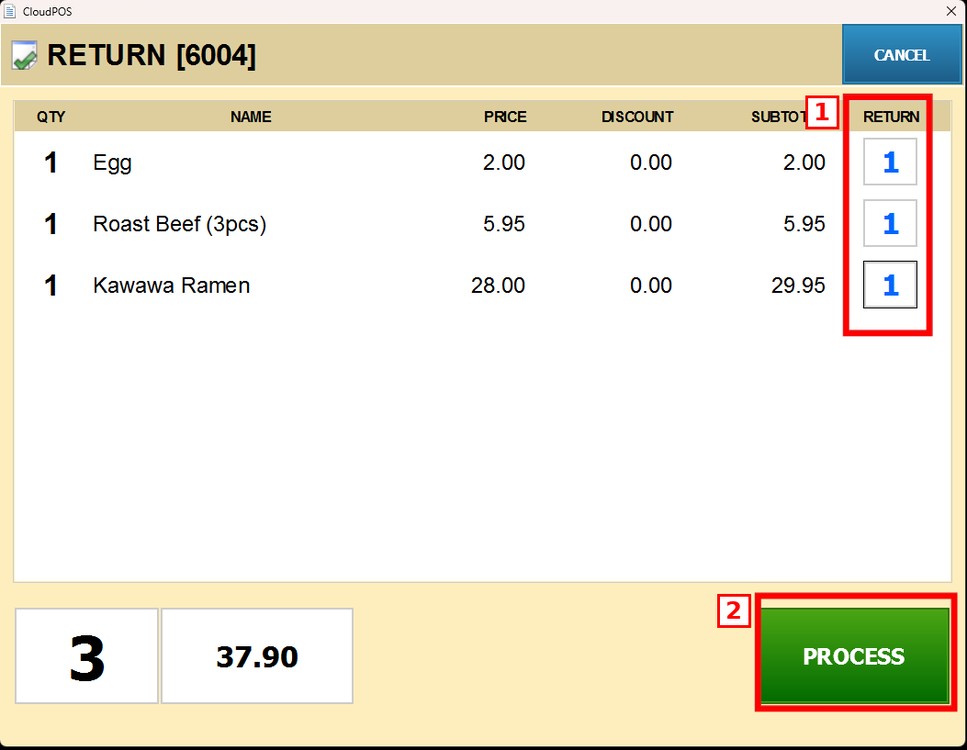
The RETURN window will display all items on the ticket. In the RETURN column, set the quantity to return for each item. The total number of items and the amount to be returned are shown at the bottom of the window. Press PROCESS to continue
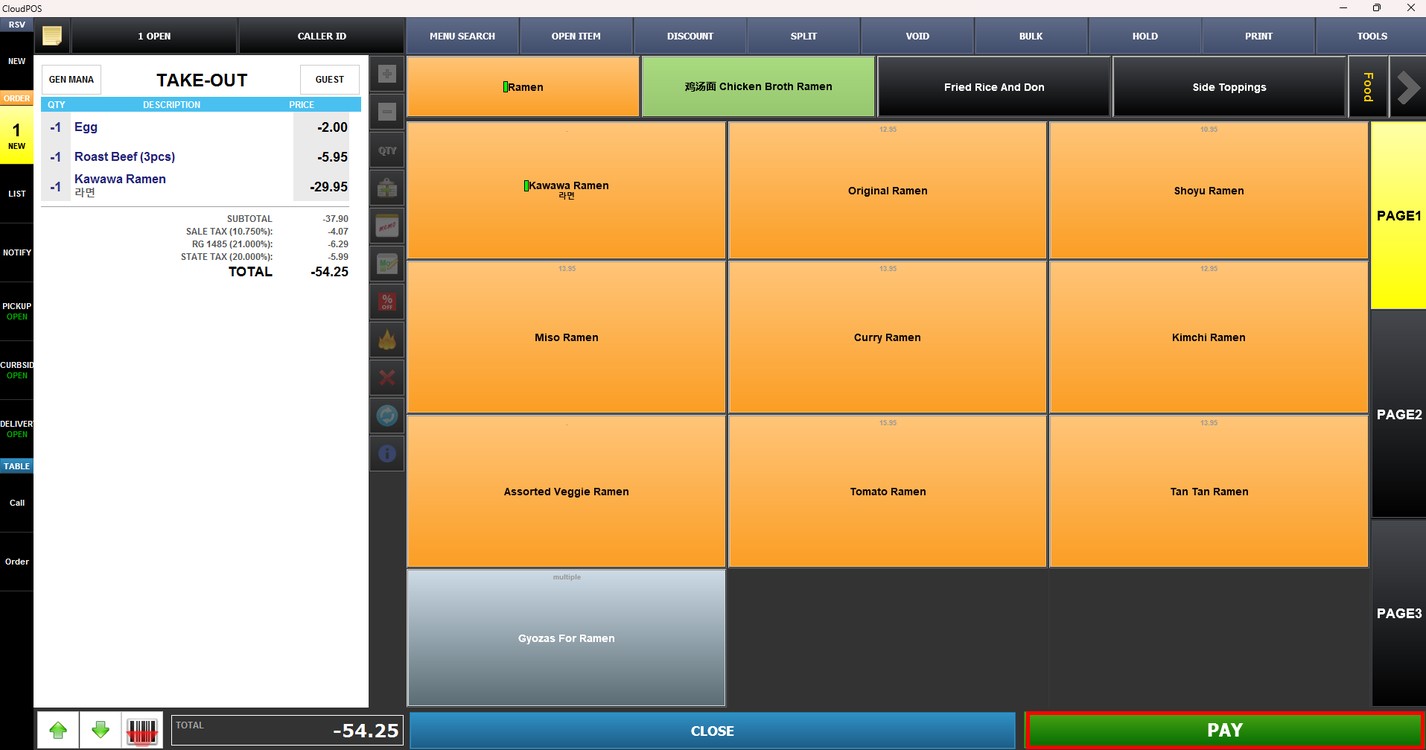
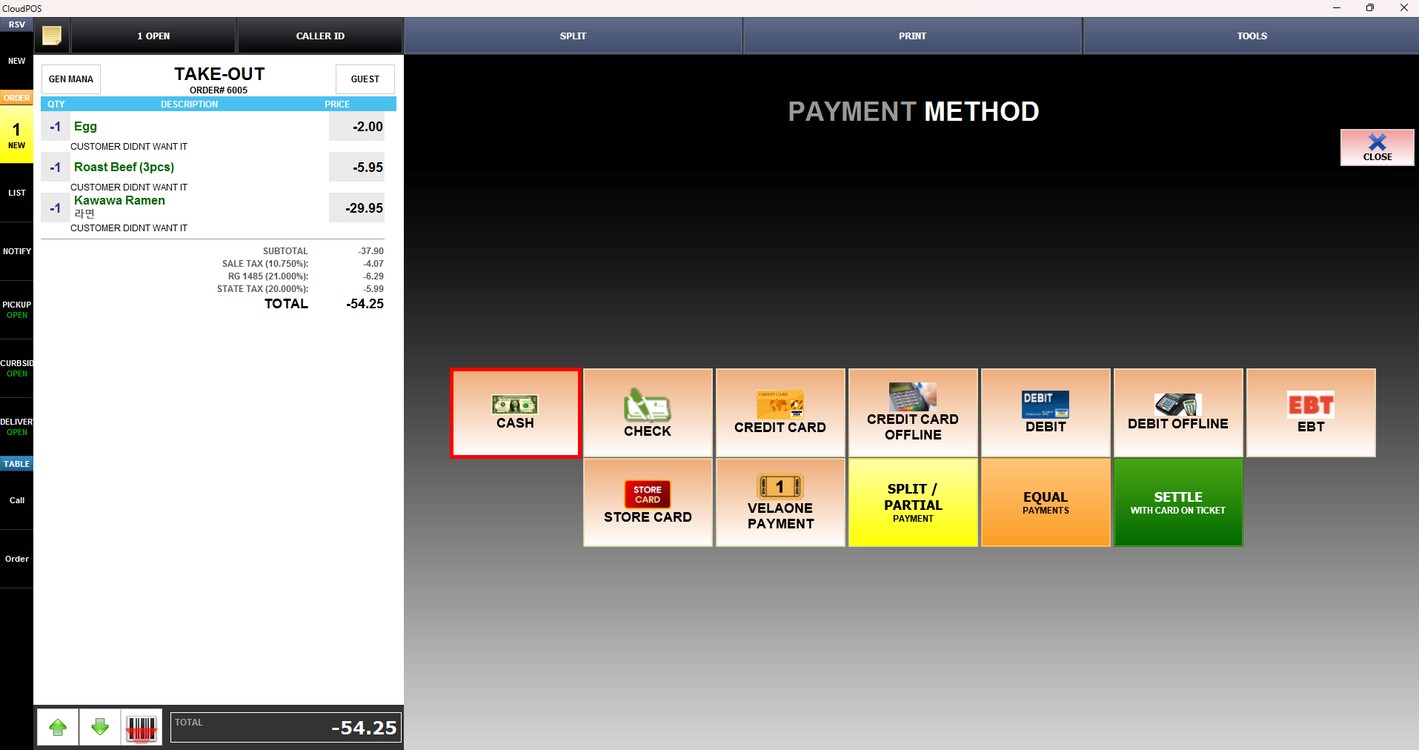
The Sales Screen will open with the returned items shown in negative amounts. Press PAY.
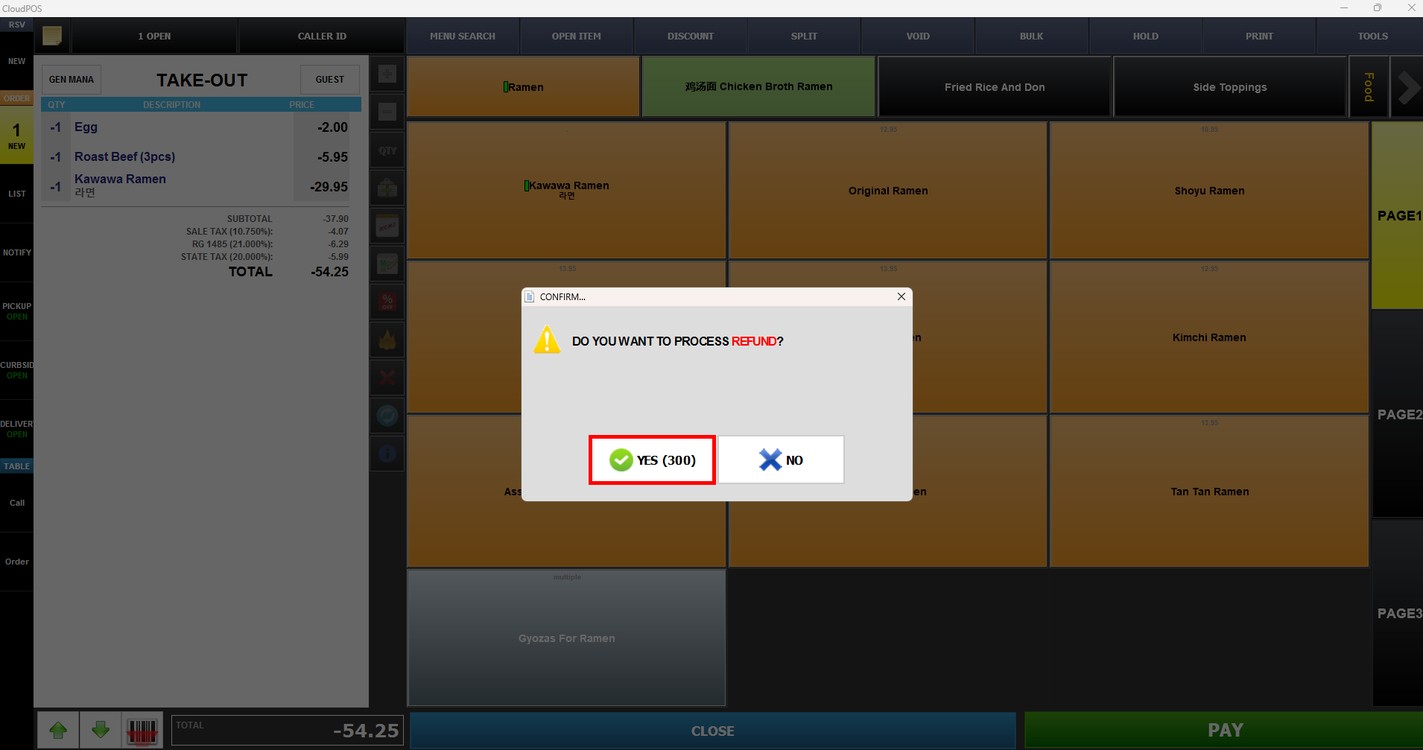
A confirmation window will appear. Press YES to process the refund.
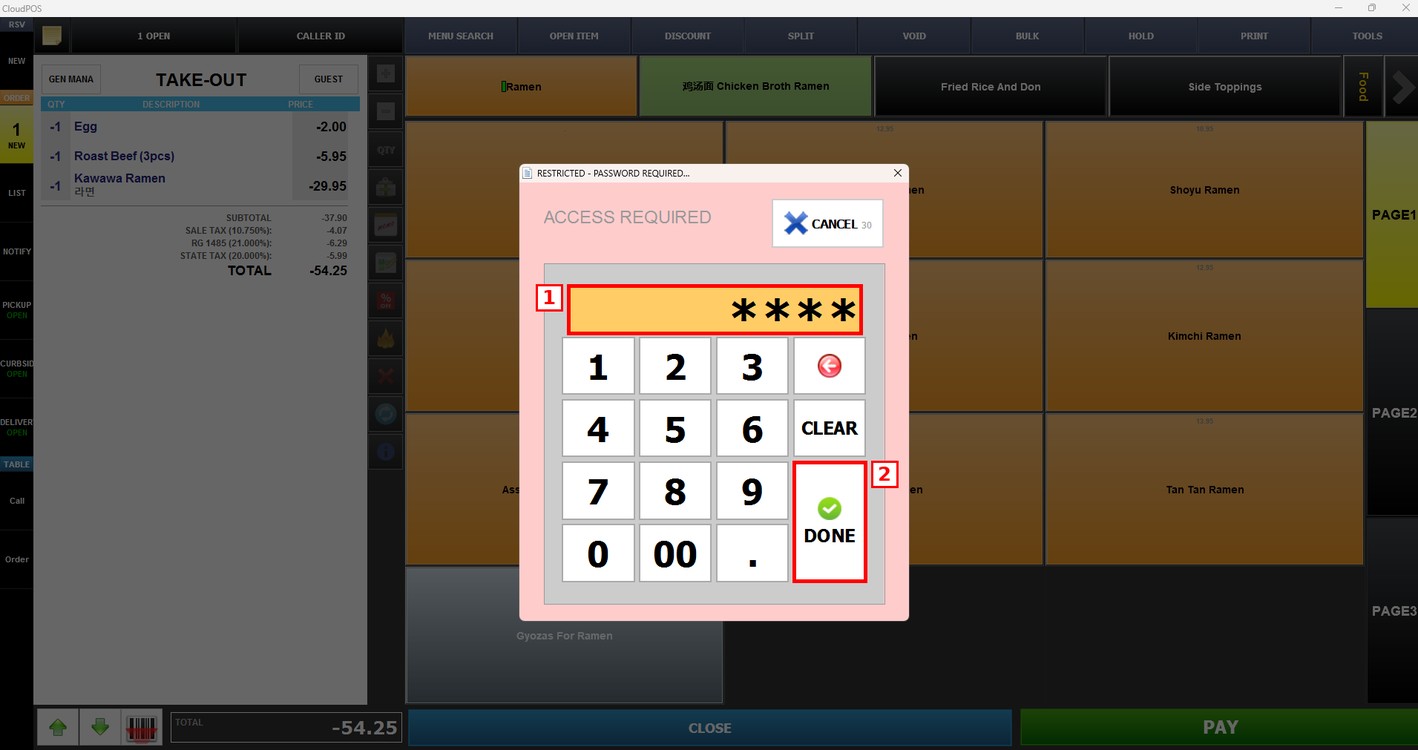
Enter a password with the required access and press DONE
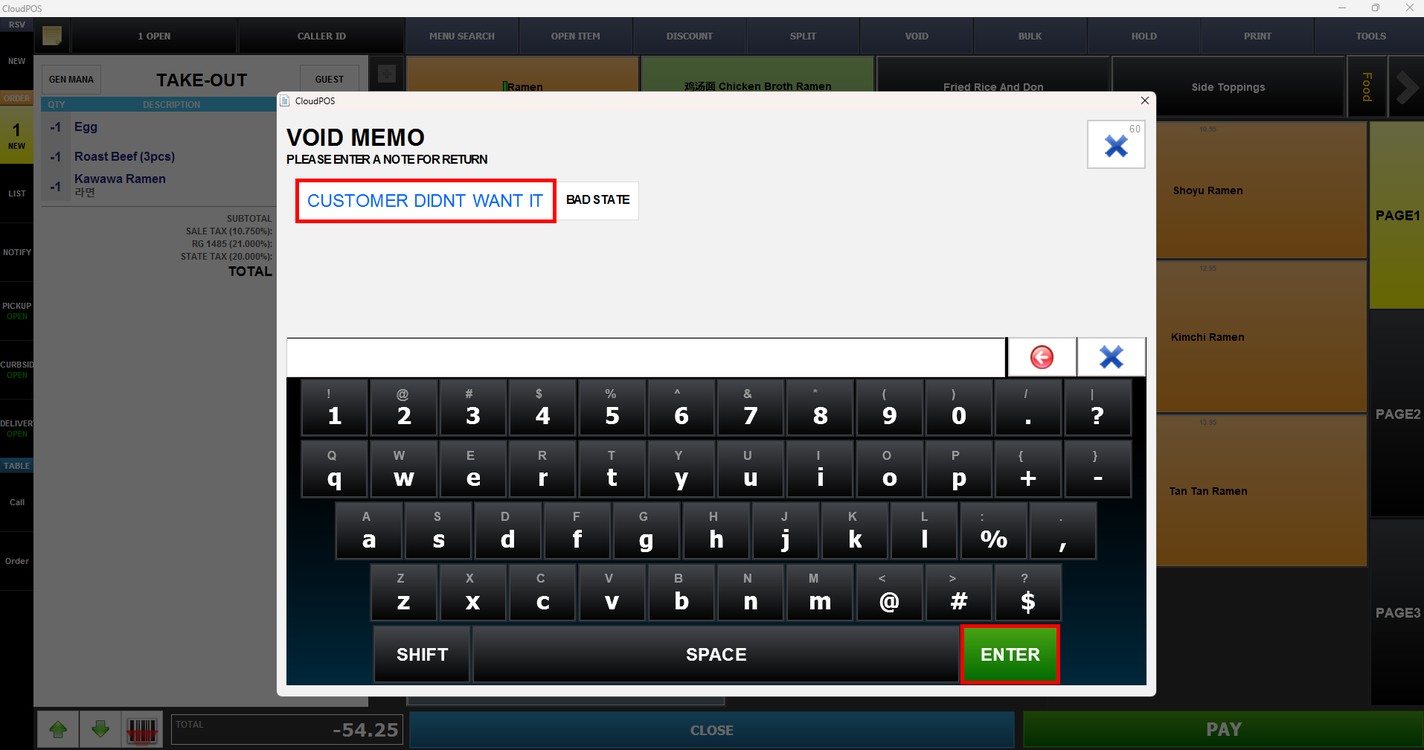
In the VOID MEMO window, select one of the predefined reasons (for example, CUSTOMER DIDN'T WANT IT) or type a note with the keyboard and press ENTER.
On the PAYMENT METHOD screen, select the method used to refund the customer (for example, CASH).
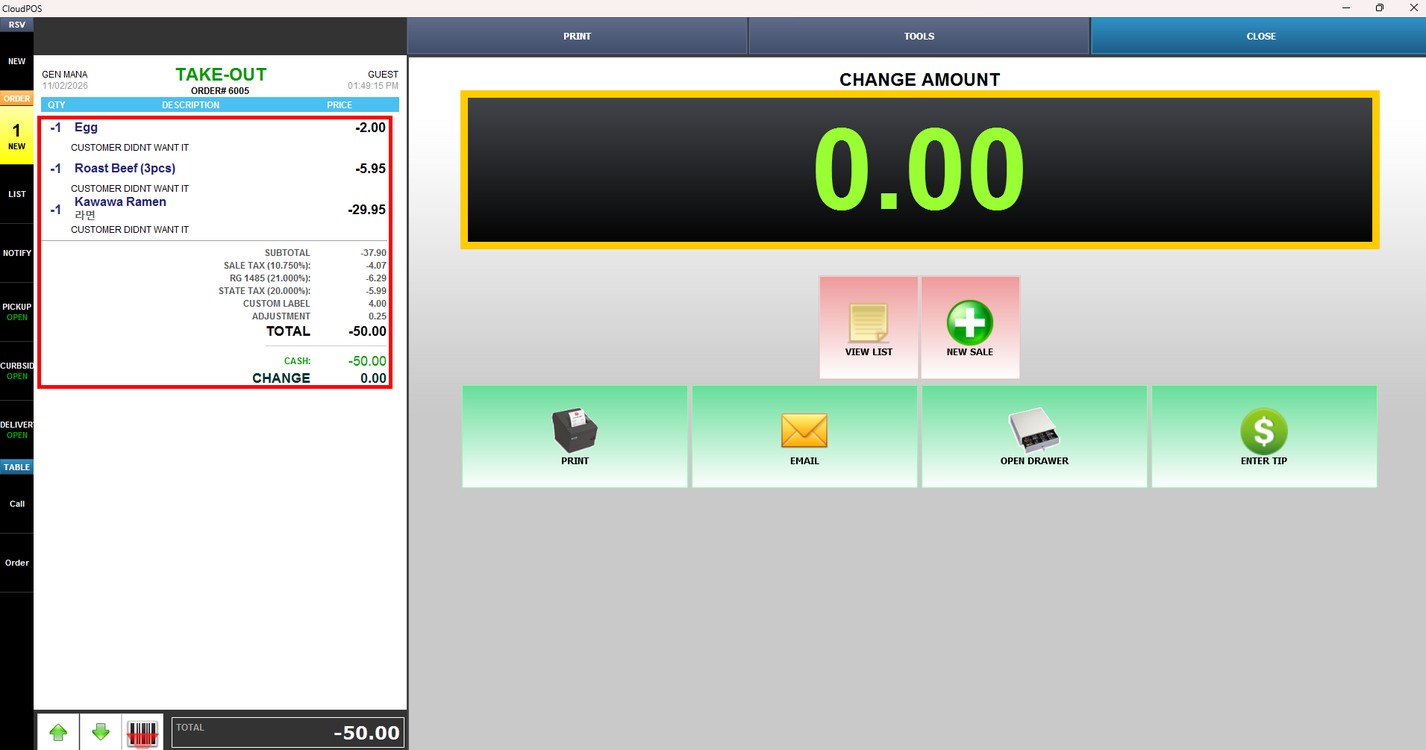
Result:
The refund is completed and a new ticket is created showing the returned items, the return reason under each item, and the refunded amount in negative values.
Note: Returning items requires a password with the appropriate permissions. The original ticket is not modified; the return is recorded as a separate ticket.
Hint: If the original payment was made with a credit card and you need to cancel the entire payment, please refer to the Voiding Credit Card Guide.