Credit Card Tickets
This feature allows you to review transactions that were processed using a credit card. From this screen, you can access completed card payments, verify transaction details, and review payment information.
Accessing Credit Card Tickets
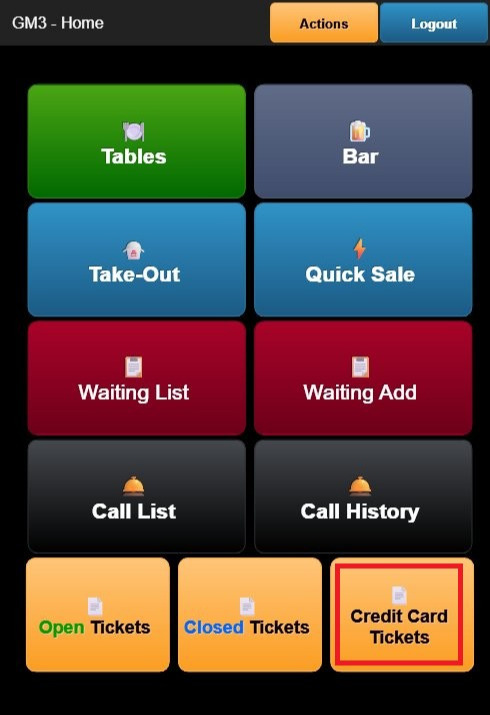
From the Home Screen, tap Credit Card Tickets. The Credit Card Tickets screen displays a list of all orders paid by credit card.
The header displays KIM - Credit Cards along with a CLOSE button.
Each ticket displays the following information:
- ORDER NUMBER: Unique identifier assigned to the transaction.
- REGISTER: The register or employee associated with the sale.
- TABLE/SECTION: The table or service area assigned to the order, when applicable.
- CUSTOMER NAME: Displays the customer's name if one has been assigned to the order.
- TOTAL AMOUNT: The total amount charged to the customer's card.
- ITEM LIST: An expanded view of the items included in the order, showing quantities and prices.
- STATUS: Indicates the transaction status as SALE.
Viewing a Credit Card Ticket
Tap any credit card ticket to open its details.
From the ticket details screen, you can review:
- Order items and quantities.
- Transaction totals.
- Card type.
- Approval number.
- TVR (Terminal Verification Results).
- TSI (Transaction Status Information).
- AID (Application Identifier).
- Cardholder name.
- Purchase amount.
- Tip amount.
- Pinpad identifier.
Note: Credit Card Tickets are provided for reference purposes and cannot be modified from CloudPOS Mobile.
Closing the Screen
Tap CLOSE to return to the Home Screen.