Add Items
This guide explains how to add, edit and remove items from an order in CloudPOS Mobile.
CloudPOS Mobile > HOME > TABLES > Select a table > ORDER > Select a category
Adding an Item:
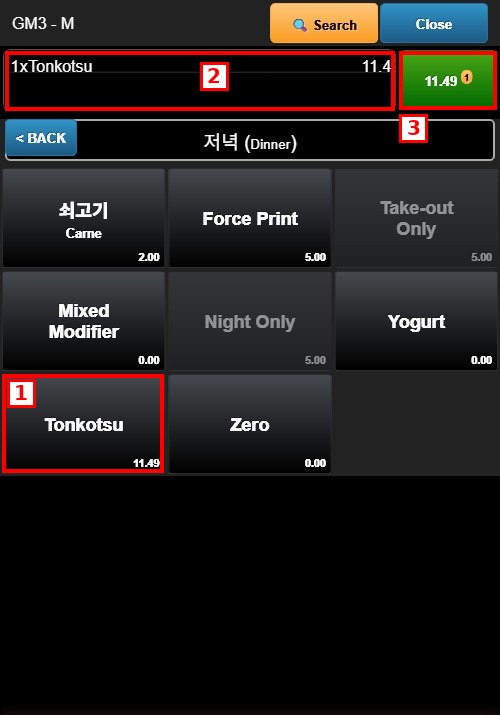
1. ITEM: Tap the item to add it to the order.
2. ORDER FIELD: Displays the quantity and name of the item added (e.g., 1xTonkotsu) and its price.
3. ORDER TOTAL: Displays the order total and the number of items added. Tap it to review the order.
Modifier Selection:
Some items open a modifier selection screen after being tapped. This screen shows the modifier instructions (e.g., "CHOOSE 3 OF THE FOLLOWING") and the available options. Tap the modifiers to select or deselect them; once the required modifiers are selected, the app returns to the menu. Modifiers appear as separate lines under their item.
Editing or Removing Items:
Tap the order total to open the order review screen.
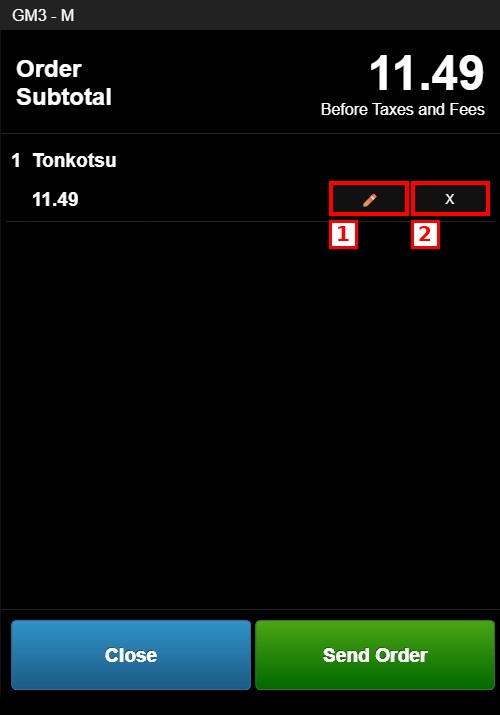
1. EDIT: Modifies the item quantity or modifiers.
2. REMOVE (X): Removes the item from the order.