Table Kiosk Handling Request
The orders, bill requests and server calls sent from the Table Kiosk tablets are shown on the POS. The servers see each request in the Request List, check it and confirm it when it is done.
Main Screen> TABLE> Req> Request> CONFIRM
When a Table Kiosk sends a request, the yellow Req button shows under TABLE on the left, with the number of open requests. Press Req.
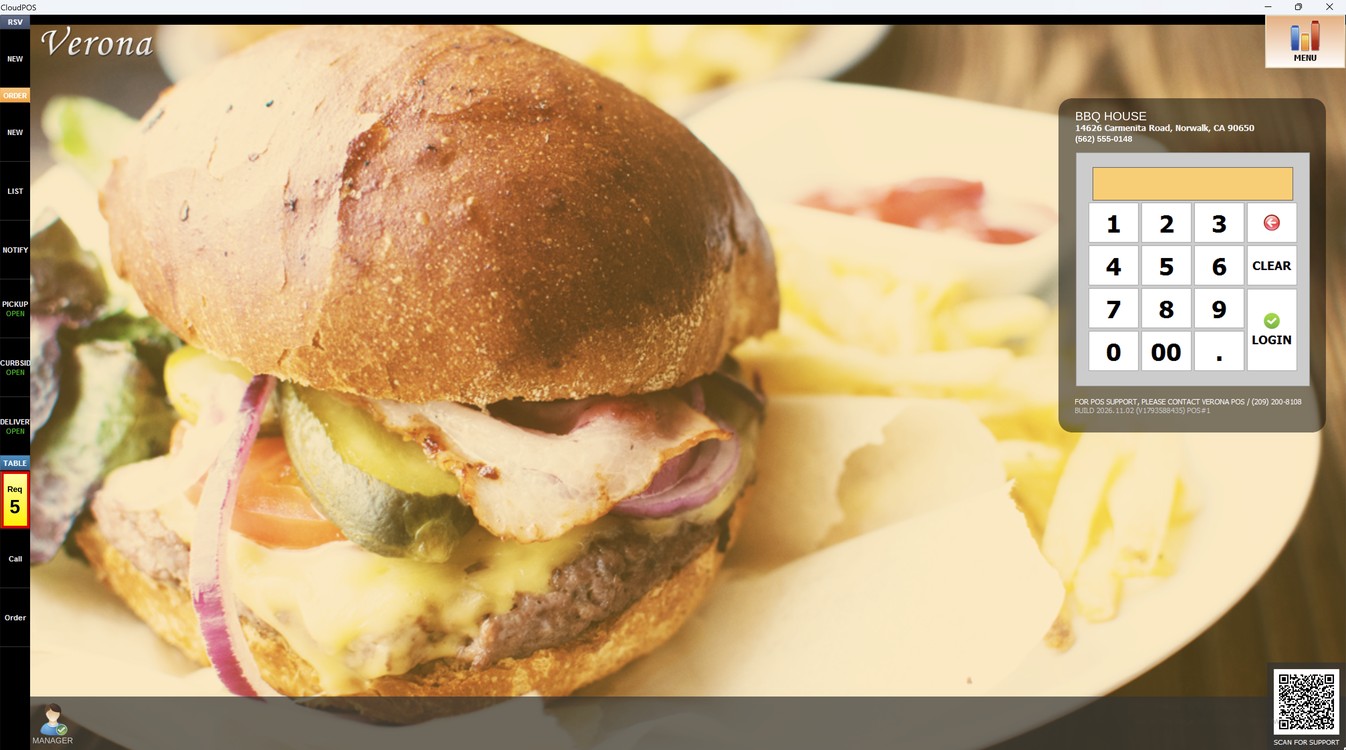
Request List:
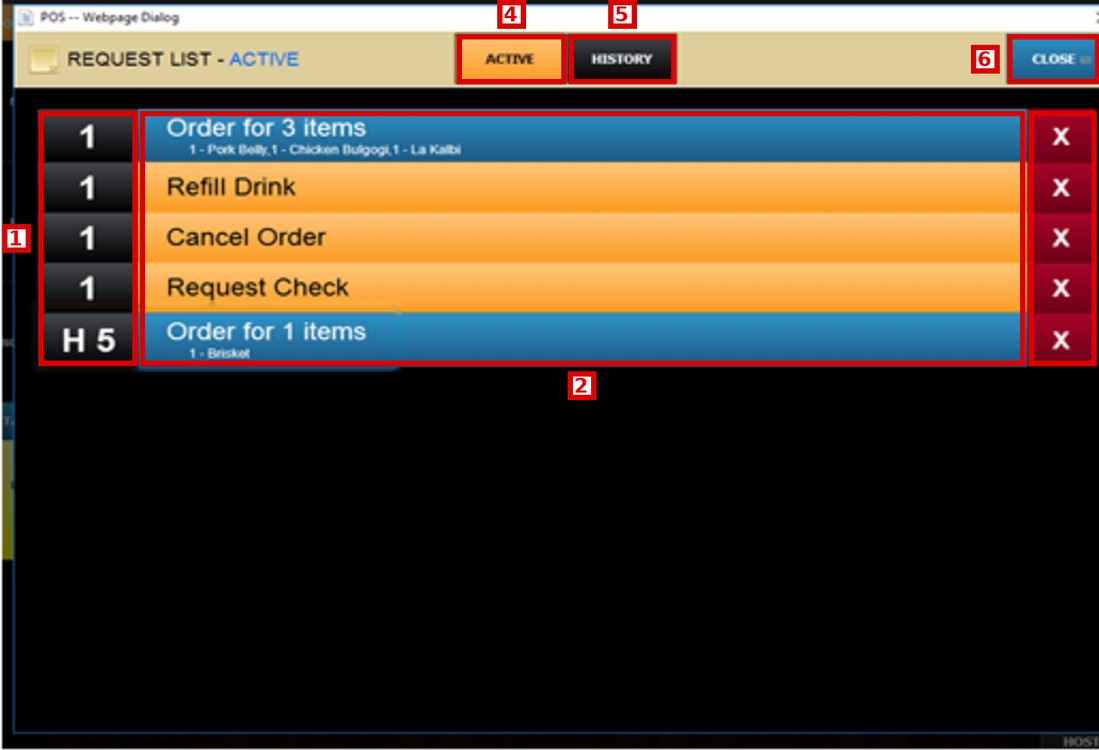
The REQUEST LIST window opens with the active requests.
1. Table: Table that sent the request.
2. Request: Orders are shown in blue with the items ordered. Server calls and bill requests are shown in orange.
3. X: Removes the request from the list.
4. ACTIVE: Shows the requests that are not confirmed yet.
5. HISTORY: Shows the requests that were already confirmed.
6. CLOSE: Closes the Request List.
Confirm a Request:
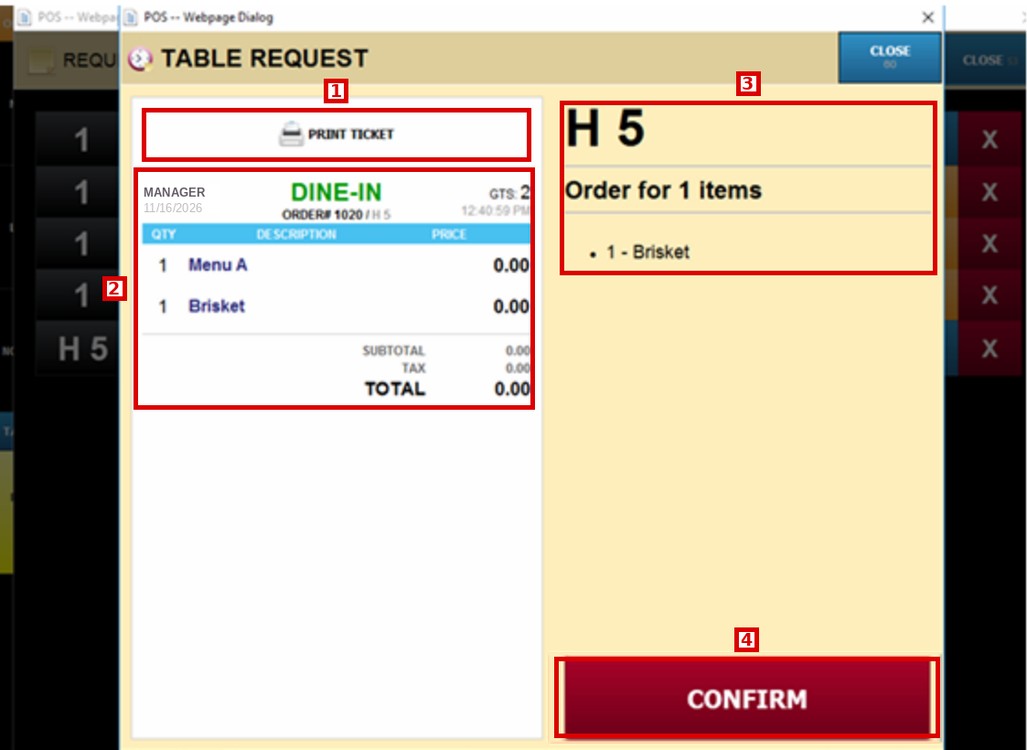
Press a request to open the TABLE REQUEST window. In this example, the order of table H 5.
1. PRINT TICKET: Prints the ticket of the table.
2. Ticket: Shows the ticket of the table with all its items.
3. Request: Shows the table and the request sent from the Table Kiosk.
4. CONFIRM: Confirms the request and removes it from the active list.
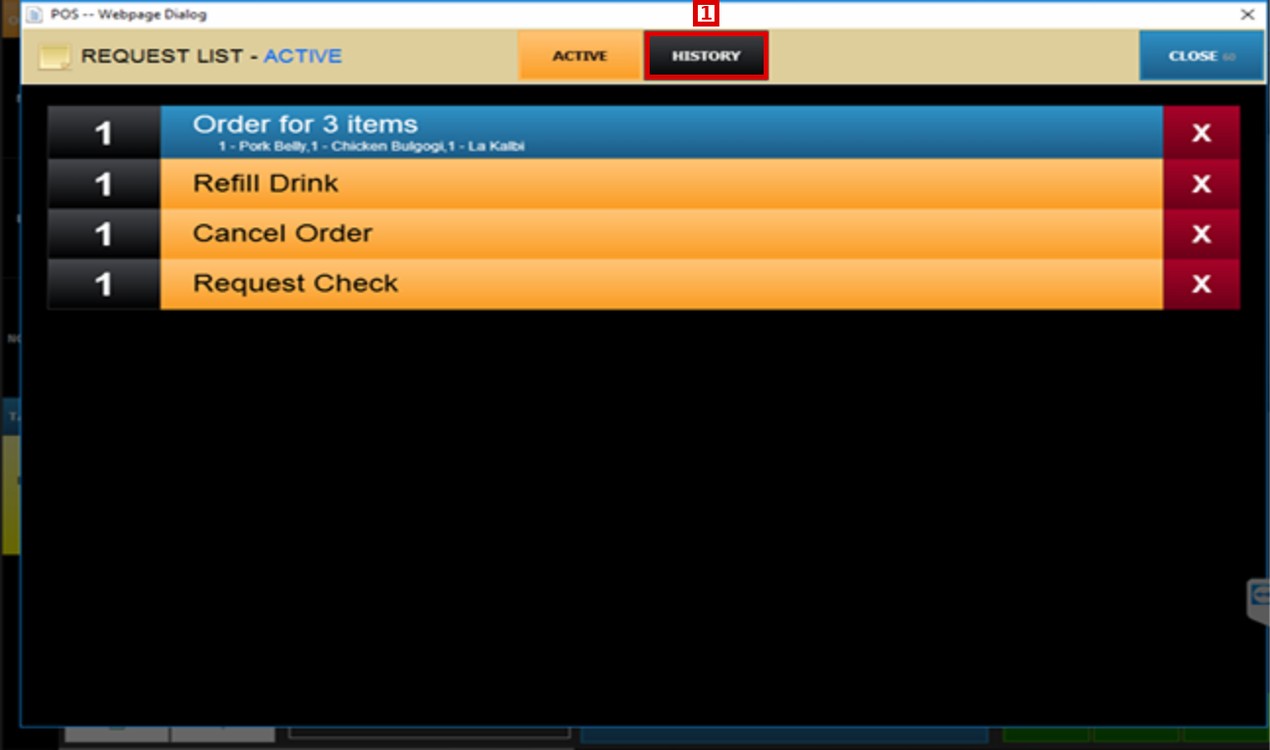
The confirmed requests are removed from the ACTIVE list and saved in HISTORY.
To learn how the customers send requests from the Table Kiosk, please refer to the Table Kiosk Bill & Request Guide.