Paying with Store Card
Receiving STORE CARD as a payment.
This section is only about using store cards as payment. To see how to register a store card see:Registering new Store Card
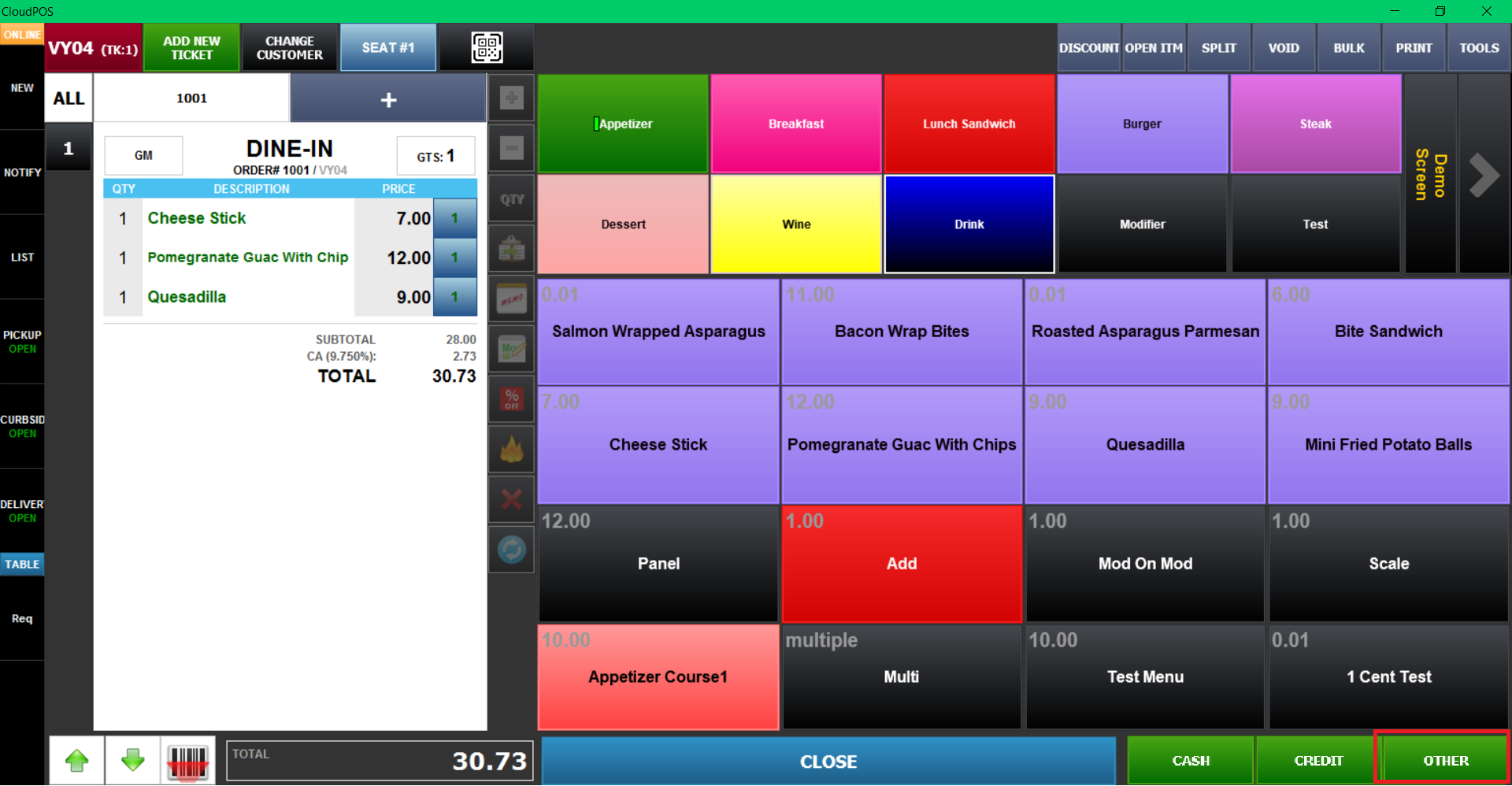
Sales Screen > OTHER button on right bottom corner
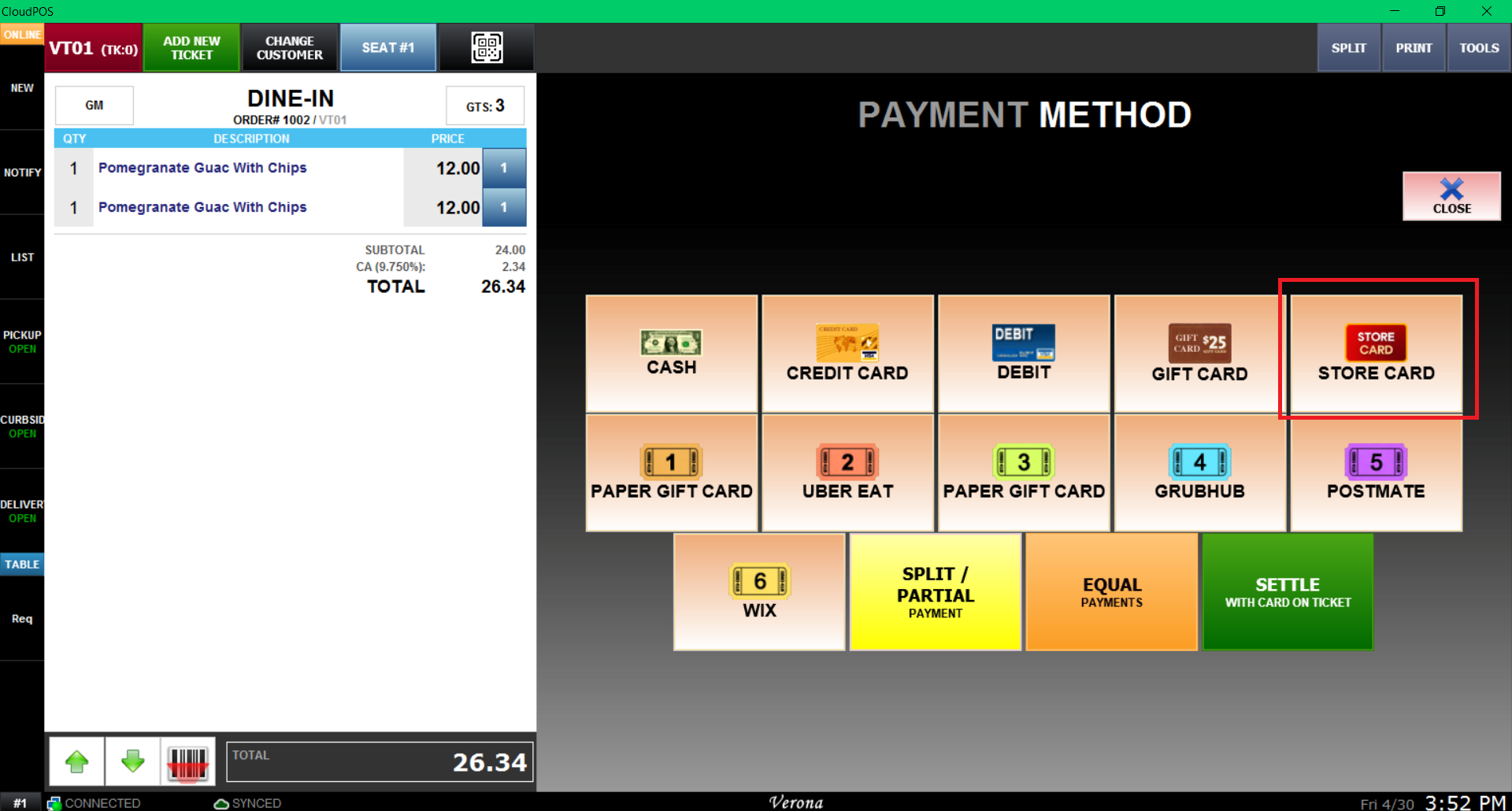
Press the STORE CARD Button.
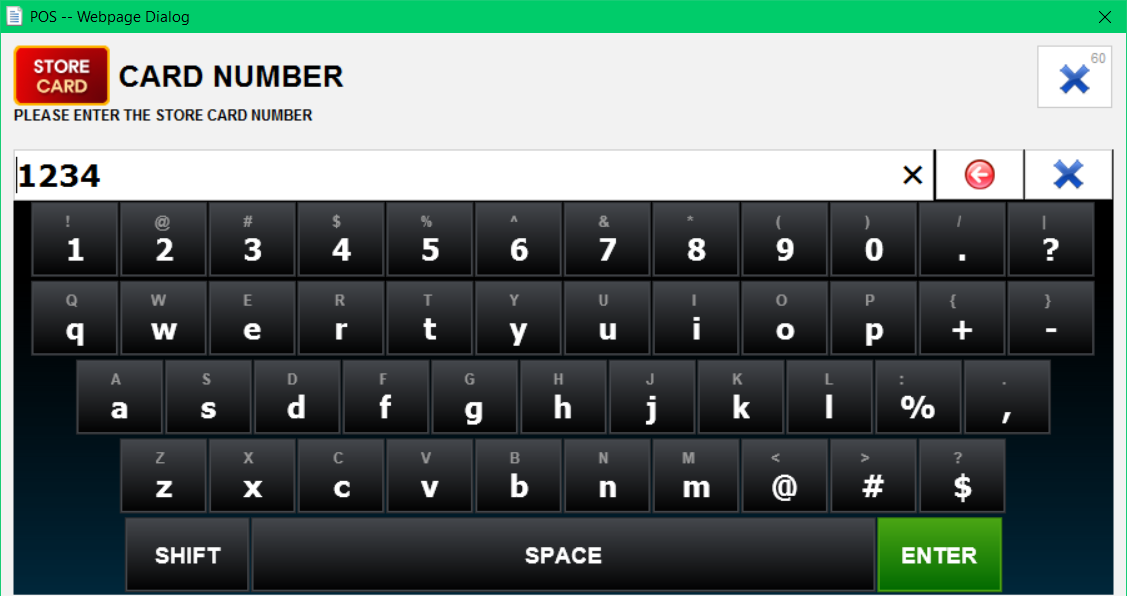
When prompted with store card number information, input the number. If you have MSR (magnetic card reader) installed on our POS machine, you may swipe the store card to input the numbers.
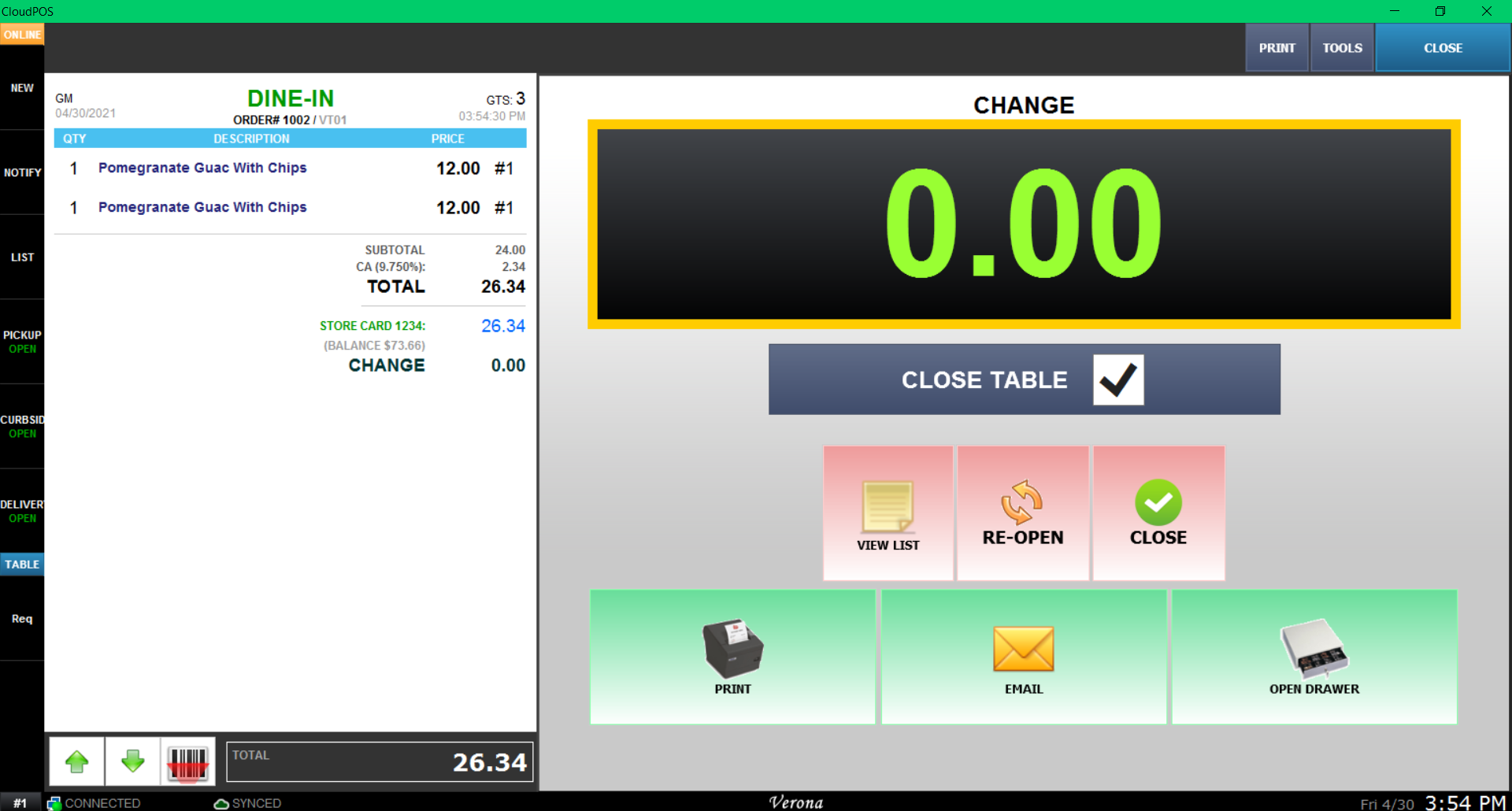
Payment will be processed.
This guide explains how to process a Store Card payment in the system.
Main Screen> Number Pad> Sales Screen> Sale with rang up items> PAY> STORE CARD
On the Main screen, click on the NUMBER PAD and input the assigned personal password to log in.
Ring up the items and press the PAY button.
Select STORE CARD on the PAYMENT METHOD screen.
Input the payment amount and press PROCESS.
Note: The "Allow Charge to Account" checkbox enables the transaction to be billed directly to a customer's store account.
Scan or manually enter the store card number.
Follow the instructions on the PIN PAD to complete the transaction.
RESULT:
To learn how to set Store Card as a payment method, consult the Store Card Tender guide.