Signature Capture
The Signature screen appears after the tip selection in Pre Tip payments, and as part of the combined tip and signature screen in Post Tip payments.
CloudPOS Mobile > Ticket > PAY > Tip Selection > CONFIRM
After tapping CONFIRM on the Tip Selection screen, the payment is processed and the Signature screen opens.
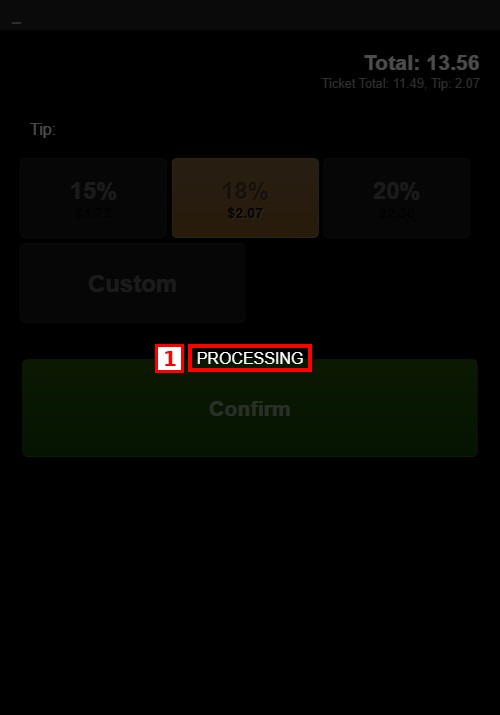
1. PROCESSING: The app processes the payment before showing the Signature screen.
Signature Screen:
The Signature screen shows the header "GM3 - Sign", the instruction "PLEASE SIGN BELOW", a white signature pad, and the buttons CLEAR (clears the signature pad) and OK (submits the signature).
Using the Signature Screen:
Hand the device to the customer. The customer signs on the white pad using a finger or a stylus. If the signature needs to be redone, tap CLEAR. Tap OK to confirm the signature.
After tapping OK, the Thank You screen appears, followed by the Payment Approved screen.