Voiding a Ticket
This feature allows you to void a payment, whether credit or cash, that was processed incorrectly and return the ticket to an open status for correction. It is commonly used when the wrong payment method was selected, an incorrect amount was processed, or the payment needs to be removed and re-entered before finalizing the transaction.
Main Screen> Number Pad> Table Screen> TICKET LIST
From the Main Screen, use the number pad and enter the assigned employee's password to log in.

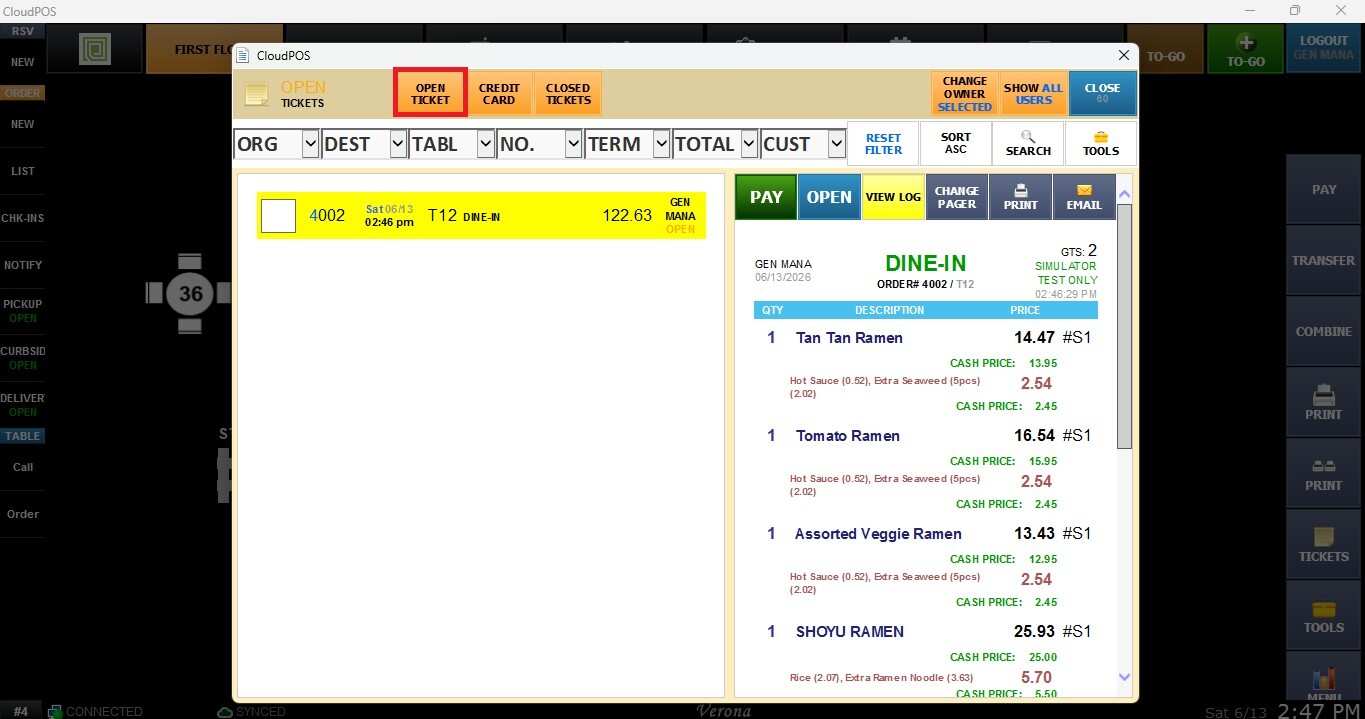
On the toolbar of the Table Screen, click on TICKETS.
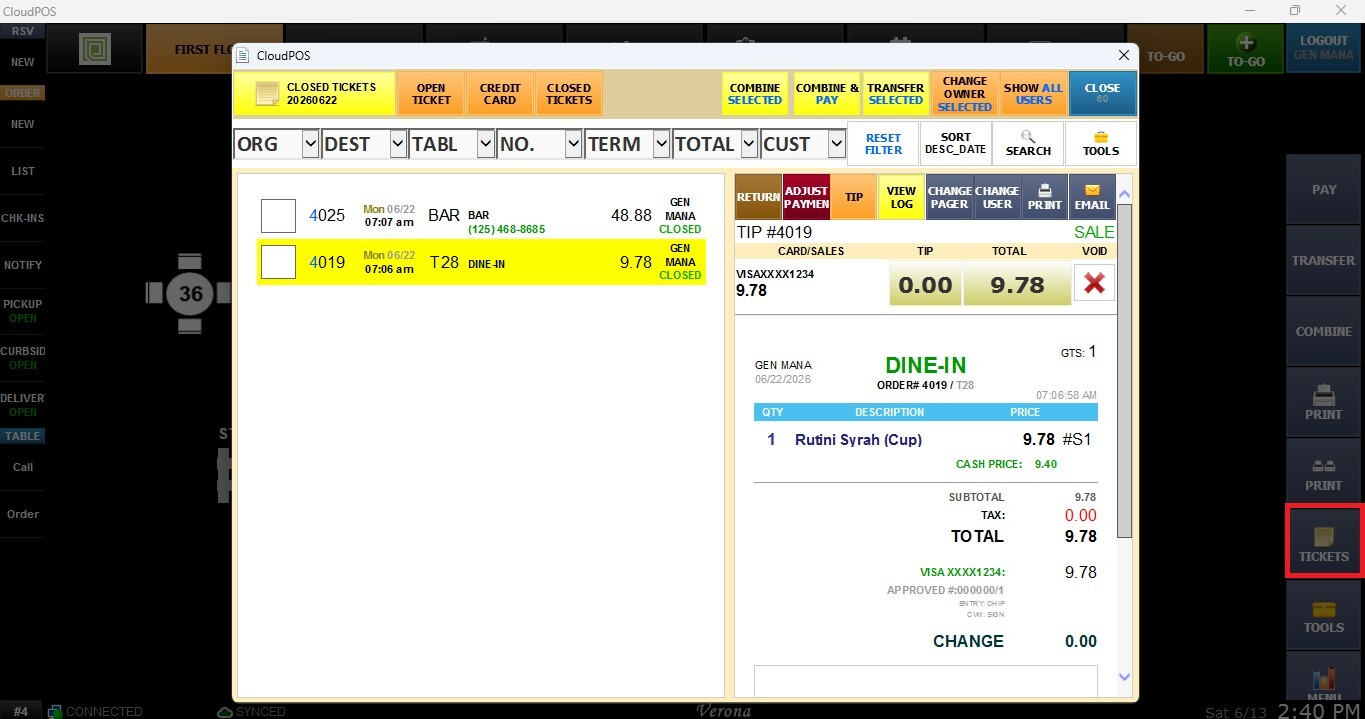
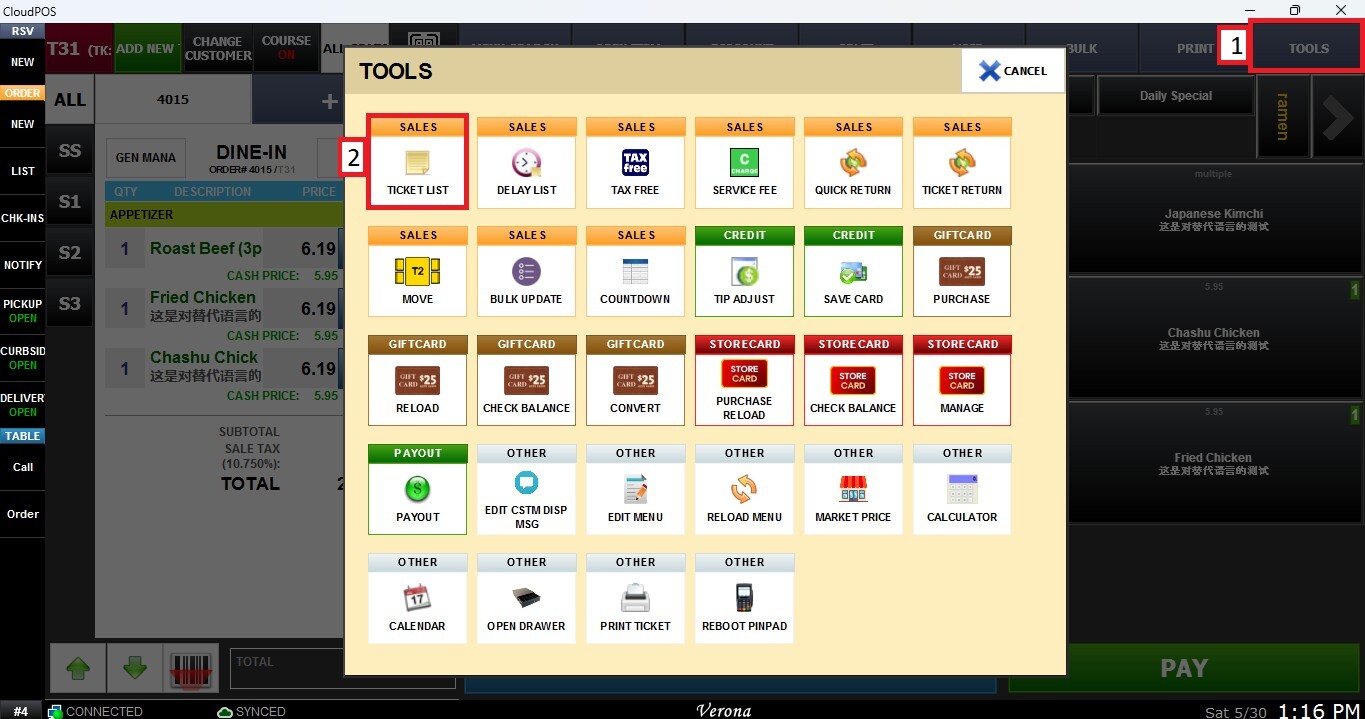
You can also access the Ticket List from the Sales Screen by selecting TOOLS and TICKET LIST.
Voiding a Cash Payment
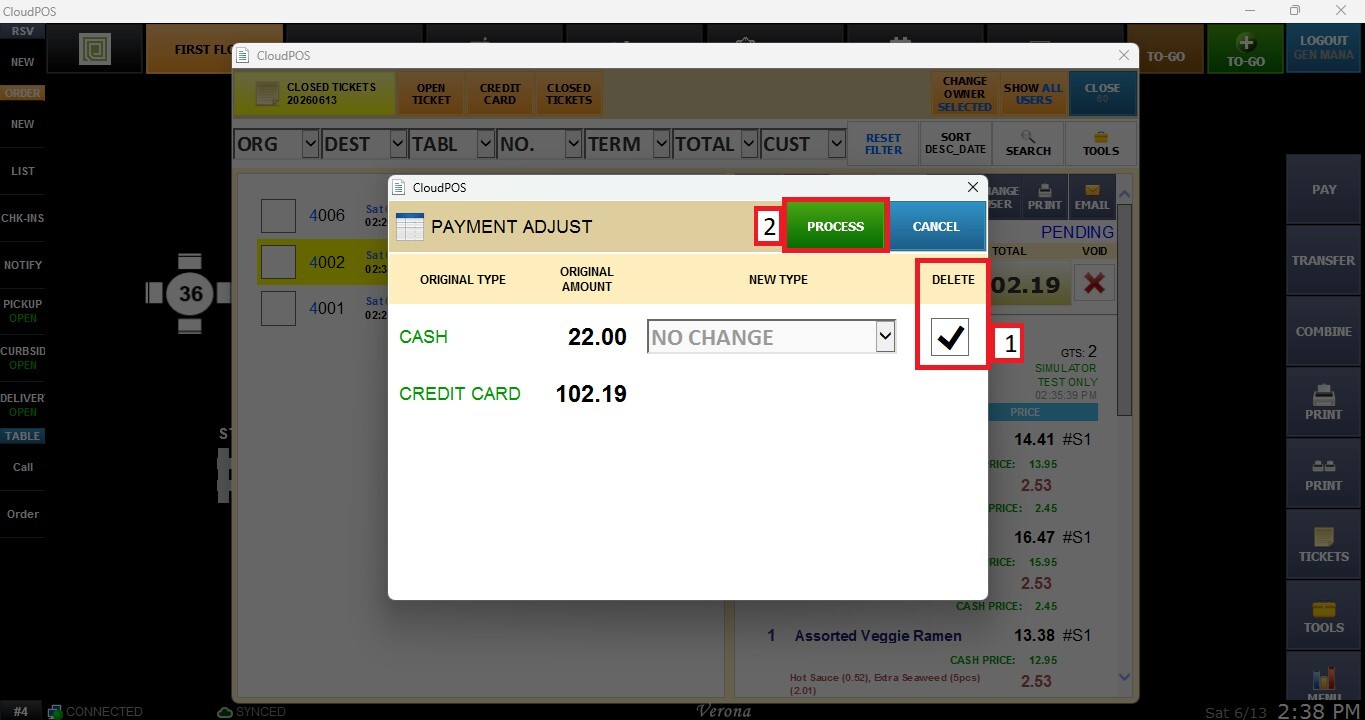
Locate the closed ticket containing the cash payment you wish to void. Select the ticket and press ADJUST PAYMENT.
On the adjustment screen, check the DELETE box, then PROCESS.
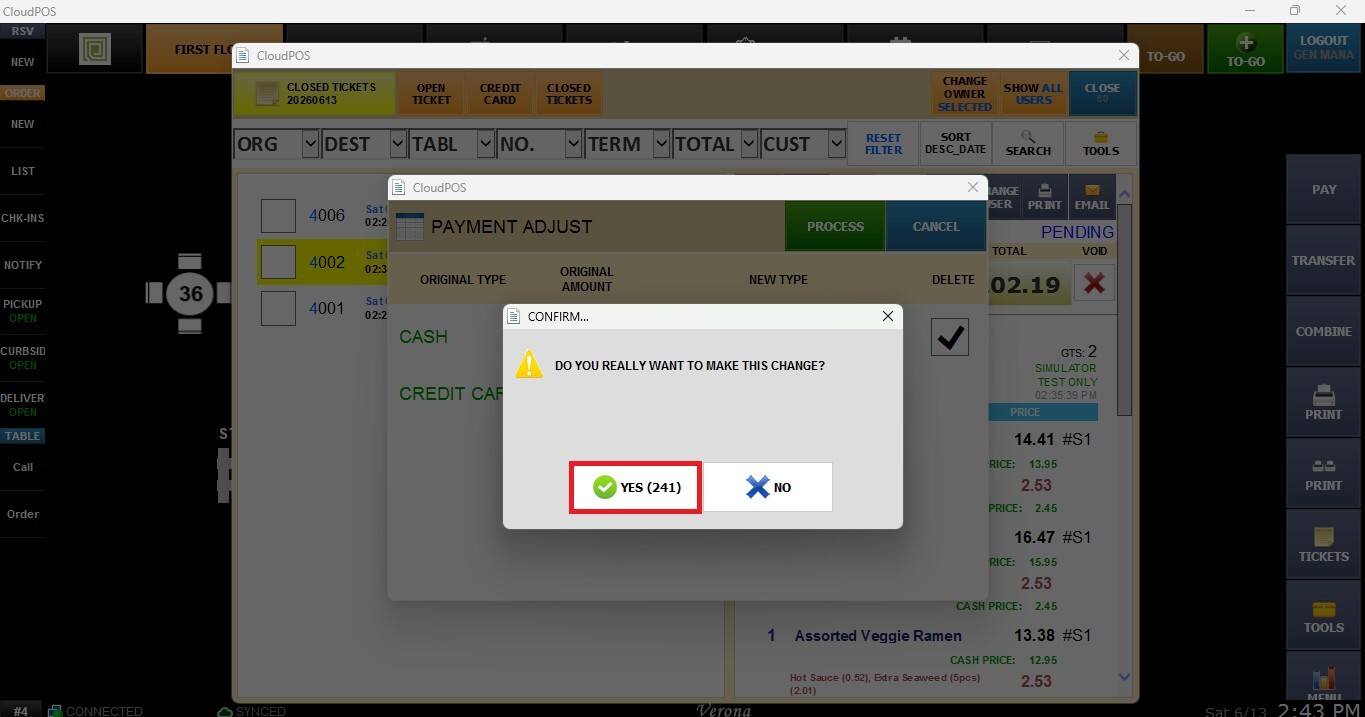
When prompted for confirmation, press YES.
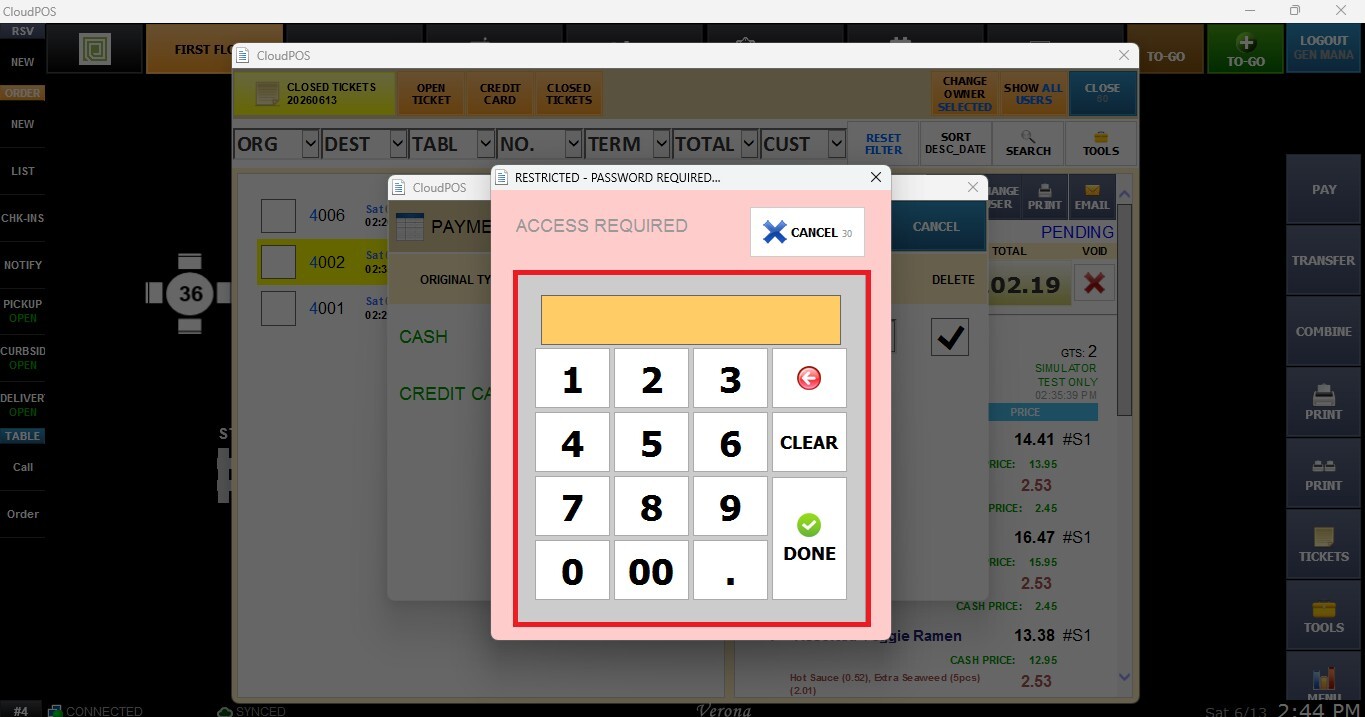
If your employee account does not have permission to perform voids, the system will request a manager authorization code before proceeding.
A confirmation window indicating that a notification will be sent to the manager will appear. Press YES to continue.
Voiding the Credit Card Payment
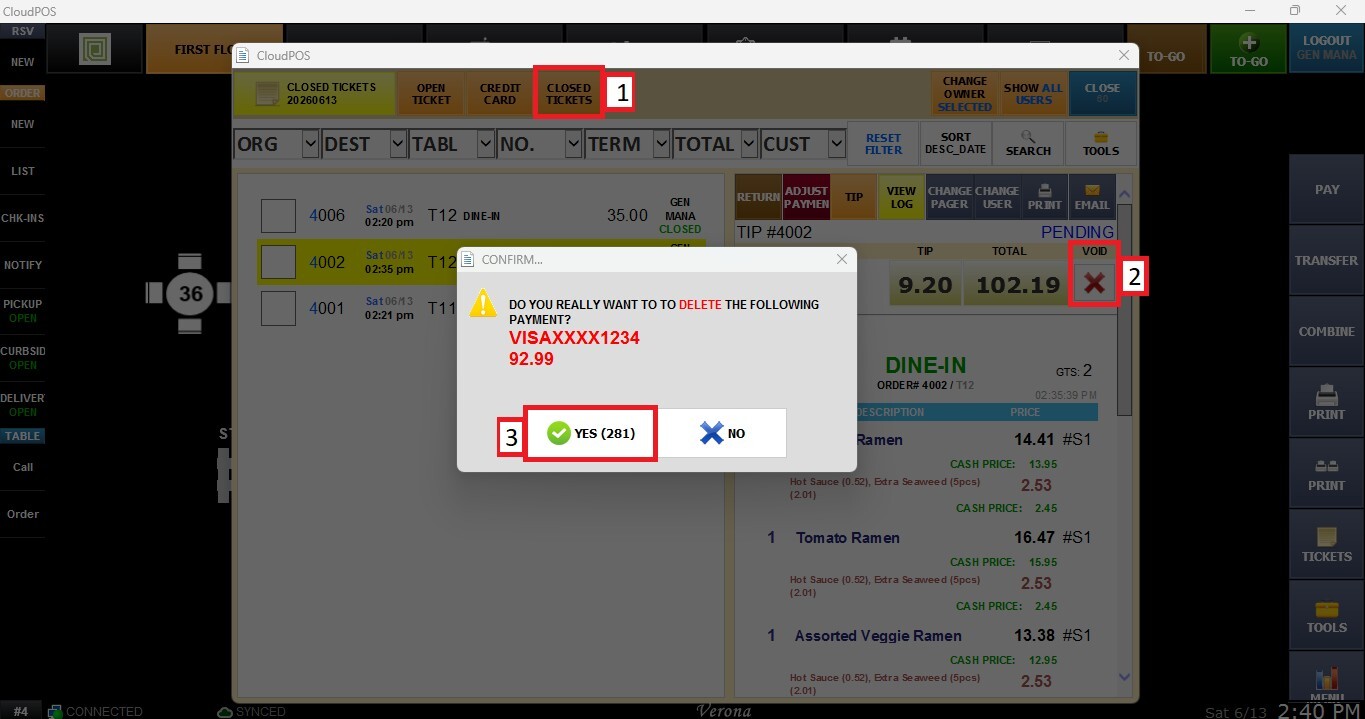
Locate and select the desired ticket from the Closed Tickets list and press VOID X.
When prompted for confirmation, press YES.
If your employee account does not have permission to perform voids, the system will request a manager authorization code before proceeding.
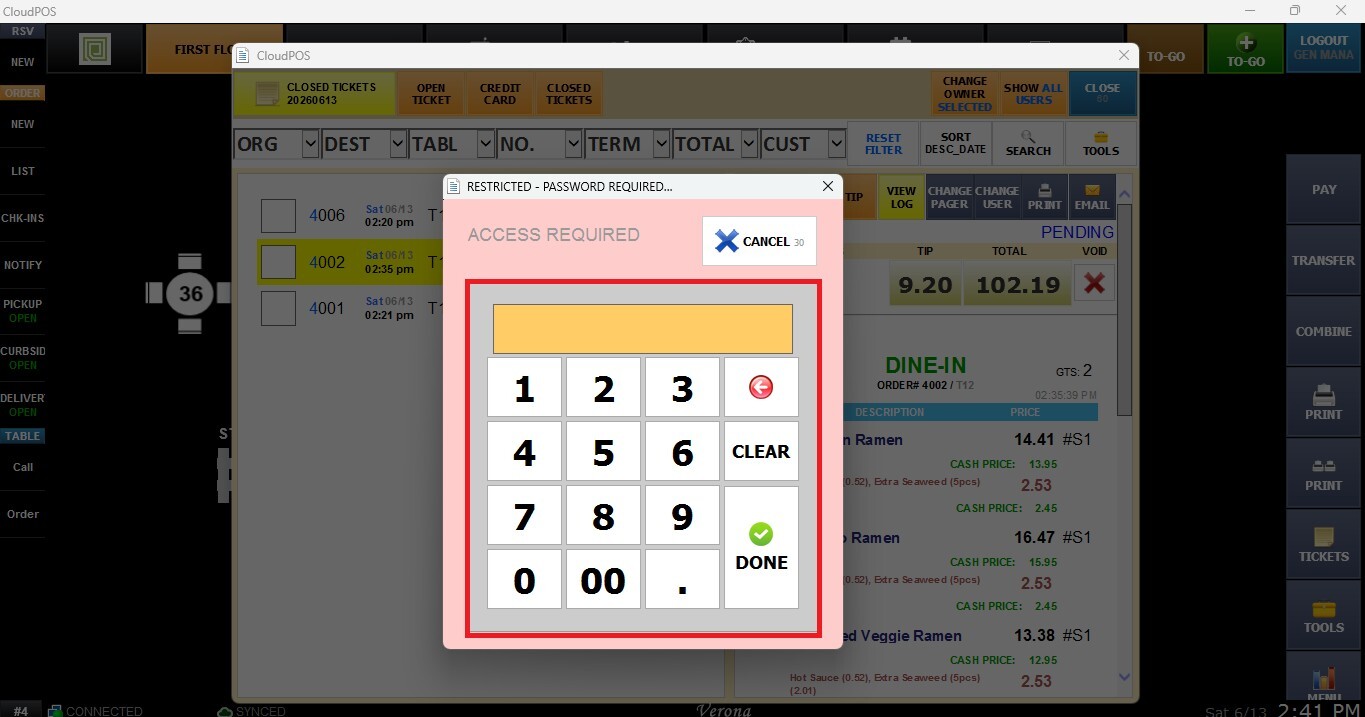
A confirmation window indicating that a notification will be sent to the manager will appear. Press YES to continue.
Note: Credit card payments can only be voided before they have been settled. If the transaction has already been settled, a refund must be processed instead. For more information about how to perform a return, please check Return.
Result
The credit card/cash payment will be removed from the ticket, and the transaction will return to an open status. Once reopened, the ticket can be modified and processed again using the correct payment method or payment amount.