Bar
The Bar setting enables and customizes the bar tab feature for fine dining. It allows the user to define how bar tabs are opened, how tips are handled, and how the tab is processed and settled.
MENU> SETTINGS> MAIN> BAR
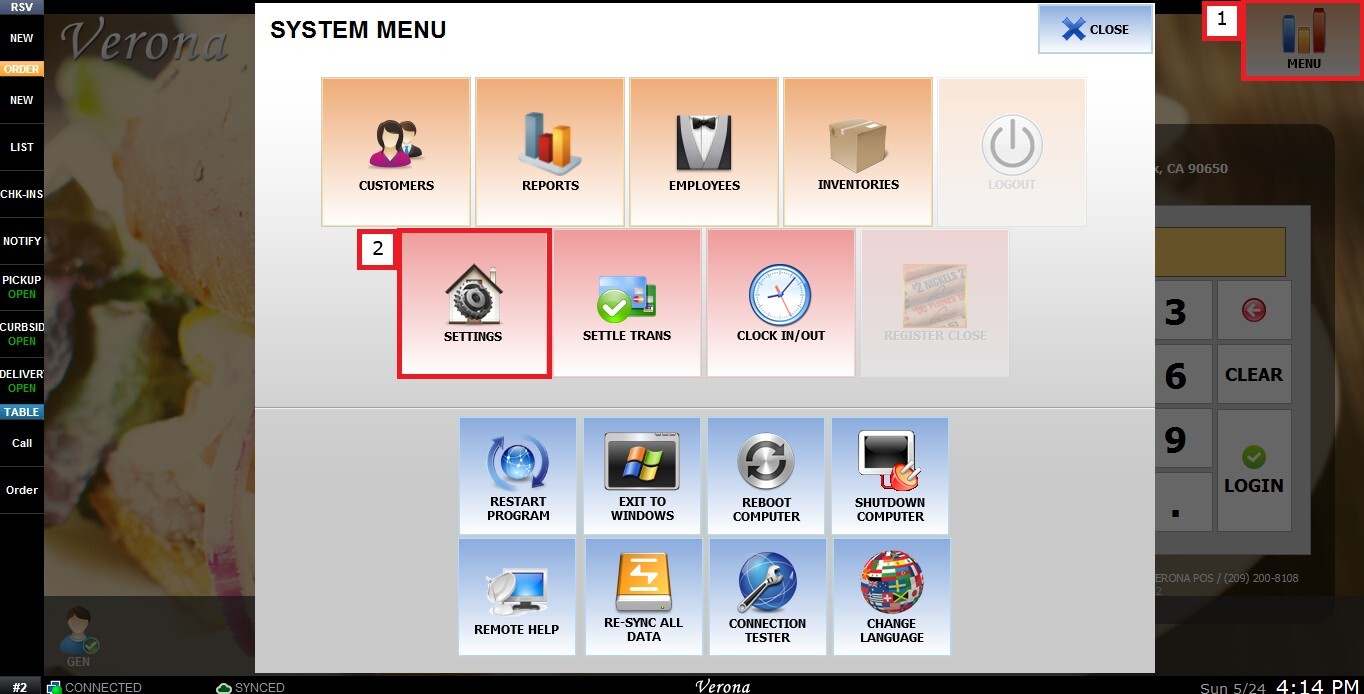
From the Main Screen, click MENU, then select SETTINGS.
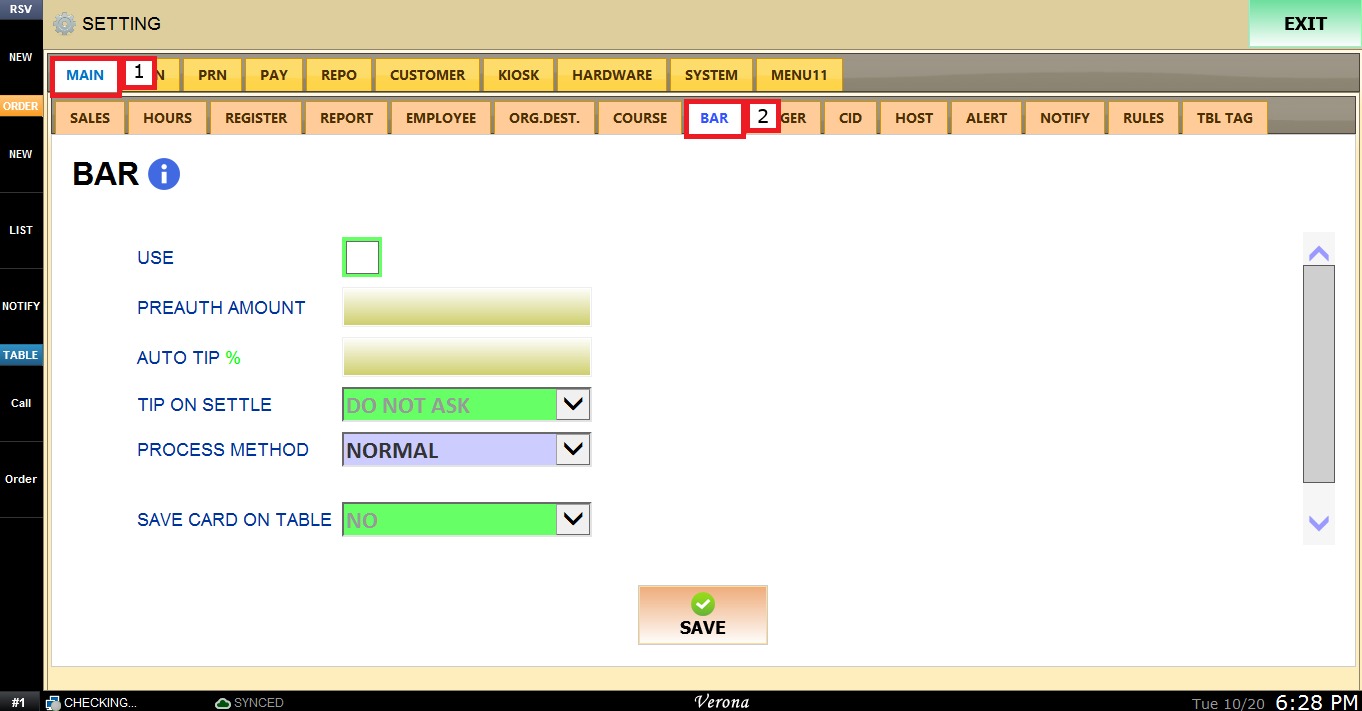
Under MAIN, select BAR, and review the available configuration options.
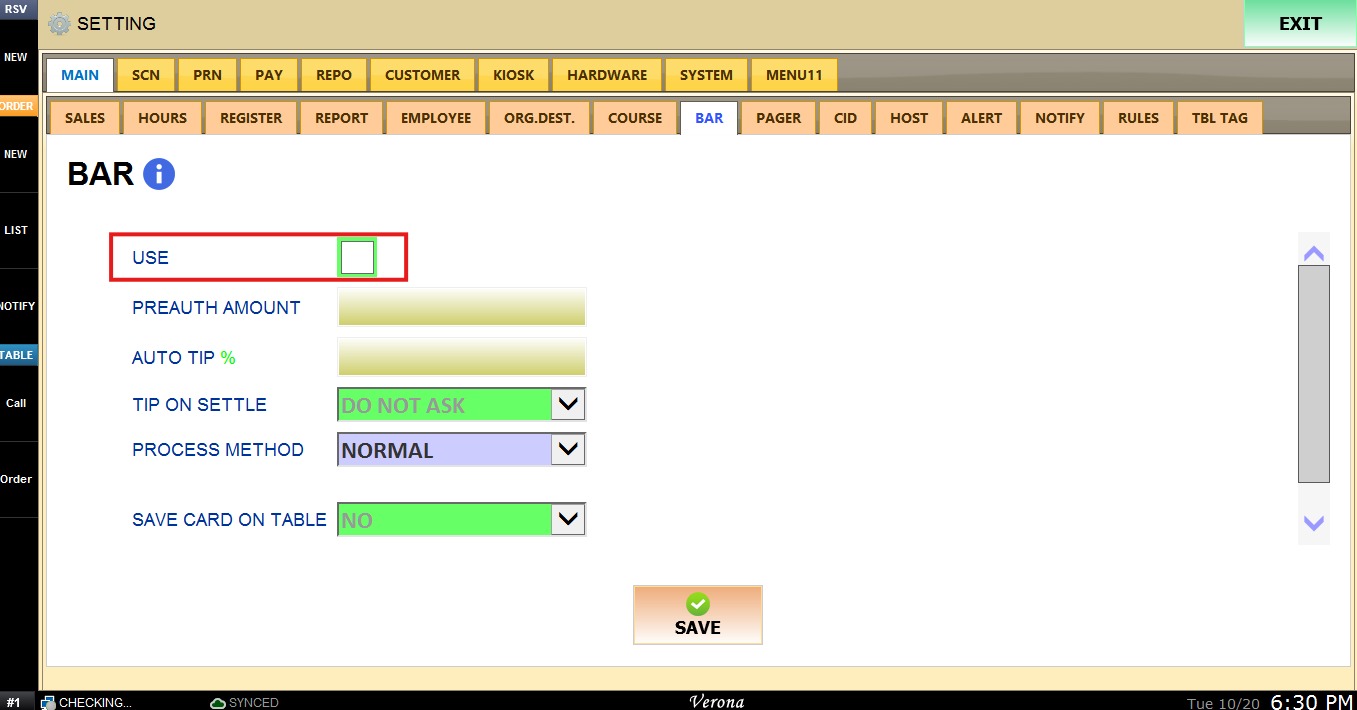
Use
This setting controls whether the bar tab feature is enabled. Check the box to enable it, or leave it unchecked to disable it.
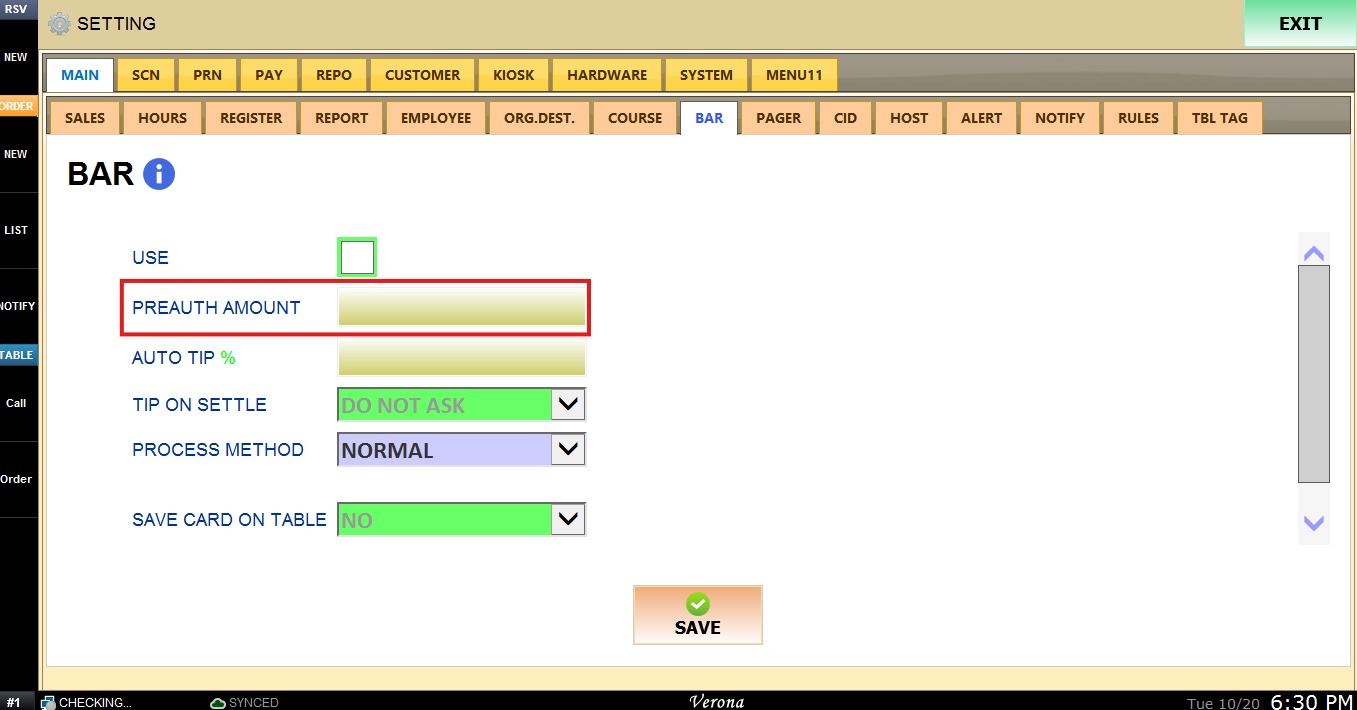
Preauth Amount
This setting defines the amount that is pre-authorized on the customer’s card when a bar tab is opened. Click the field and enter the desired amount.
Tip On Settle
This setting controls whether the system asks for a tip when the tab is settled, and where the tip is entered.
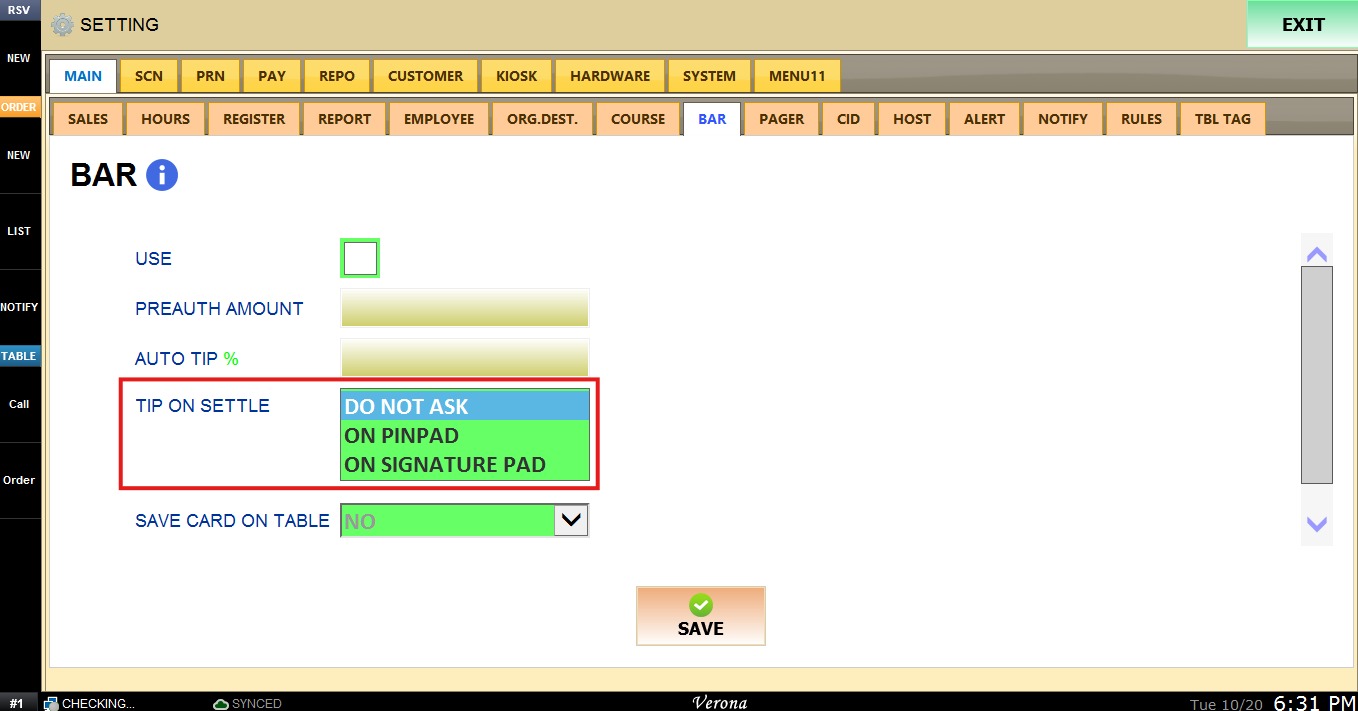
The TIP ON SETTLE dropdown menu has the following options:
1. DO NOT ASK: The system does not ask for a tip when the tab is settled.
2. ON PINPAD: The customer is asked to enter the tip on the pinpad when the tab is settled.
3. ON SIGNATURE PAD: The customer is asked to enter the tip on the signature pad when the tab is settled.
Save Card On Table
This setting controls whether the customer’s card is saved when a person seated at a bar tab is moved to a table in the restaurant. The card is saved to the regular ticket, not to the bar tab.
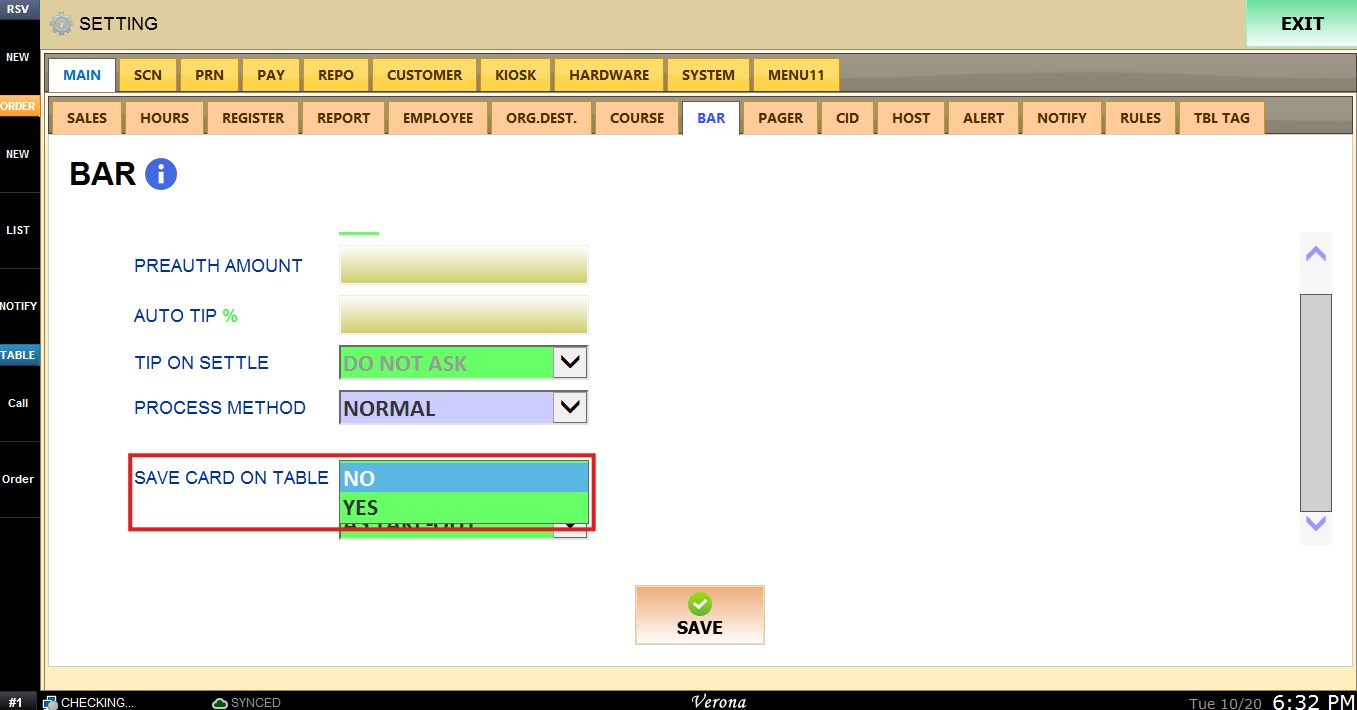
The SAVE CARD ON TABLE dropdown menu has the following options:
1. NO: The card is not saved to the regular ticket when the customer is moved to a table.
2. YES: The card is saved to the regular ticket when the customer is moved to a table.
Quick Sale
This setting changes the origination shown on the ticket for the kitchen and the receipt when a quick sale is made.
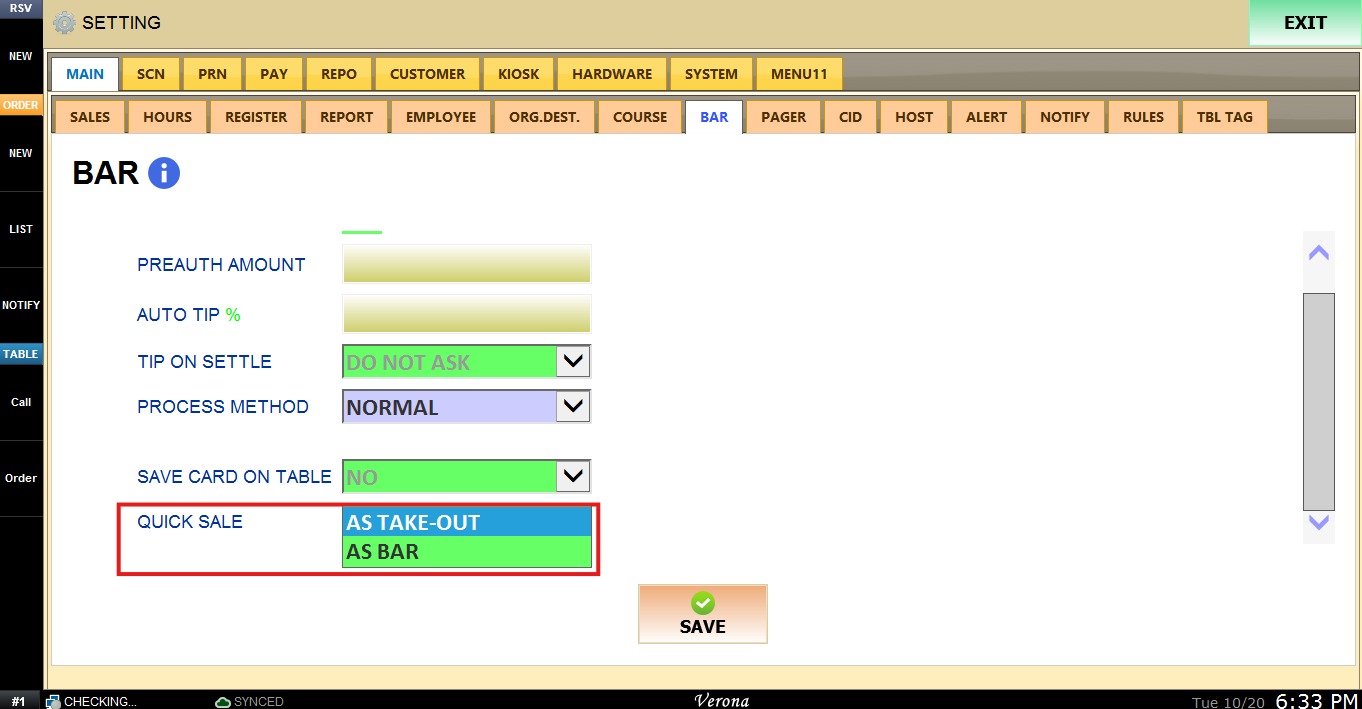
The QUICK SALE dropdown menu has the following options:
1. AS TAKE-OUT: The ticket origination is shown as Take-Out.
2. AS BAR: The ticket origination is shown as Bar.
To keep the desired configuration, click SAVE and RESTART PROGRAM.
Result
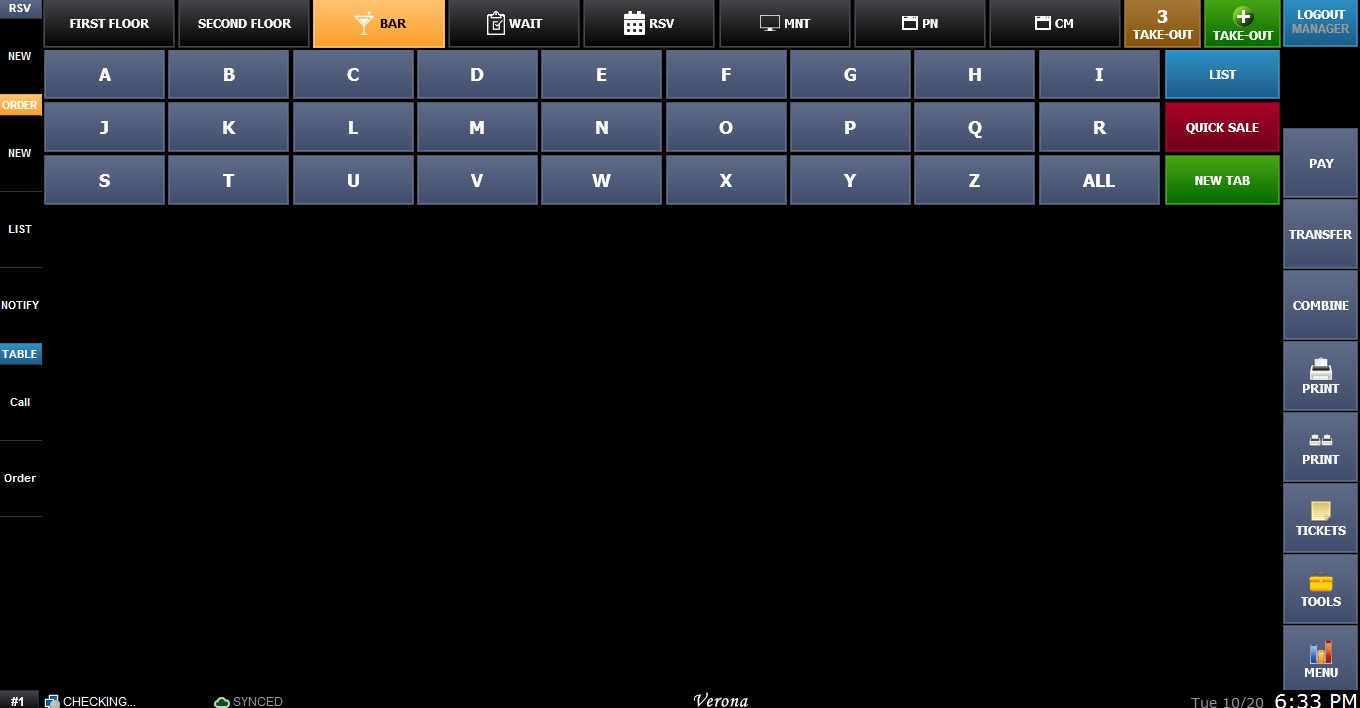
Once the Bar feature is enabled, a BAR button will appear at the top of the Sales screen. Click it to view the bar tabs, which can be filtered by the first letter of the tab name using the A to Z buttons, or by selecting ALL. The screen also includes the LIST, QUICK SALE, and NEW TAB buttons.