Ticket
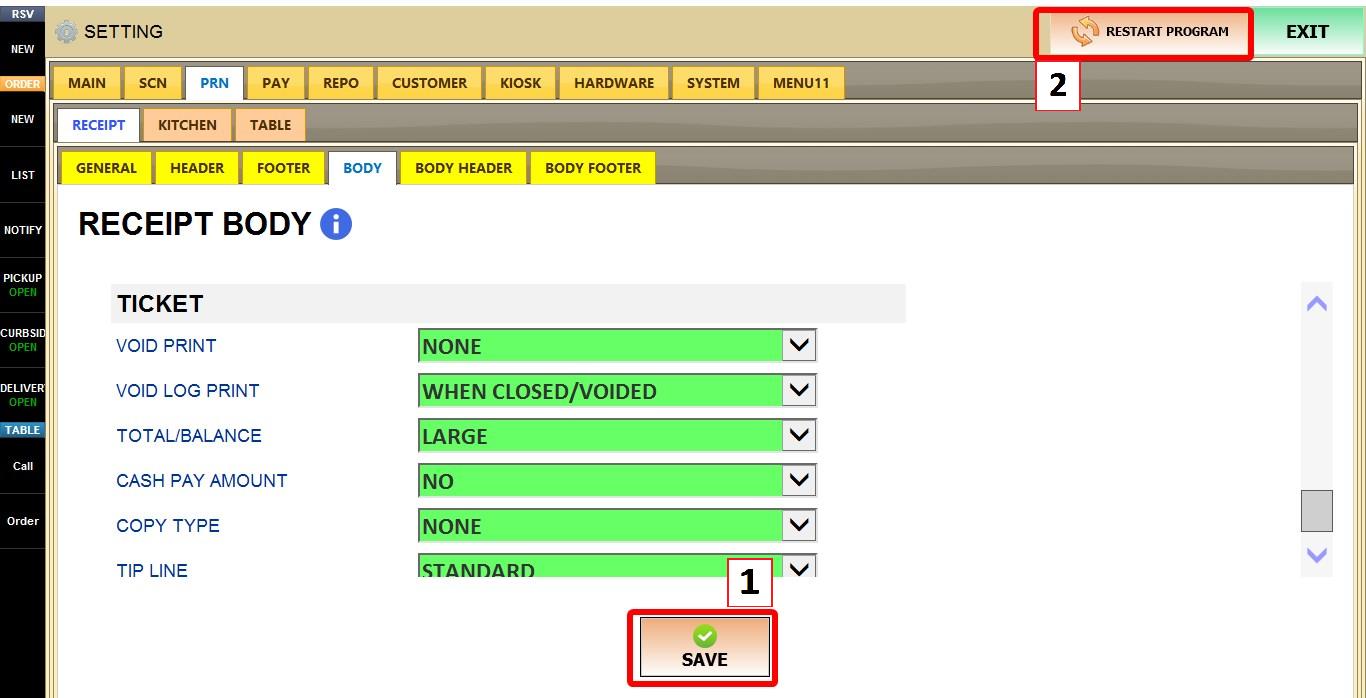
These settings control how ticket receipts are printed, including void information, payment details, copy labels, and tipping information. Use these settings to customize the appearance and content of printed receipts.
MENU > SETTINGS > PRINT > RECEIPT > BODY > TICKET SECTION
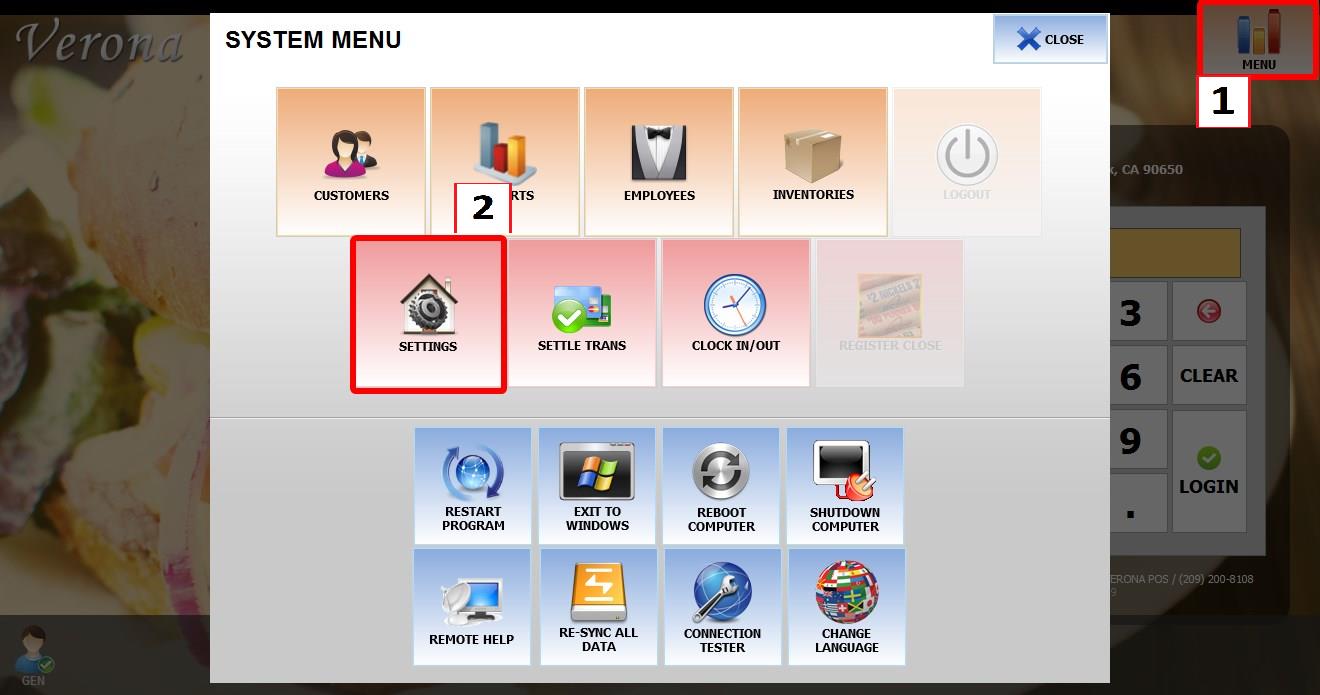
From the MAIN SCREEN, click MENU, then select SETTINGS.
Open the PRINT tab, then RECEIPT, then BODY, then navigate to TICKET SECTION.
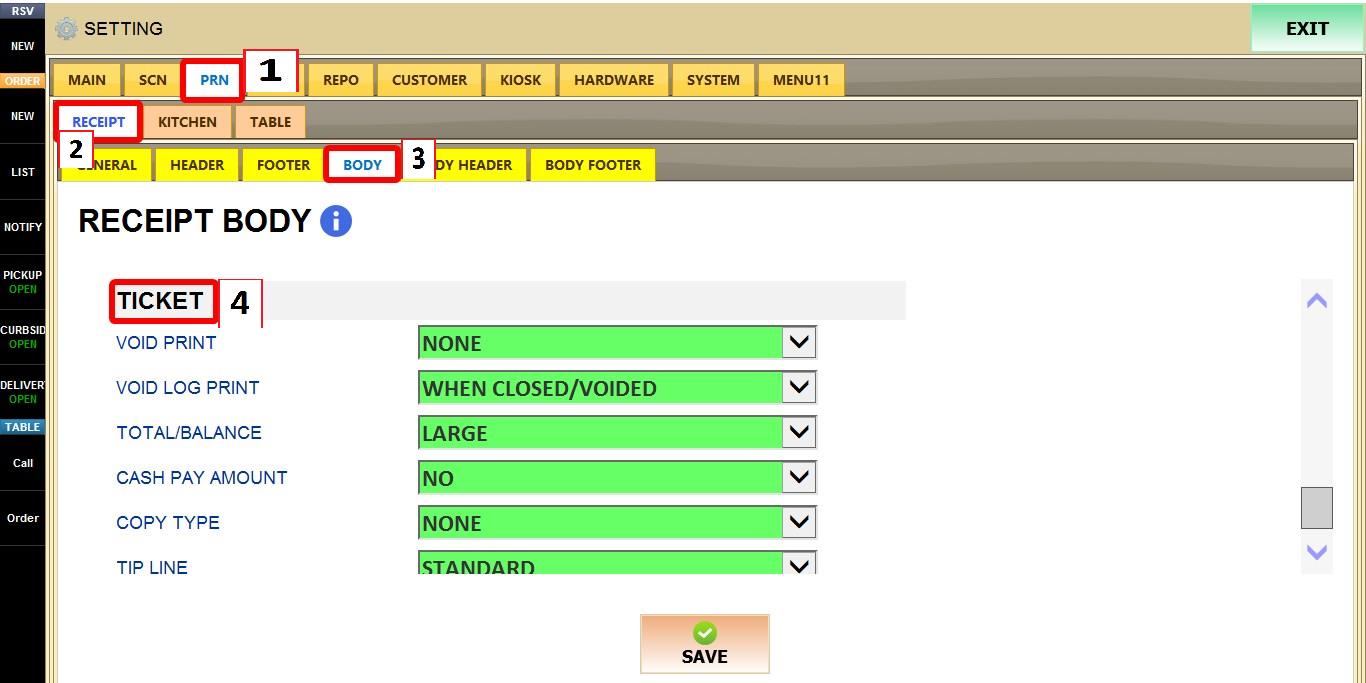
TICKET SECTION
VOID PRINT
Determines how voided items are printed on receipts.
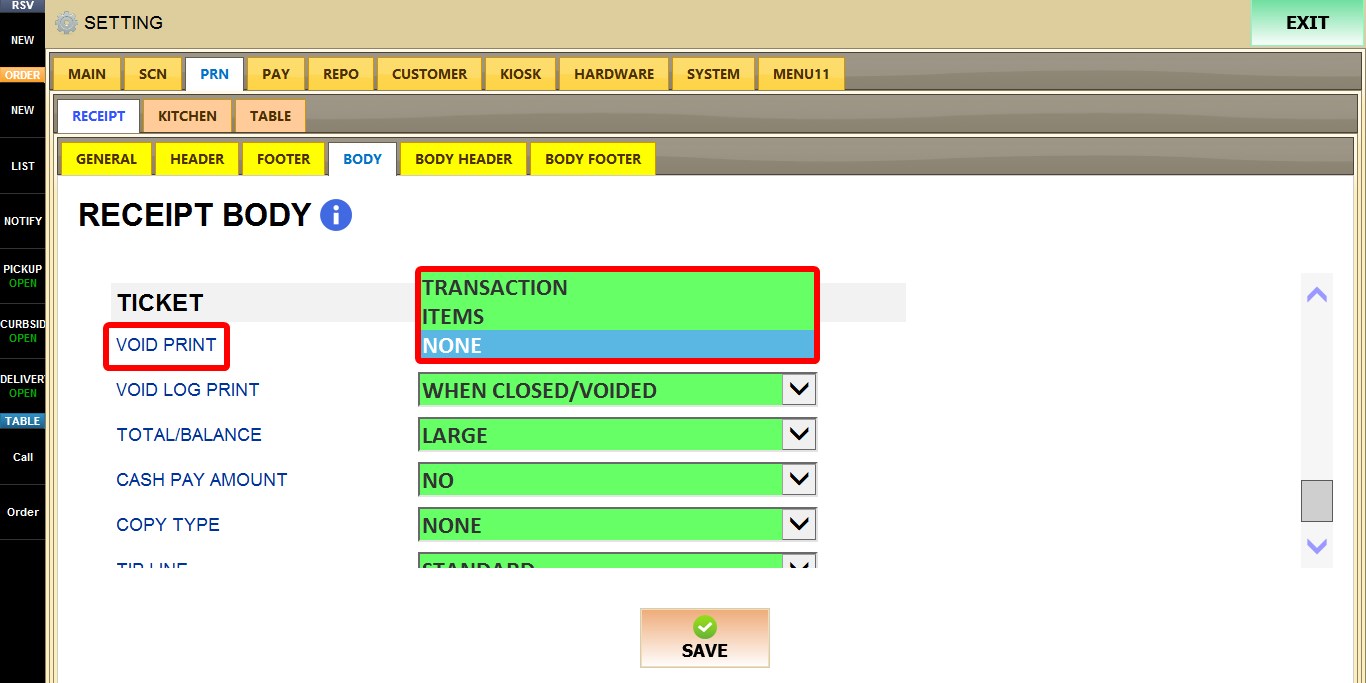
1. TRANSACTION: Prints the complete transaction containing the void.
2. ITEMS: Prints only the voided item(s).
3. NONE: Does not print void information.
VOID LOG PRINT
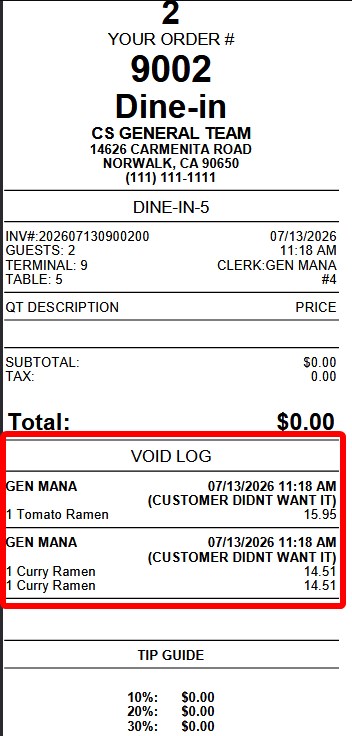
Determines when a void log is printed.
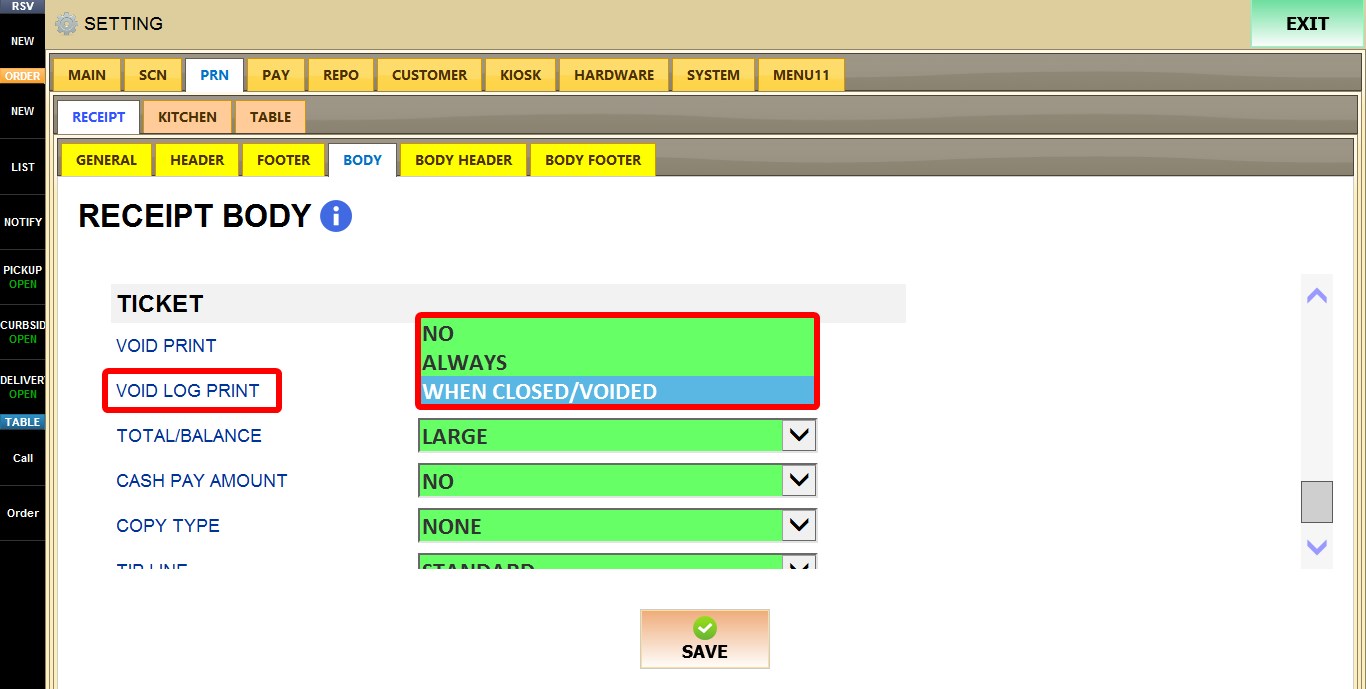
1. NO: Does not print a void log.
2. ALWAYS: Always prints a void log whenever a void occurs.
3. WHEN CLOSED/VOIDED: Prints the void log when the ticket is closed or fully voided.
TOTAL/BALANCE
Determines the font size used for the TOTAL and BALANCE/CHANGE section of the receipt.
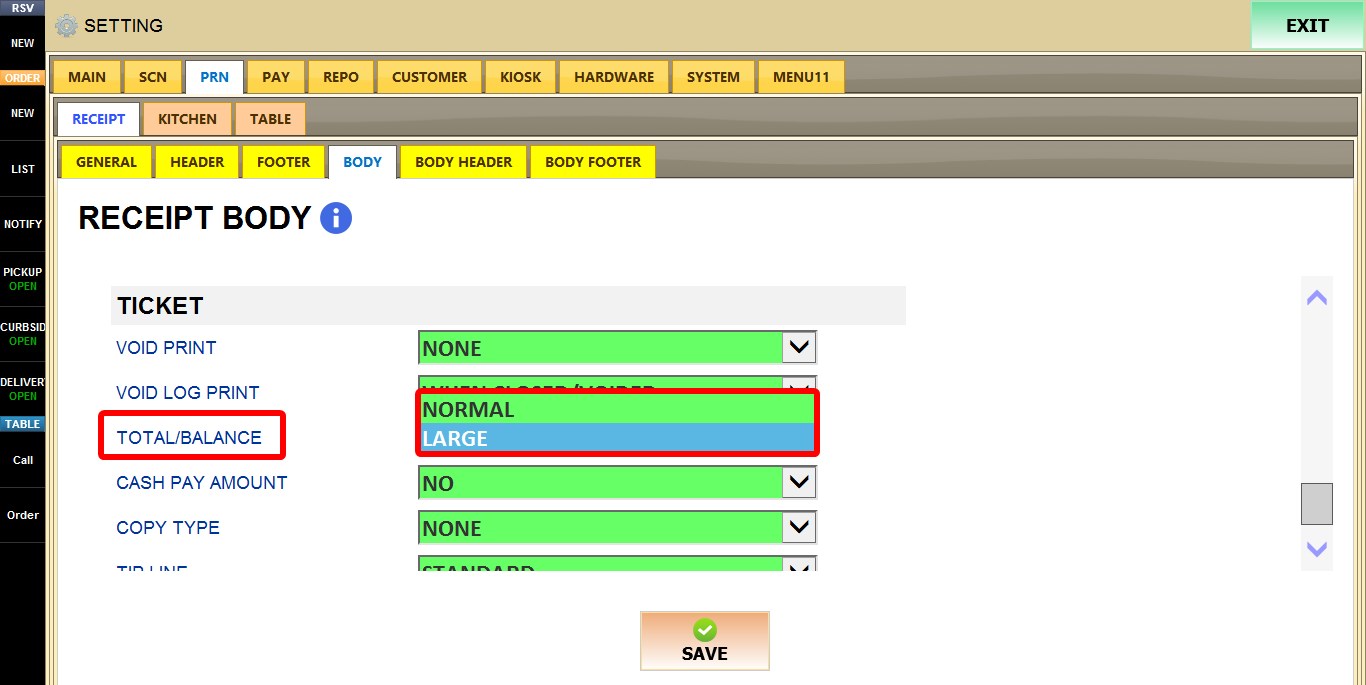
1. NORMAL: Prints totals using the standard font size.
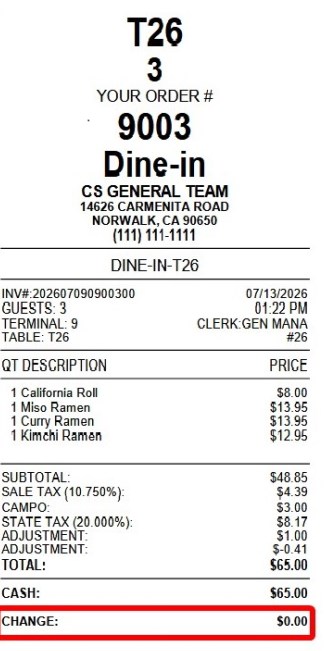
2. LARGE: Prints totals using a larger font size.
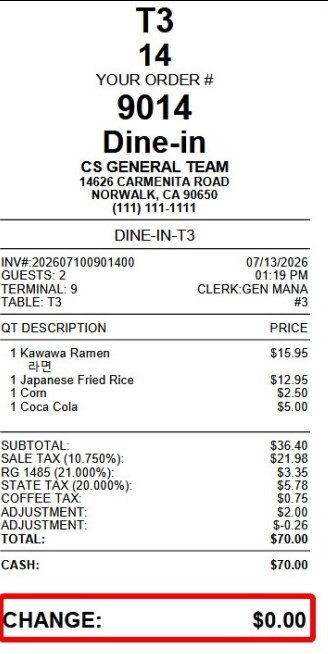
CASH PAY AMOUNT
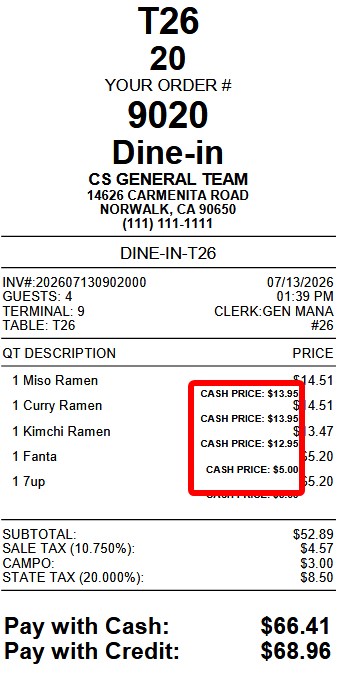
Determines whether cash payment information is printed on the receipt.
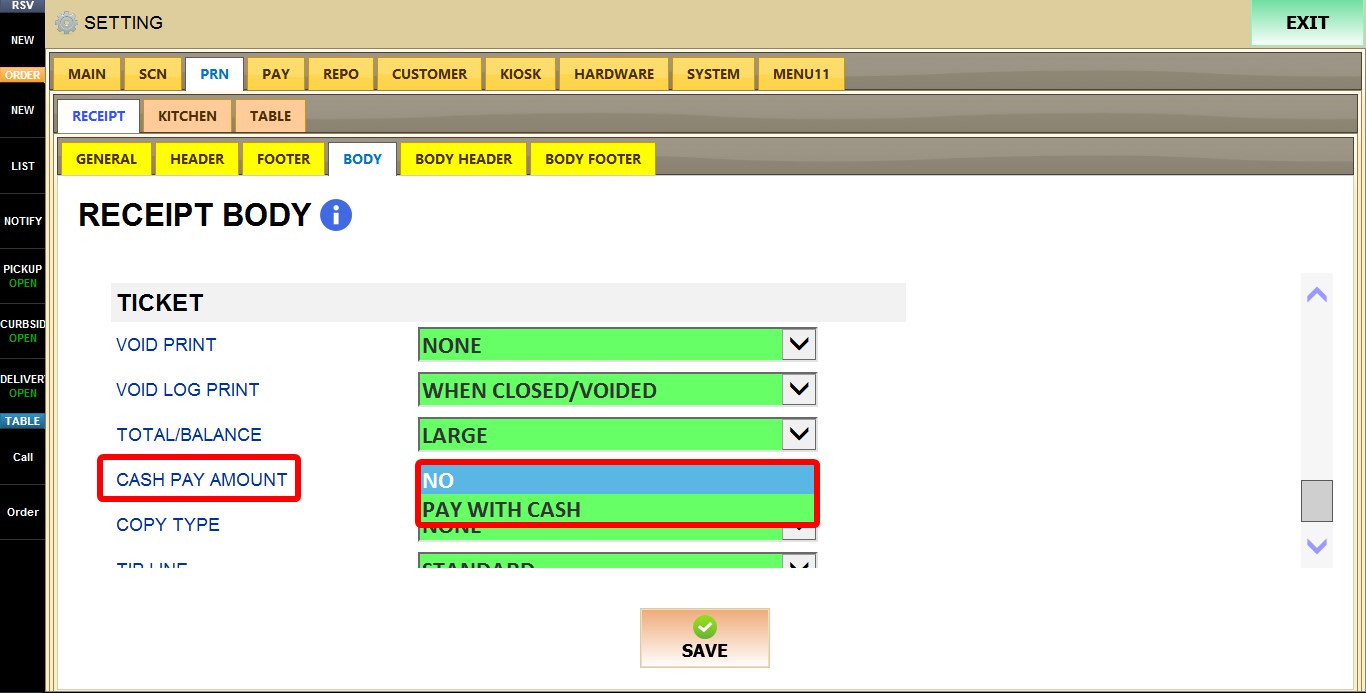
1. NO: Does not print cash payment information.
2. PAY WITH CASH: Prints the suggested cash payment amount on the receipt.
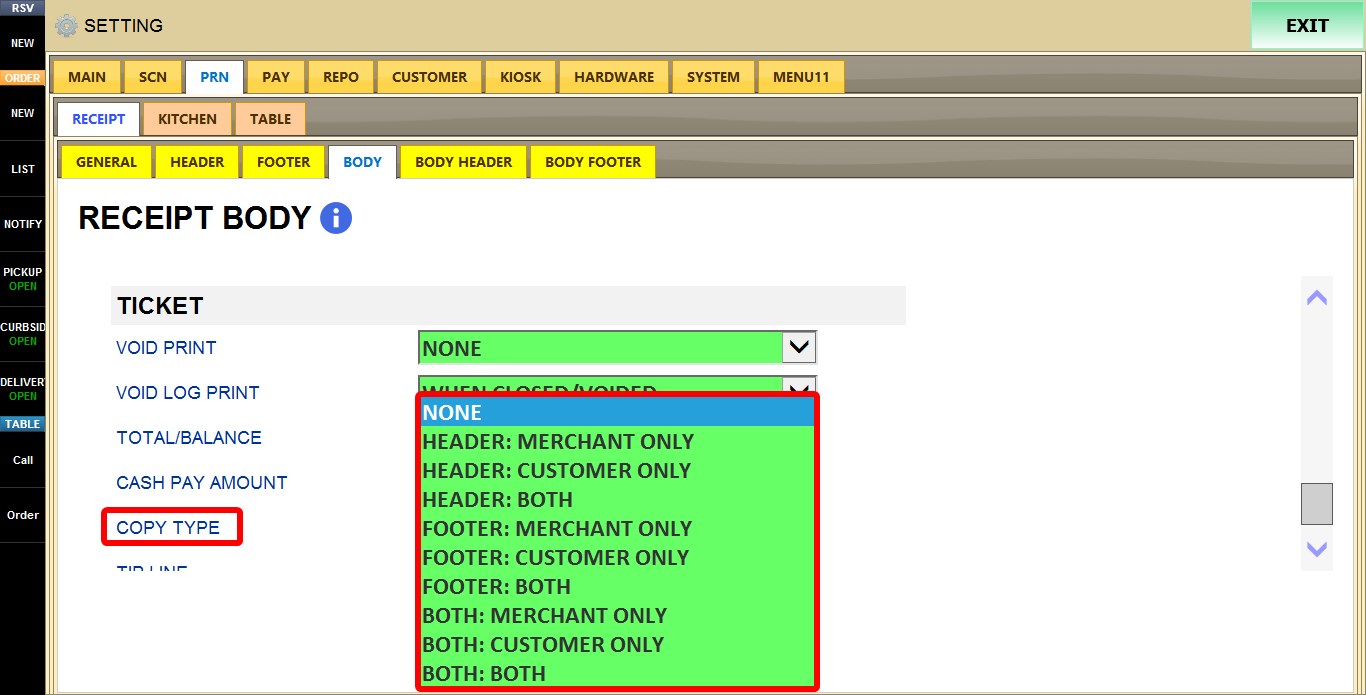
COPY TYPE
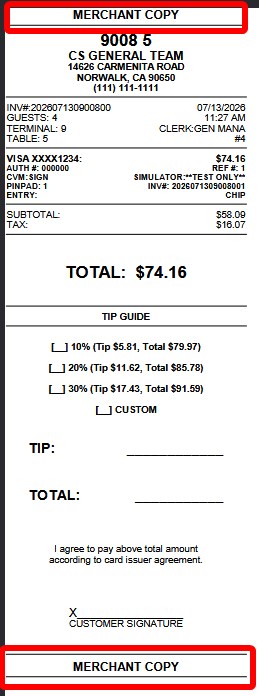
Determines where the MERCHANT COPY and CUSTOMER COPY labels are printed on receipts.
1. NONE: Does not print copy labels.
2. HEADER: MERCHANT ONLY: Prints the MERCHANT COPY label at the top of the receipt.
3. HEADER: CUSTOMER ONLY: Prints the CUSTOMER COPY label at the top of the receipt.
4. HEADER: BOTH: Prints both copy labels at the top of their respective receipts.
5. FOOTER: MERCHANT ONLY: Prints the MERCHANT COPY label at the bottom of the receipt.
6. FOOTER: CUSTOMER ONLY: Prints the CUSTOMER COPY label at the bottom of the receipt.
7. FOOTER: BOTH: Prints both copy labels at the bottom of their respective receipts.
8. BOTH: MERCHANT ONLY: Prints the MERCHANT COPY label in both the header and footer.
9. BOTH: CUSTOMER ONLY: Prints the CUSTOMER COPY label in both the header and footer.
10. BOTH: BOTH: Prints both copy labels in both the header and footer.
TIP LINE
Determines the layout of the tip section printed on customer receipts.
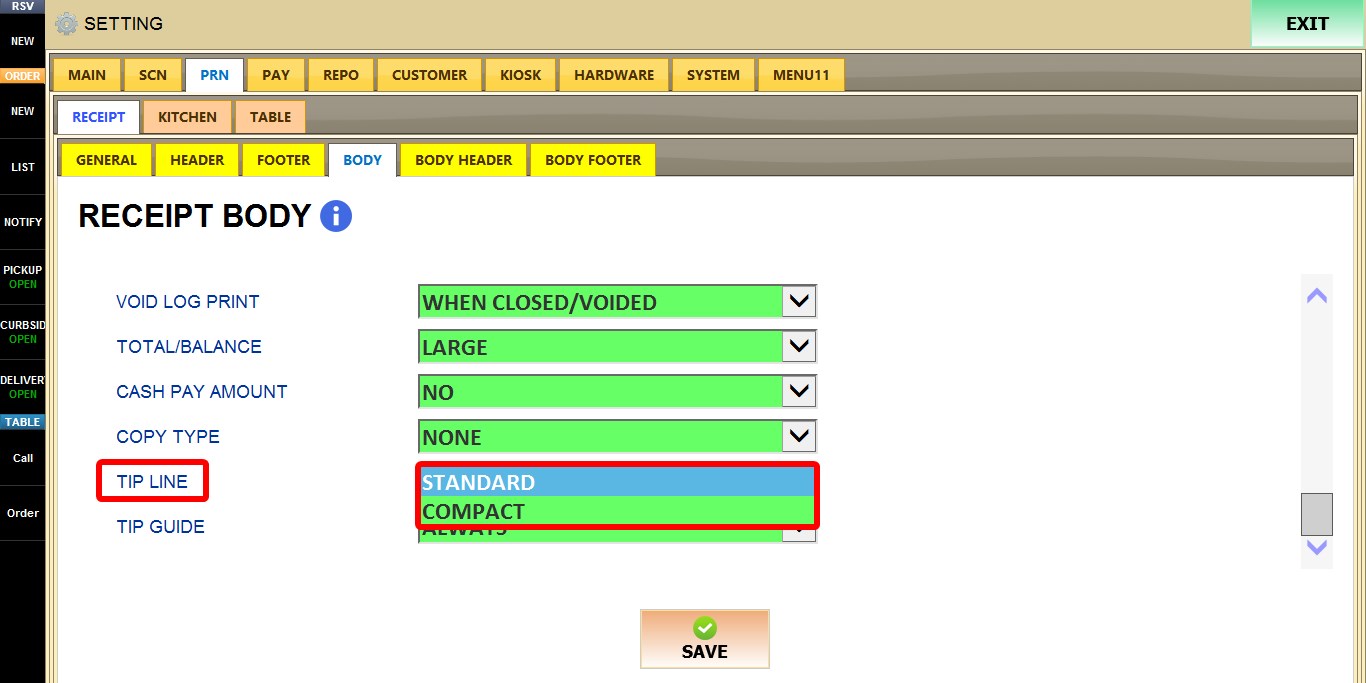
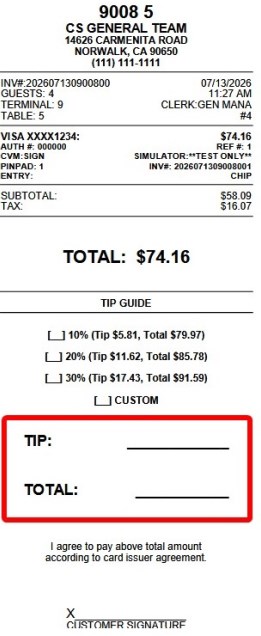
1. STANDARD: Prints the standard tip section.
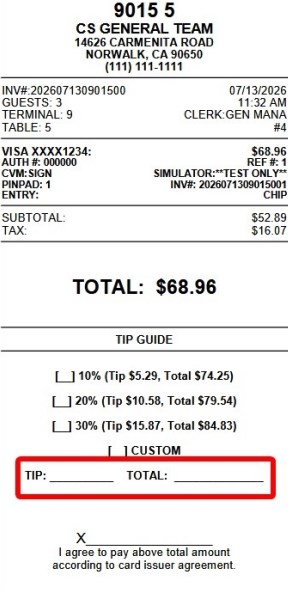
2. COMPACT: Prints a condensed tip and signature section to reduce receipt length.
TIP GUIDE
Determines when suggested tip amounts are printed.
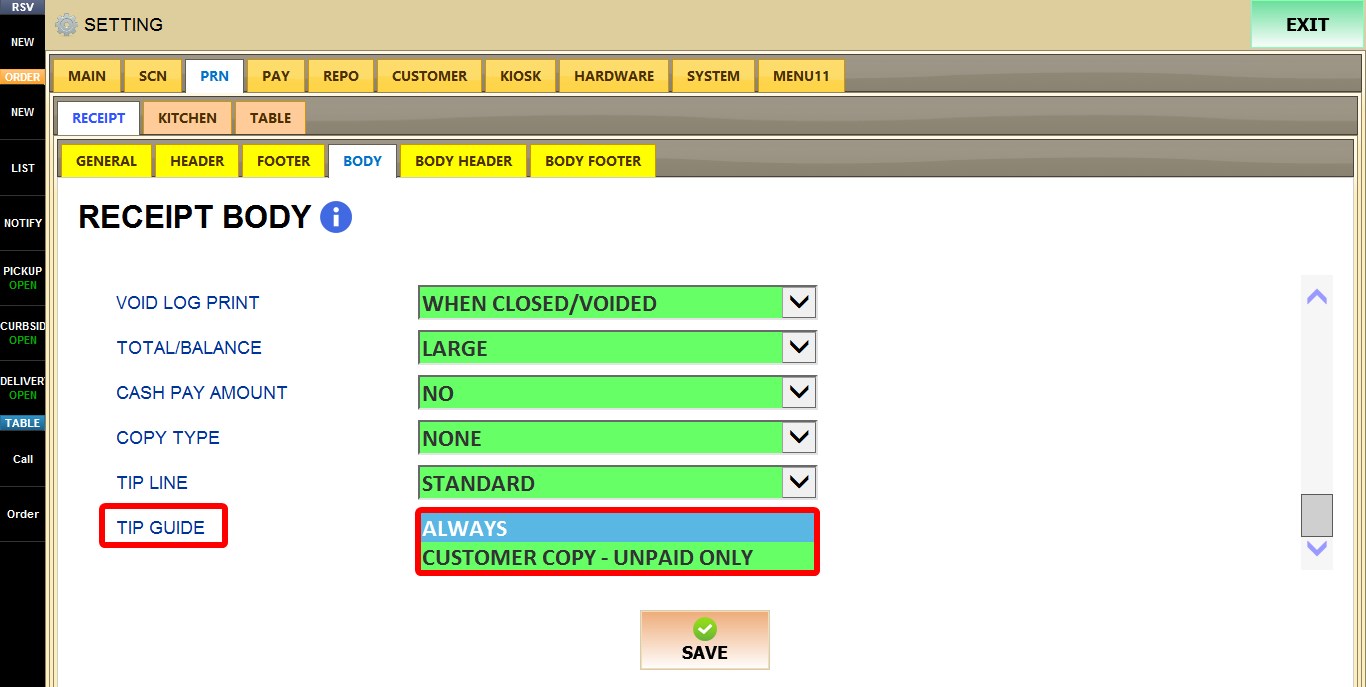
1. ALWAYS: Always prints suggested tip amounts when applicable.

2. CUSTOMER COPY - UNPAID ONLY: Prints suggested tip amounts only on unpaid customer copies.
After you are done configuring the settings, click SAVE, then RESTART THE PROGRAM for the changes to take effect.