StoreCard
The Store Card tab displays all store cards registered in the system, along with their current balance and the date they were last used. From this list, you can add, import, or export store cards, review the transaction history of each card, set its value, or delete it.
Main Screen > MENU > SETTINGS > PAY > STORE CARD
From the Main Screen, press MENU and select SETTINGS.
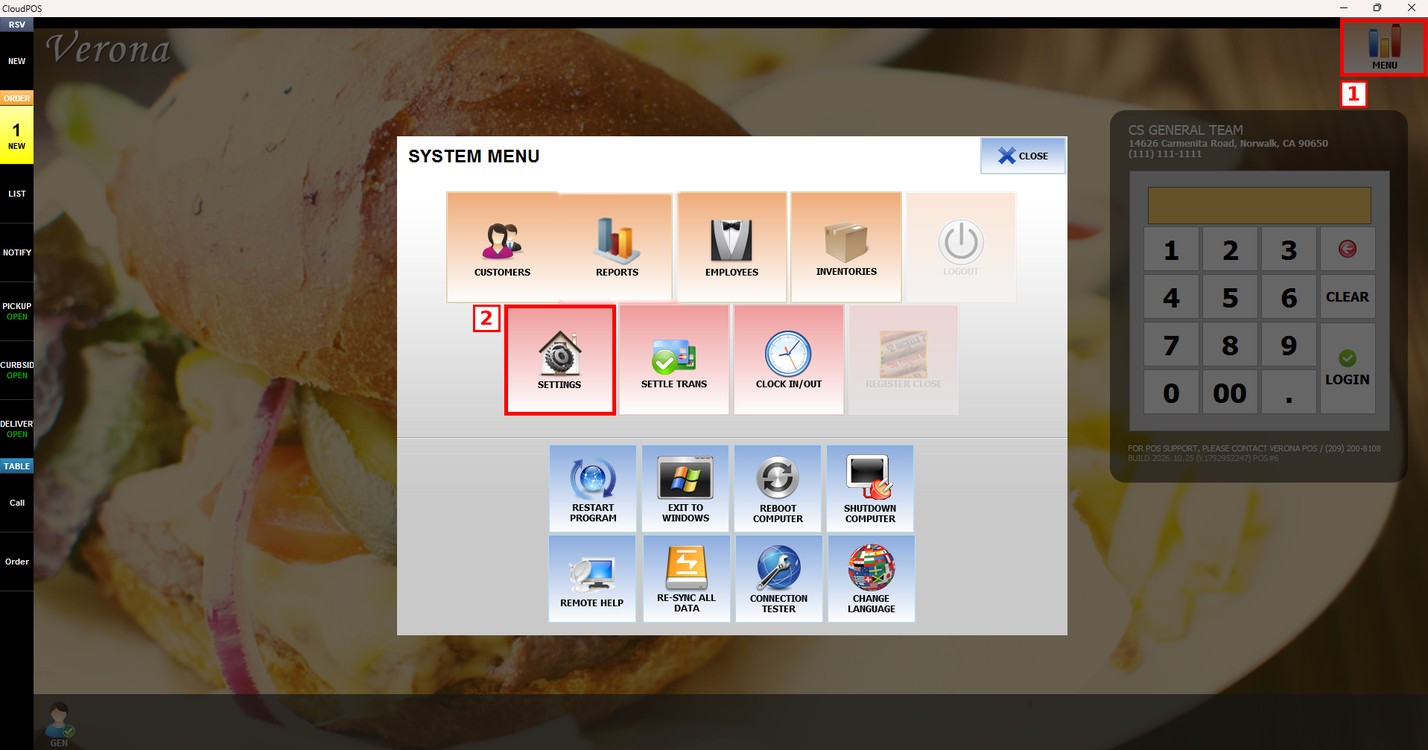
Select the PAY tab, then select STORE CARD.
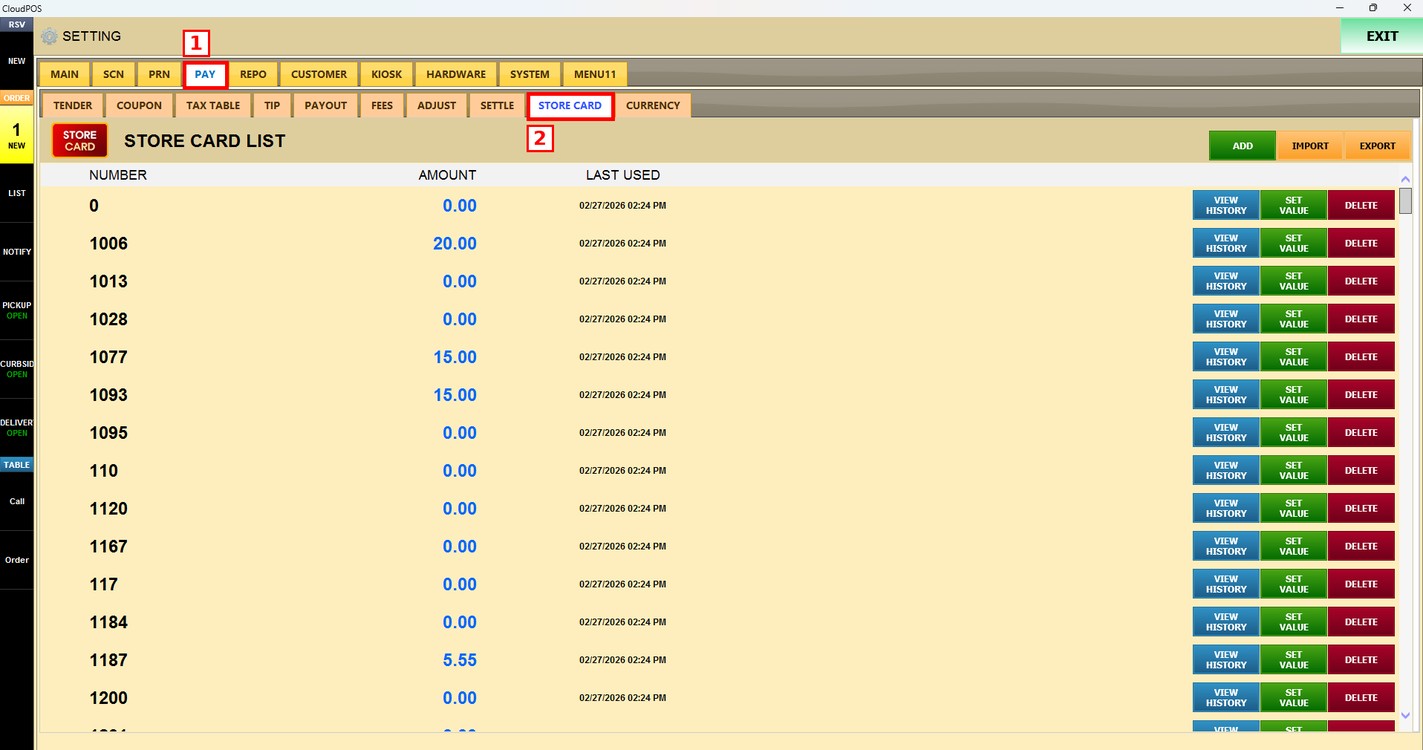
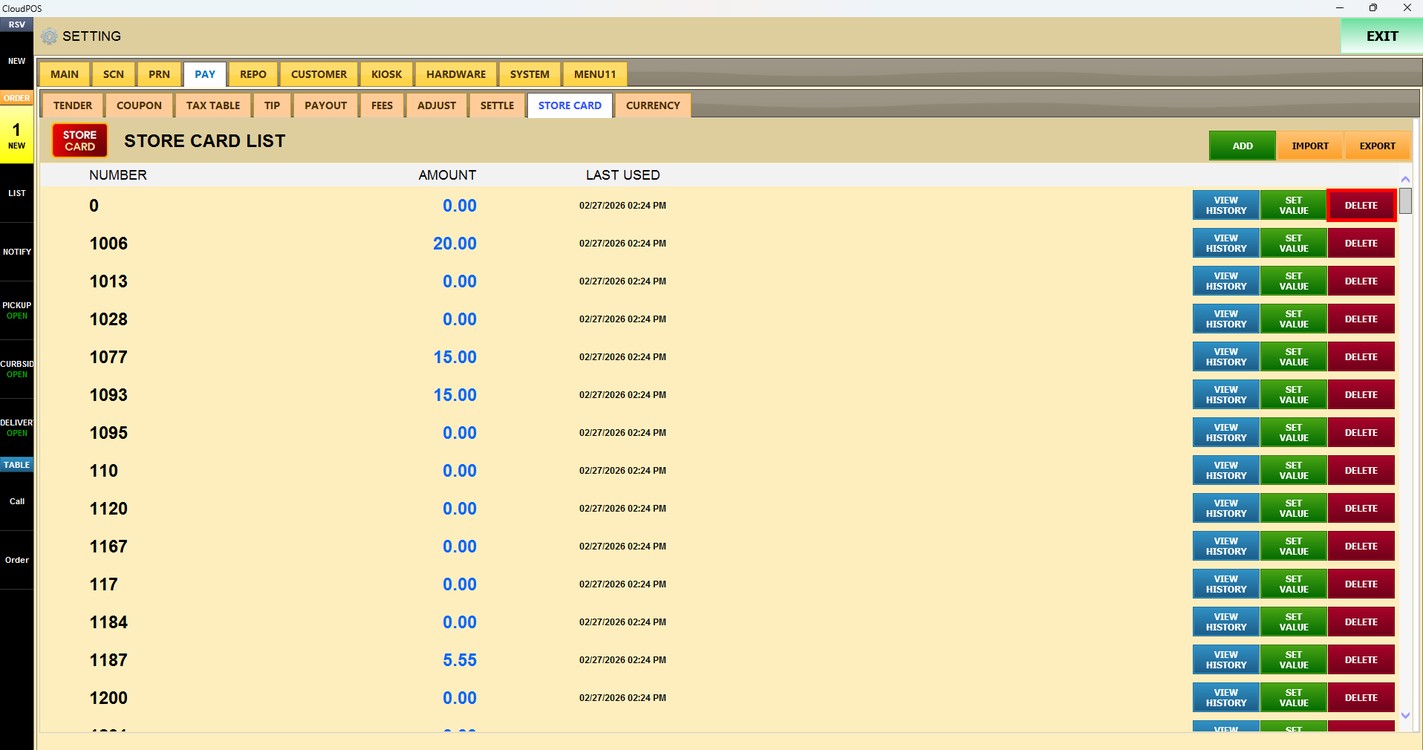
The STORE CARD LIST displays the NUMBER of each card, its current balance in the AMOUNT column, and the date and time it was LAST USED.
Store Card List Options
The buttons at the top-right of the list manage the store cards:
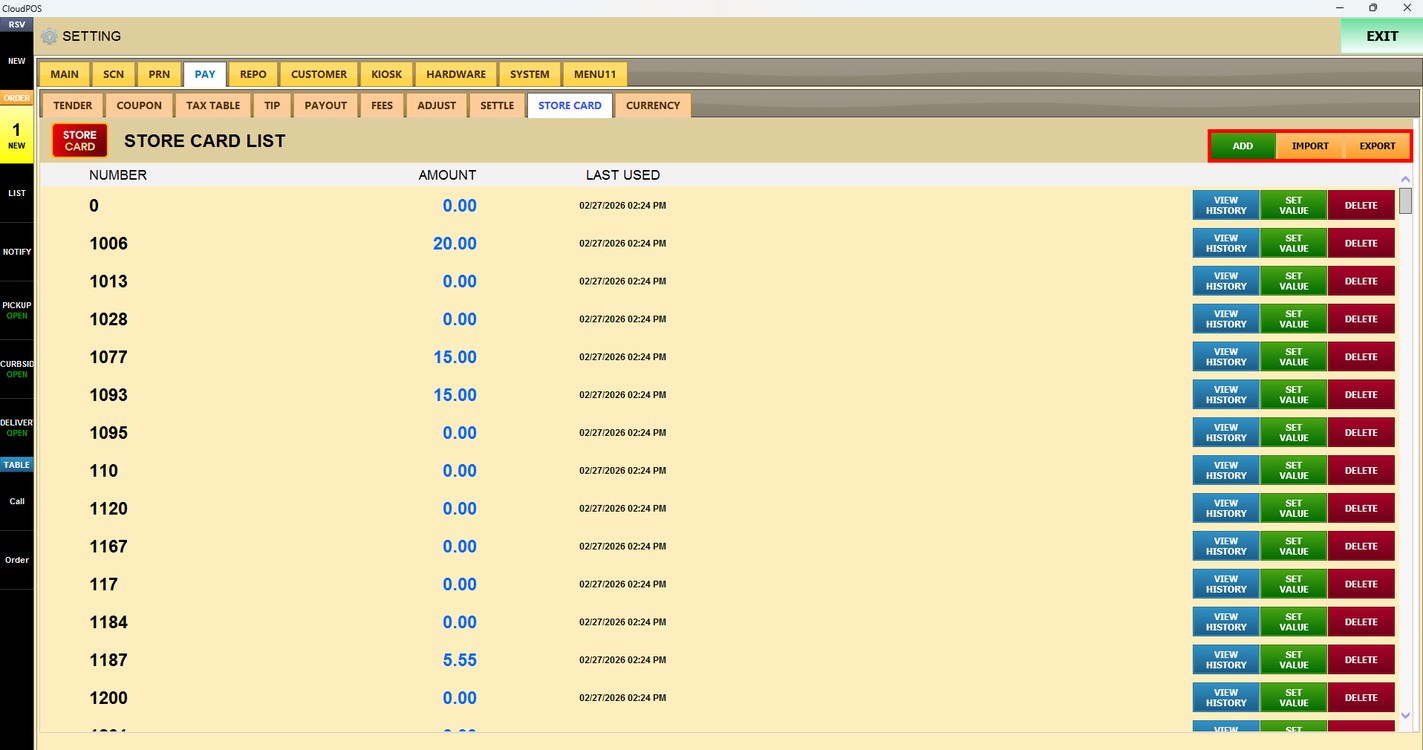
1. ADD: Adds a new store card to the list.
2. IMPORT: Imports a list of store cards from a file.
3. EXPORT: Exports the store card list to a file.
VIEW HISTORY
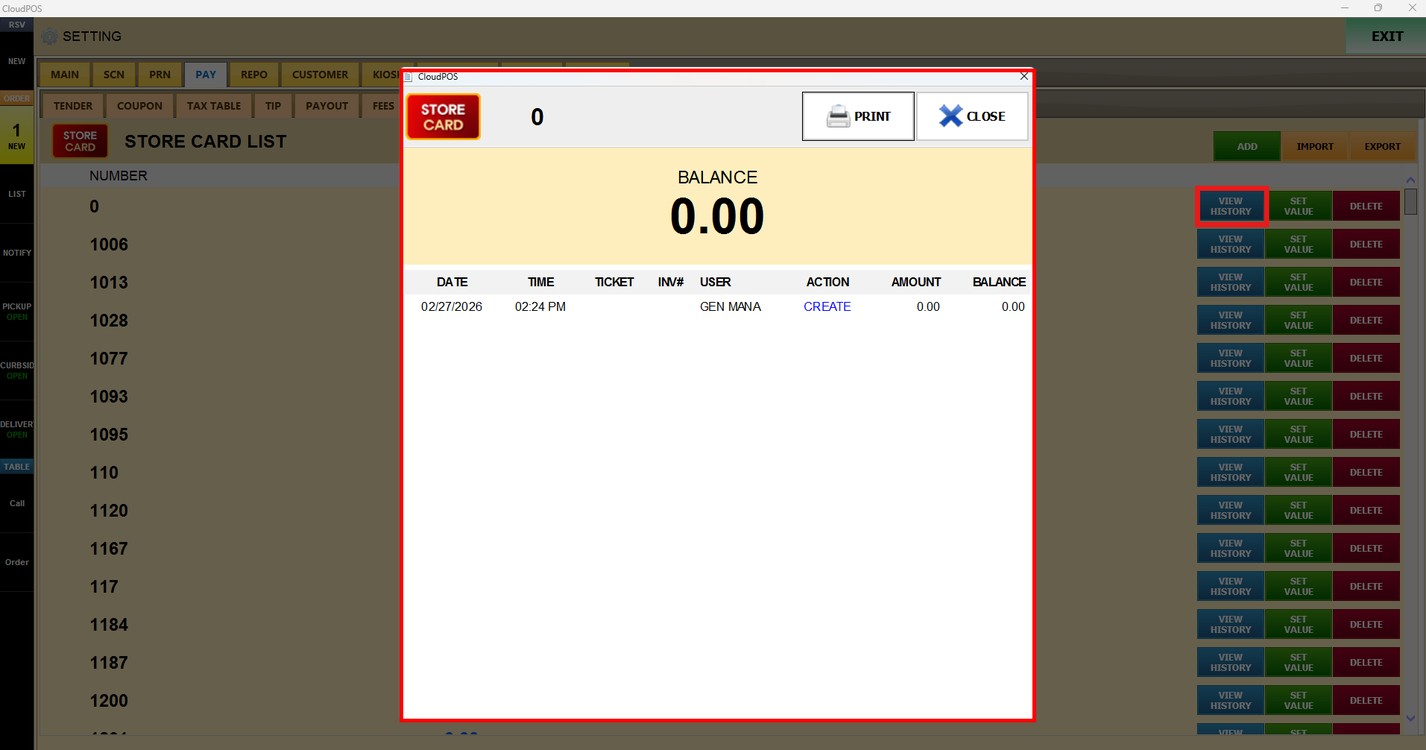
Press VIEW HISTORY next to a card to display its current BALANCE and all the transactions made with it, including the DATE, TIME, TICKET, INV#, USER, ACTION, AMOUNT, and resulting BALANCE. Press PRINT to print the history, or CLOSE to return to the list.
SET VALUE
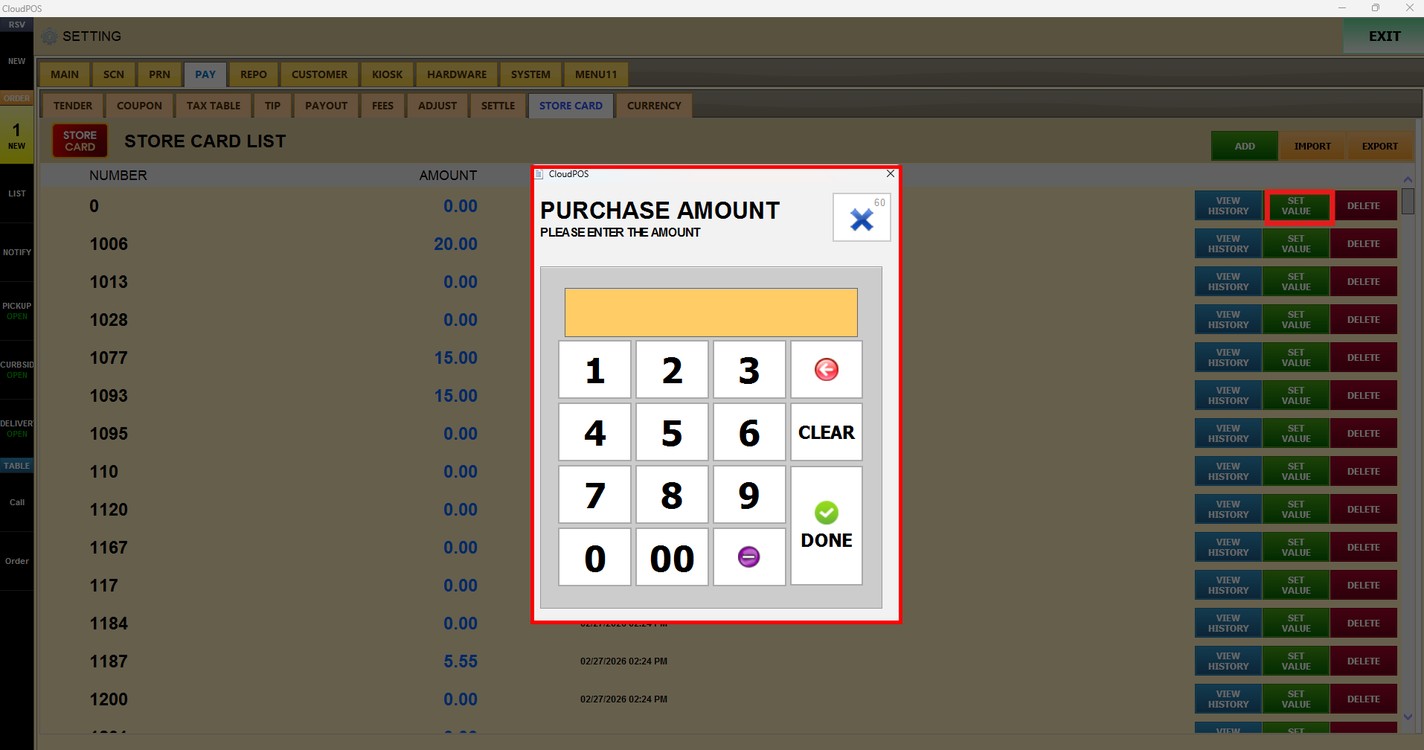
Press SET VALUE next to a card to change its balance. In the PURCHASE AMOUNT window, enter the amount using the number pad and press DONE. Use the minus key to enter a negative amount.
DELETE
Press DELETE next to a card to remove it from the store card list.
Note: To learn how to sell, reload, and check the balance of a store card from the Sales Screen, please refer to the Store Card Guide.