Managing Reservations
The Reservation screen allows staff to review upcoming reservations, notify guests, seat arriving parties, edit reservation information, and manage cancelled reservations.
MAIN SCREEN> LOCK ICON> RESERVATIONS (RSV)
Refer to the Host Mode KB for instructions on entering Host Mode and to the Adding a Reservation KB to create new reservations.
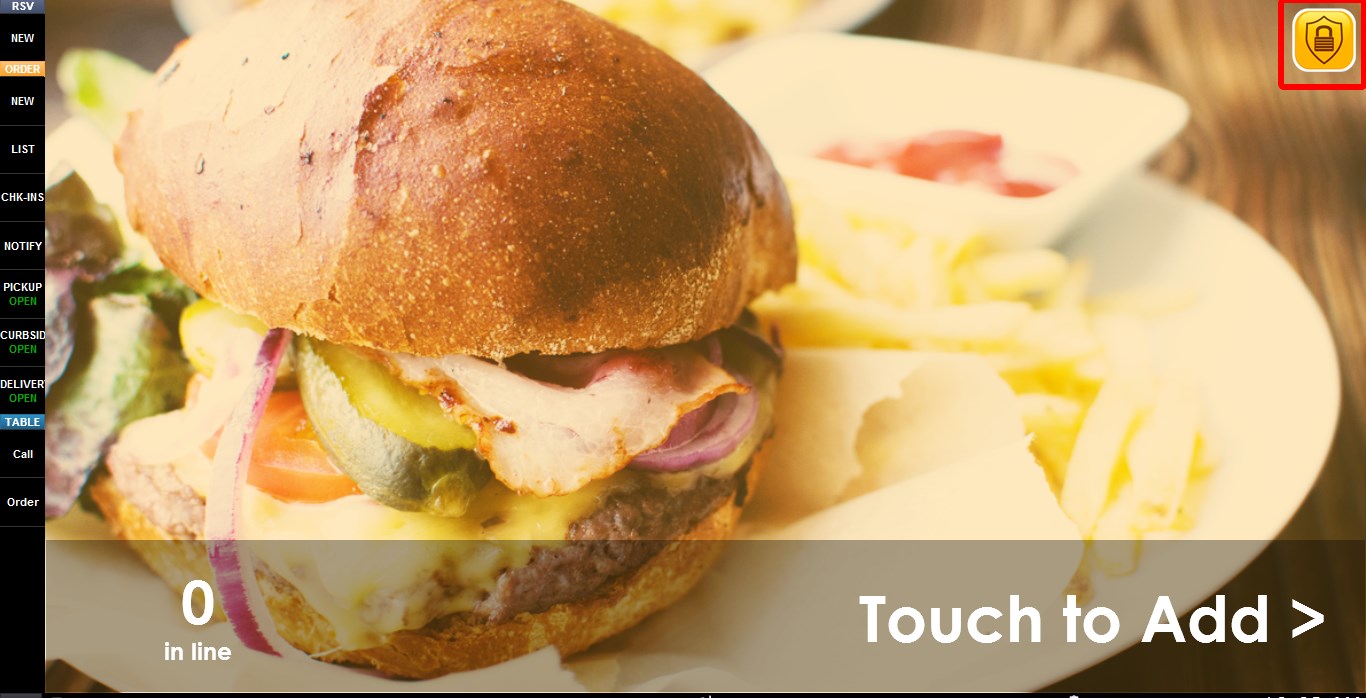
Click the LOCK icon to access the Table Map.
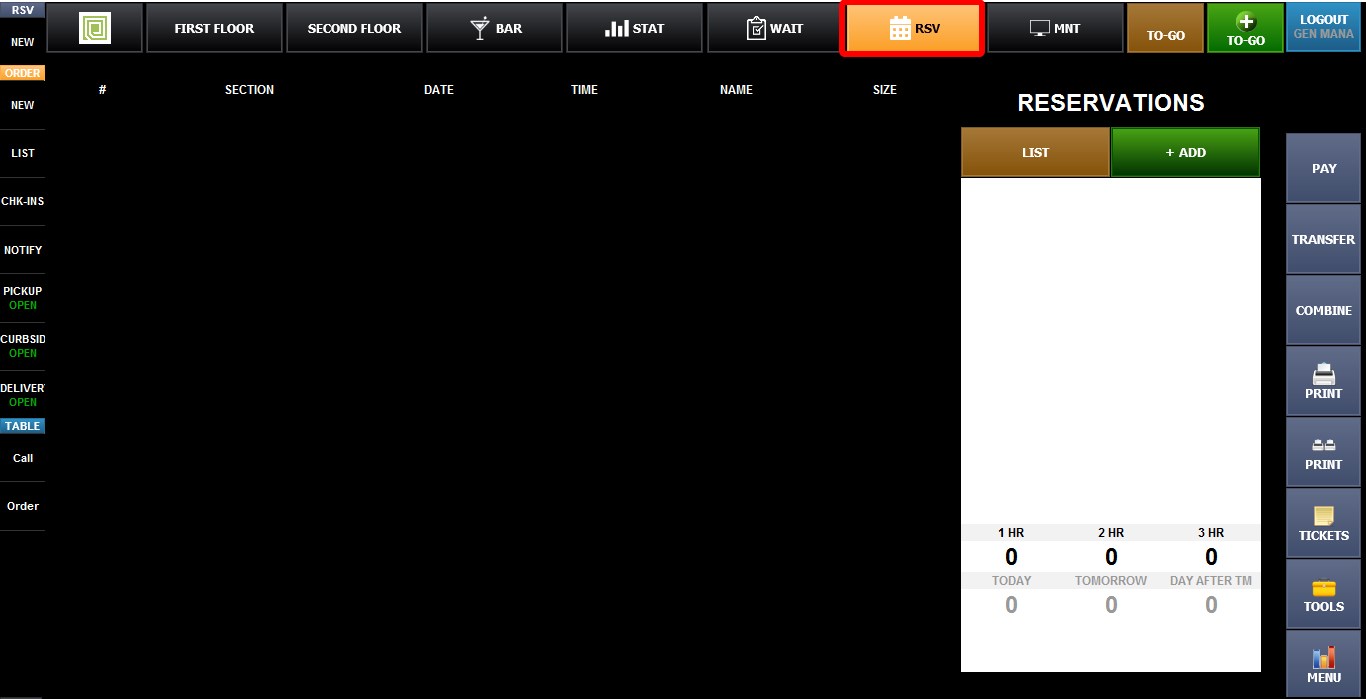
Click the RSV (Reservation) button.
Select any reservation from the list to view available actions.
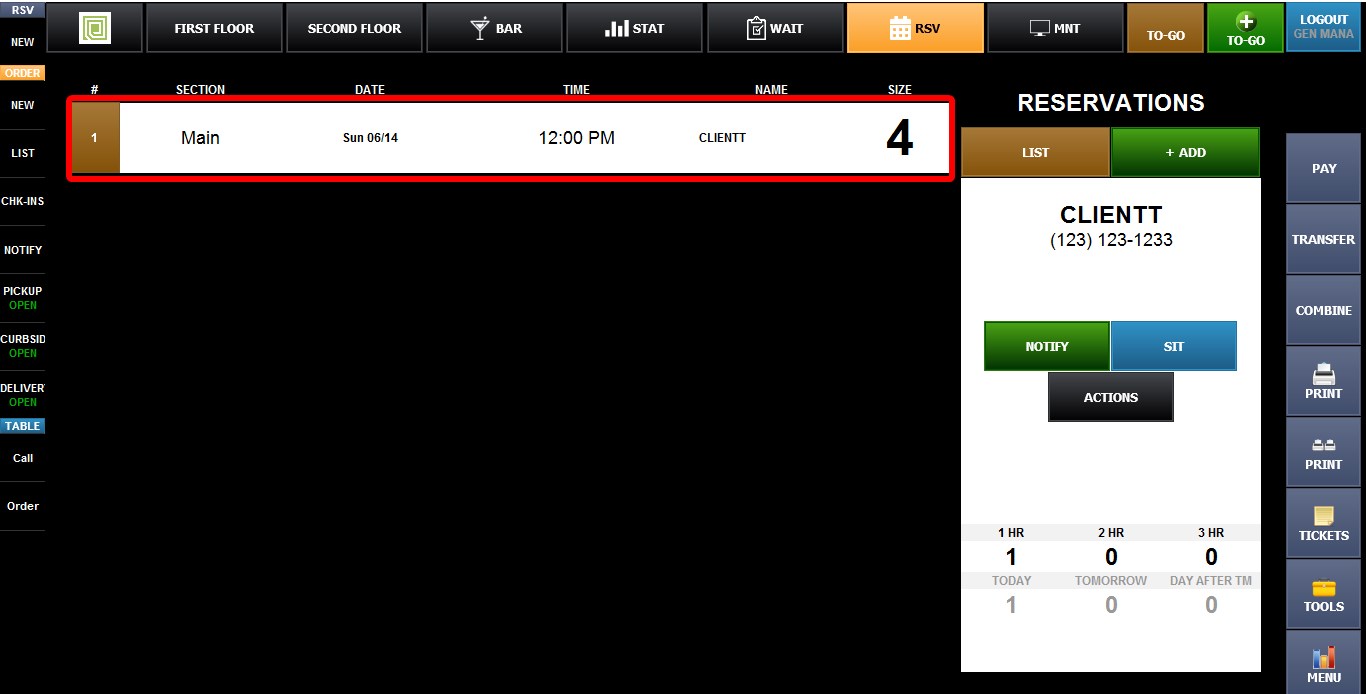
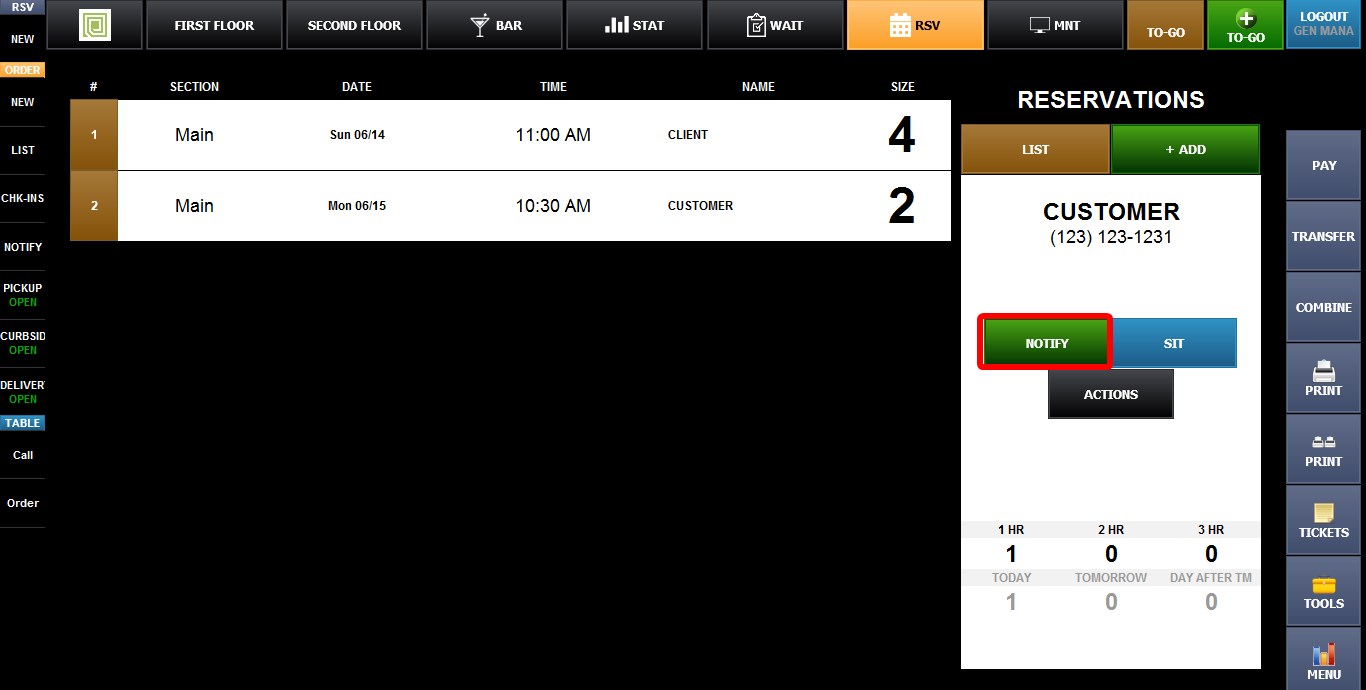
1. NOTIFY: Sends a notification to the guest by text message and/or email informing them that their table is ready.
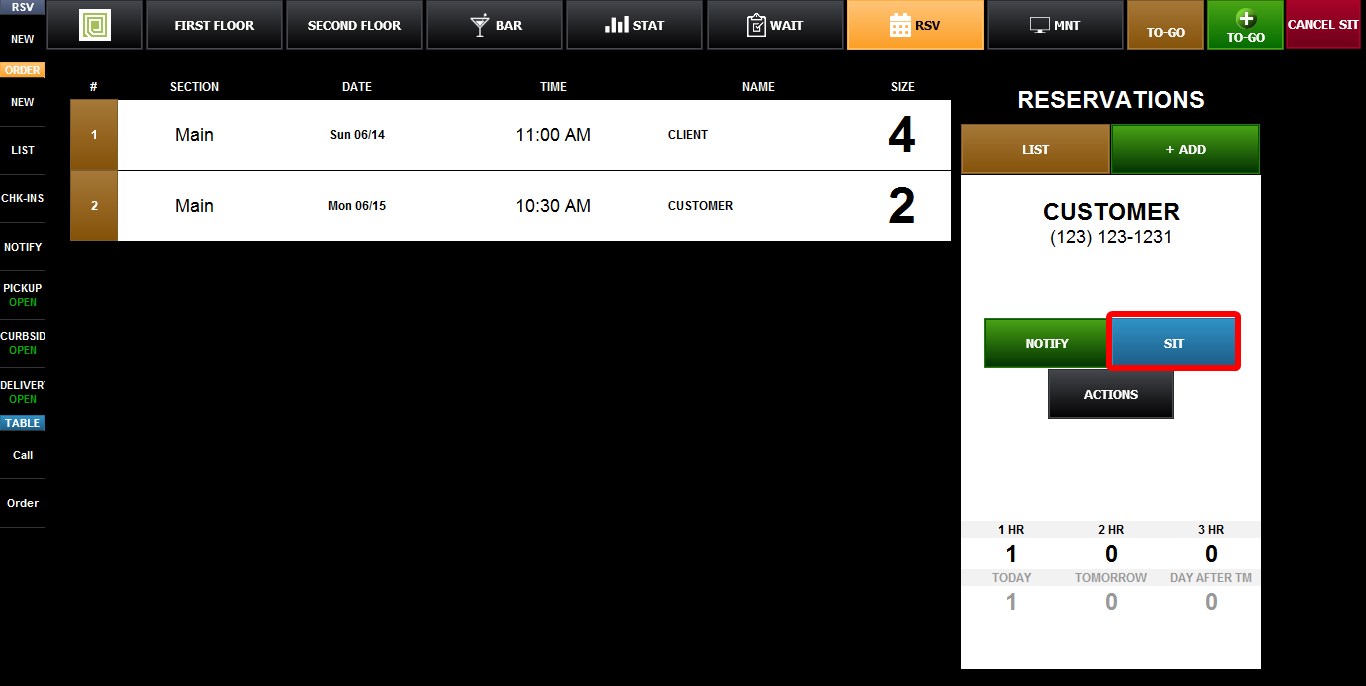
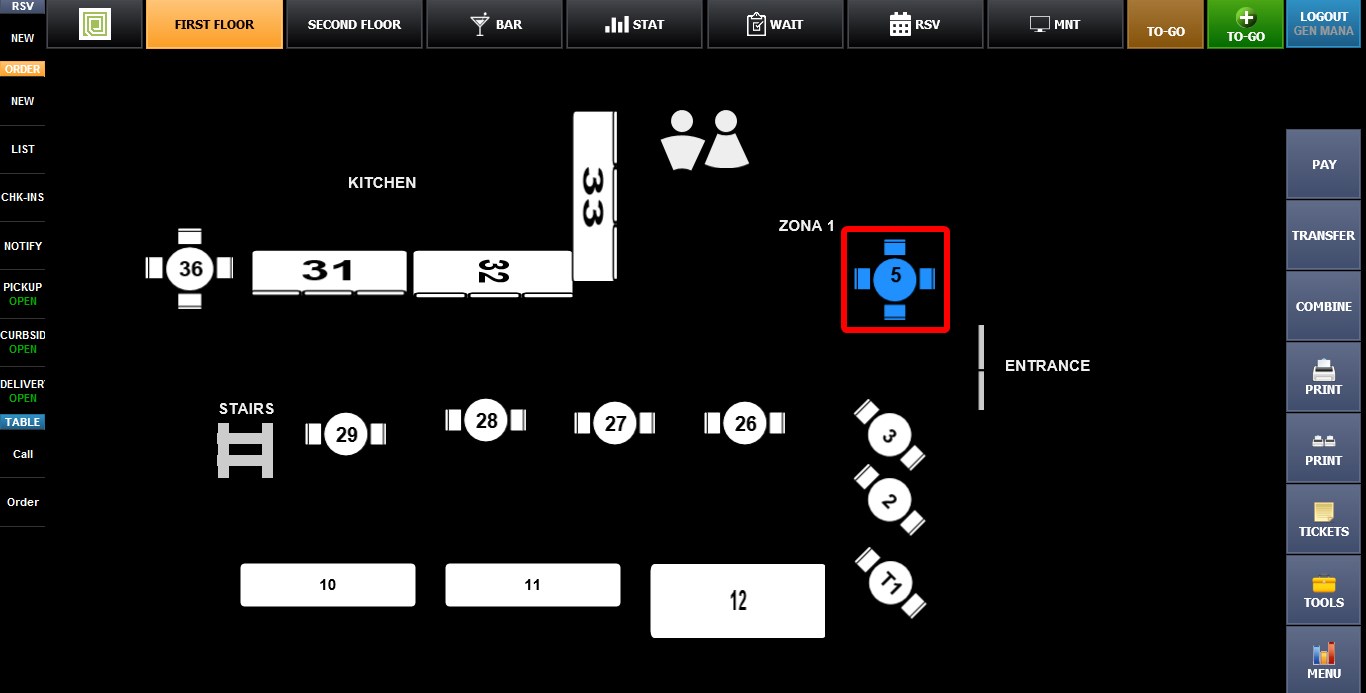
2. SIT: Opens the table map and allows you to select the table where the guests will be seated. Once a table is selected, the reservation will be marked as seated.
Seated reservations will show up with a blue background
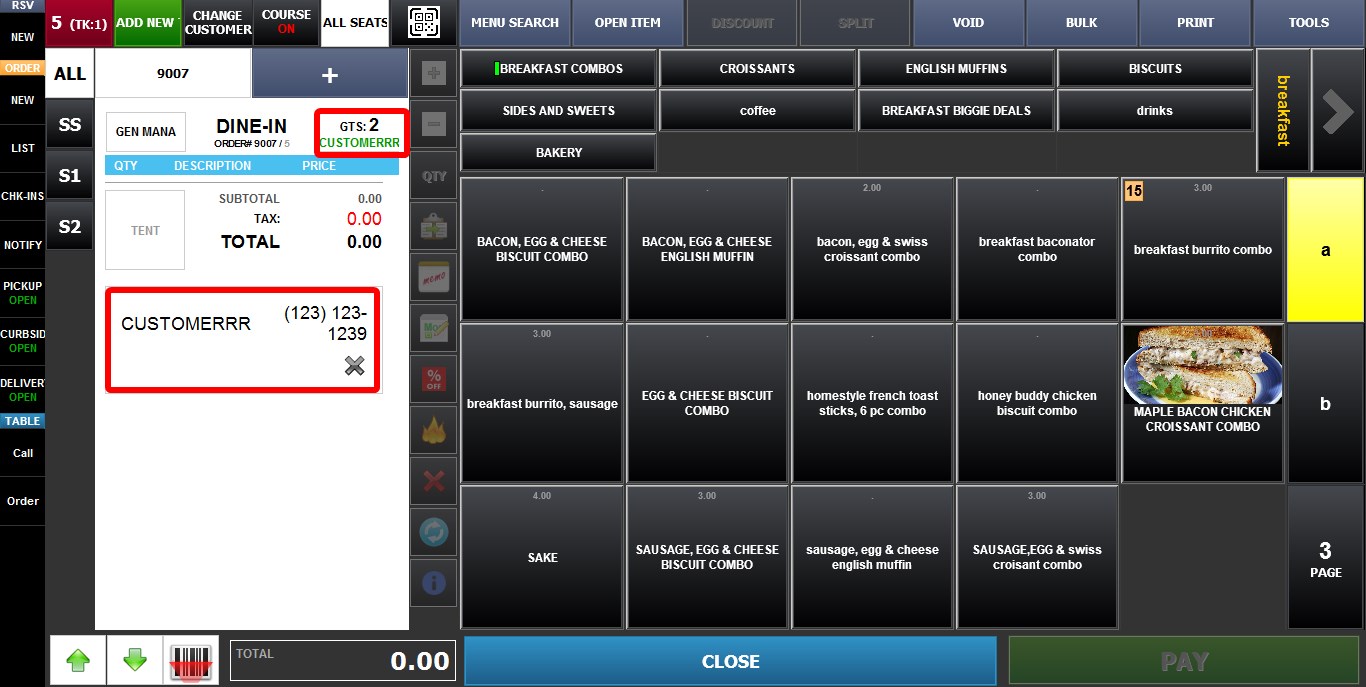
Customer information including Name, Phone Number, and Guest Count will automatically populate when the table is opened.
3. ACTION: Opens the Reservation Management screen
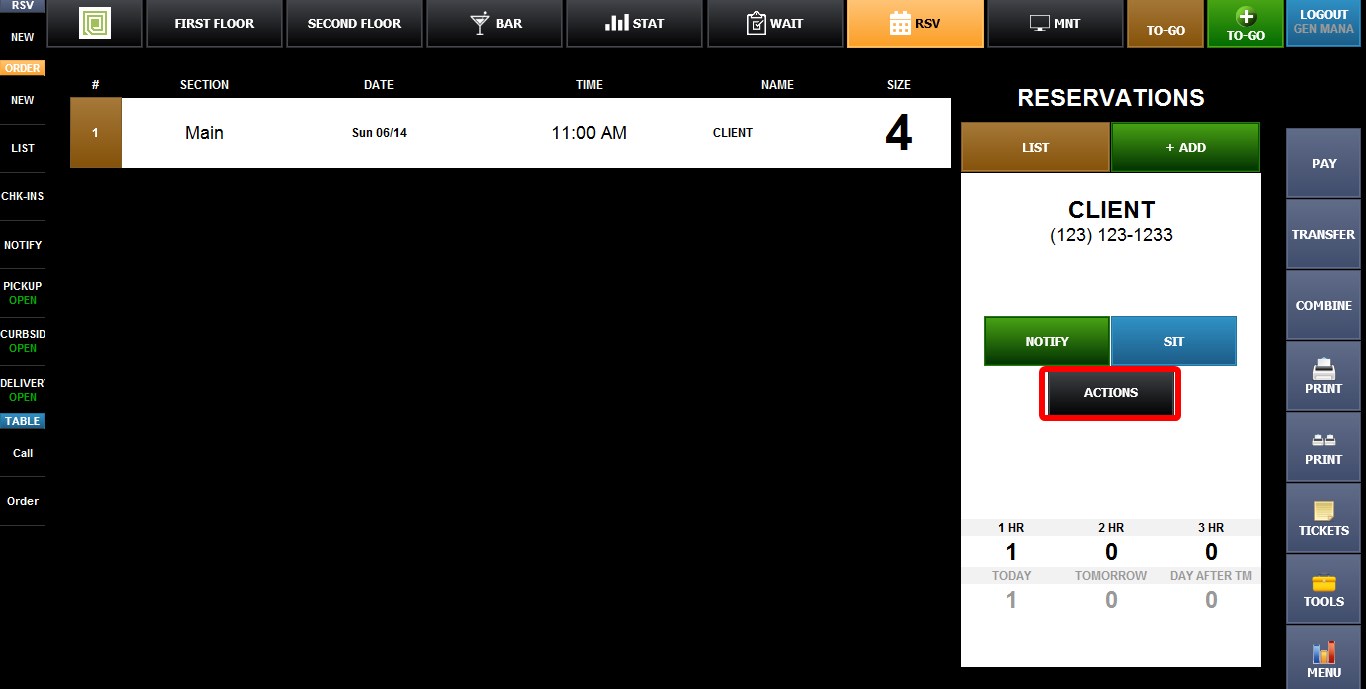
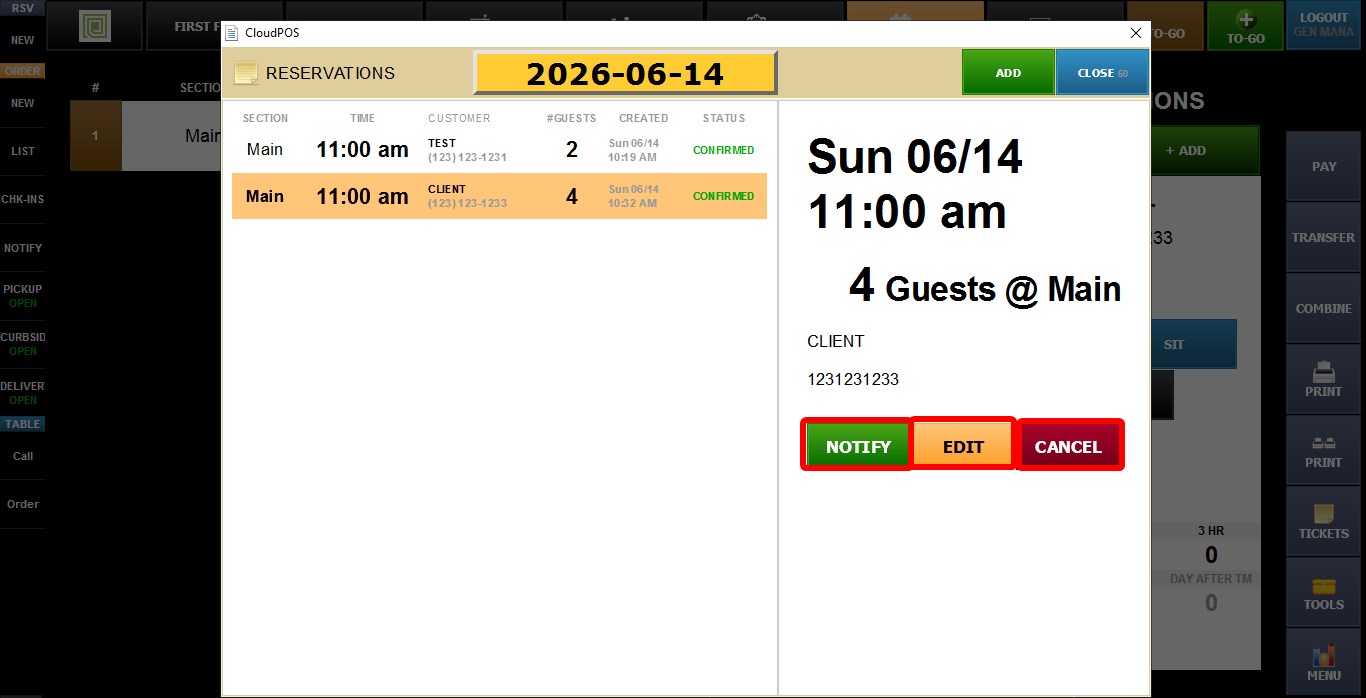
The available actions depend on the reservation status.
PENDING RESERVATIONS
1. NOTIFY: Sends a table-ready notification to the guest.
2. EDIT: Allows reservation information to be modified, including customer name, phone number, email, reservation date, reservation time, guest count, section, and memo.
3. CANCEL: Marks the reservation as cancelled and removes it from the active reservation list.
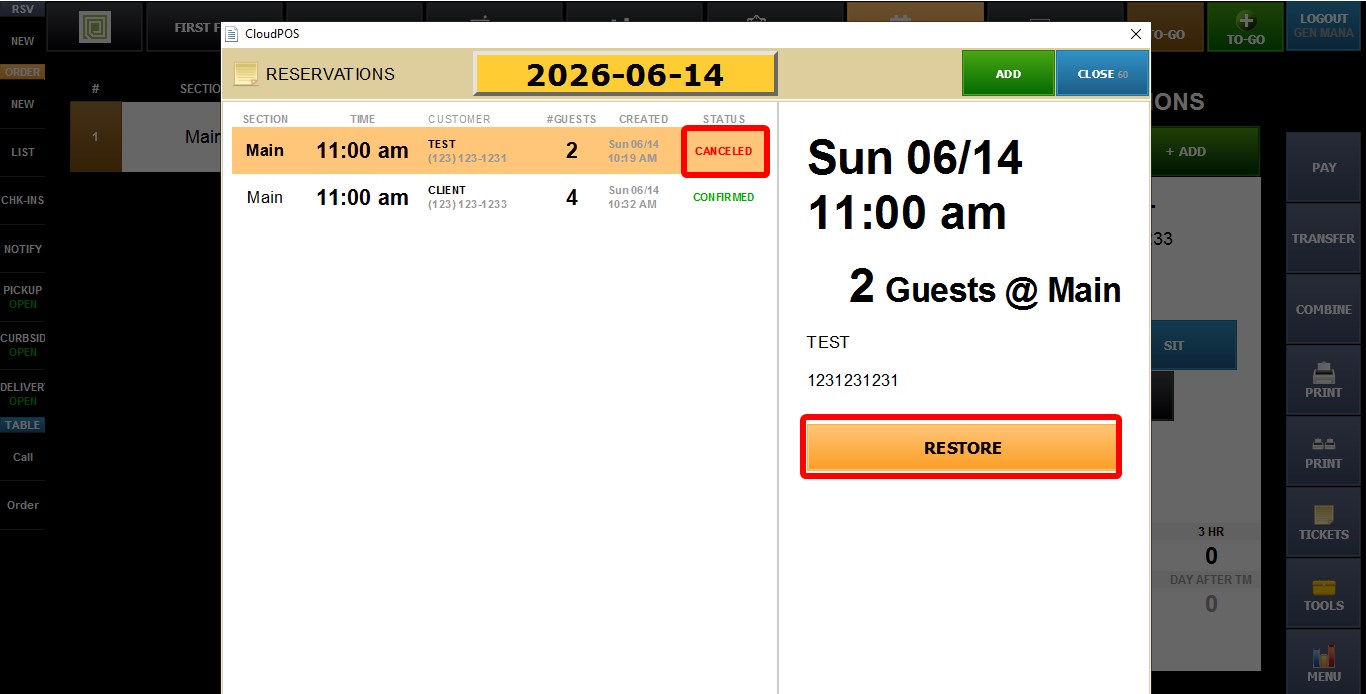
CANCELLED RESERVATIONS
1. RESTORE: Changes the reservation status back to pending, allowing it to be notified, edited, seated, or cancelled again.