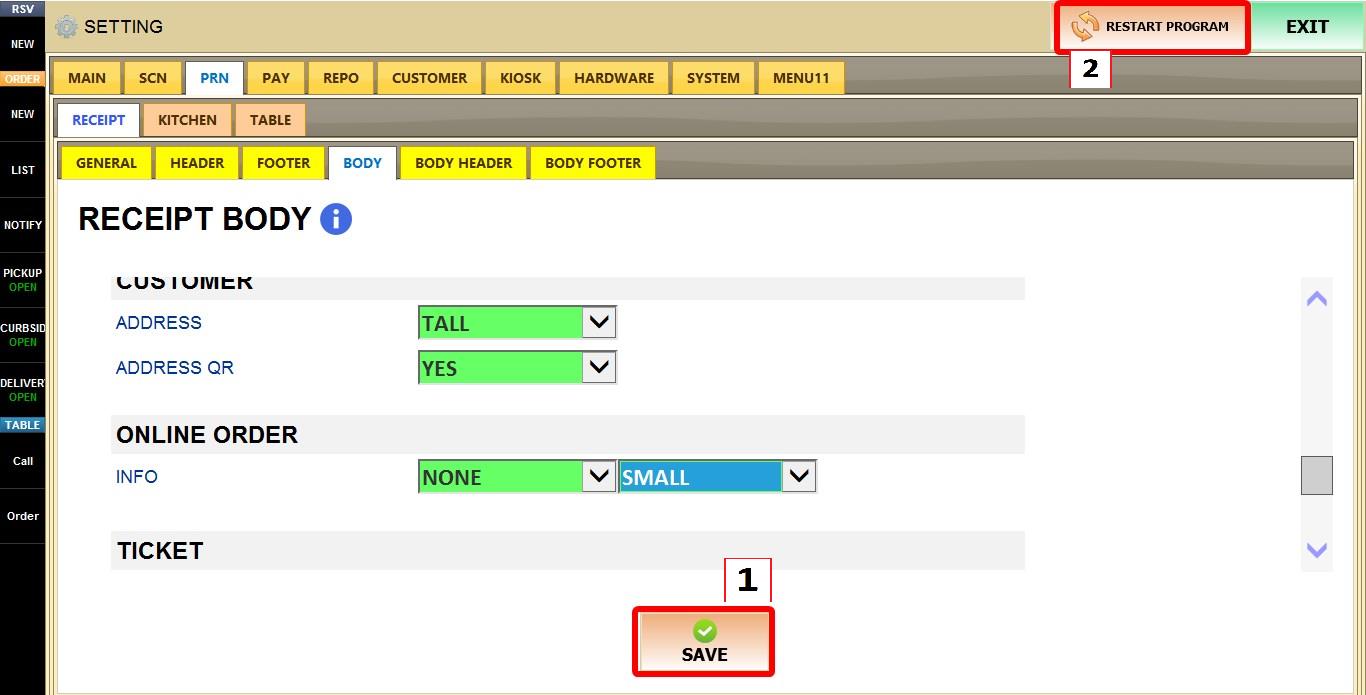
Customer
These settings control how customer address information is printed on receipts for TO-GO orders. You can customize the address font size and choose whether a QR code linking to the destination address is printed.
MENU > SETTINGS > PRINT > RECEIPT > BODY > CUSTOMER
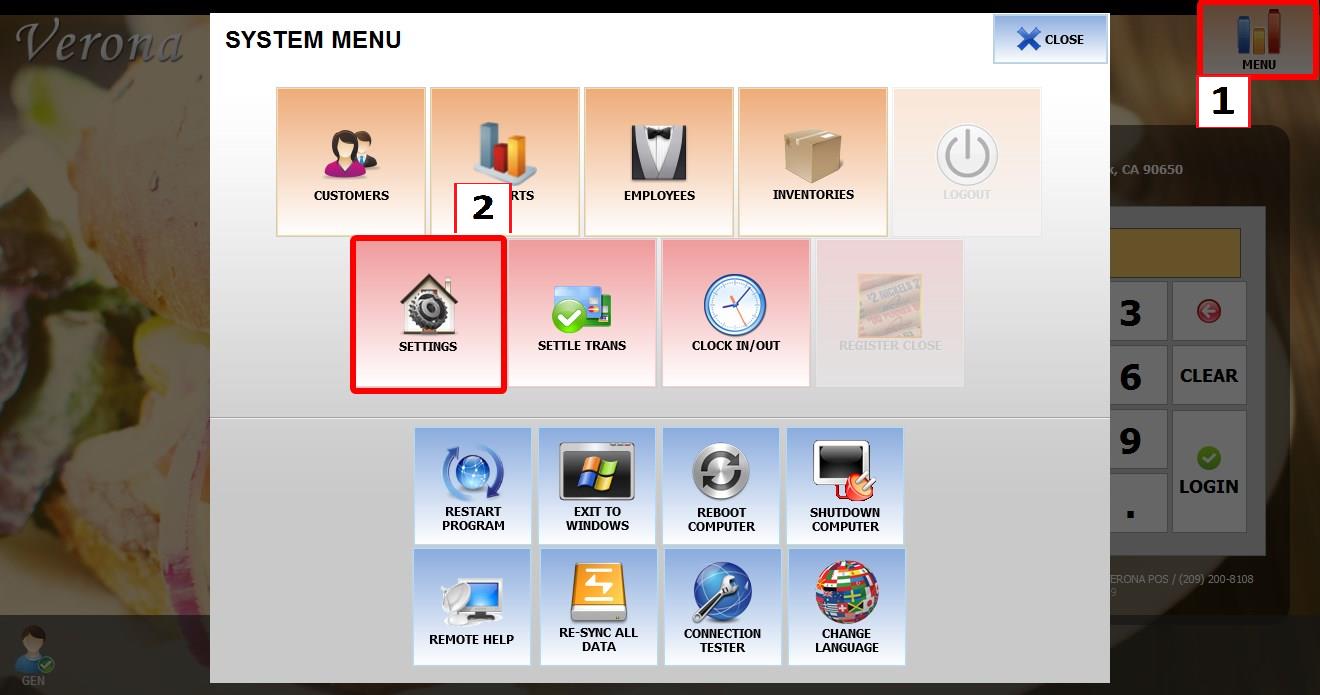
From the MAIN SCREEN, click MENU, then select SETTINGS.
Open the PRINT tab, then RECEIPT, then BODY, then navigate to CUSTOMER section
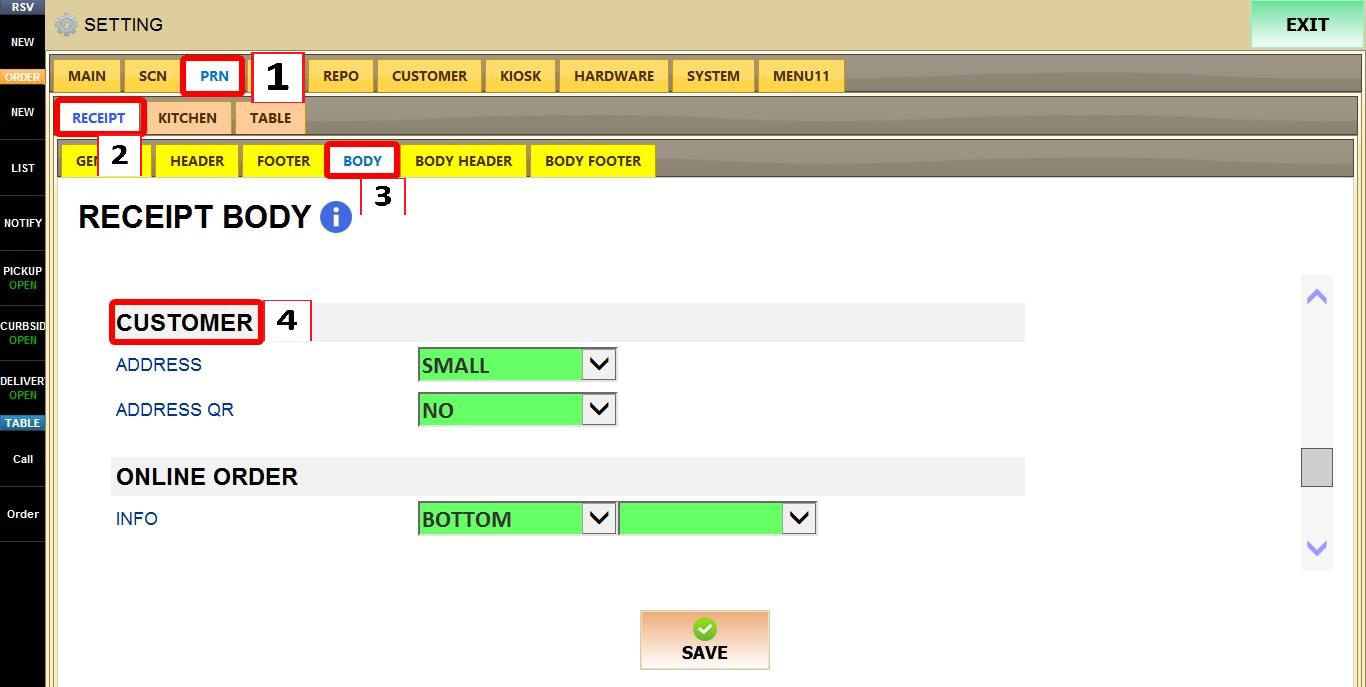
CUSTOMER
These settings apply only to TAKE-OUT orders.
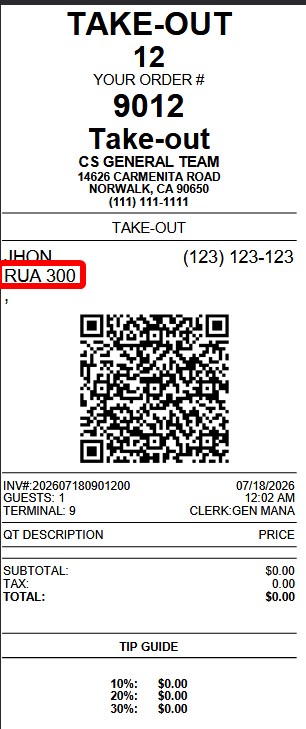
ADDRESS
Determines the font size used when printing the customer's delivery or pickup address.
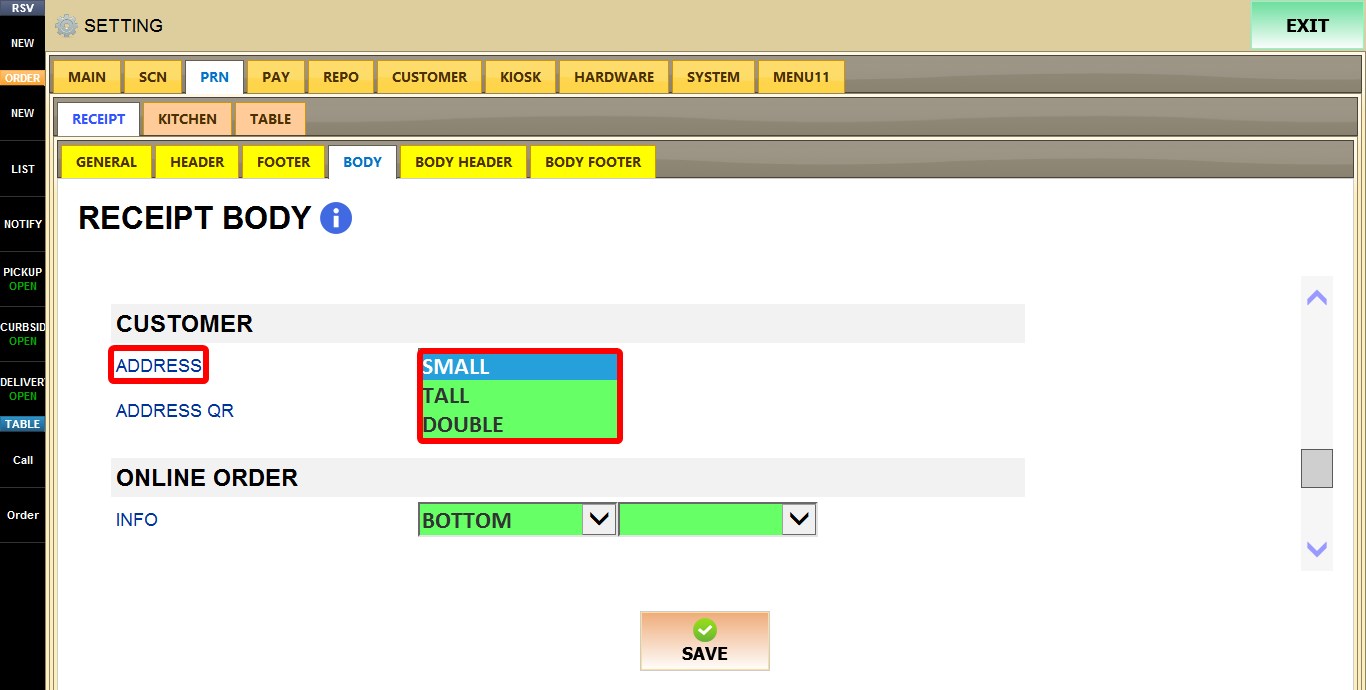
1. SMALL: Prints the address using a small font.
2. TALL: Prints the address using a taller font.
3. DOUBLE: Prints the address using a wider font.
ADDRESS QR
Determines whether a QR code containing the customer's address is printed on the receipt.
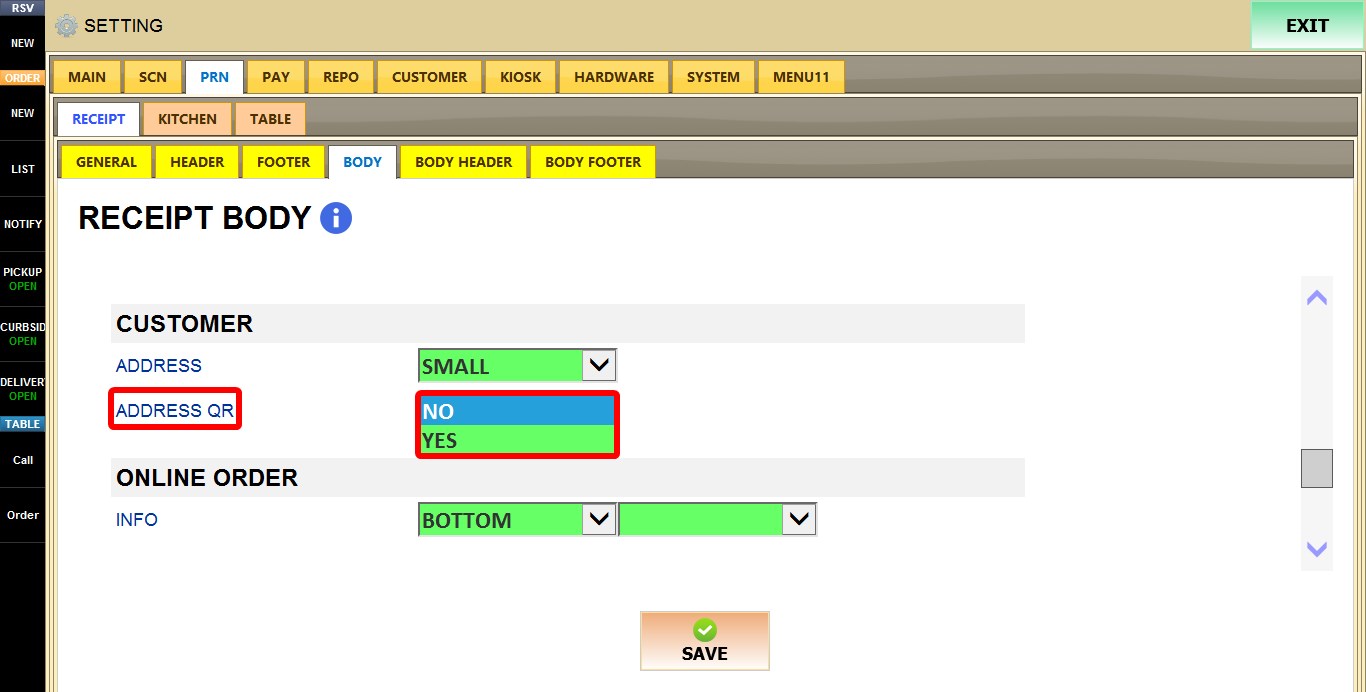
1. YES: Prints a QR code that opens the customer's address when scanned with a smartphone.
2. NO: Does not print the address QR code.
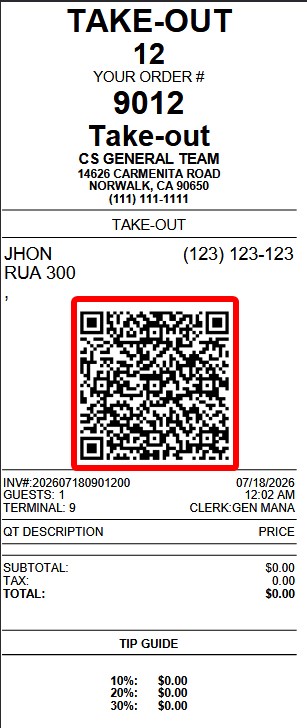
After you are done configuring the settings, click SAVE, then RESTART THE PROGRAM for the changes to take effect.