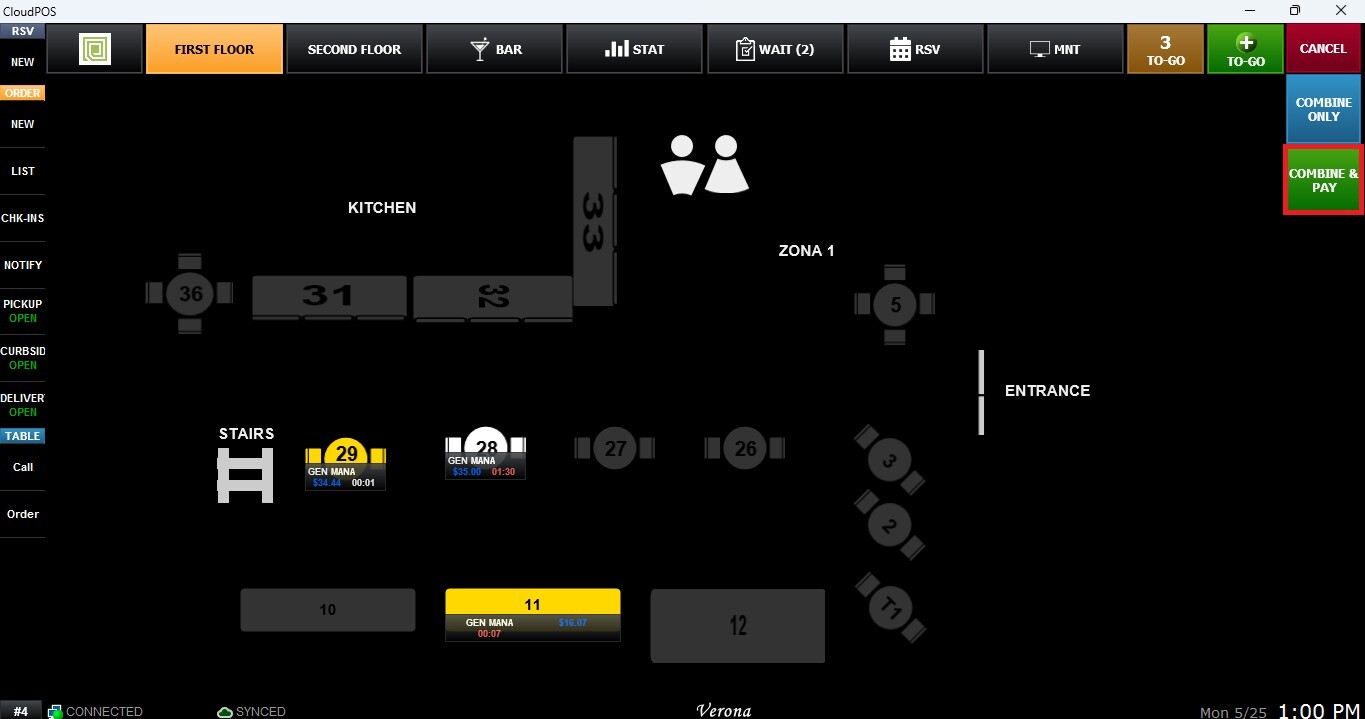
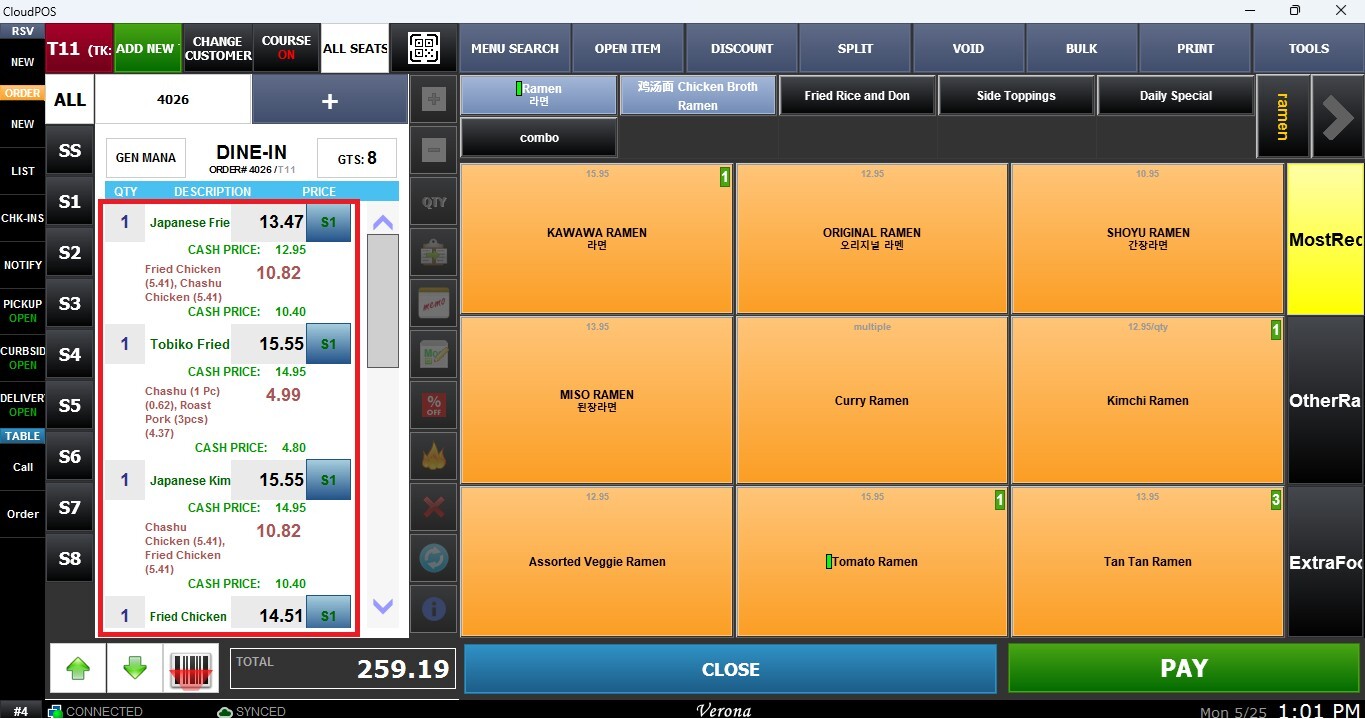
Combining Tables
This function allows users to merge active table orders into a single check for simplified order management and payment processing. This is useful for large parties or combining separate checks during service.
Main Screen> Number Pad> Table Map Screen
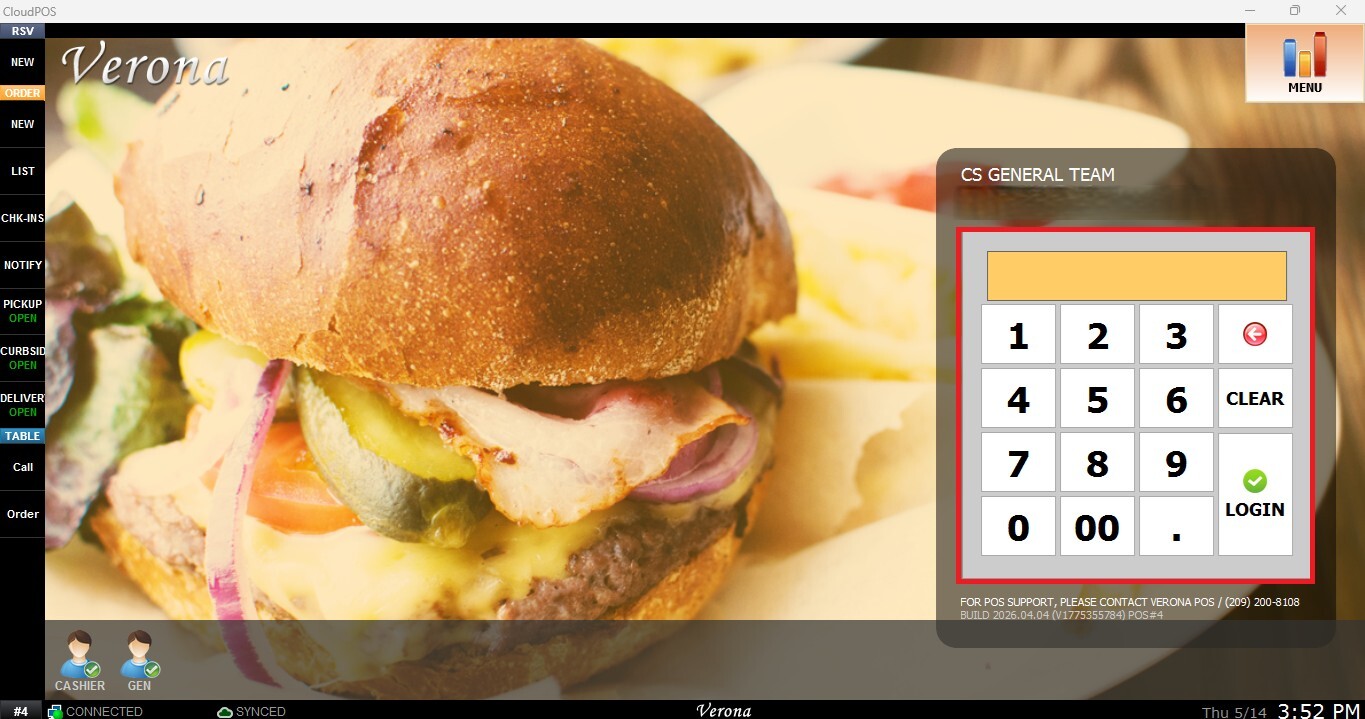
From the Main Screen, use the number pad and enter the assigned employee's password to log in.
On the Table Map Screen, locate the toolbar on the right side of the screen and click the COMBINE button.
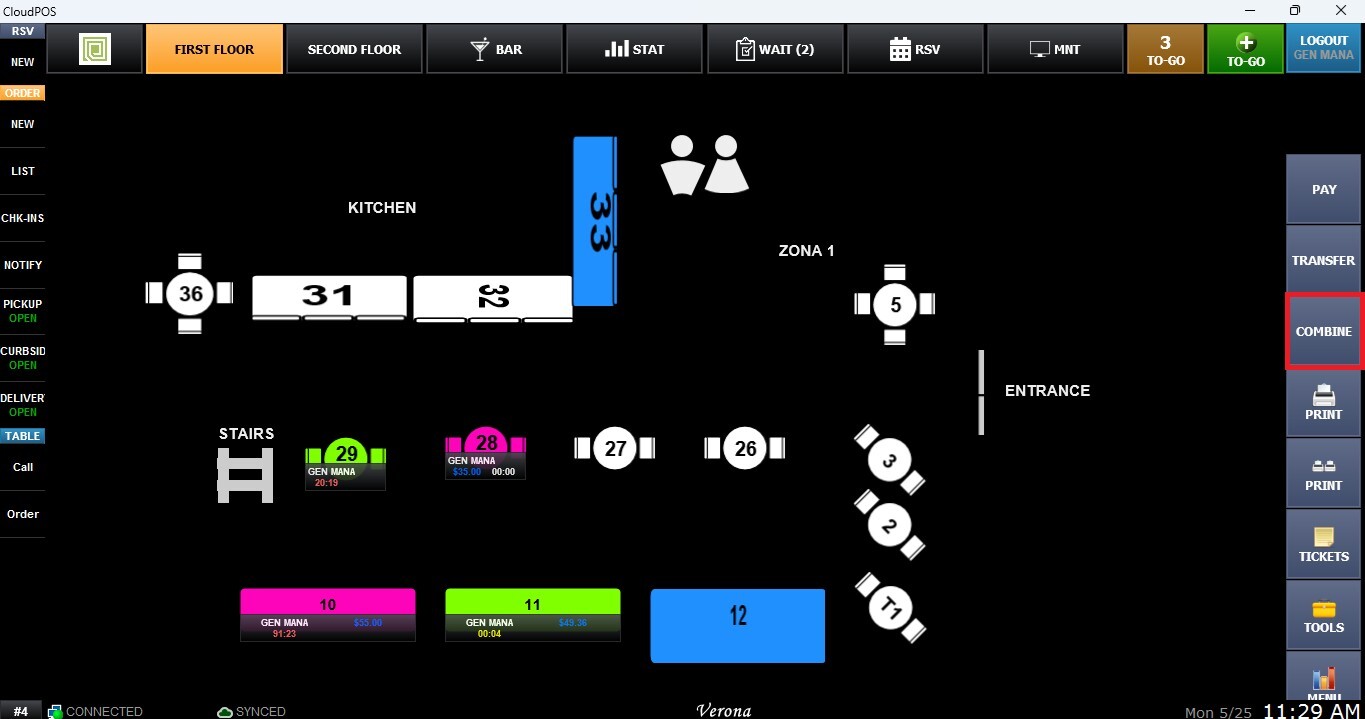
Tables displayed in green indicate occupied tables with active, unpaid orders that are available for combining.
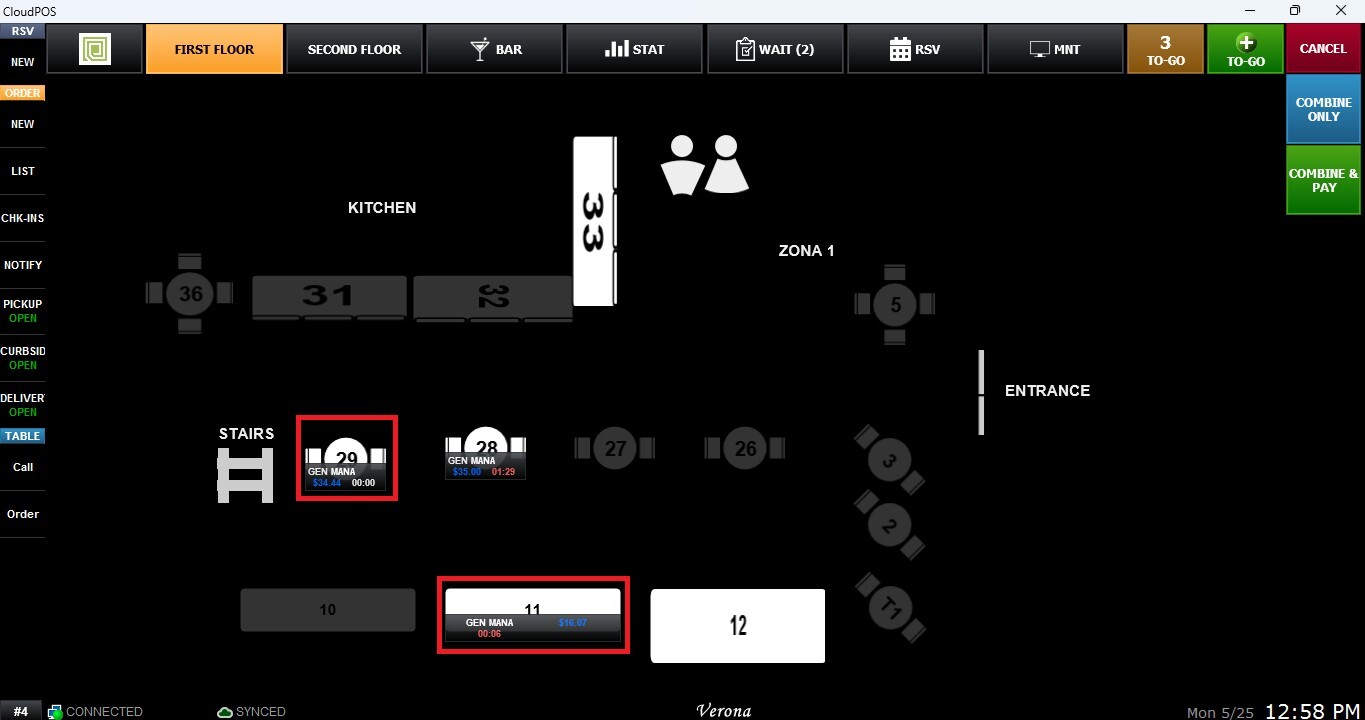
Select the desired tables you want to combine.
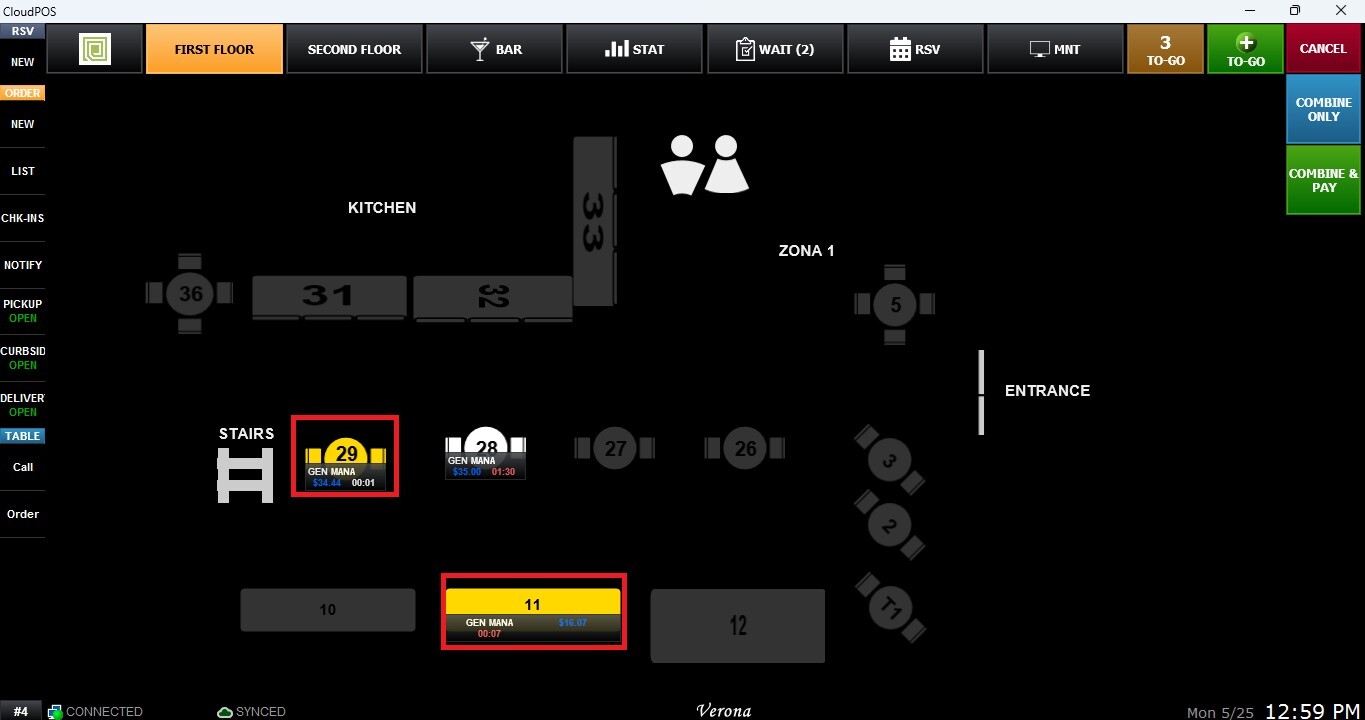
Choose the operation you want to perform
Combine Only
Merges the selected table orders into a single combined ticket and leaves the transaction open on the Sales Screen, allowing staff to continue modifying orders or performing additional operations as needed.
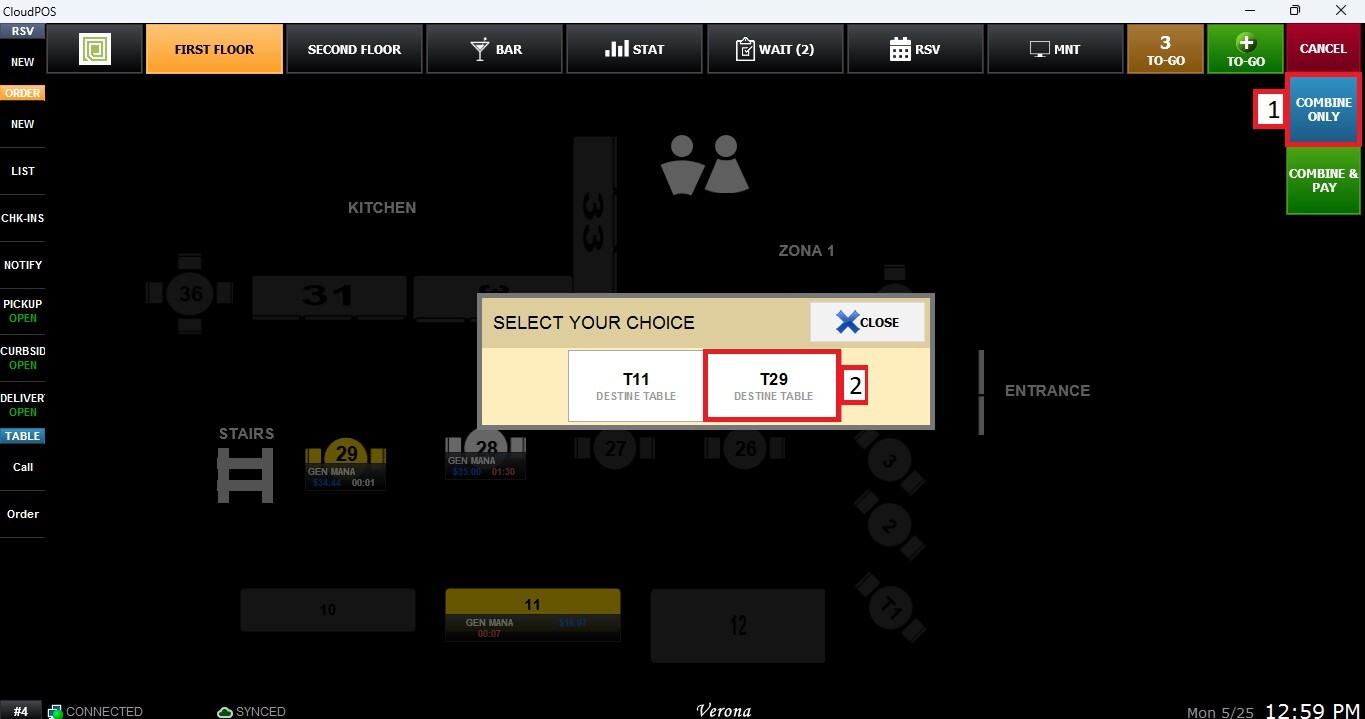
Combine and Pay
Merges the selected table orders and immediately redirects the transaction to the Sales Screen to proceed with checkout and payment processing.