Coupon
The Coupon settings create and manage the coupons of the store. Each coupon has a code, a discount, the dates when it can be used and where it can be used, on the POS, on the Kiosk or both.
MENU> SETTINGS> PAY> COUPON
Go to MENU and press SETTINGS.
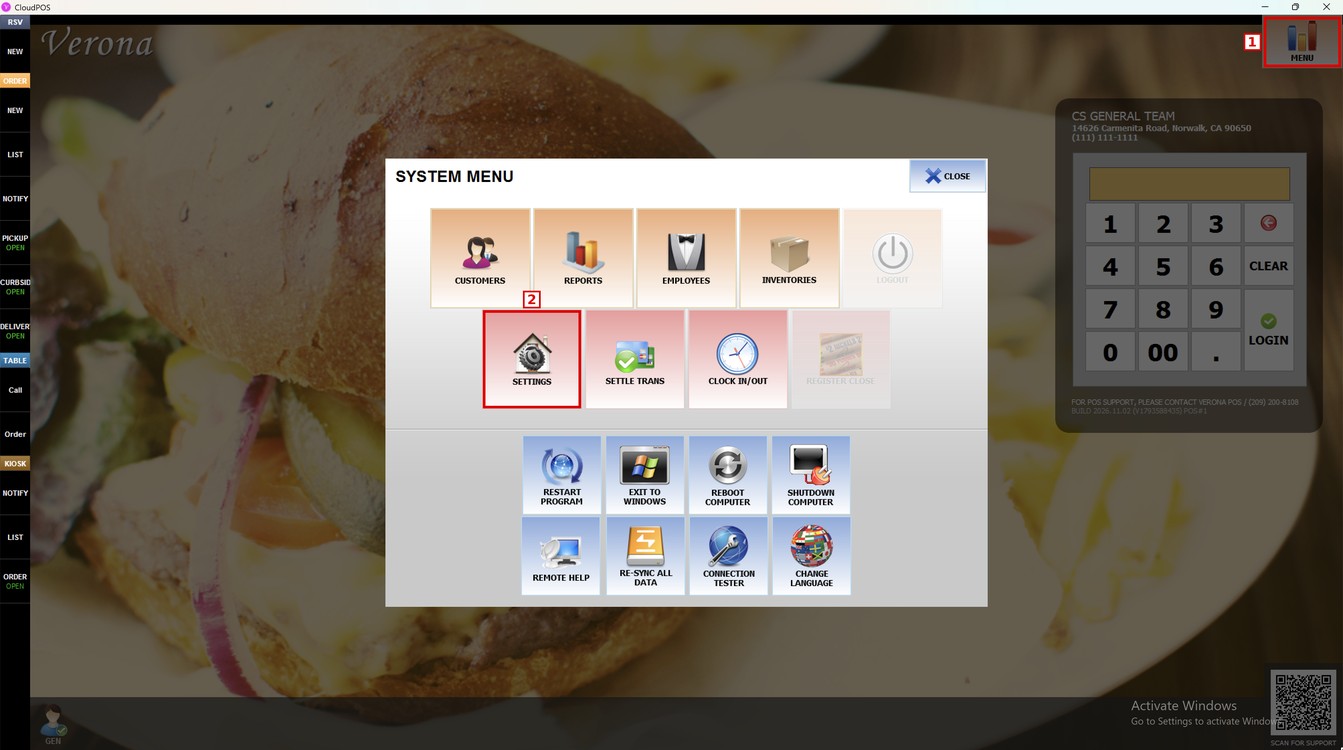
Press the PAY tab and then the COUPON subtab.
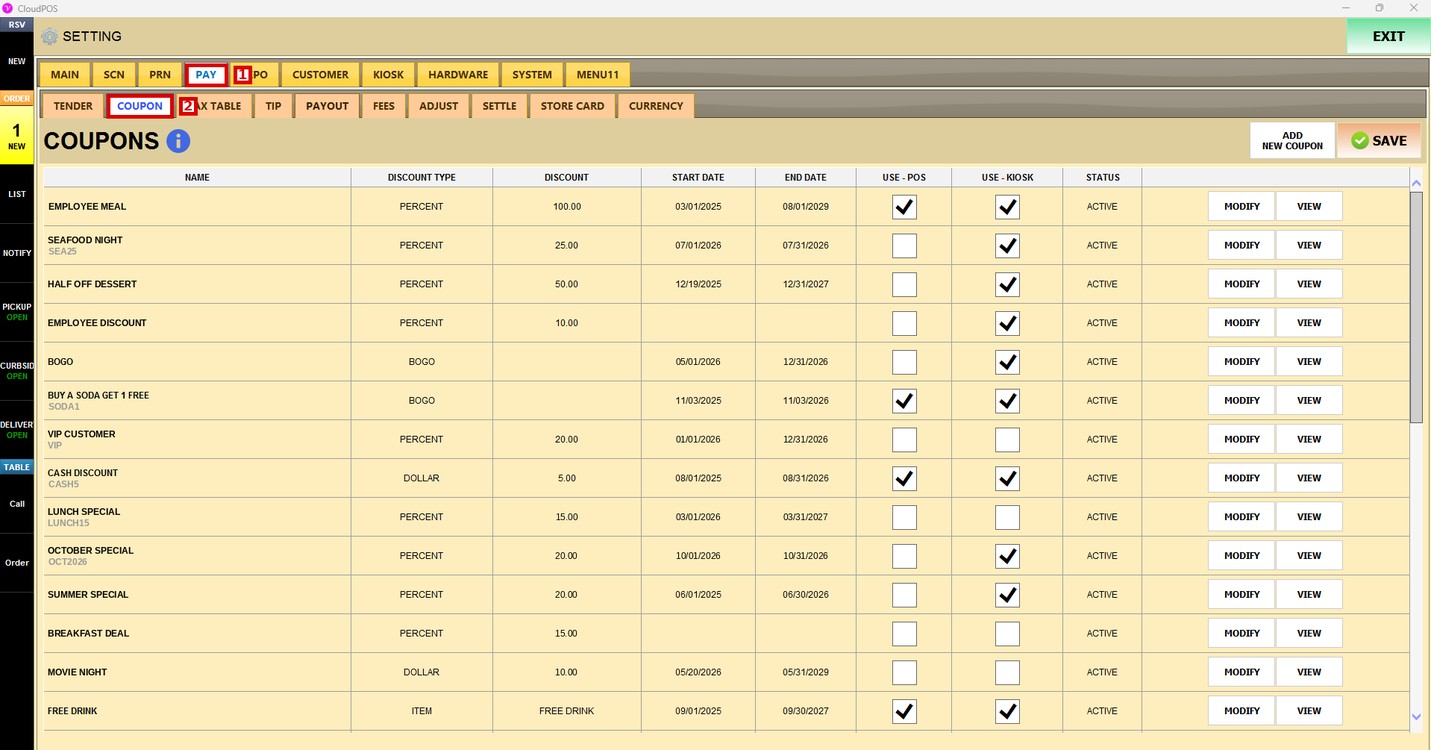
Coupon List:
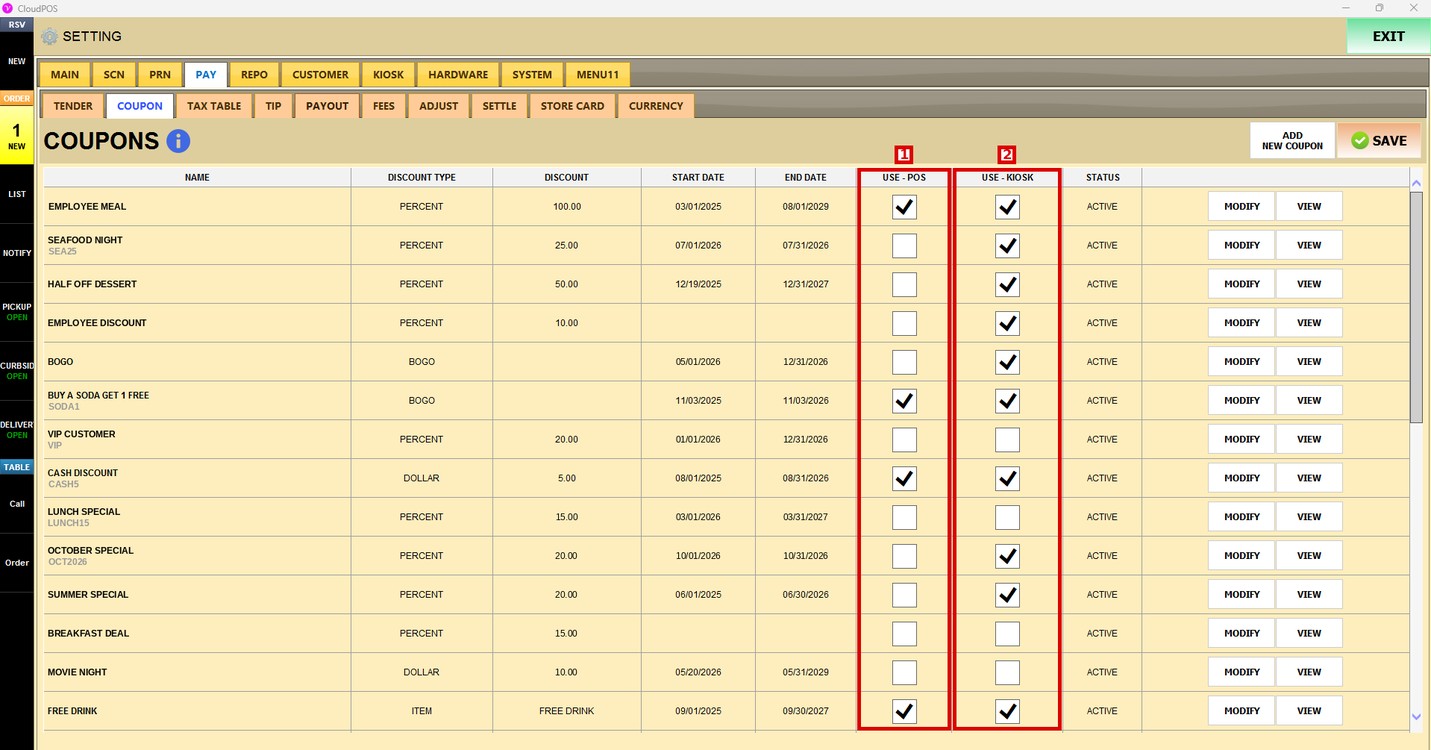
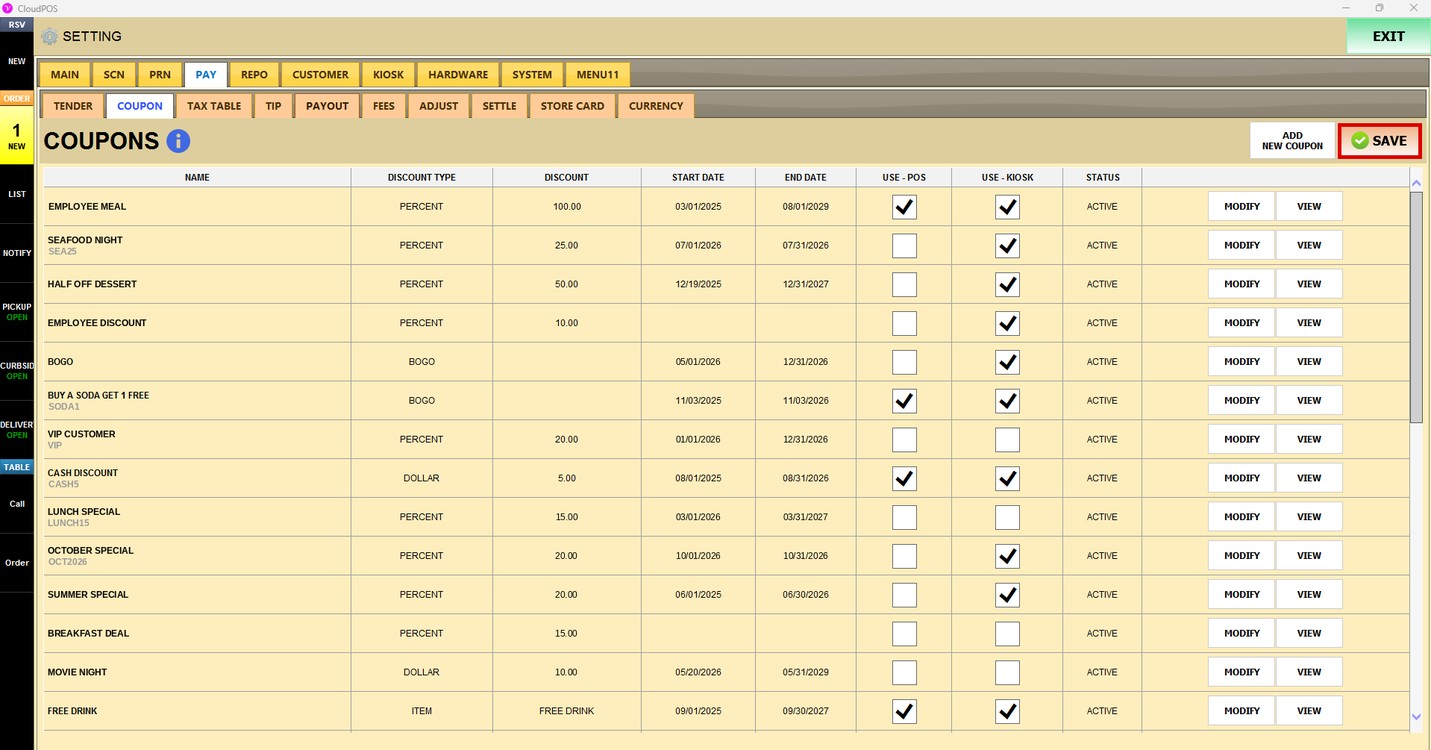
The list shows all the coupons of the store. Each column shows:
1. NAME: Name of the coupon. The code of the coupon is shown below the name.
2. DISCOUNT TYPE: Type of discount of the coupon.
3. DISCOUNT: Value of the discount.
4. START DATE / END DATE: Dates when the coupon can be used.
5. USE - POS / USE - KIOSK: Where the coupon can be used.
6. STATUS: Shows if the coupon is ACTIVE or INACTIVE.
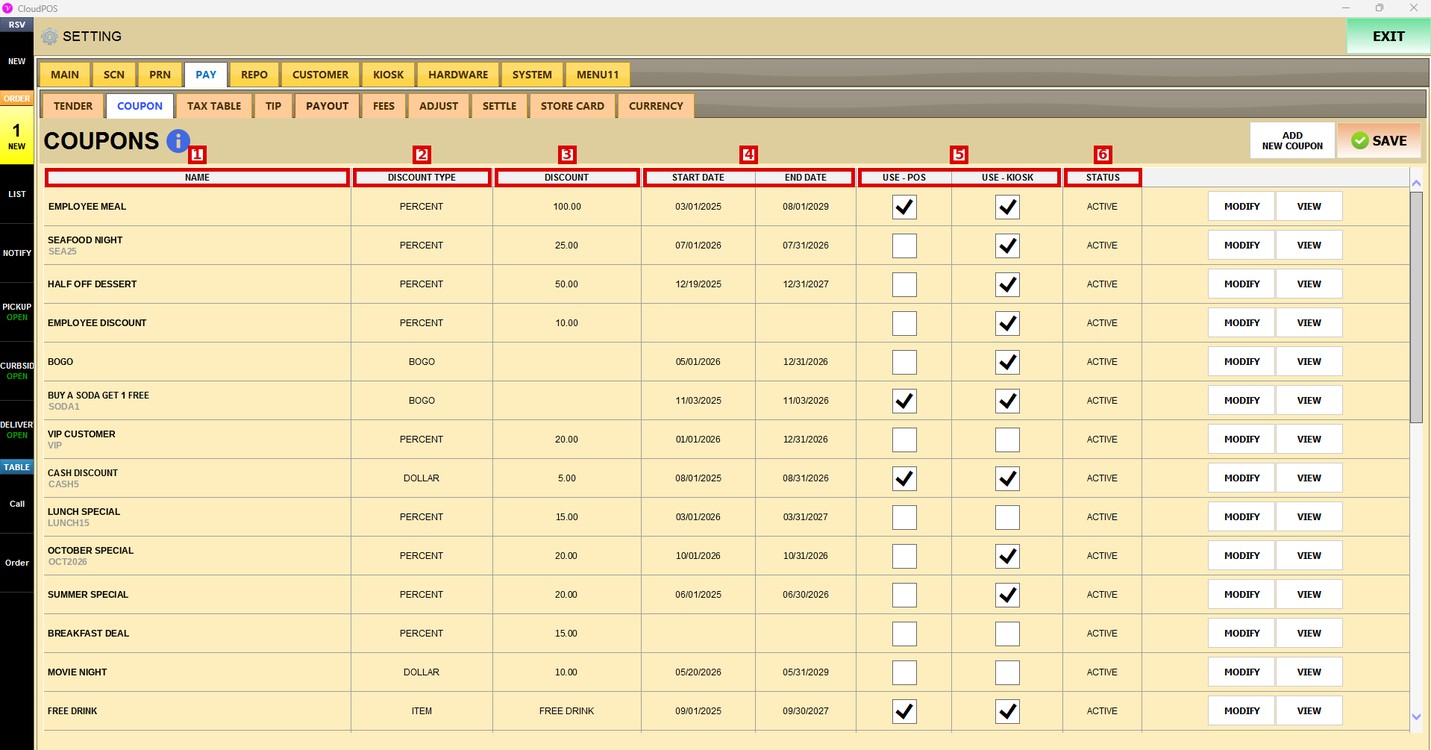
Add a New Coupon:
Press ADD NEW COUPON.
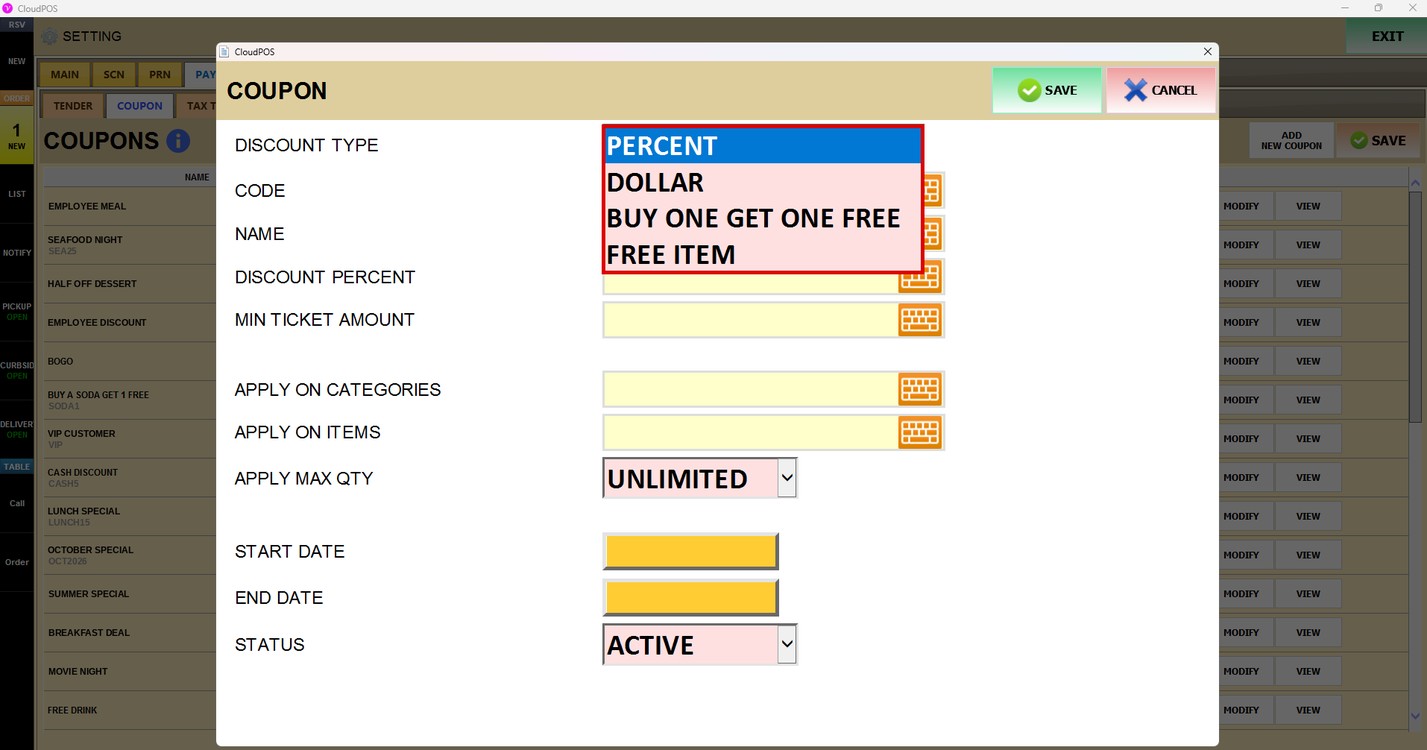
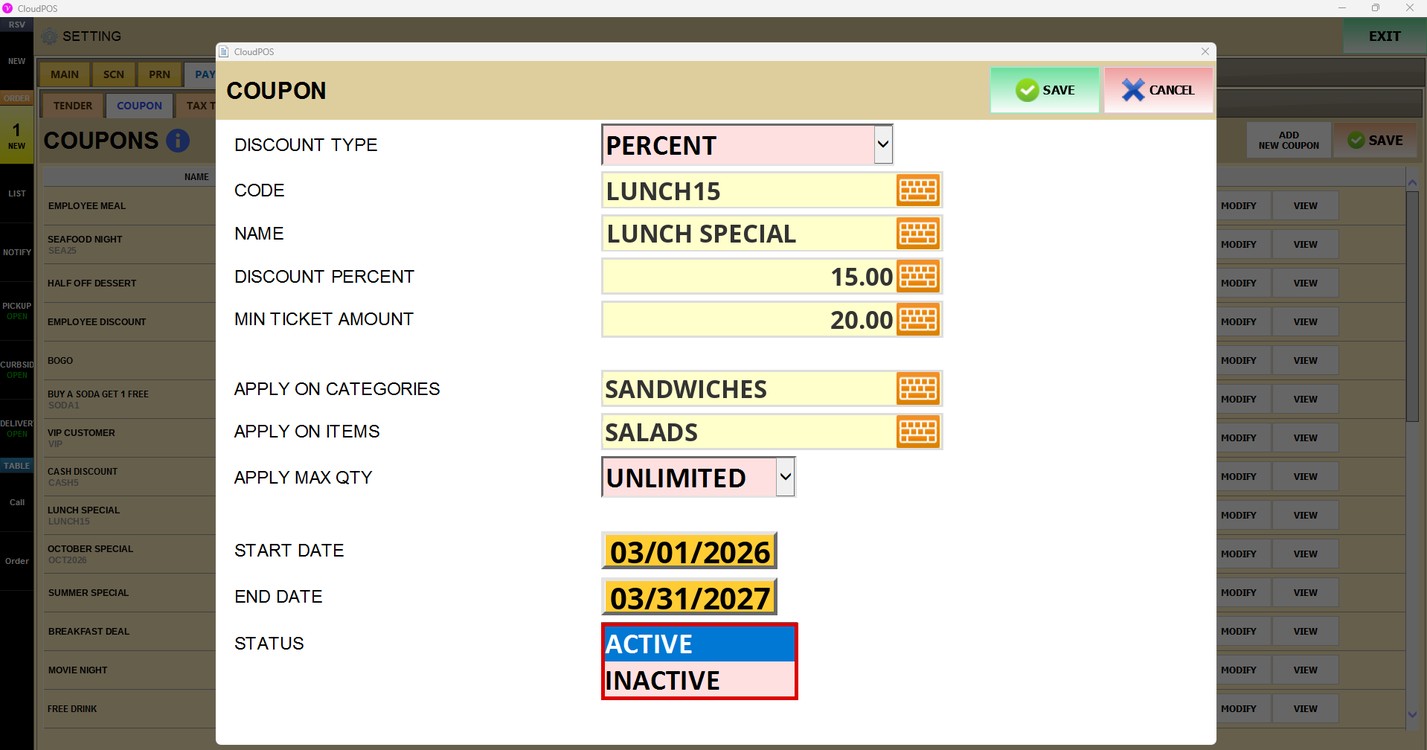
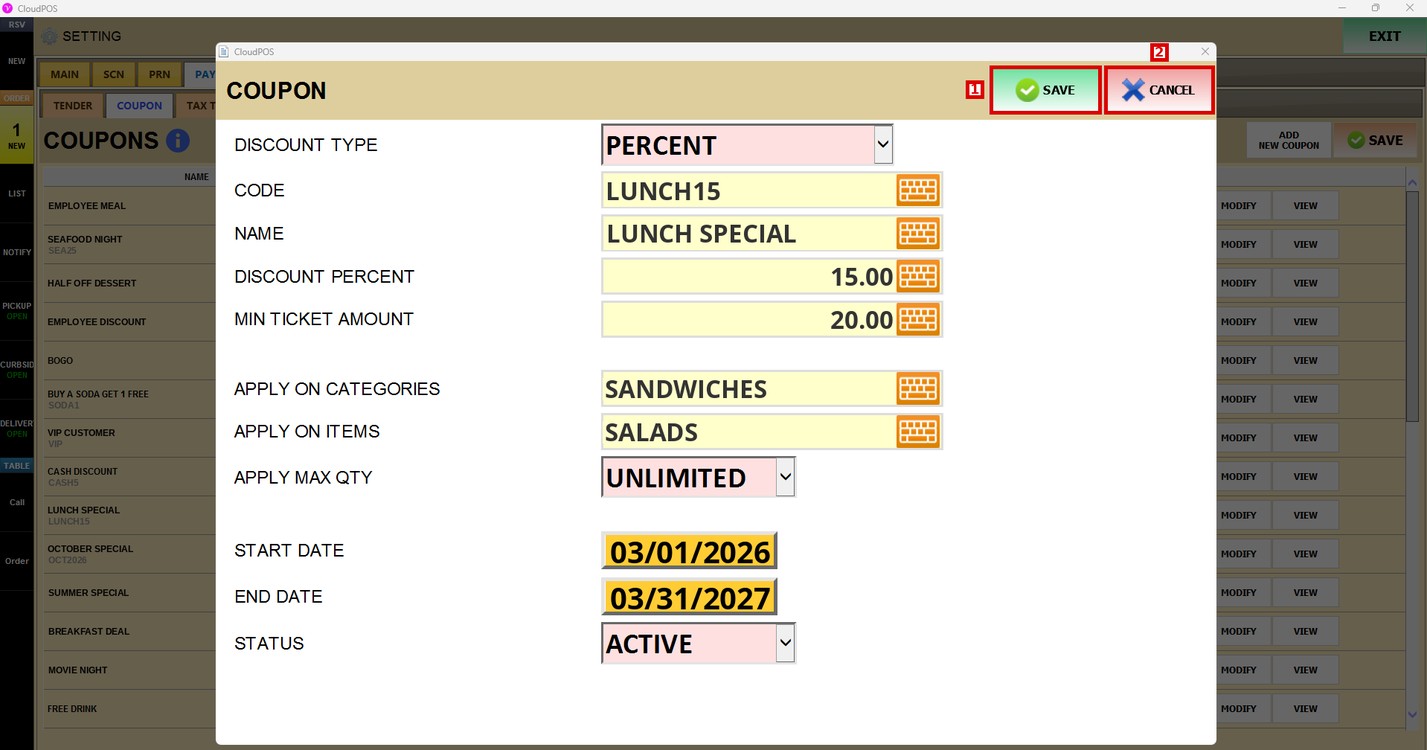
The COUPON window opens. Press the DISCOUNT TYPE dropdown and select the type of discount:
1. PERCENT: Discounts a percent of the ticket or of the selected items.
2. DOLLAR: Discounts a fixed amount.
3. BUY ONE GET ONE FREE: The customer buys one item and gets another one free.
4. FREE ITEM: Gives a free item.
Fill in the coupon information:
1. CODE: Code of the coupon that is entered or scanned on the POS.
2. NAME: Name of the coupon.
3. DISCOUNT PERCENT: Value of the discount.
4. MIN TICKET AMOUNT: Minimum amount of the ticket to use the coupon. Leave it empty to use the coupon with any amount.
5. APPLY ON CATEGORIES: Categories of the menu where the coupon applies.
6. APPLY ON ITEMS: Items of the menu where the coupon applies.
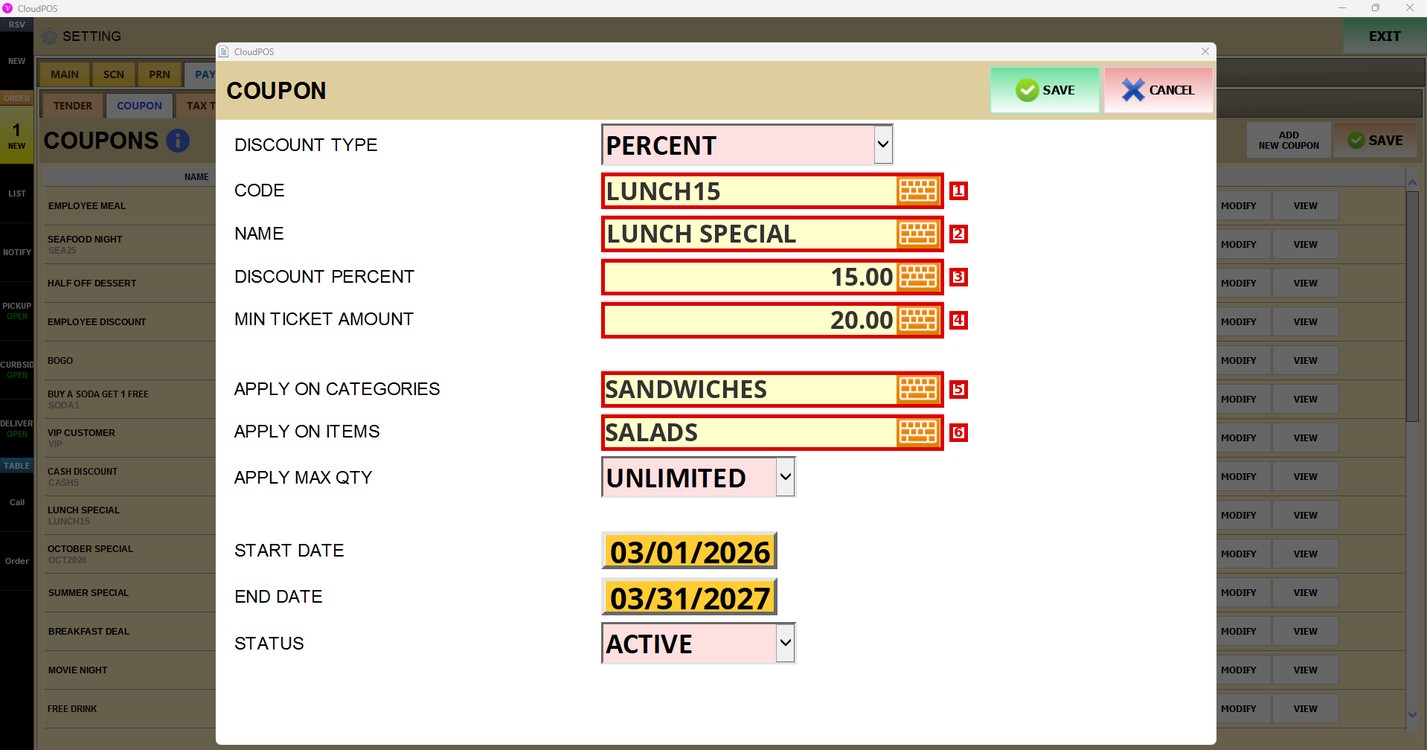
Hint: Press the keyboard icon to type in each field. Leave the categories and items empty to apply the coupon to the whole ticket.
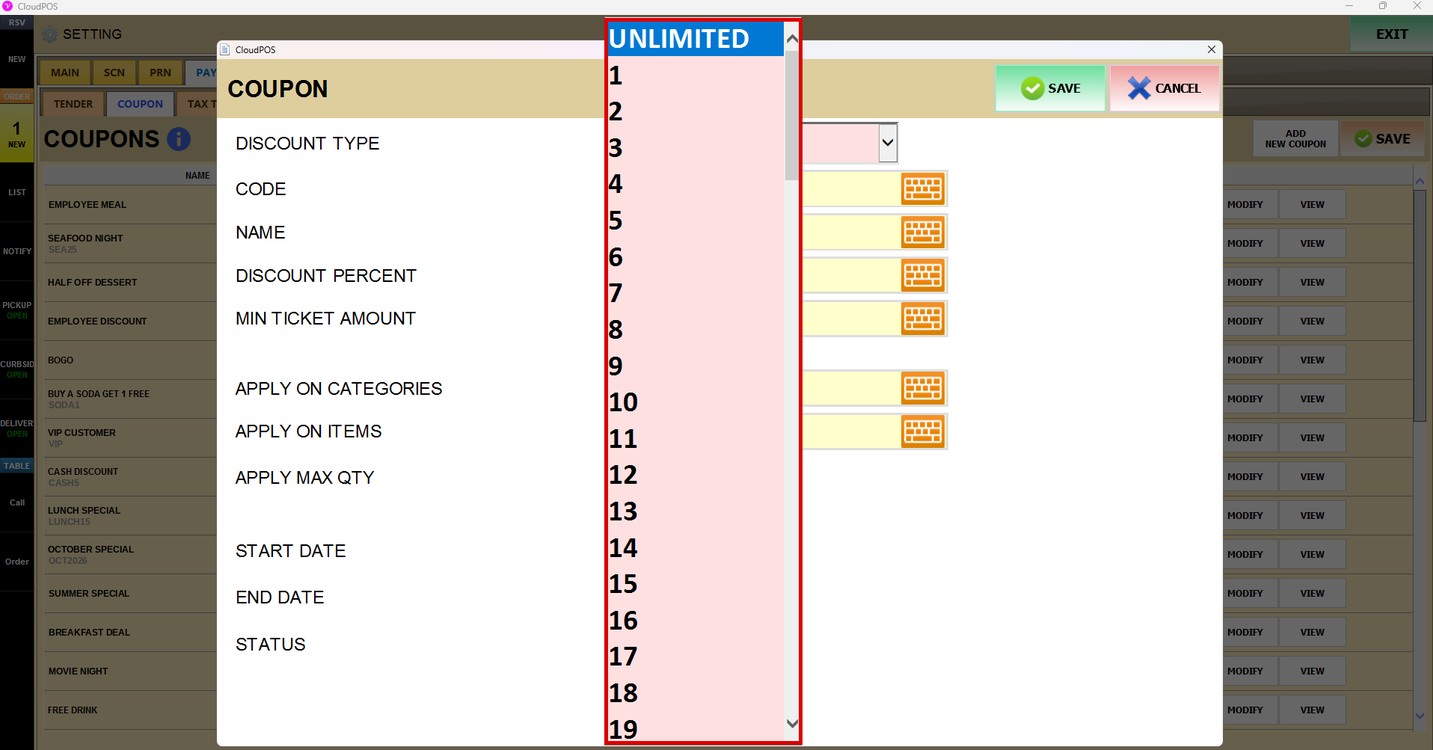
Apply Max Qty:
Select how many items the coupon can be applied to in one ticket, from 1 up, or UNLIMITED.
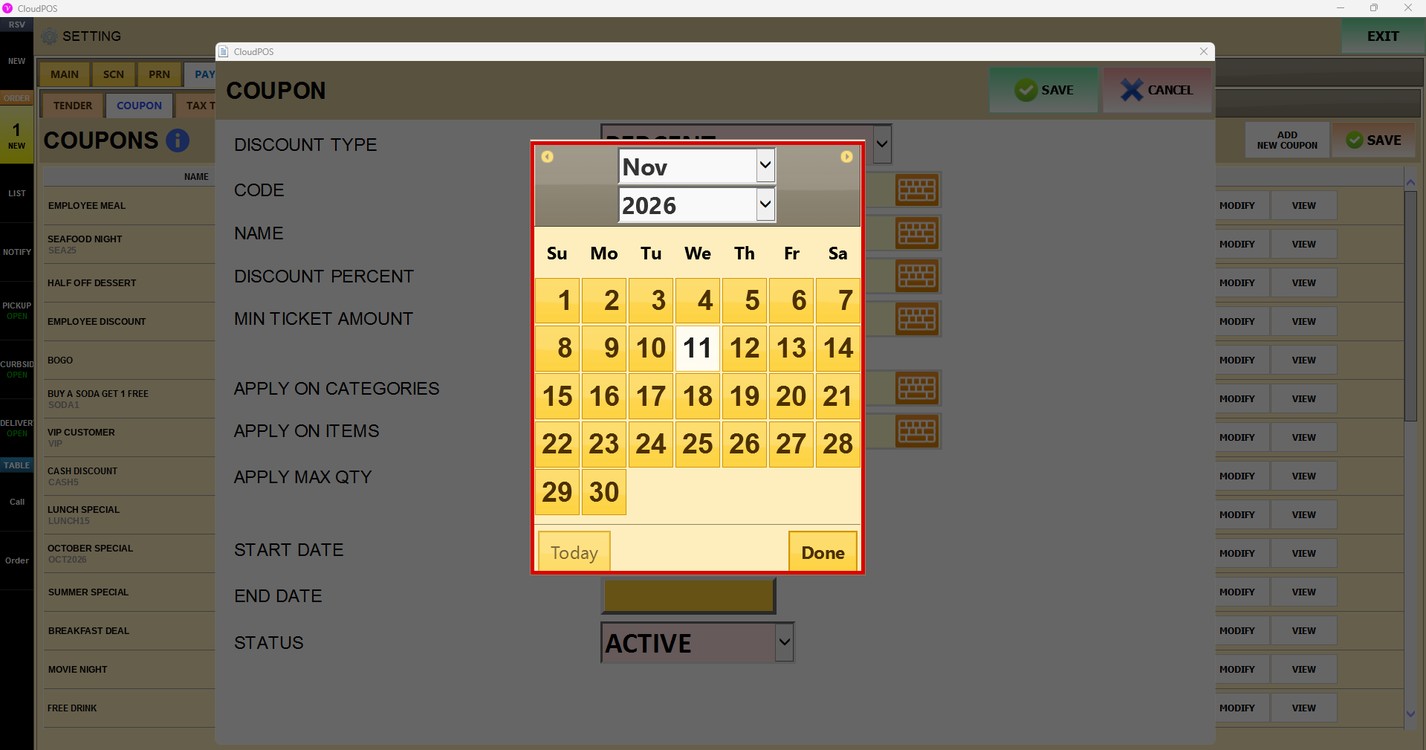
Start Date and End Date:
Press START DATE, select the first day the coupon can be used and press Done. Do the same for END DATE with the last day.
Status:
Press the STATUS dropdown.
1. ACTIVE: The coupon can be used.
2. INACTIVE: The coupon cannot be used.
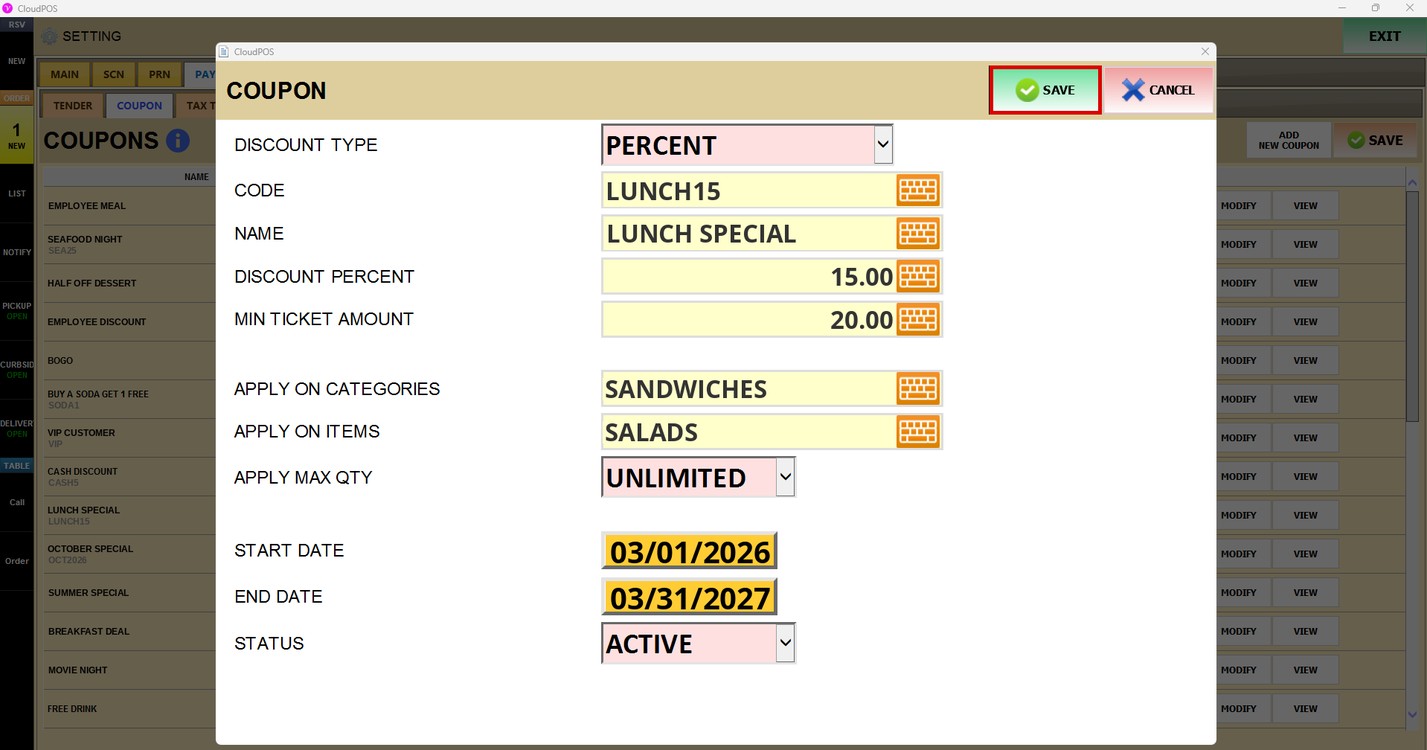
Press SAVE to save the coupon.
Use on POS and Kiosk:
In the list, check USE - POS to use the coupon on the POS, and USE - KIOSK to use it on the Kiosk.
Modify and View:
Press MODIFY to change a coupon or VIEW to see it.
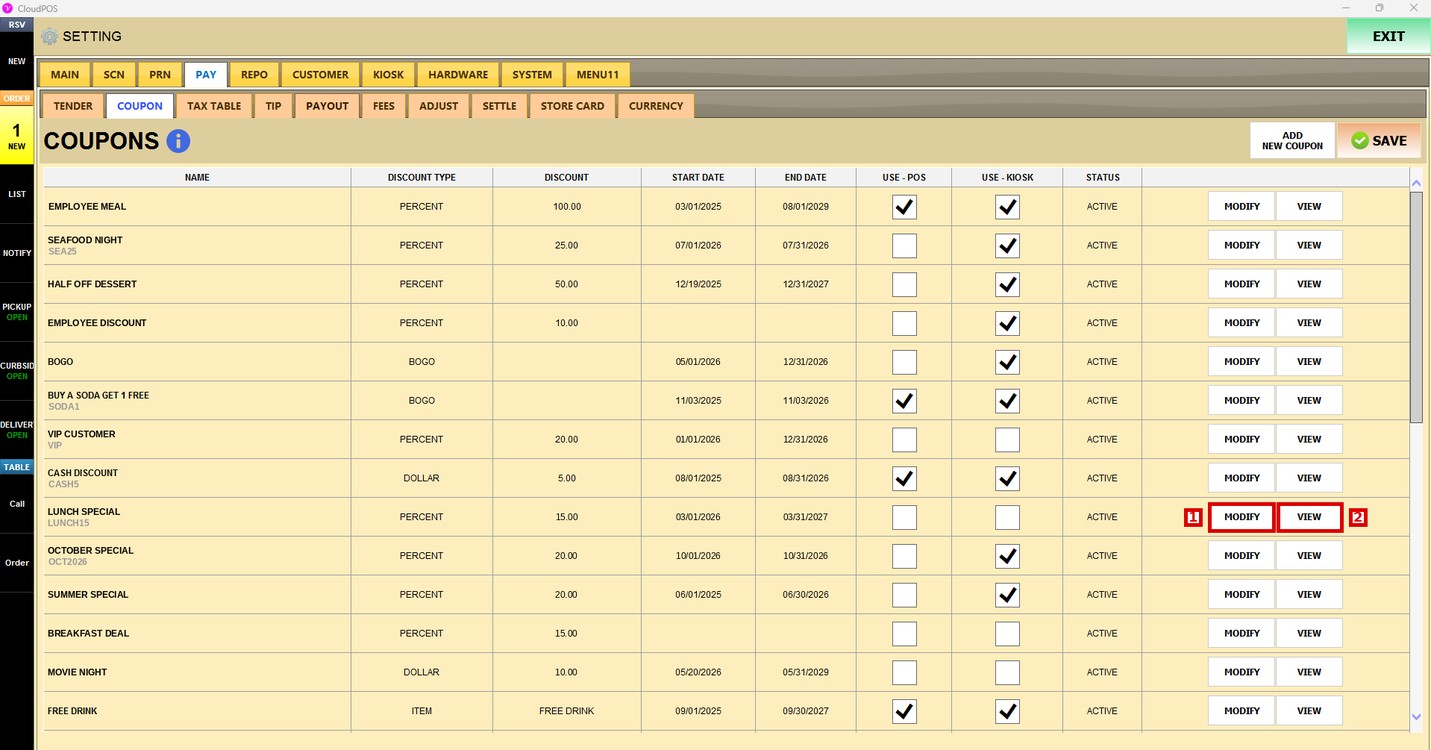
MODIFY opens the COUPON window with the information of the coupon, the same as when the coupon was set up. Change the fields and press SAVE to save the changes, or CANCEL to close the window without changes.
VIEW
Shows the coupon with its name, discount, barcode, code and expiration date.
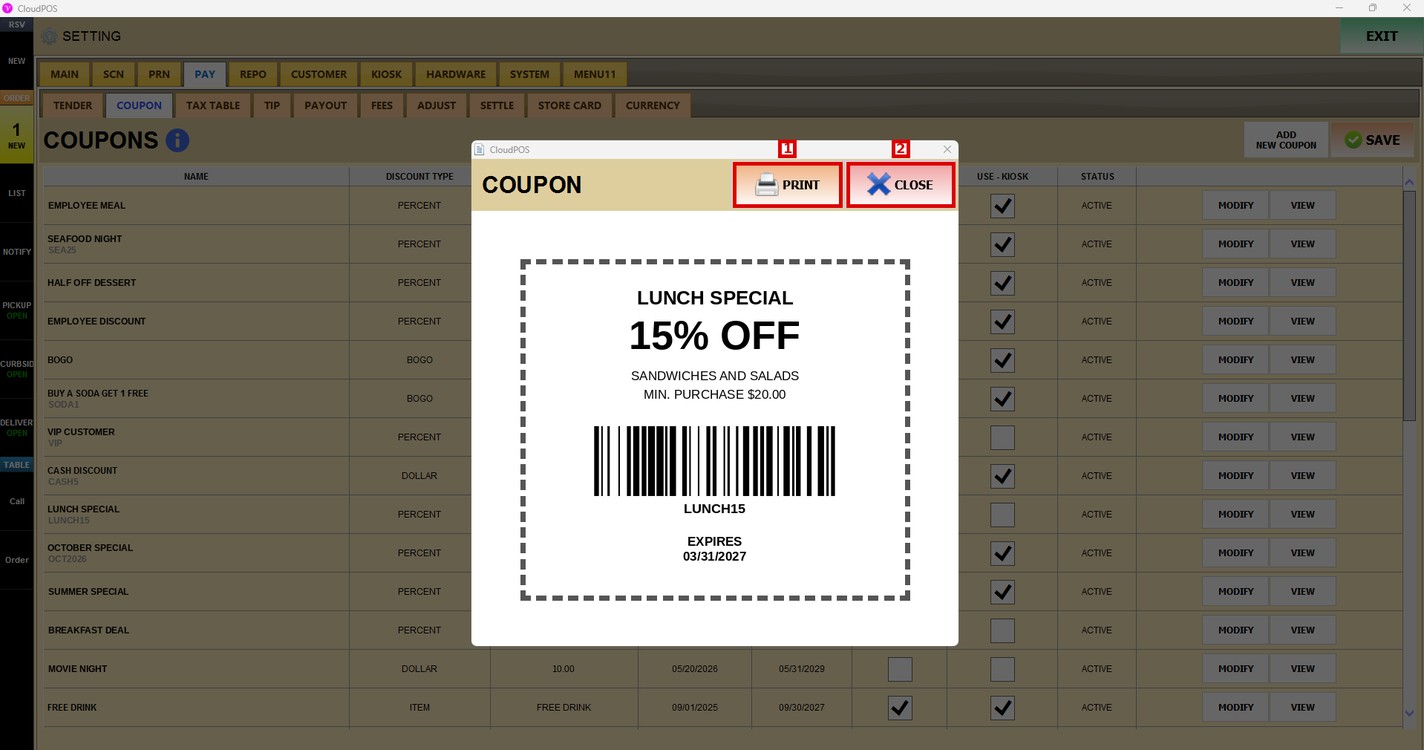
Hint: The customer can scan the barcode or the cashier can enter the code on the POS. Press PRINT to print it or CLOSE to close the window.
Press SAVE to save the changes.
To learn how to set up the tenders, please refer to the Tender Guide.