Destination
The Destination settings allow you to configure how each online ordering method behaves. From this section, you can enable or disable available order destinations, define preparation times, set minimum order requirements, apply service fees, display customer messages, and configure destination-specific options such as delivery restrictions, mandatory items, and order confirmation methods.
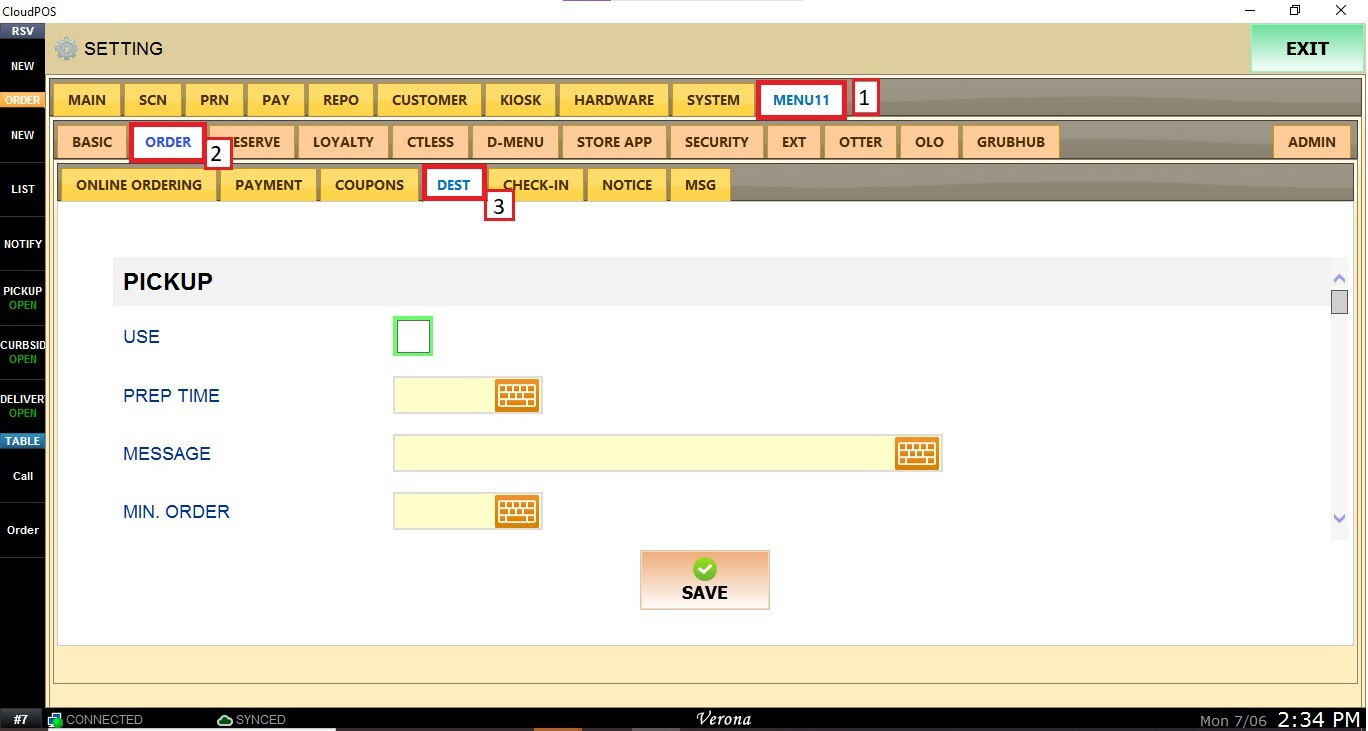
Main Screen> MENU>SETTINGS>MENU11>ORDER>DEST
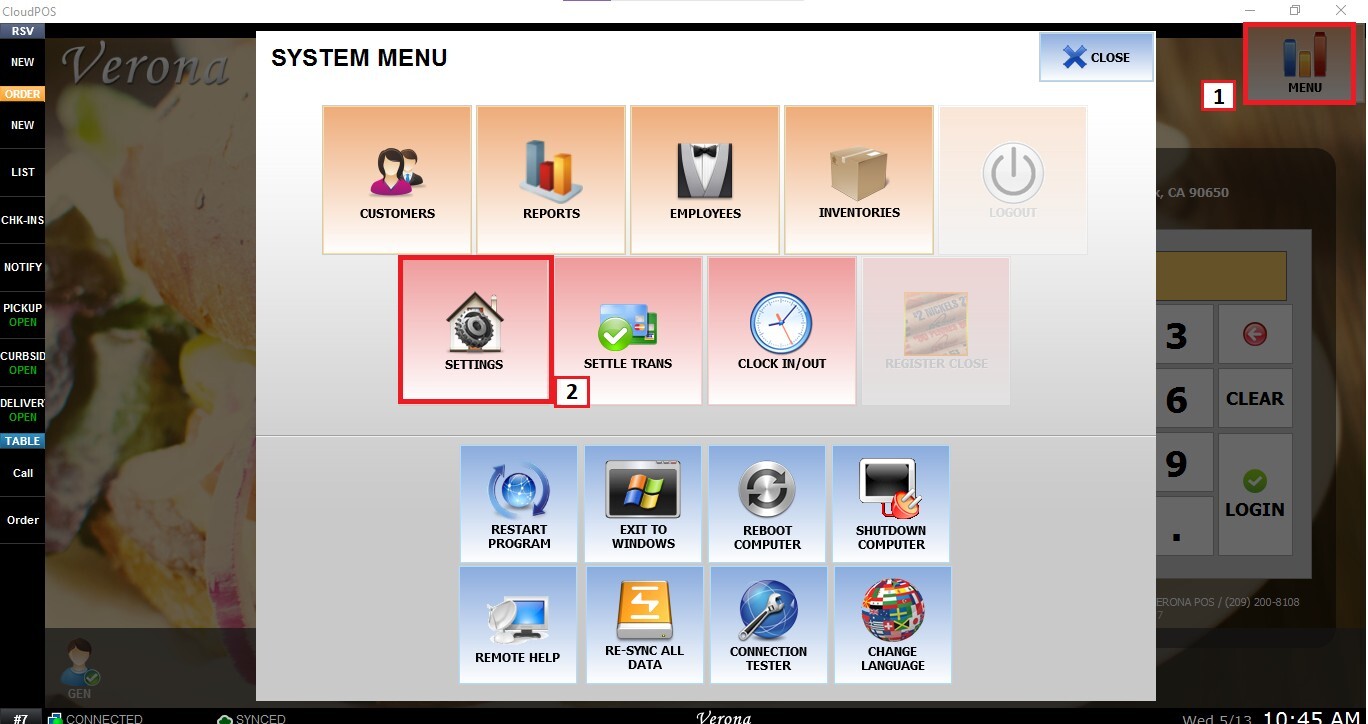
From the Main Screen, click MENU and then SETTINGS.
Go to MENU11, select ORDER, and open the DEST tab.
PickUp
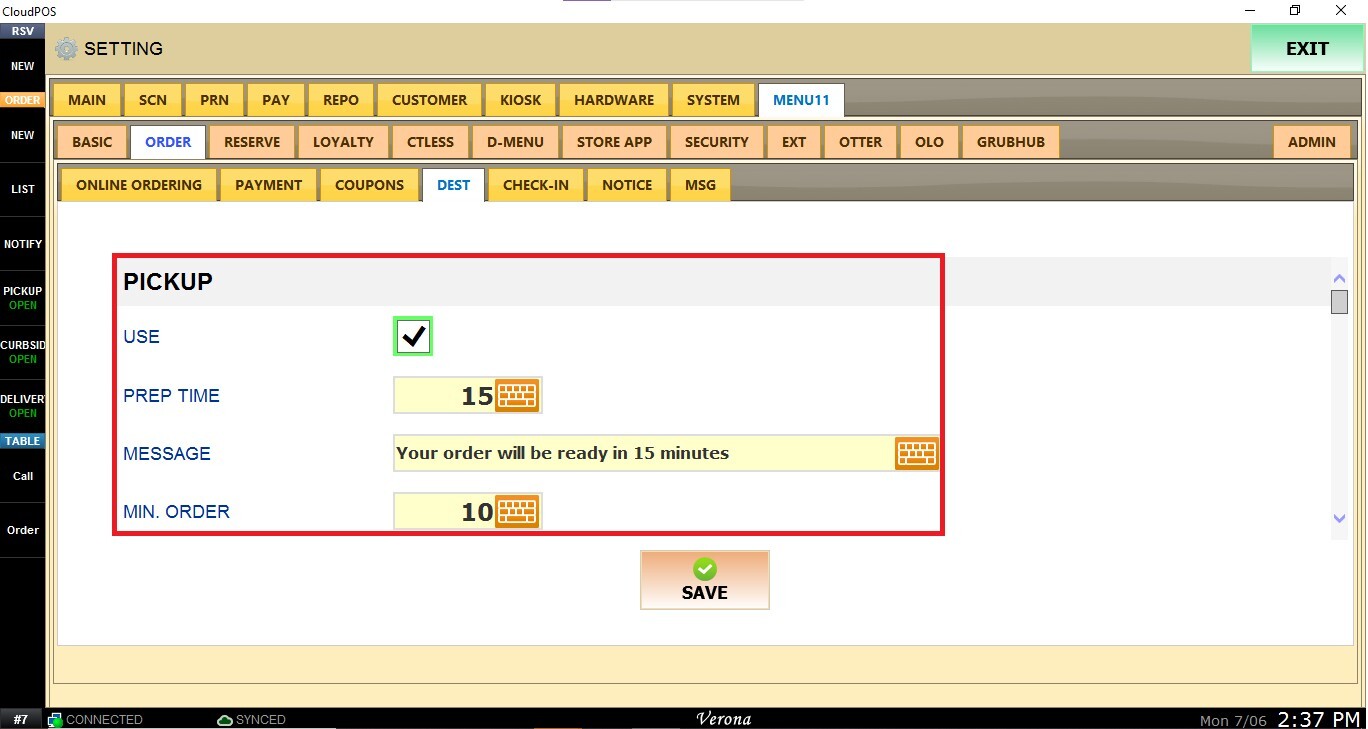
Configure the settings customers will use when placing Pickup orders.
USE: Enable or disable Pickup as an available ordering destination.
PREP TIME: Enter the estimated preparation time (in minutes) displayed to customers.
MESSAGE: Enter a custom message to display when Pickup is selected.
MIN. ORDER: Set the minimum subtotal required for customers to place a Pickup order.
FEE ($): Apply a flat service fee to Pickup orders.
FEE (%): Apply a percentage-based service fee to Pickup orders.
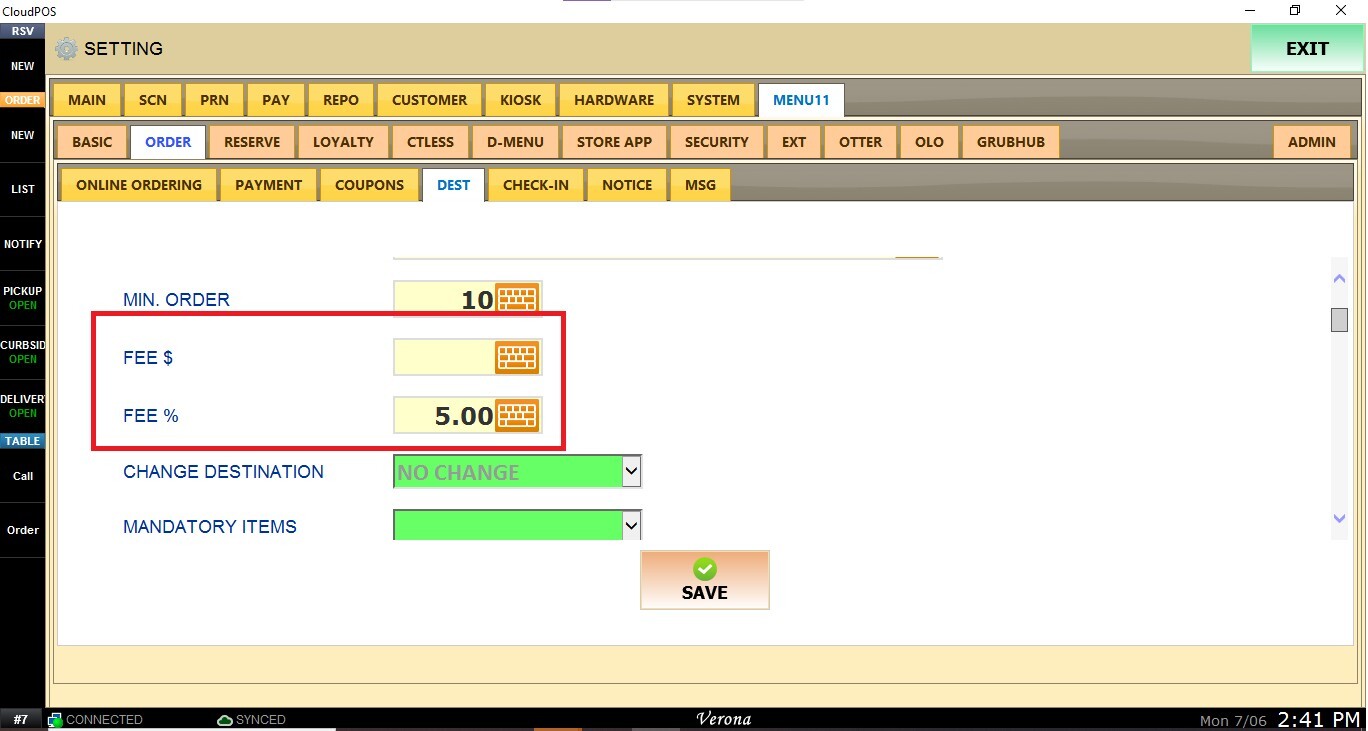
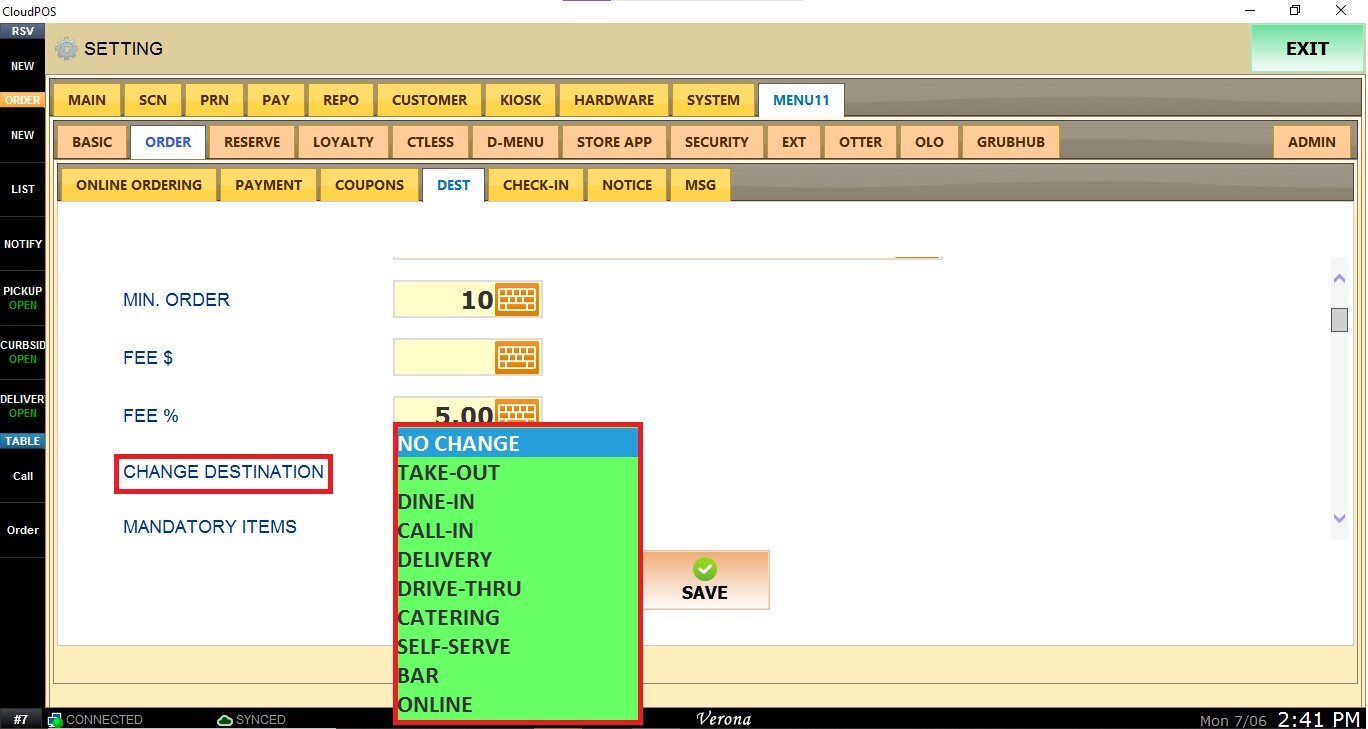
CHANGE DESTINATION: Customize the destination name printed on receipts and kitchen tickets. By default, it prints as Menu11-Pickup. Select one of the available options.
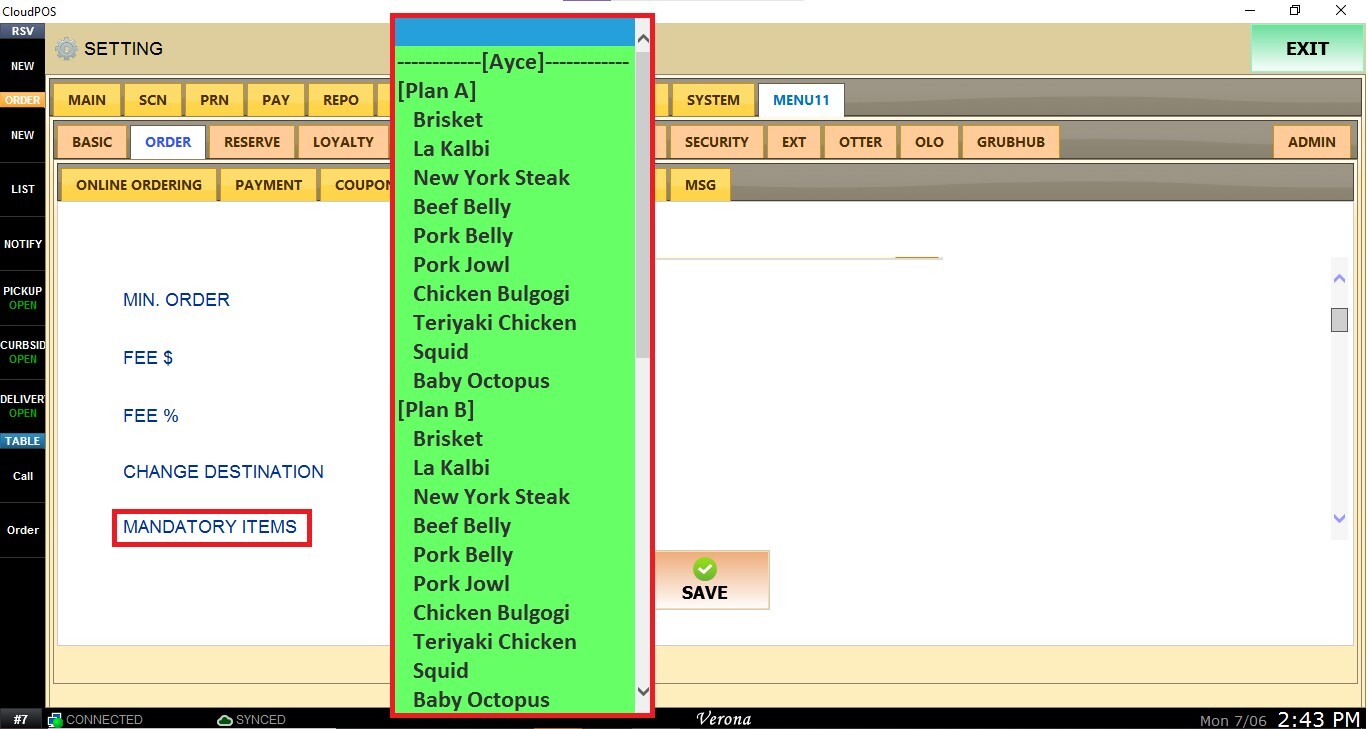
MANDATORY ITEMS: Select an item that will automatically be added to every Pickup order.
Delivery
Configure the settings for Delivery orders.
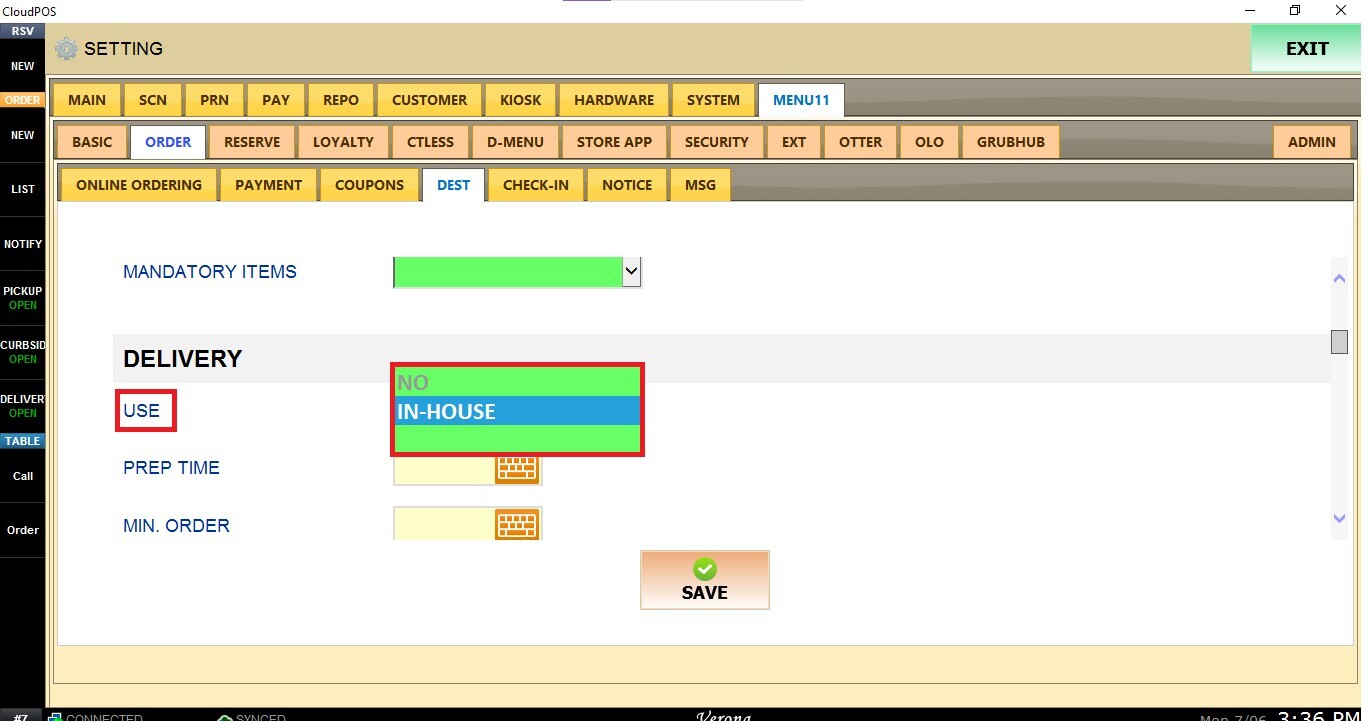
USE: Choose how deliveries will be fulfilled:
- No: Disables the Delivery destination for online orders.
- In-House: Enables delivery using the restaurant's own drivers
- Blank: Enables support for compatible third-party delivery integrations.
PREP TIME: Estimated preparation time shown to customers.
MIN. ORDER: Minimum subtotal required before Delivery becomes available.
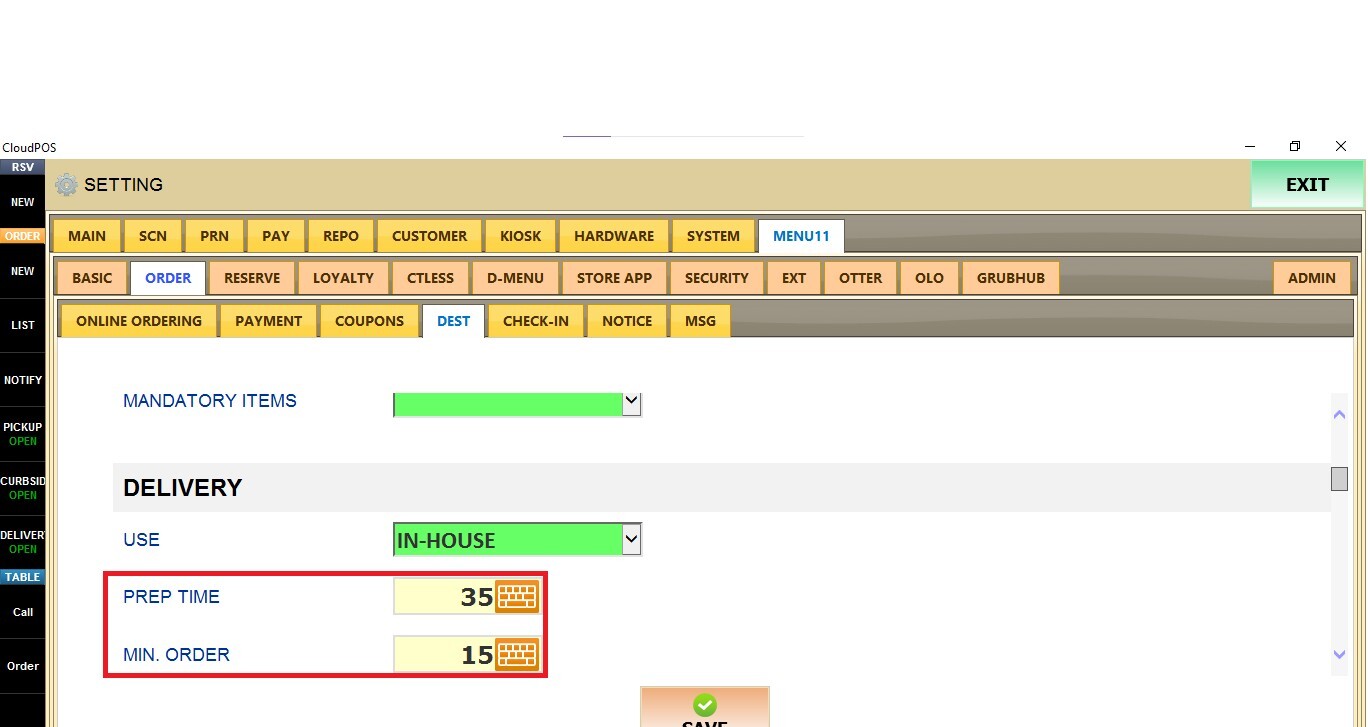
When In-House is selected, these settings are available:
FEE ($): Apply a flat delivery fee.
FEE (%): Apply a percentage-based delivery fee.
MESSAGE: Custom message displayed when Delivery is selected.
CHANGE DESTINATION: Customize the destination name printed on receipts and kitchen tickets. By default, it prints as Menu11-Delivery.
RESTRICTION: Limit Delivery availability by ZIP code. Multiple ZIP codes can be entered, separated by commas.
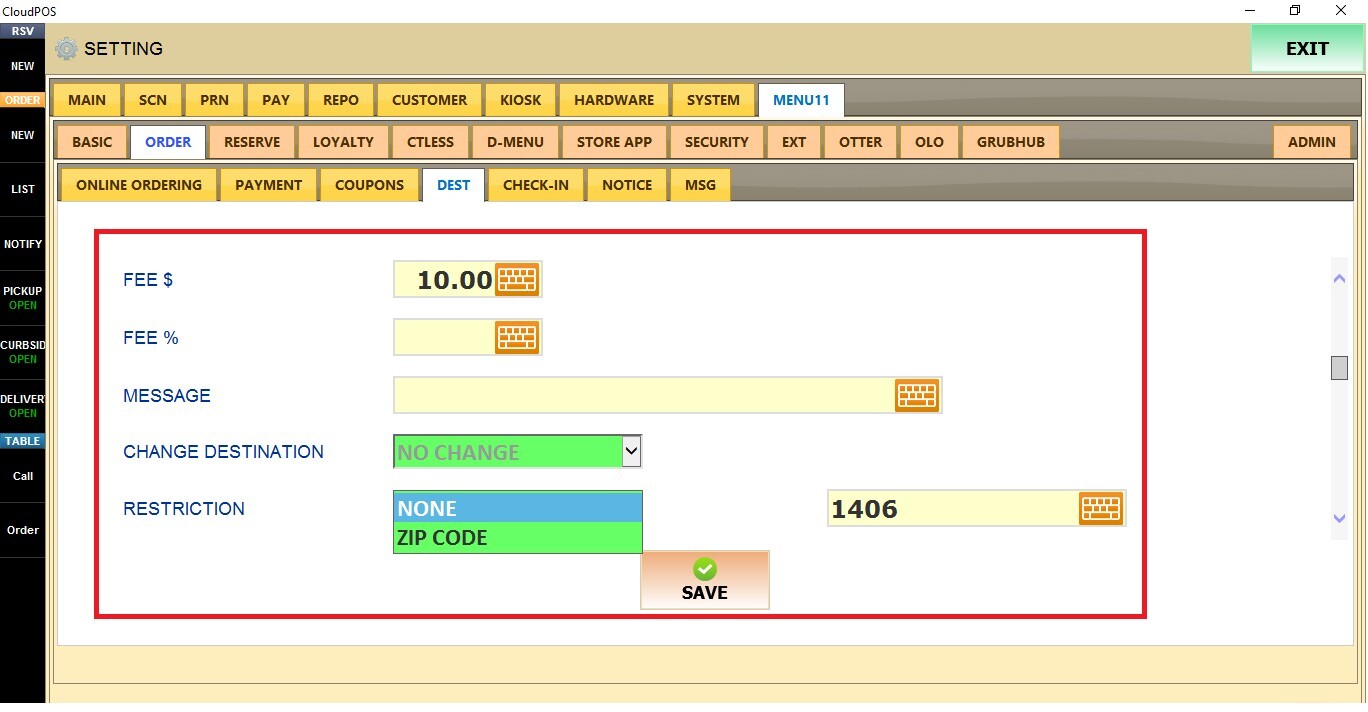
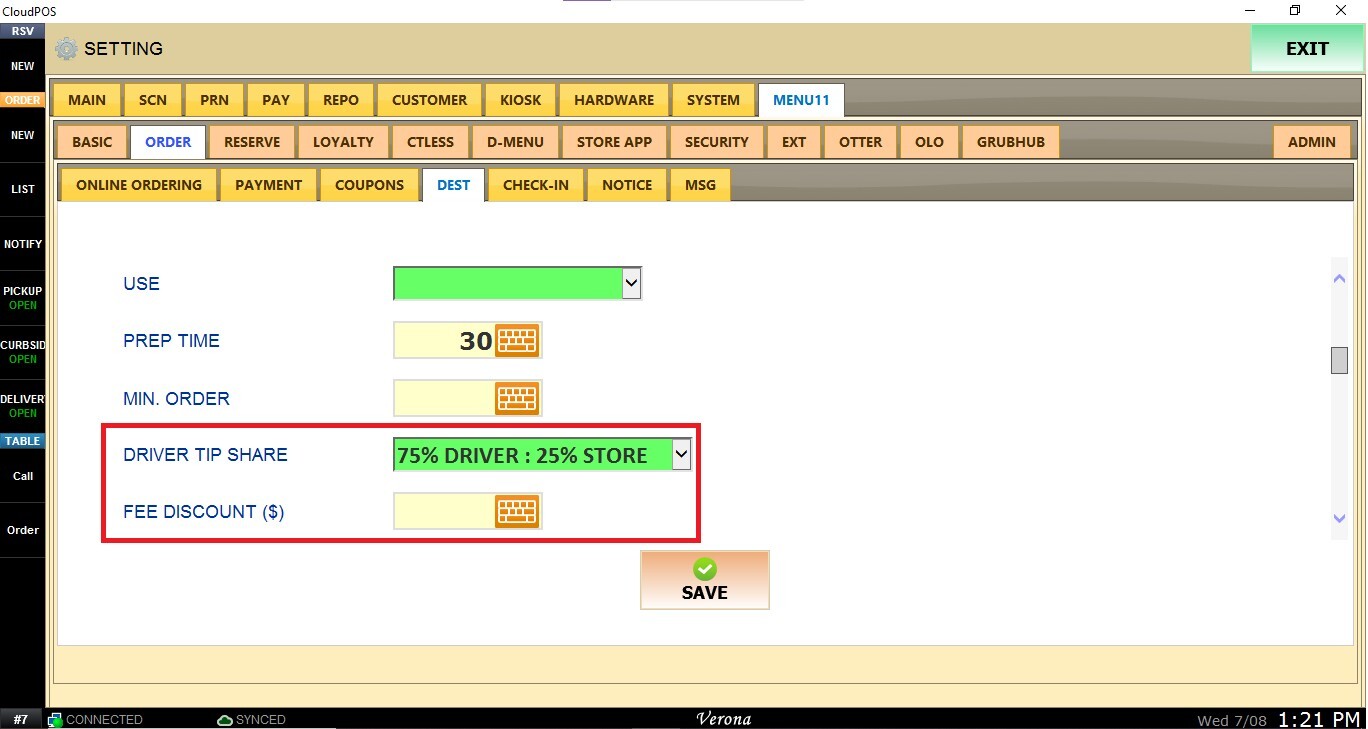
When the USE field is left blank, additional fields become available:
DRIVER TIP SHARED: Select how customer tips will be distributed between the delivery driver and the store.
Available options include:
- 100% Driver
- 75% Driver: 25% Store
- 50% Driver: 50% Store
- 25% Driver: 75% Store
- 100% Store
FEE DISCOUNT($): Enter a flat dollar amount to reduce the delivery fee charged to the customer. This option can be used to subsidize delivery fees when using supported third-party delivery services.
Curbside
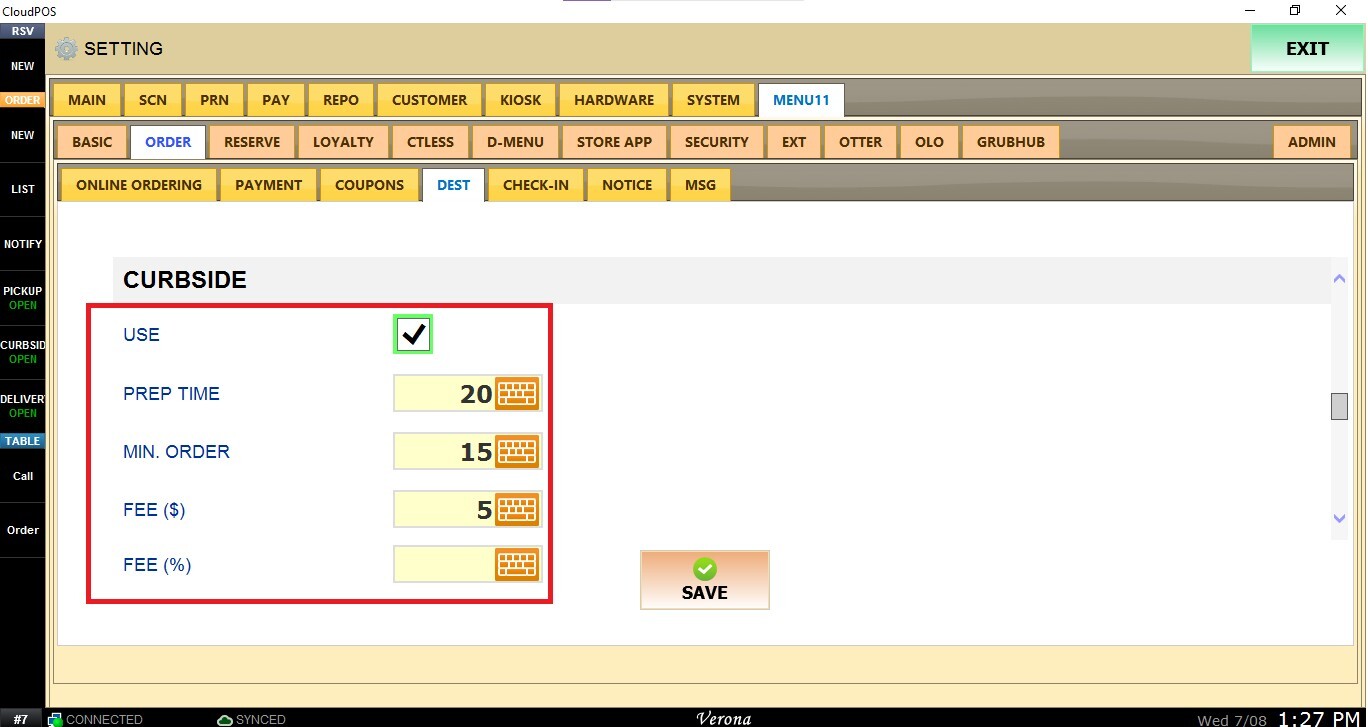
Configure settings for Curbside Pickup.
USE: Enable or disable Curbside ordering.
PREP TIME: Enter the estimated preparation time (in minutes) displayed to customers.
MIN. ORDER: Set the minimum subtotal required for customers to place a Curbside order.
FEE ($): Apply a flat service fee to Curbside orders.
FEE (%): Apply a percentage-based service fee to Curbside orders.
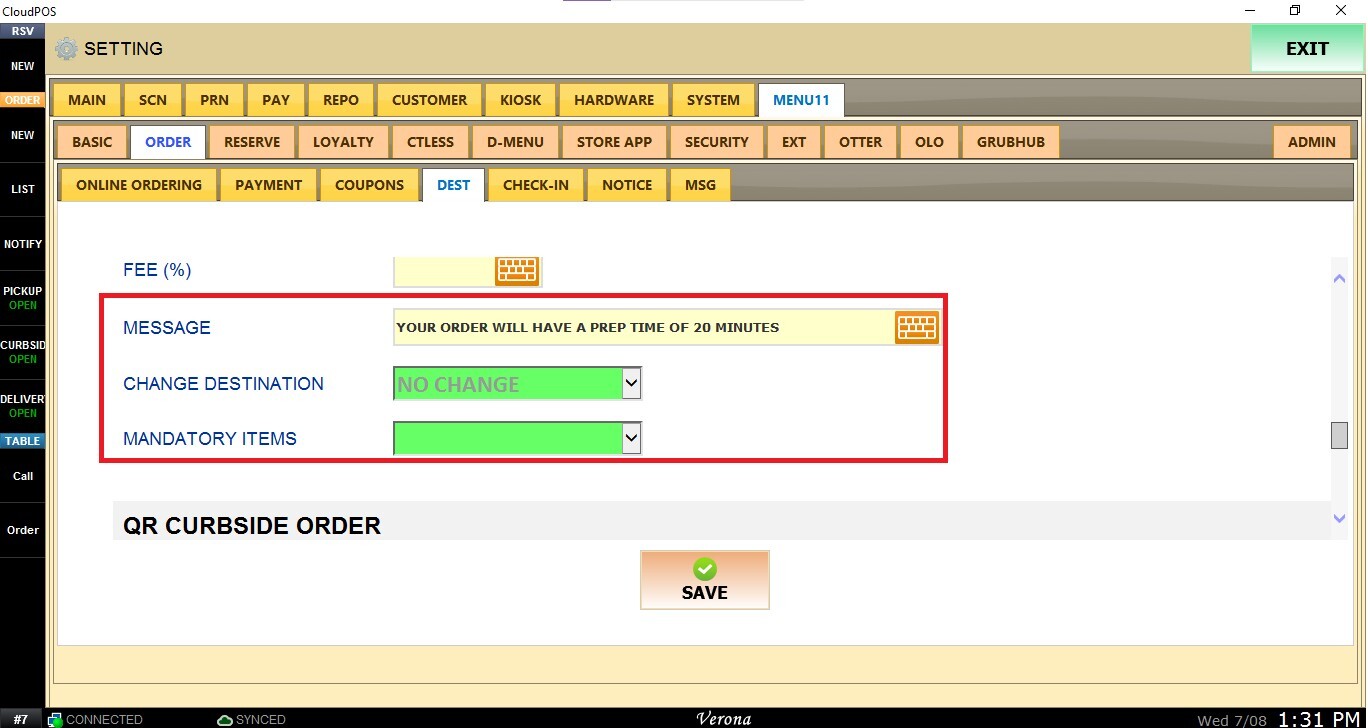
MESSAGE: Enter a custom message to display when Curbside is selected.
CHANGE DESTINATION: Customize the destination name printed on receipts and kitchen tickets. By default, it prints as Menu11-Curbside.
MANDATORY ITEMS: Select an item that will automatically be added to every Curbside order.
QR Curbside Order
Configure the behavior of orders placed through QR Curbside.
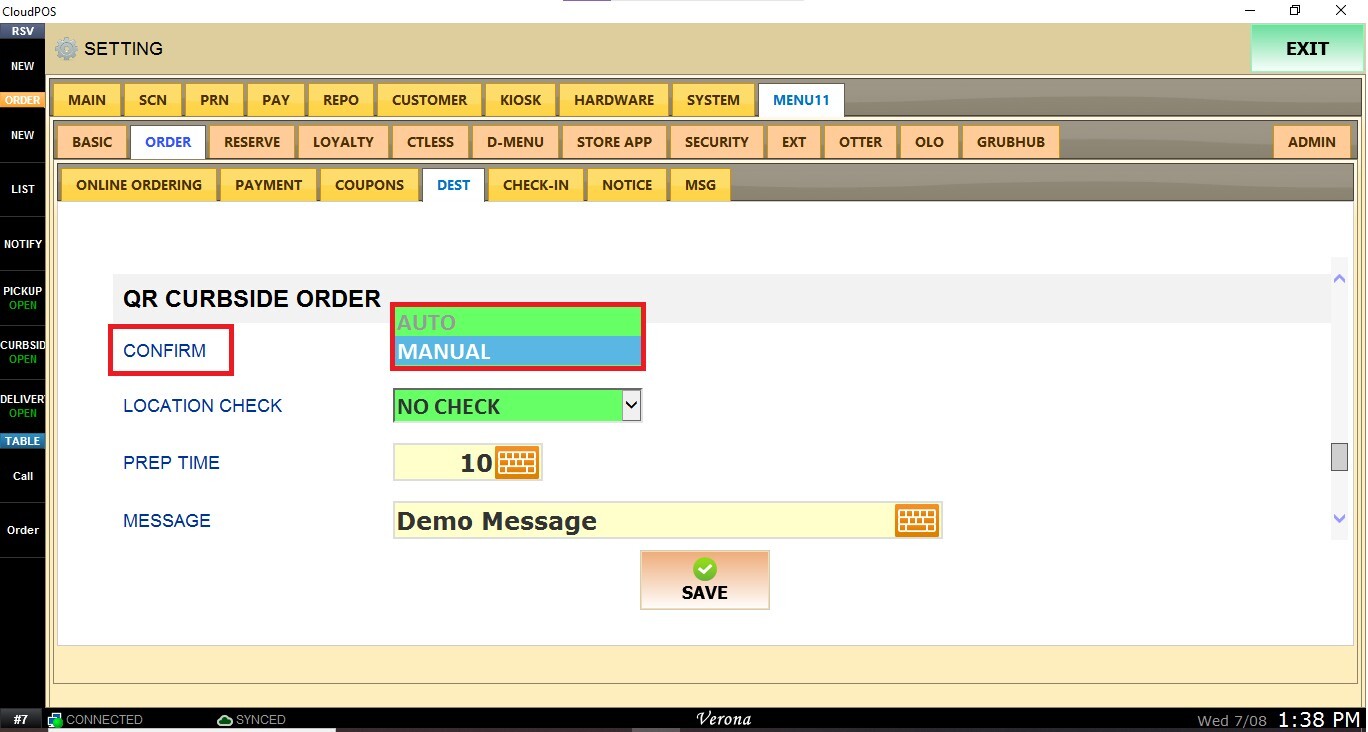
CONFIRM: Choose whether QR Curbside orders are automatically accepted or require manual confirmation from the POS.
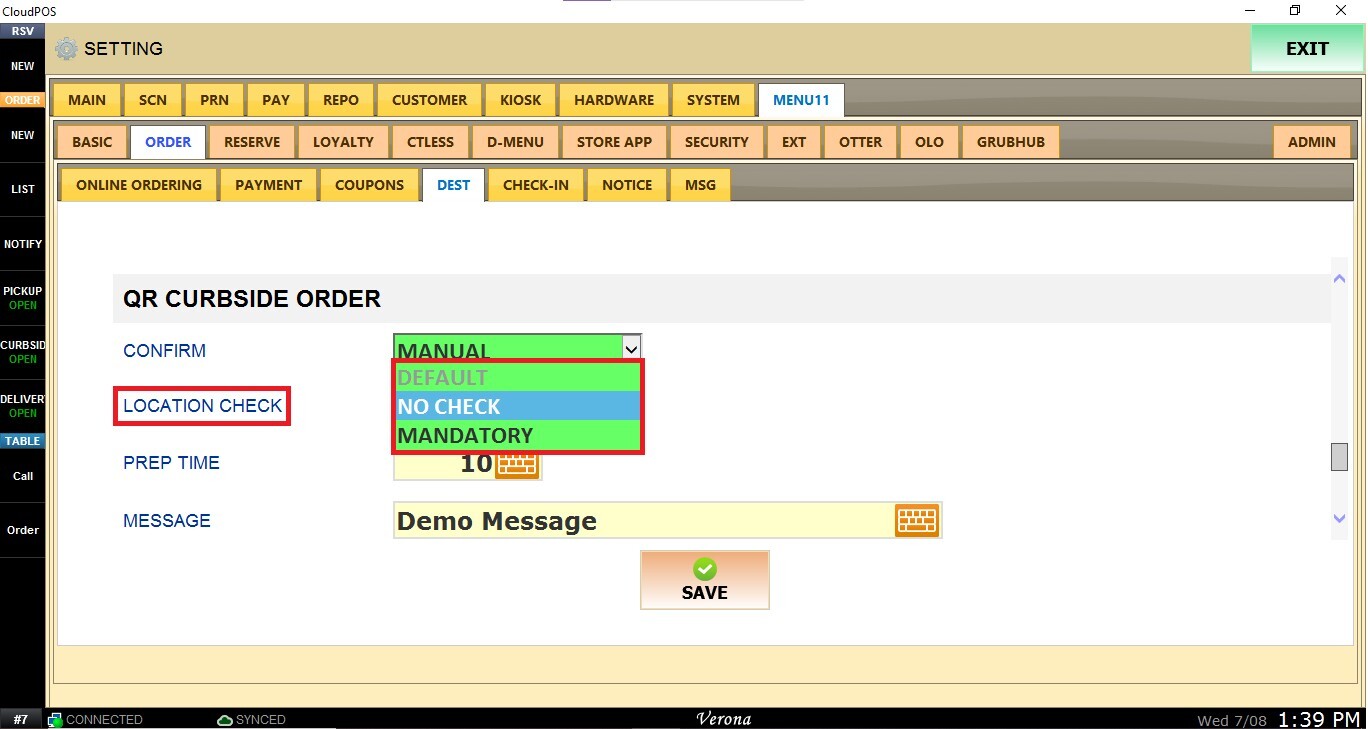
LOCATION CHECK: Verifies that the customer's mobile device is near the restaurant before allowing the order. Select one of the available options:
- Default: Uses the system's default location check behavior configured.
- No Check: Disables location verification.
- Mandatory: Requires a successful location verification before the customer can place a QR order.
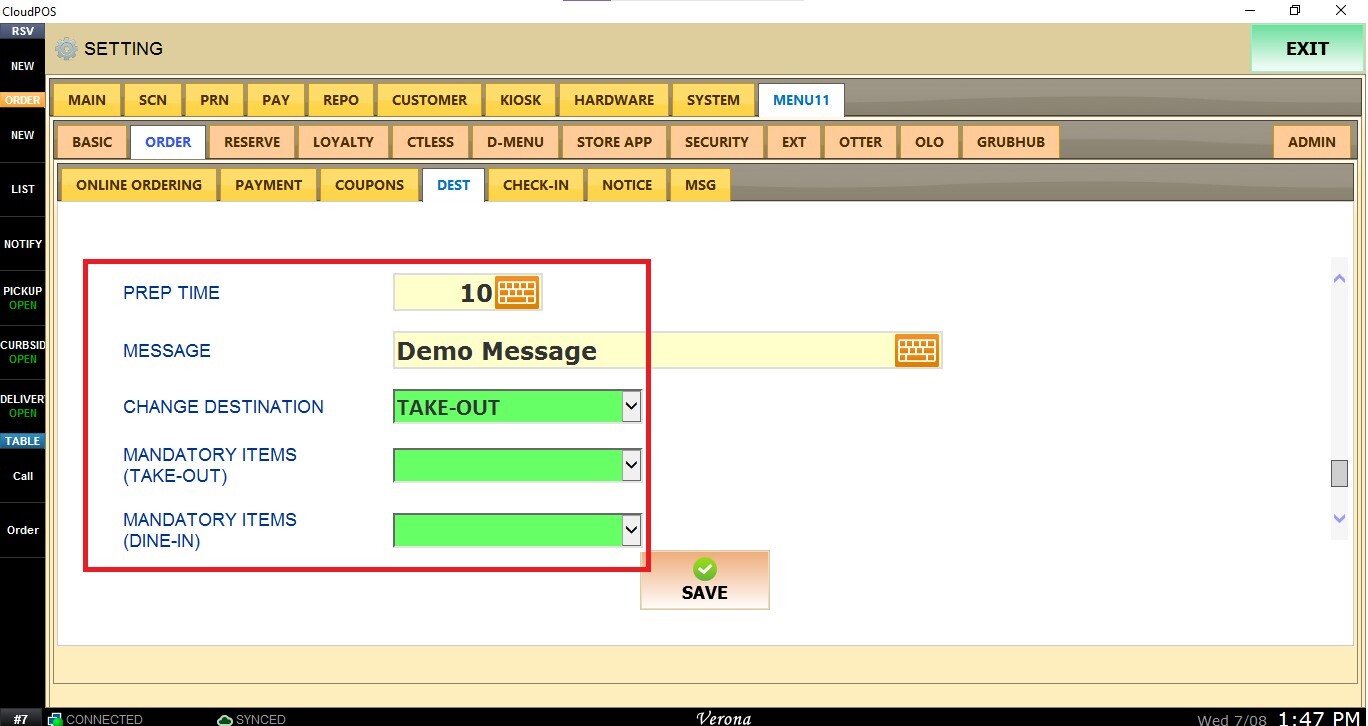
PREP TIME: Estimated preparation time.
MESSAGE: Custom message displayed to customers.
CHANGE DESTINATION: Customize the destination printed on receipts and kitchen tickets. By default, it prints as Menu11 – QR Curbside Take-Out or Menu11 – QR Curbside Dine-In.
MANDATORY ITEMS (TAKE-OUT): Select an item that will automatically be added to every QR Curbside Take-Out order.
MANDATORY ITEMS (DINE-IN): Select an item that will automatically be added to every QR Curbside Dine-In order.
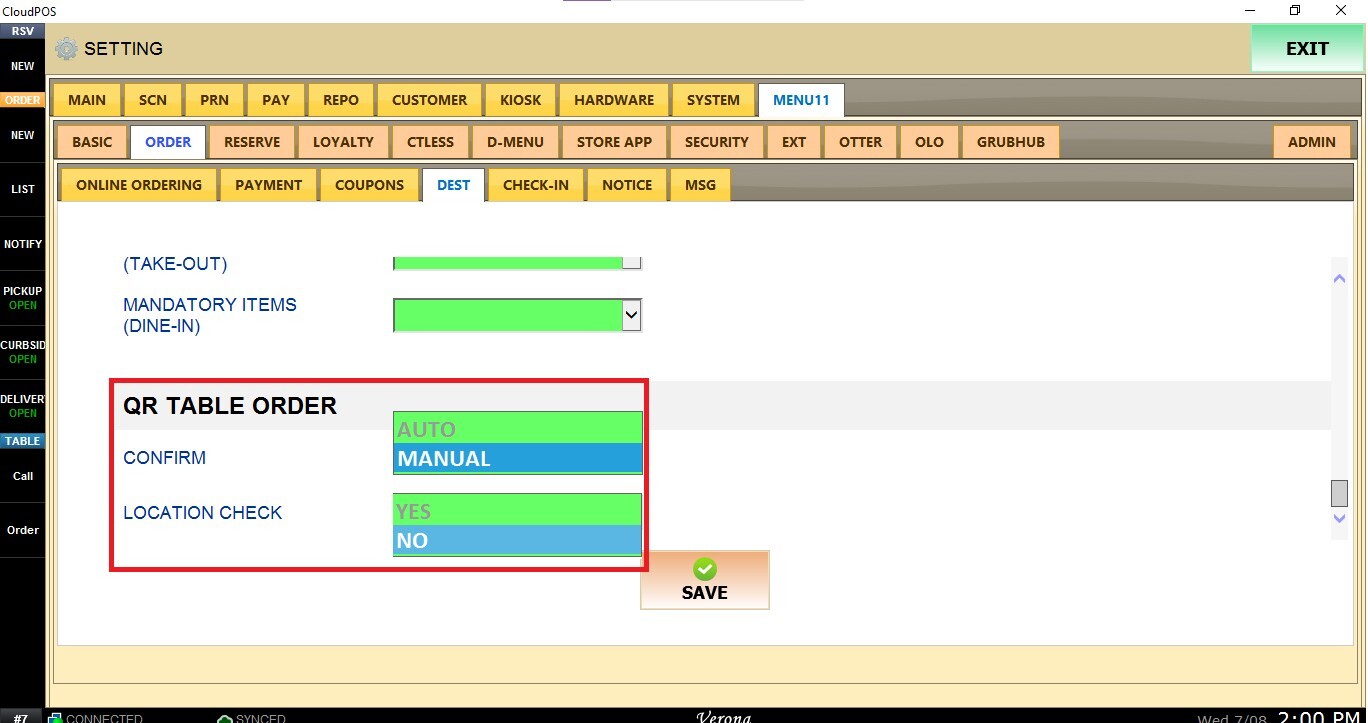
QR Table Order
Configure settings for QR Table Ordering.
CONFIRM: Choose whether QR Table orders are automatically accepted or require manual confirmation from the POS.
LOCATION CHECK: Restricts ordering to customers who are physically near the restaurant.
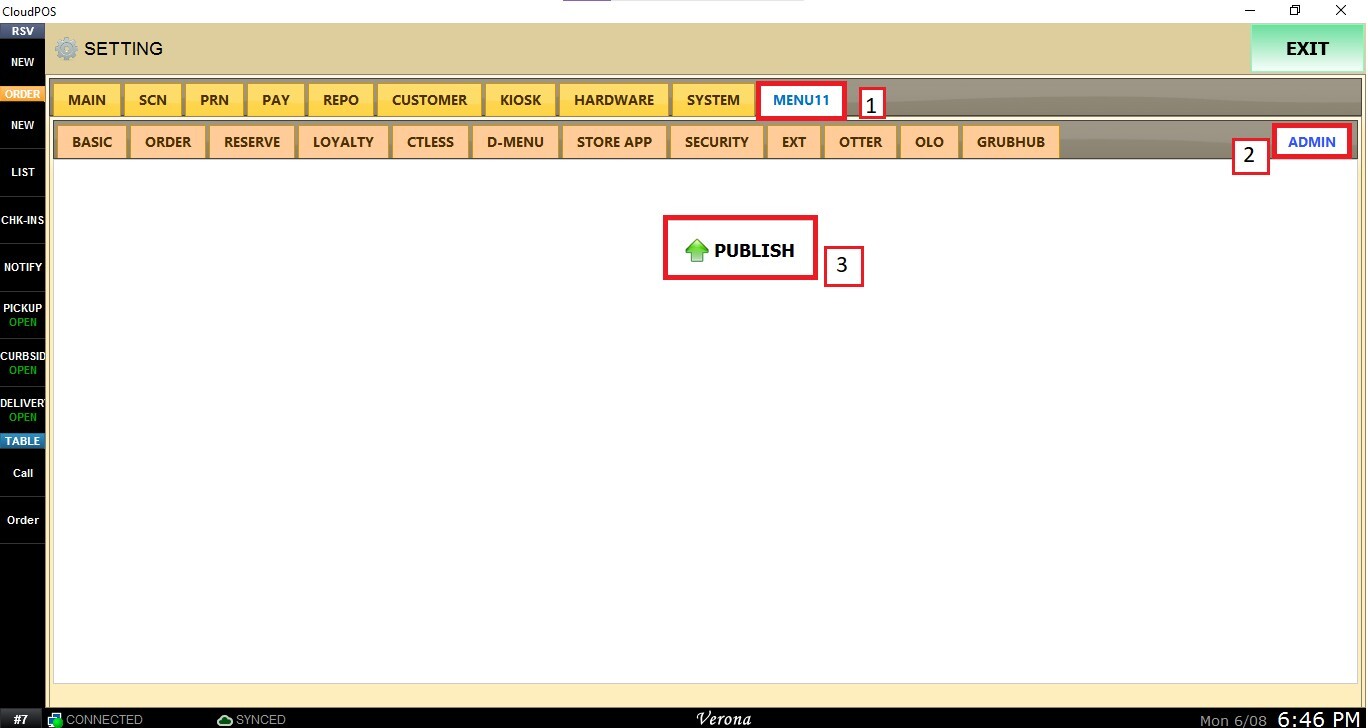
After completing your configuration, click SAVE to store your changes.
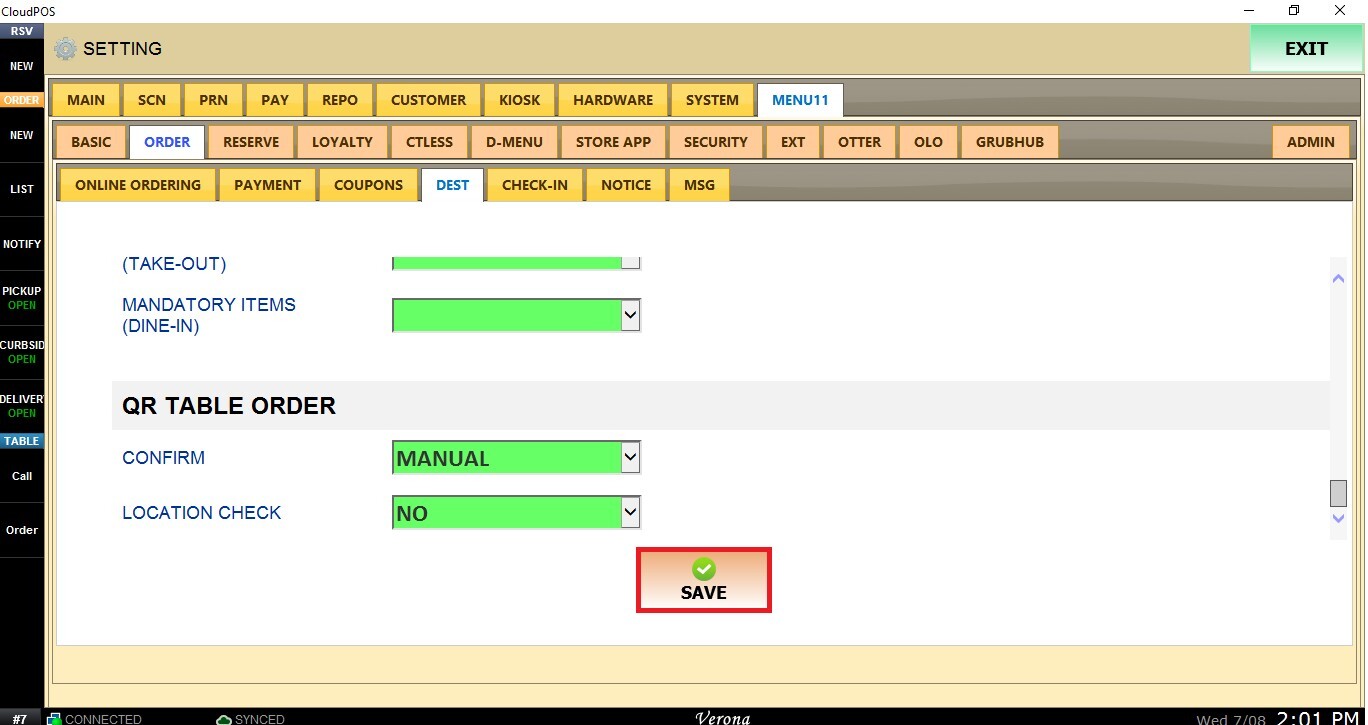
Then navigate to the MENU11 tab, select ADMIN, and click PUBLISH to apply the changes.