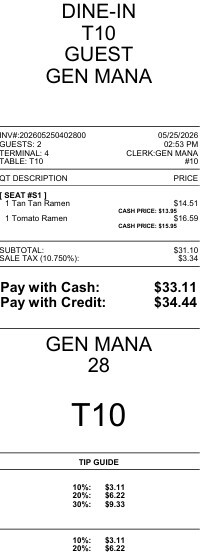
Print Table Check
This function allows users to quickly print customer checks directly from the Table Map Screen without opening the table order. This helps speed up service operations and simplifies check printing for one or multiple tables at the same time.
Main Screen> Number Pad> Table Map Screen
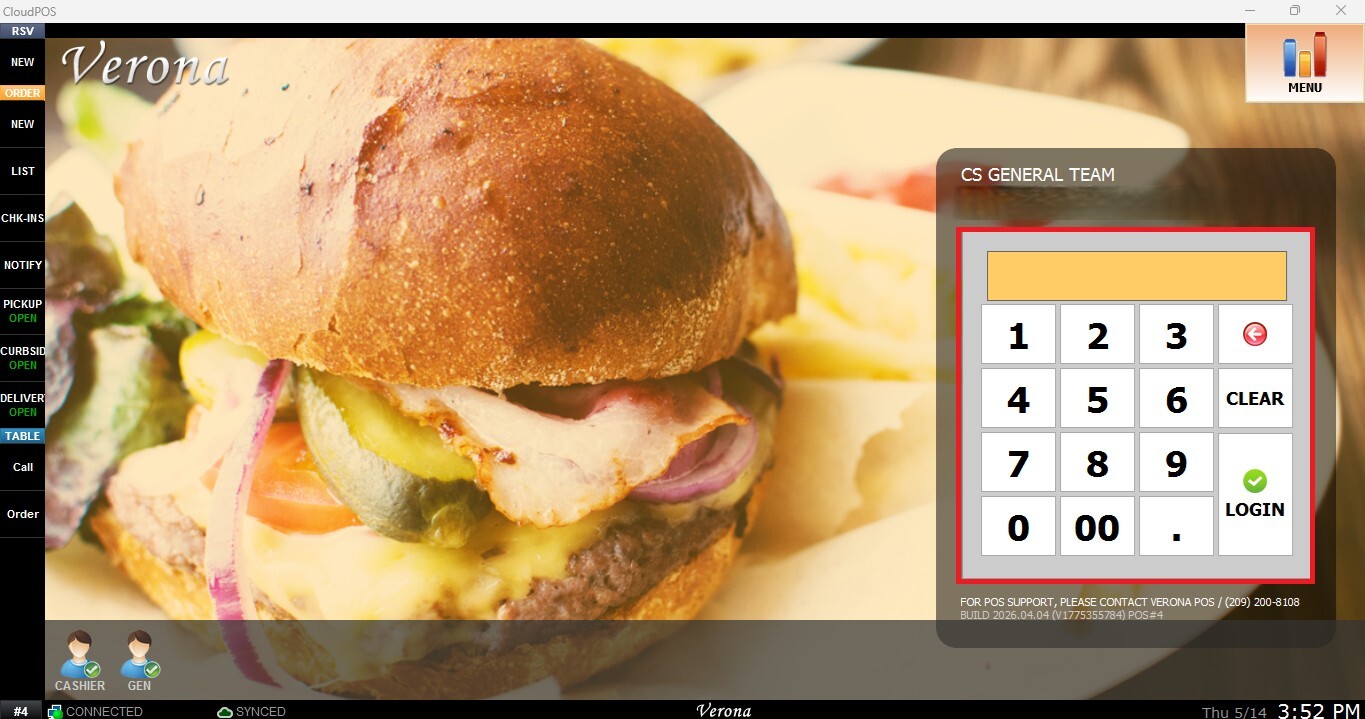
From the Main Screen, use the number pad and enter the assigned employee's password to log in.
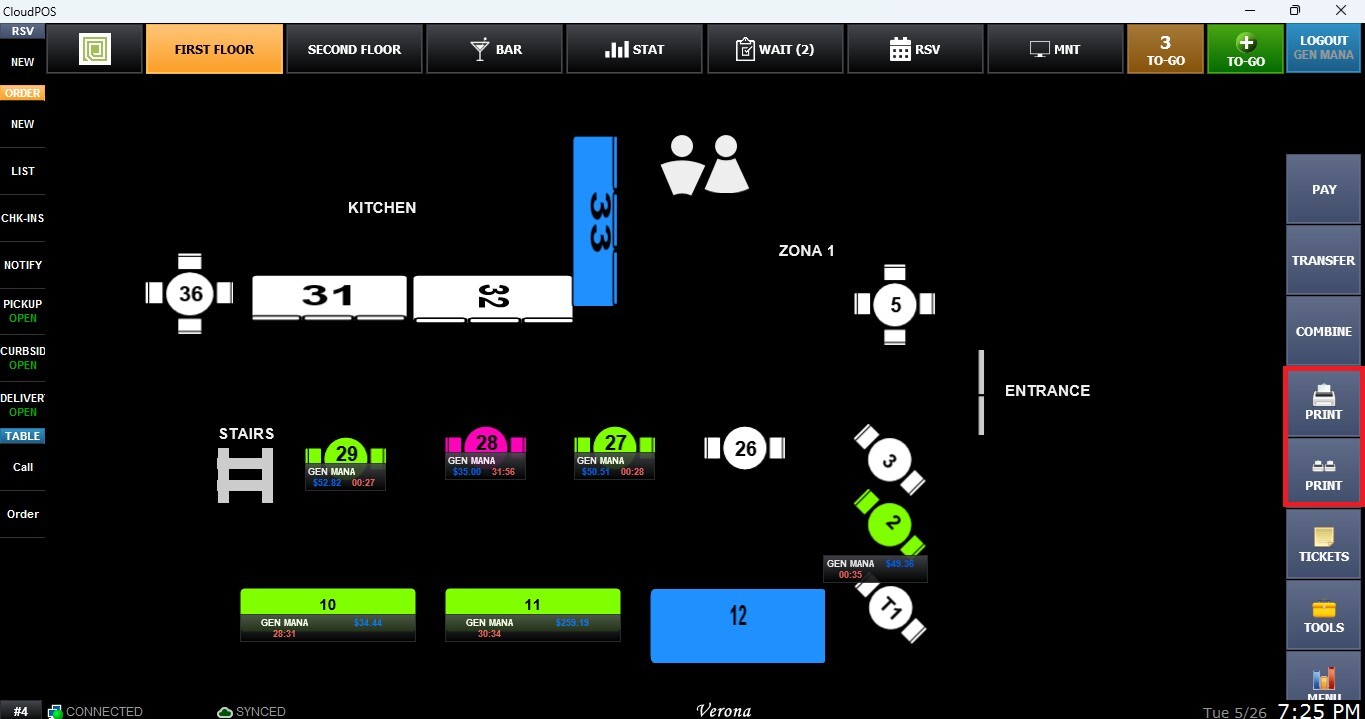
On the Table Map Screen, locate the toolbar on the right side of the screen where the PRINT buttons are located.
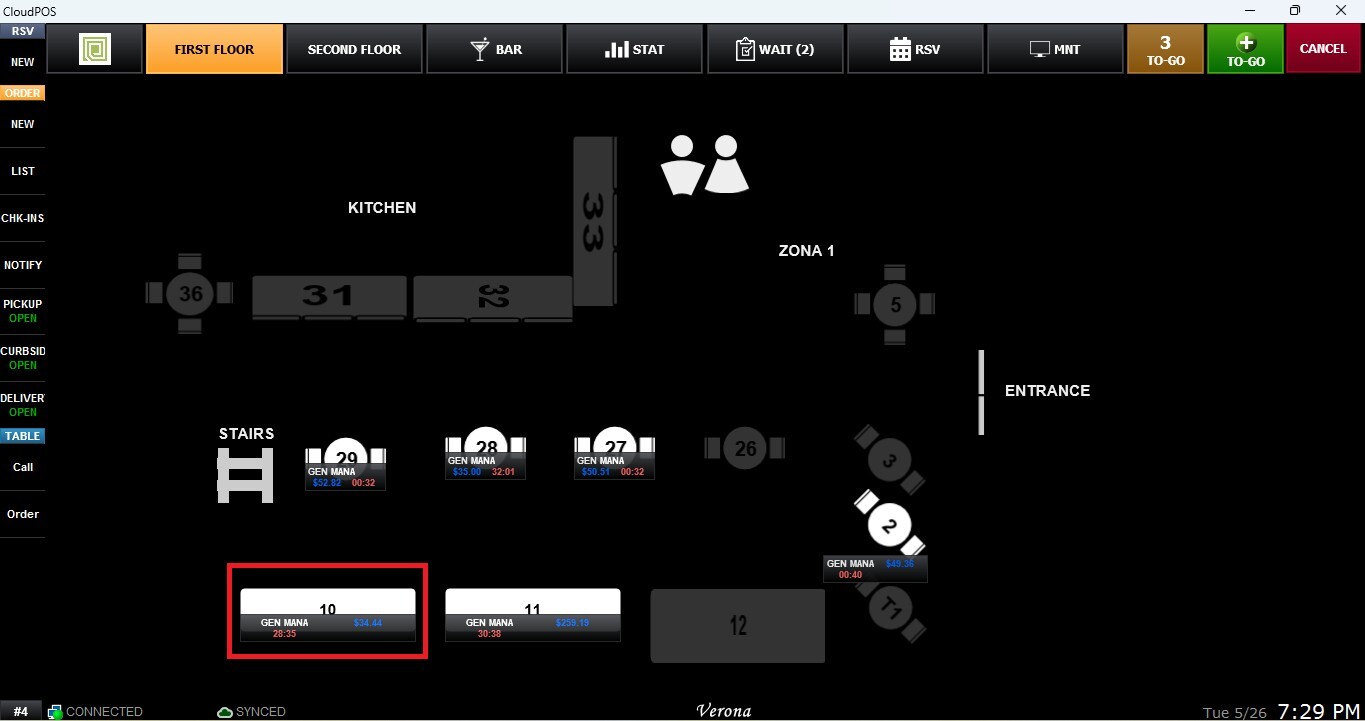
To print a single order, click the PRINT button displaying a single printer icon and select the table order you want to print.
To print multiple checks at the same time, click the PRINT button displaying two printer icons, select the tickets that you want to print, and press PRINT TICKETS.
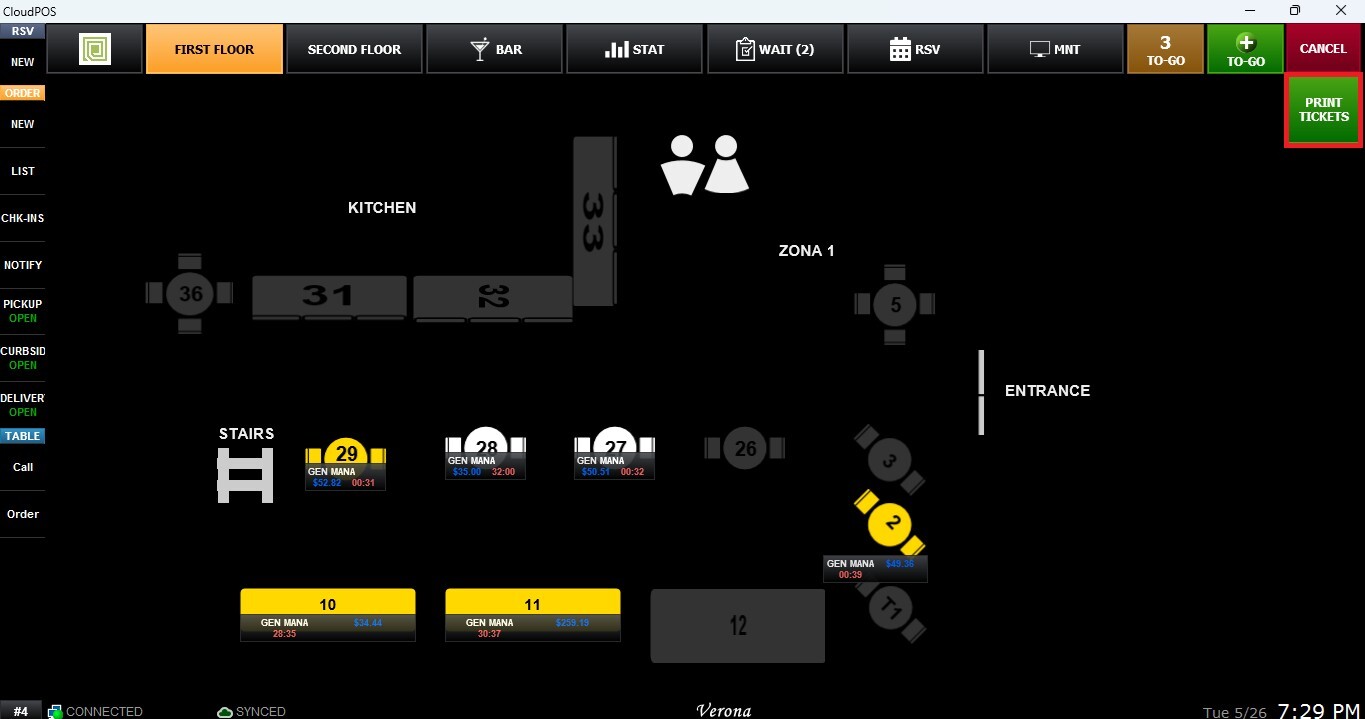
Result:
The receipt printer will print the check(s) for the selected table(s).