How to place an online order
This process explains how a customer can place an order through the Menu 11 online ordering webpage, from item selection to order confirmation. This allows customers to browse the menu, customize their order, and choose between pickup for now or a scheduled time.
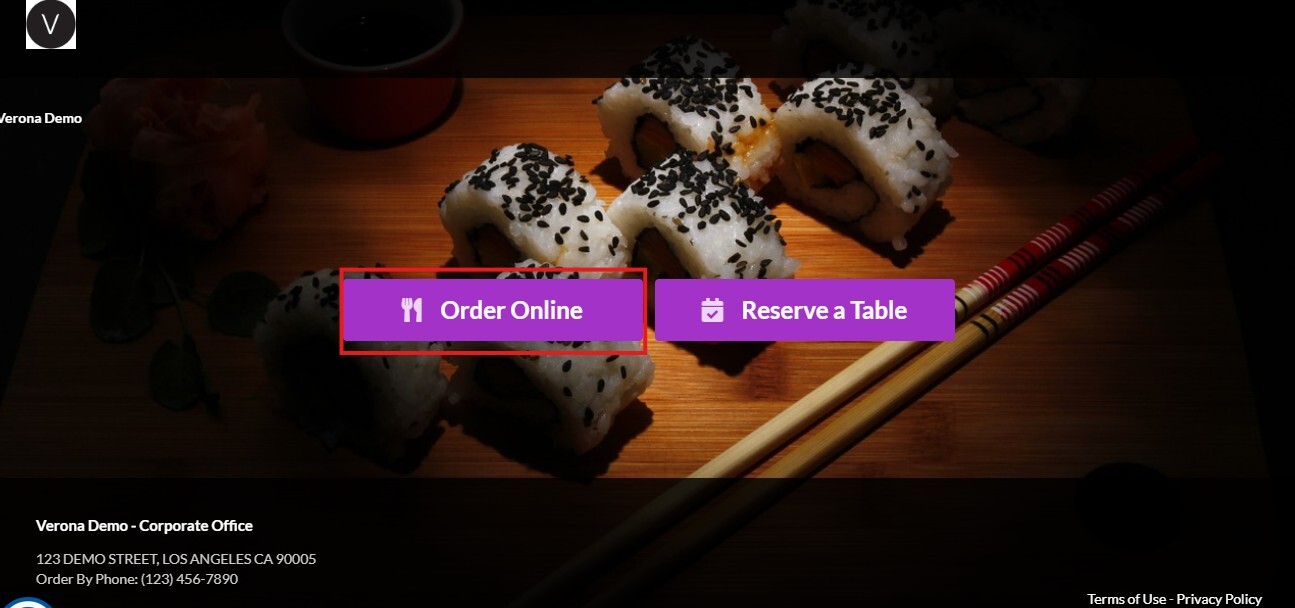
Menu 11 Webpage> ORDER ONLINE.
Navigate to the Menu 11 webpage and click on ORDER ONLINE.
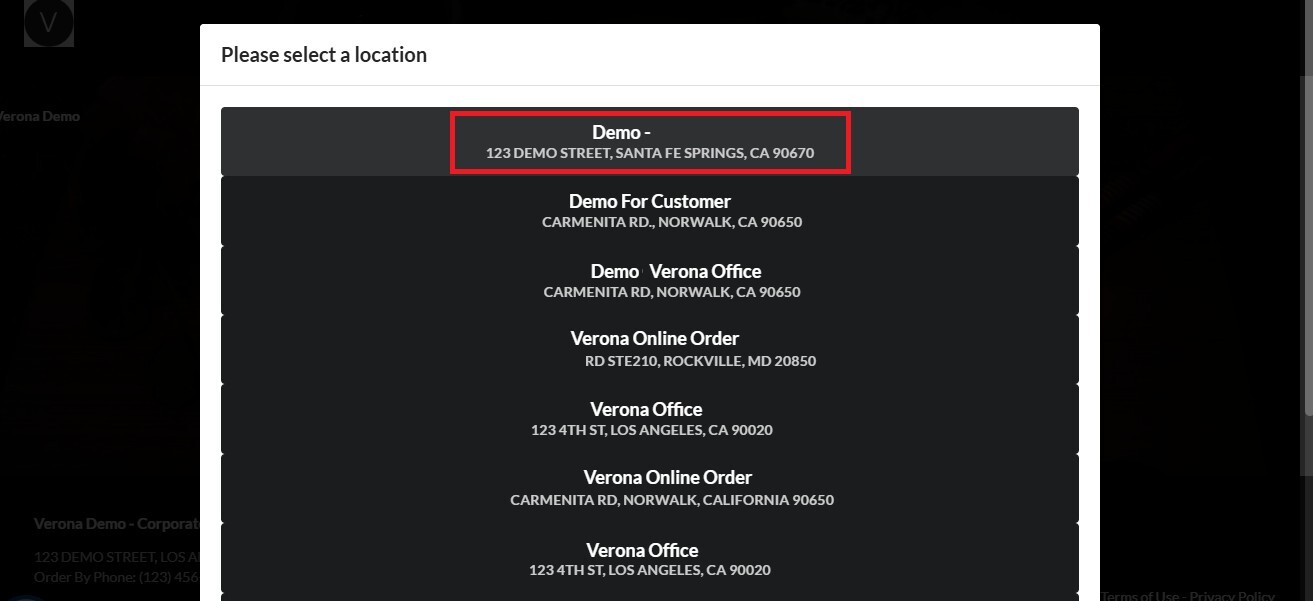
Select the desired location.
Once the menu opens select the desired items.
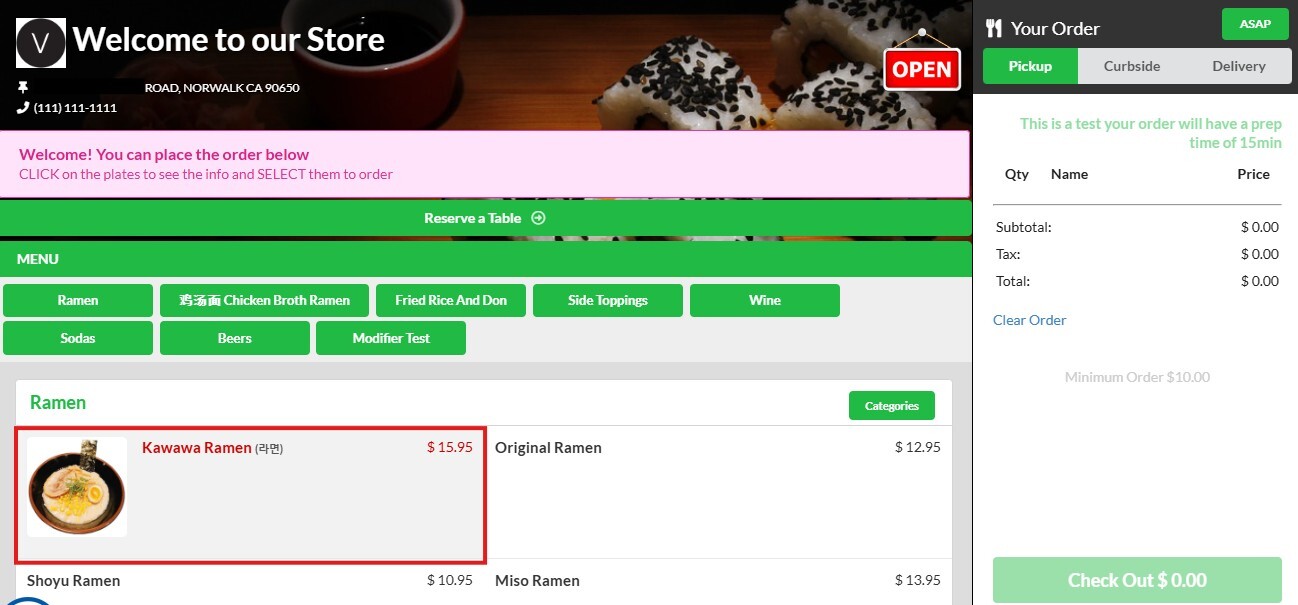
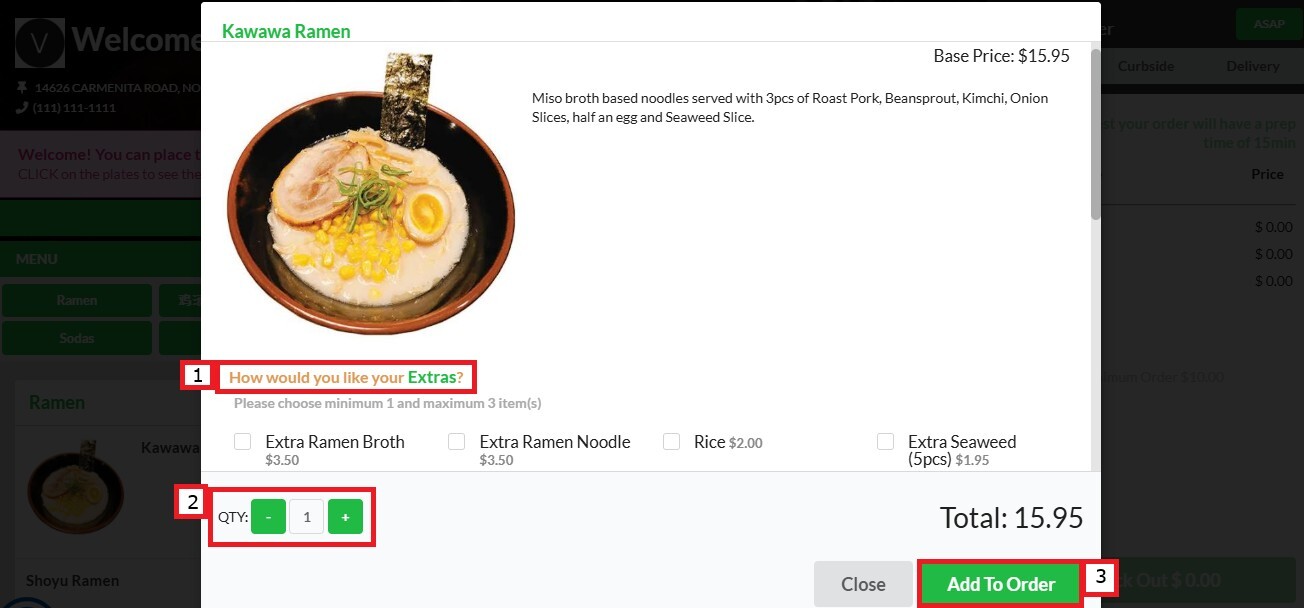
Add modifiers and special instructions if available, adjust the quantity, and click on ADD TO ORDER.
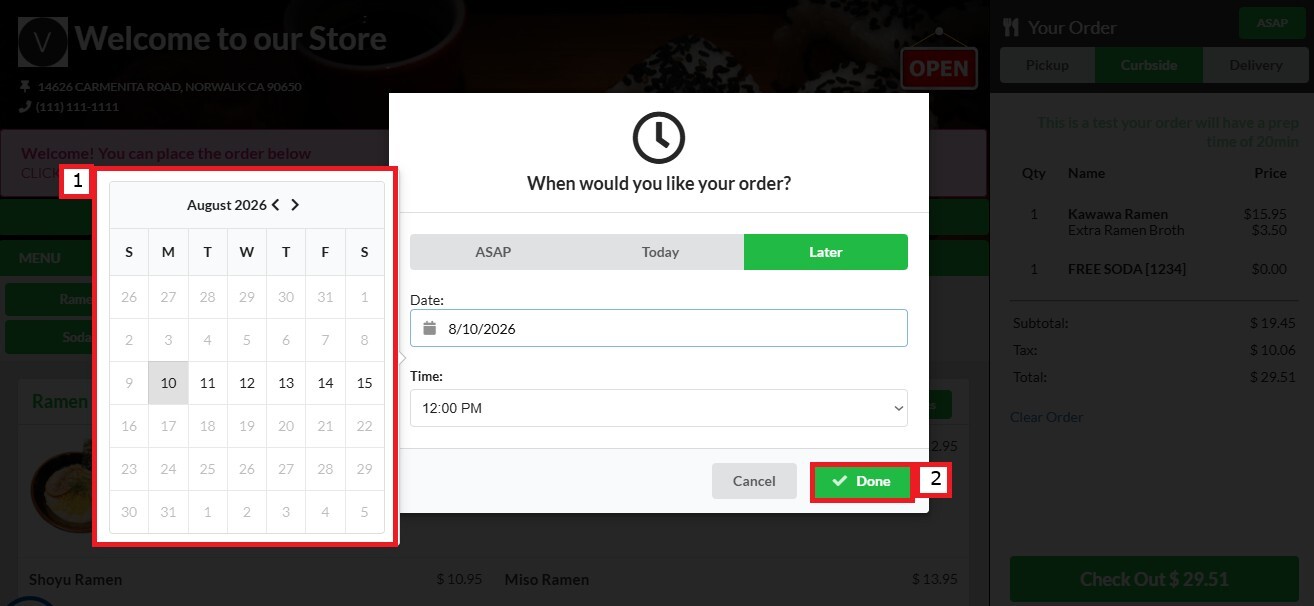
To order ahead (if the option is enabled), click on the button in the top right corner. By default this button displays ASAP, though the label can be changed in the Menu 11 settings.
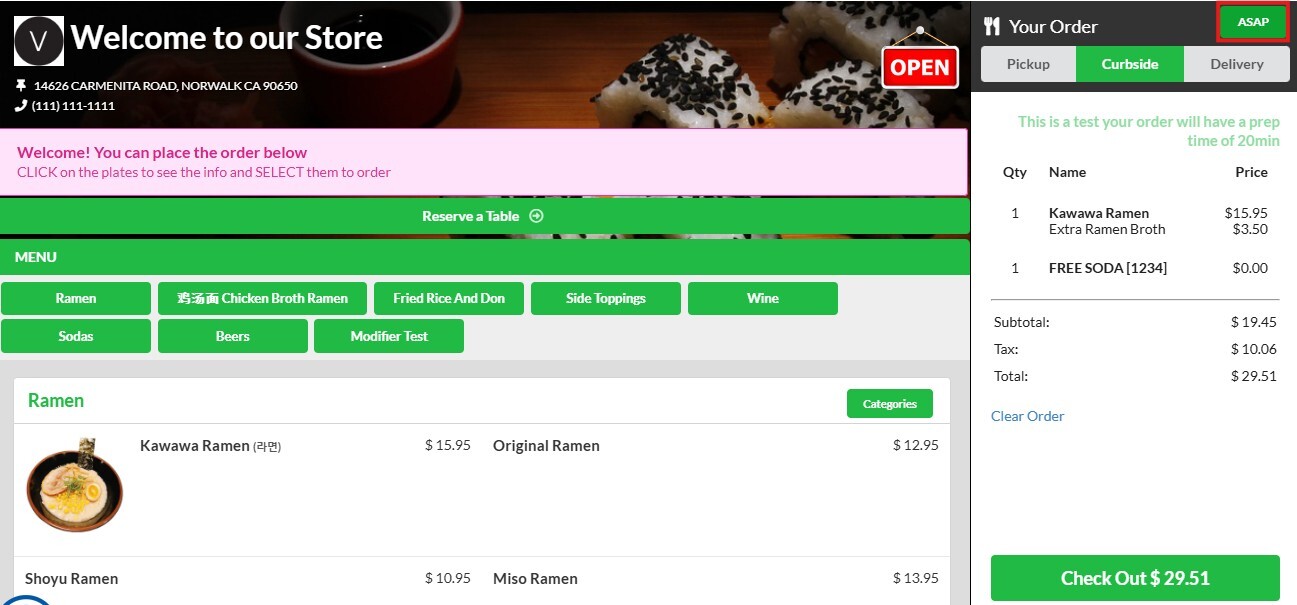
Hint: To learn how to configure the ASAP button, please refer to the Menu 11 Order Settings.
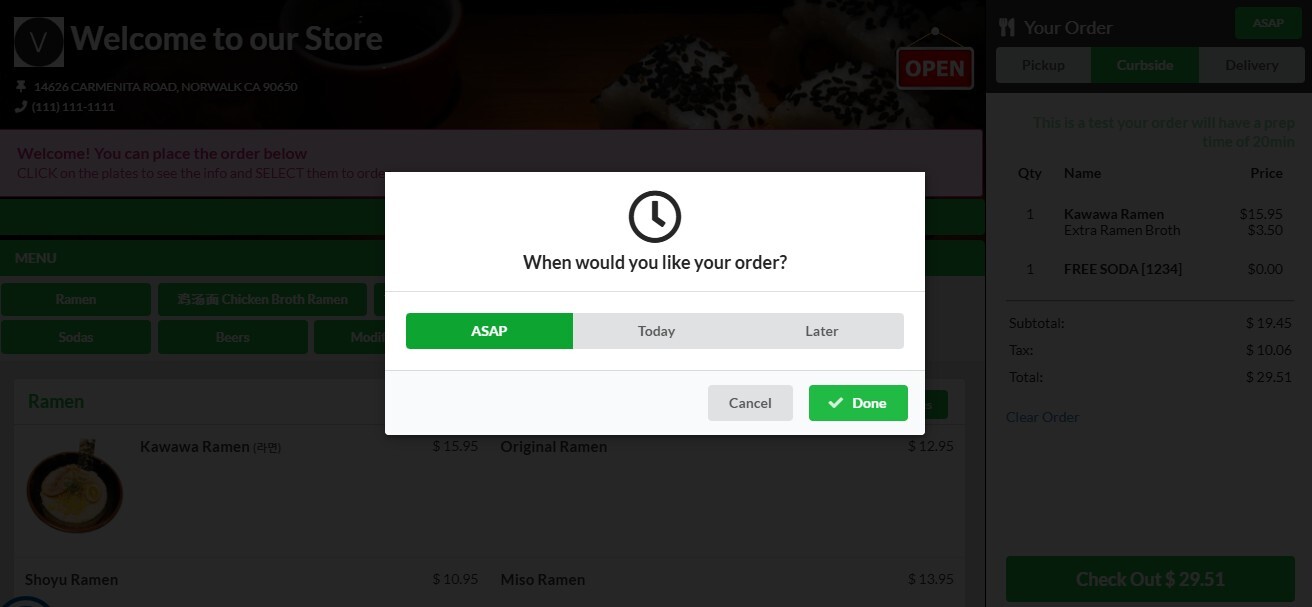
If you keep the button set to ASAP, the order will be placed for the current time.
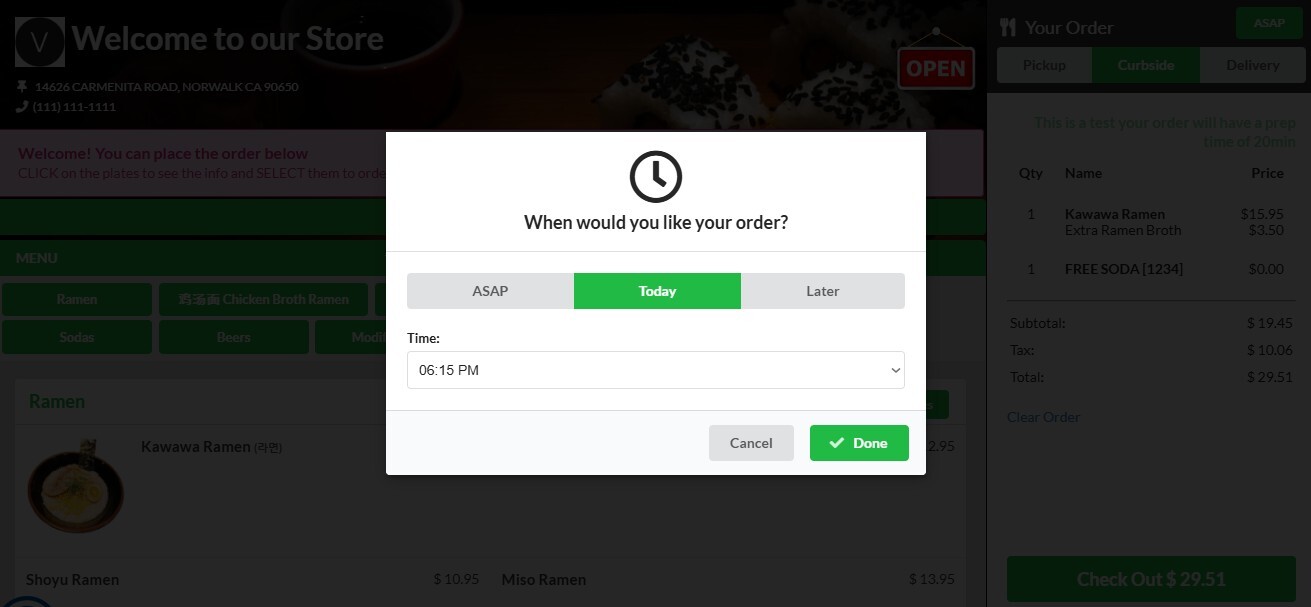
To select a specific hour later in the same day, click on TODAY and select the desired hour.
Use the LATER section, to select a specific date and hour, then click on DONE.
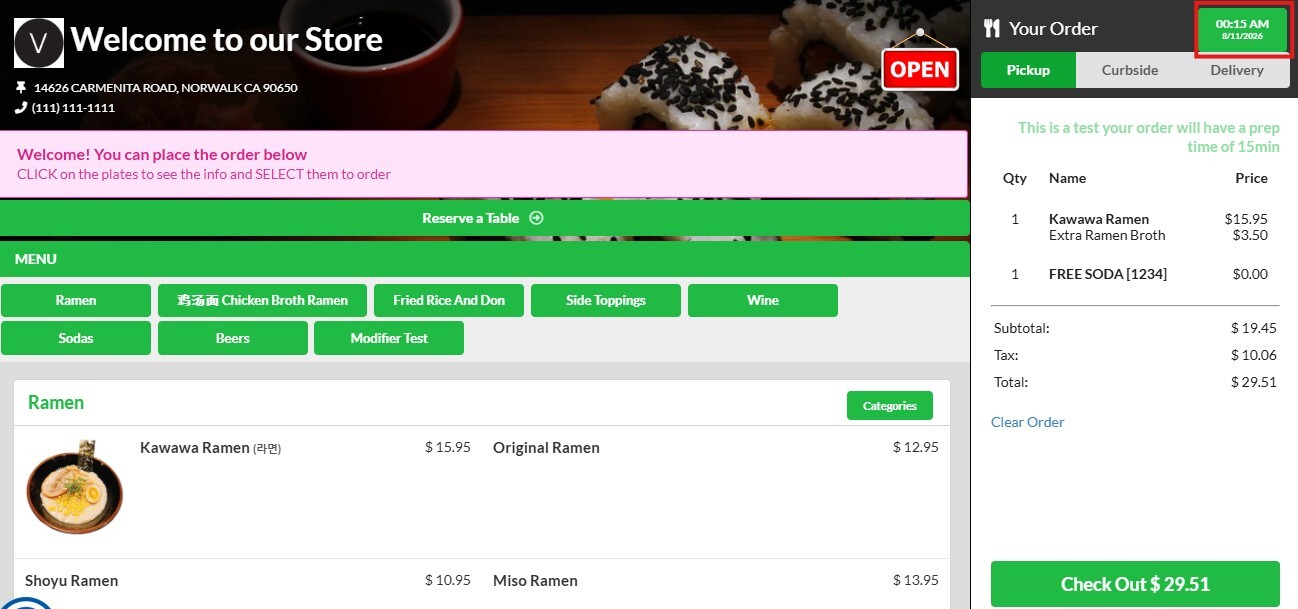
Once DONE is selected, the chosen date and hour will display on the button in the top right corner.
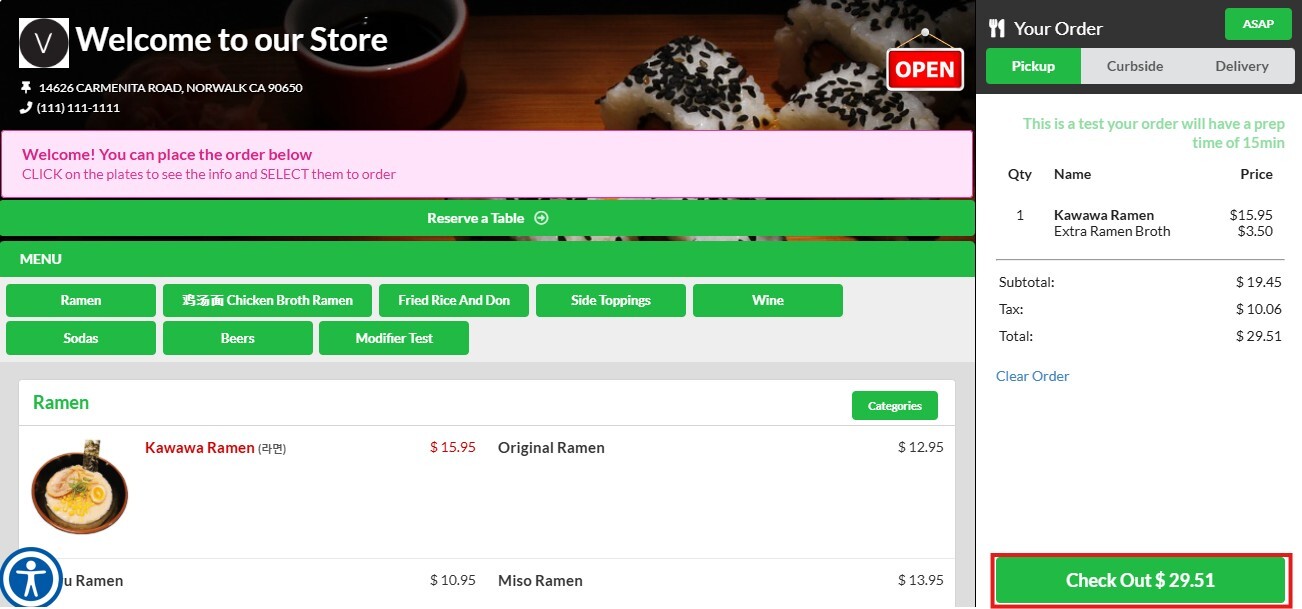
Review the order, and once it is ready, click on CHECK OUT.
Fill out the required information and click on CONFIRM.
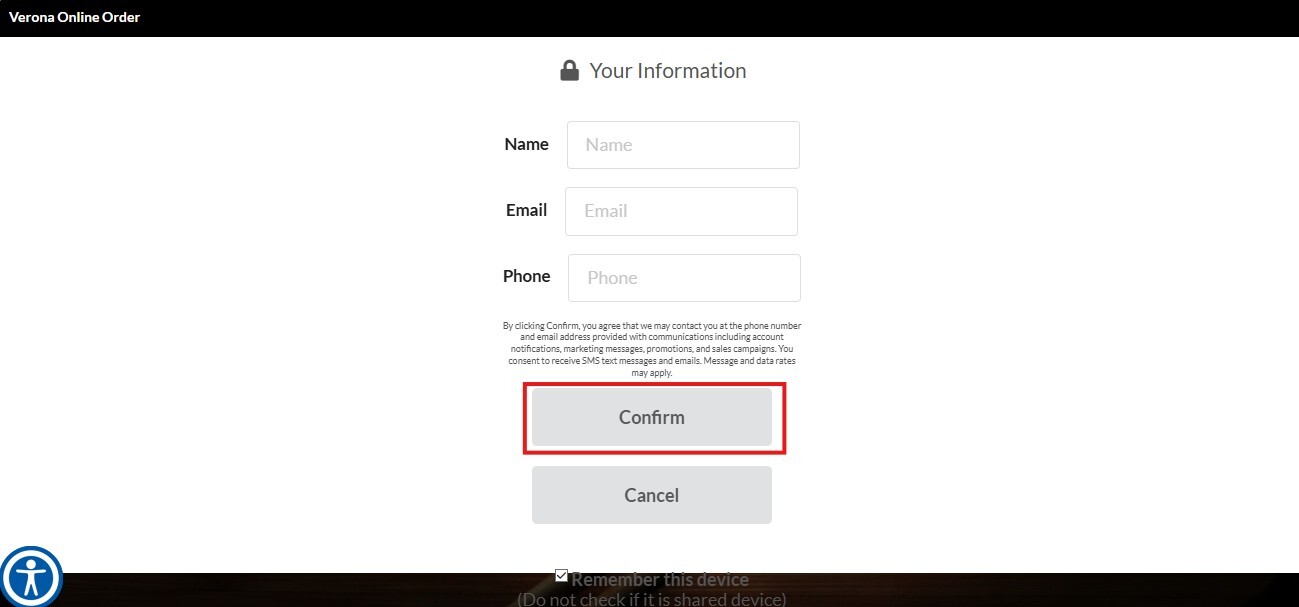
NOTE: The fields shown will vary depending on the Customer Log in Check on the Basic Menu 11 settings.
You will be redirected to the order summary screen, where you can review the full order, apply a coupon if available, select the payment method, view your information, and check your loyalty points if applicable. Once ready, click on PLACE.
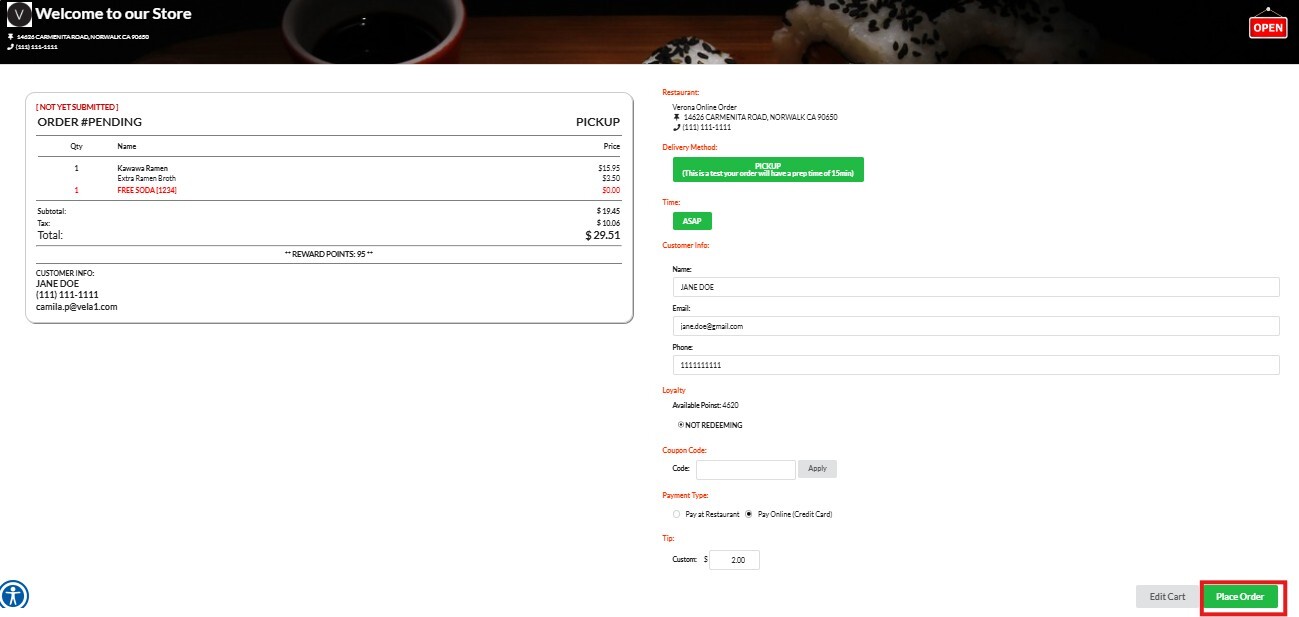
The order will be sent to the restaurant for confirmation. The customer will receive an order received email after payment.
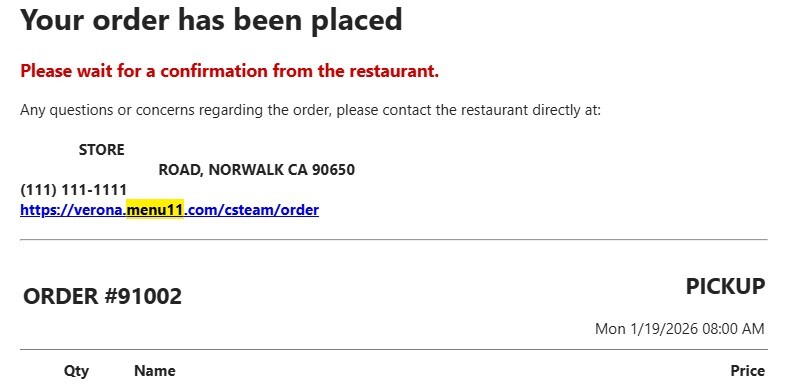
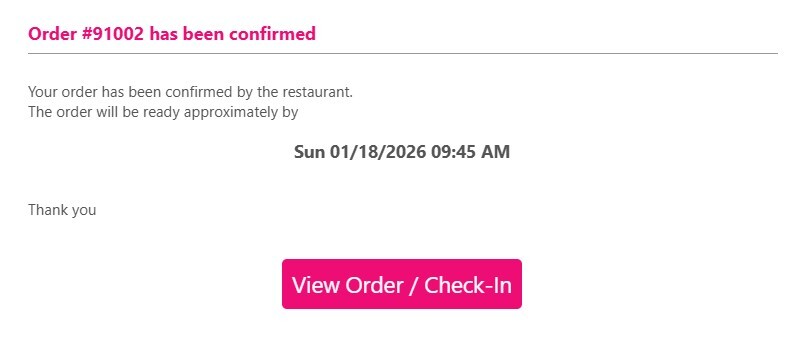
A confirmed order email once the restaurant accepts the order.