[Verona] MS. NET Framework Error
If the POS displays a MICROSOFT .NET FRAMEWORK error, the required Windows .NET components may be disabled. Follow the steps below to enable the feature and resolve the issue.

ENABLE .NET FRAMEWORK 3.5
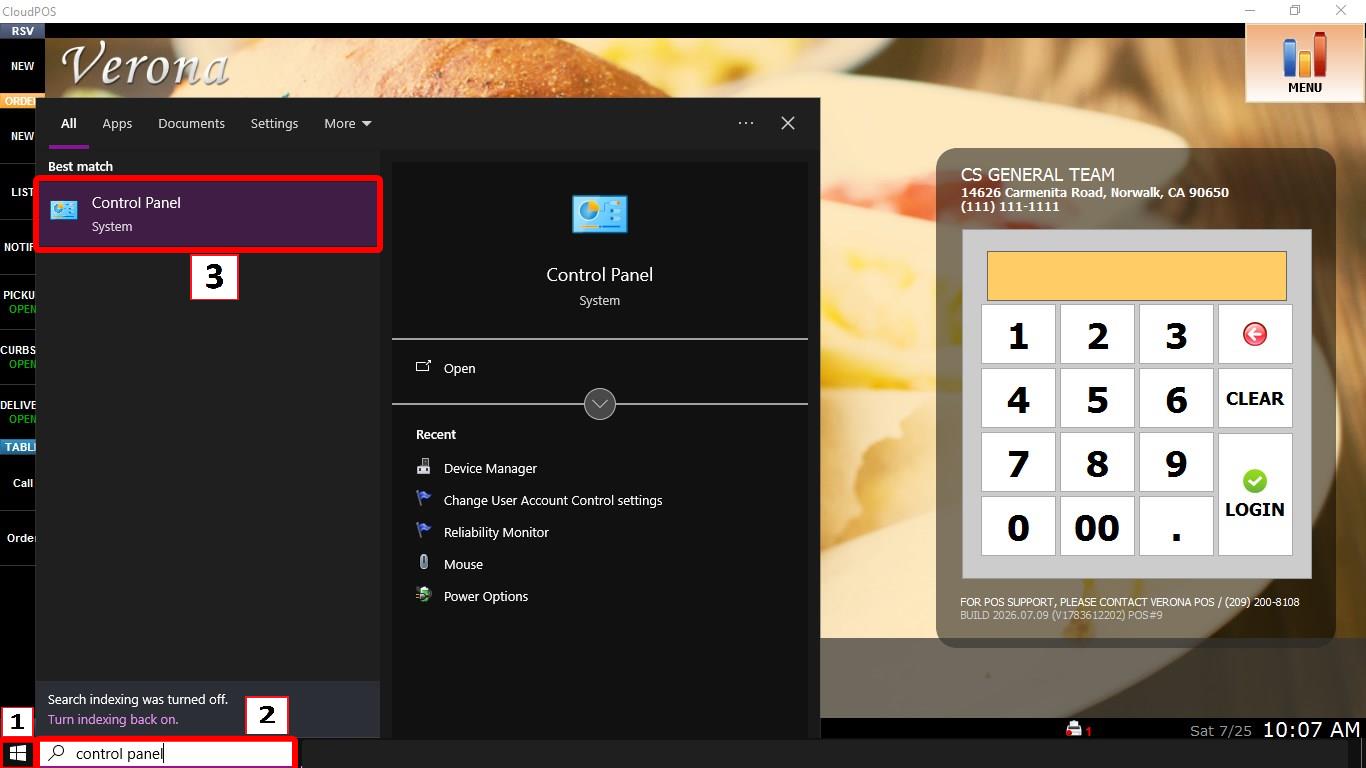
Click the WINDOWS button and search for CONTROL PANEL, then open it.

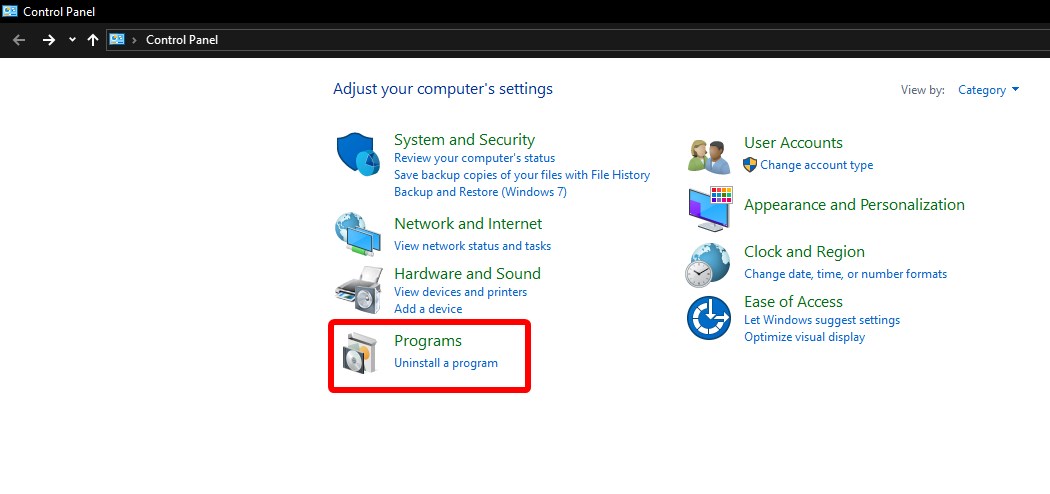
Select PROGRAMS.

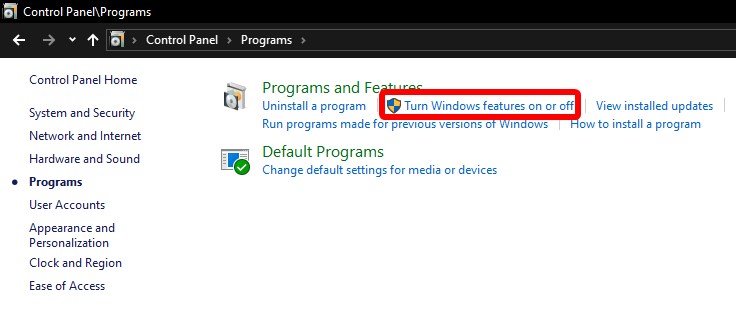
Click TURN WINDOWS FEATURES ON OR OFF.

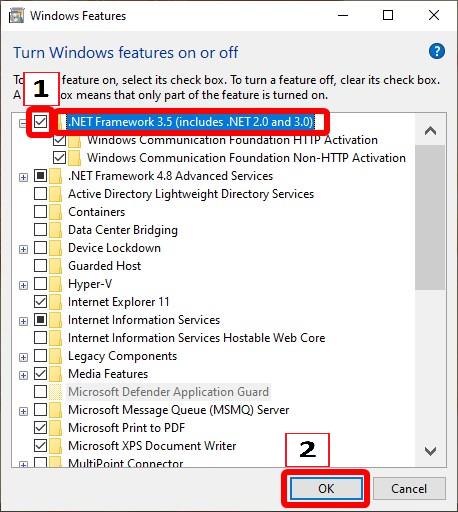
Locate .NET FRAMEWORK 3.5 (INCLUDES .NET 2.0 AND 3.0).
Check the box next to the feature, then click OK.

If Windows prompts you to download the required files, select DOWNLOAD FILES FROM WINDOWS UPDATE and allow the installation to complete.
After the installation finishes, RESTART the computer and launch the POS again.