Body (Kitchen)
These settings control the appearance and layout of kitchen ticket body content, including order information, menu items, modifiers, quantities, separators, and formatting.
MENU > SETTINGS > PRINT > KITCHEN > BODY
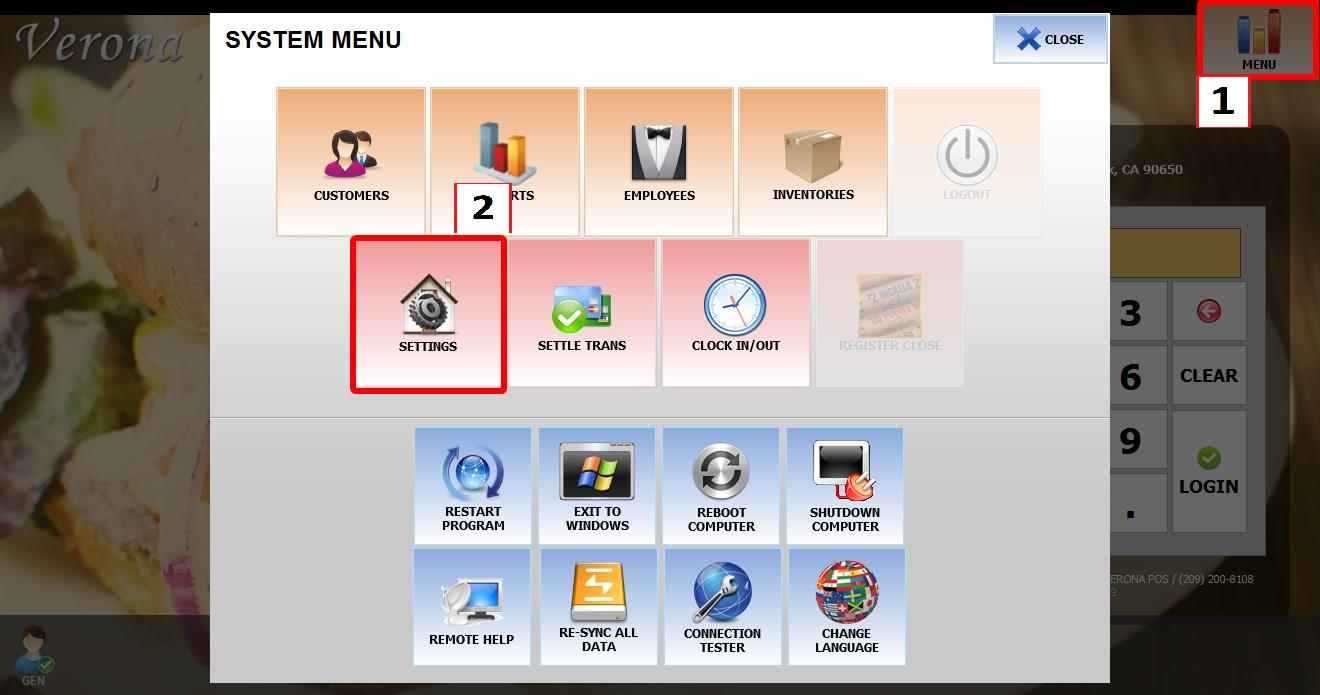
From the MAIN SCREEN, click MENU, then select SETTINGS.
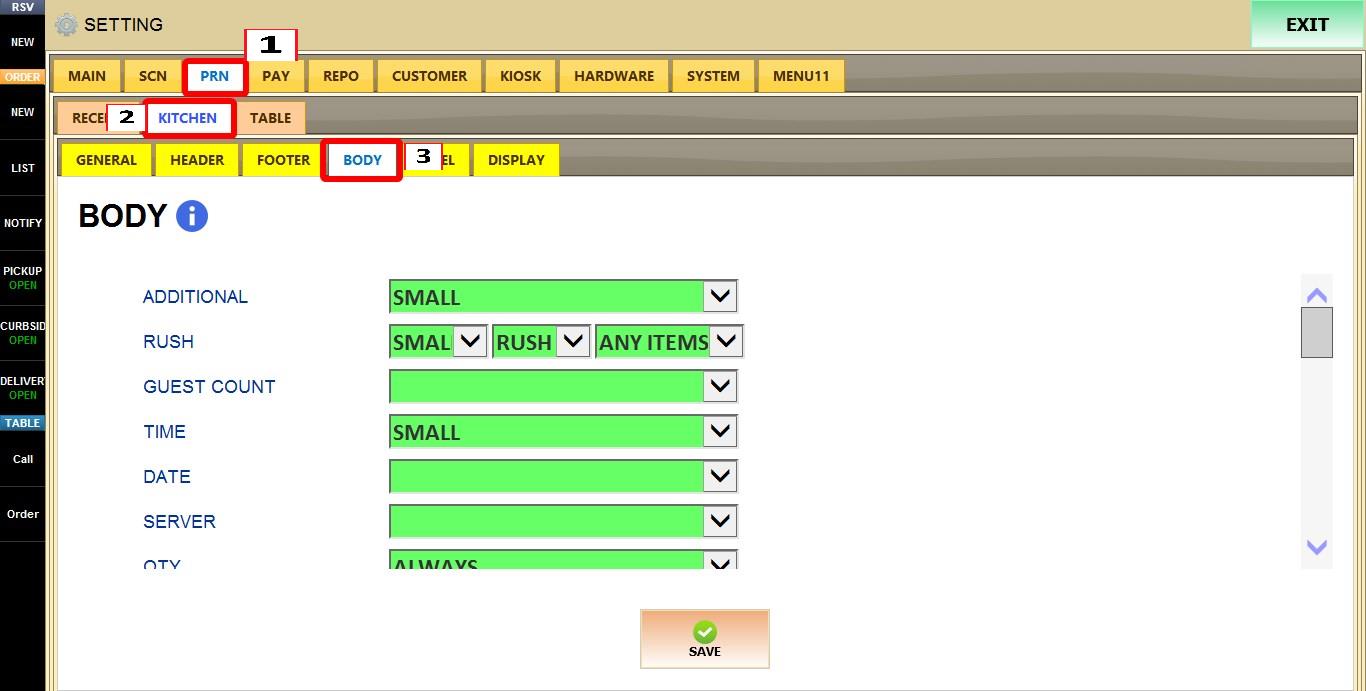
Open the PRINT tab, then KITCHEN, then select BODY.
ORDER INFORMATION
These settings control the information displayed at the top of the kitchen ticket.
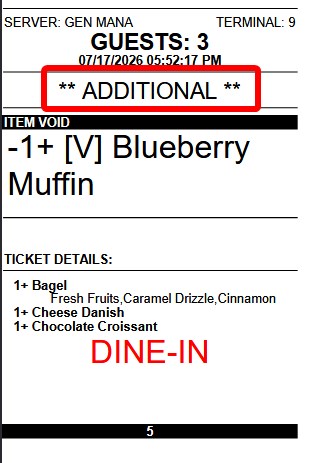
ADDITIONAL
Indicates that the kitchen ticket contains additional items added to an existing order after the original ticket was already sent to the kitchen.
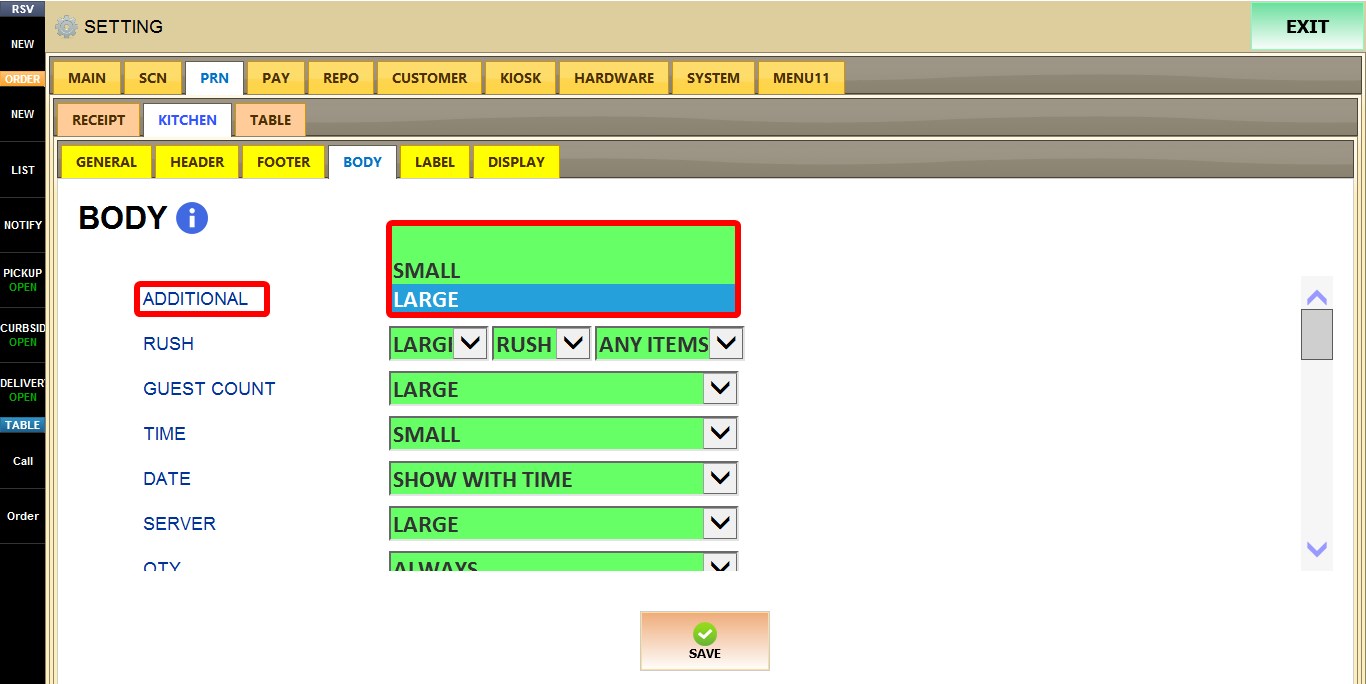
1. BLANK: Does not print.
2. SMALL: Prints using a small font.
3. LARGE: Prints using a large font.
RUSH
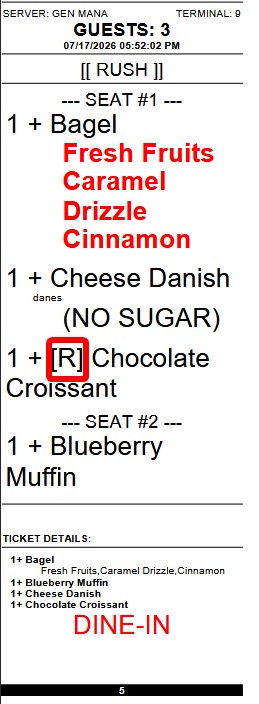
Controls how RUSH and FIRE indicators are displayed on kitchen tickets, including their size, label, and when they are printed.
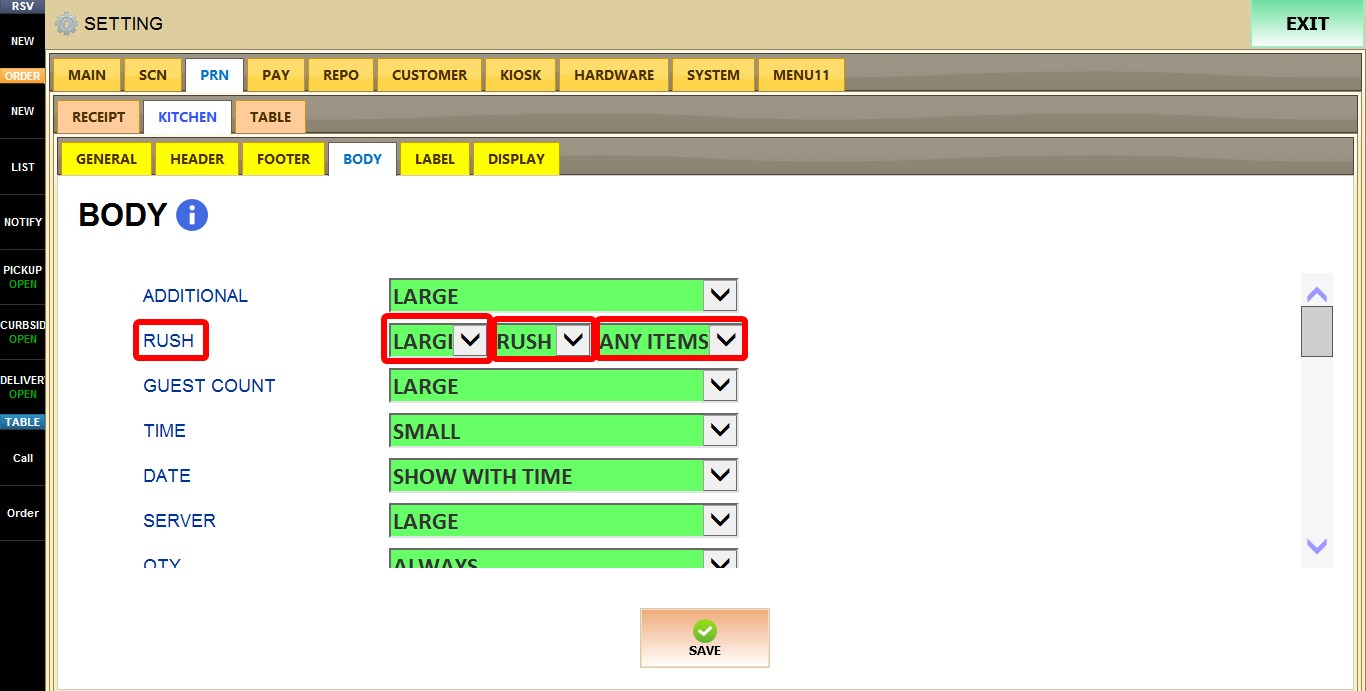
1. SMALL: Displays the indicator using a small font size.
2. LARGE: Displays the indicator using a large font size.
3. RUSH: Prints the RUSH TEXT indicator on the ticket.
4. FIRE: Prints the FIRE ICON indicator on the ticket.
5. ANY ITEMS: Prints the indicator when any item on the ticket is marked.
6. ALL ITEMS: Prints the indicator only when all items on the ticket are marked.
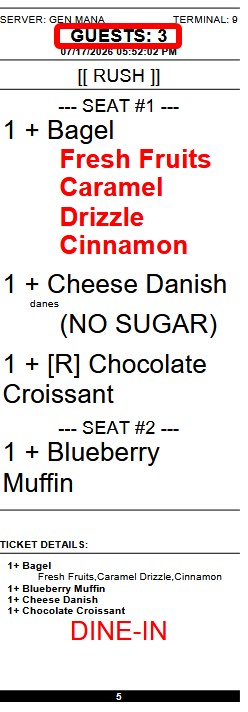
GUEST COUNT
Determines how the guest count is printed.
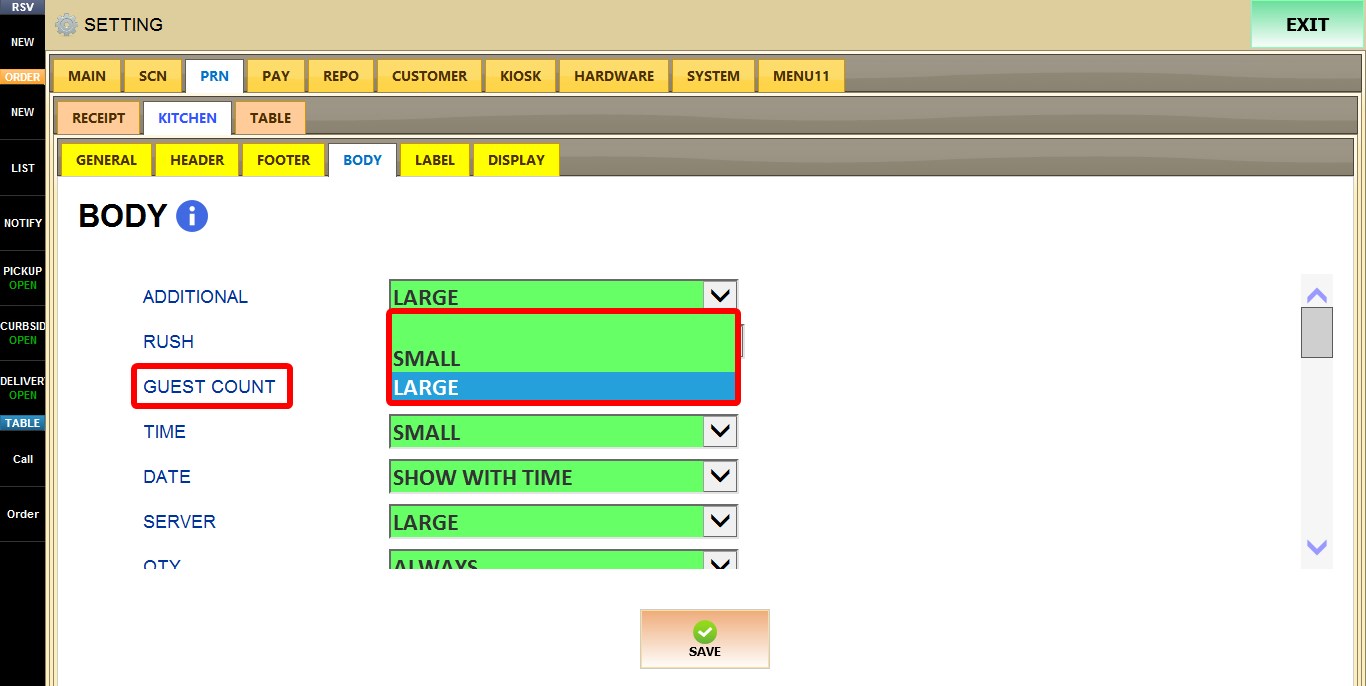
1. BLANK: Does not print.
2. SMALL: Prints using a small font.
3. LARGE: Prints using a large font.
TIME
Determines how the order time is printed.
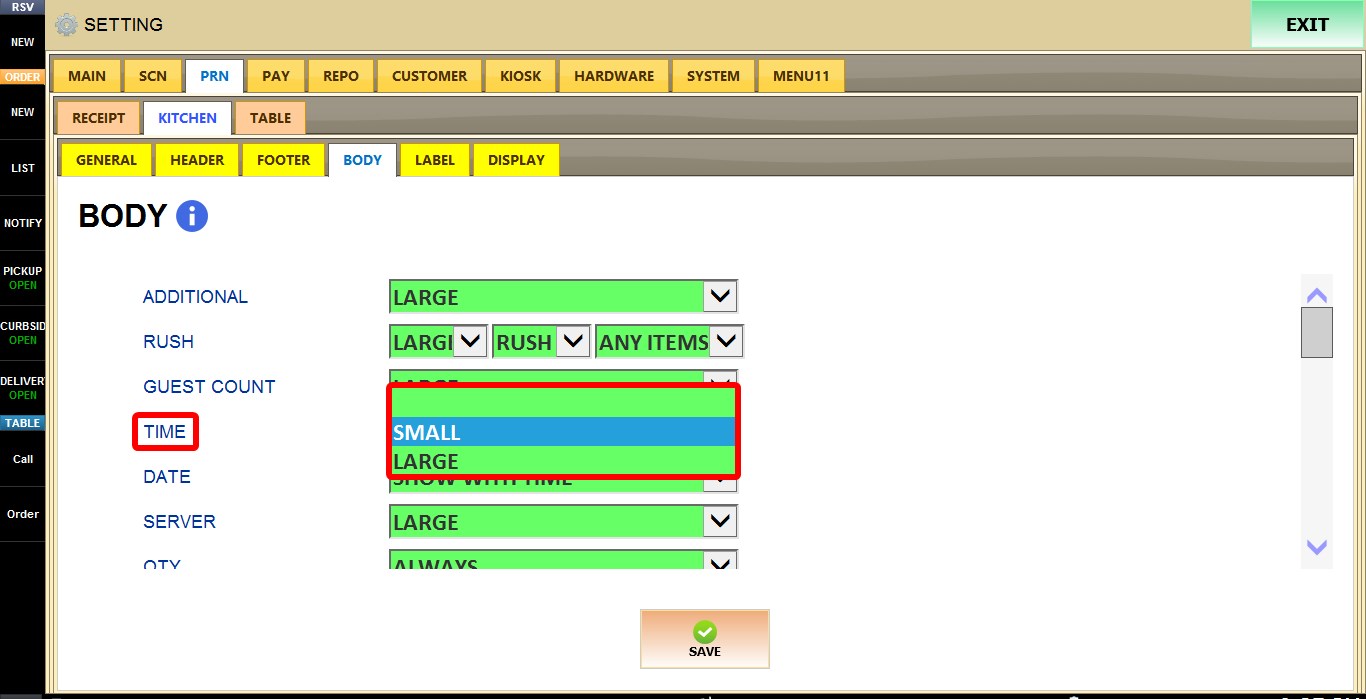
1. BLANK: Does not print.
2. SMALL: Prints using a small font.
3. LARGE: Prints using a large font.
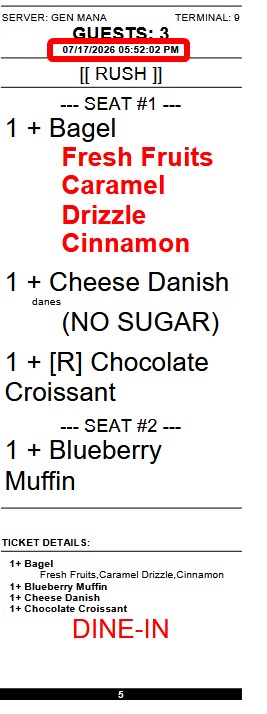
DATE
Controls whether the order date is printed.
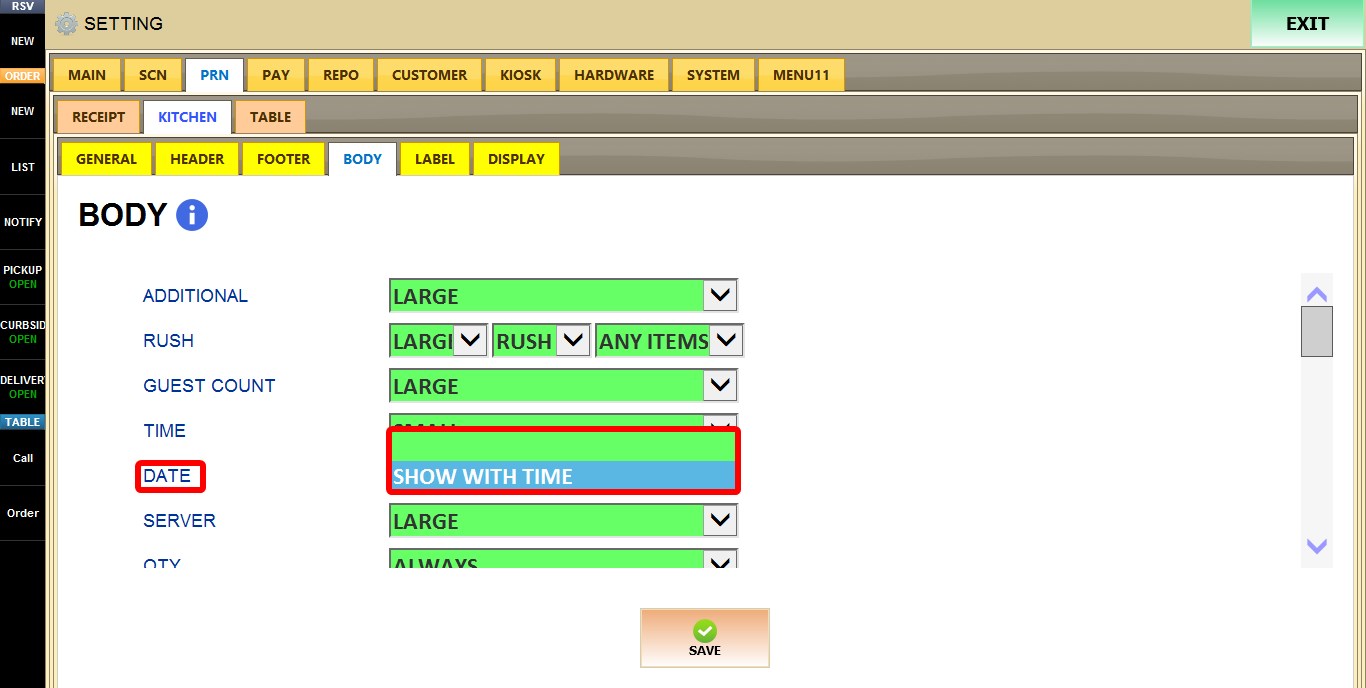
1. BLANK: Does not print.
2. SHOW WITH TIME: Prints the date together with the time.
SERVER
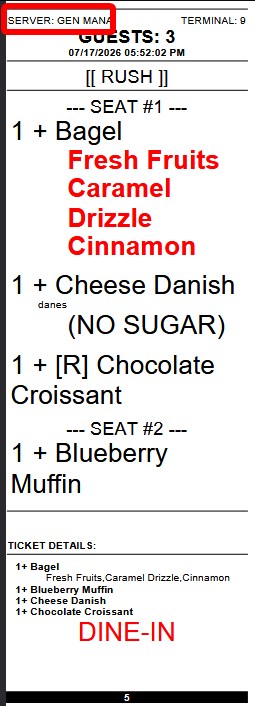
Determines how the server name is printed.
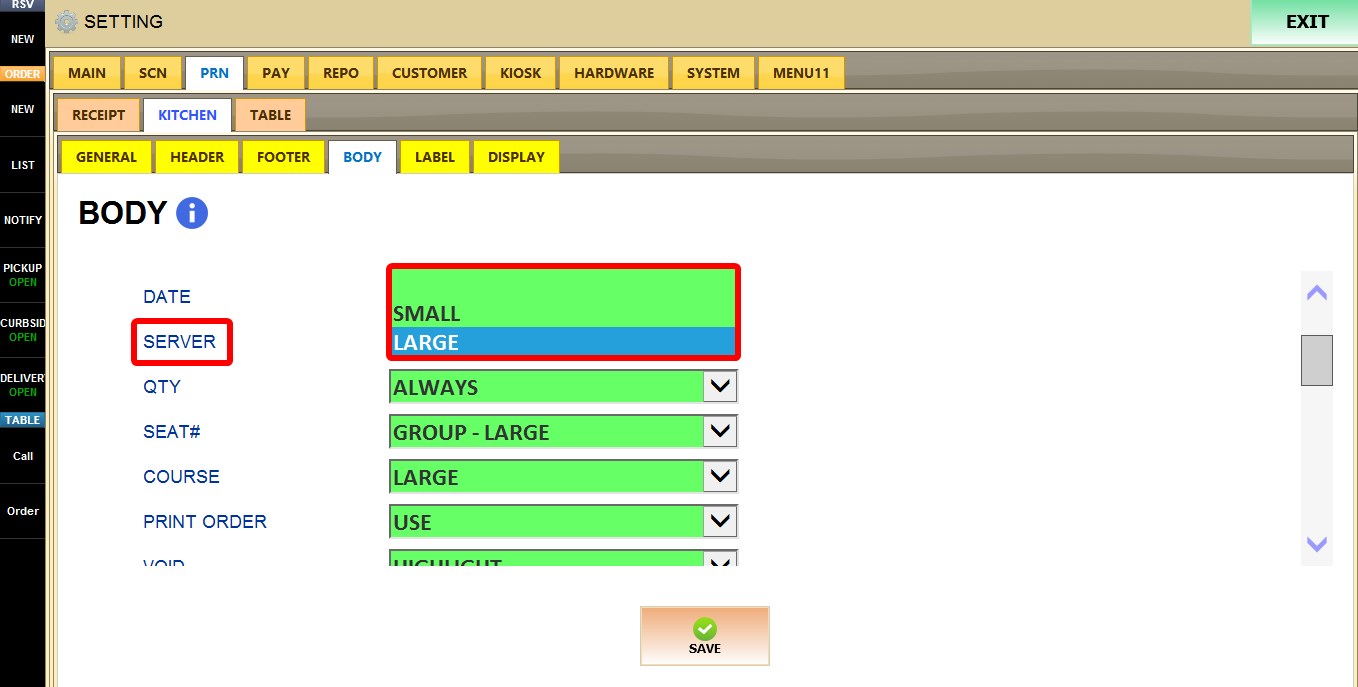
1. BLANK: Does not print.
2. SMALL: Prints using a small font.
3. LARGE: Prints using a large font.
QTY
Controls when item quantities are printed.
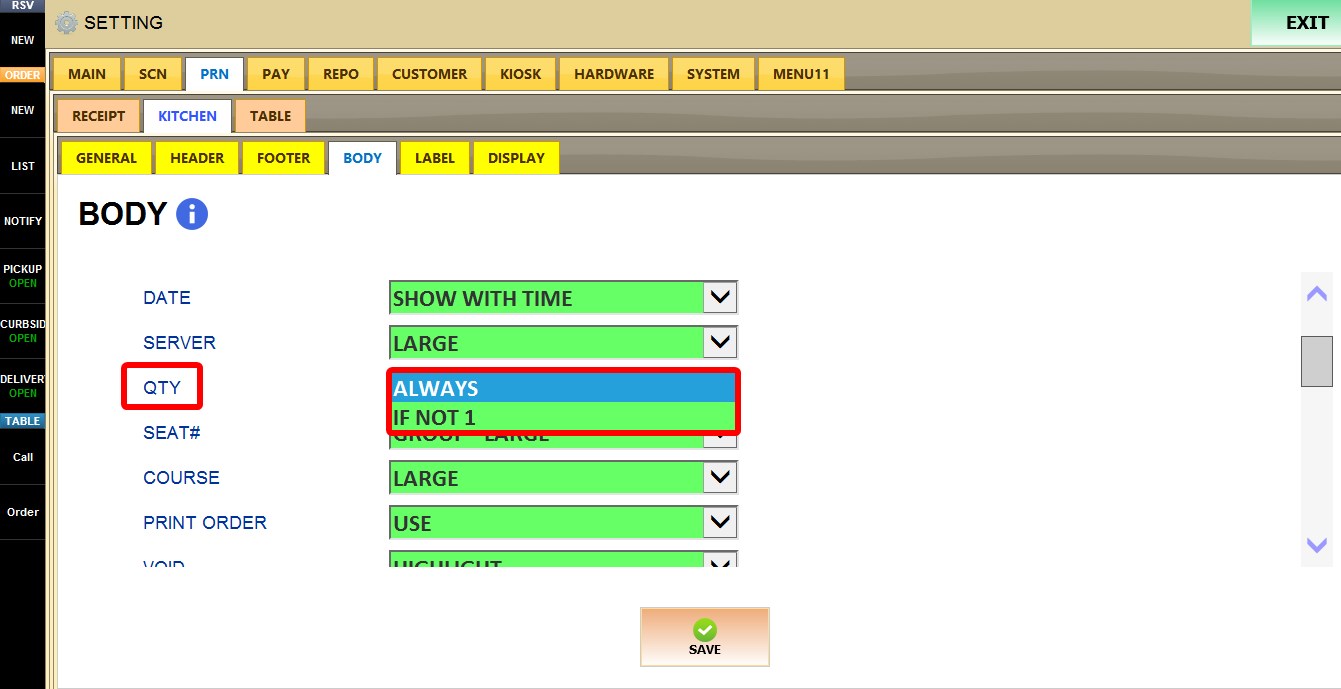
1. ALWAYS: Always prints the quantity.
2. IF NOT 1: Prints quantities only when greater than one.
SEAT#
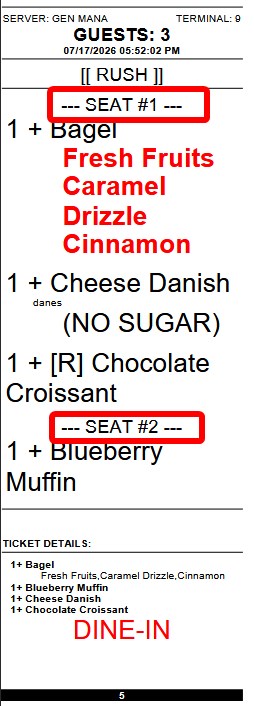
Determines how seat numbers are displayed.
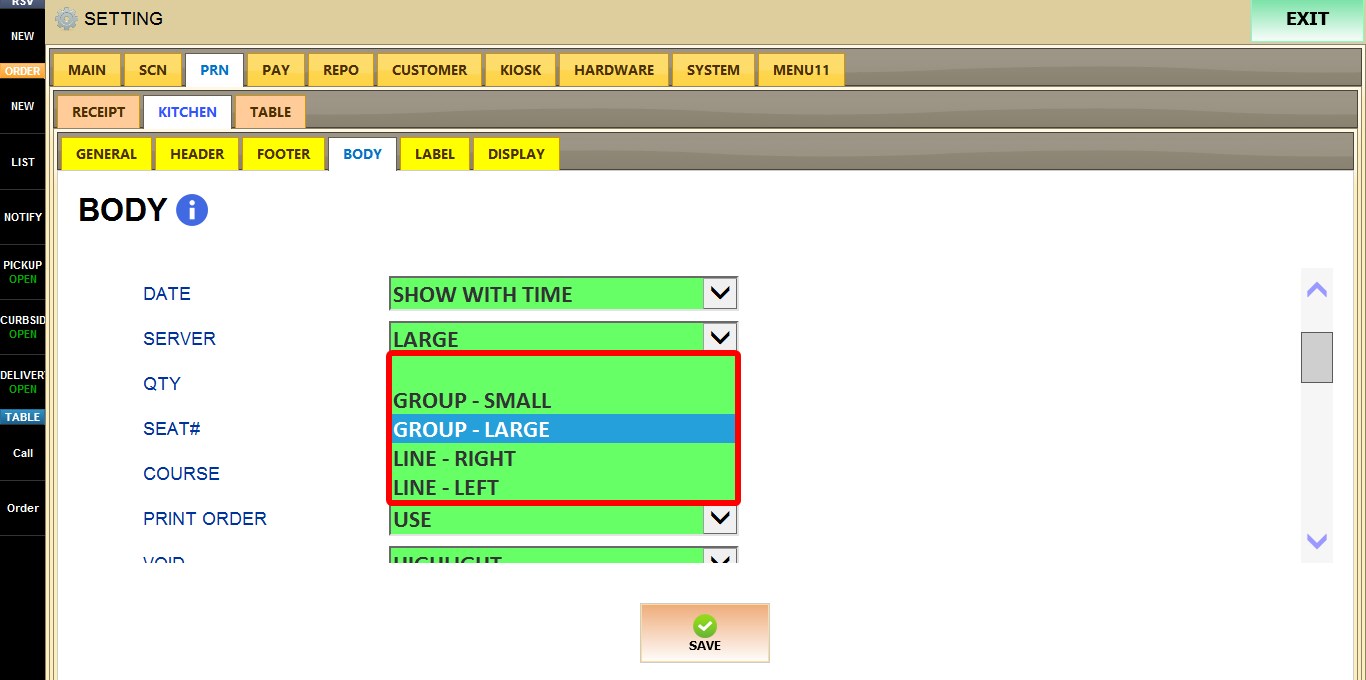
1. BLANK: Does not print.
2. GROUP - SMALL: Prints the seat number as a small group heading before the items assigned to that seat.
3. GROUP - LARGE: Prints the seat number as a large group heading before the items assigned to that seat.
4. LINE - RIGHT: Prints the seat number on a separate line aligned to the right.
5. LINE - LEFT: Prints the seat number on a separate line aligned to the left.
COURSE
Controls how course information is displayed.
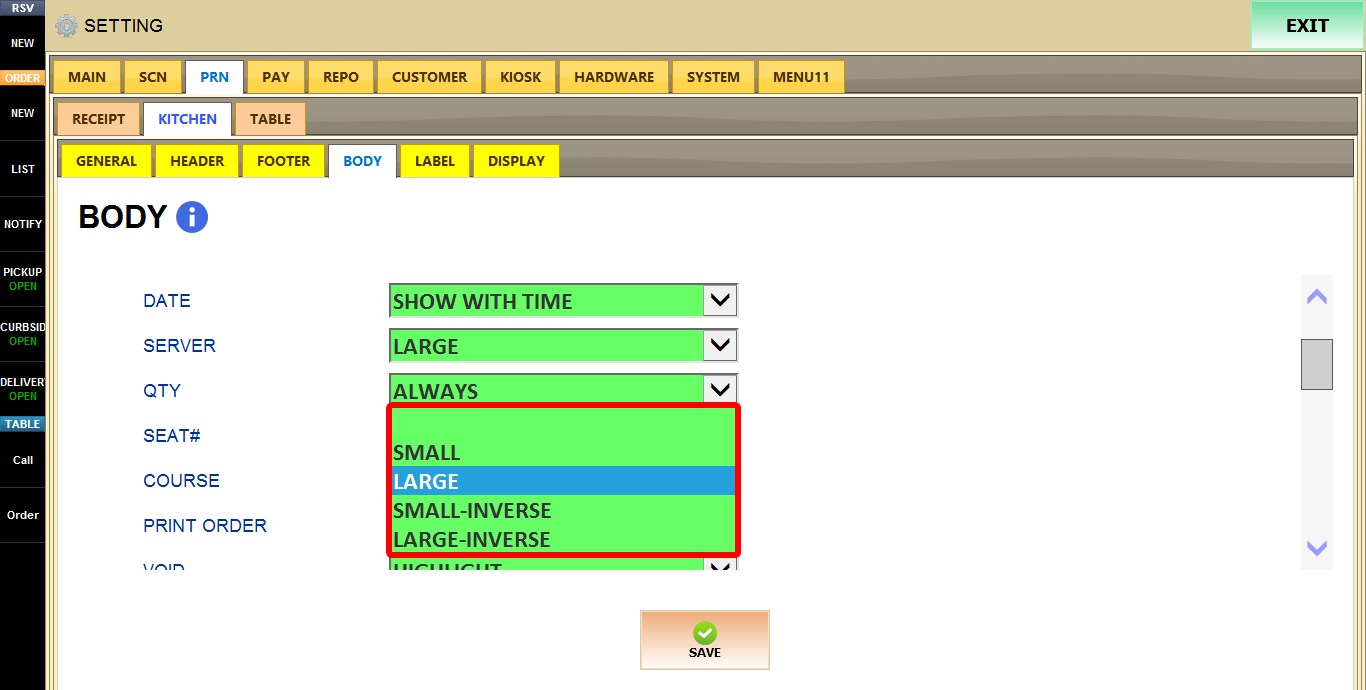
1. BLANK: Does not print.
2. SMALL: Prints using a small font.
3. LARGE: Prints using a large font.
4. SMALL-INVERSE: Prints the course using a small font size inverted (white-on-black) style.
5. LARGE-INVERSE: Prints the course using a large font size inverted (white-on-black) style.
PRINT ORDER
Determines whether the print sequence is displayed on kitchen tickets when an order is sent to multiple kitchen printers.
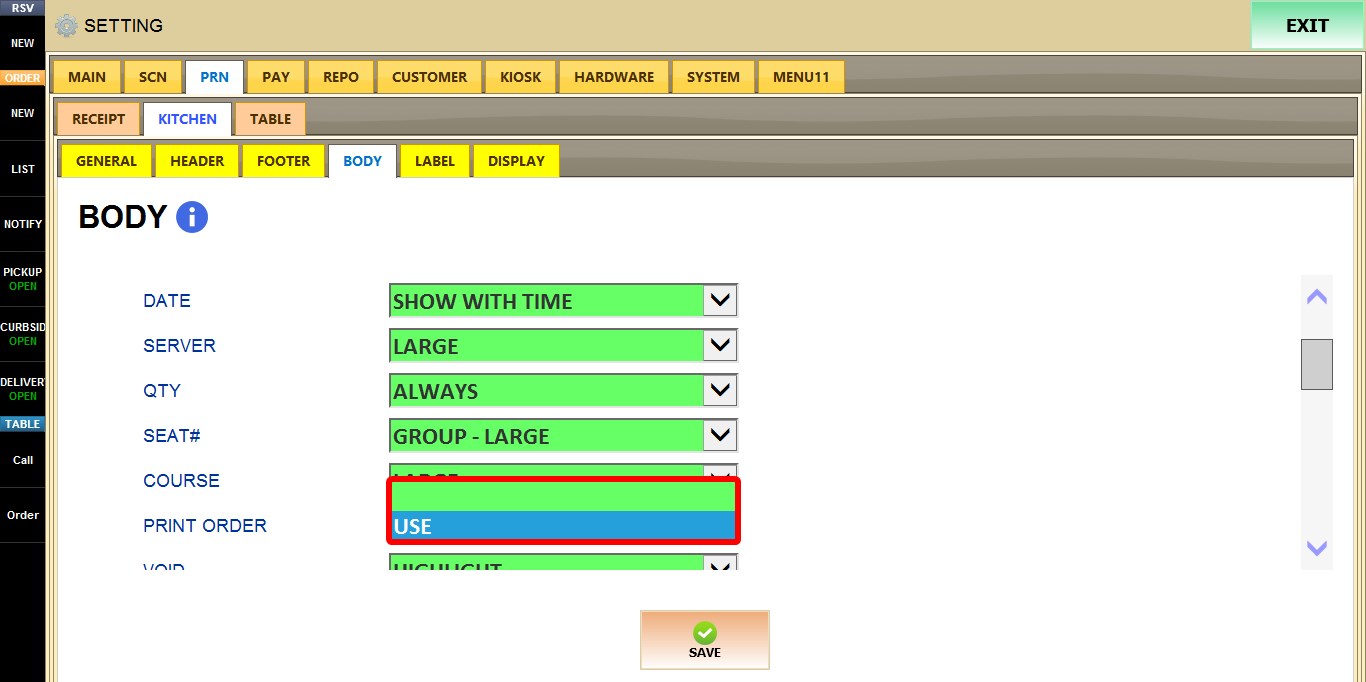
1. BLANK: Does not print the print order.
3. USE: Uses the configured print order defined for the kitchen printer.
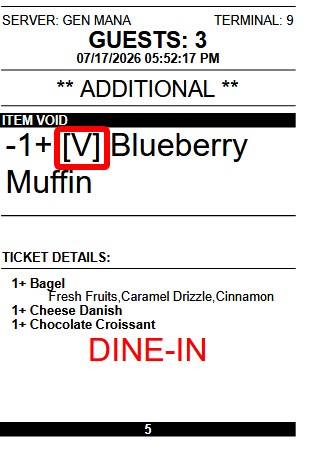
VOID
Controls how voided items are displayed.
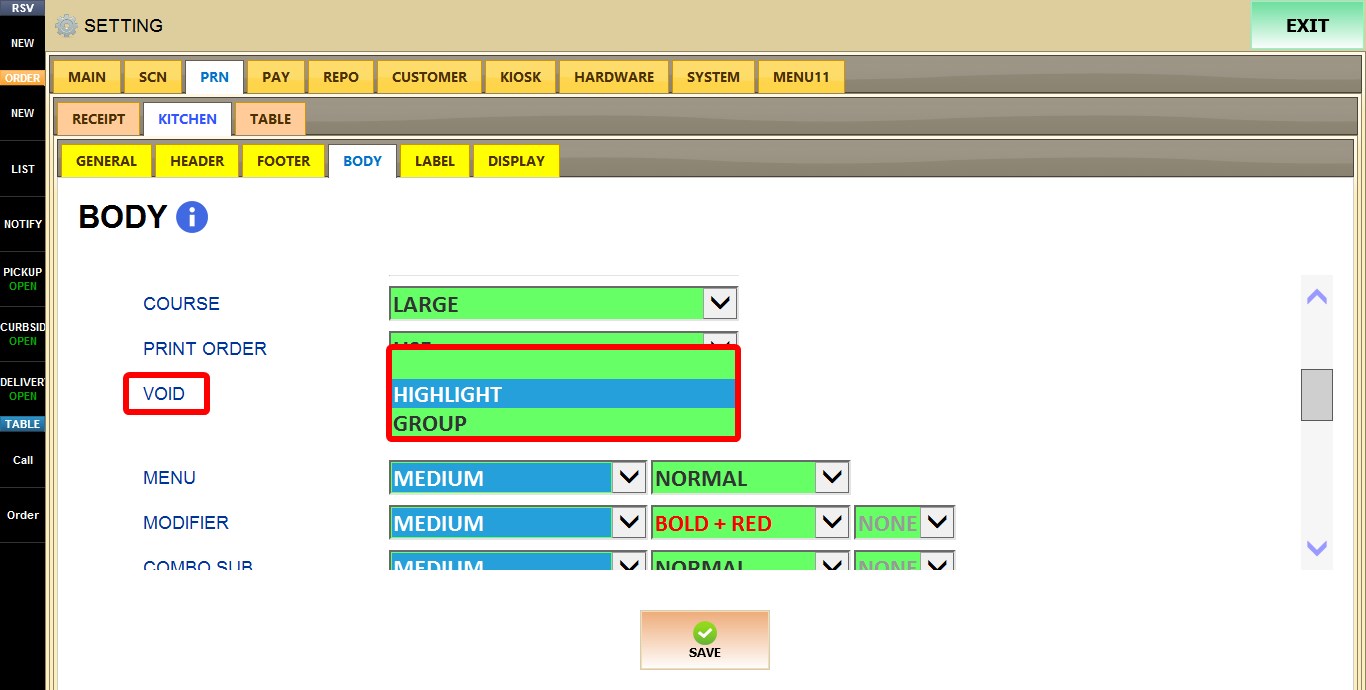
1. BLANK: Does not print.
2. HIGHLIGHT: Highlights voided items while keeping them in their original position on the ticket.
3. GROUP: Groups all voided items together in a separate section on the ticket.

ITEM FORMATTING
These settings control how menu items, modifiers, memos, and separators are displayed on kitchen tickets.
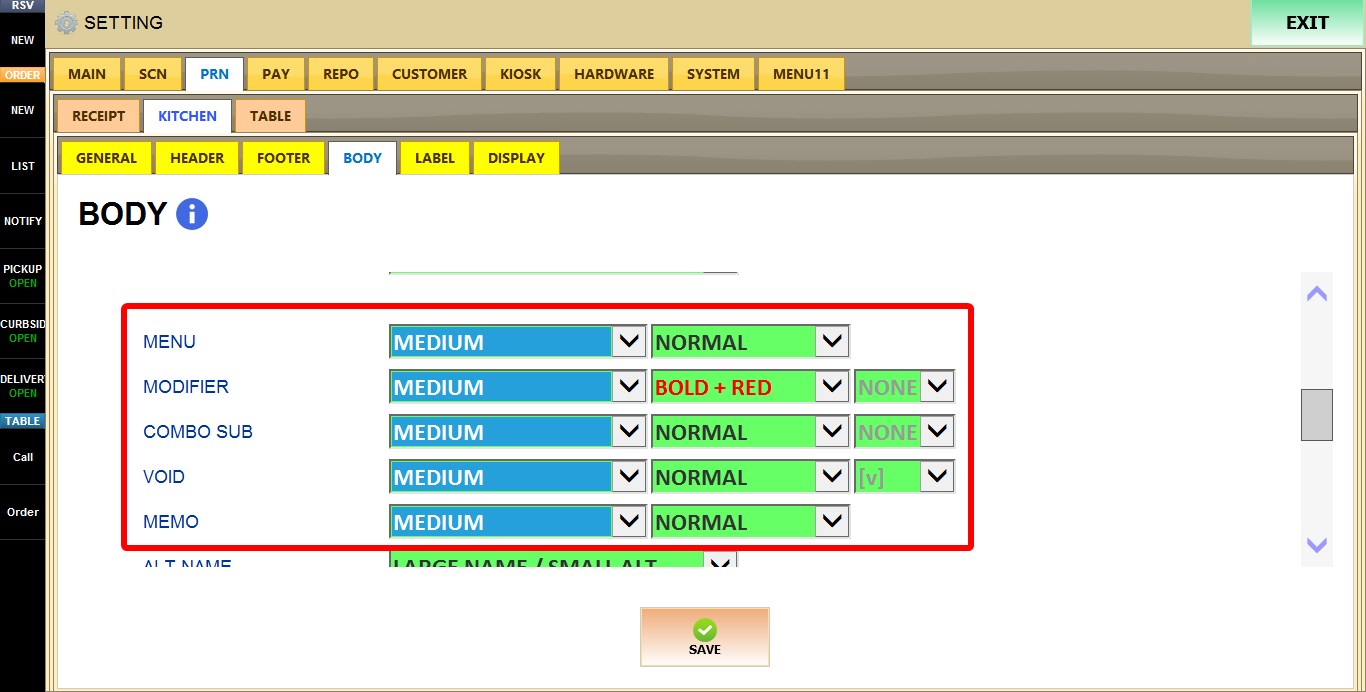
MENU, MODIFIER, COMBO SUB, VOID, MEMO
Each option includes formatting dropdowns to configure the font size and text style used when printing that element.
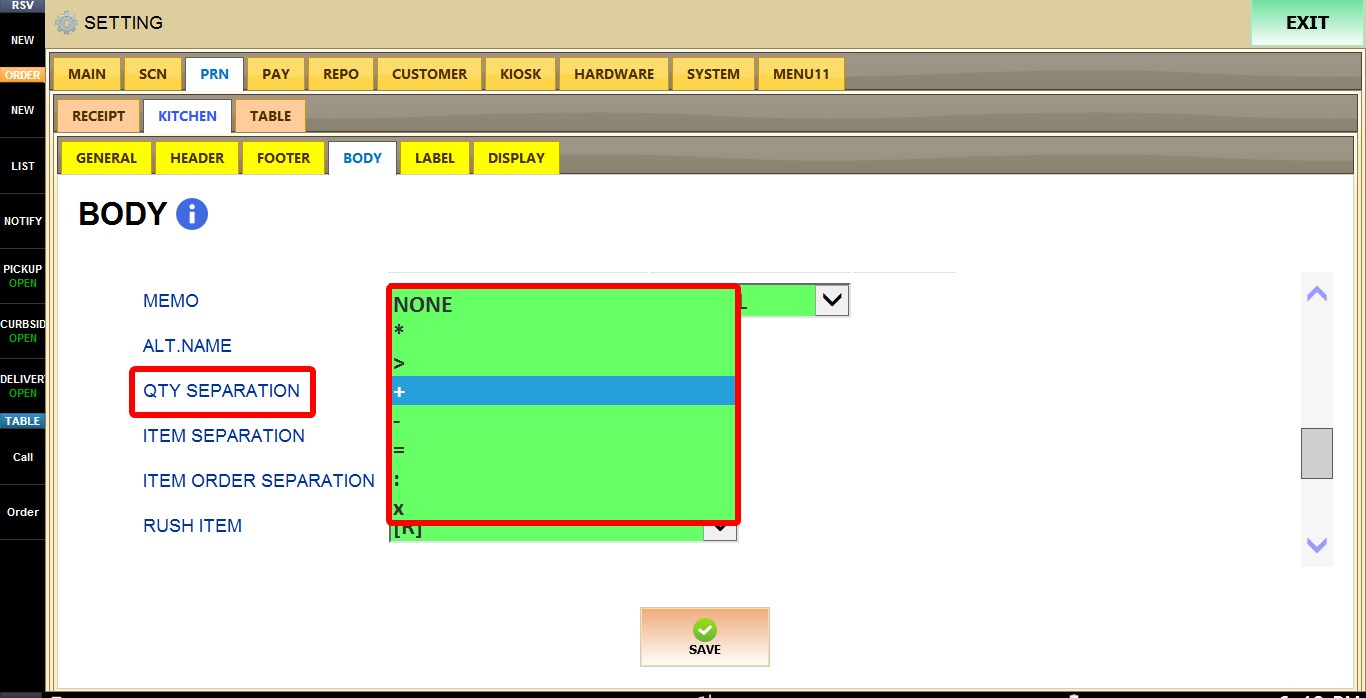
For MODIFIER, COMBO SUB, VOID, and MEMO, an additional symbol dropdown is available to print a prefix for added clarity on the ticket before the text. Available symbols are NONE, *, >, +, -, =, :, and X.
ALT. NAME
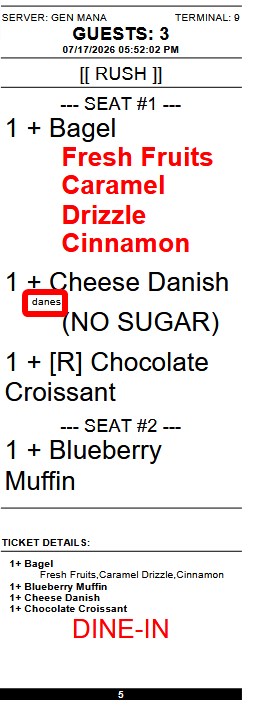
Determines how alternate item names are printed.
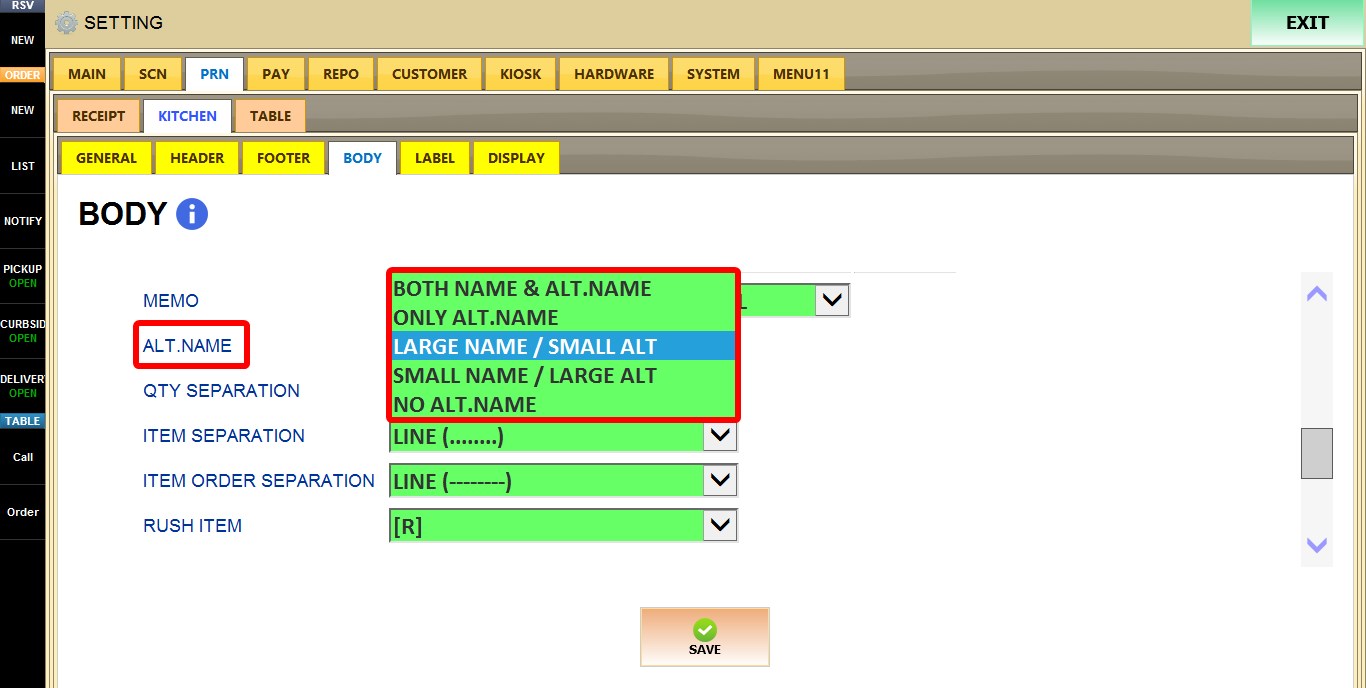
1. BOTH NAME & ALT. NAME: Prints both the item name and its alternate name.
2. ONLY ALT. NAME: Prints only the alternate item name.
3. LARGE NAME / SMALL ALT: Prints the item name in a larger font and the alternate name in a smaller font.
4. SMALL NAME / LARGE ALT: Prints the item name in a smaller font and the alternate name in a larger font.
5. NO ALT. NAME: Prints only the item name without the alternate name.
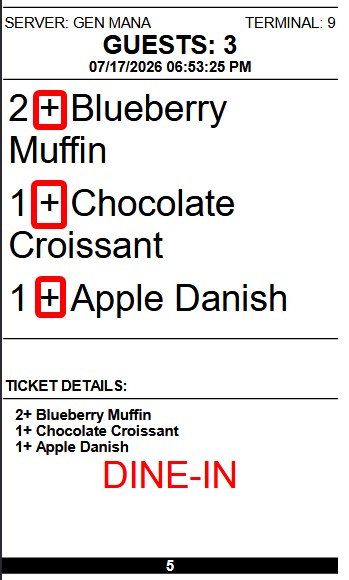
QTY SEPARATION
Selects the character used between the quantity and item name.
ITEM SEPARATION
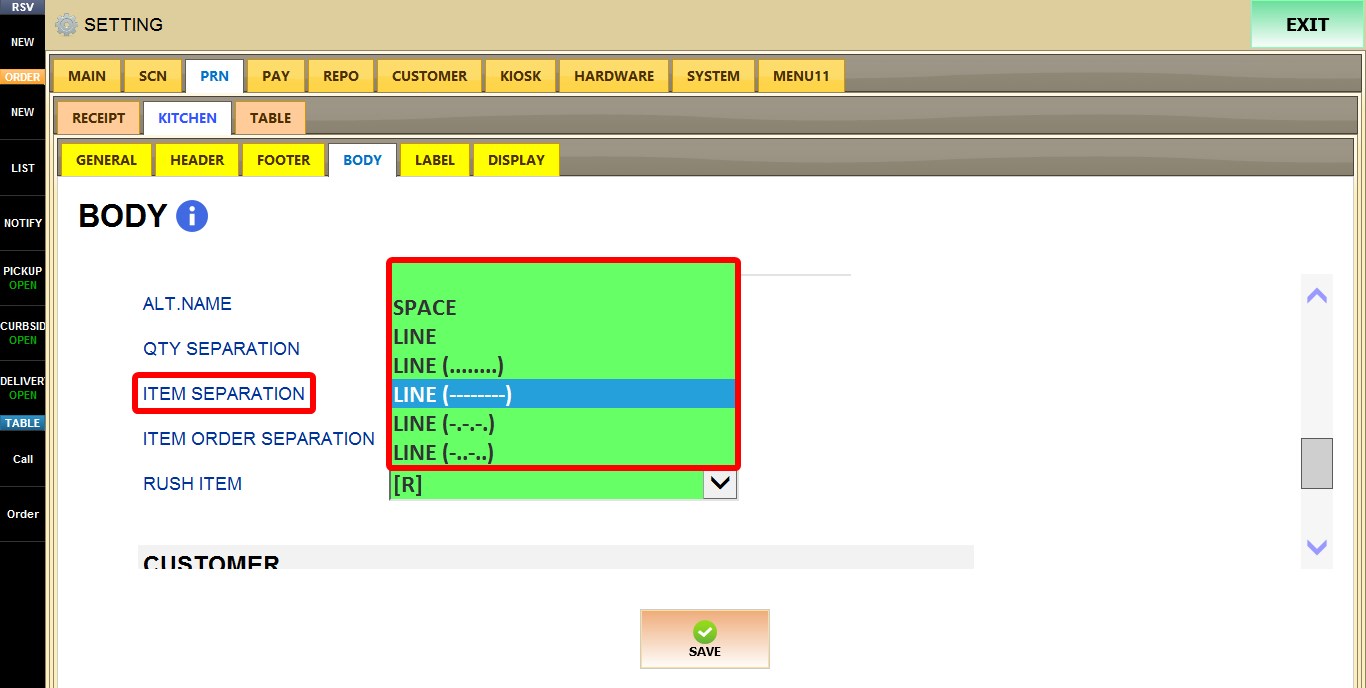
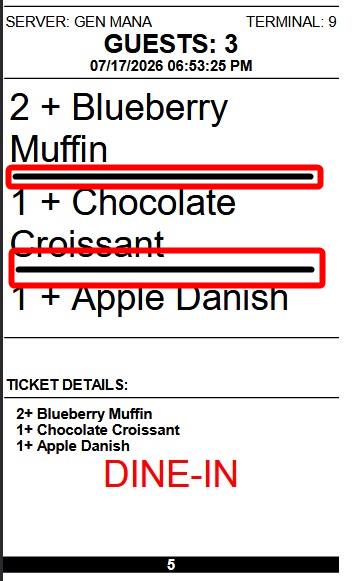
Determines the separator printed between menu items.
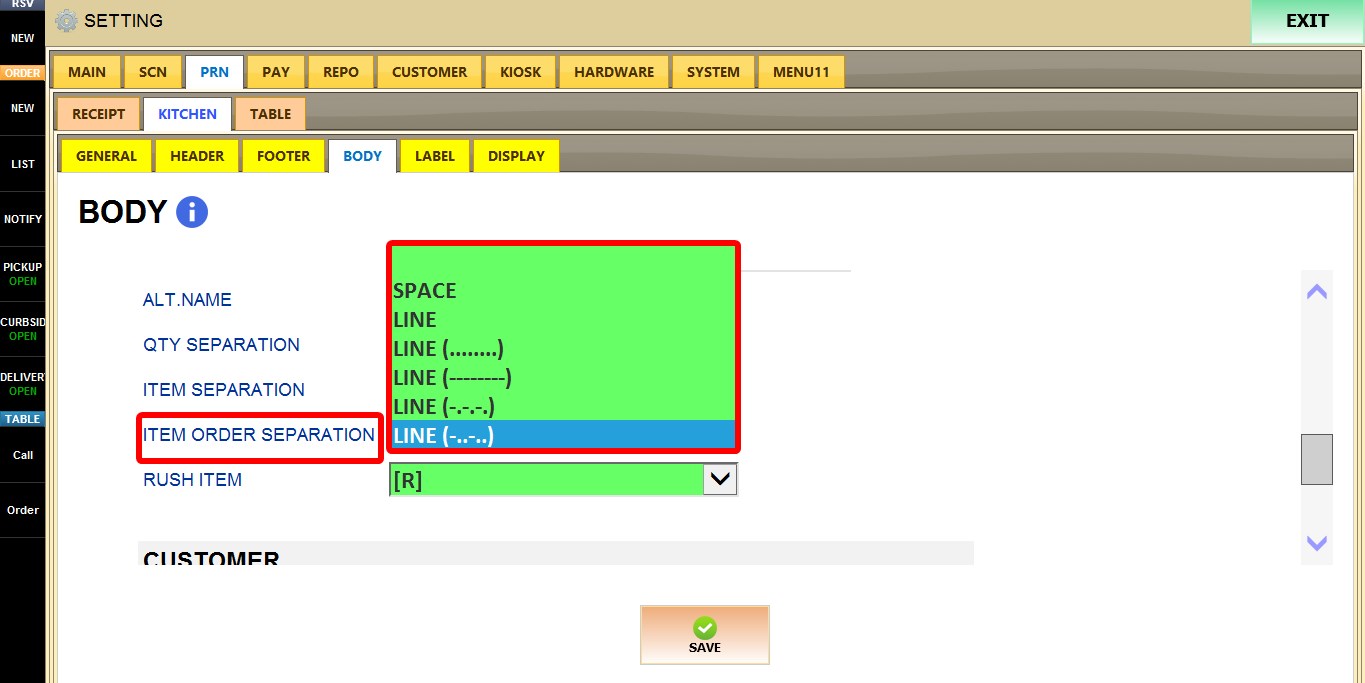
ITEM ORDER SEPARATION
Determines the separator printed between different order groups.
RUSH ITEM
Adds an indicator before rush or fire items.
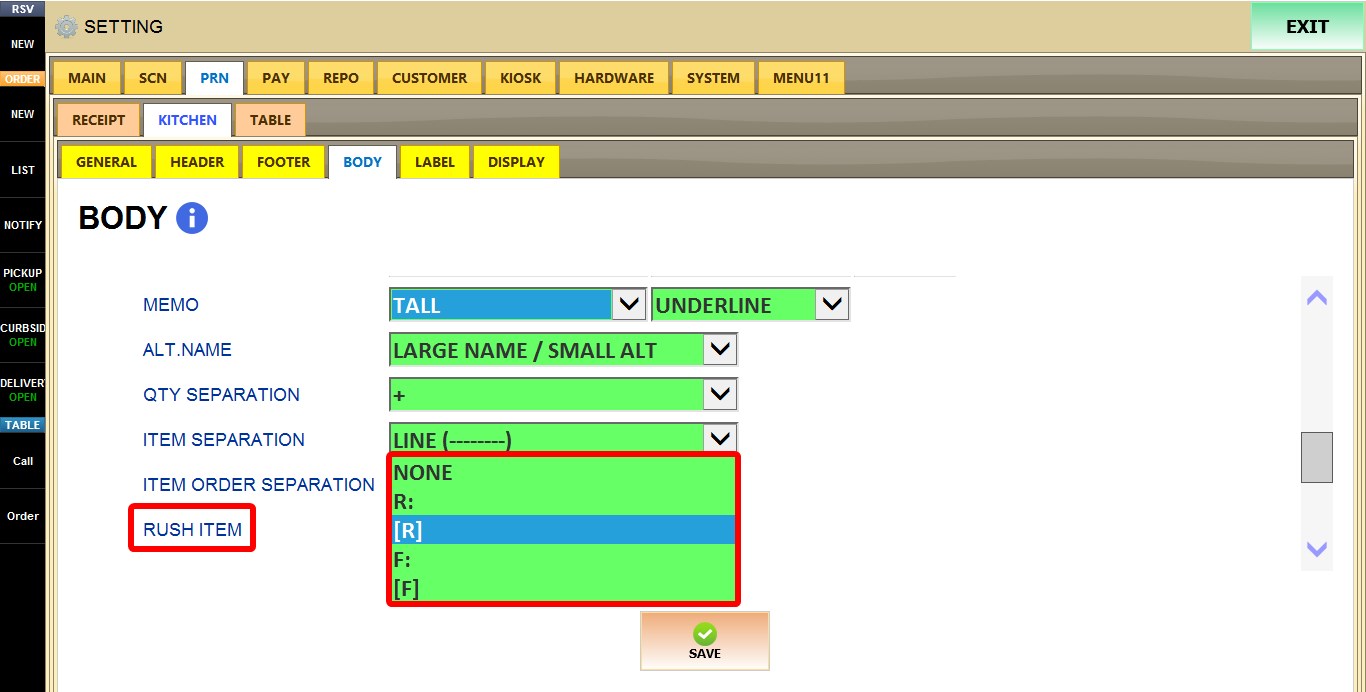
1. NONE: Doesn't print anything
2. R: R Label
3. [R]: [R] Label
4. F: F Label
5. [F]: [F] Label

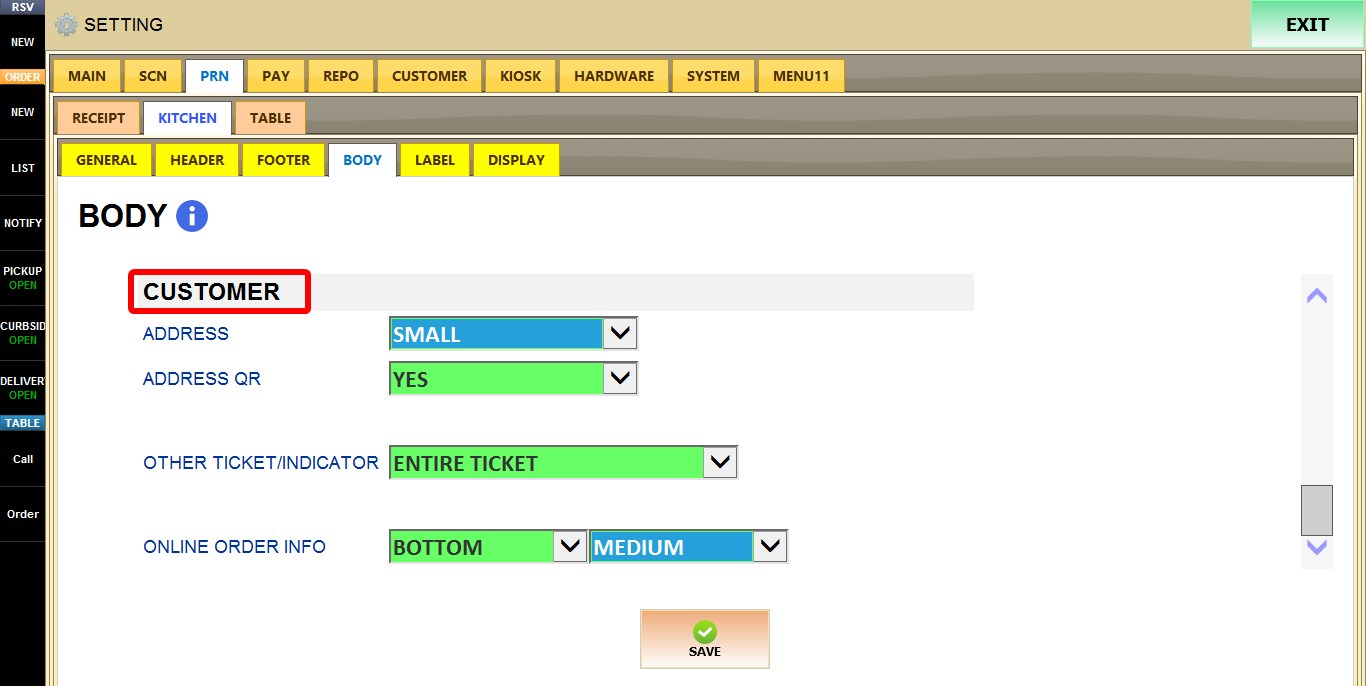
CUSTOMER
These settings control how customer and online order information is printed on kitchen tickets.
ADDRESS
Determines the font size used when printing the customer's delivery or pickup address.
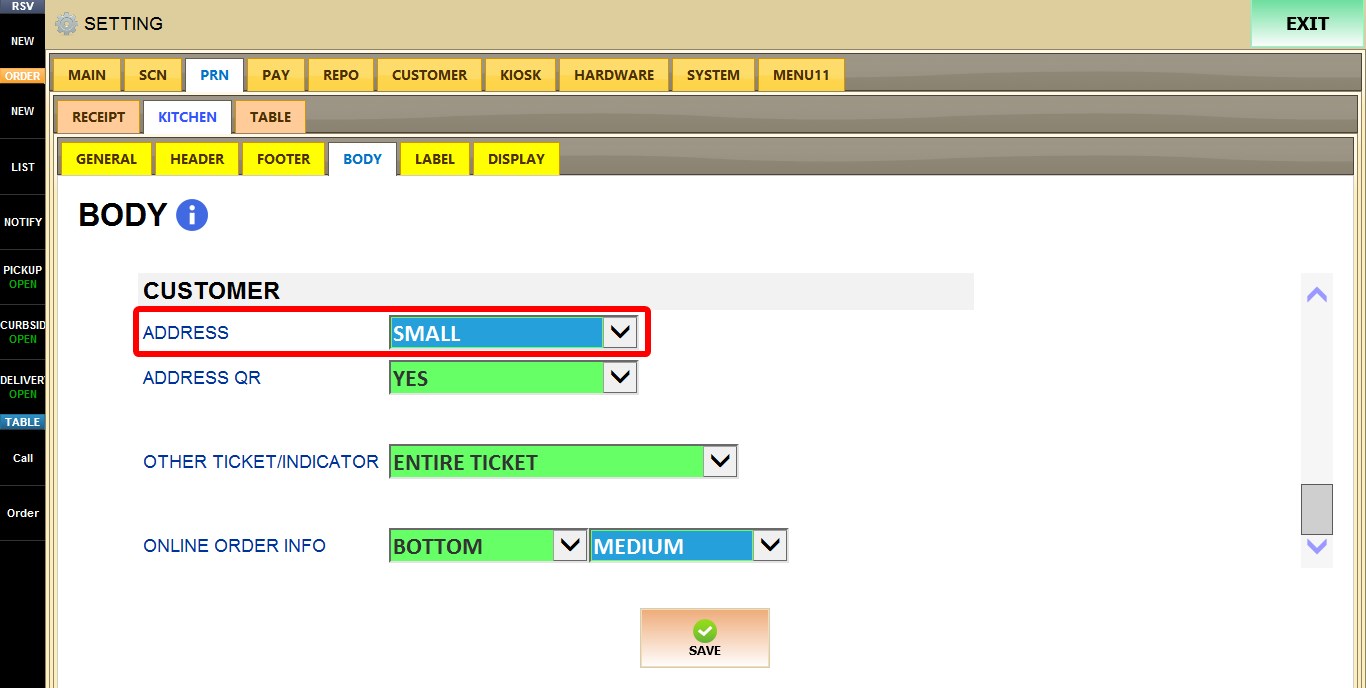
1. DISABLED: Does not print the customer address.
2. SMALL through SIZE 14: Prints the customer address using the selected font size.

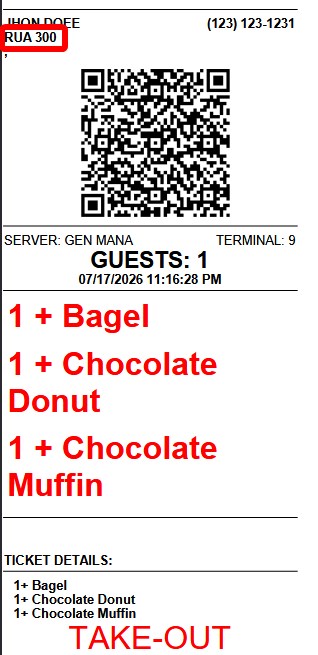
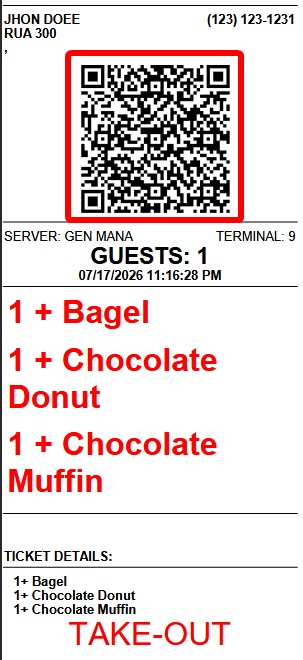
ADDRESS QR
Determines whether a QR code containing the customer's delivery address is printed on the kitchen ticket.
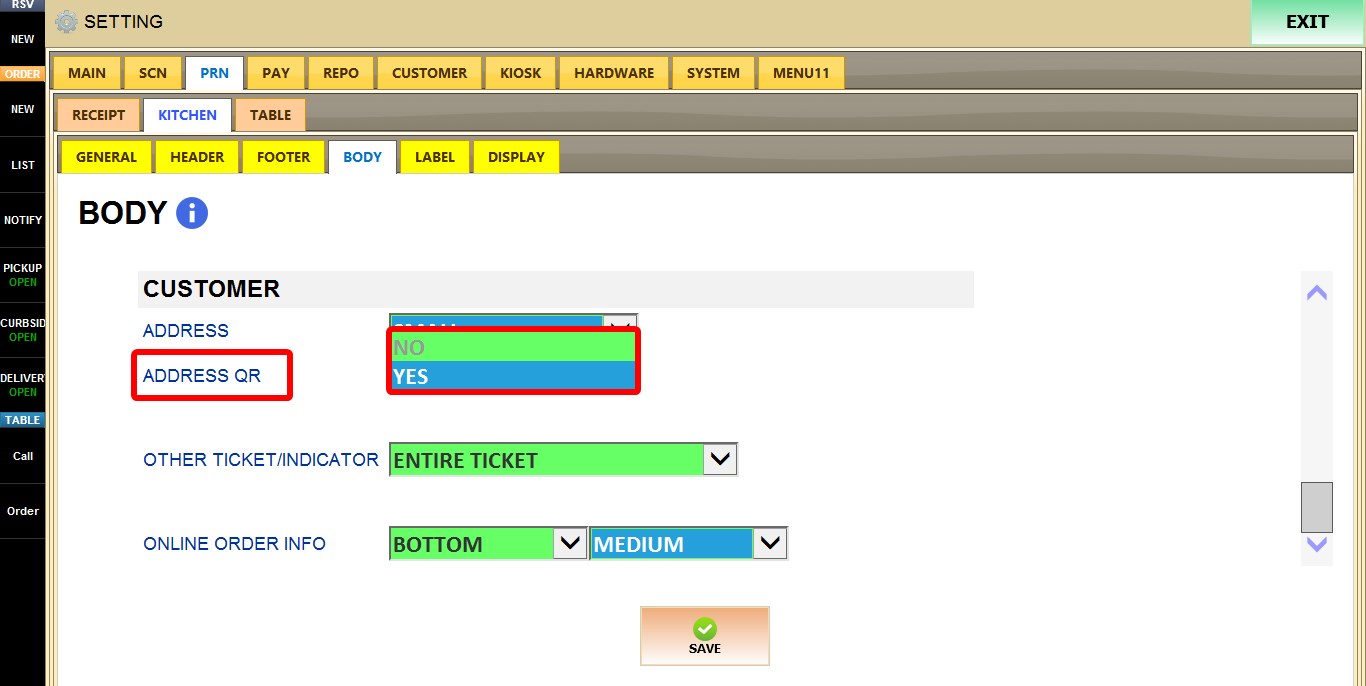
1. NO: Does not print the address QR code.
2. YES: Prints a QR code that can be scanned to open the customer's address in a navigation application.

OTHER TICKET / INDICATOR
Determines how items from previous tickets are displayed when additional items are sent to the kitchen.
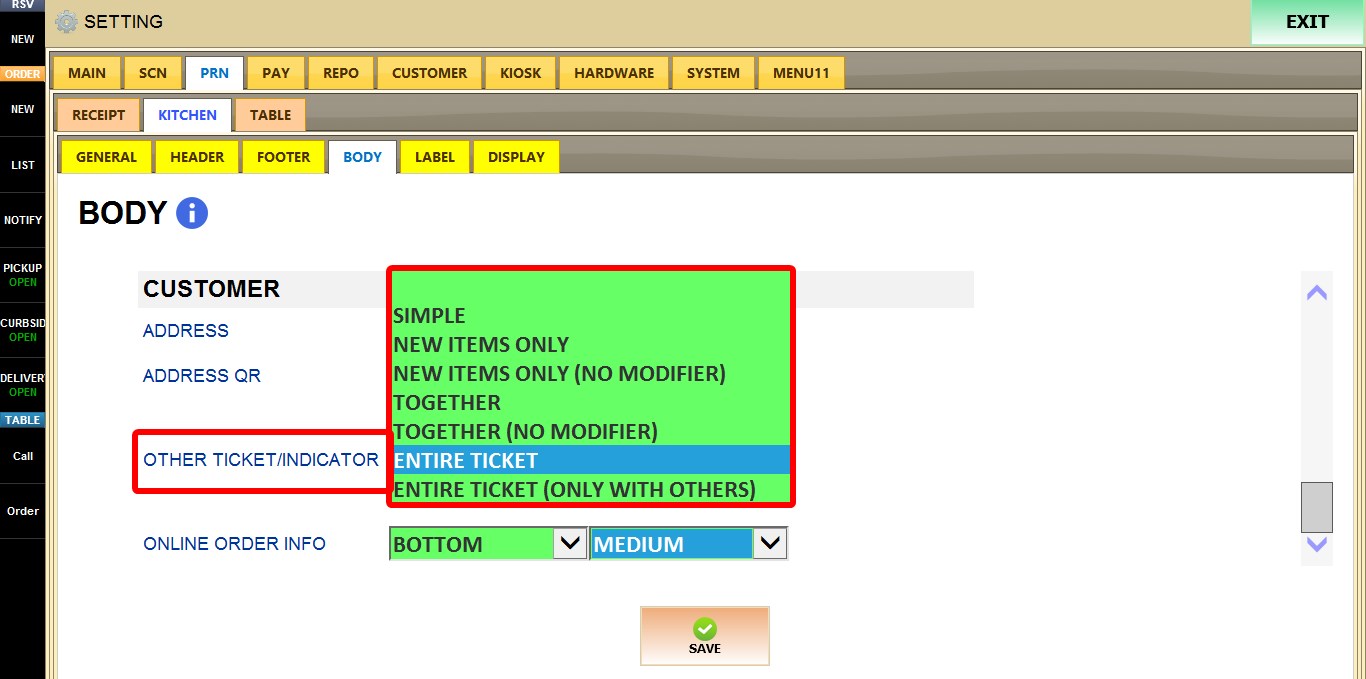
1. SIMPLE: Uses the standard indicator format.
2. NEW ITEMS ONLY: Prints only newly added items.
3. NEW ITEMS ONLY (NO MODIFIER): Prints only newly added items without their modifiers.
4. TOGETHER: Prints previous and newly added items together.
5. TOGETHER (NO MODIFIER): Prints previous and newly added items together without modifiers.
6. ENTIRE TICKET: Reprints the entire ticket.
7. ENTIRE TICKET (ONLY WITH OTHERS): Reprints the entire ticket only when additional items exist.
ONLINE ORDER INFO
Determines where online order information is printed on the kitchen ticket and the font size used.
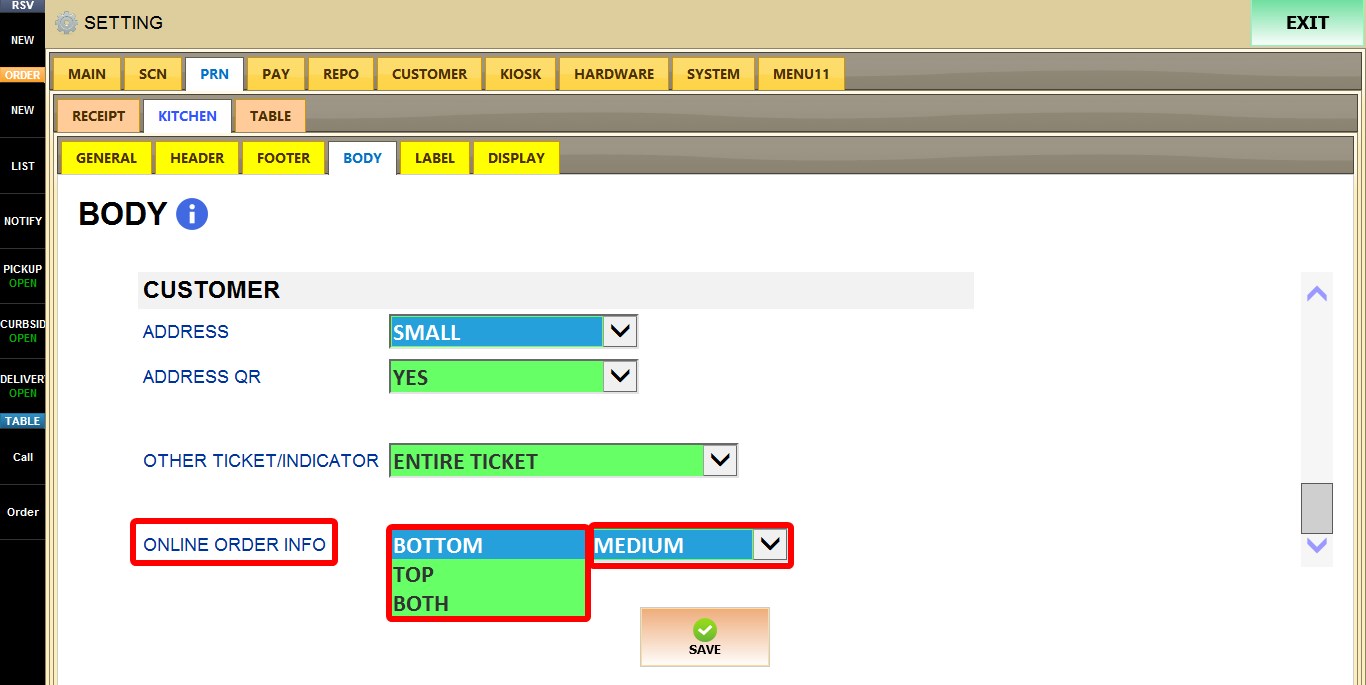
1. BOTTOM: Prints the online order information at the bottom of the ticket.
2. TOP: Prints the online order information at the top of the ticket.
3. BOTH: Prints the online order information at both the top and bottom of the ticket.
4.FONT SIZE: Determines the font size used for the online order information.
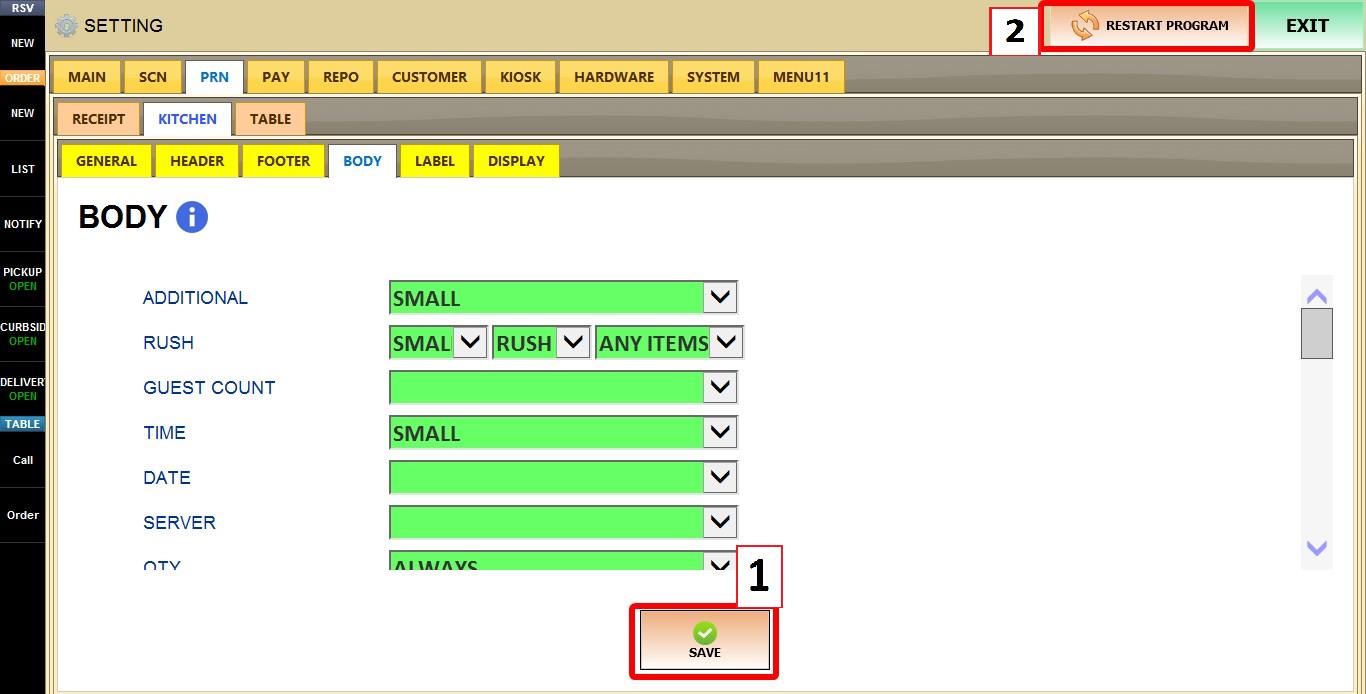
After you are done configuring the settings, click SAVE, then RESTART THE PROGRAM for the changes to take effect.