Department Special Actions
This feature allows you to import multiple menu items in bulk into a department using a predefined template, eliminating the need to create each item manually. This is ideal when setting up a new menu or adding a large number of products at once.
Main Screen > MENU > SETTINGS > REPOSITORY > EDIT> SPECIAL ACTIONS
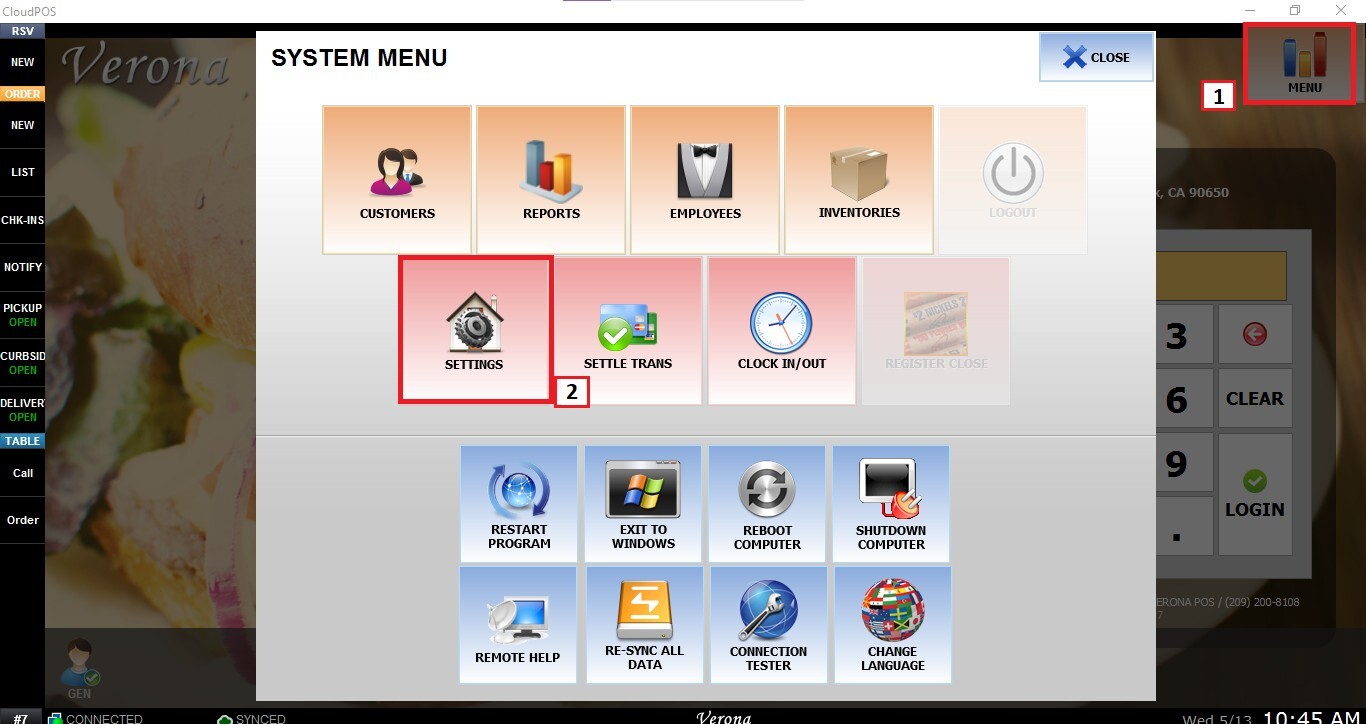
From the Main Screen, click MENU and then SETTINGS.
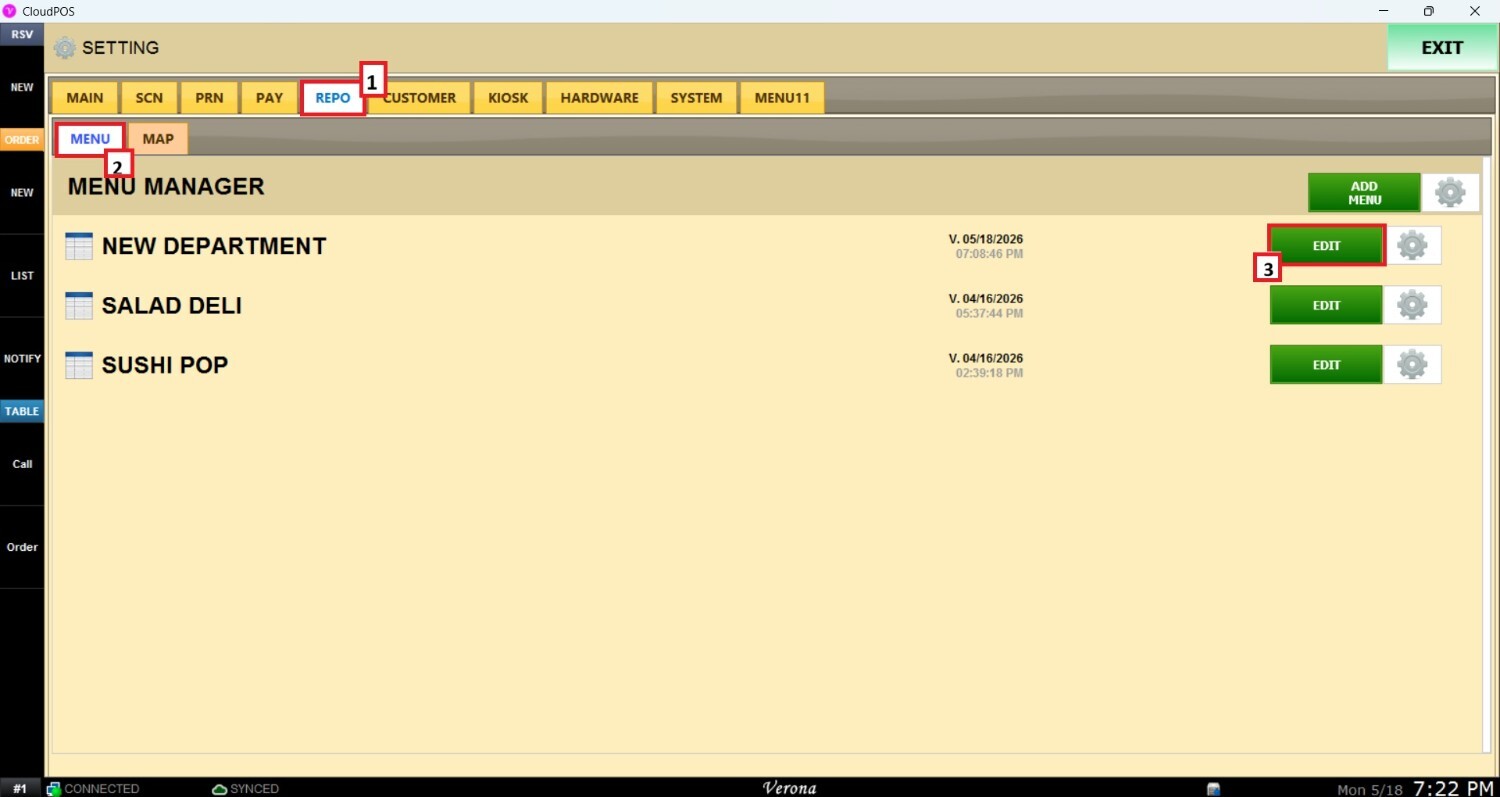
On the settings screen, click on REPO (REPOSITORY), then MENU, and EDIT on the right side of the menu to modify.
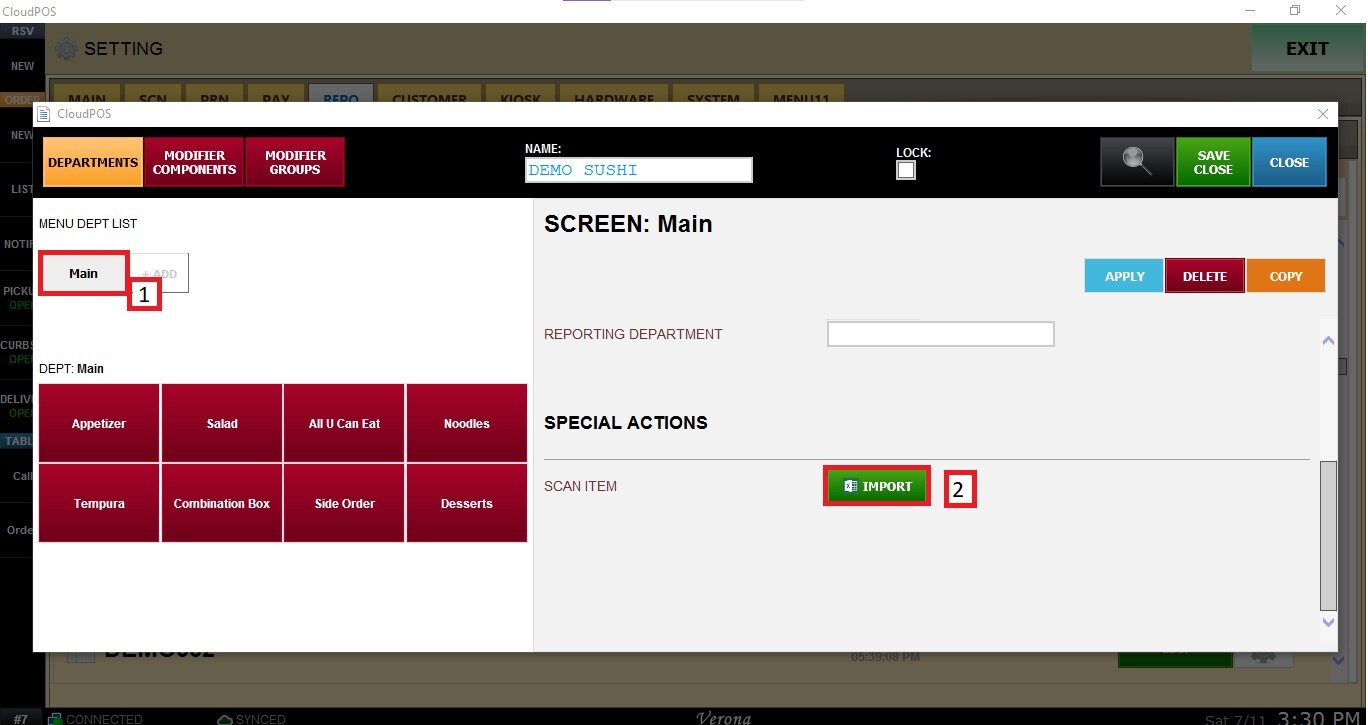
In the Menu Edit window, select the desired Department and scroll down until SPECIAL ACTIONS.
On SCAN ITEM, click IMPORT.
Click TEMPLATE to save the Excel file to your computer.
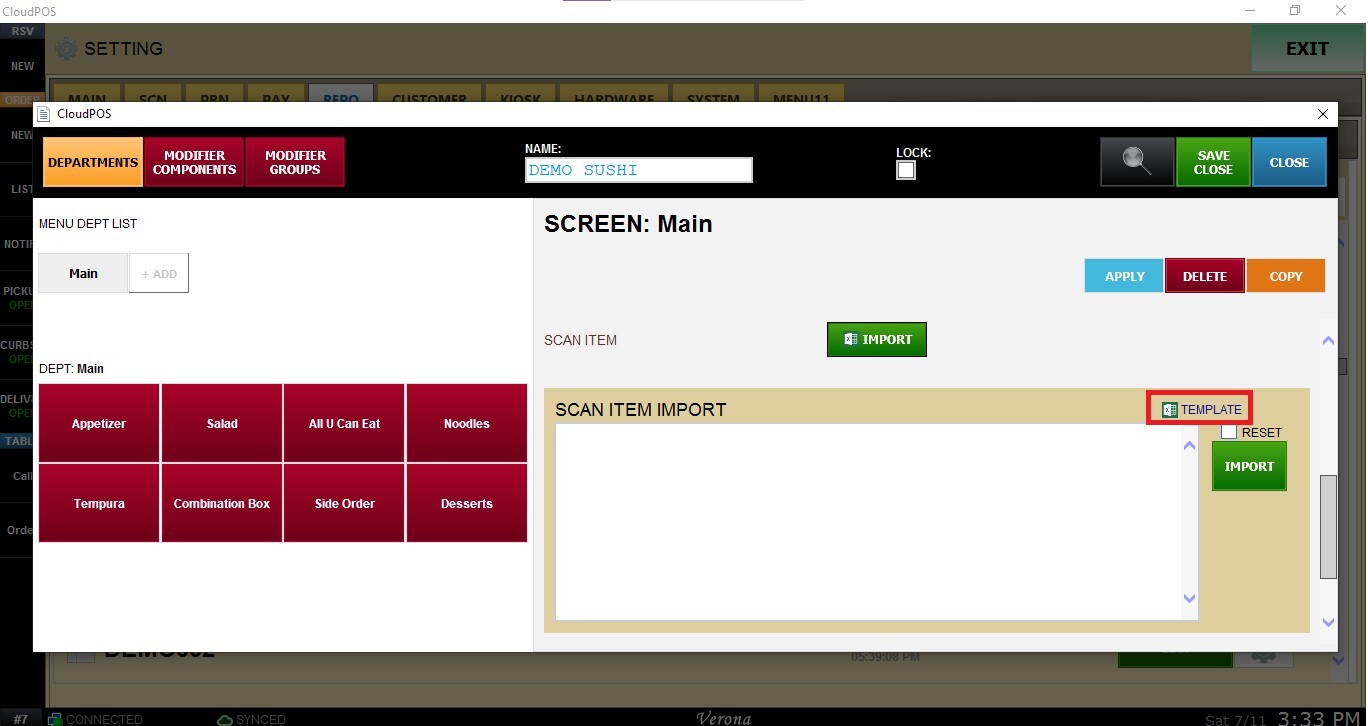
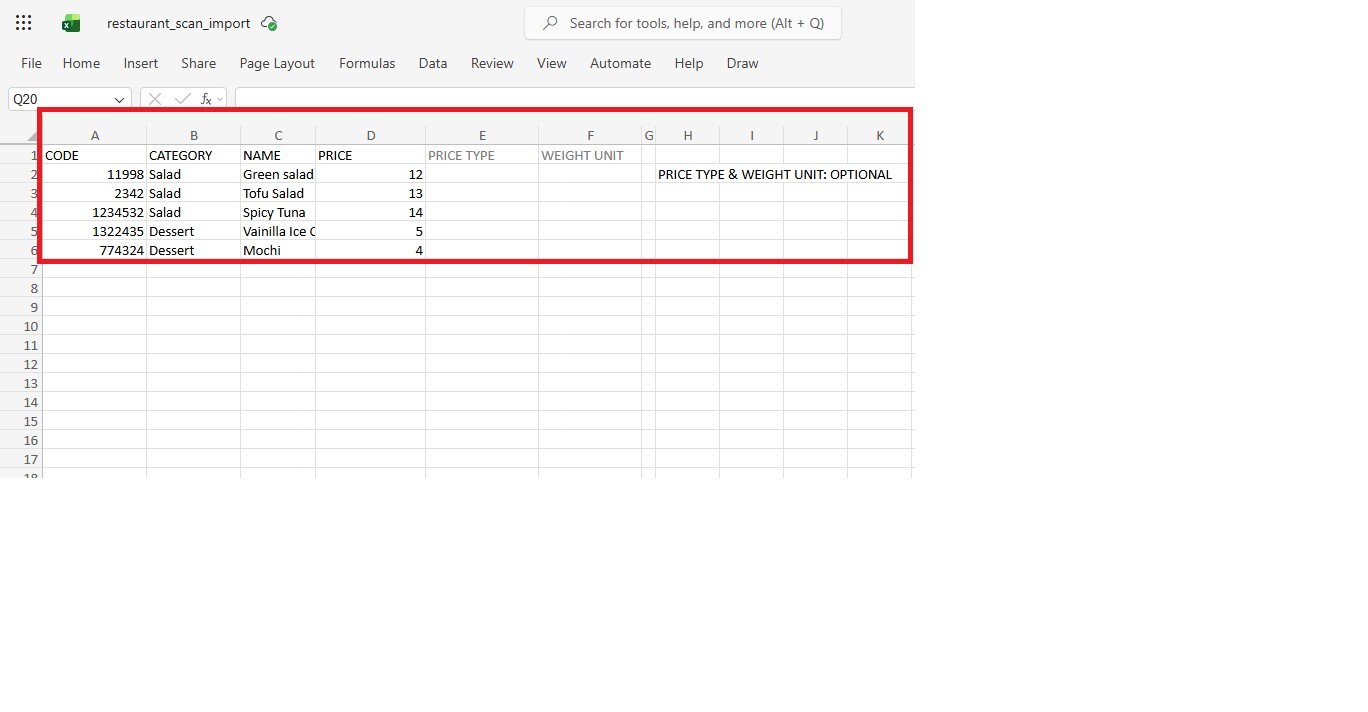
Open the template and enter the menu item information in the appropriate fields.
The template includes the following fields:
- CODE: Unique product code or SKU.
- CATEGORY: Category where the item will be created.
- NAME: Name of the menu item.
- PRICE: Selling price of the item.
- PRICE TYPE (Optional): Defines how the item's price is calculated.
- WEIGHT UNIT (Optional): Specifies the unit of measurement for items sold by weight.
After completing the template, copy all of its contents and in the SCAN ITEM IMPORT section, paste the copied data into the import field. Click IMPORT to add the menu items to the selected department.
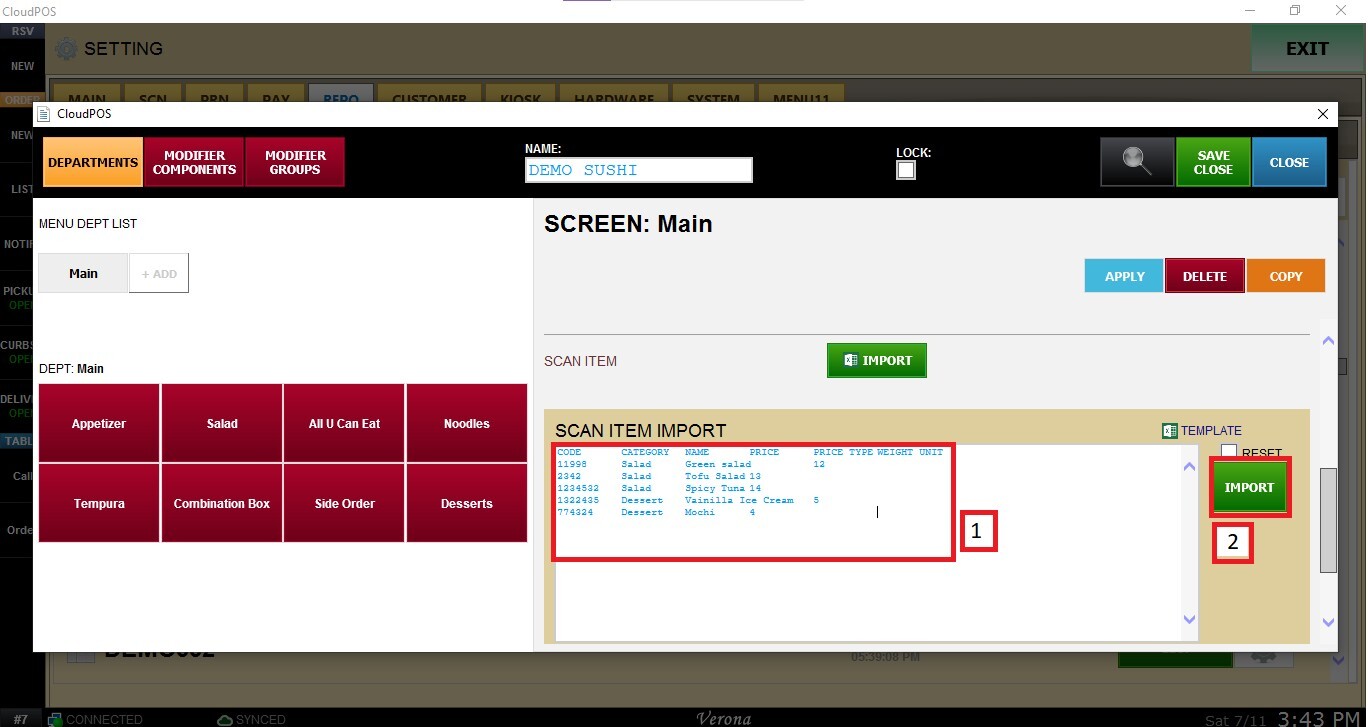
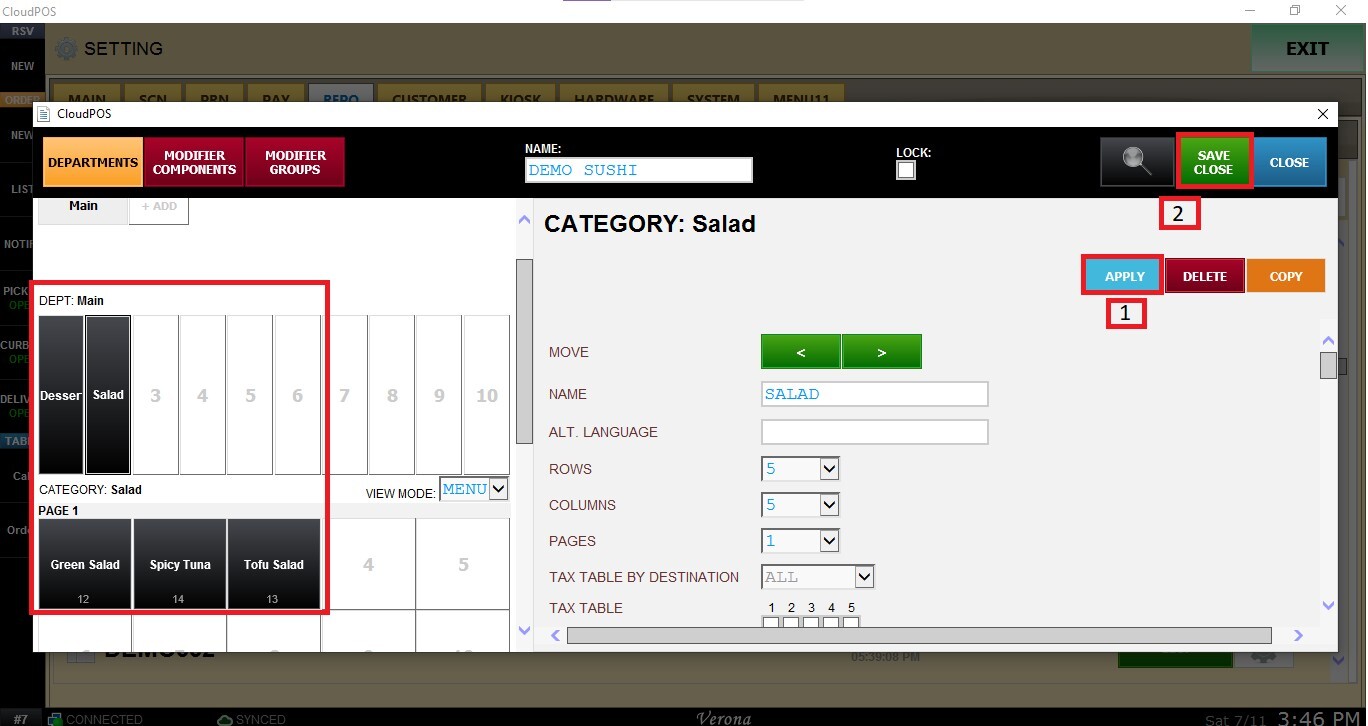
Once the import is finished, the new menu items will be added to the selected department. Click APPLY and SAVE CLOSE to store the modifications.