Post Sale
The POST SALE section contains settings that control what happens immediately after a sale is completed, including automatic navigation, and whether employees can modify the user or pager/tent number assigned to a completed transaction.
MENU > SETTINGS > MAIN > SALES > POST SALE
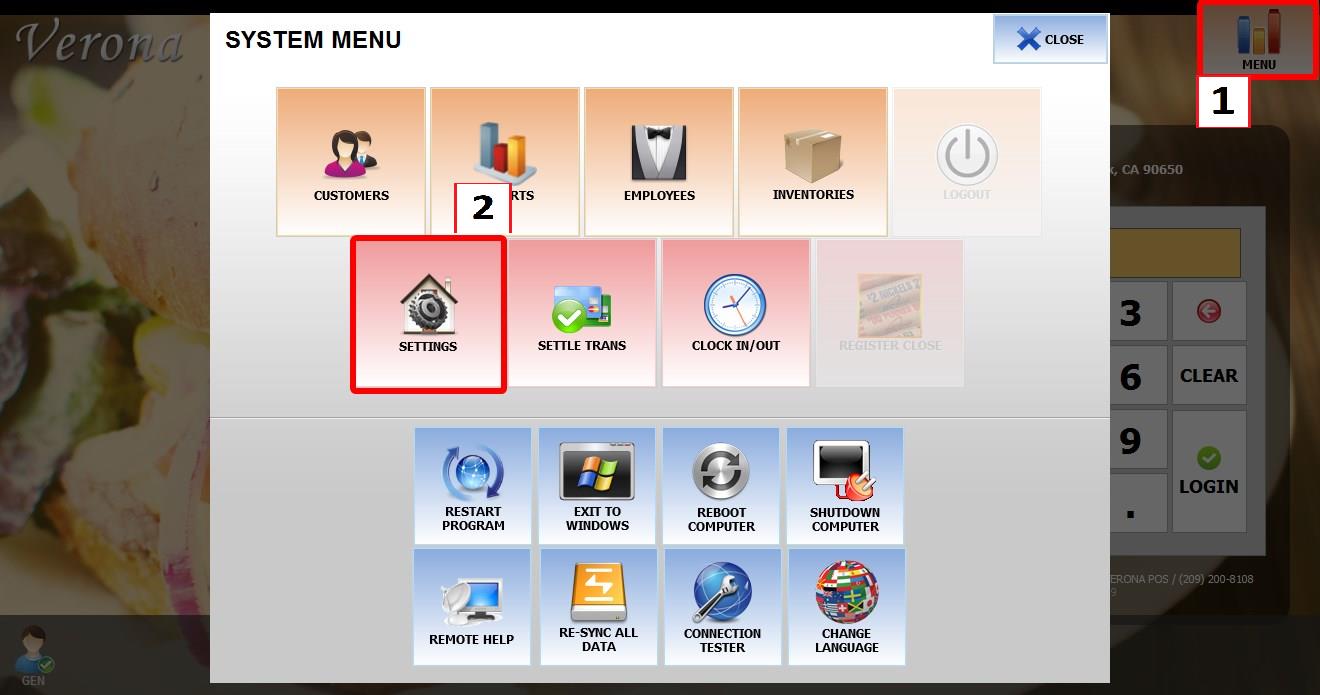
From the MAIN SCREEN, click MENU, then select SETTINGS.

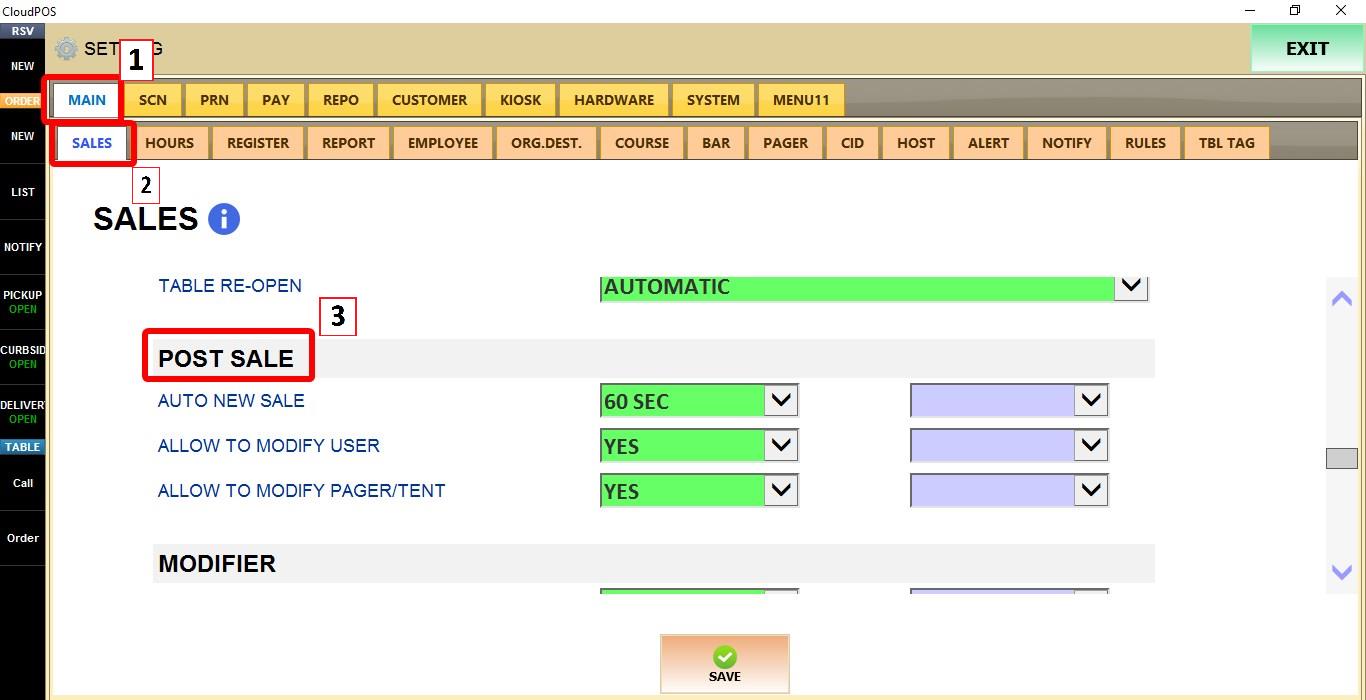
Go to MAIN > SALES > POST SALE.
TERMINAL
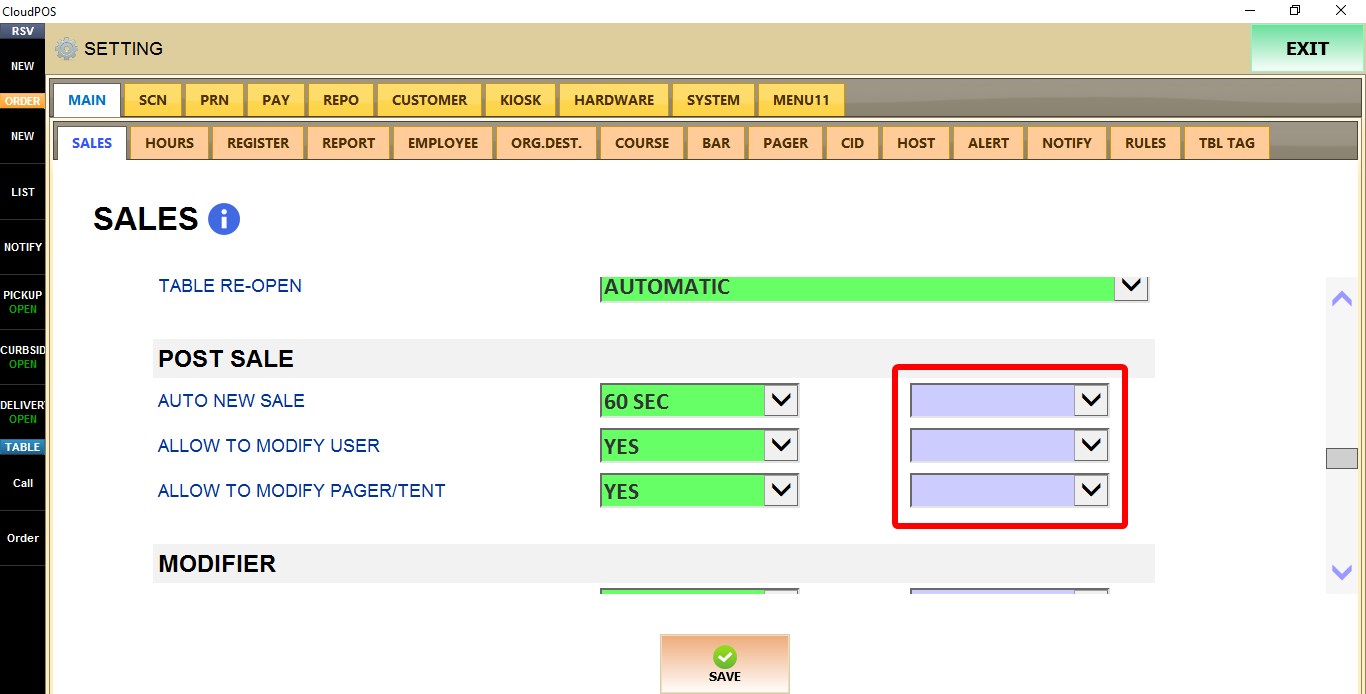
Use the TERMINAL dropdown to configure these settings for the specific POS terminal you are on.

AUTO NEW SALE
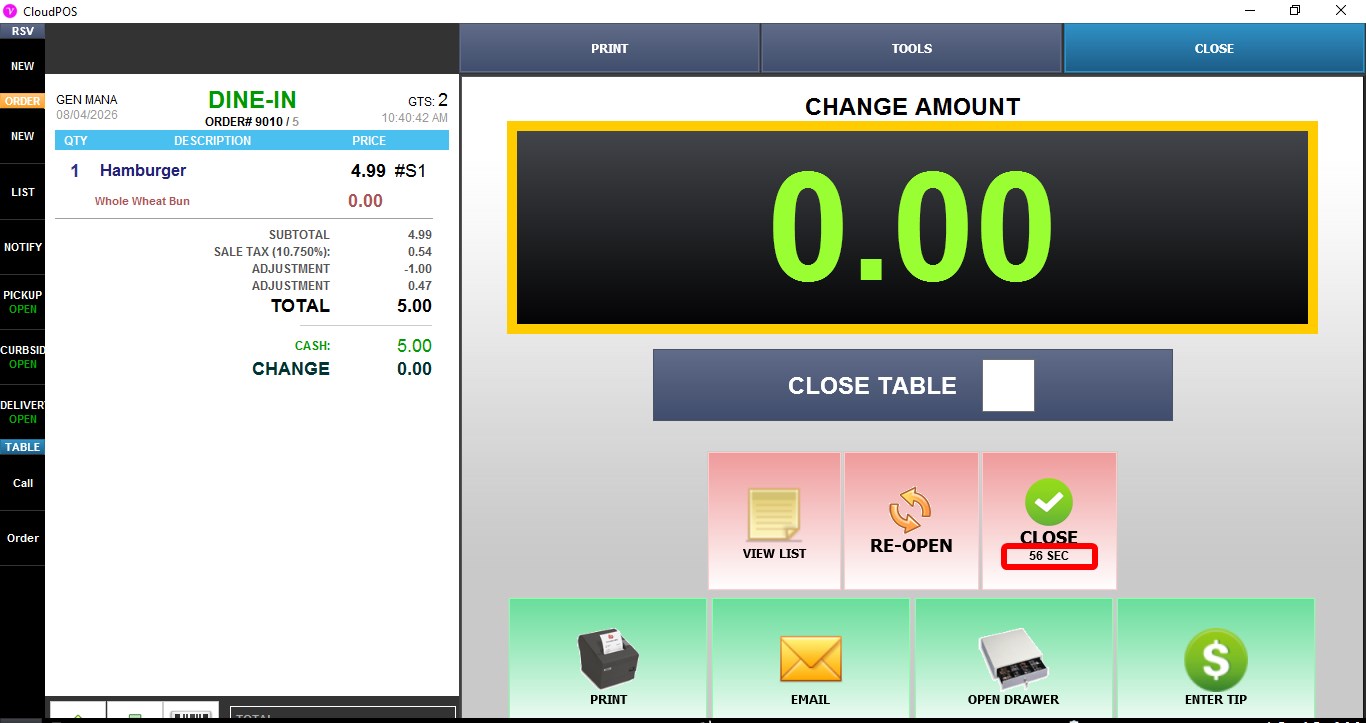
Controls how long the system waits after completing a sale before automatically returning to the table map. A countdown button is displayed after the sale, and once the selected delay expires, the POS returns to the map screen.
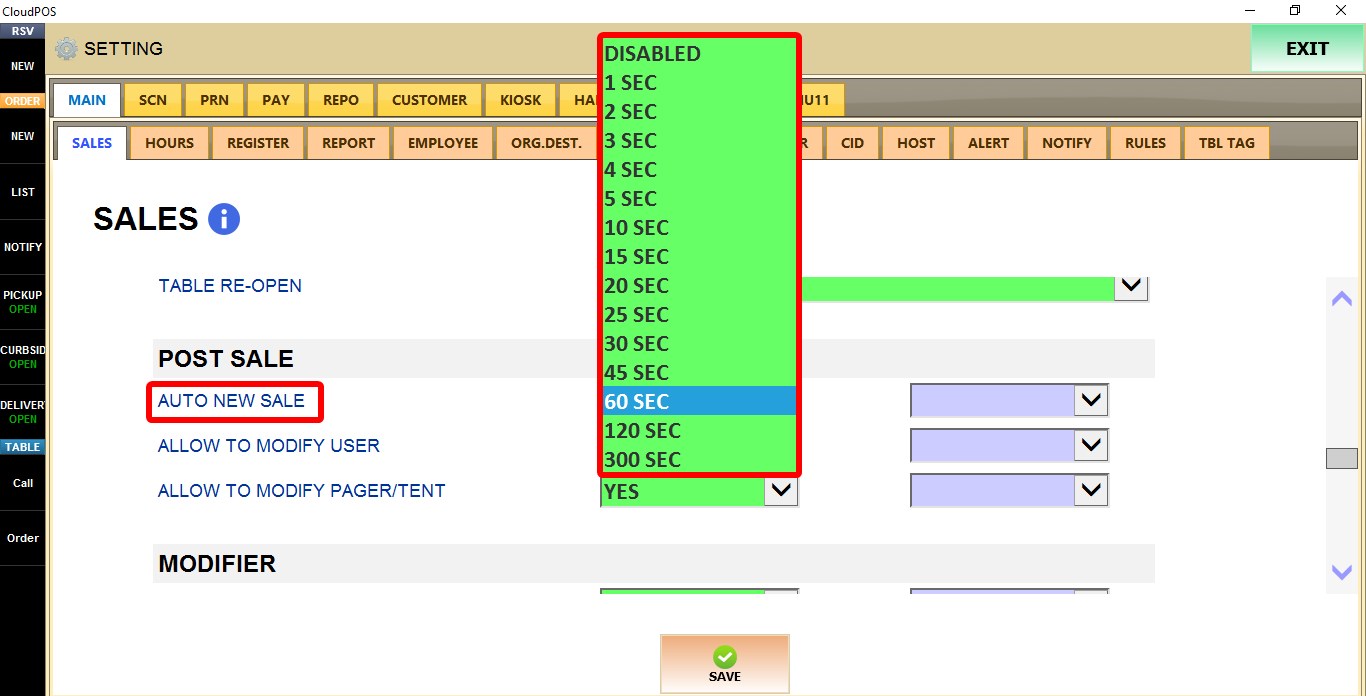
1. DISABLED: Automatic return is disabled.
2. 1 SEC through 300 SEC: Returns to the table map after the selected delay.
ALLOW TO MODIFY USER
Controls whether the employee assigned to a completed sale can be changed.

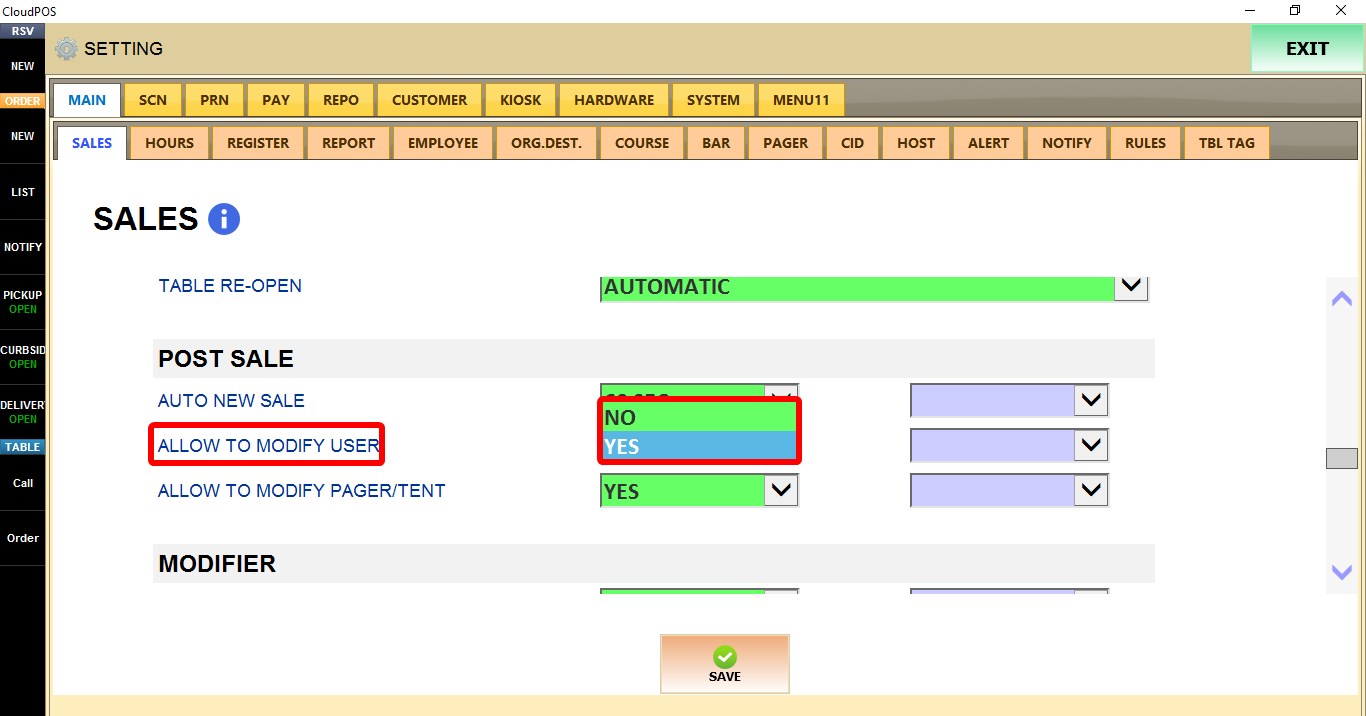
1. NO: The assigned employee cannot be changed.
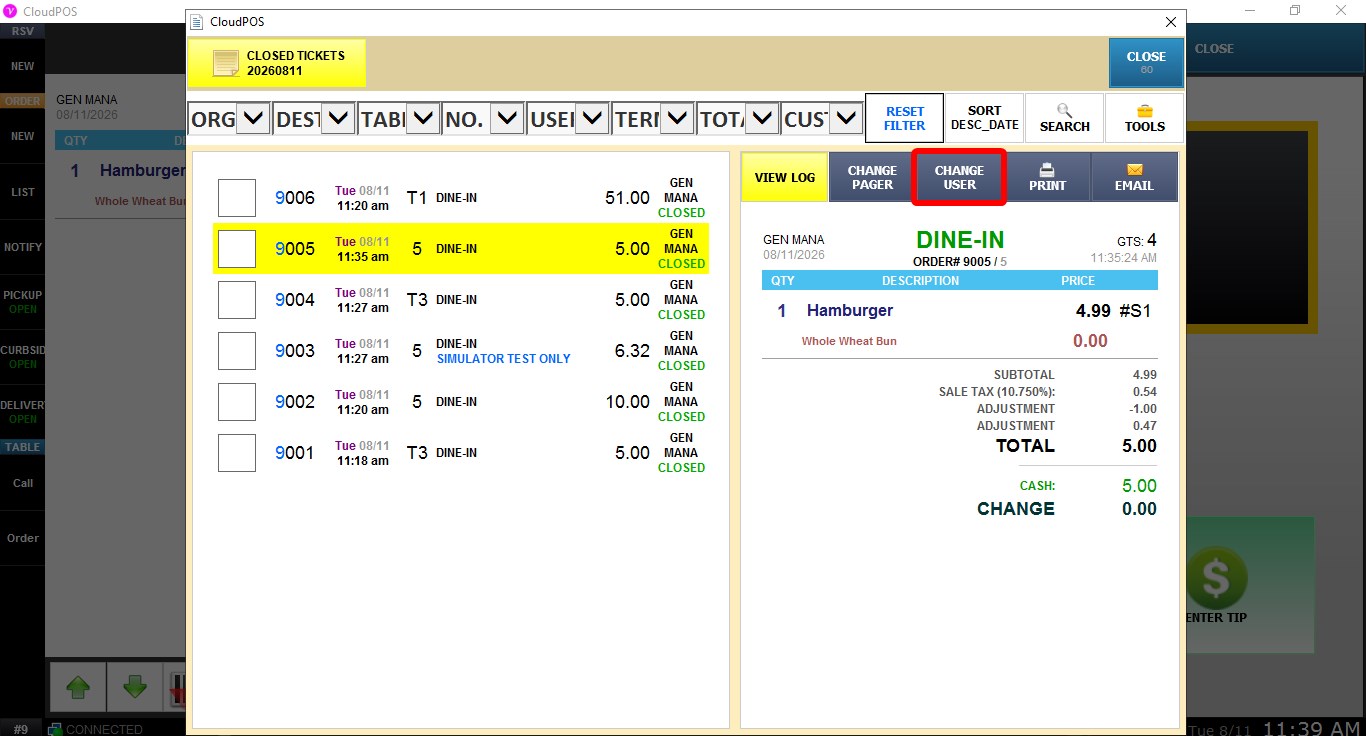
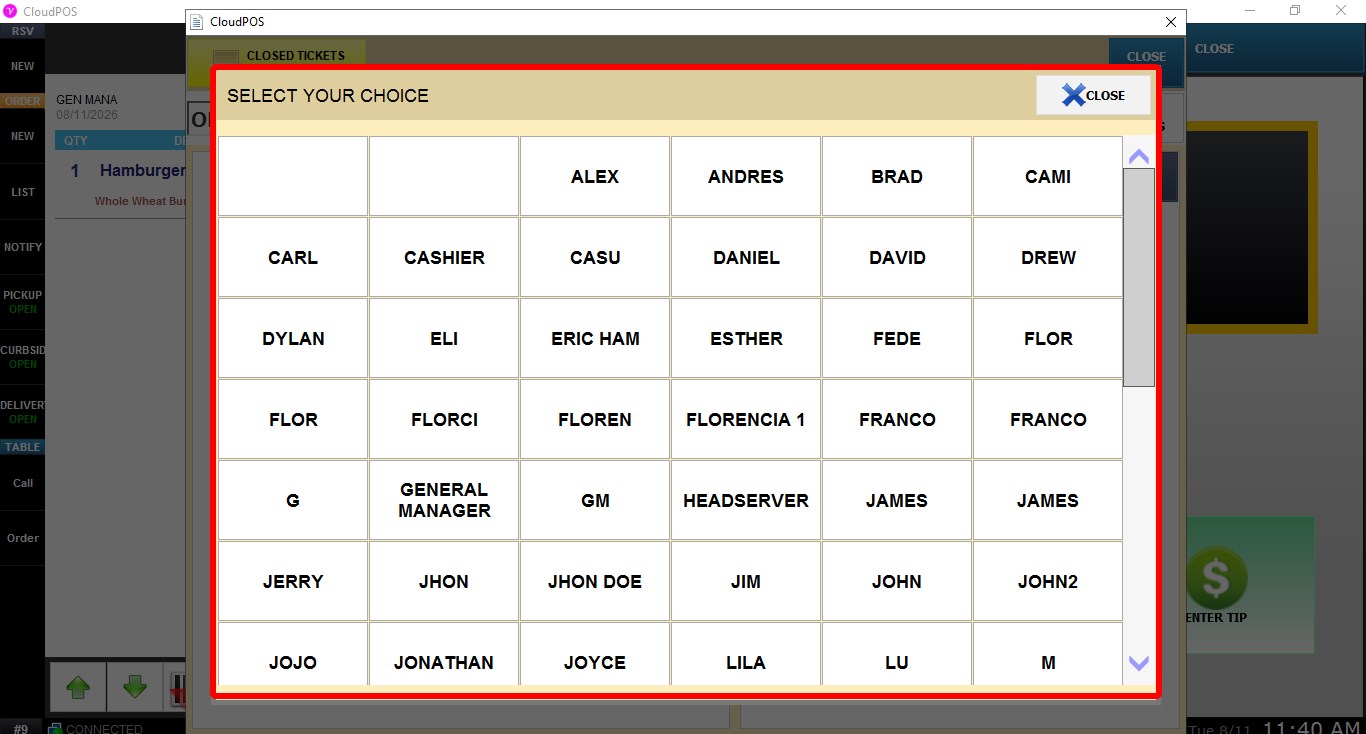
2. YES: After completing a sale, click LIST to open the transaction in the closed ticket list. A CHANGE USER button will be available, allowing you to assign the sale to a different employee.
ALLOW TO MODIFY PAGER/TENT
Controls whether the pager or tent number assigned to a completed sale can be changed.

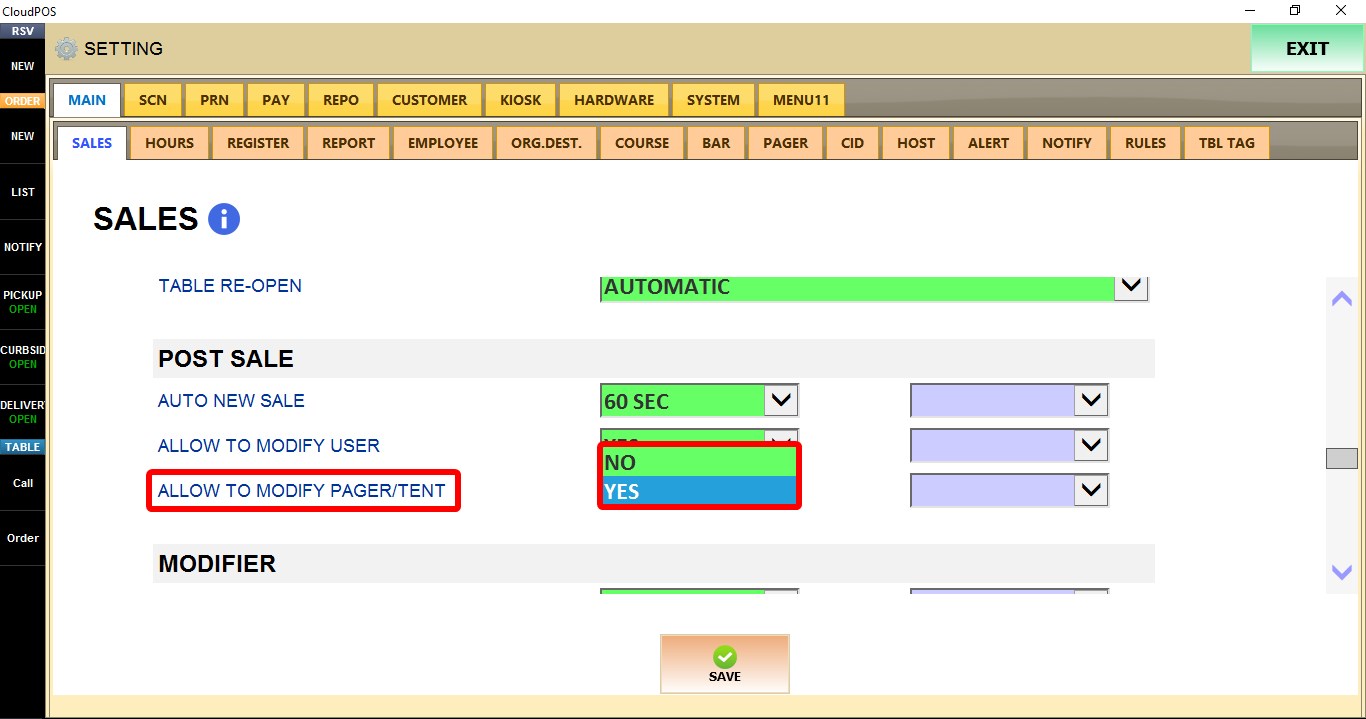
1. NO: The pager or tent number cannot be changed.
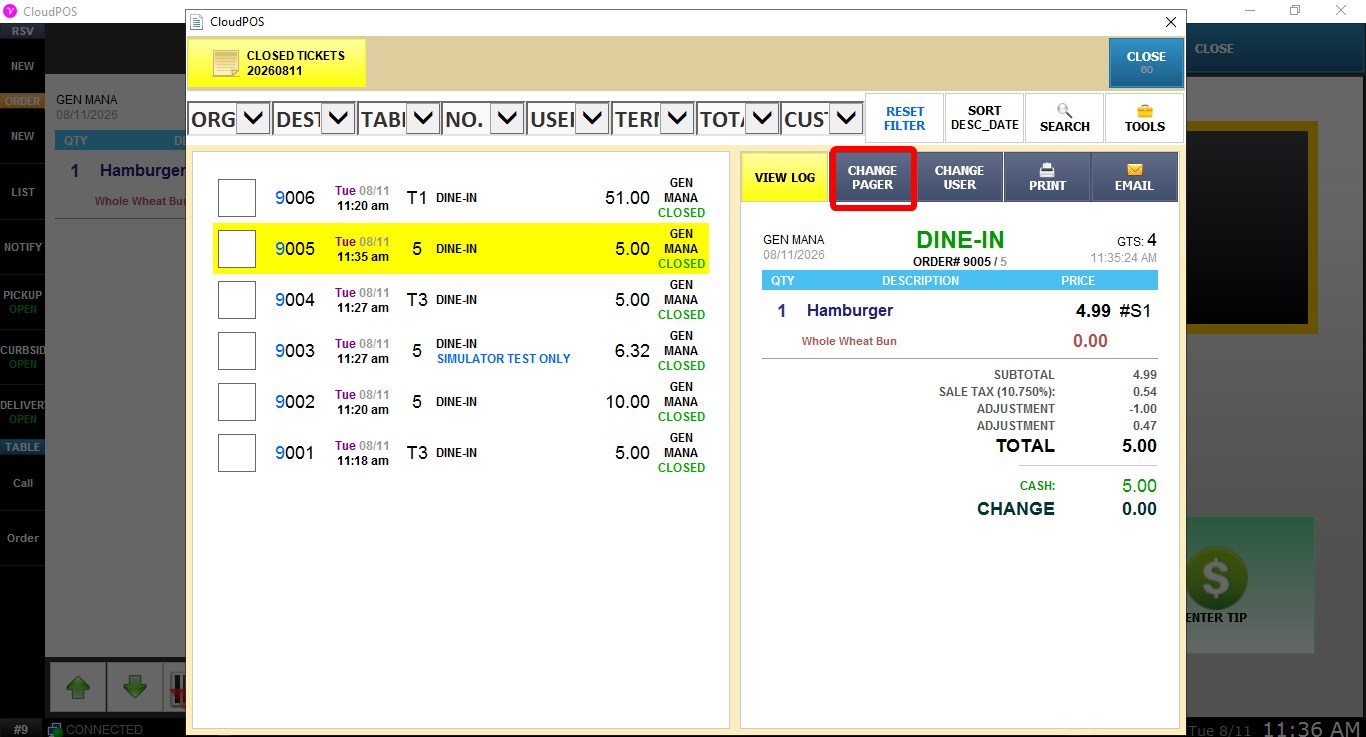
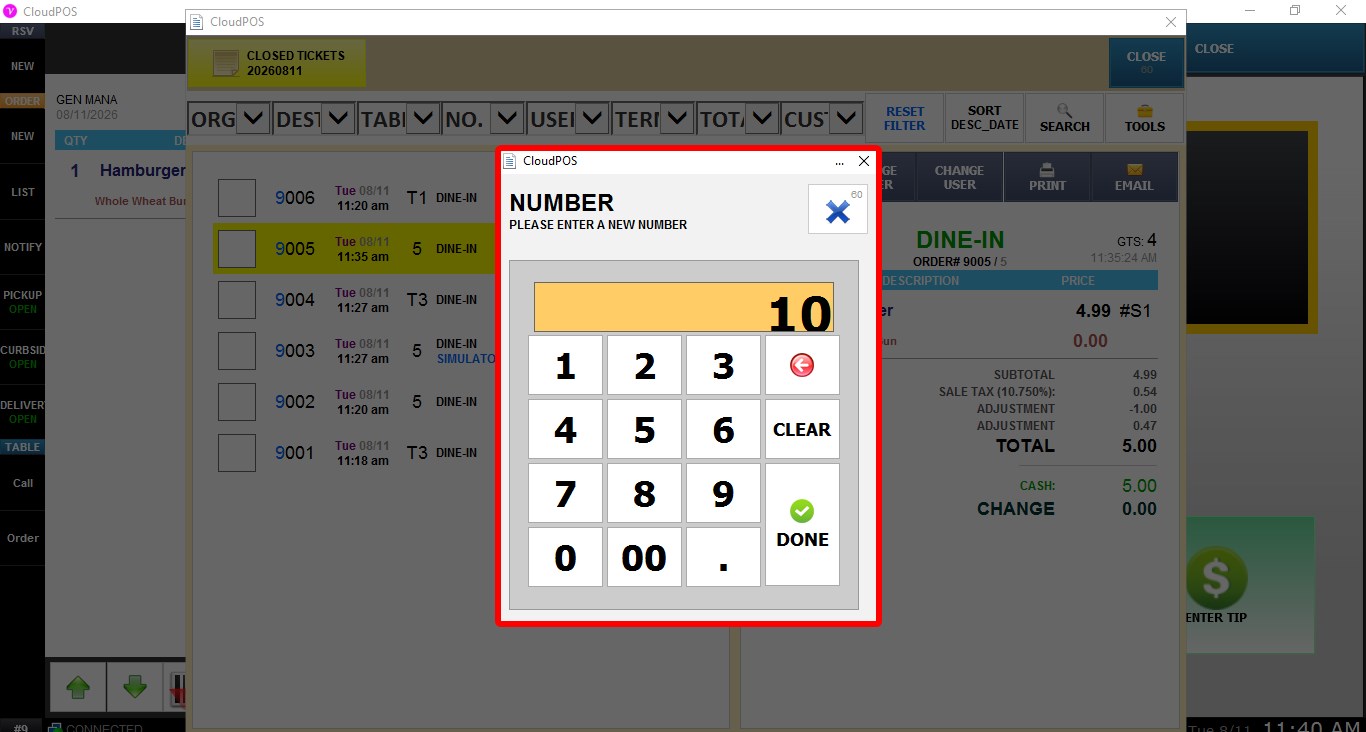
2. YES: After completing a sale, click LIST to open the transaction in the closed ticket list. A CHANGE PAGER button will be available, allowing you to enter a new pager or tent number using the numeric keypad.
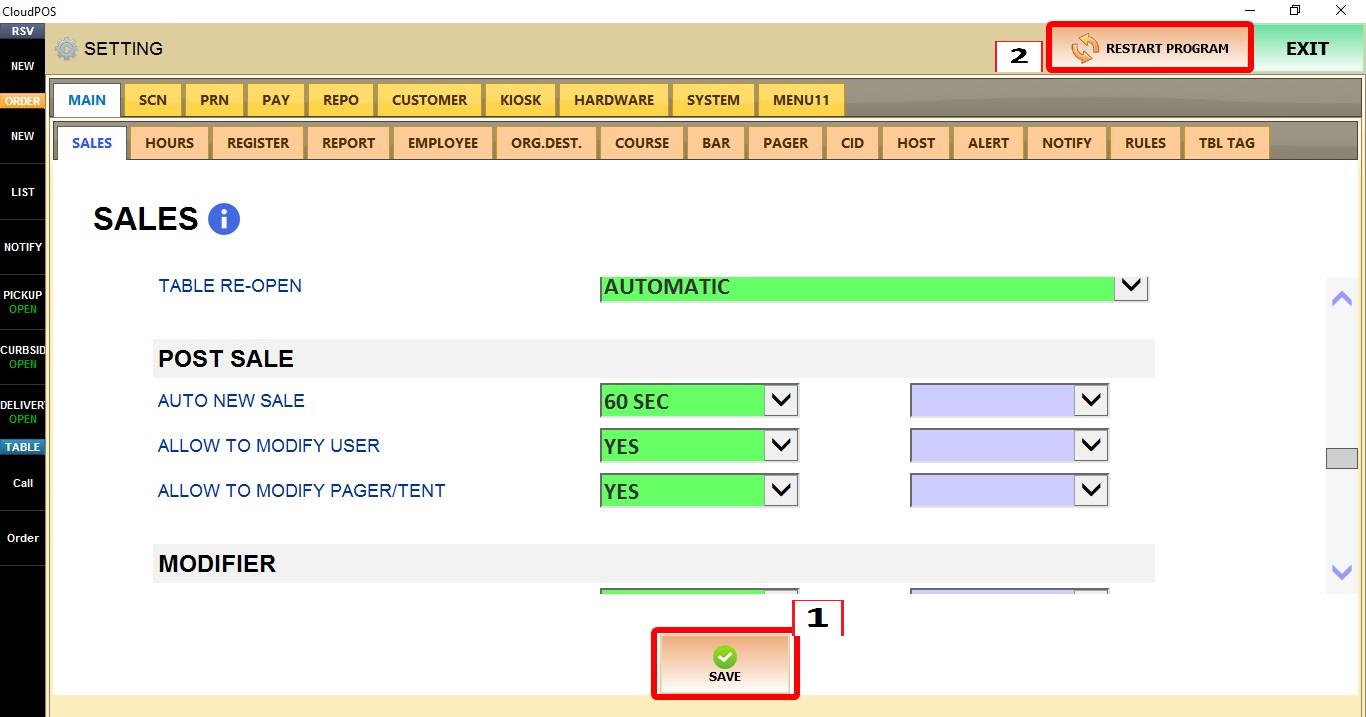
Click SAVE to apply the changes, then RESTART the program.