Managing the Online Orders
This process explains how to manage online orders after a customer has placed one, including accepting or rejecting new orders, tracking pending orders, and notifying customers when their order is ready.
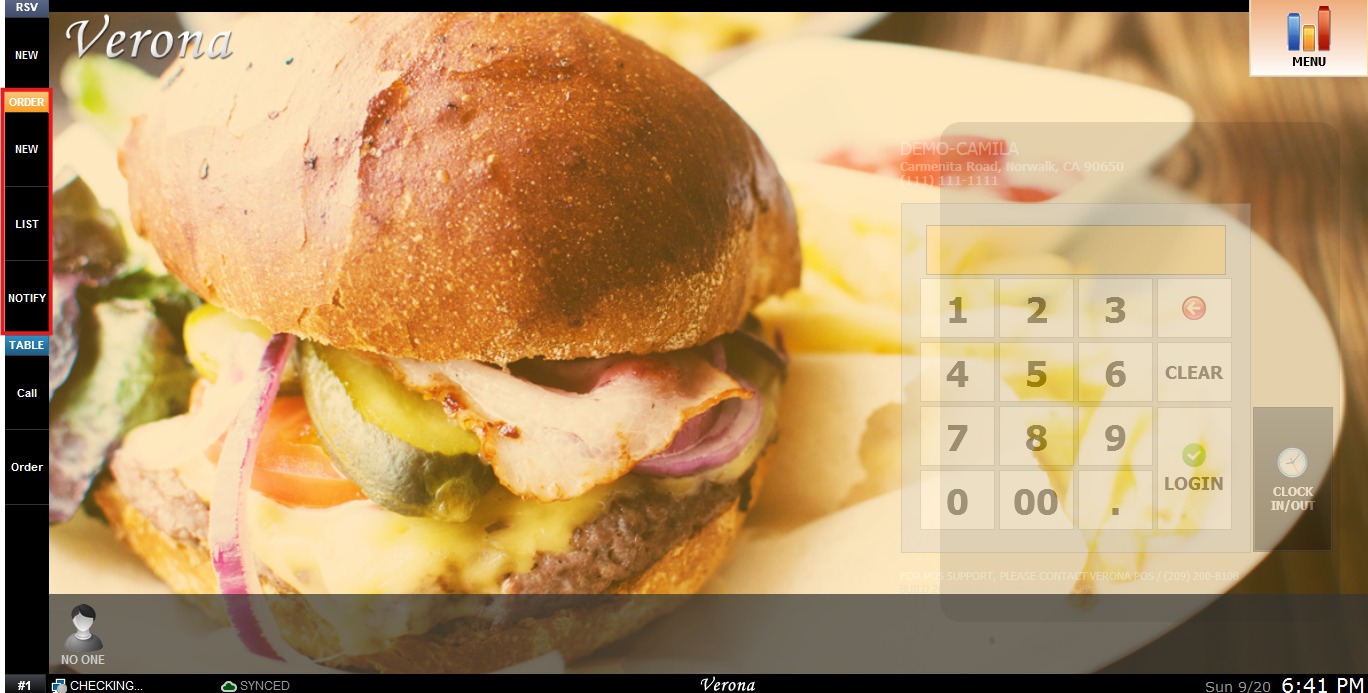
MAIN SCREEN> ORDER TOOLBAR> NEW / LIST / NOTIFY
All online orders are managed from the Online Order section on the left toolbar of the Main Screen, which is divided into three sections: NEW, LIST, and NOTIFY.
To learn how a customer places an order online, please refer to the How to Place an Order Online Guide.
NEW
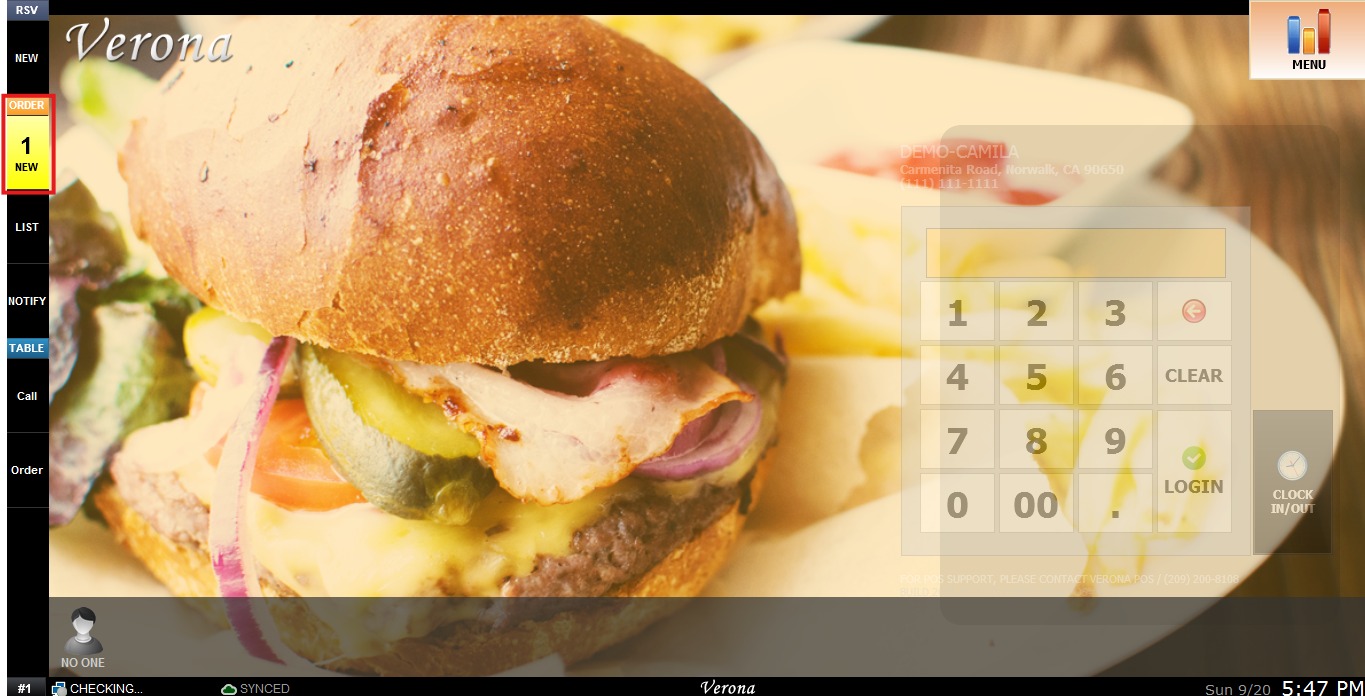
When an online order is placed and requires manual confirmation by staff, the NEW button will turn yellow and an alarm sound will play.
Click NEW to review the order.
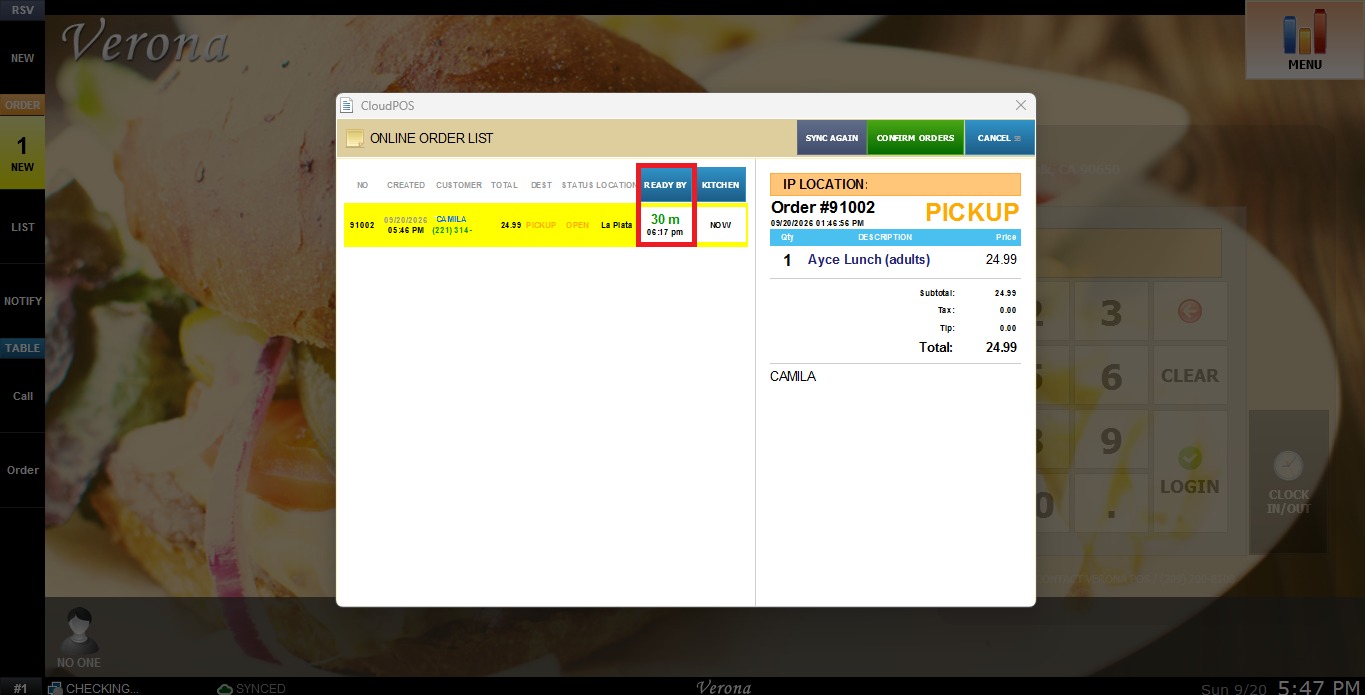
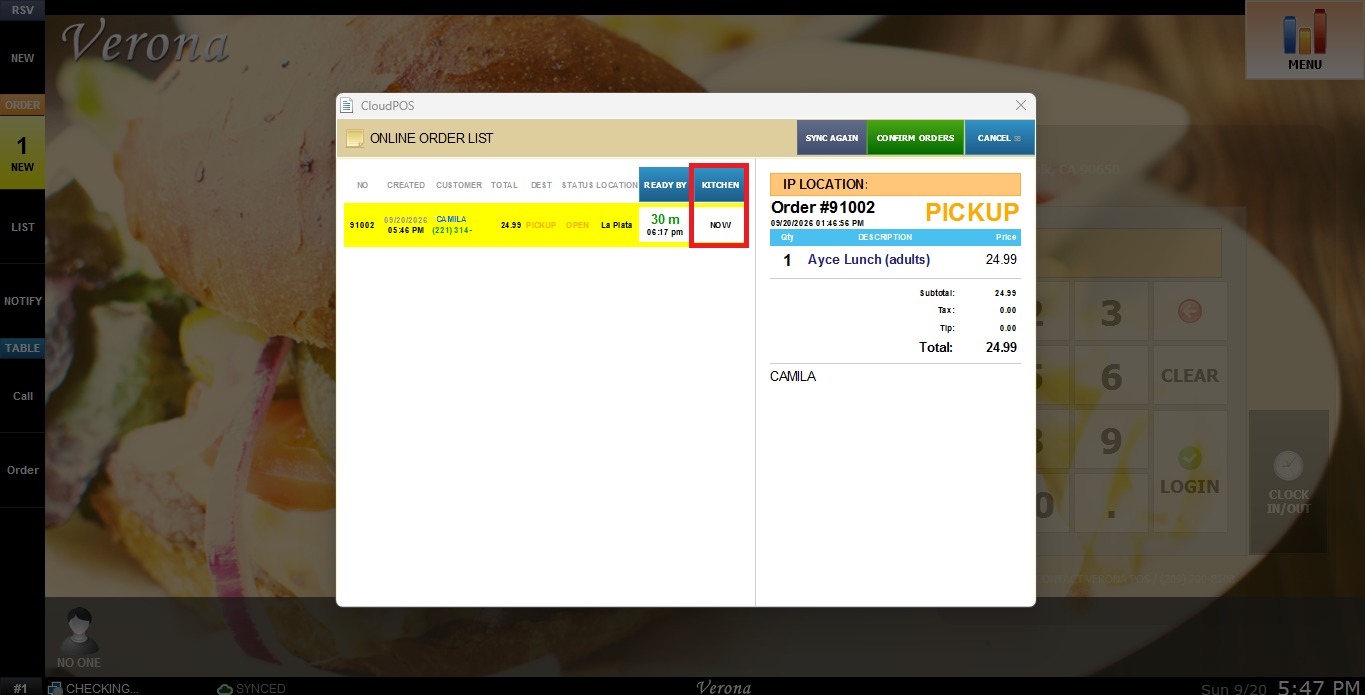
From there, the order can be assigned a ready-by time by clicking the READY BY button.
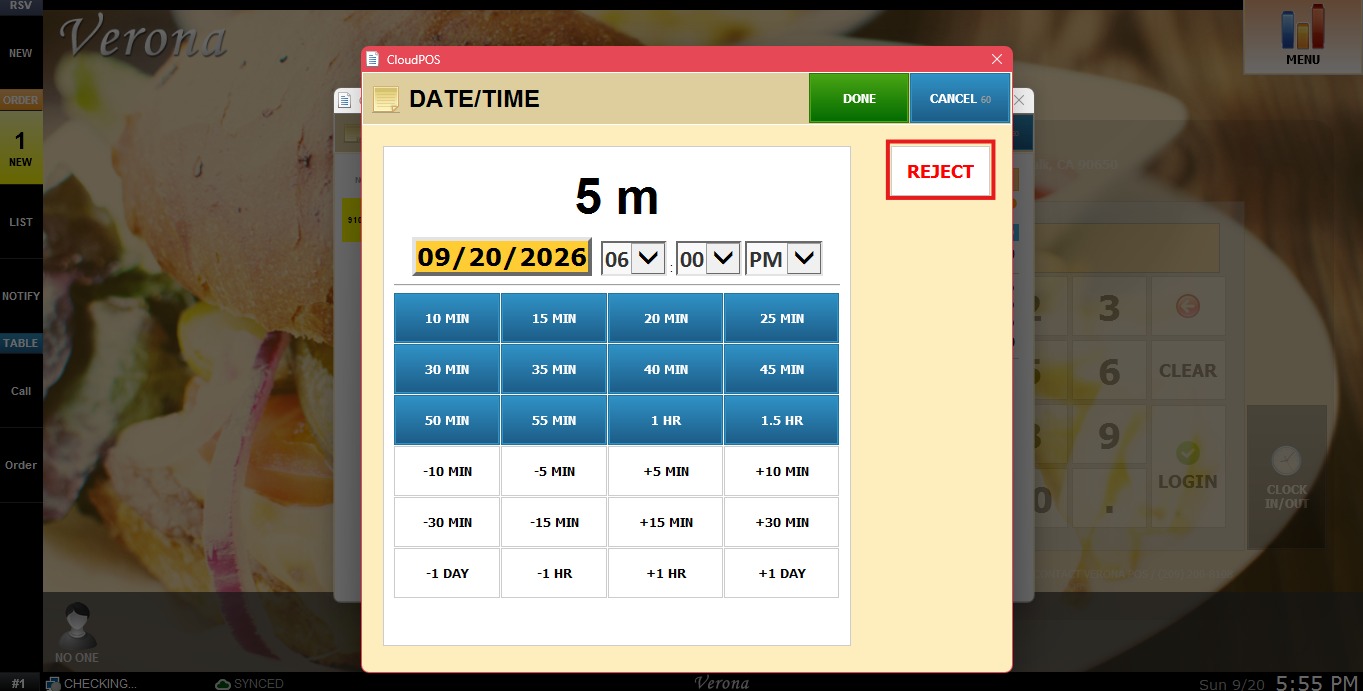
Define the ready time or reject the order, then click DONE.
Following the same steps, the order can be sent to the kitchen by clicking the KITCHEN button.
Once the decision is made, click CONFIRM ORDER. A notification will automatically be sent to the customer confirming their order.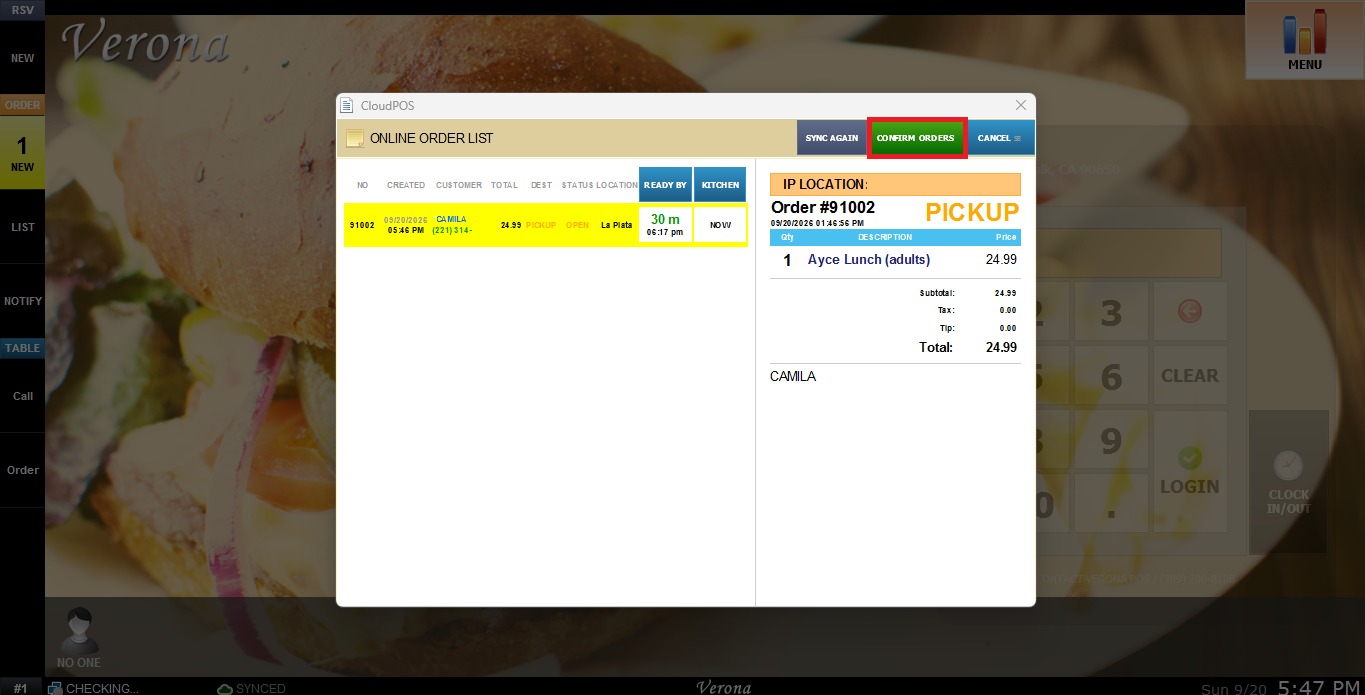
NOTE: If orders are set to confirm automatically, they will bypass this step and go directly to the LIST.
To enable the automatic confirmation, refer to Online Ordering Settings guide.
LIST
The LIST section displays all pending orders and their details.
Click on the LIST button on the left toolbar, it will open all the Online Orders that were confirmed or rejected.
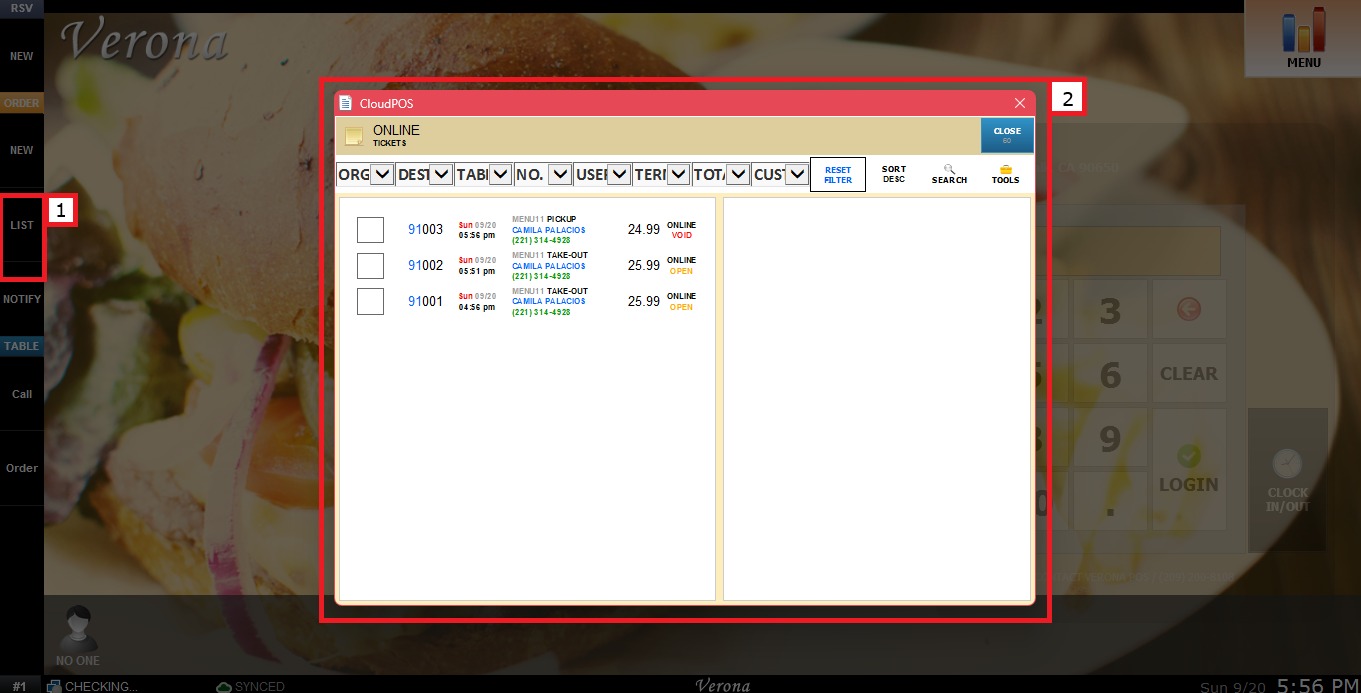
Click an order to see its details. From there, you can print the receipt, email it, or notify the customer by clicking the NOTIFY button, if needed.
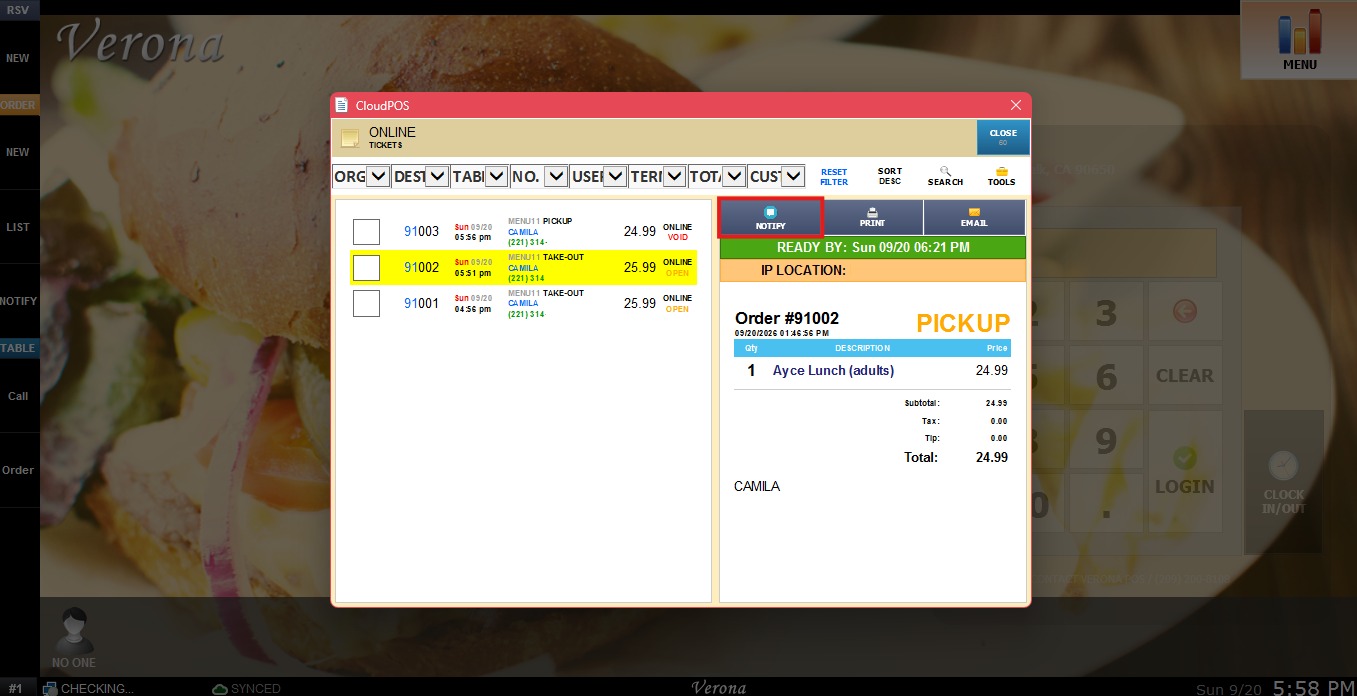
NOTIFY
This section sends an order ready notification to the customer.
Once an order is ready, click the NOTIFY button, the system will prompt for the Ticket Number.
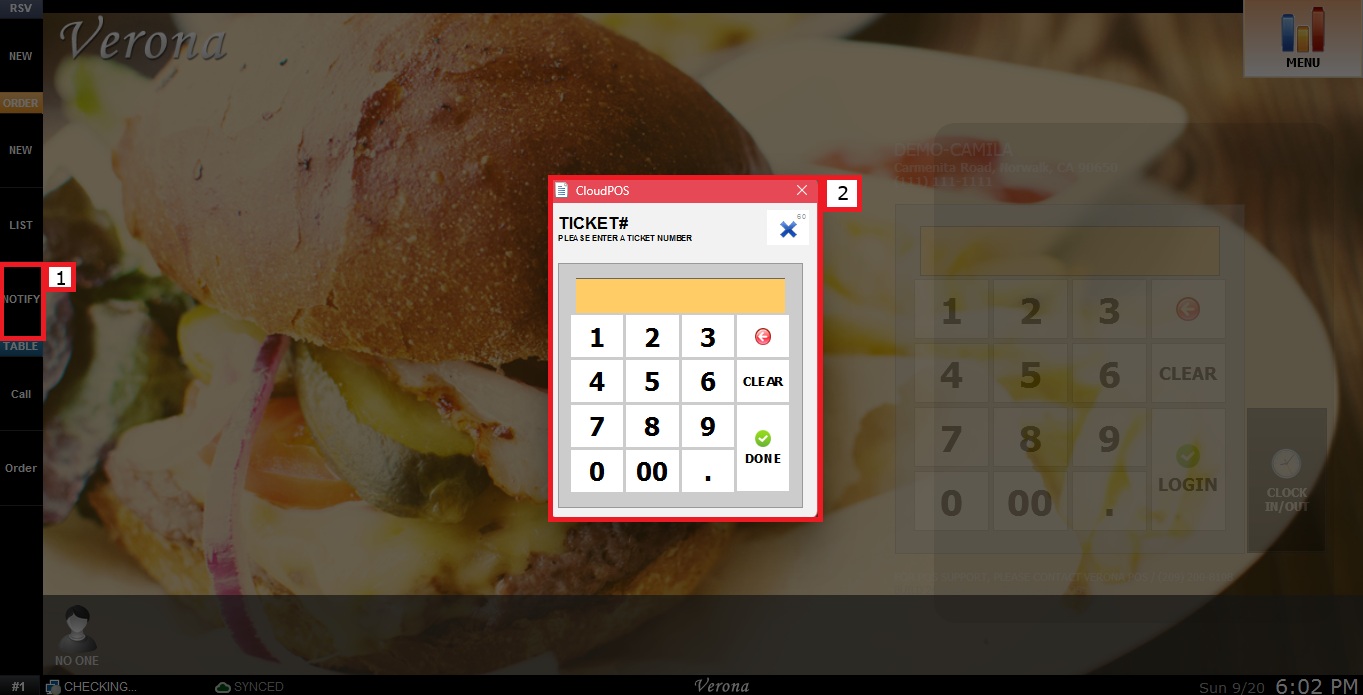
After entering it, the system will ask to confirm sending the ready notification.
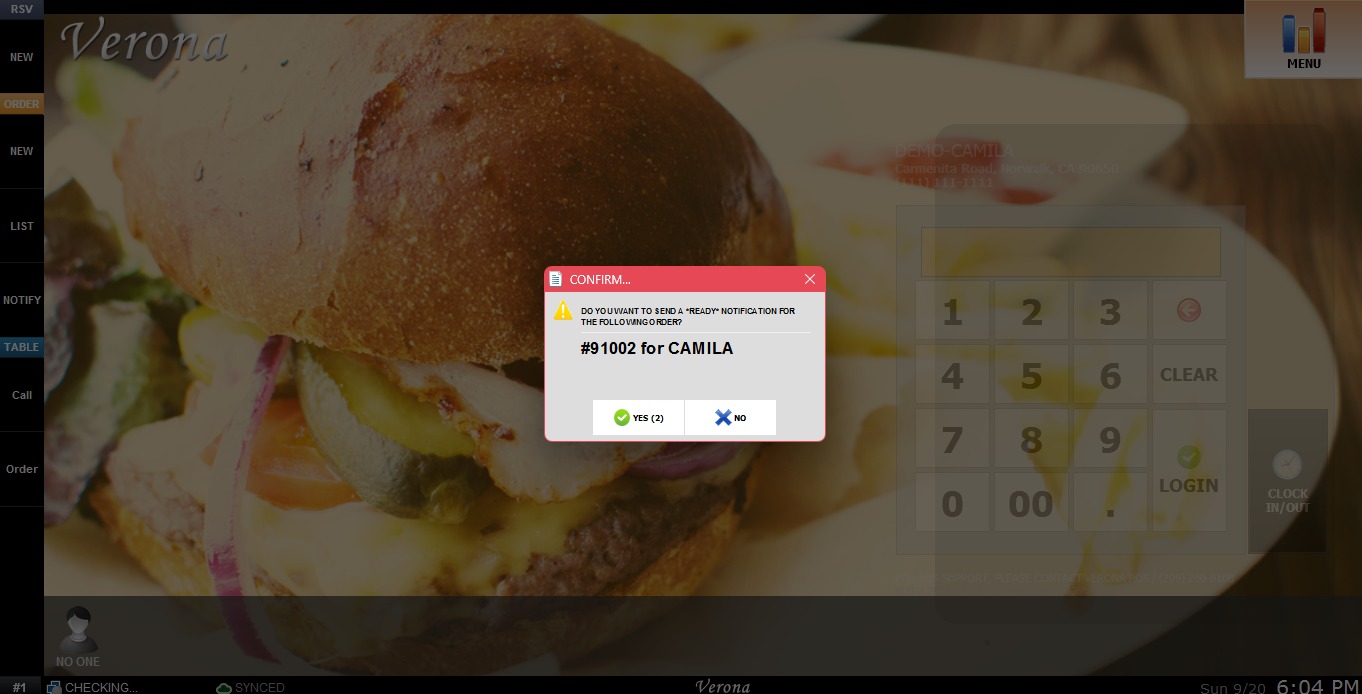
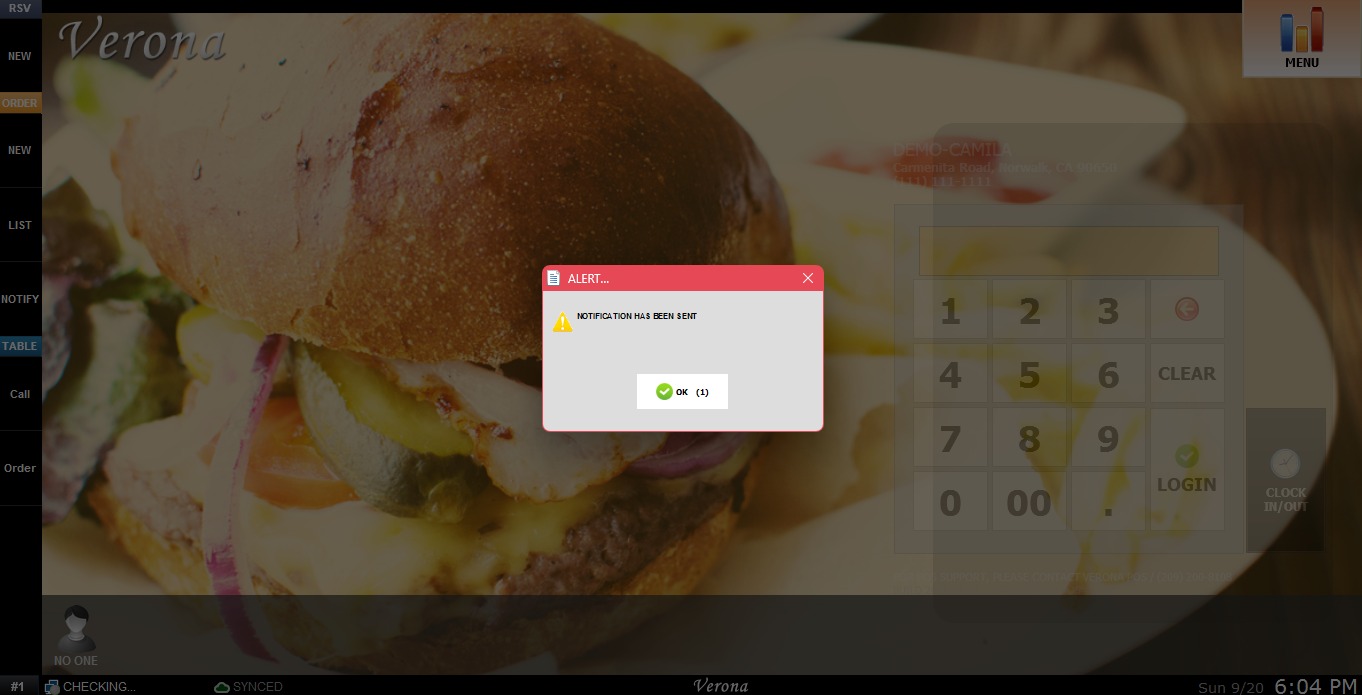
After confirming, the automatic message will be sent to the customer.
COMPLETING THE ORDER
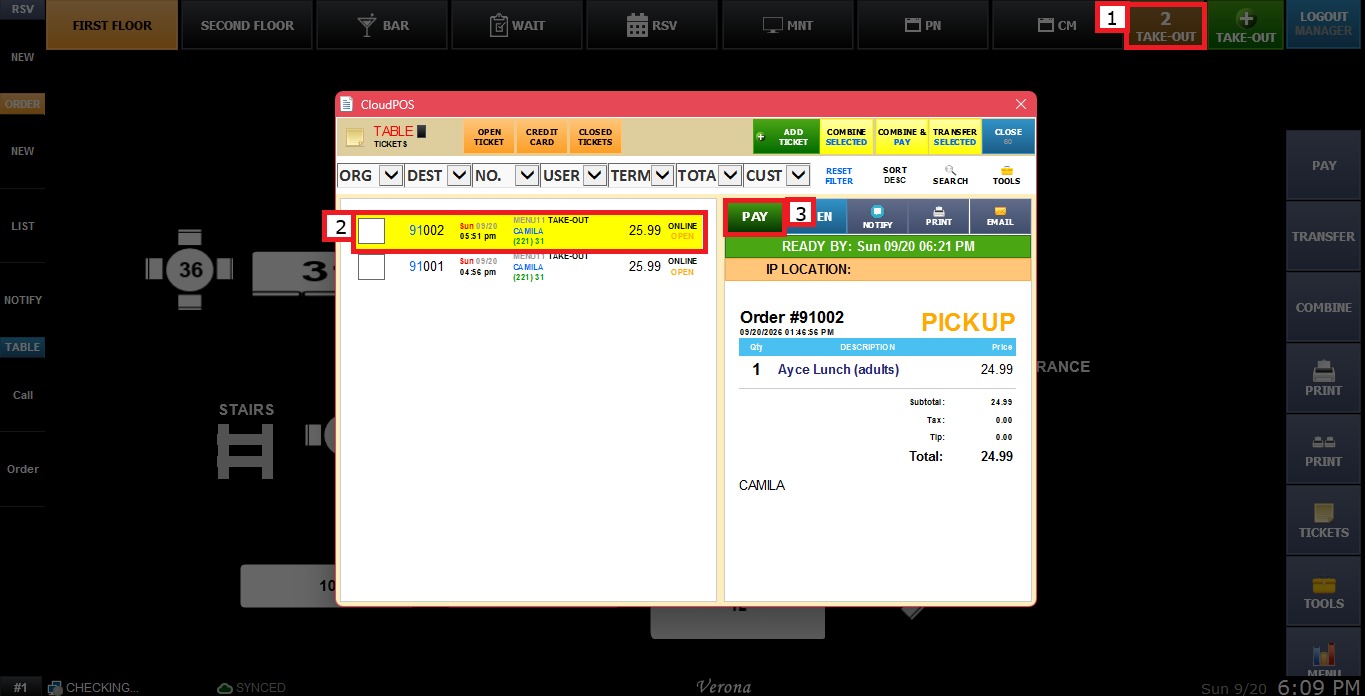
If the order has not been paid, log into the Sales screen and open the TAKEOUT list. Select the order, then click PAY to proceed with payment as usual, or OPEN to modify the order before payment.
To learn how to manage Online Orders from the Merchant Portal visit the Ordering guide.