Payment Complete
This guide explains the screens displayed after a payment is completed in CloudPOS Mobile.
CloudPOS Mobile > Ticket > PAY > Signature > OK
Thank You Screen:
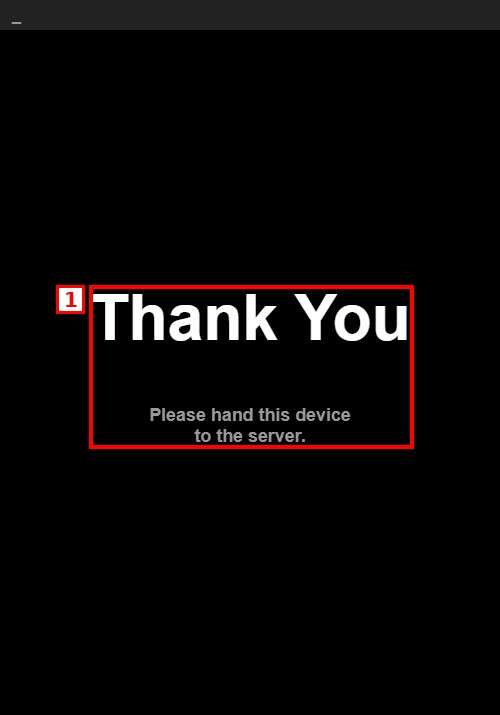
1. THANK YOU: After the signature is submitted, a full-screen Thank You message asks the customer to hand the device back to the server. Tap the top-left corner of the screen to continue to the Payment Approved screen.
Payment Approved Screen:
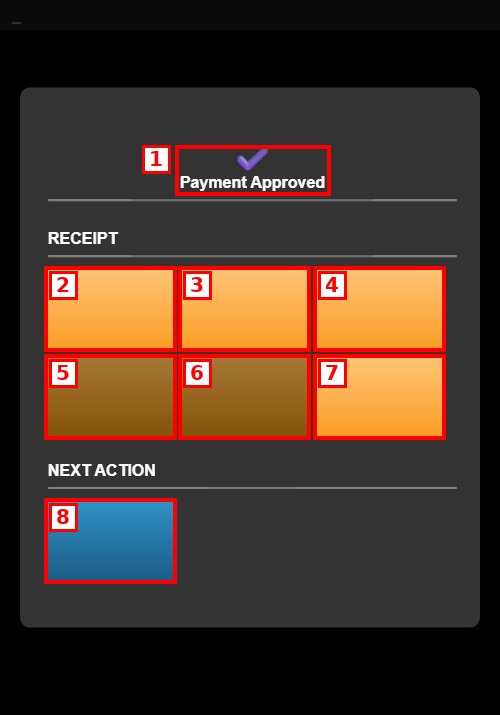
1. PAYMENT APPROVED: Confirms that the payment was approved.
2. CUSTOMER COPY LOCAL: Prints a customer receipt on the local printer.
3. SIGNATURE COPY LOCAL: Prints a signature copy on the local printer.
4. EMAIL RECEIPT: Sends the receipt by email.
5. CUSTOMER COPY REMOTE: Prints a customer receipt on a remote printer.
6. SIGNATURE COPY REMOTE: Prints a signature copy on a remote printer.
7. TEXT RECEIPT: Sends the receipt by text message.
8. CLOSE: Closes the payment screen and returns to the ticket list.
NOTE: For Post Tip credit card payments, a CUSTOMER TIP & SIGN button appears above the RECEIPT section to collect the tip and signature on the same screen.
After Payment:
Once the payment is closed, the ticket moves from OPEN TICKETS to CLOSED TICKETS. If a balance remains (partial payment), the ticket stays in OPEN TICKETS with the remaining balance.