Assigning a Category to a Kitchen Printer
The Kitchen Printer feature allows categories to automatically send ordered items to specific kitchen printers. This helps organize kitchen operations by routing orders to the appropriate preparation stations, such as grill, bar, dessert, or prep areas. A category can be assigned to a single kitchen printer or distributed across multiple printers simultaneously.
Main Screen> MENU> SETTINGS> REPOSITORY> MENU> EDIT> DEPARTMENT> CATEGORY
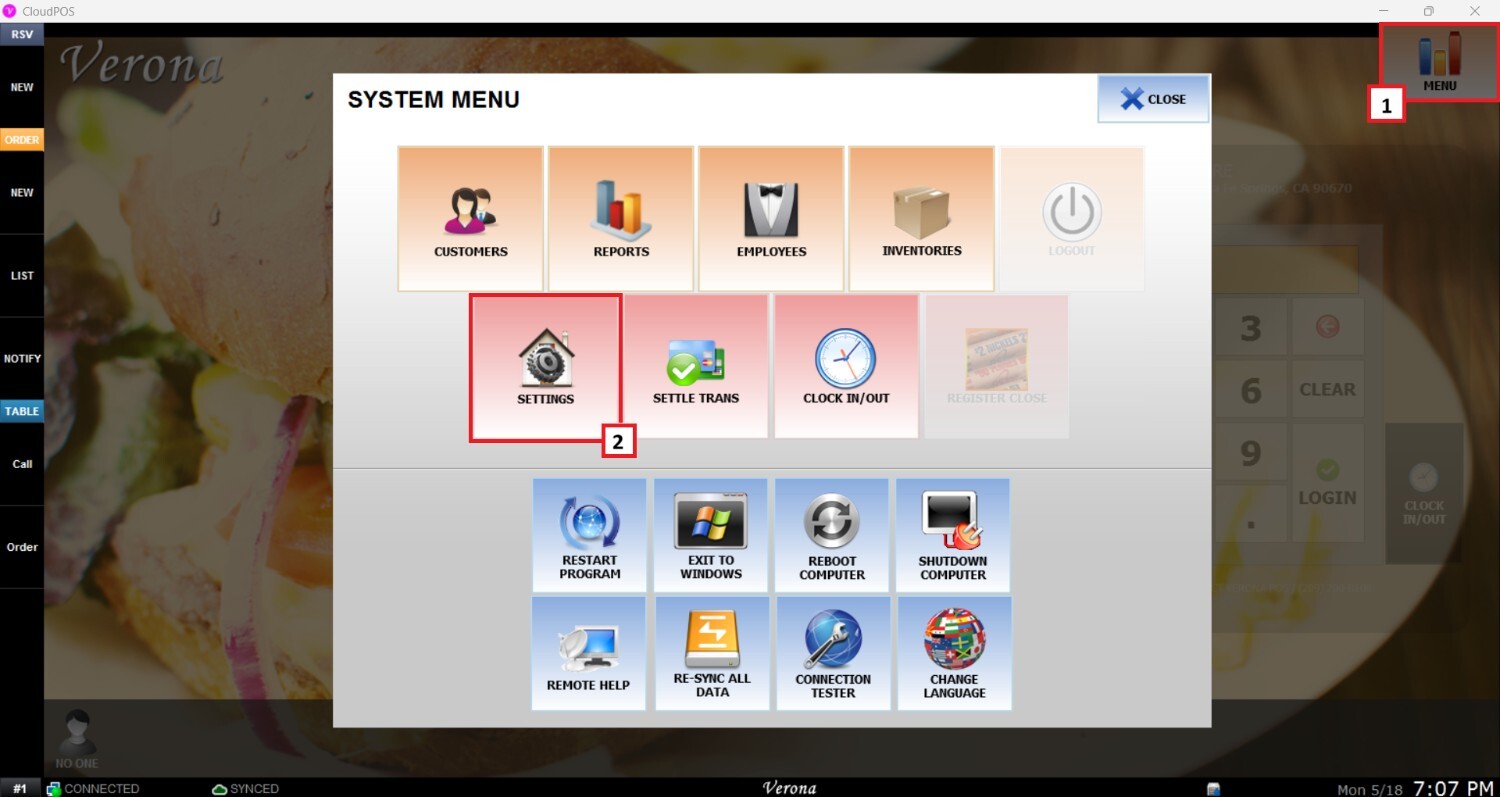
Go to MENU, then SETTINGS.
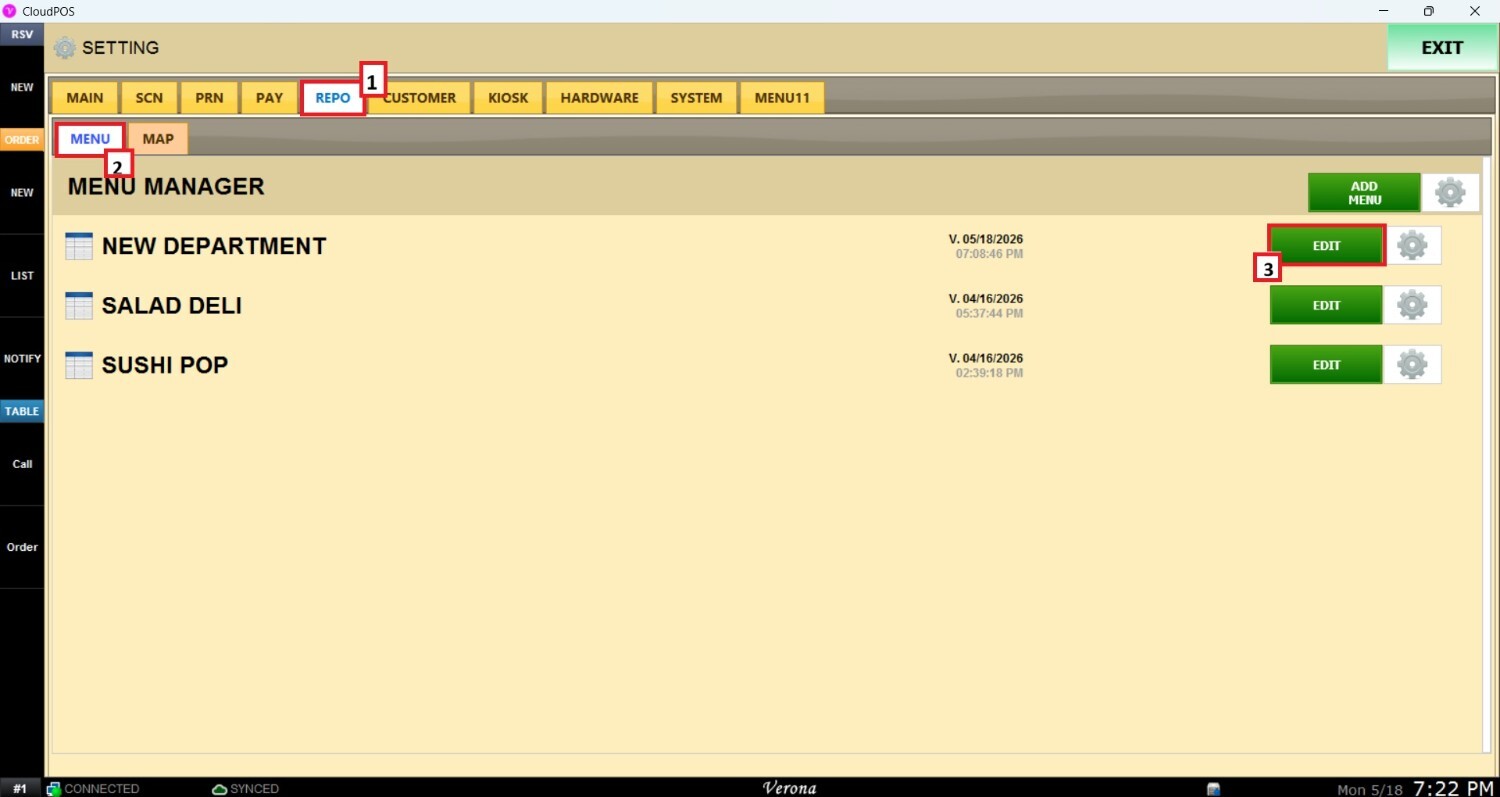
Open the REPO (REPOSITORY) tab, select MENU, Locate the menu you want to modify and click EDIT.
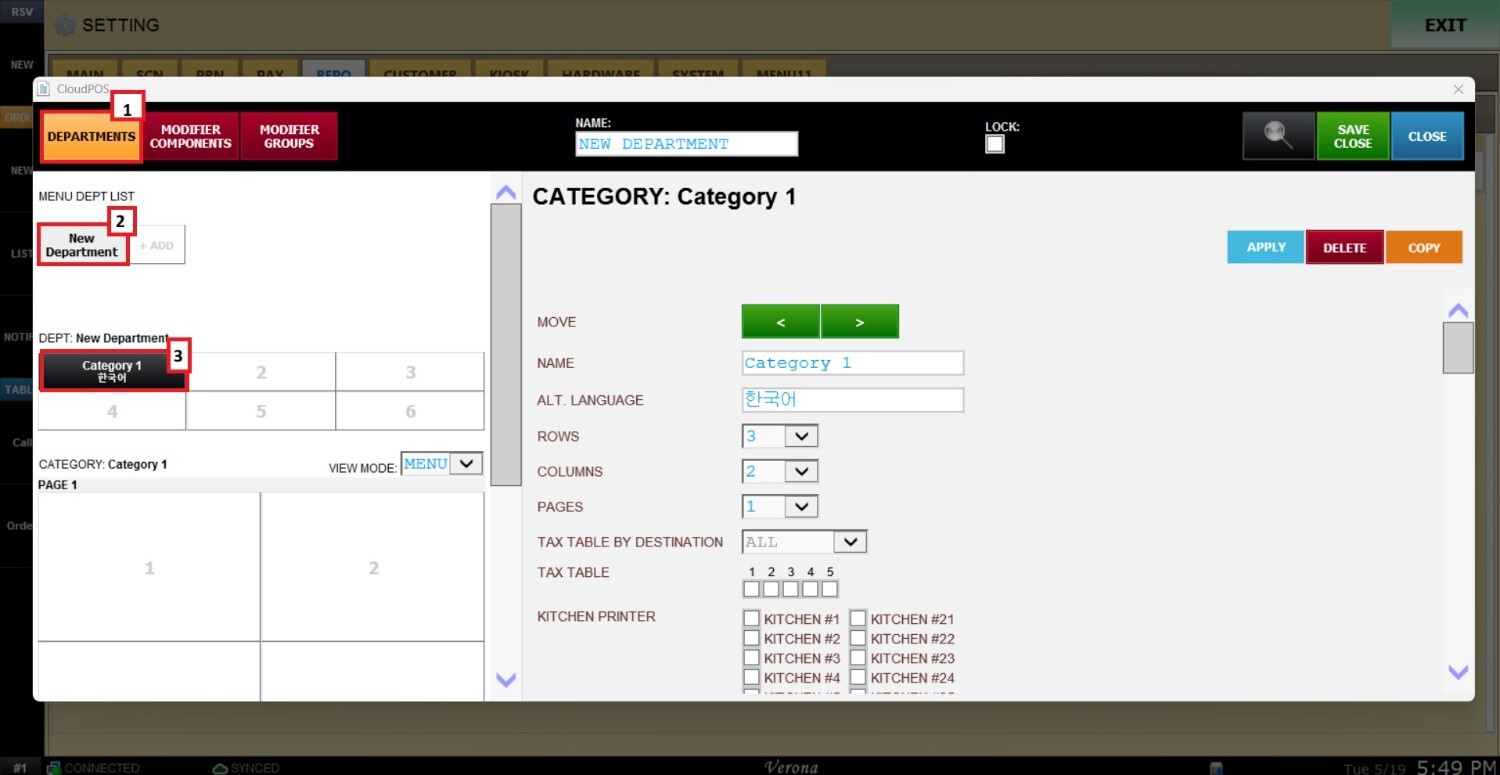
Navigate to the DEPARTMENT section, select the desired department, and then choose the category you want to assign to a kitchen printer.
CONFIGURE KITCHEN PRINTERS
Inside the category panel, locate the KITCHEN PRINTER section.
A category can be assigned to up to 40 kitchen printers, either individually or to multiple printers at the same time.
Check the corresponding printer boxes where orders from this category should print.
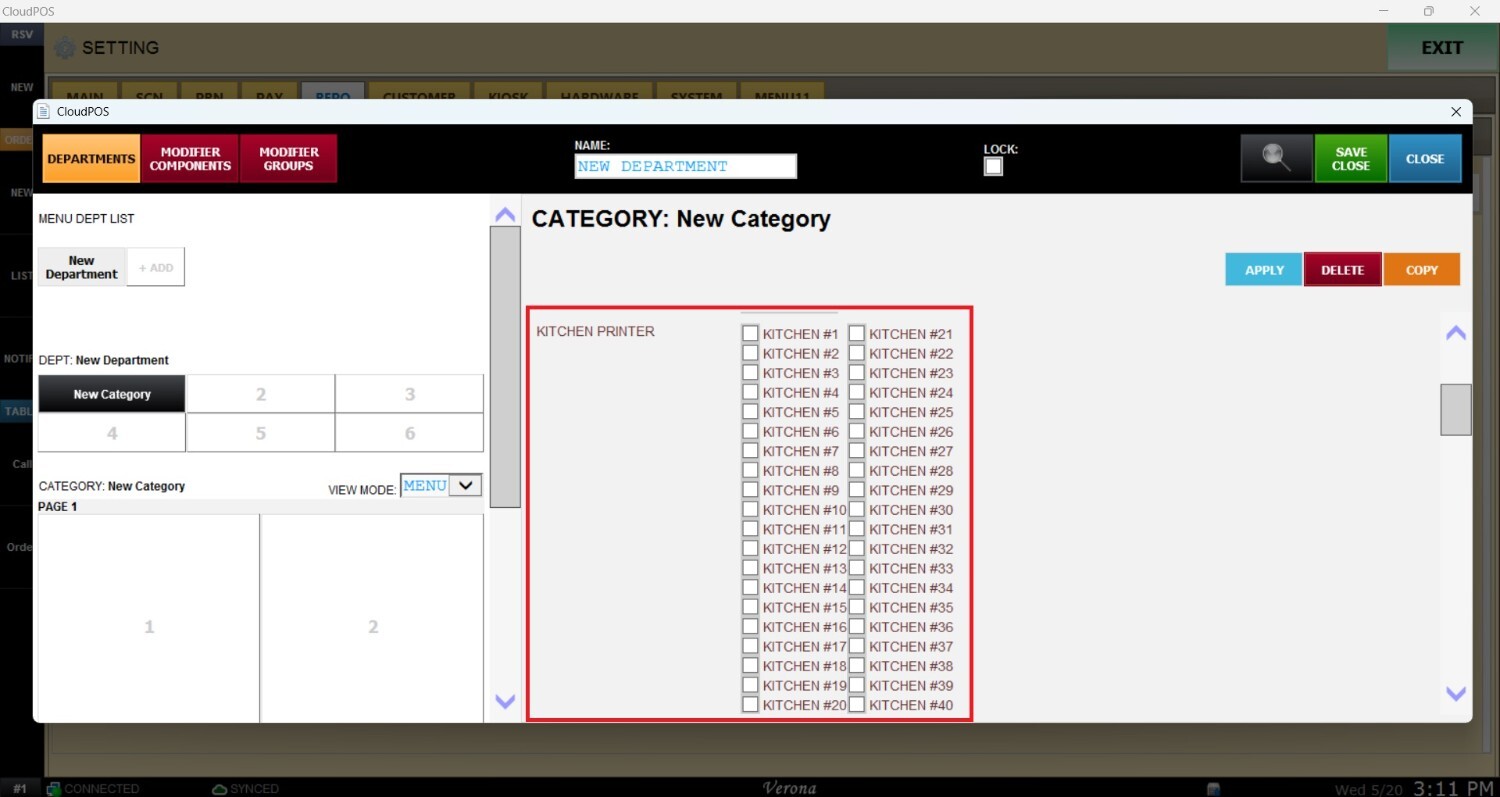
Hint: To learn how to configure printer devices, refer to the Kitchen Printer guide.
Press APPLY to save the configuration.
KITCHEN PRINT ORDER
Menu items printed on kitchen tickets can also be organized using the Kitchen Print Order section.
When a Kitchen Print Order is configured at the category level, all items inside that category automatically inherit the same print priority. This helps control the order in which items appear on kitchen tickets during preparation.
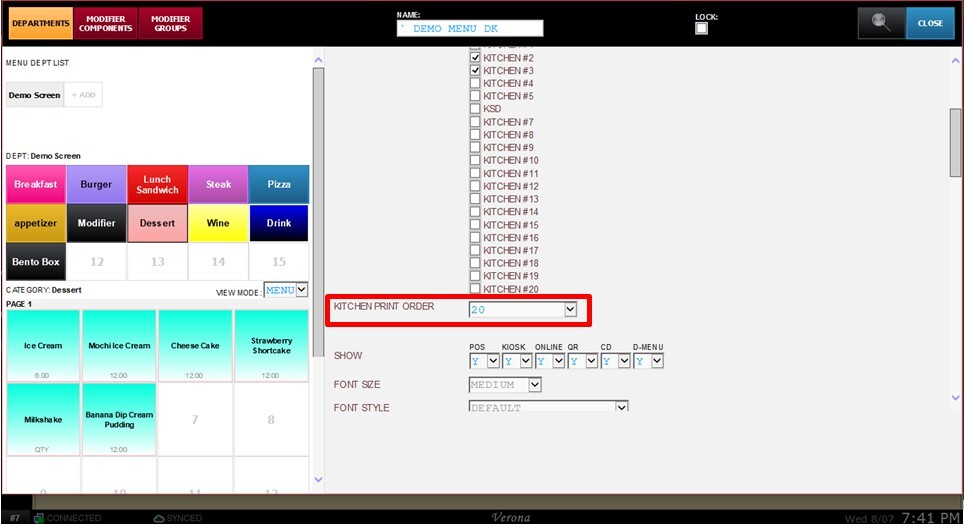
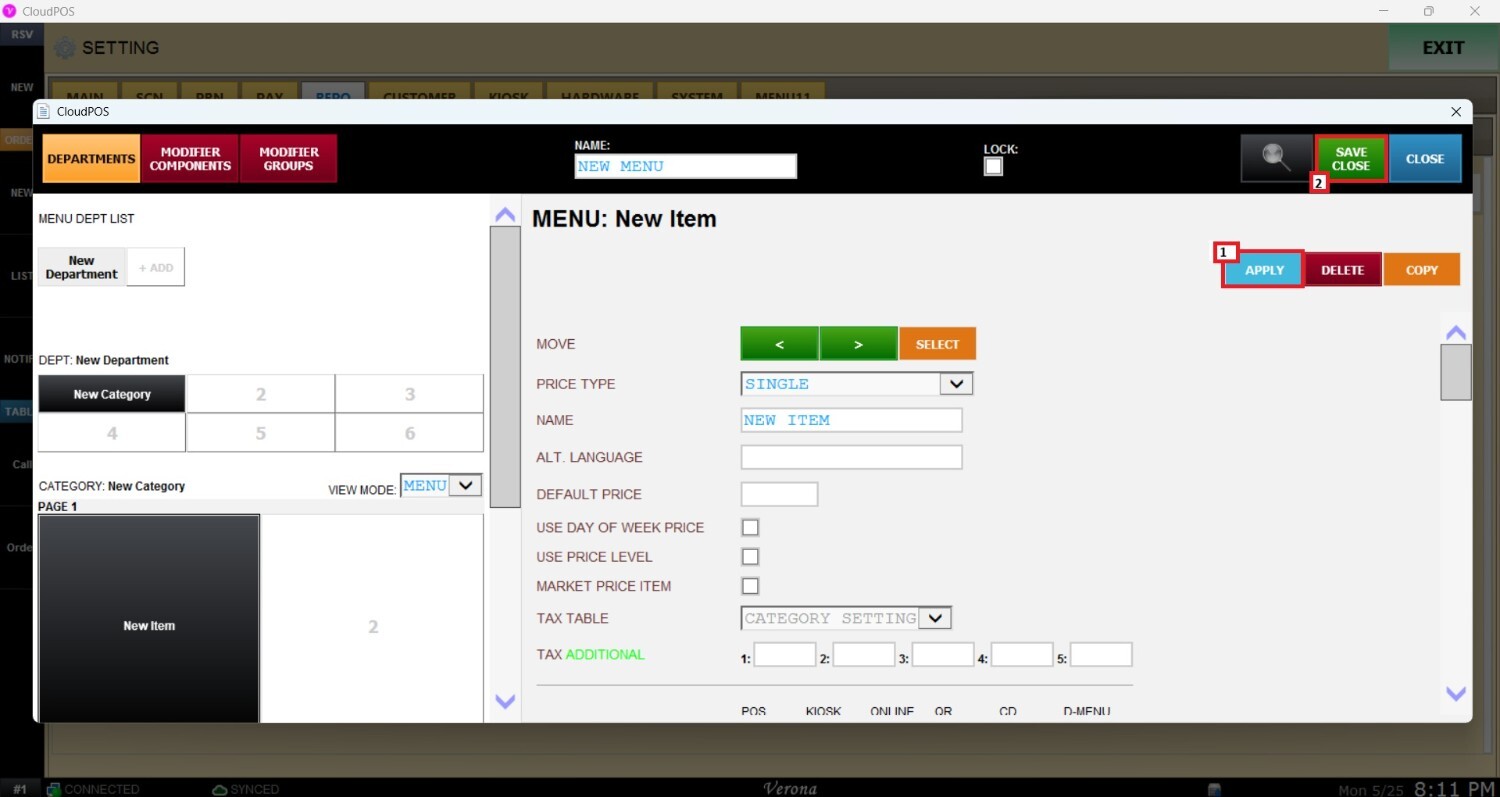
After making all the changes, press APPLY and SAVE AND CLOSE to save the configuration.