Check - In
This section controls customer check-in. Customers use it to confirm they have arrived at the location to receive their order.
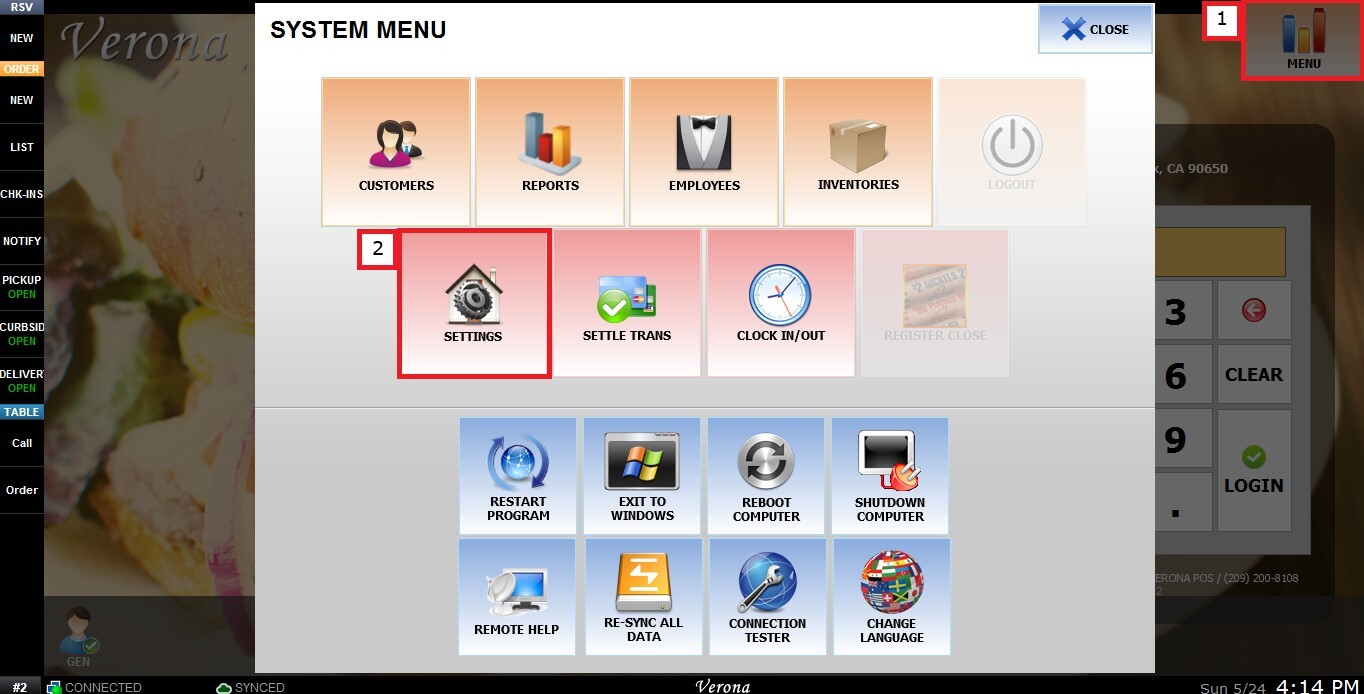
Main Screen> MENU> SETTINGS> MENU11> ORDER> CHECK-IN
From the MAIN SCREEN, click MENU.
From SETTINGS, navigate to the MENU11 tab, then select ORDER and click CHECK-IN.
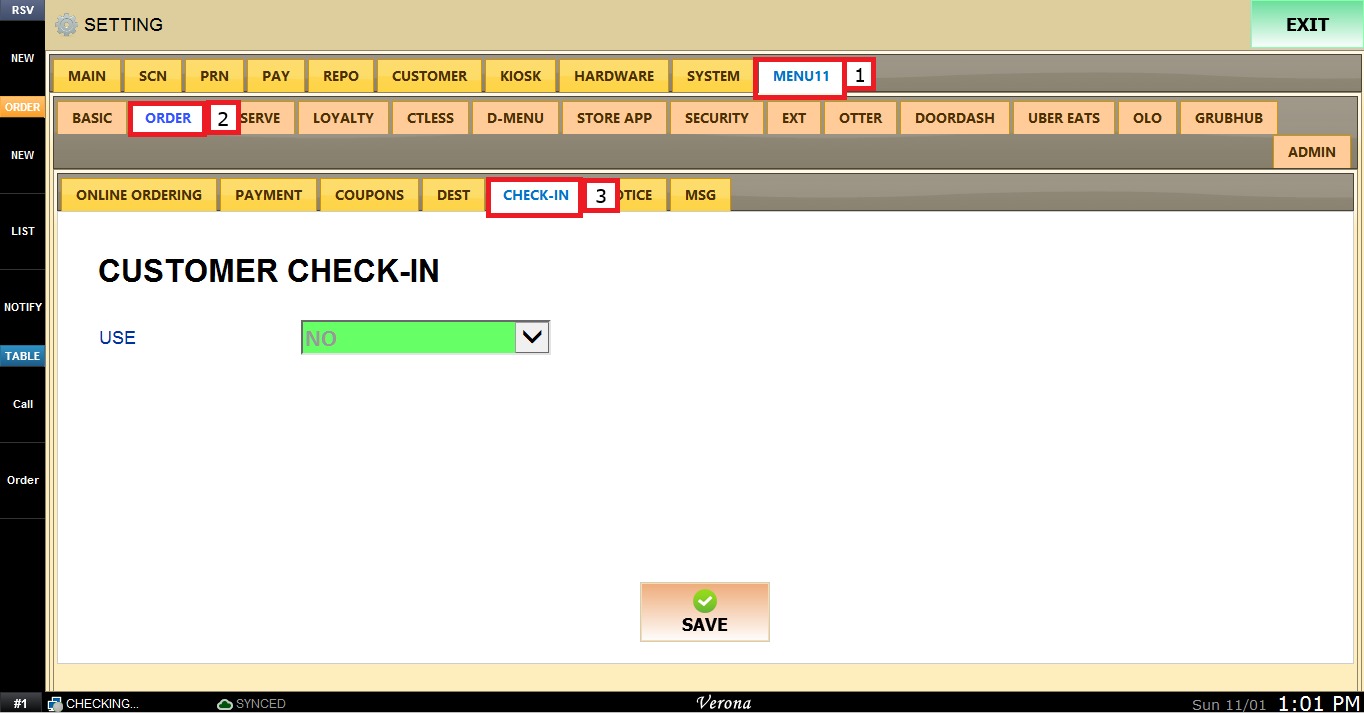
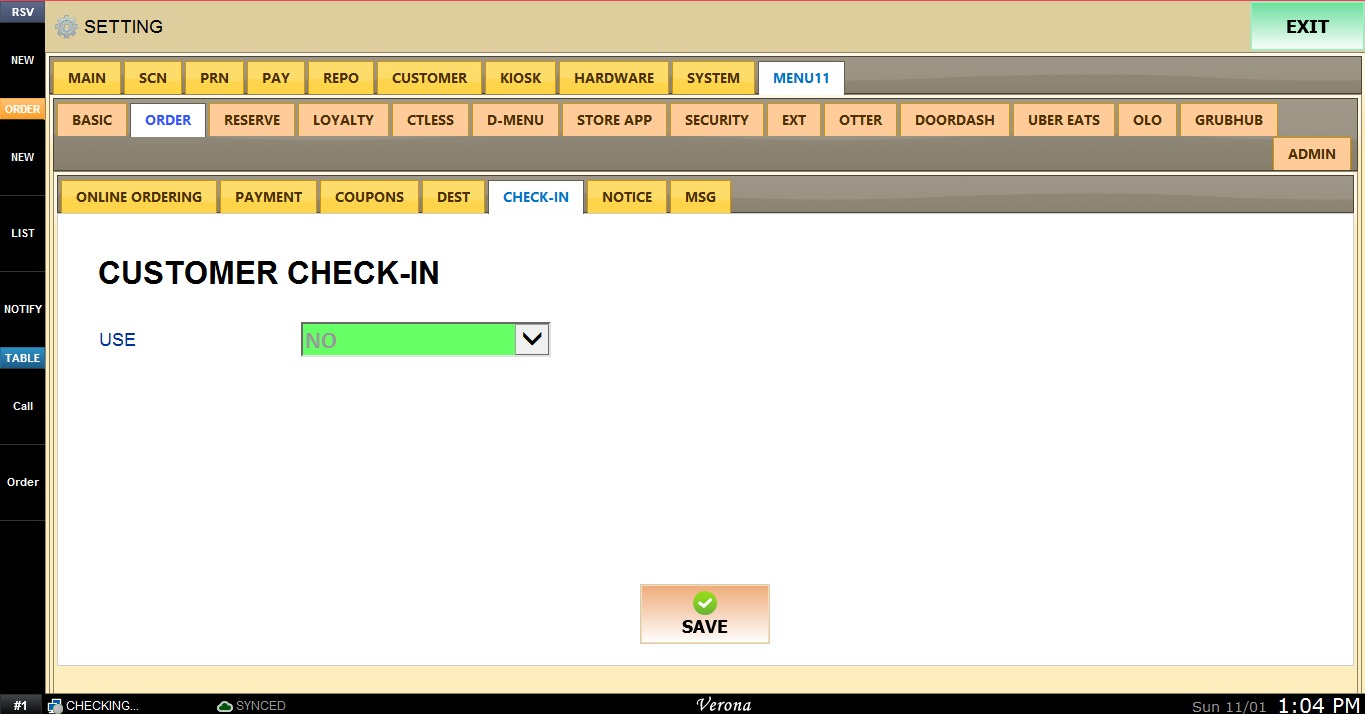
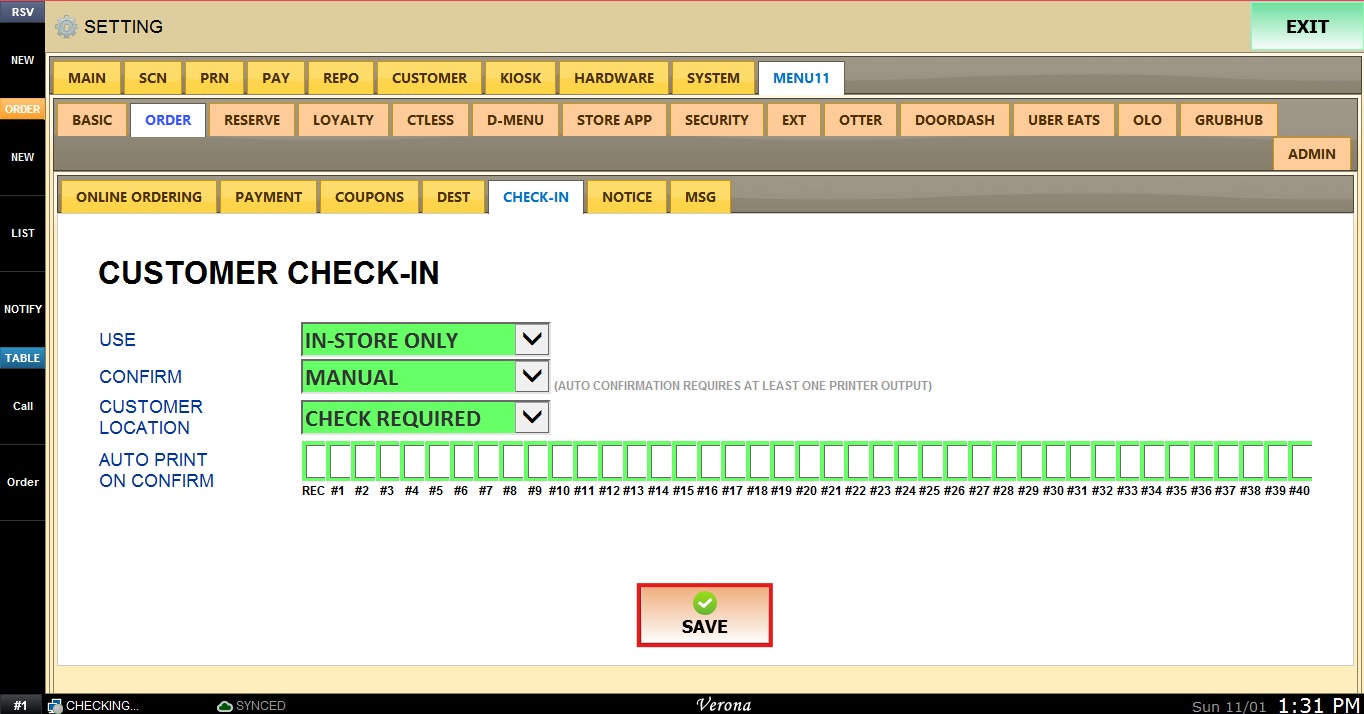
CUSTOMER CHECK-IN
This section turns check-in on and sets how each arrival is handled.
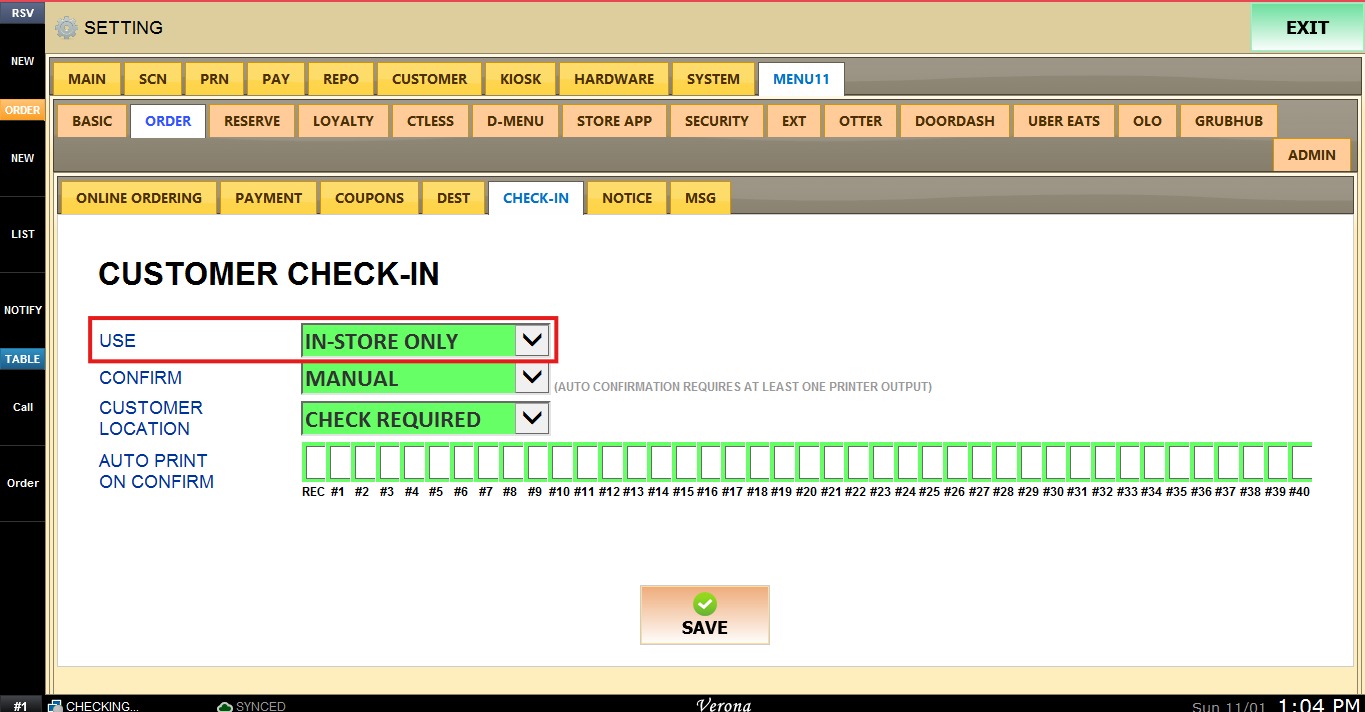
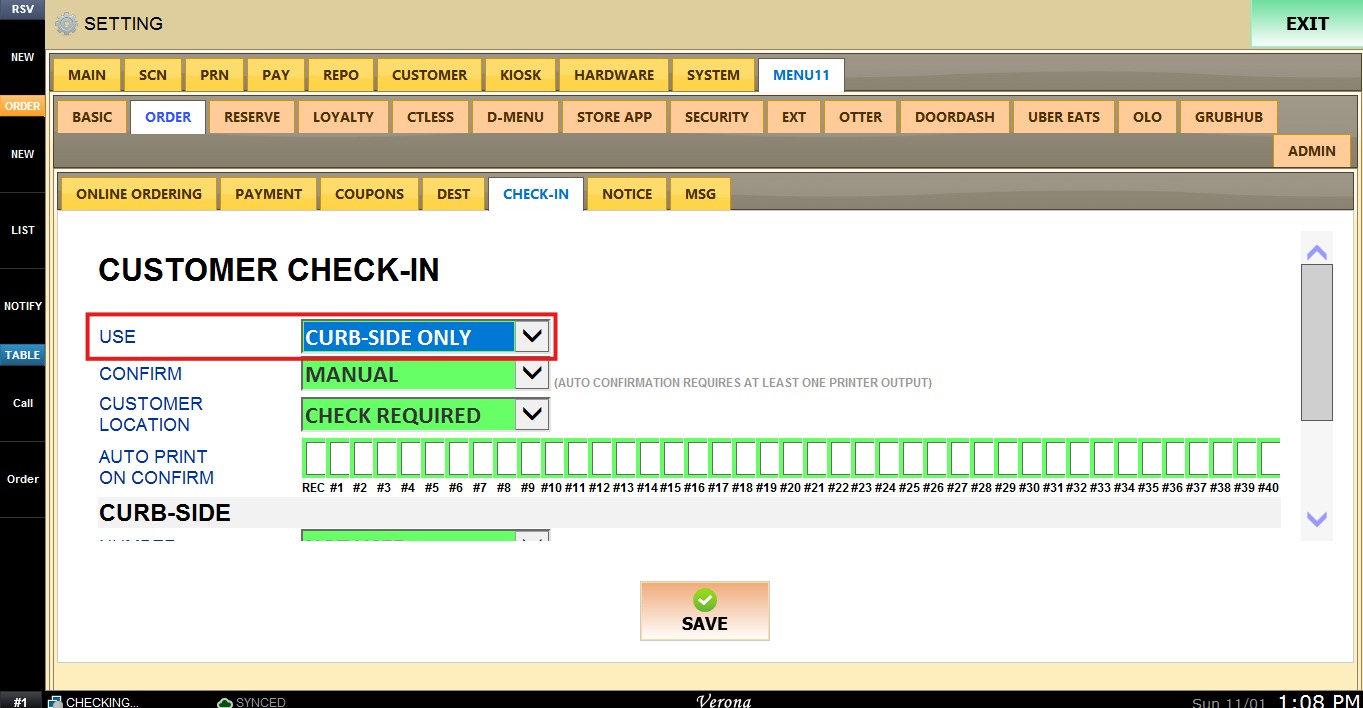
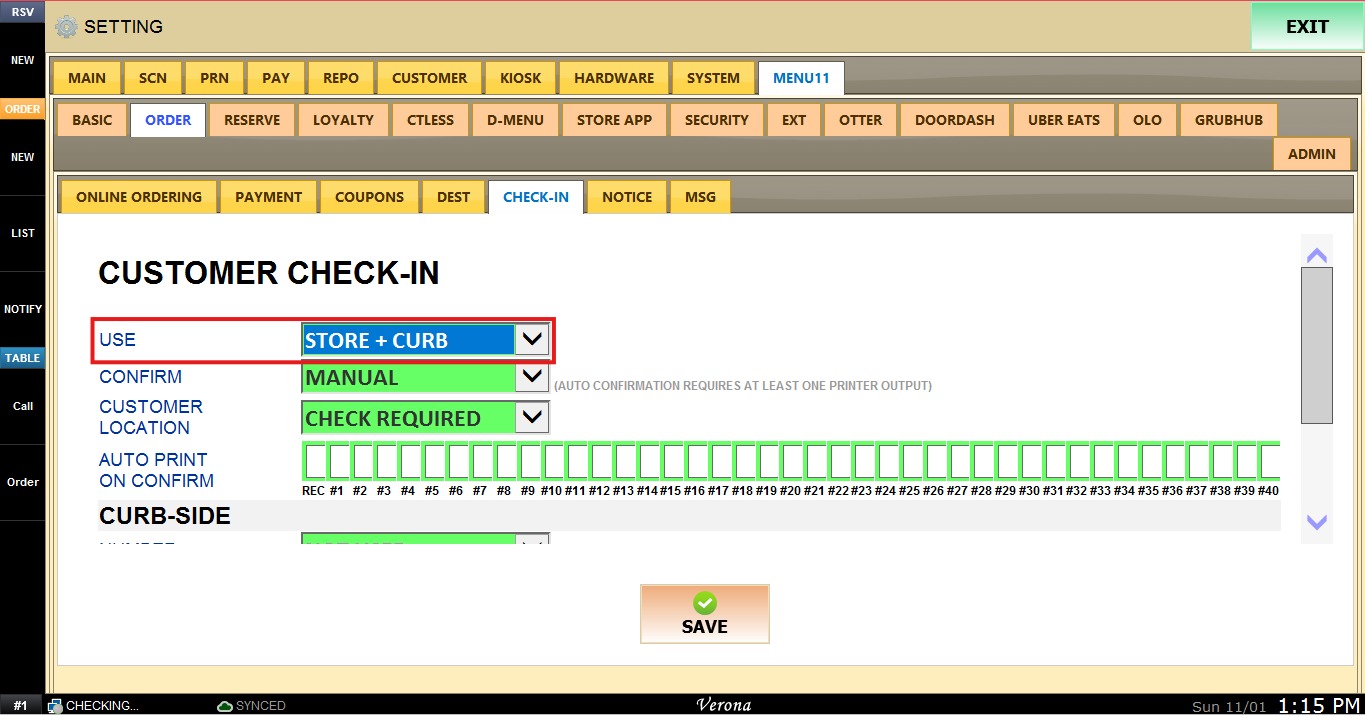
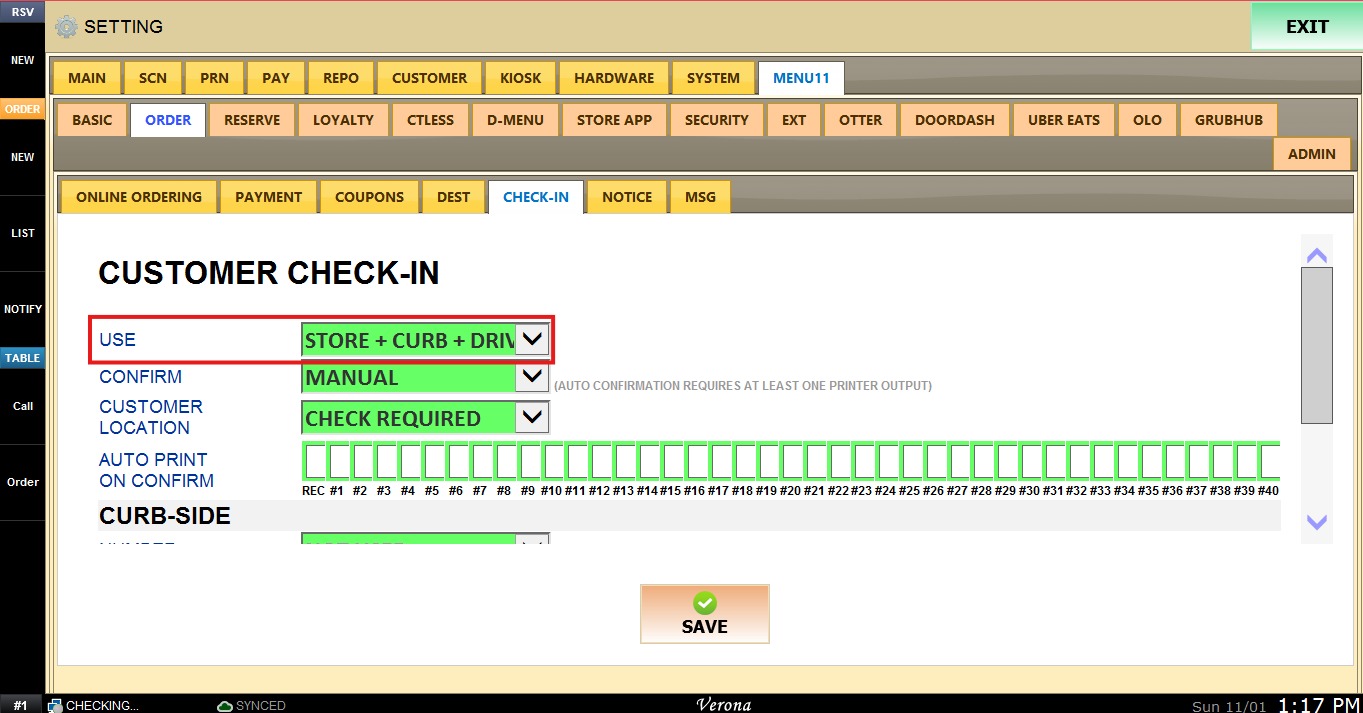
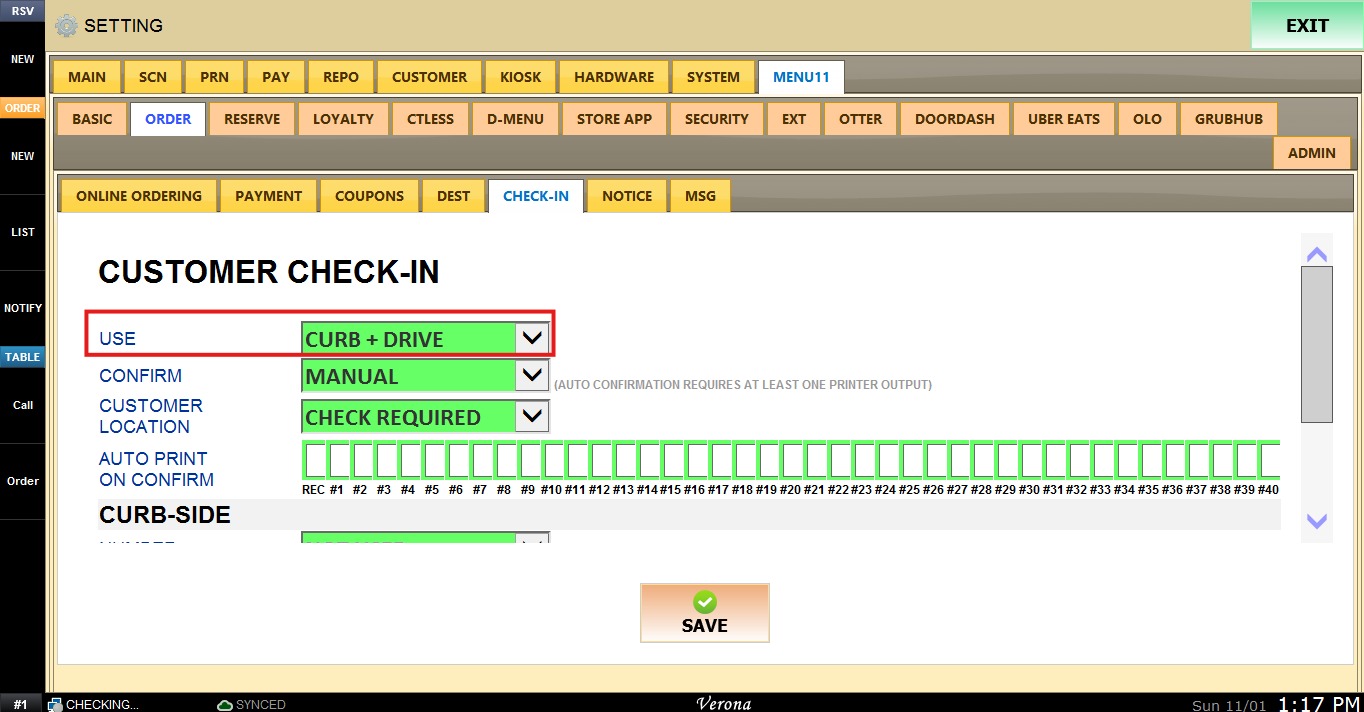
USE sets the order destinations where customers can check in.
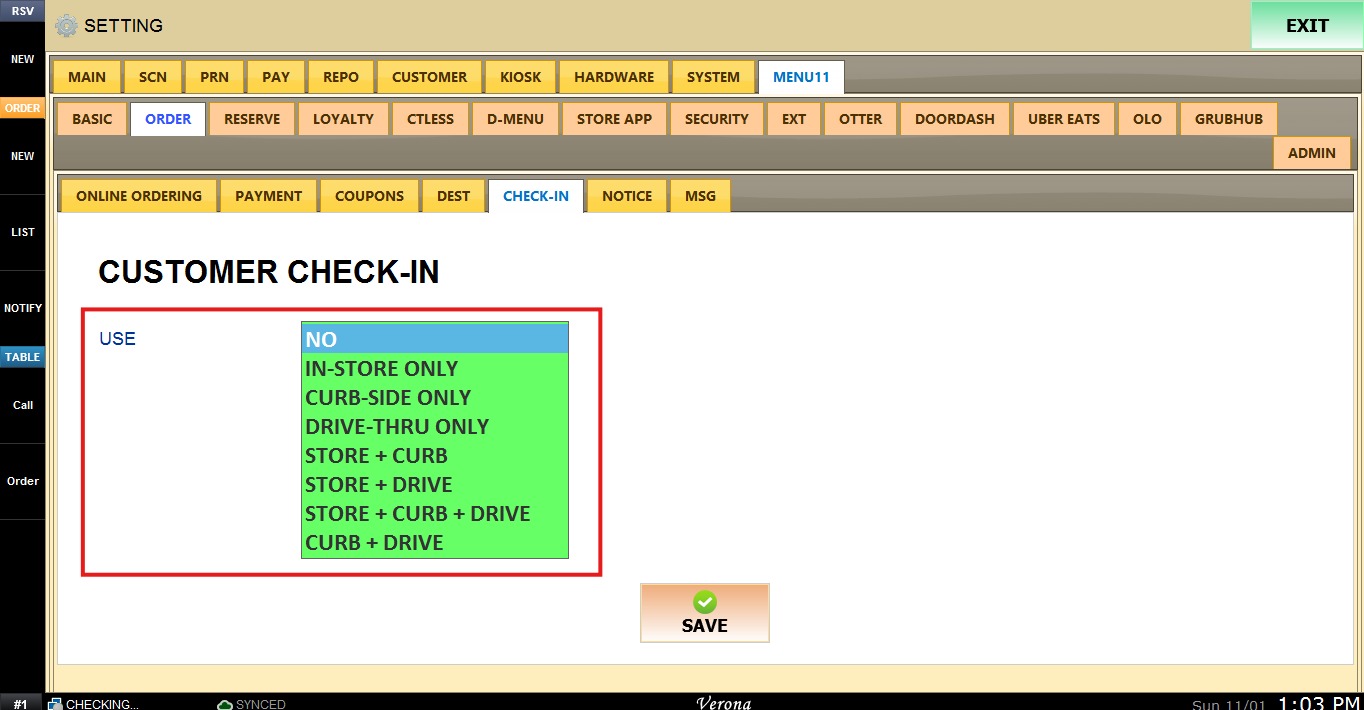
1. NO: Customer check-in is turned off, and no other check-in settings are displayed.
2. IN-STORE ONLY: Turns on check-in for in-store orders and displays the CONFIRM, CUSTOMER LOCATION and AUTO PRINT ON CONFIRM settings.
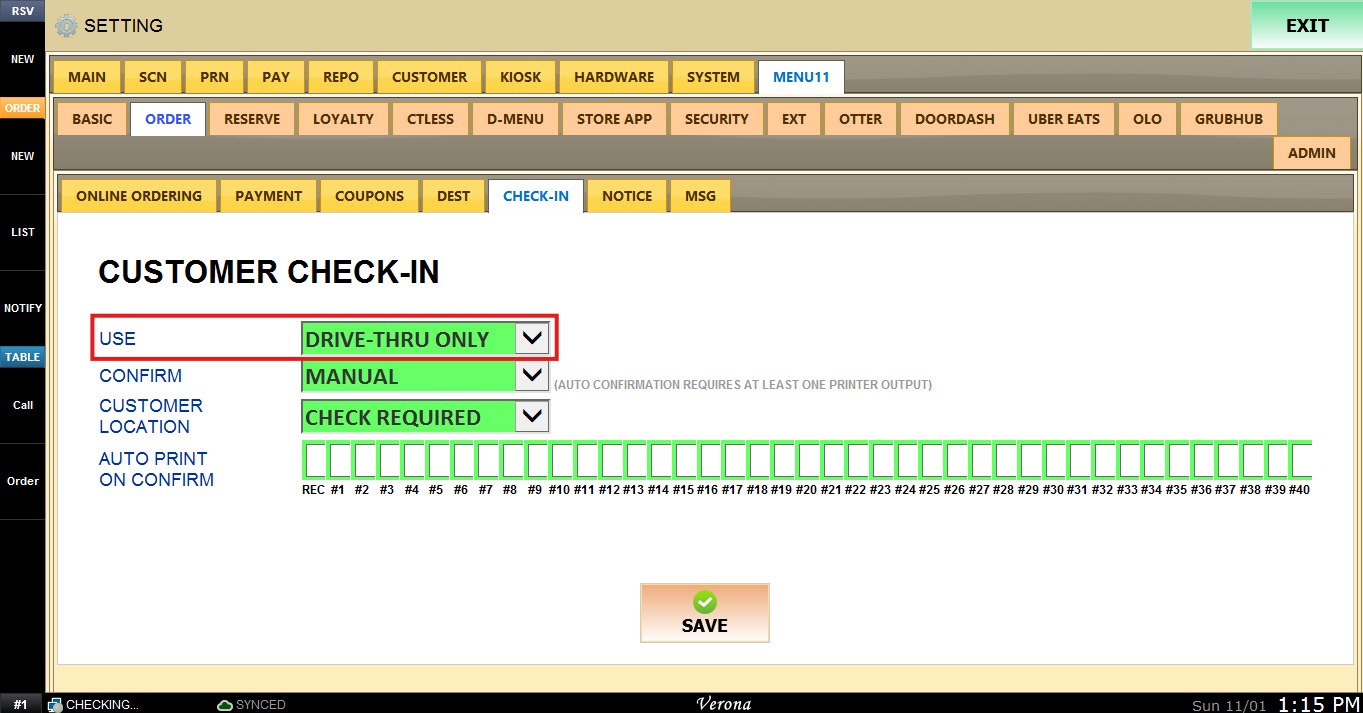
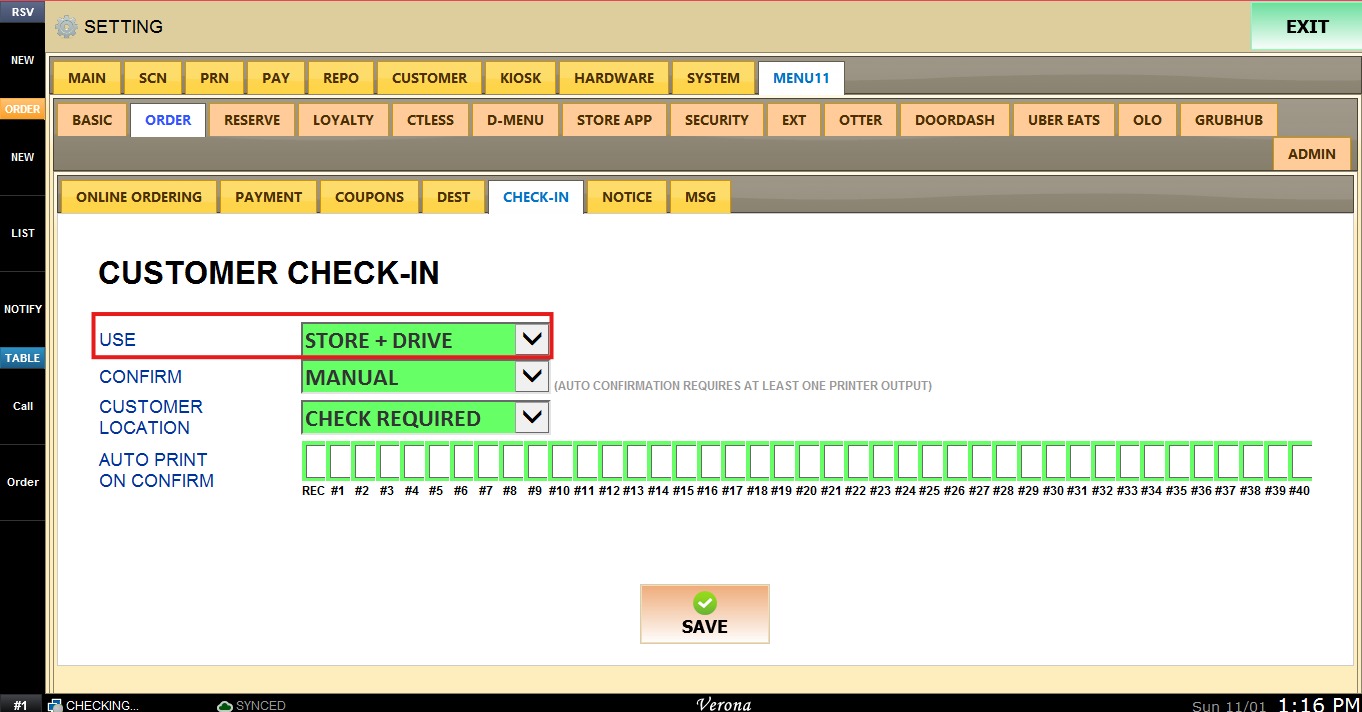
DRIVE-THRU ONLY and STORE + DRIVE work the same way. They differ only in the destinations that use check-in, and they display the same settings.
CURB-SIDE ONLY, STORE + CURB, STORE + CURB + DRIVE and CURB + DRIVE also work the same way. Because they include curbside, they also display the CURB-SIDE section.
To learn how to configure the order destinations, please refer to the Destination Guide.
CONFIGURATION
Confirm
Sets how a customer's check-in is confirmed.
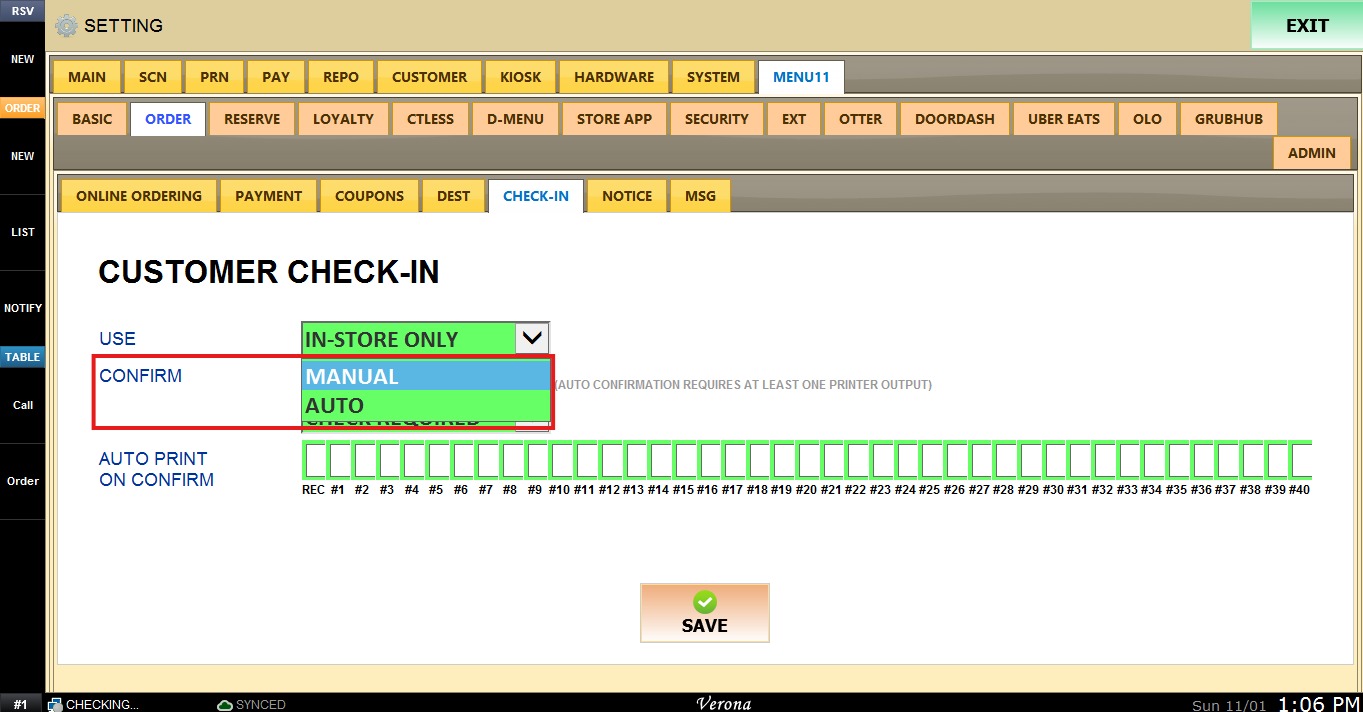
1.MANUAL: Requires a staff member to confirm the arrival.
2.AUTO: Confirms the check-in automatically. Auto confirmation requires at least one printer output selected in AUTO PRINT ON CONFIRM.
Customer Location
Sets whether the customer's location is checked during check-in.
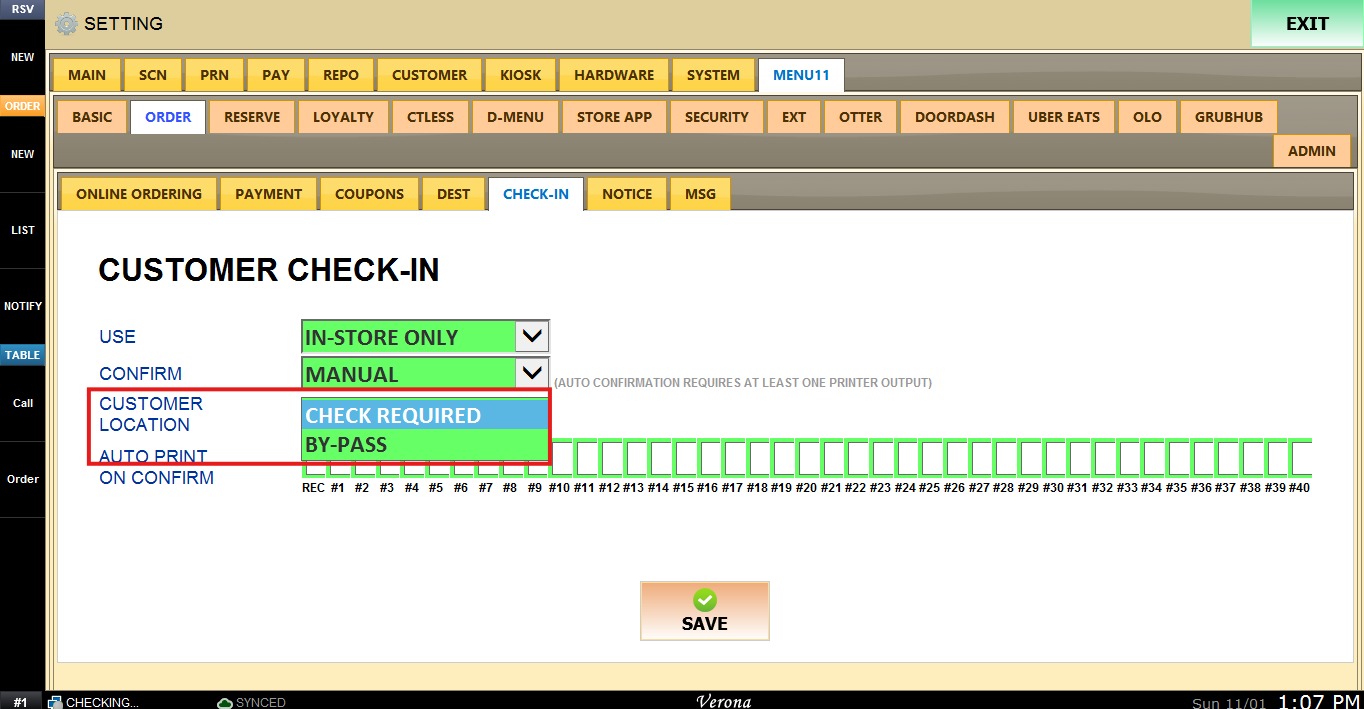
1.CHECK REQUIRED: Verifies the customer's location before the check-in is accepted.
2.BY-PASS: Skips the location check.
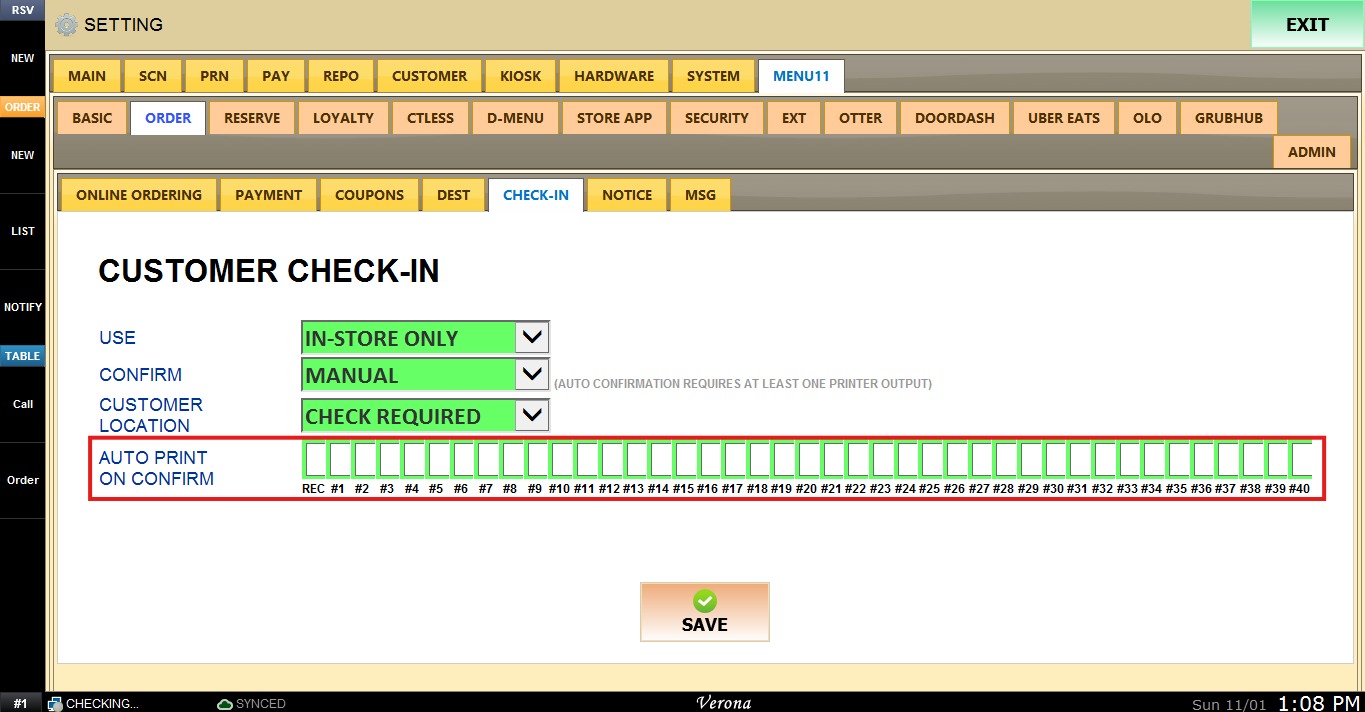
Auto Print On Confirm
selects the printers that print automatically once a check-in is confirmed. Select REC or any printer from #1 to #40.
CURB-SIDE
This section sets the extra information requested from curbside customers when they check in.
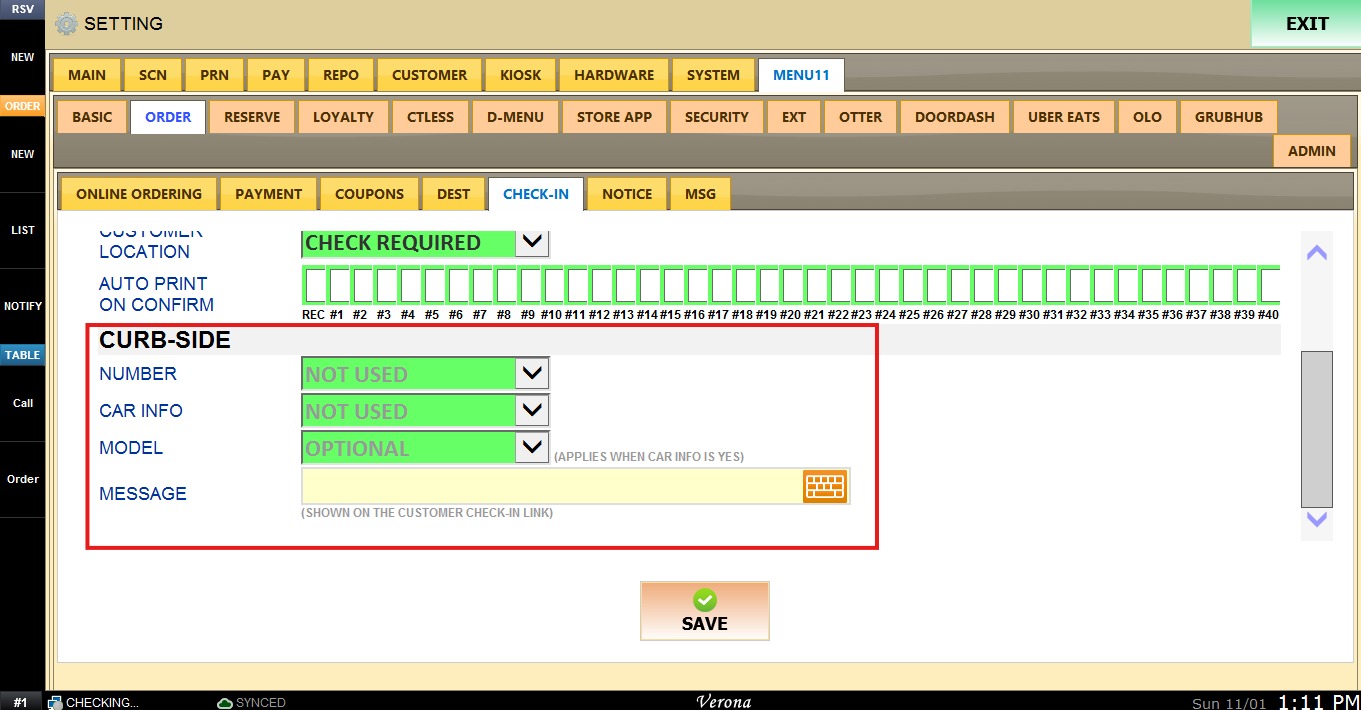
Number
Sets how the customer enters a number when checking in.
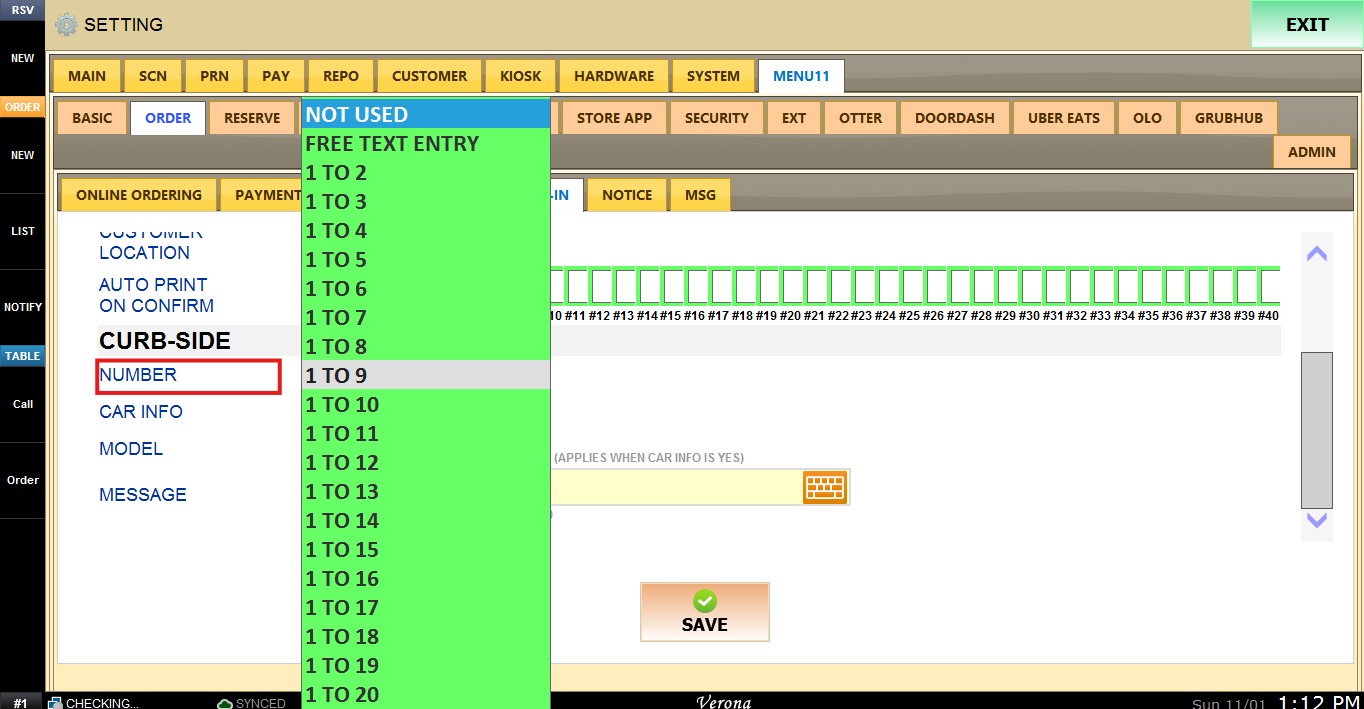
1.NOT USED: Does not ask for a number.
2.FREE TEXT ENTRY: Lets the customer type the number.
3.1 TO 5: Limits the choice to a number from 1 to 5. And the other ranges work the same way.
Car Info
Sets whether the customer is asked for vehicle information.
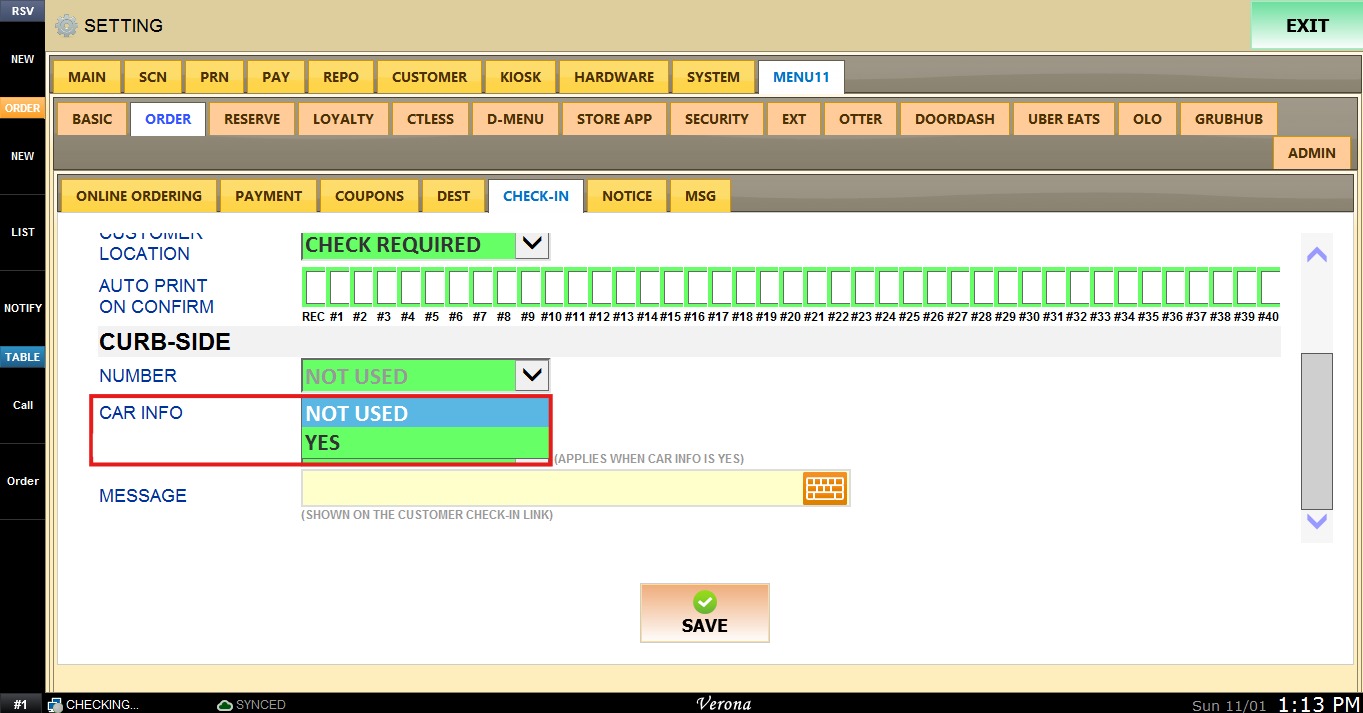
1.NOT USED: Skips it.
2.YES: Asks for it at check-in.
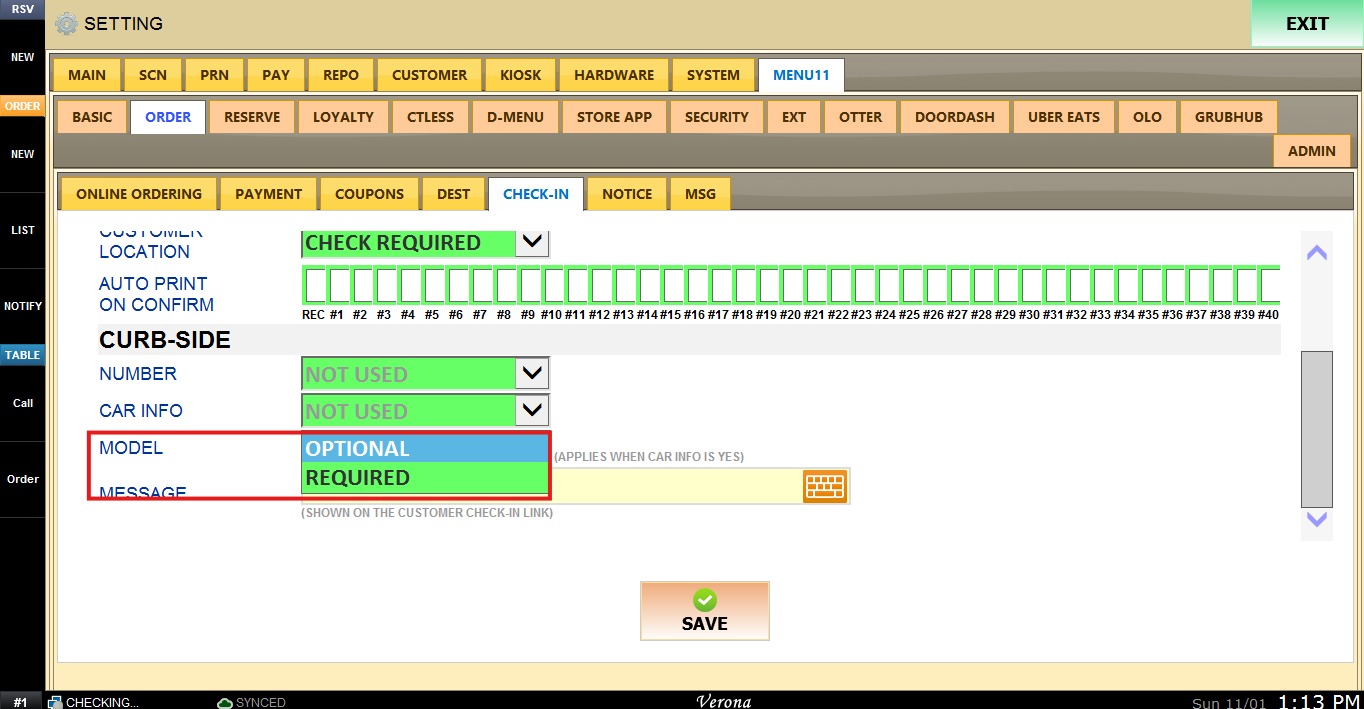
Model
Sets whether the car model is OPTIONAL or REQUIRED. It applies only when CAR INFO is set to YES.
Message
Holds the text shown on the customer check-in link. Click the keyboard icon to enter the text.
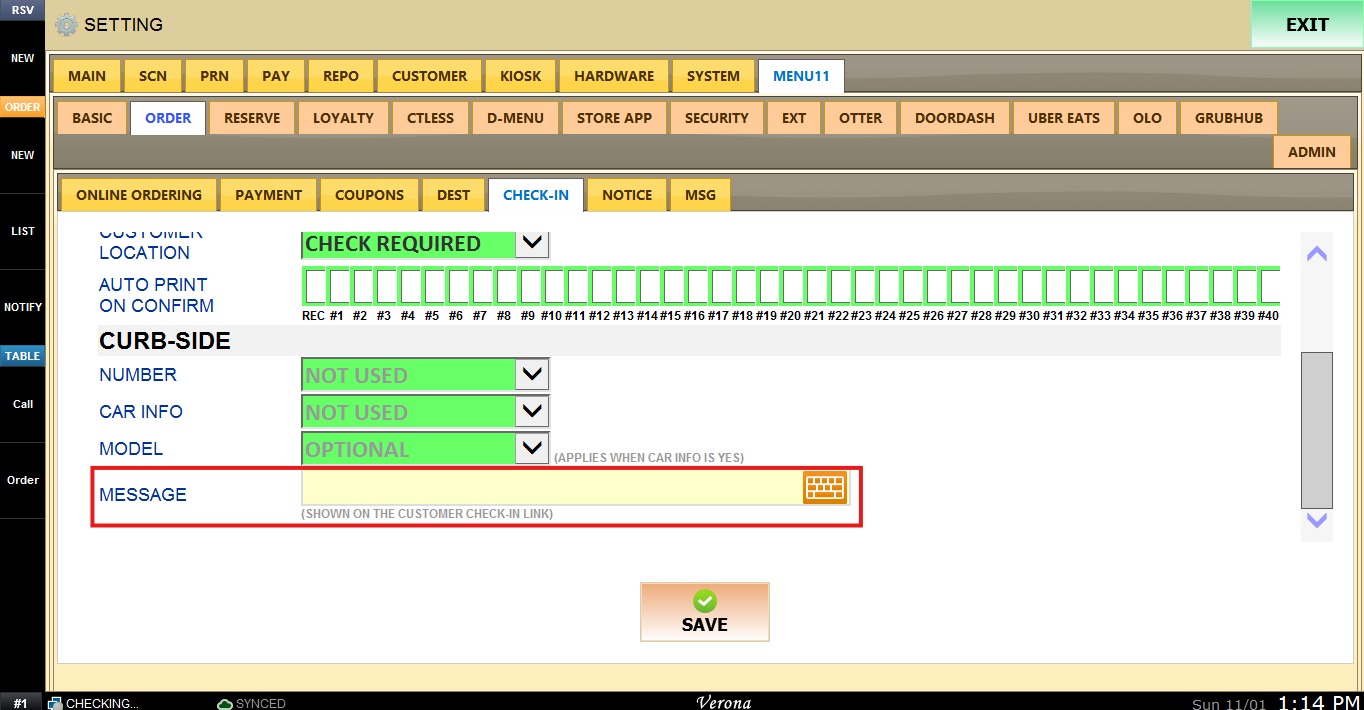
Click SAVE.
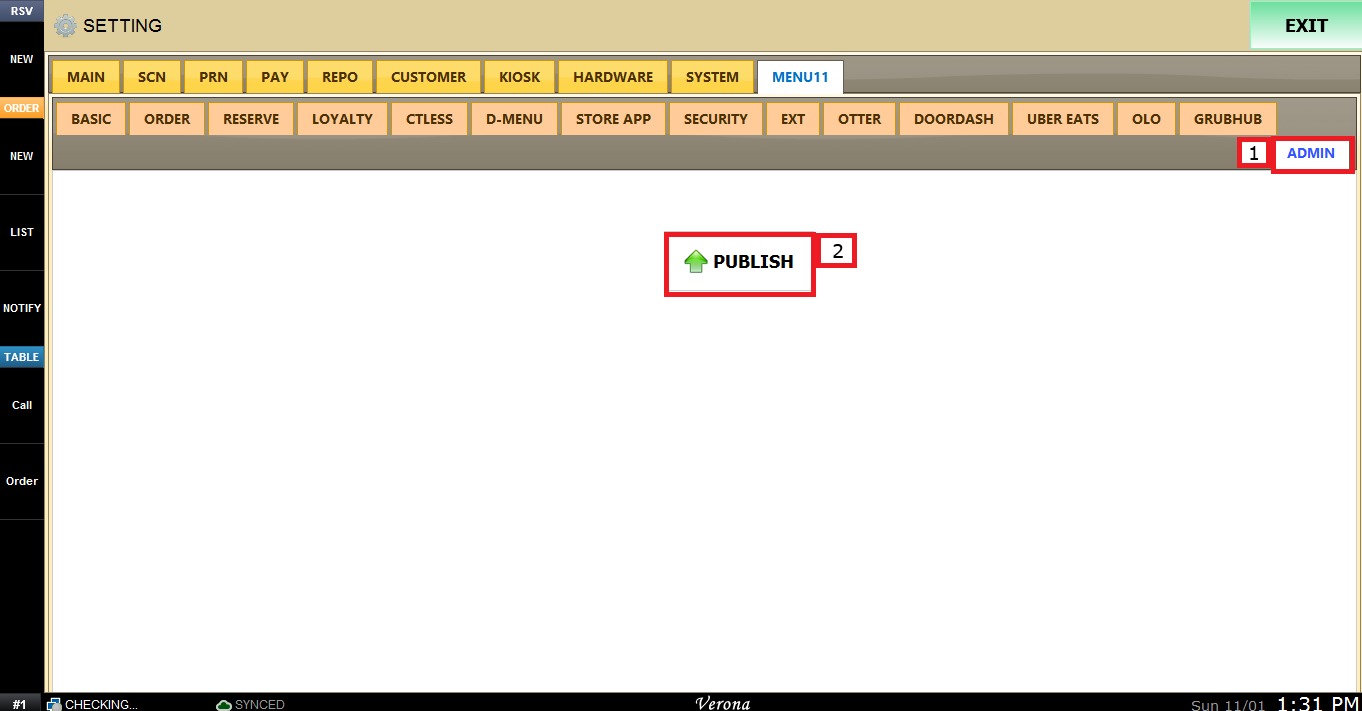
Click on ADMIN and PUBLISH to apply the changes.