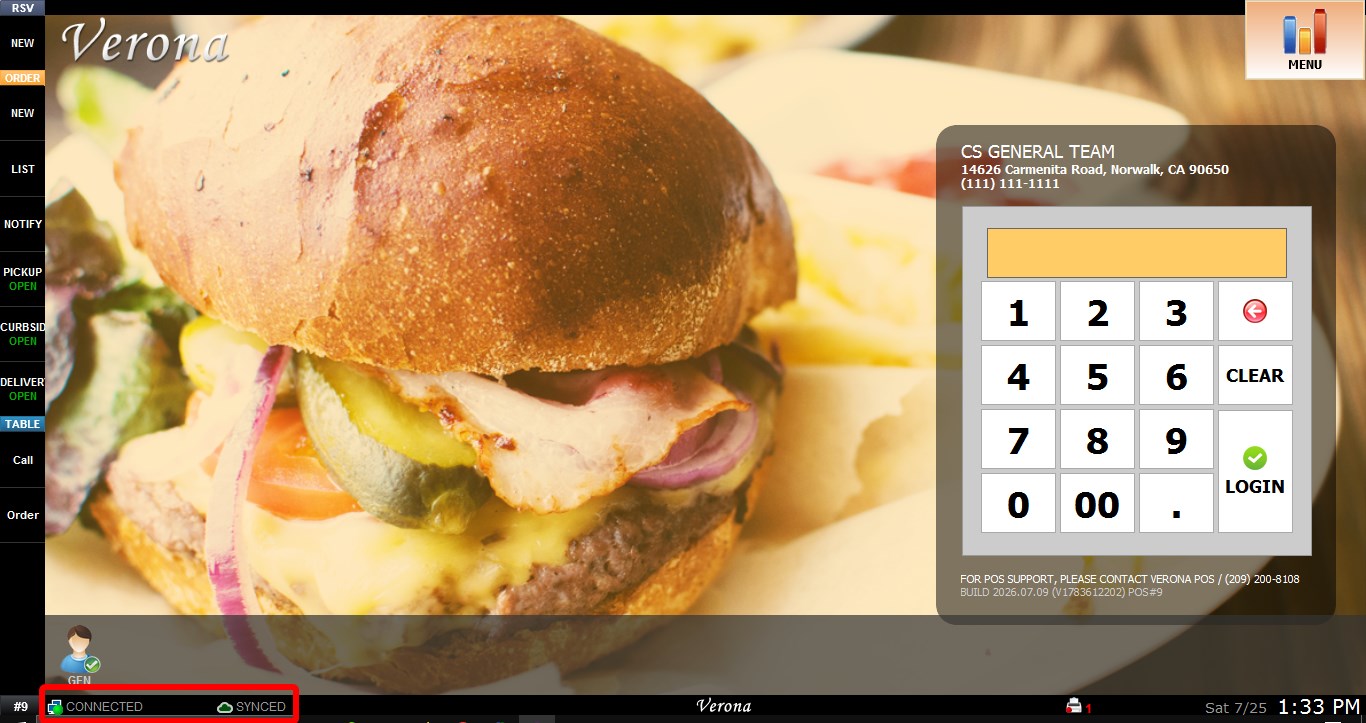
[Verona] When Verona gets disconnected from CloudPOS
If Verona POS becomes disconnected from CloudPOS or displays a connection error during startup, the issue is usually caused by the internet connection, incorrect BIOS date and time, Windows security settings, or the network profile. Verify each item below before attempting additional troubleshooting.
CHECK INTERNET CONNECTION
Verify that the POS has an active internet connection.
If the POS displays an error similar to the one shown below, confirm that the internet connection is working before continuing.

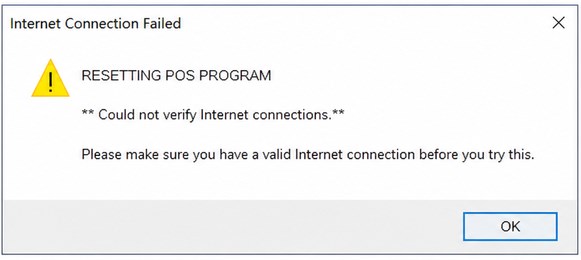
Try opening a website from the POS or perform another internet connectivity test to confirm the device is online.
VERIFY BIOS DATE AND TIME
An incorrect BIOS date or time can prevent the POS from communicating with CloudPOS.
Restart the POS and repeatedly press the BIOS setup key (commonly DEL, F2, F10, or ESC) during startup to acces BIOS.
Verify that the SYSTEM DATE and SYSTEM TIME are correct. Save any changes before exiting the BIOS.

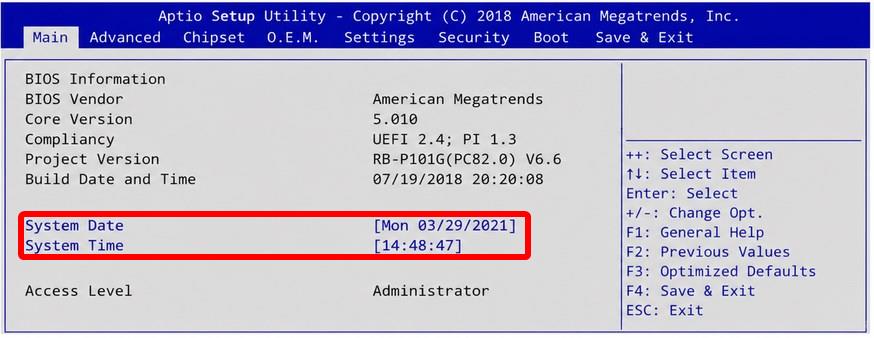
Hint: Depending on the motherboard manufacturer, the SYSTEM DATE and SYSTEM TIME, and SAVE settings may appear in different locations within the BIOS.
DISABLE WINDOWS SECURITY
Temporarily disable the following Windows security features to verify they are not blocking the connection:
Windows Defender Antivirus
Open WINDOWS SETTINGS > UPDATE & SECURITY > WINDOWS SECURITY > VIRUS & THREAT PROTECTION > MANAGE SETTINGS, then temporarily turn REAL-TIME PROTECTION off.
Windows Firewall
Open WINDOWS SETTINGS > UPDATE & SECURITY > WINDOWS SECURITY > FIREWALL & NETWORK PROTECTION, select the active network profile, then temporarily turn MICROSOFT DEFENDER FIREWALL off.
Third-Party Antivirus
If a third-party antivirus is installed (such as Norton, McAfee, Bitdefender, Avast, etc.), temporarily disable its real-time protection before testing the connection.
VERIFY NETWORK PROFILE
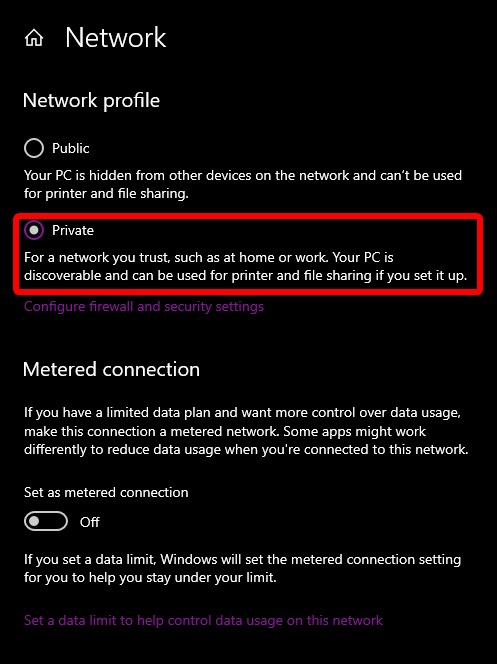
Make sure the Windows network profile is set to PRIVATE.
Open WINDOWS SETTINGS > NETWORK & INTERNET, select the active network, then confirm the network profile is set to PRIVATE.
RESTART THE POS
After completing the checklist above, restart the POS and verify that it reconnects successfully to CloudPOS.