How to do Online Reservations
The Online Reservation feature allows customers to reserve a table through the restaurant's online ordering portal from any supported device. Customers can select their preferred location, date, time, party size, and seating section, then submit a reservation request for the restaurant to review.
For a complete overview of the reservation settings and the customer experience, watch the Reservations Video.
Online Ordering> RESERVE A TABLE> Fill information> Confirm Reservation.
Access the Online Ordering/Reservation web portal using a smartphone, tablet, or computer.
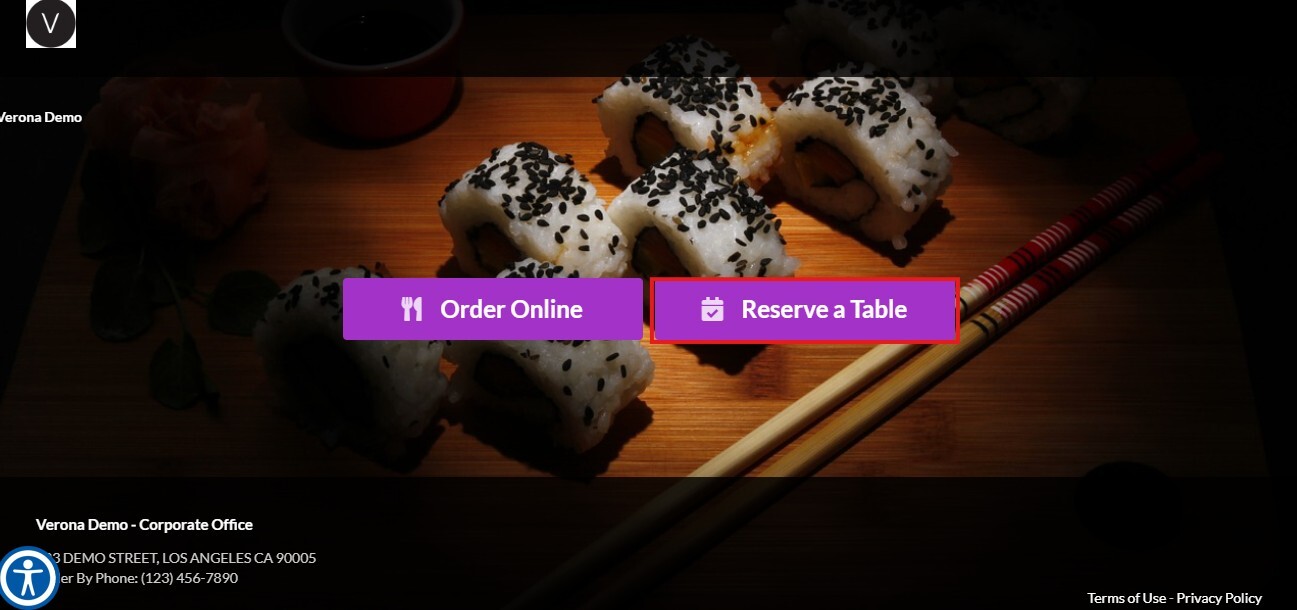
Once in the web portal click on the RESERVE A TABLE button.
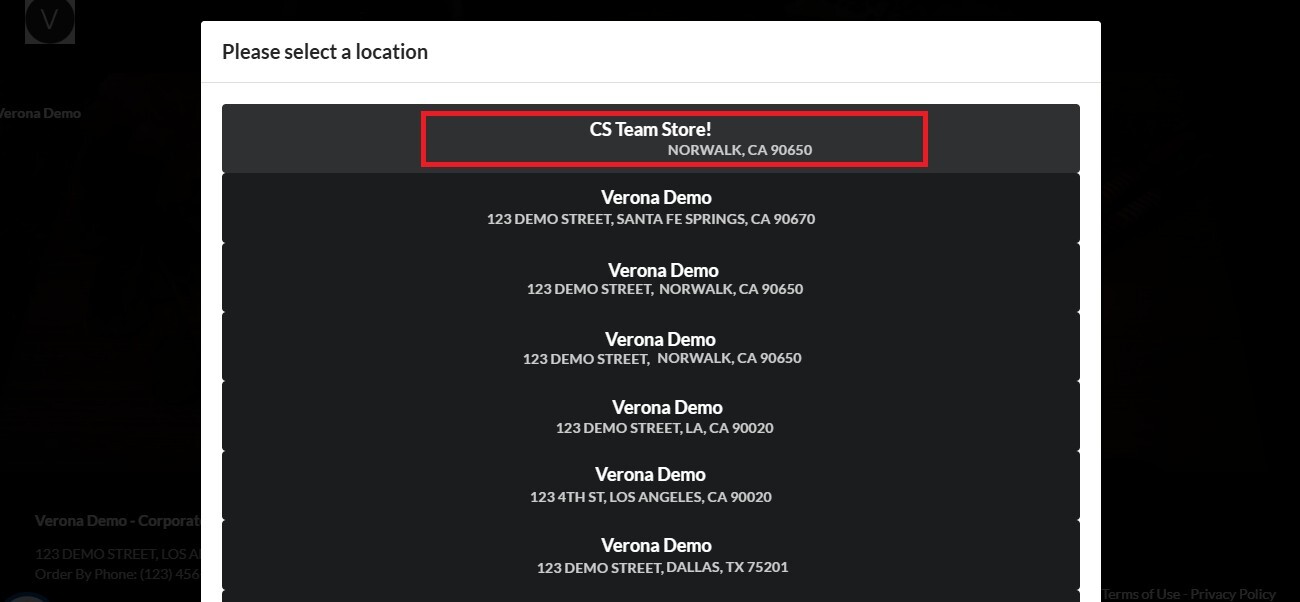
If the restaurant has multiple locations, select the location where you want to make the reservation.
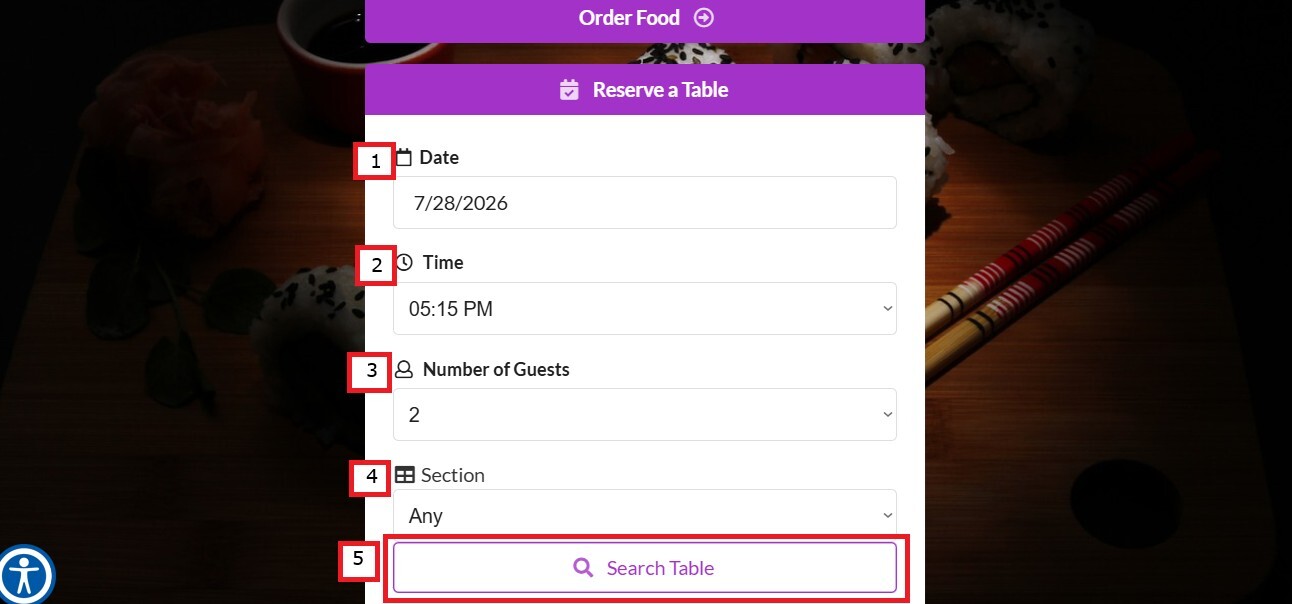
Enter the following information: Date, Time, Number of Guests and Section (such as table, bar, patio, etc).
Click SEARCH TABLE to view the available reservation times.
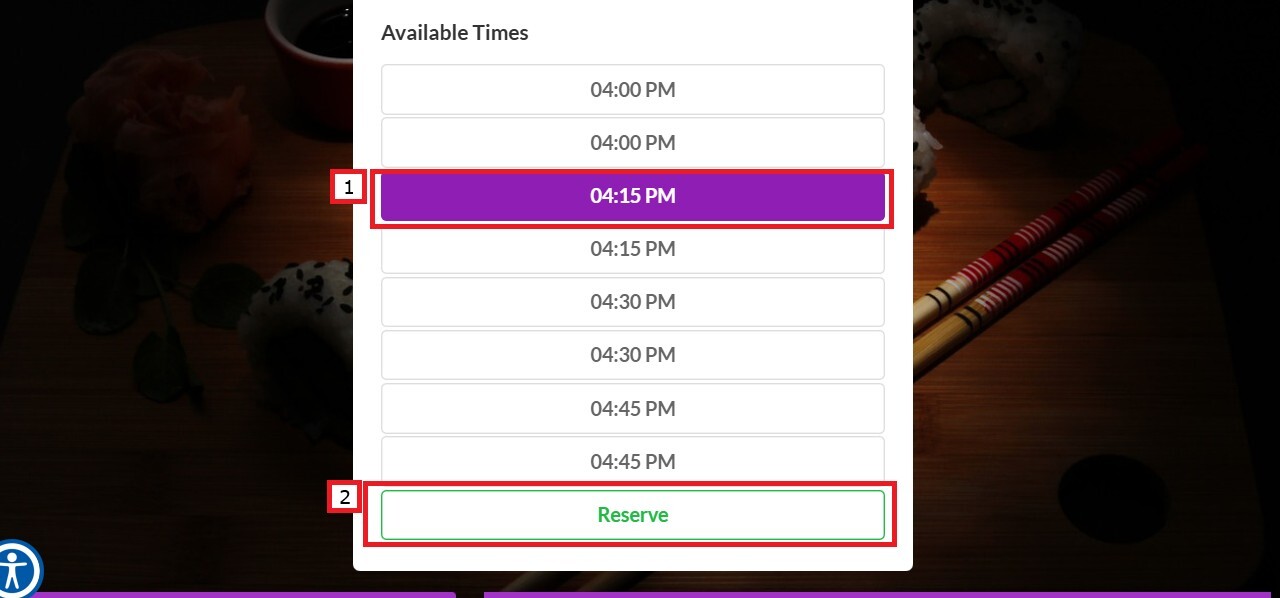
Select your preferred reservation time and click RESERVE.
Enter your contact information: Name, Phone number, Email and click on CONFIRM to submit the reservation request.
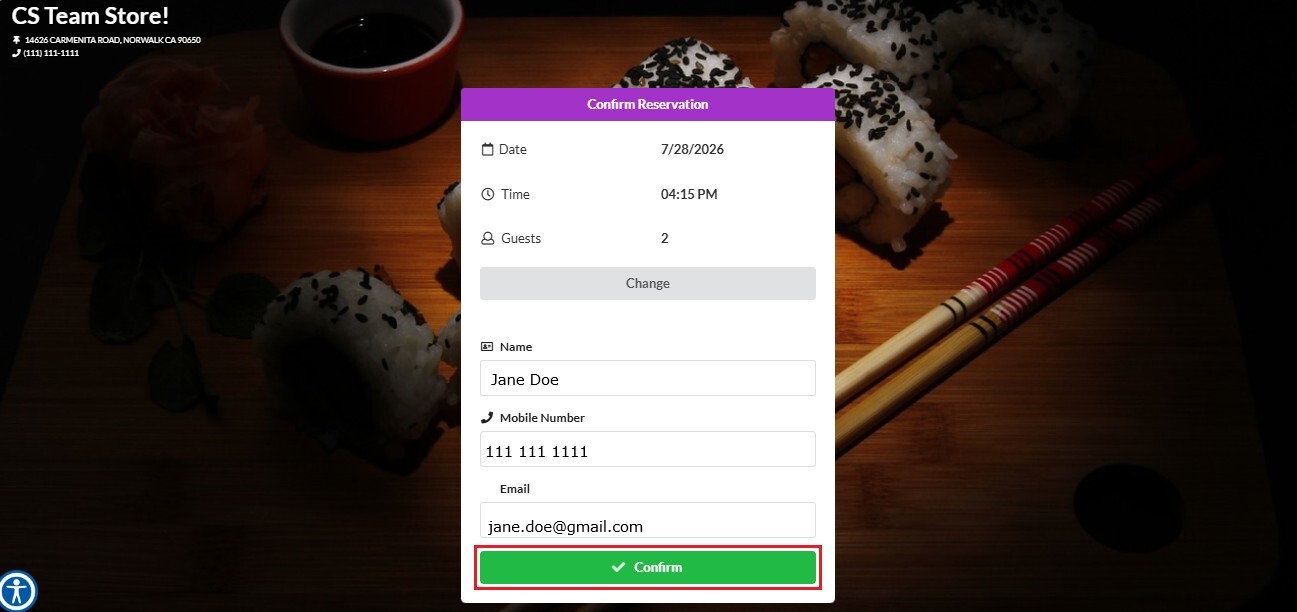
The reservation will appear as Pending until it is reviewed and confirmed by the restaurant.
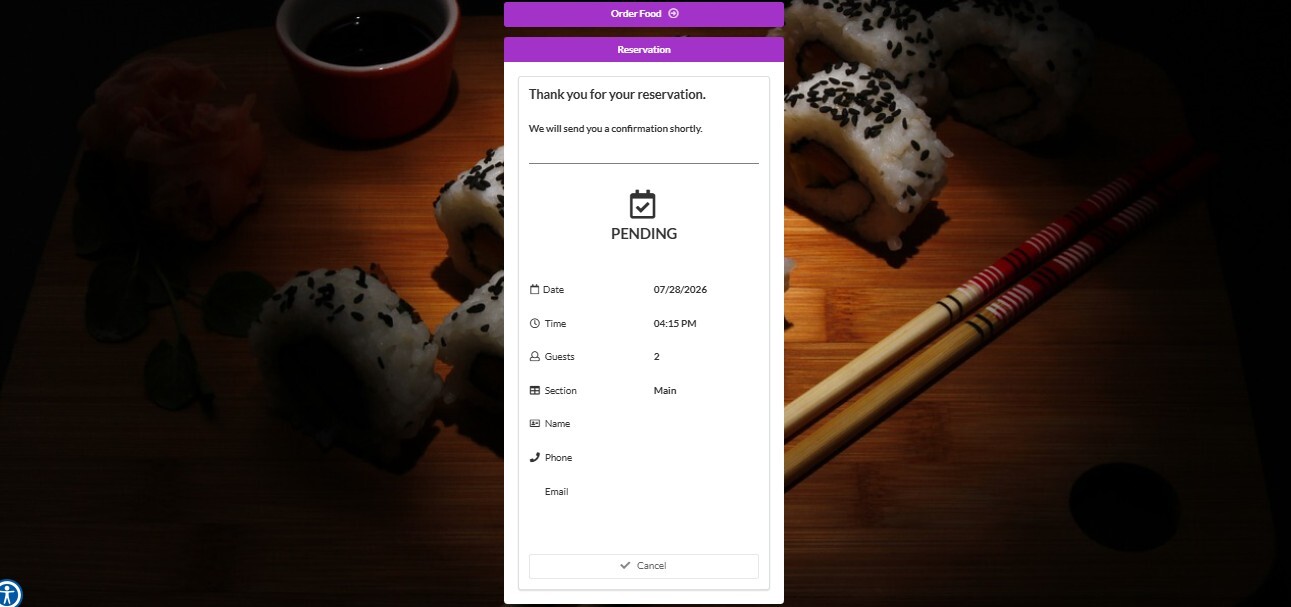
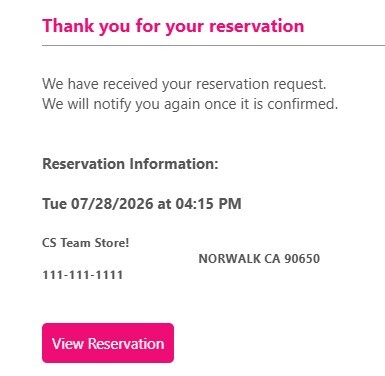
An email containing the reservation details will automatically be sent to the customer's email address.
Once the restaurant confirms the reservation, the customer will receive a confirmation by email or SMS (if SMS notifications are enabled).
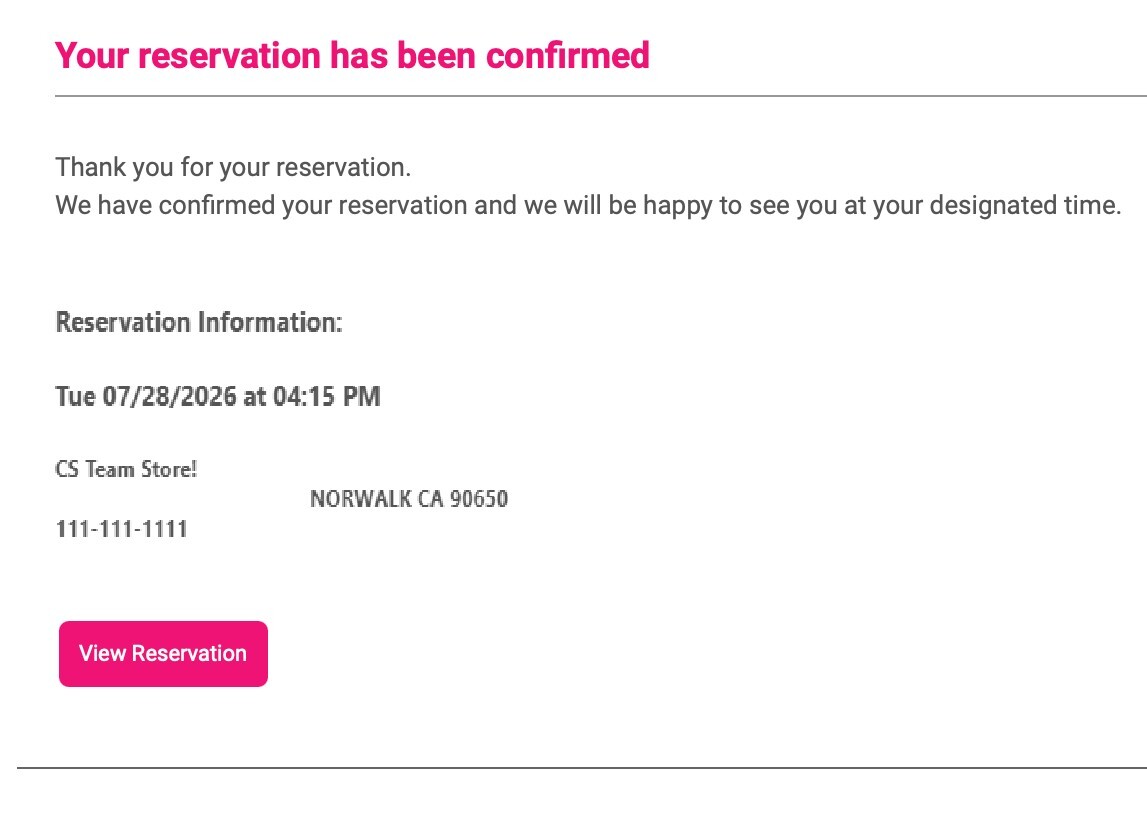
When the customer opens the reservation link after it has been confirmed, the reservation details and status will be displayed.
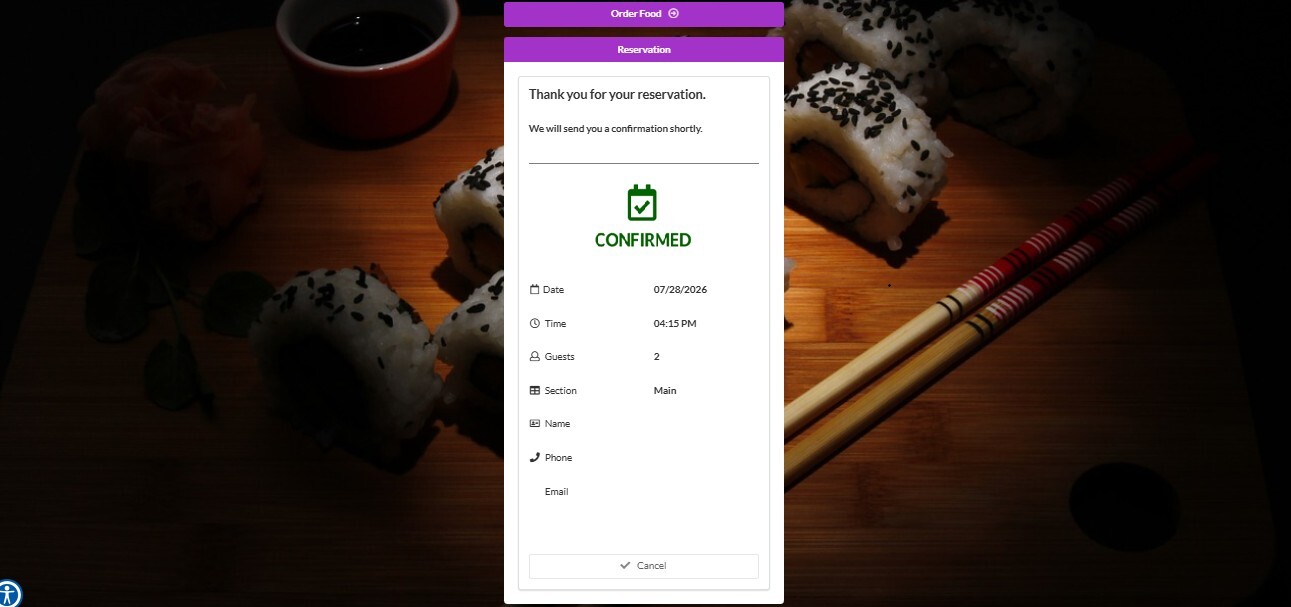
NOTE: Customers can cancel their reservation only if the Cancel Reservation option has been enabled by the restaurant.
To learn how restaurant staff can approve, decline, and manage reservation requests, refer to the Managing Online Reservations guide.