Bar Management
The Bar Management feature allows staff to create and manage bar tabs directly from CloudPOS Mobile. It is designed for bar service environments where customers may order multiple items over time before closing and paying their tab. Staff can open new tabs, access existing ones, add items throughout the customer's visit, and complete payment when the tab is ready to be closed.
Accessing Bar Management
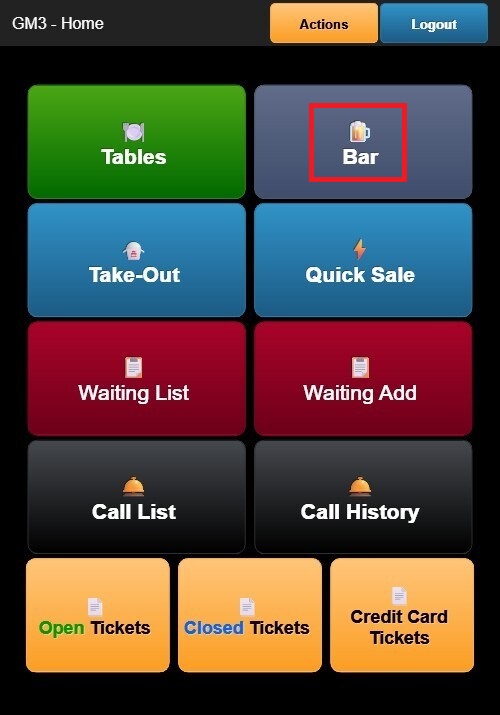
From the Home Screen, tap the Bar button (beer icon).
The Bar screen displays a list of all active bar tabs. Each tab includes key information such as:
- Tab identifier
- Customer name (if entered)
- Current tab total
From this screen, you can open an existing bar tab or create a new one.
Opening a New Bar Tab
Tap New Ticket to create a new bar tab. A new order screen opens with BAR displayed in the header.
The layout is similar to the Table Ordering screen:
- Left Panel: Displays the current tab, including item quantities, descriptions, and prices.
- Right Panel: Displays menu categories and items available for ordering.
Adding Items to a Bar Tab
The ordering process follows the same workflow as Table Ordering.
Select a menu category from the right panel and tap an item to add it to the tab. If the item includes modifiers, complete the modifier selection before adding it to the order.
As items are added, they appear in the order list, and the Subtotal, Tax, and Total are updated automatically.
Managing and Closing a Bar Tab
Once the customer is ready to close their tab, use the available action buttons:
- Print (Red): Prints the current bar tab or receipt.
- Order (Blue): Returns to the ordering screen to continue adding items.
- Pay (Green): Opens the Payment Options screen to complete the transaction.
Review the Payment Options Guide to learn how to complete the transaction.
The payment process follows the same workflow as Table Ordering, allowing you to:
- Select a payment method.
- Collect tips (if enabled).
- Capture a customer signature (when applicable).
- Print or send the receipt after payment.
This workflow enables staff to efficiently manage bar tabs from opening through final payment while providing the same ordering and payment functionality available throughout CloudPOS Mobile.