Ticket Management Tools
This function allows users to efficiently manage and organize transactions directly from the Ticket List. It provides quick access to ticket information and operational tools, helping staff handle orders, ownership changes, and payment workflows more effectively.
Main Screen> Number Pad> Table Screen> TICKET LIST
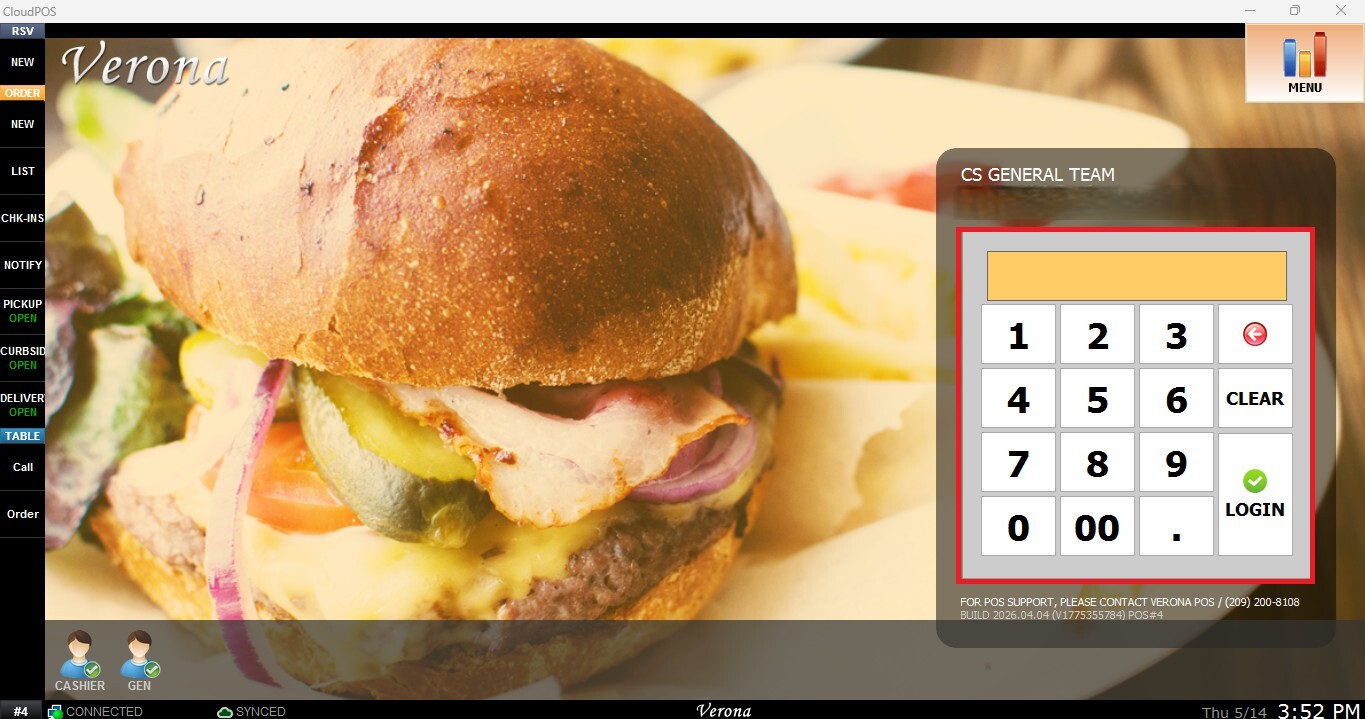
From the Main Screen, use the number pad and enter the assigned employee's password to log in.
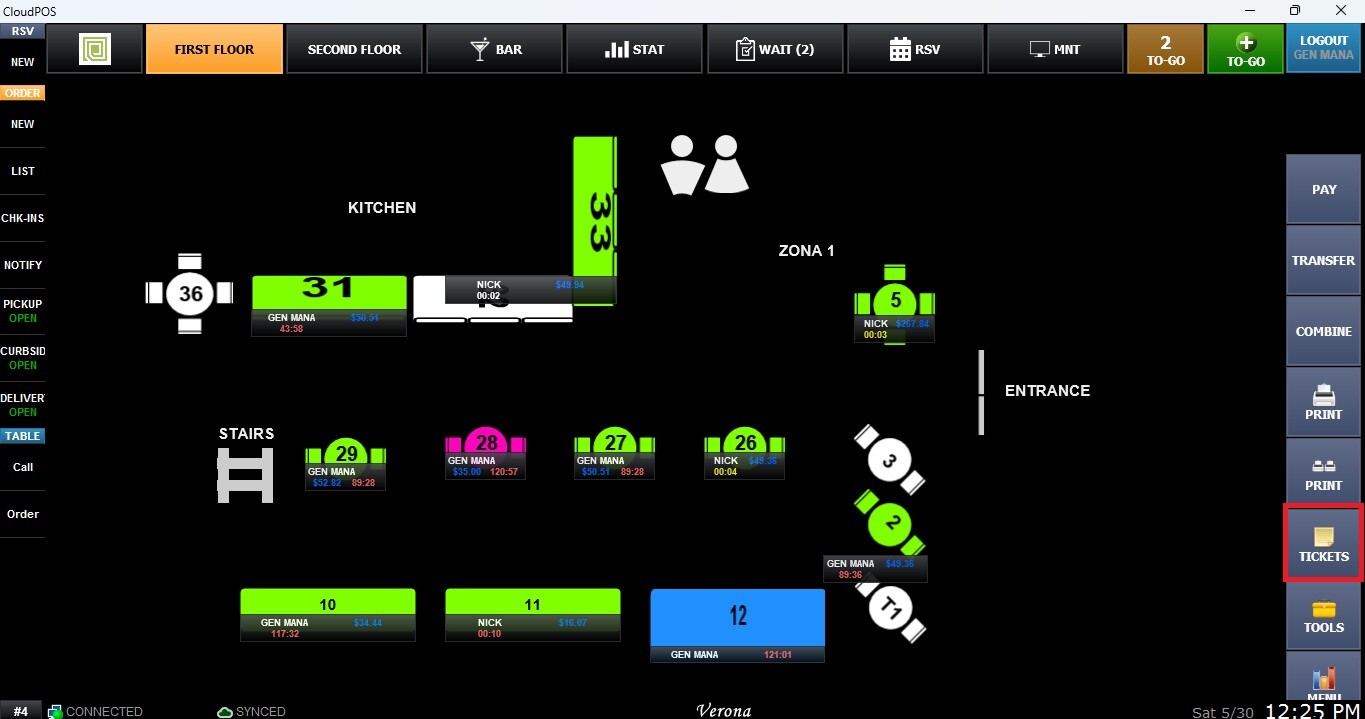
On the toolbar of the Table Screen, click on TICKETS
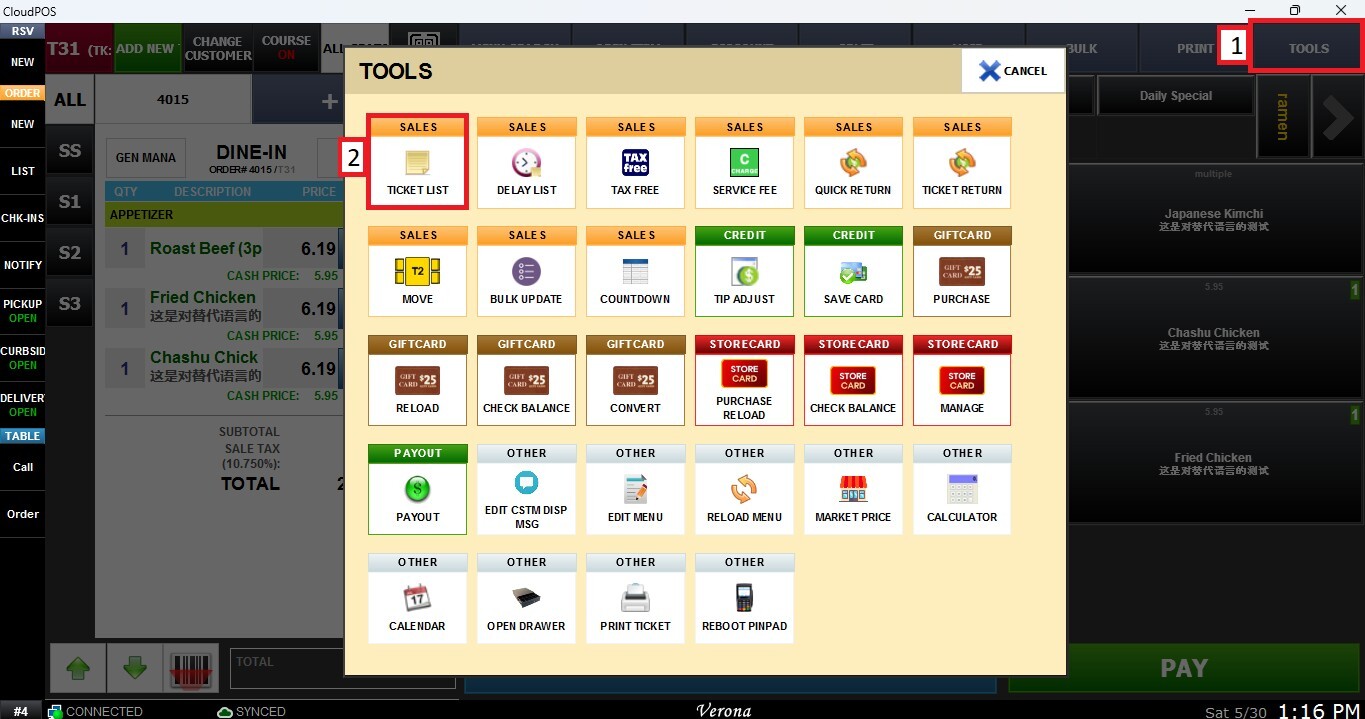
You can also access the Ticket List from the Sales Screen by selecting TOOLS and TICKET LIST.
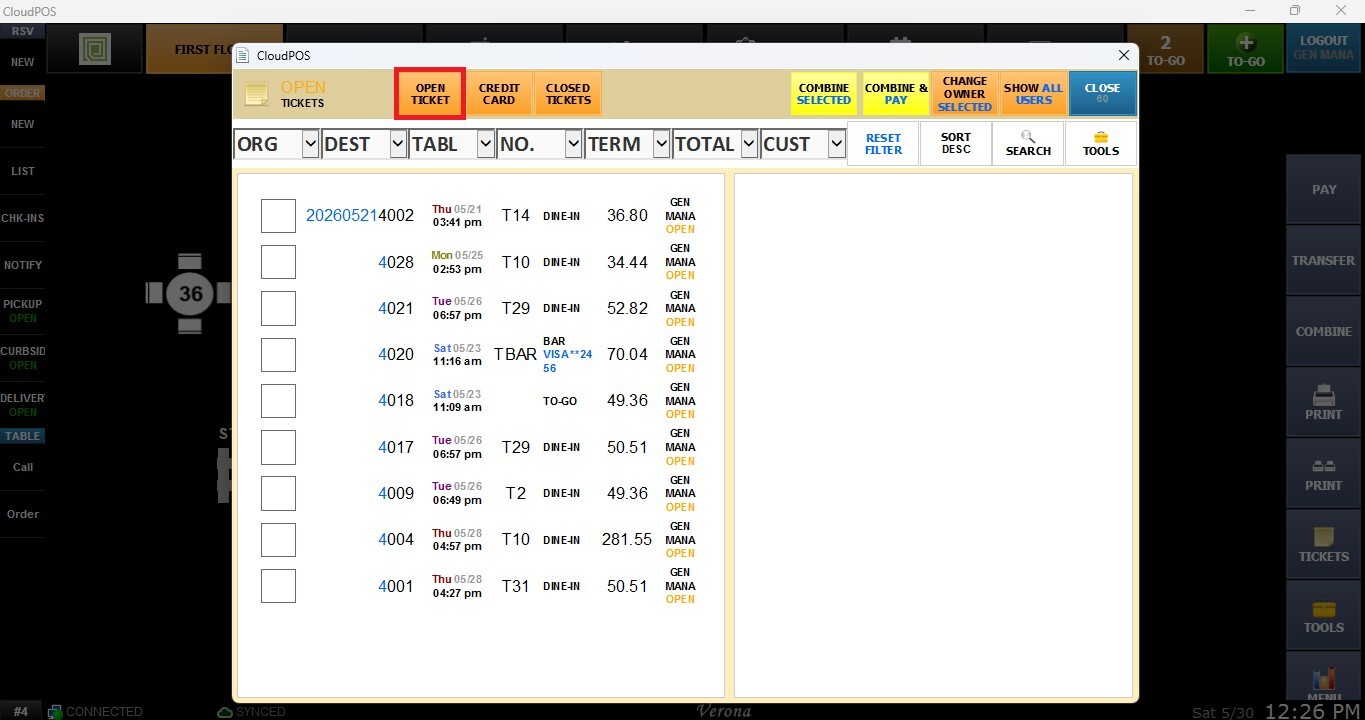
OPEN TICKETS
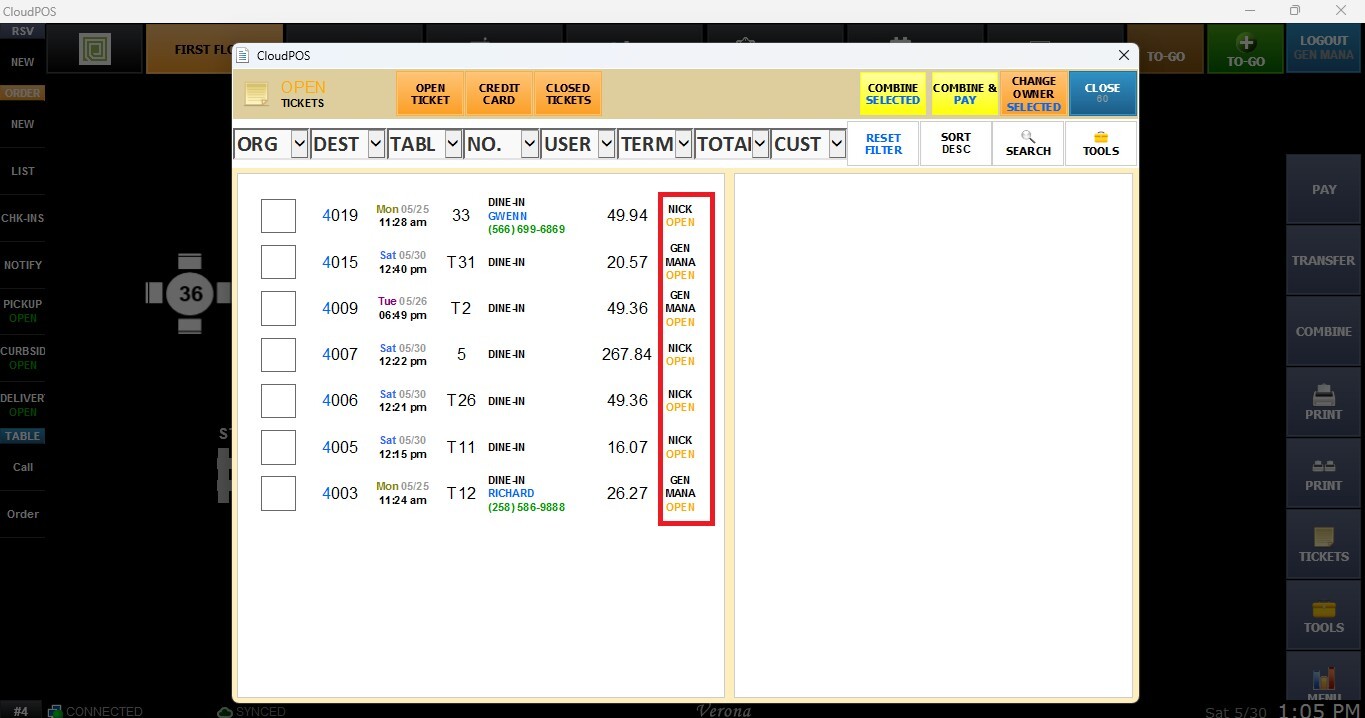
Displays all active tickets that are currently open and available for further service or modification. For more information about the available operations in this section, please review Open Tickets.
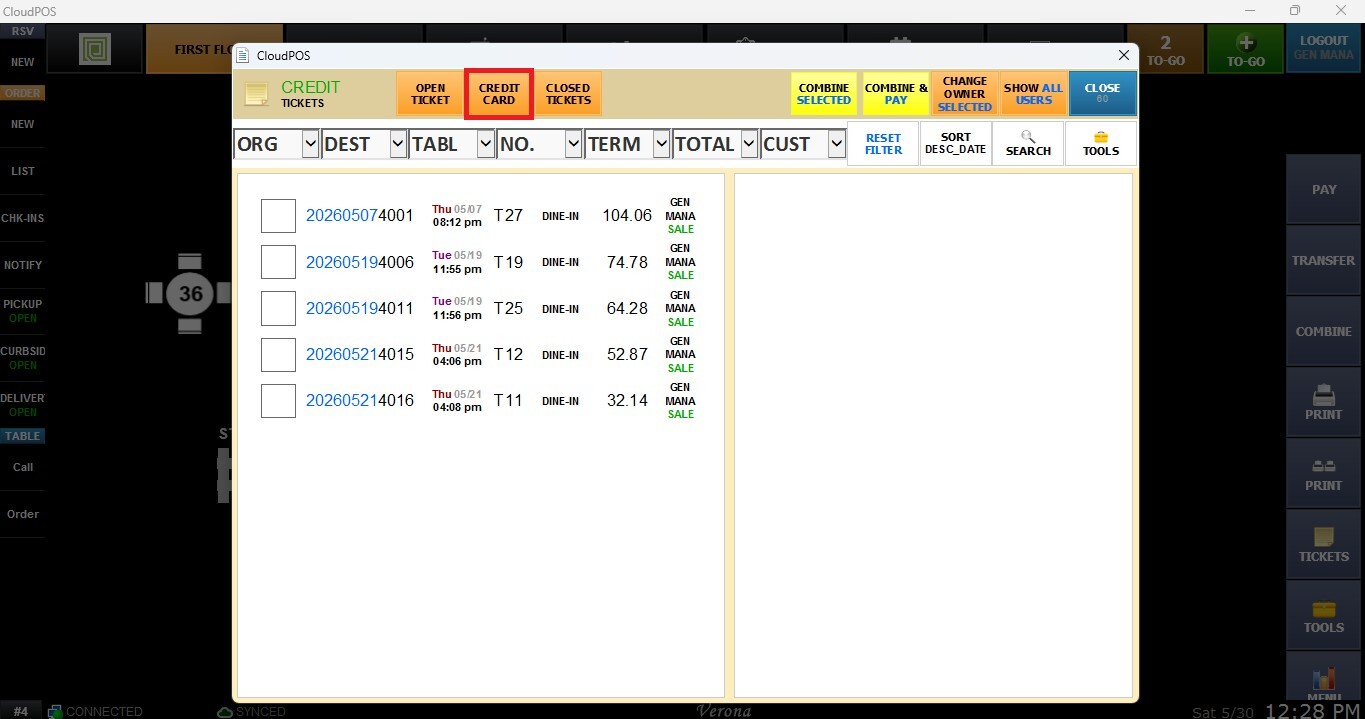
CREDIT CARD TICKETS
Displays tickets associated with credit card transactions, allowing users to quickly locate and review orders that were paid using a credit card. For more information about the available operations in this section, please review Credit Card Tickets.
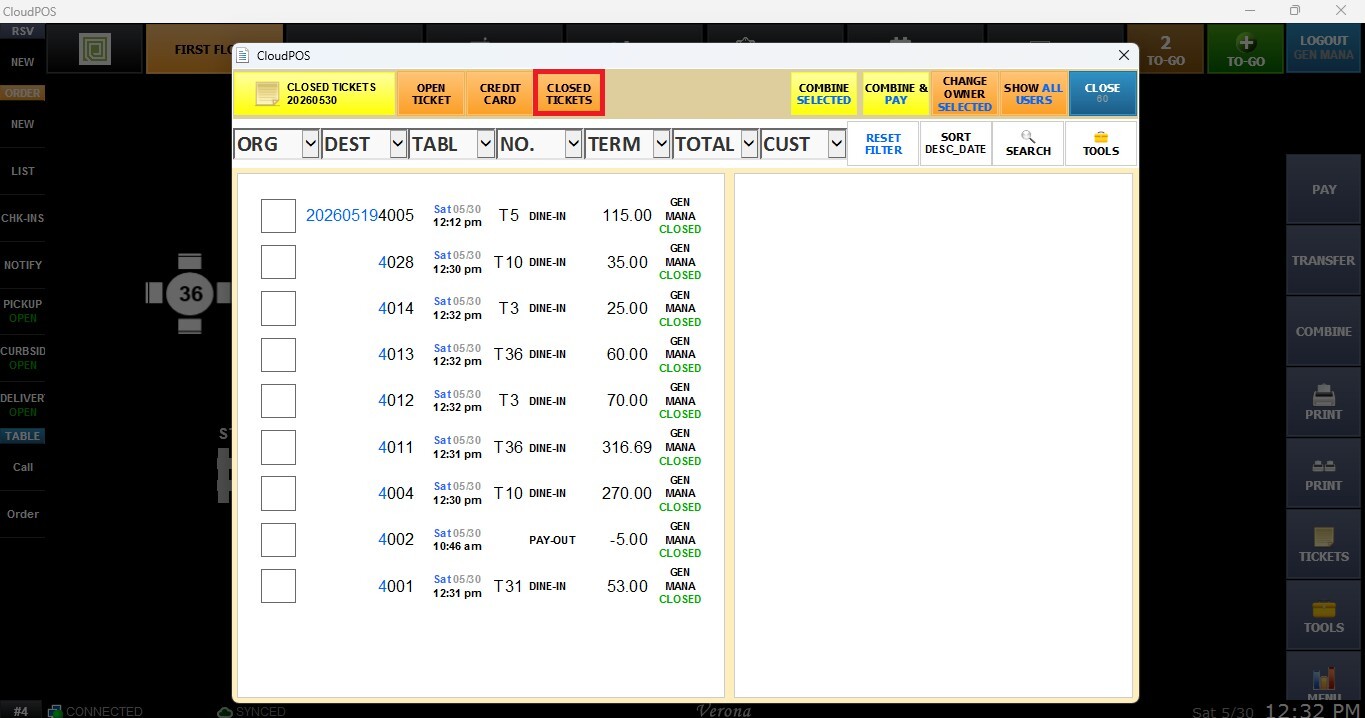
CLOSED TICKETS
Displays completed and closed transactions for review and management purposes. For more information about the available operations in this section, please review Closed Tickets.
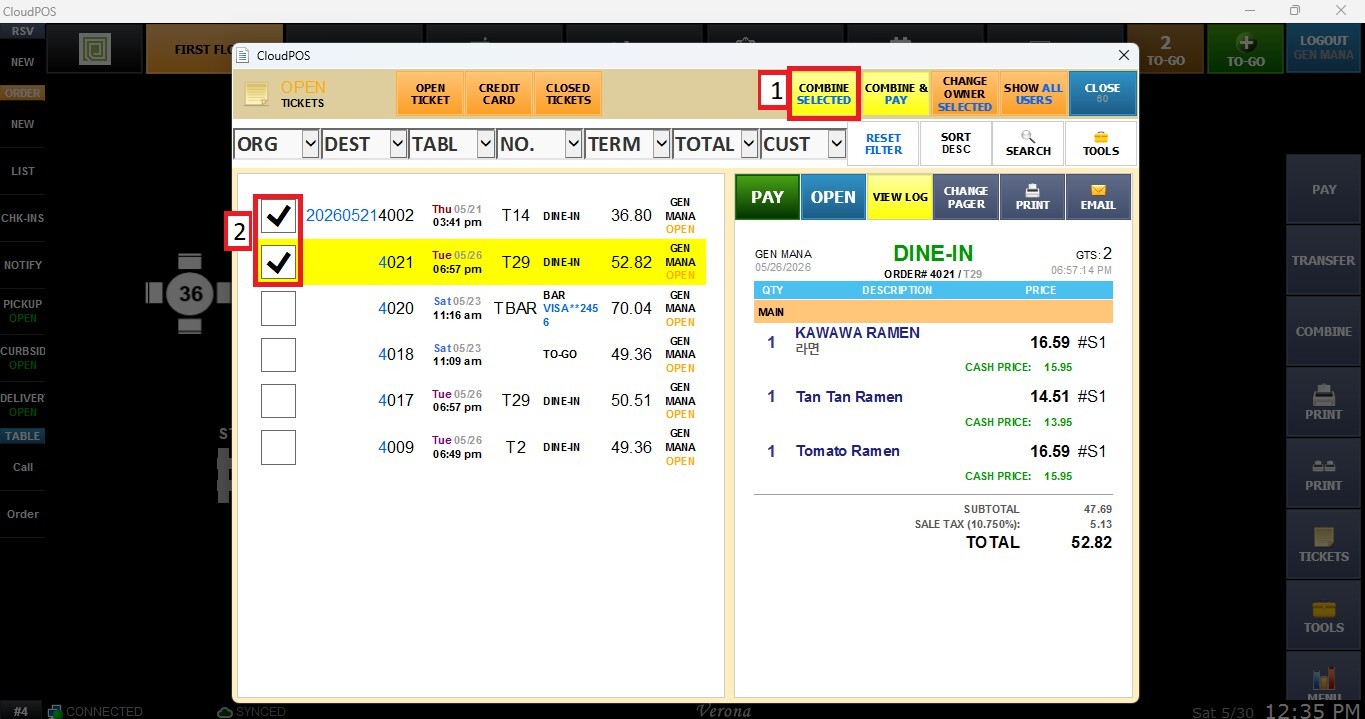
COMBINED SELECTED
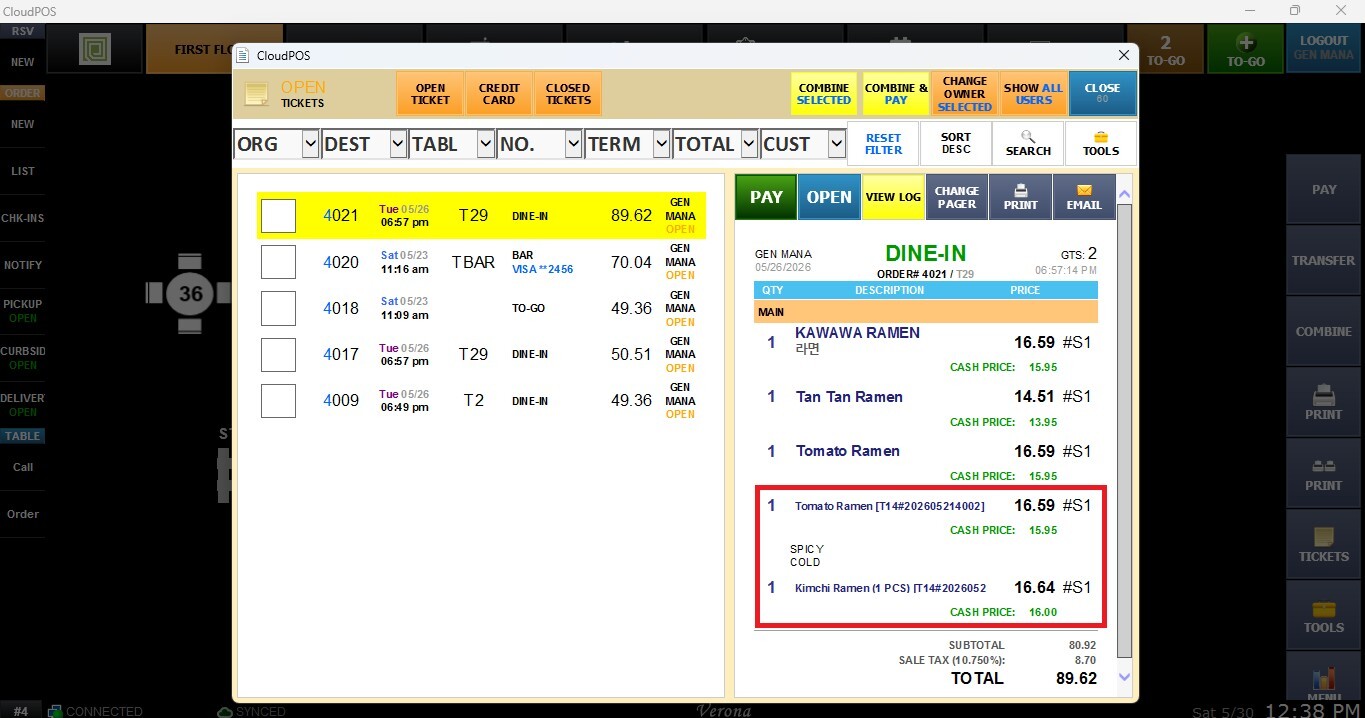
Combines the selected tickets into a single transaction while keeping it open for continued operations.
Result:
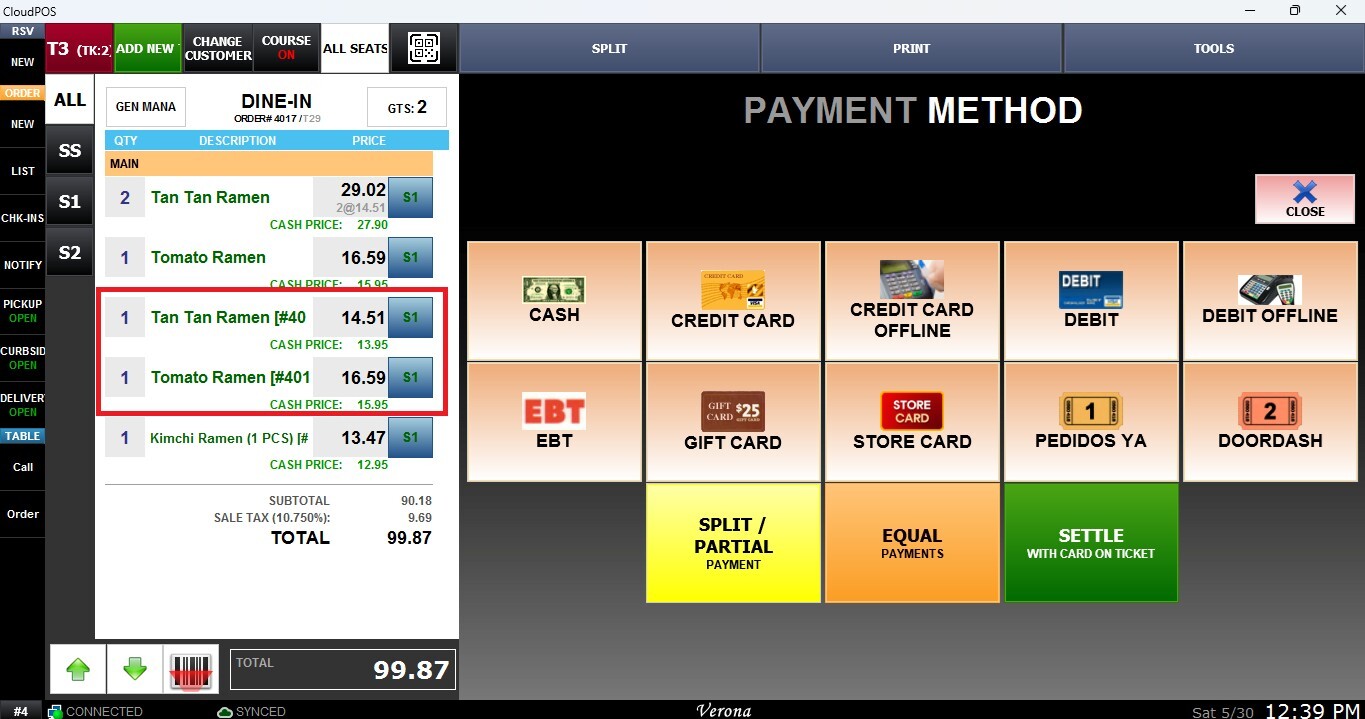
COMBINE AND PAY
Combines the selected tickets and immediately proceeds to the payment process.
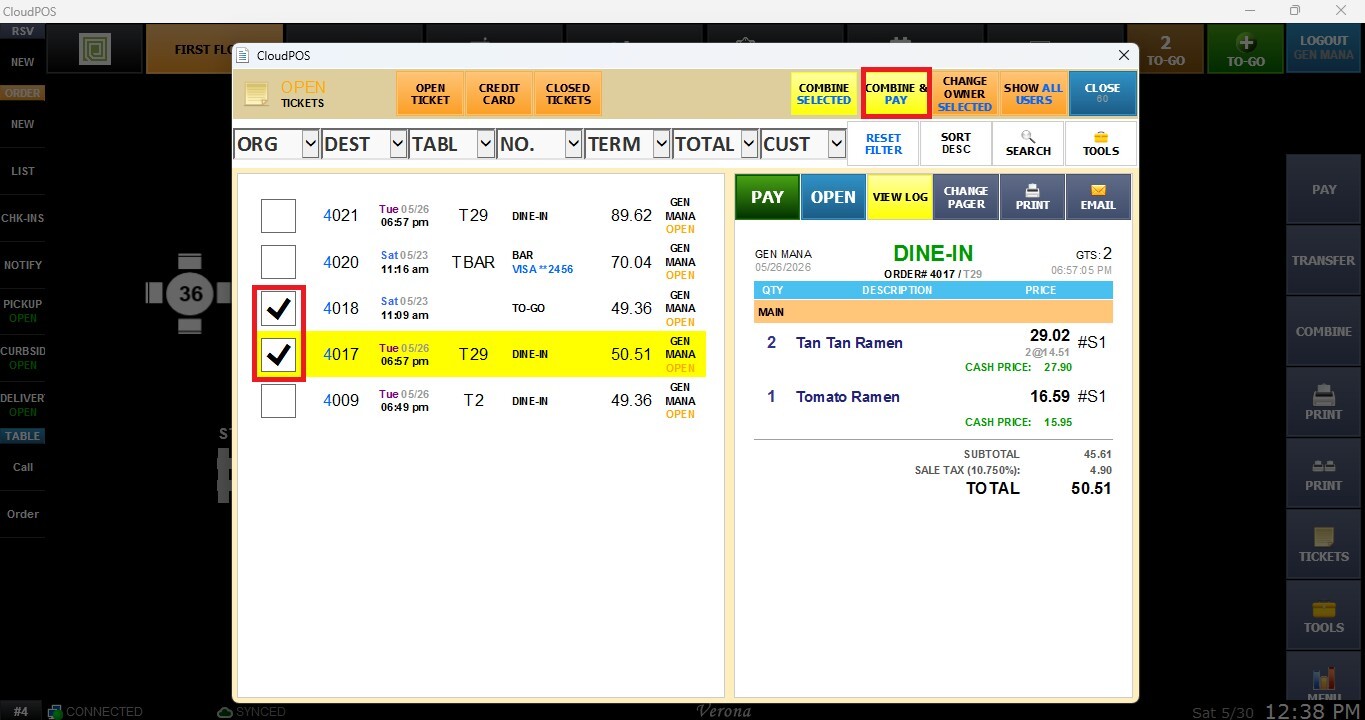
Result:
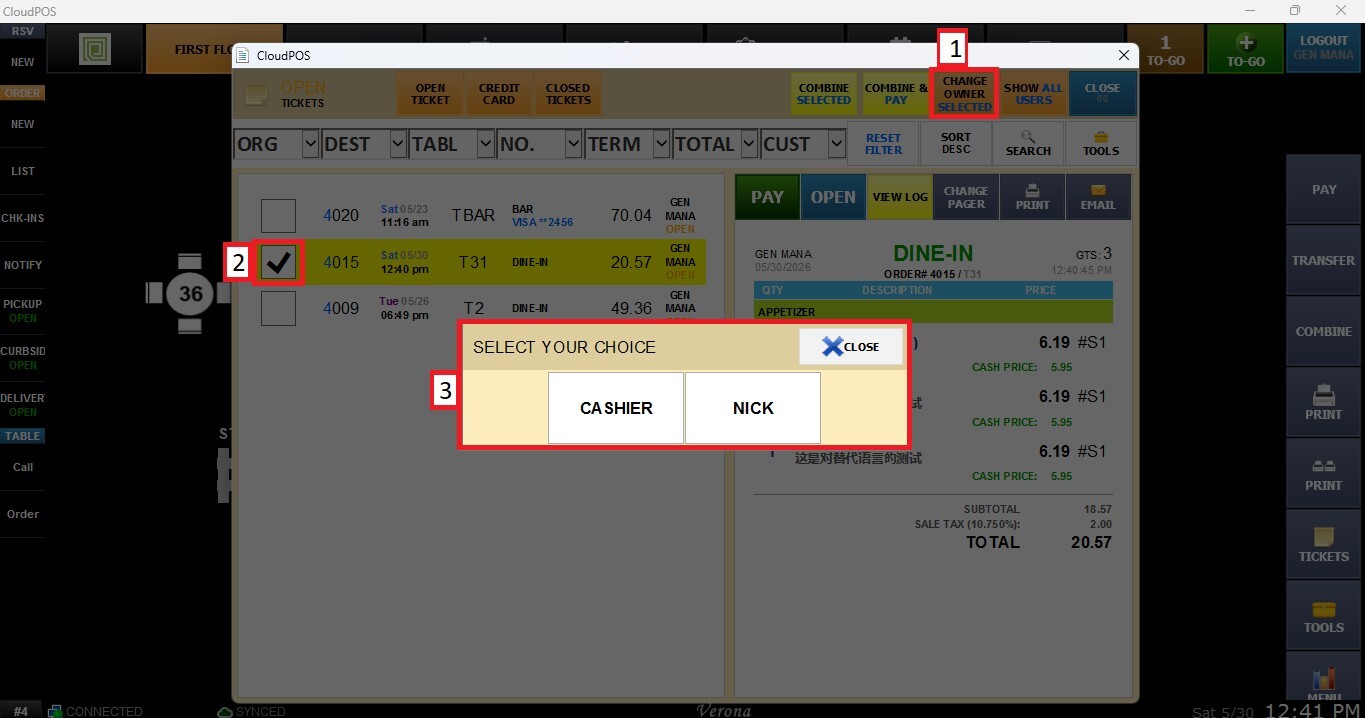
CHANGE OWNER SELECTED
Transfers ownership of the selected tickets to another employee with the appropriate permissions.
SHOW ALL USERS
Displays tickets from all employees instead of only those assigned to the current user.
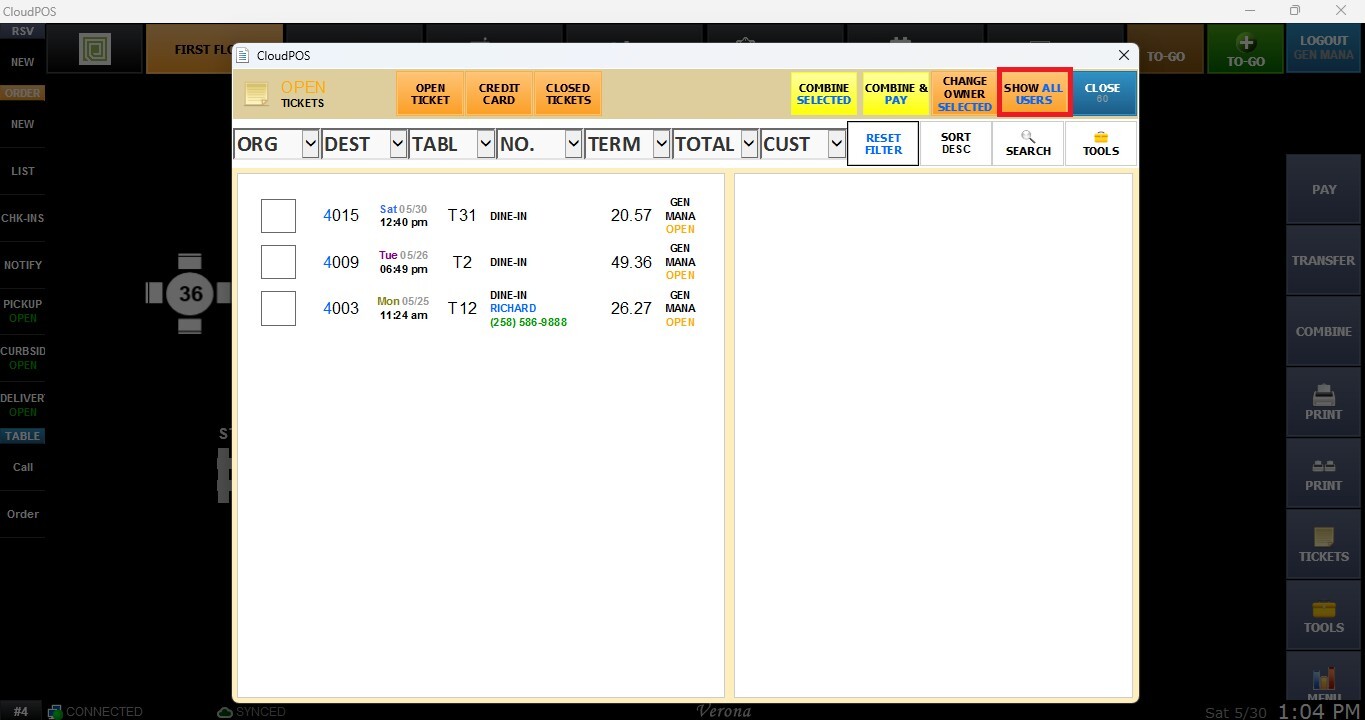
Result:
TOOLS
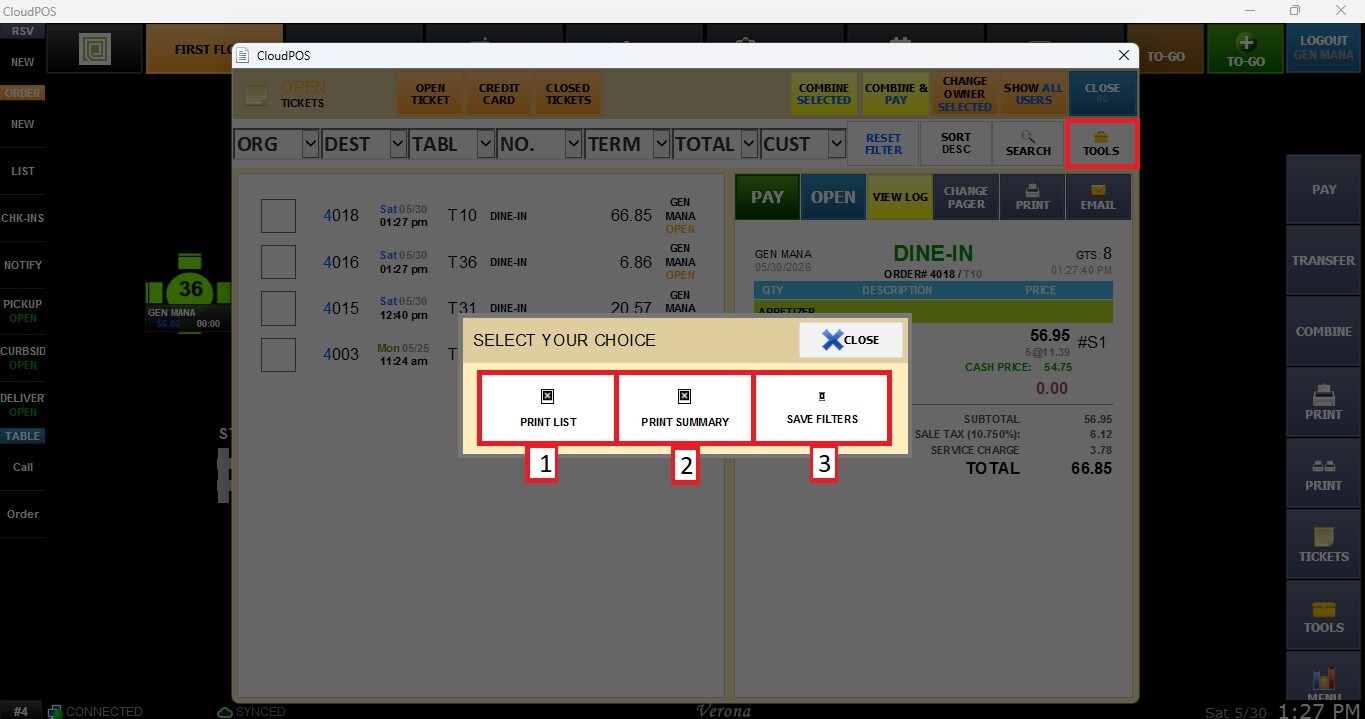
1. Print List
Prints the current Ticket List exactly as displayed on the screen, including the tickets matching the selected filters. For more information about filters in this section, please review Ticket Management Filters.
2. Print Summary
Prints a summarized view of the tickets in the current list, providing a quick overview of the displayed transactions.
3. Save Filters
Saves the currently selected filter settings, allowing them to be quickly reused the next time the Ticket List is accessed.