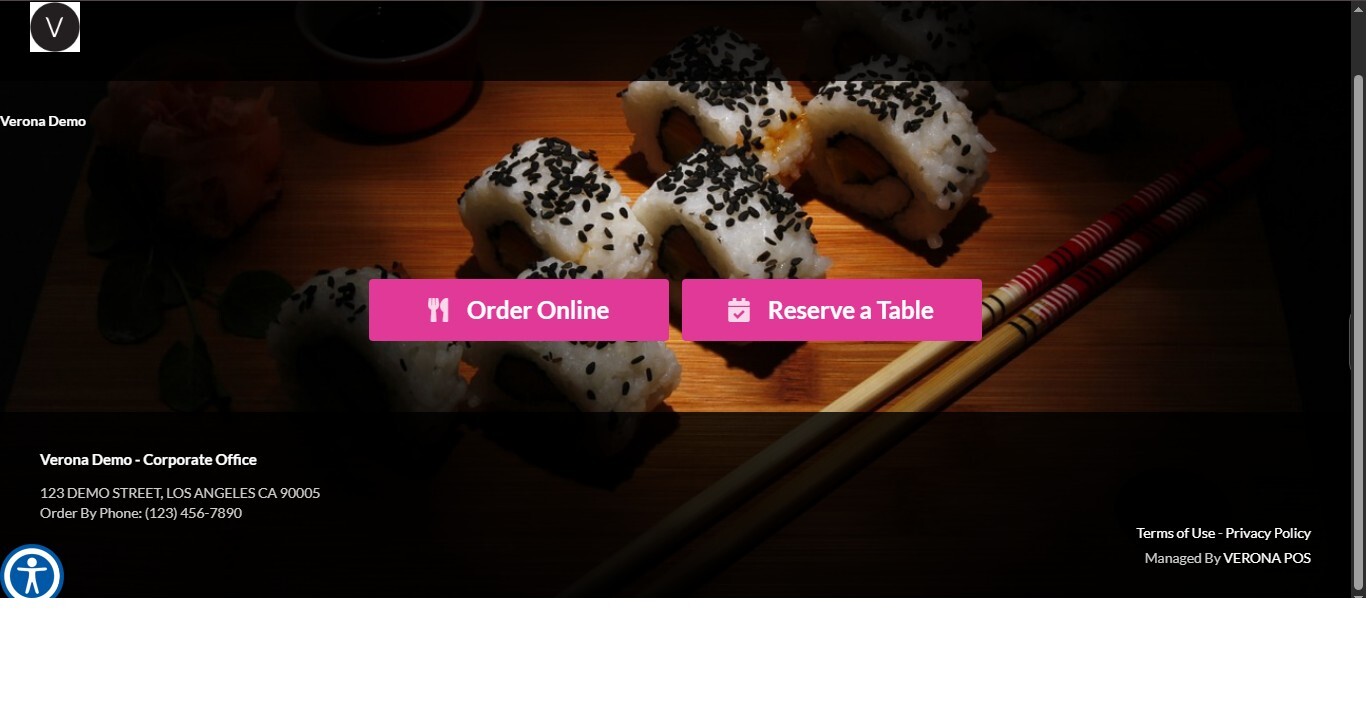
Group Info
This section allows you to customize the appearance and information displayed on your online ordering website. From this section, you can configure your group's branding, website information, logo, background images, color scheme, and homepage display settings.
Main Screen> MENU>SETTINGS>MENU11>BASIC>GROUP INFO
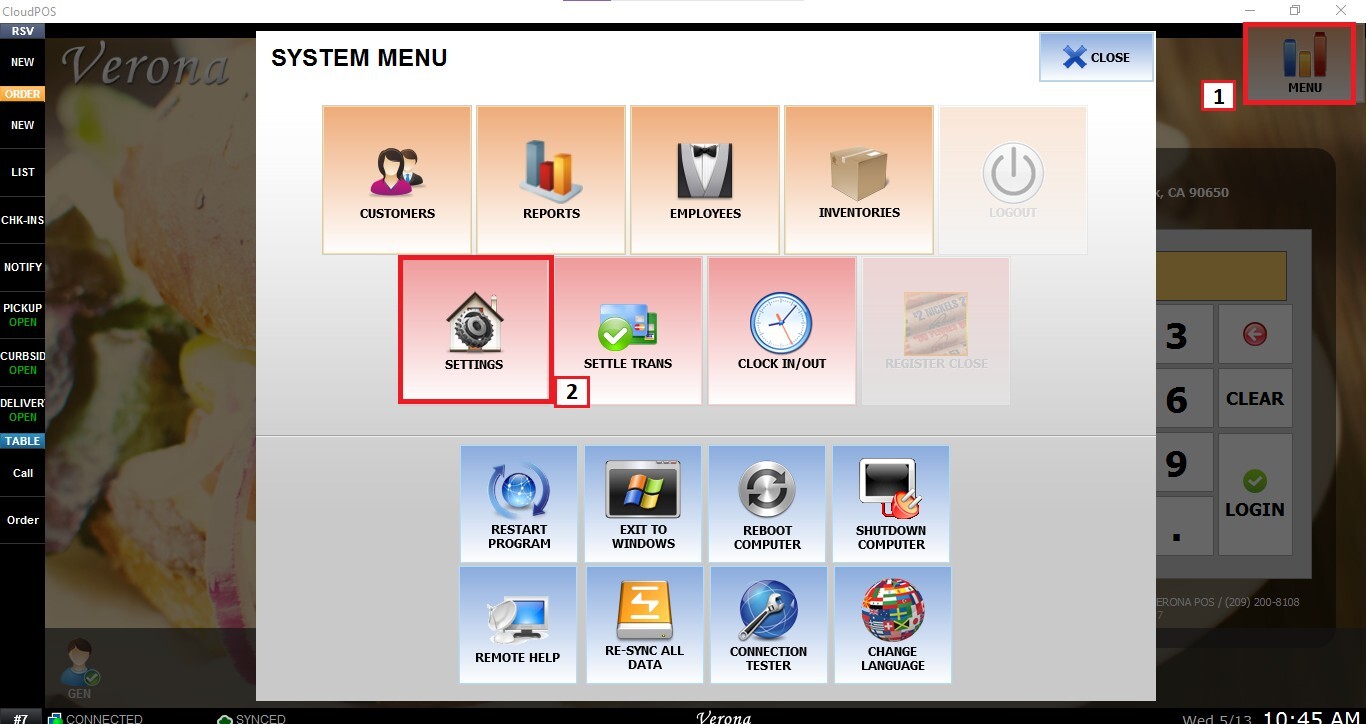
Navigate to MENU11, click BASIC, and select GROUP INFO.
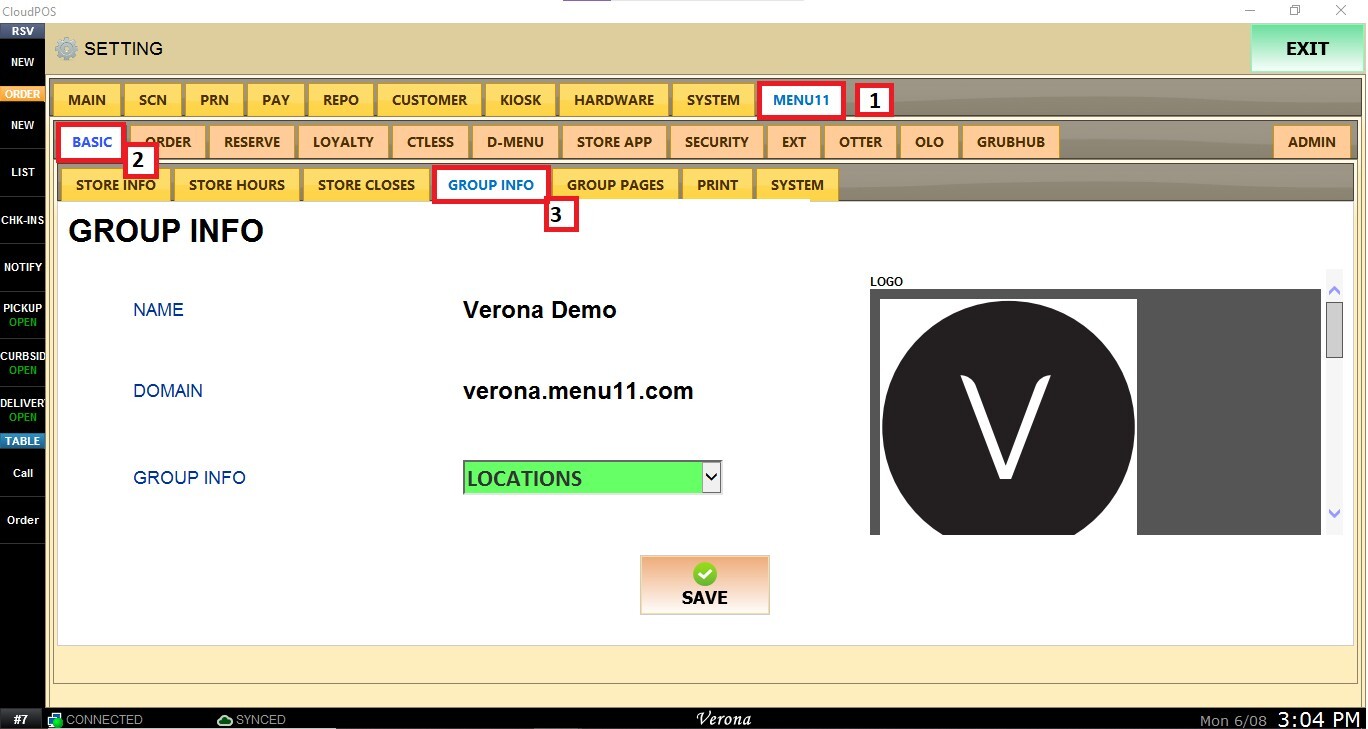
Name
Displays the group's name as it appears on the online ordering website.
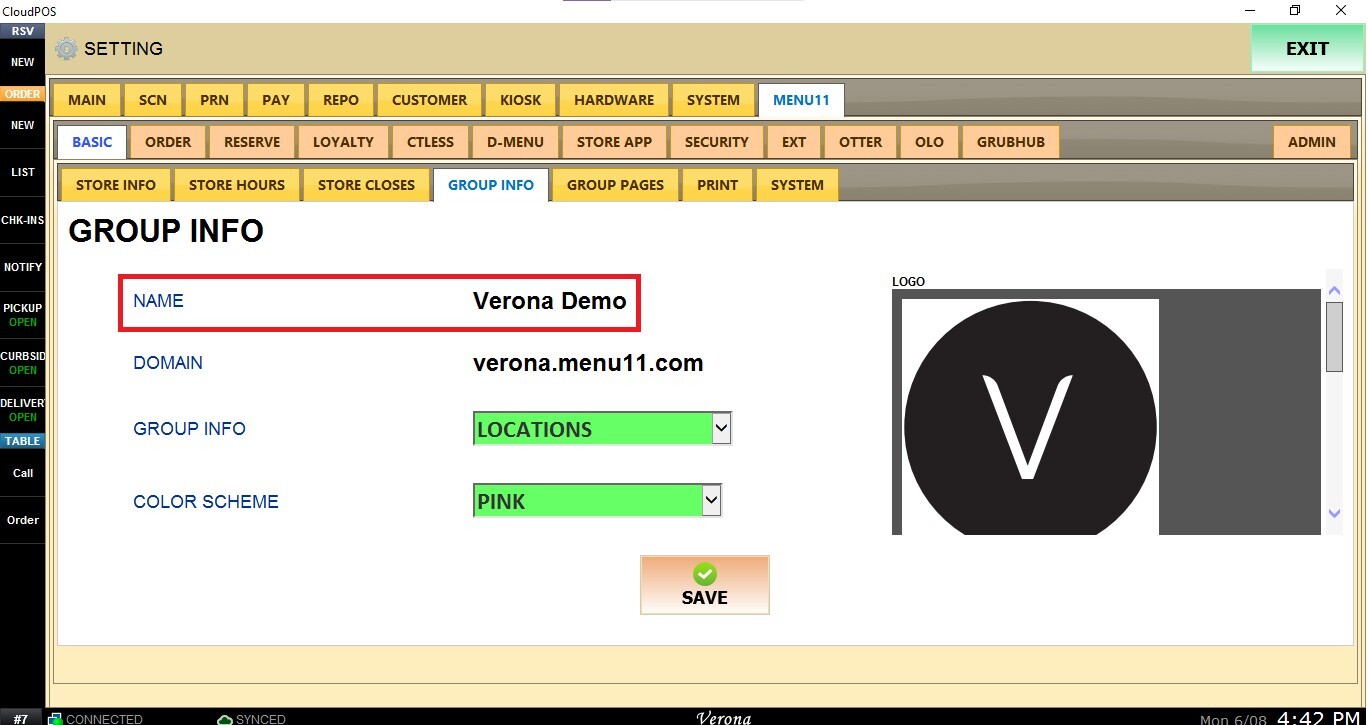
Note: The group name cannot be changed from this section. To update the group name, contact your POS provider
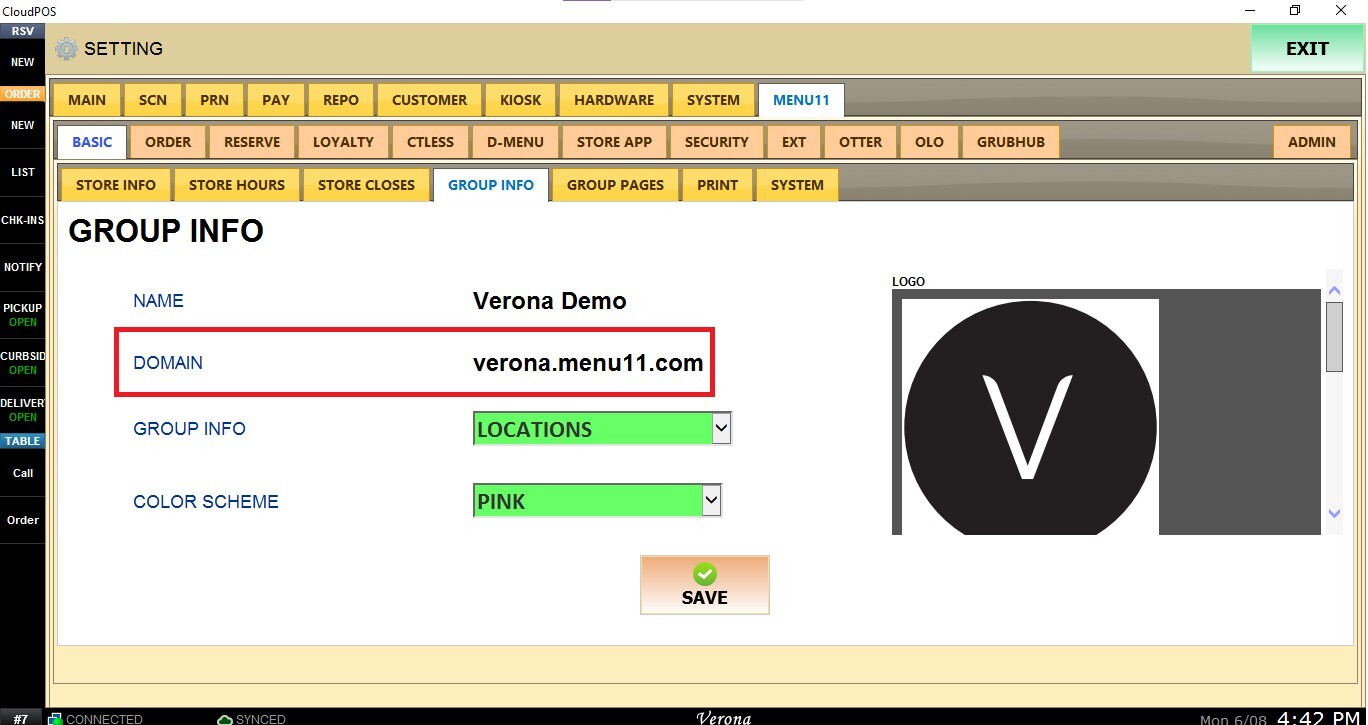
Domain
Displays the domain associated with your online ordering website. The online ordering URL can be found in this field.
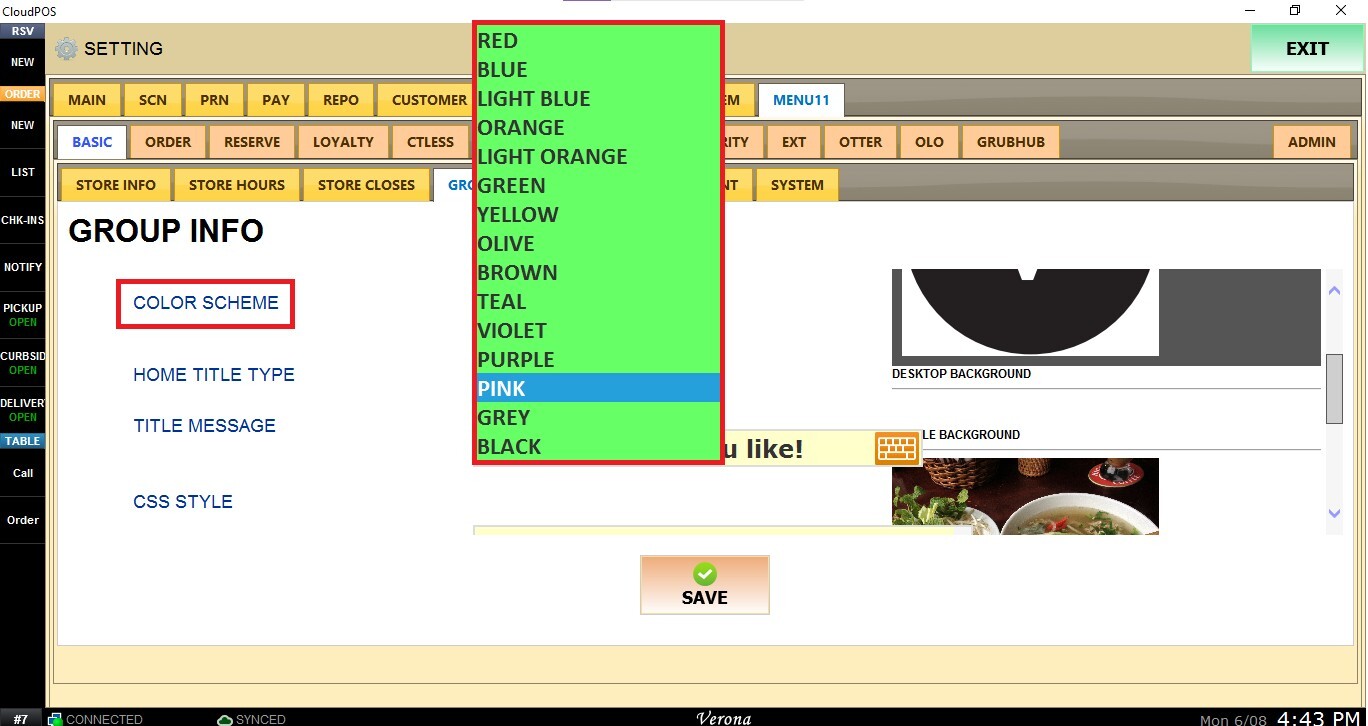
Color Scheme
Allows you to customize the color theme used throughout the online ordering website.
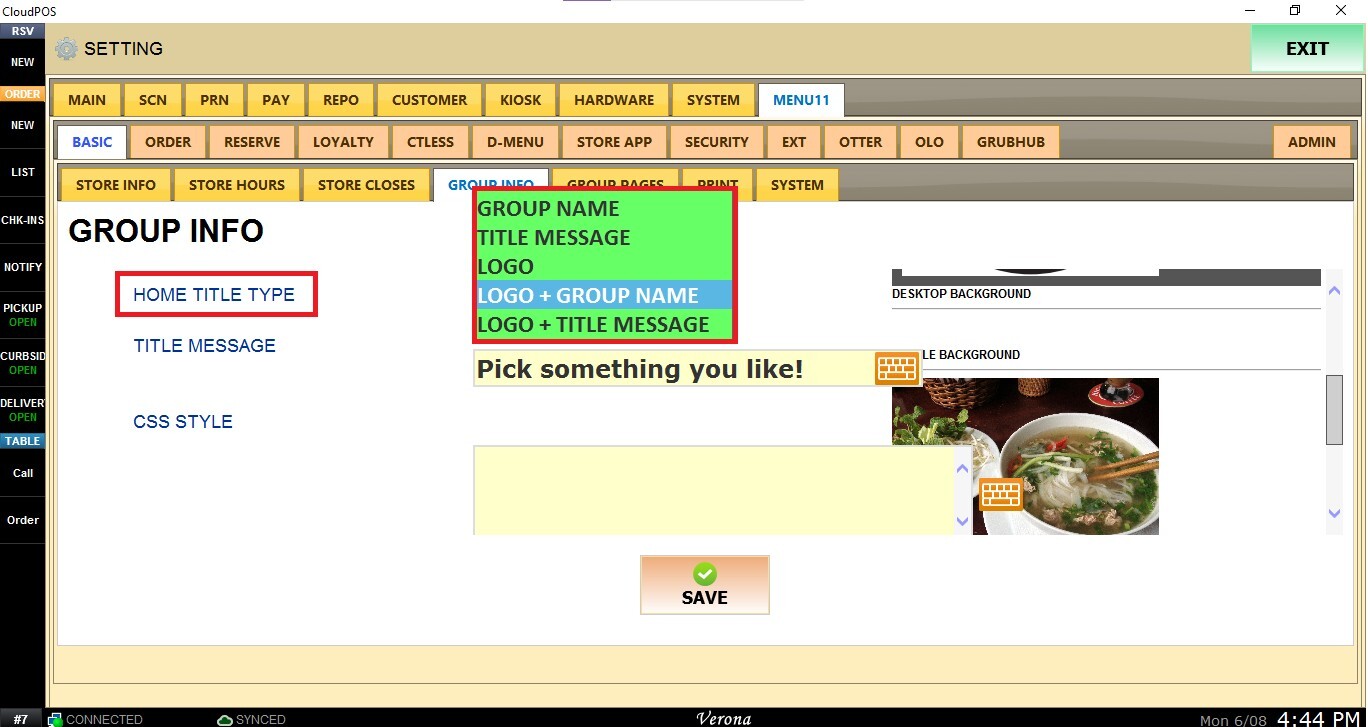
Home Title Type
Determines what information is displayed in the top-left corner of the online ordering homepage.
From the drop-down menu, select one of the available options:
Group Name: Displays the group name only.
Title Message: Displays only the custom Title Message.
Logo: Displays the logo only.
Logo + Group Name: Displays both the logo and the group name.
Logo + Title Message: Displays the logo along with a custom title message.
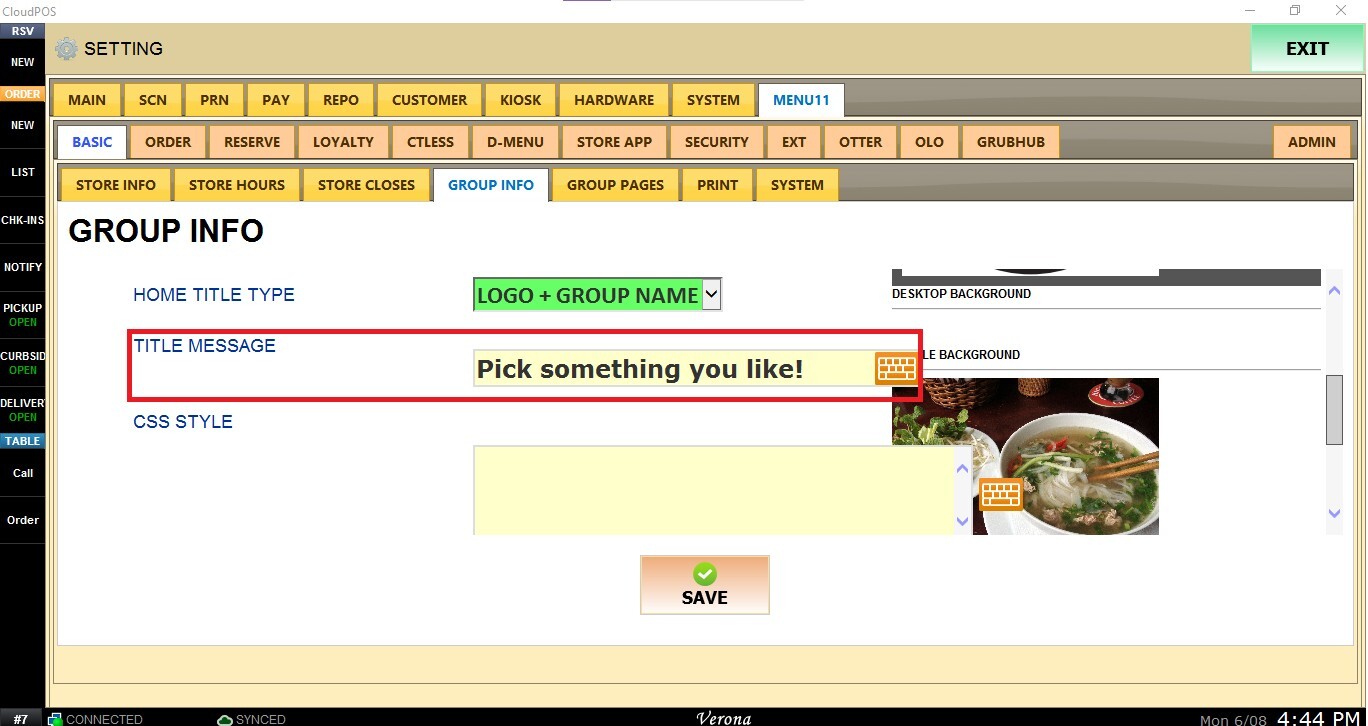
Title Message
Allows you to create a custom message that will be displayed when the Logo + Title Message option is selected under Home Title Type.
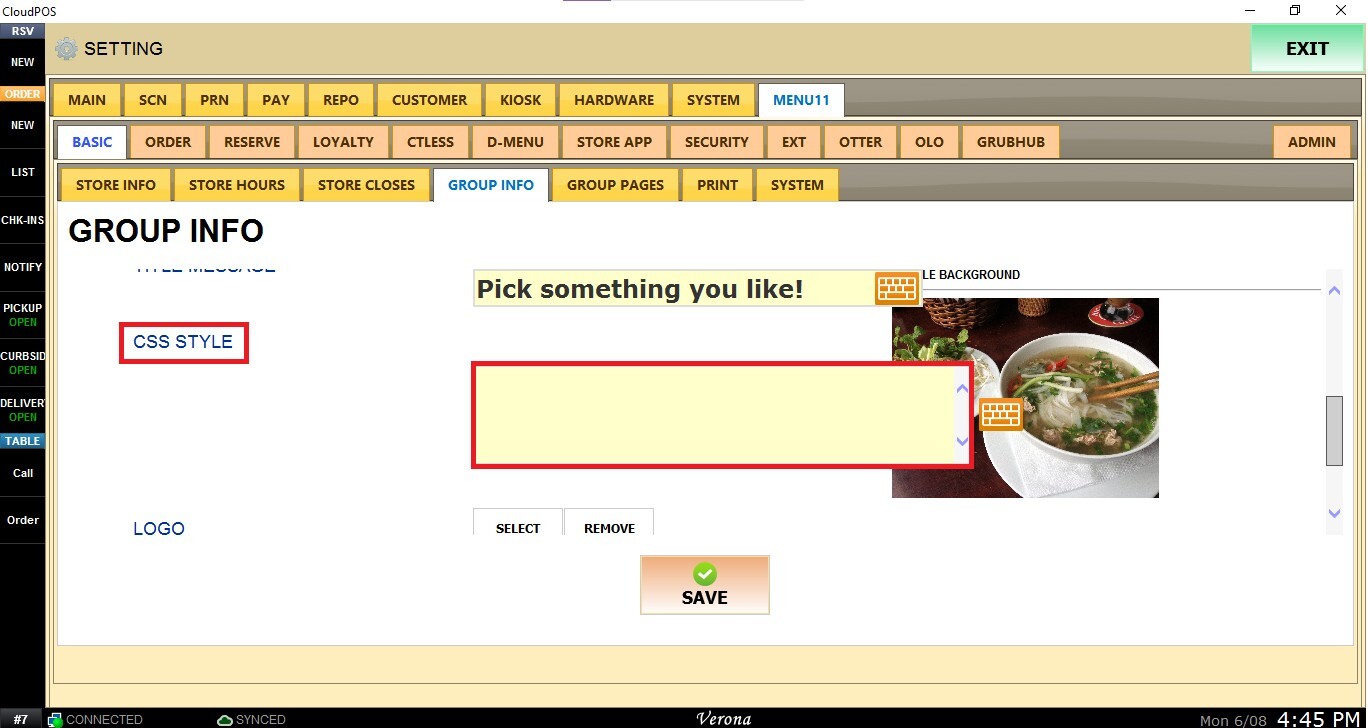
CSS STYLE
This field allows advanced users to apply custom styling to the online ordering website using CSS (Cascading Style Sheets) code.
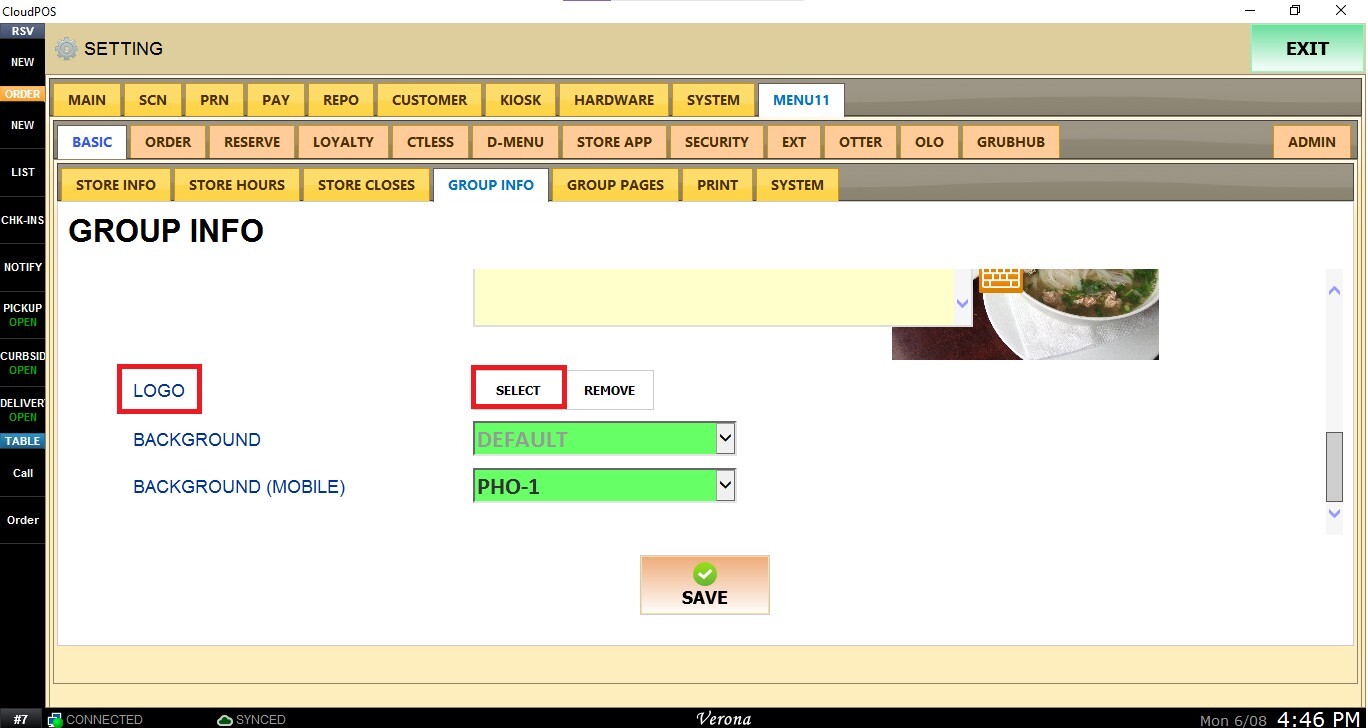
LOGO
Allows you to upload or select the logo displayed on the website.
To configure the logo, click SELECT.
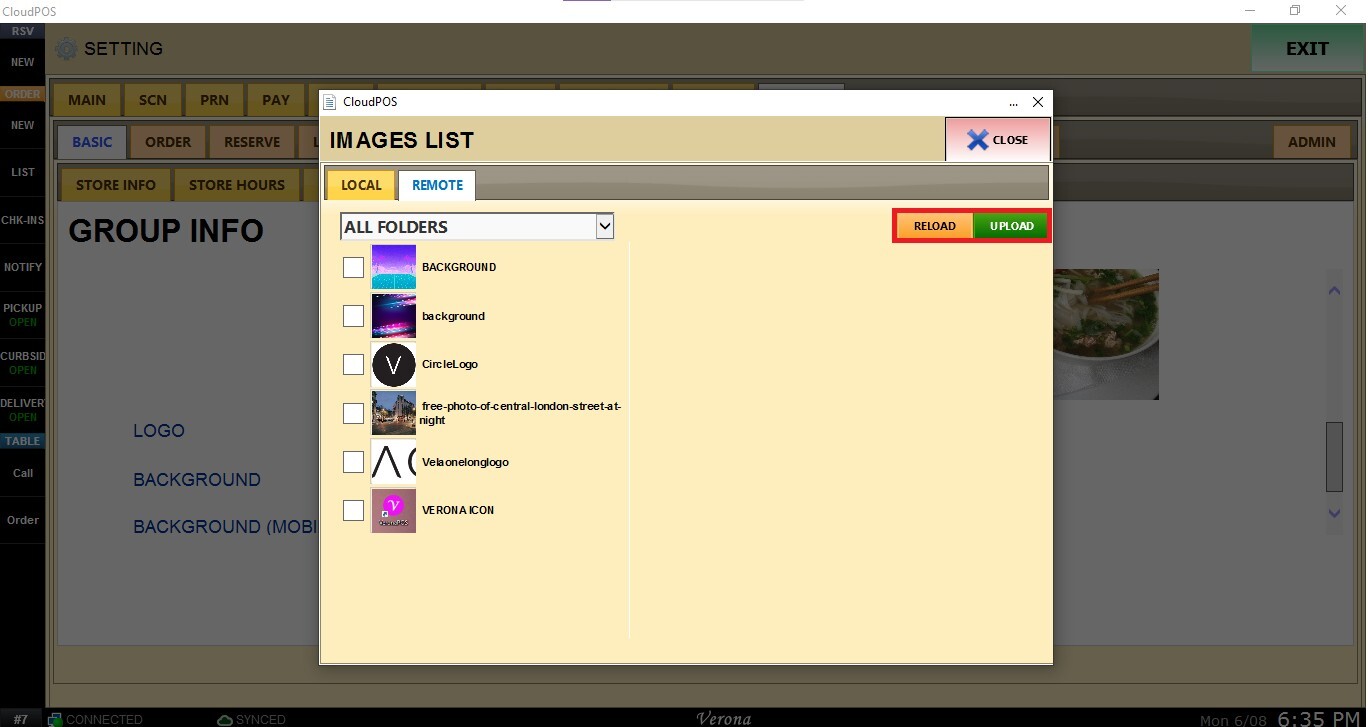
Choose an image from the Remote Image library. You can delete the selection by clicking DELETE, and modify the image's name by clicking CHANGE NAME.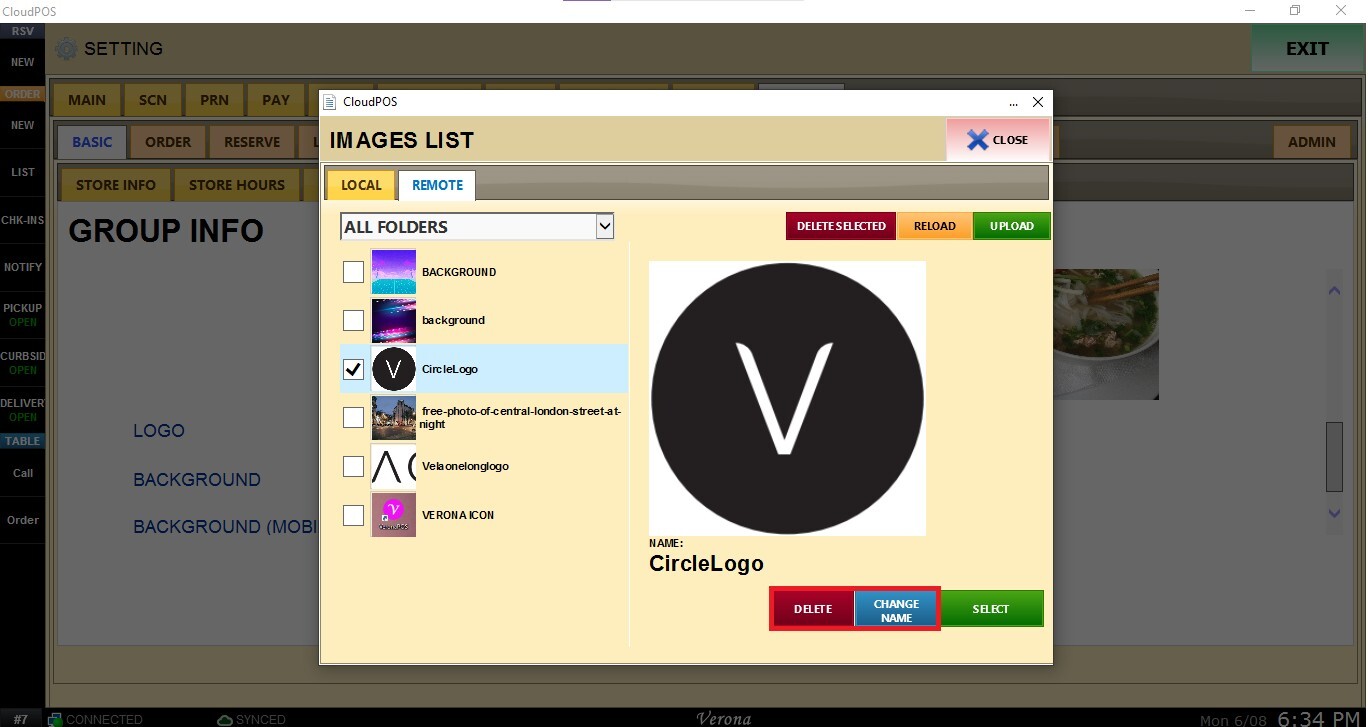
Click SELECT
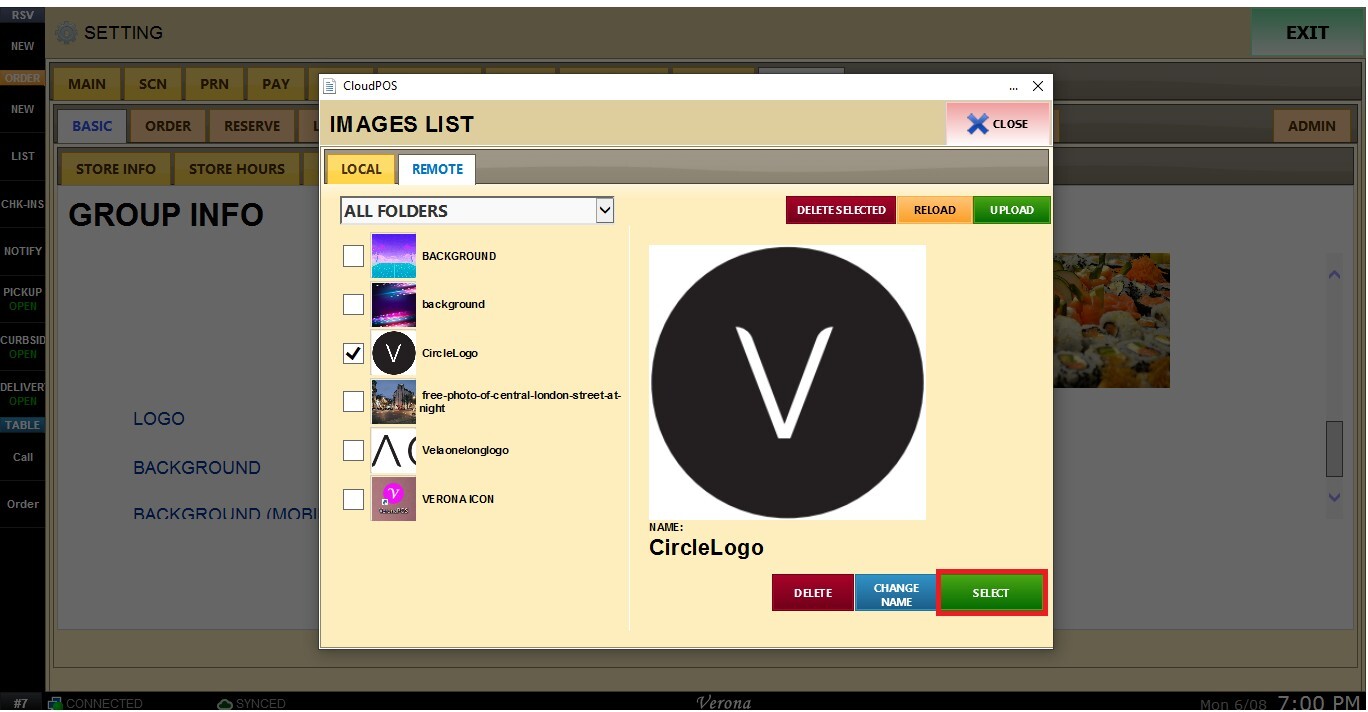
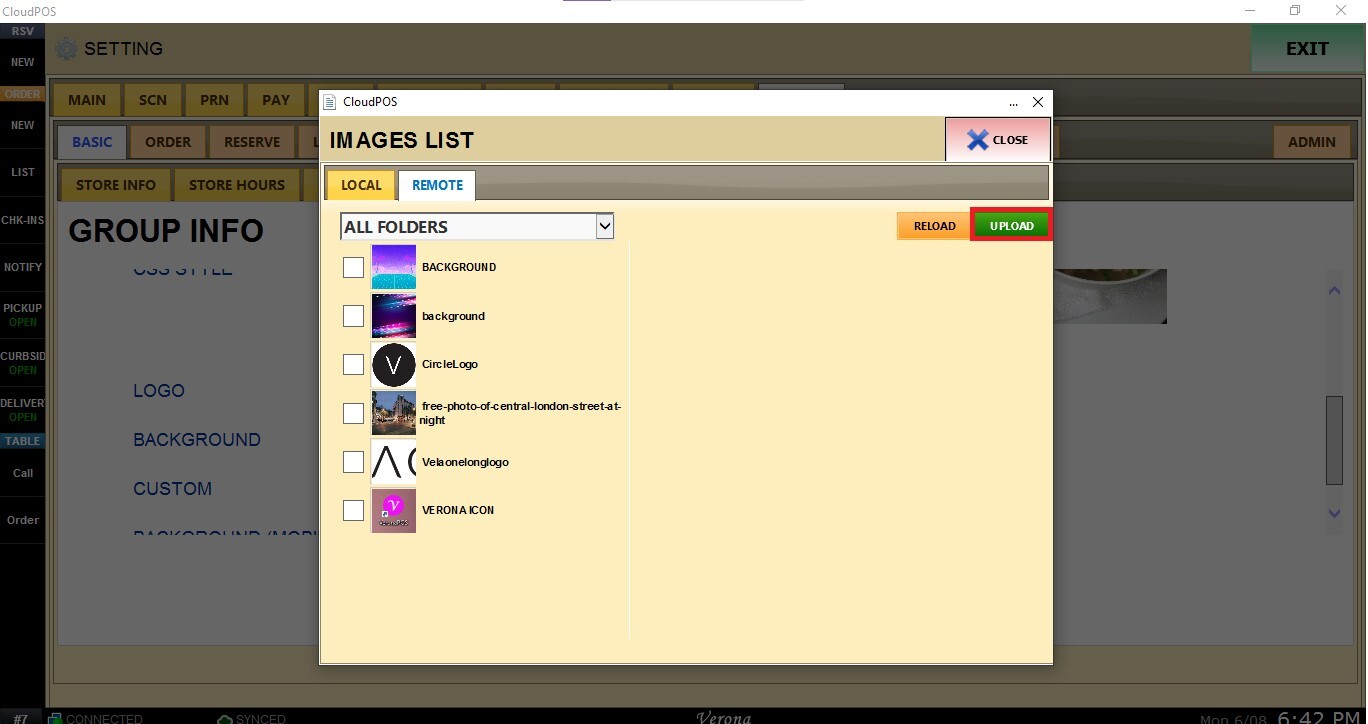
Click UPLOAD to browse a new image file from your device to be used as the logo, and use RELOAD to refresh the window.
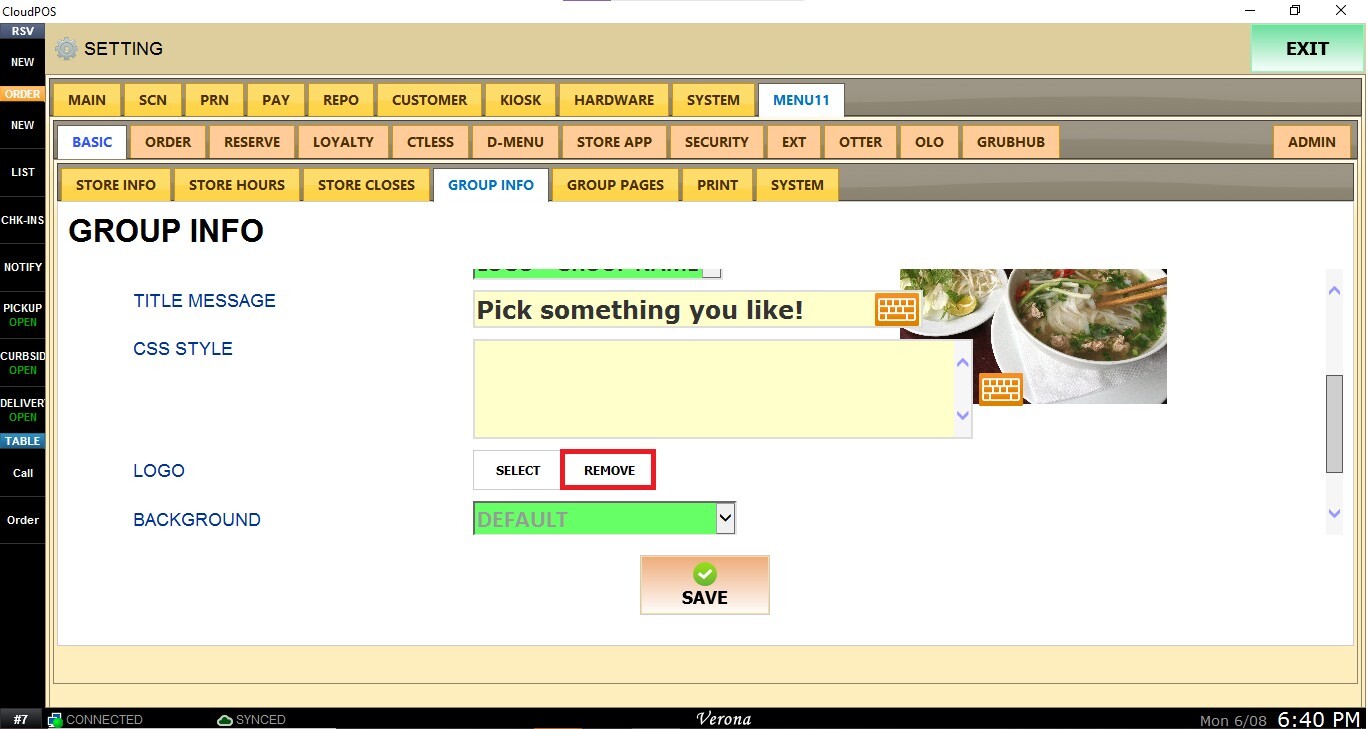
Use the REMOVE button to delete the logo selection if necessary.
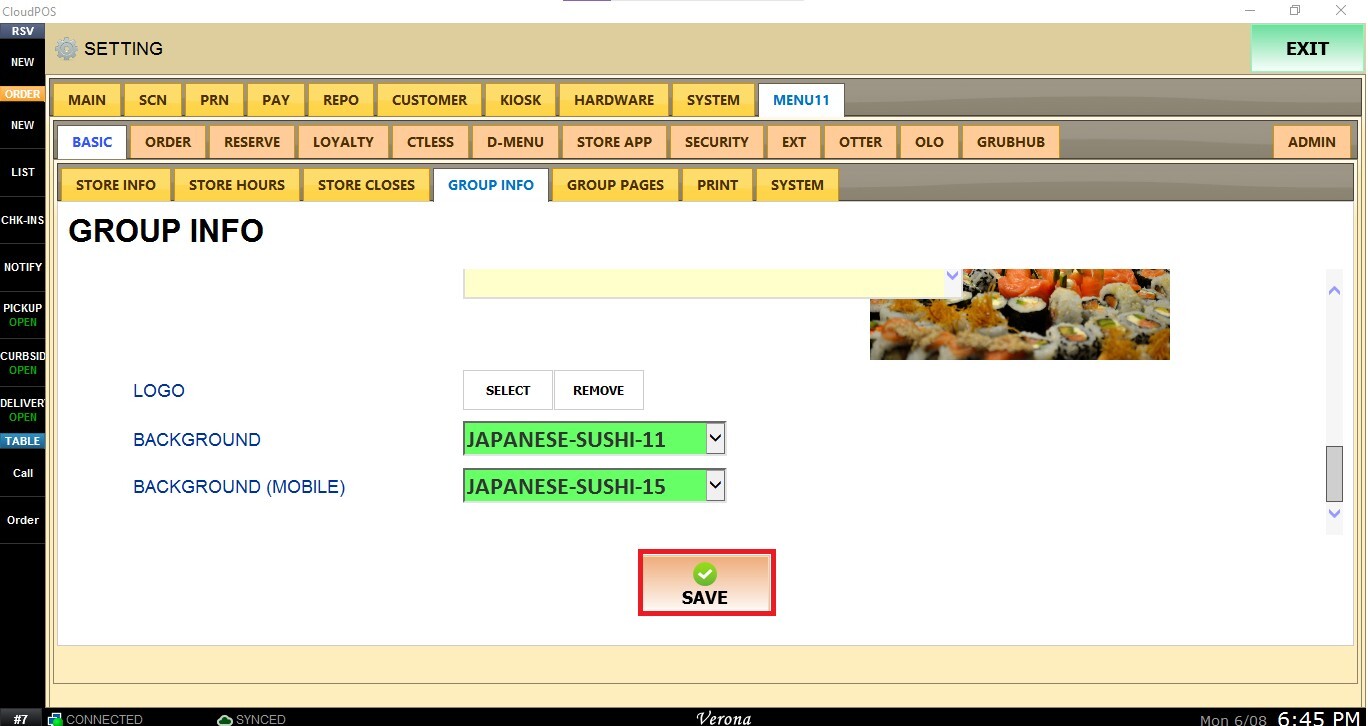
BACKGROUND
Allows you to configure the background image displayed on the website.
From the drop-down menu, select one of the available options:
Select an image from the built-in image library.
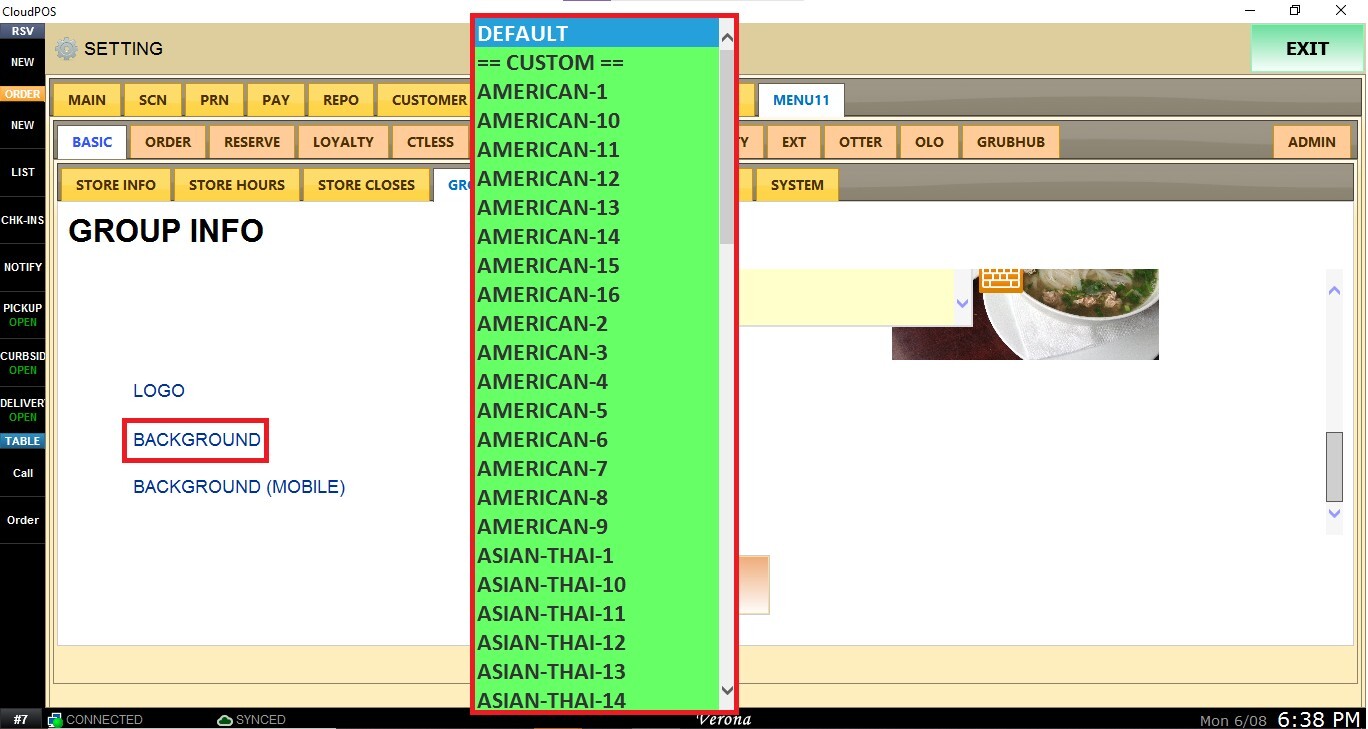
Or select CUSTOM and choose an image from the Remote Image library.
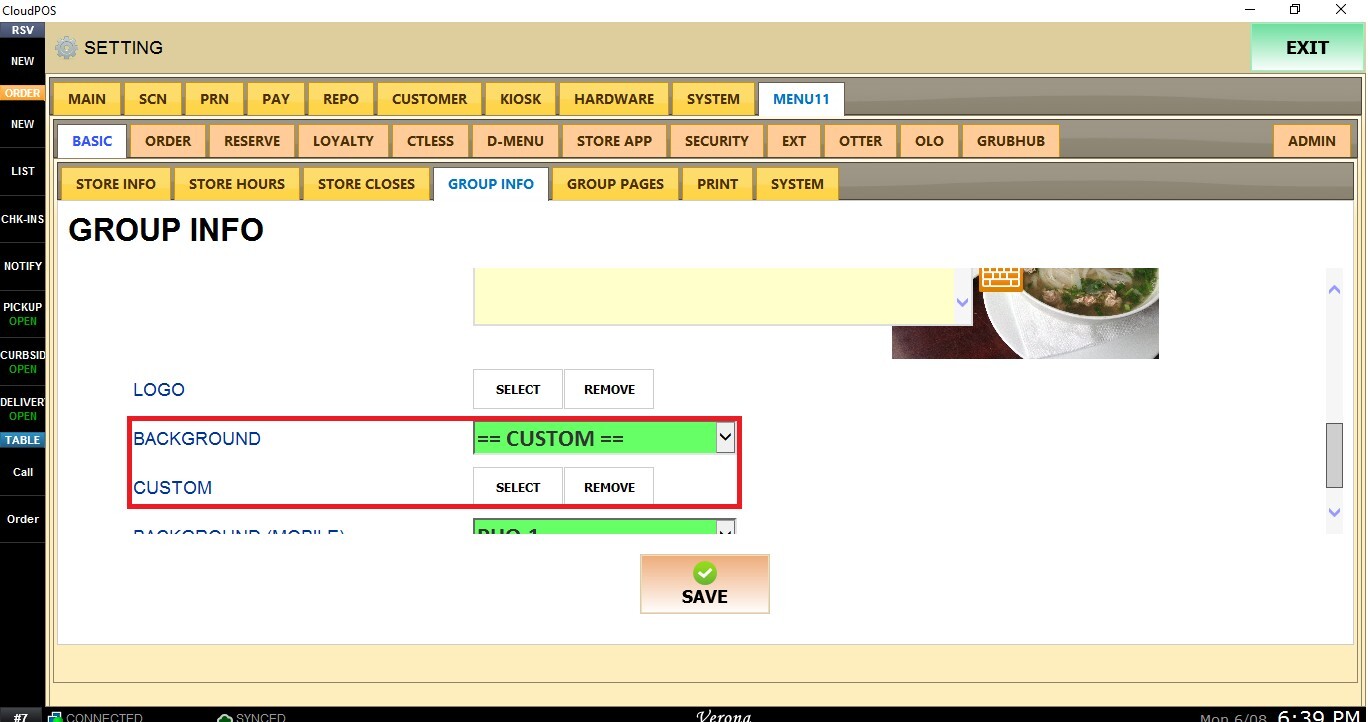
Choose the preferred image and click SELECT.
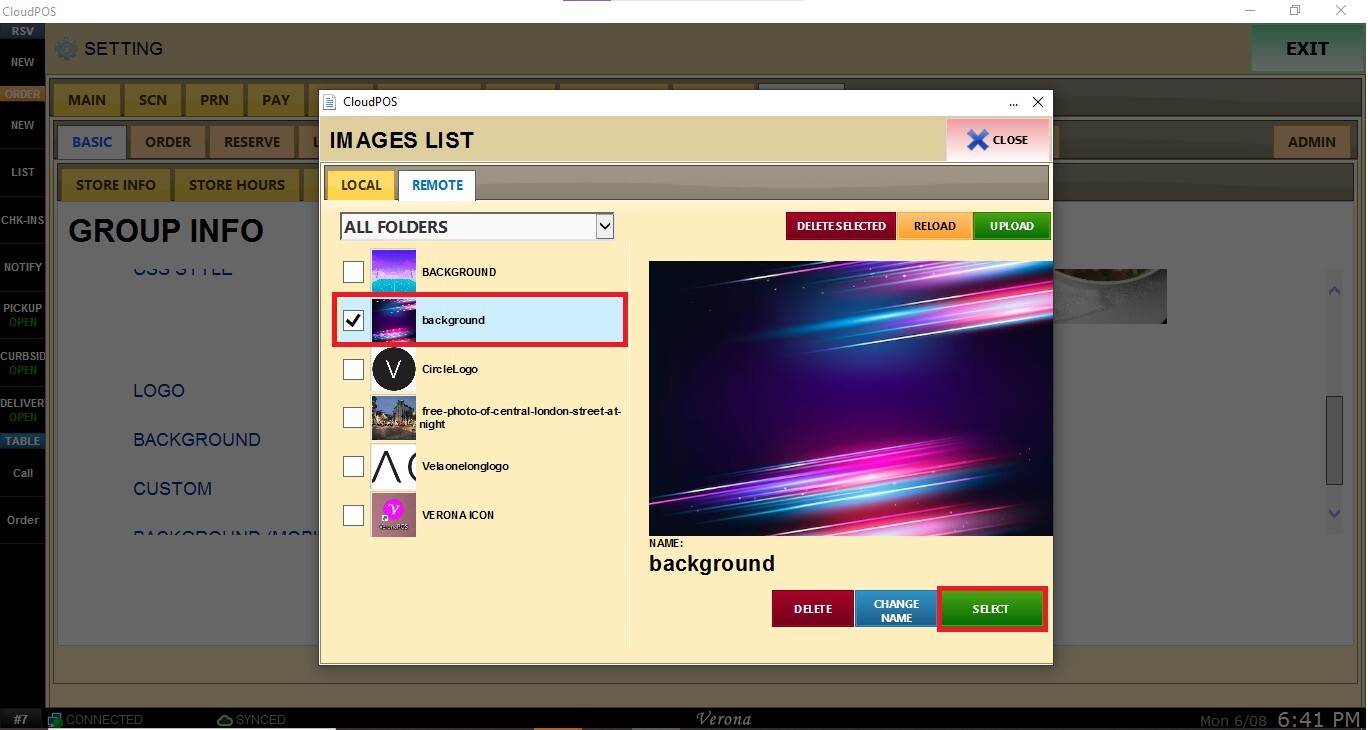
Click UPLOAD to browse a new image file from your device to be used as the Background.
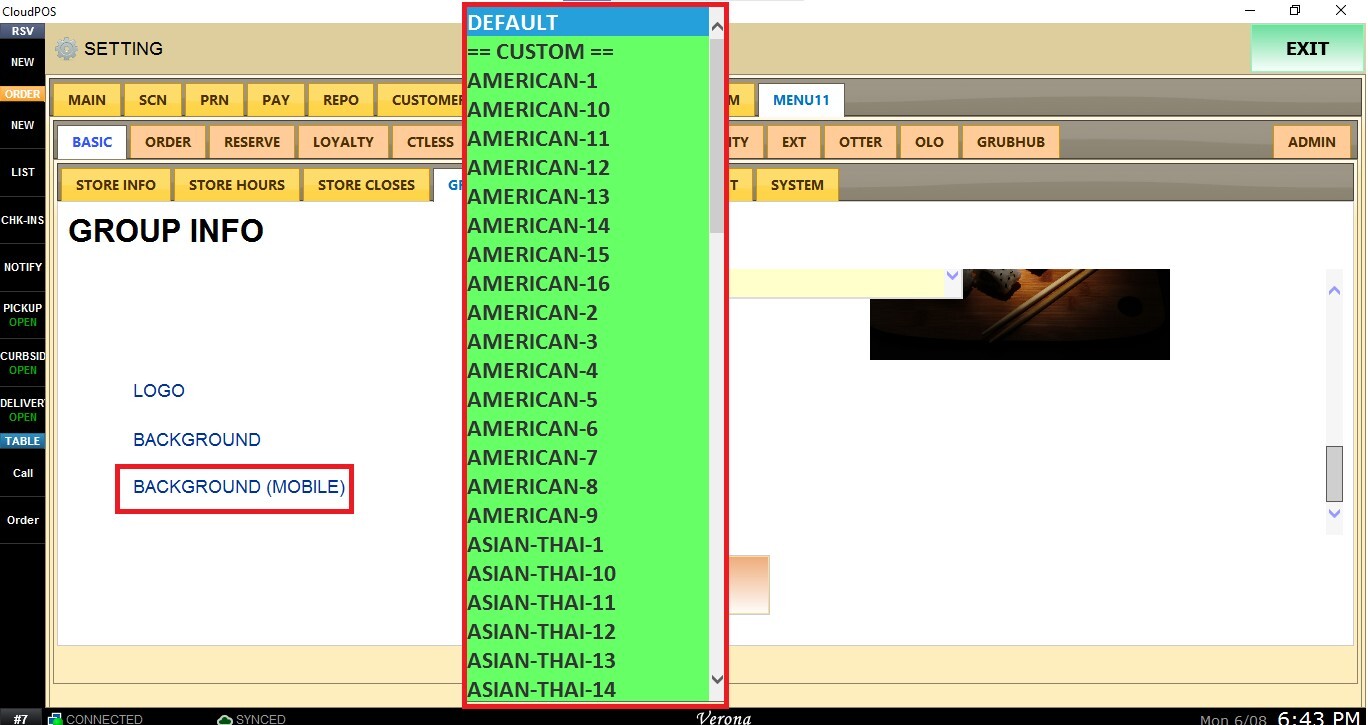
BACKGROUND (MOBILE)
Allows you to configure a separate background image optimized for mobile devices.
From the drop-down menu, select one of the available options:
Select an image from the built-in image library.
Or select CUSTOM and choose an image from the Remote Image library.
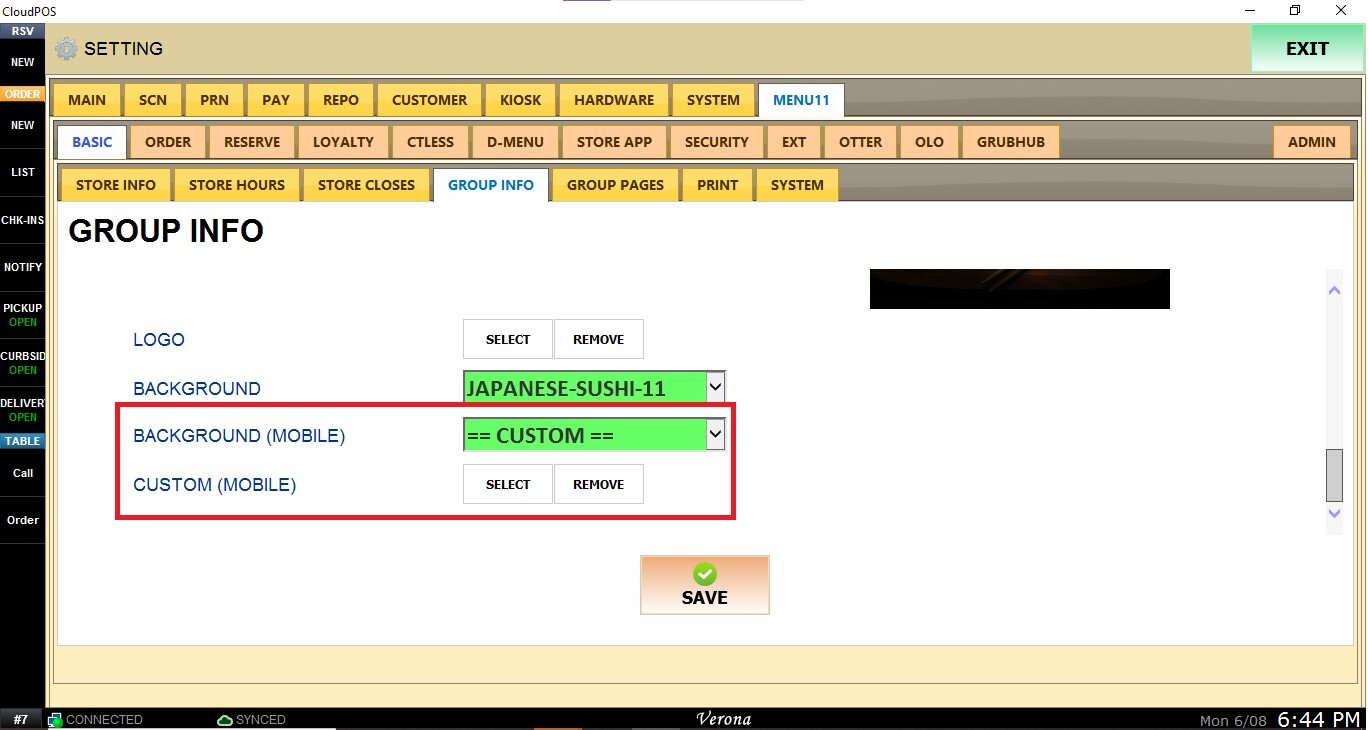
Once configured, press SAVE.
Then navigate to the MENU11 tab, select ADMIN, and click PUBLISH to apply the changes.
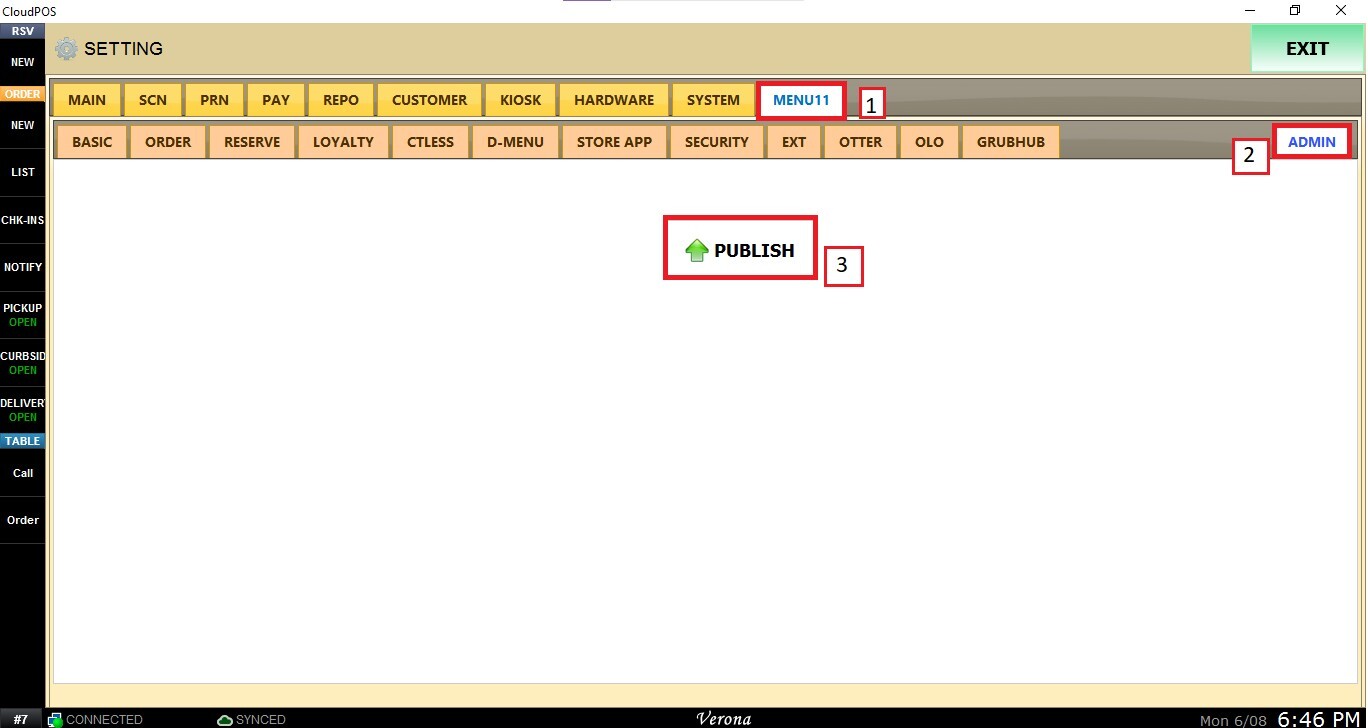
Result: