Speech and optional Speech text
The Speech feature allows individual menu items to be announced using text to speech, helping kitchen staff receive orders audibly. You can enable speech for specific menu items and define an alternative spoken name if the kitchen uses a different name than the one displayed on the menu.
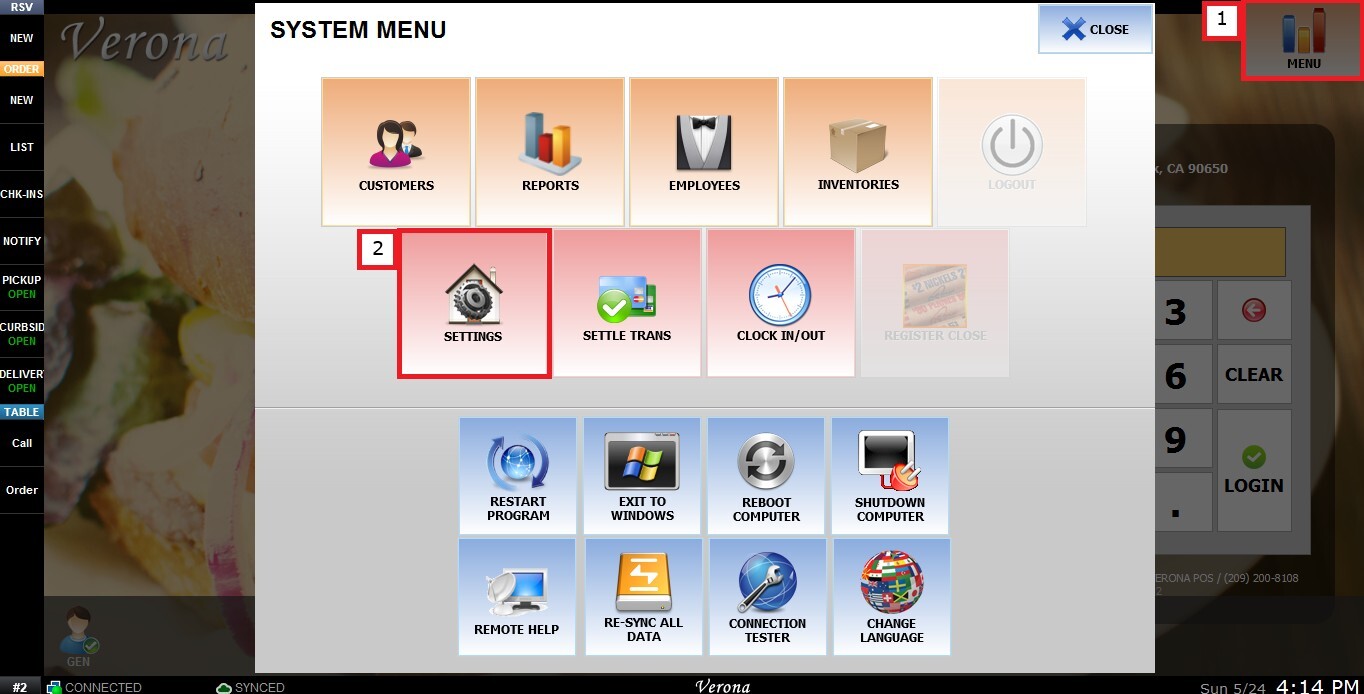
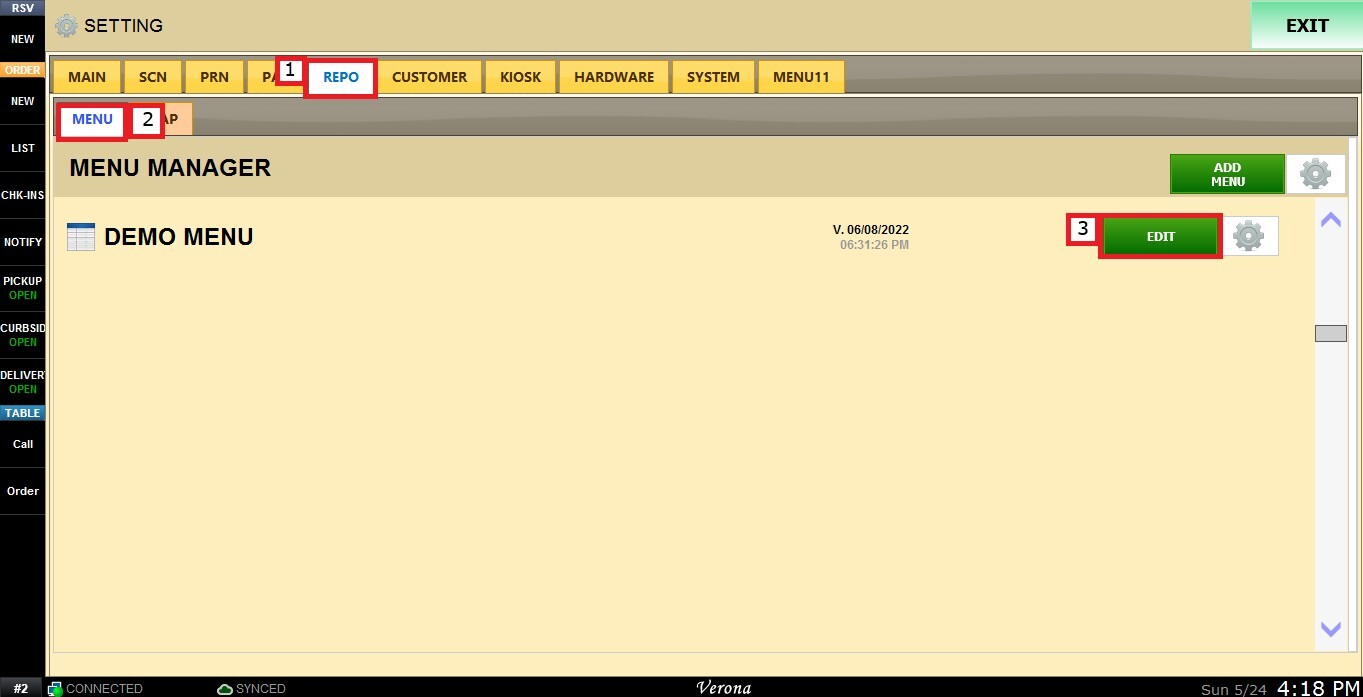
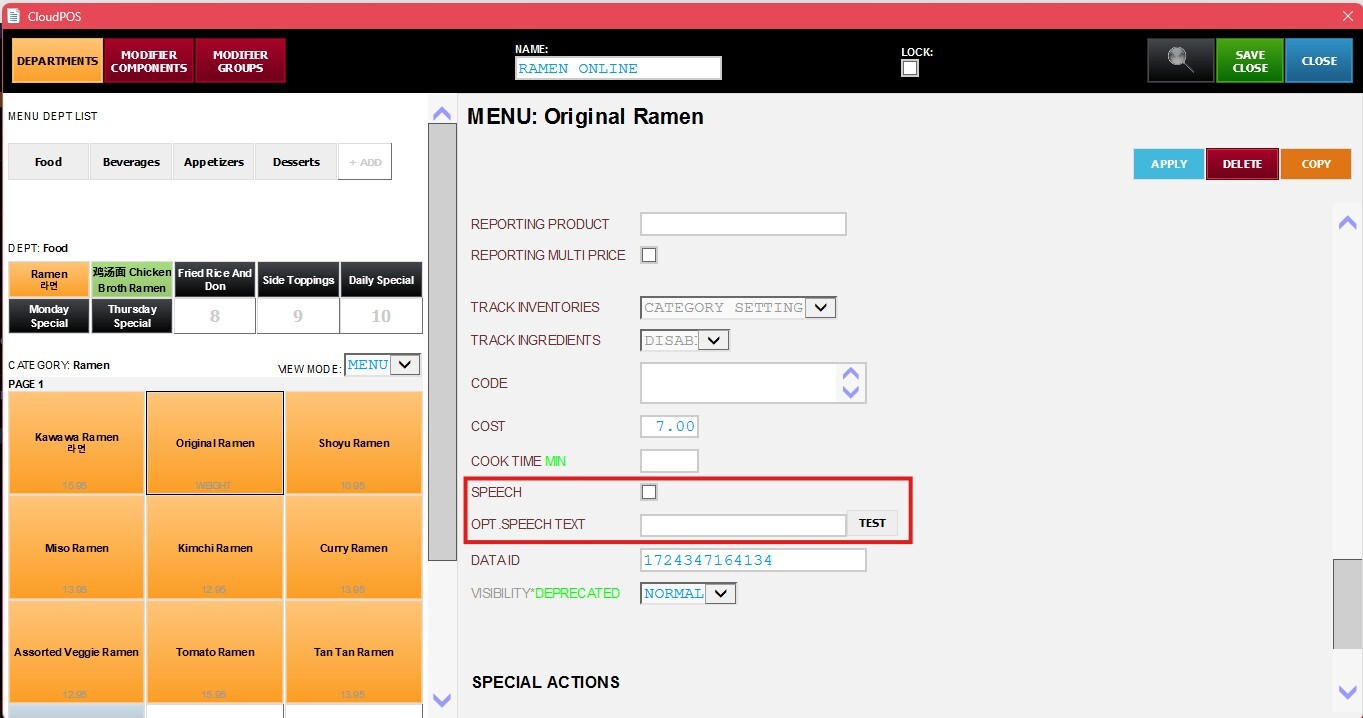
MENU> SETTINGS> REPO> Select a Menu> EDIT> Select an Item> Speech
Click MENU in the upper-right corner, then select SETTINGS.
Under the REPO section, open the MENU tab, select the menu you want to edit and click EDIT.
Select the menu item you want to configure, scroll down until you reach the SPEECH section.
Check the Speech checkbox to enable the feature for the selected item.
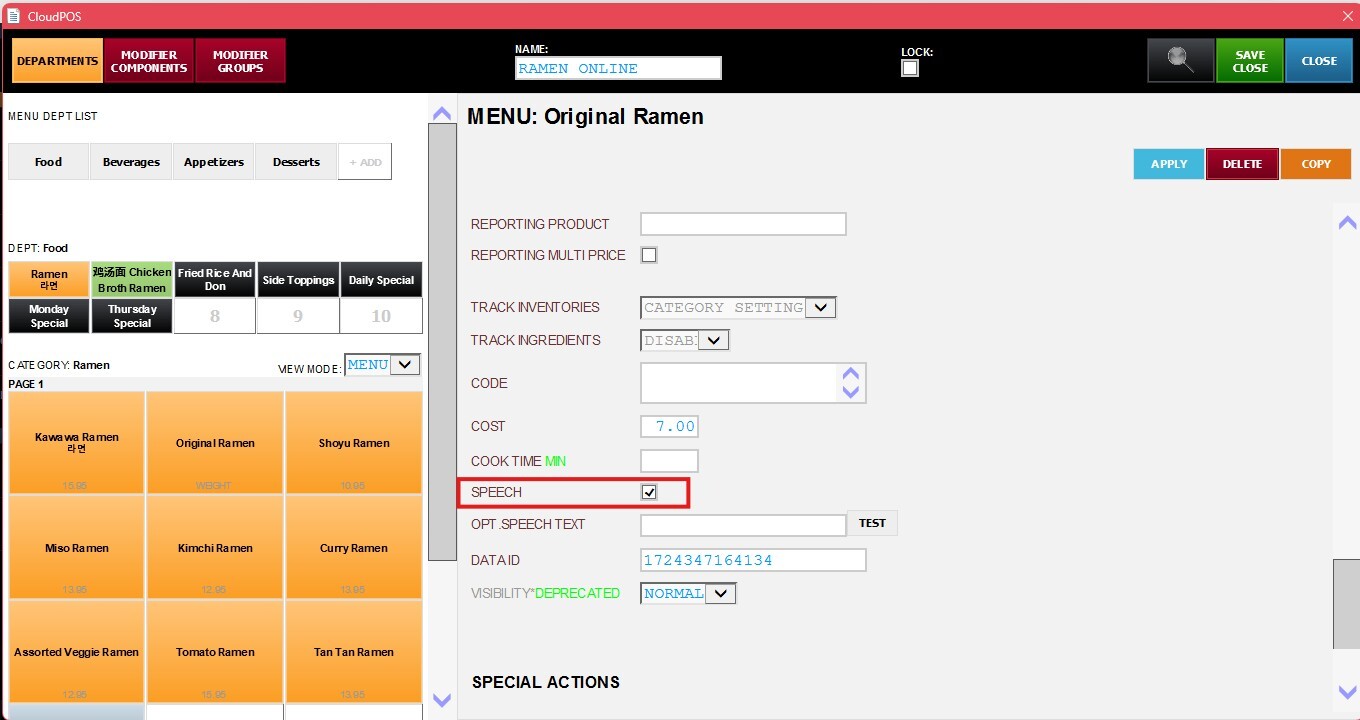
If the kitchen refers to the item by a different name, enter that name in the OPT SPEECH TEXT field. This text will be spoken instead of the menu item name. 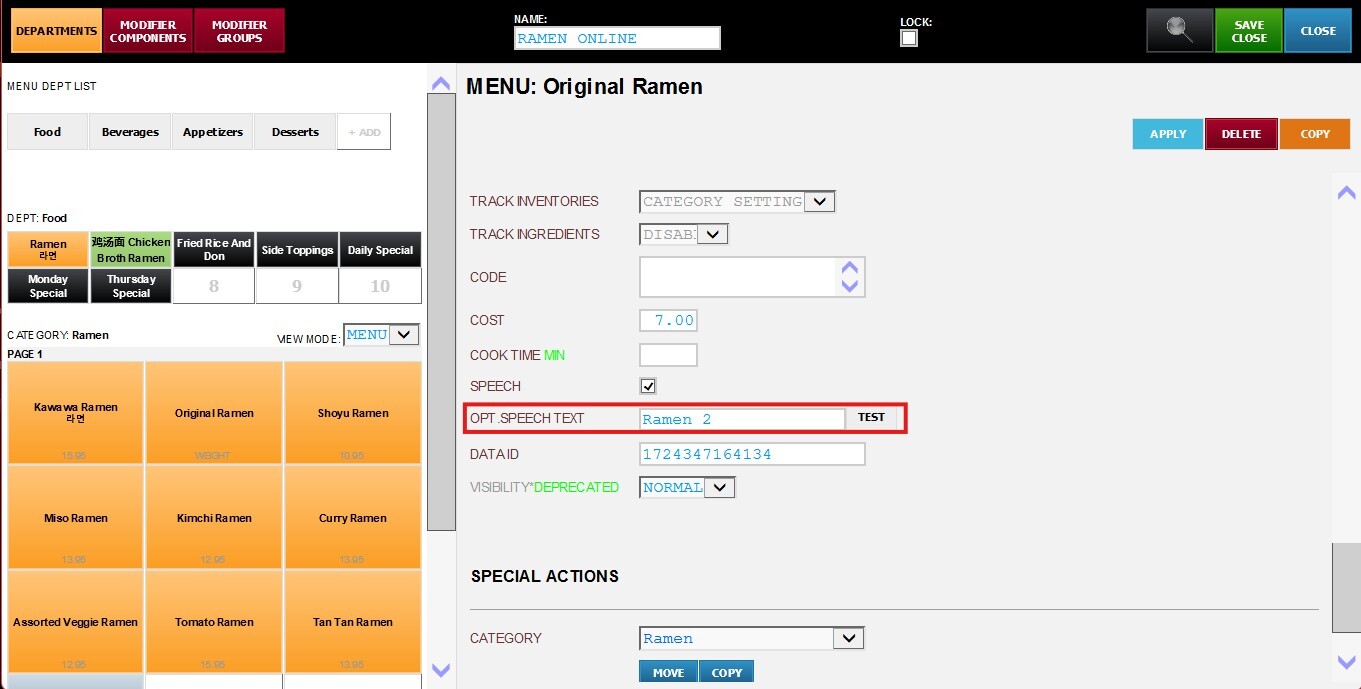
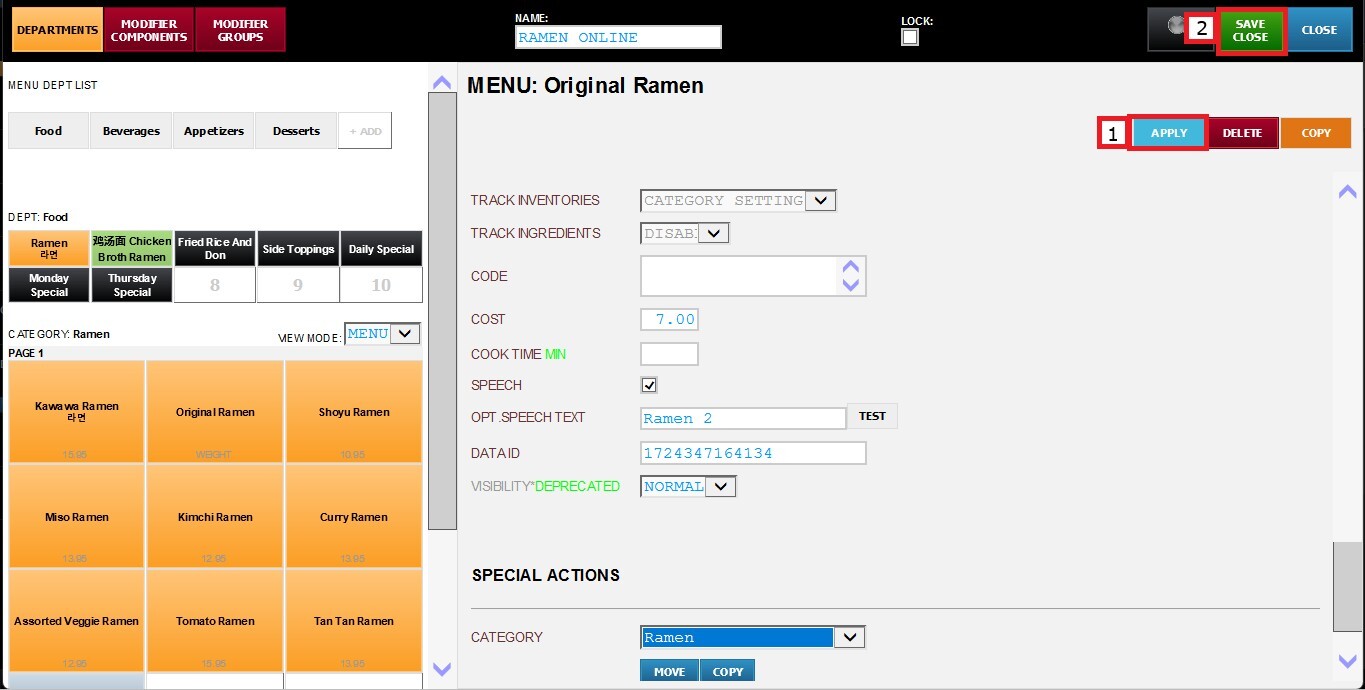
Click APPLY, then SAVE AND CLOSE to save your changes.
Enabling Speech for a menu item only activates the feature for that item. To configure the speech engine, including the voice and volume settings, refer to the Speech guide in the Hardware Section.