Table Kiosk Placing Order
The customers can place their orders from the Table Kiosk tablet of their table. The orders are sent to the POS, on the table assigned to the tablet.
Table Kiosk> MENU> Item> ADD> Cart> SEND ORDER
When the order of the table is started, the Table Kiosk home screen shows the Menu, Bill and Call Server options.
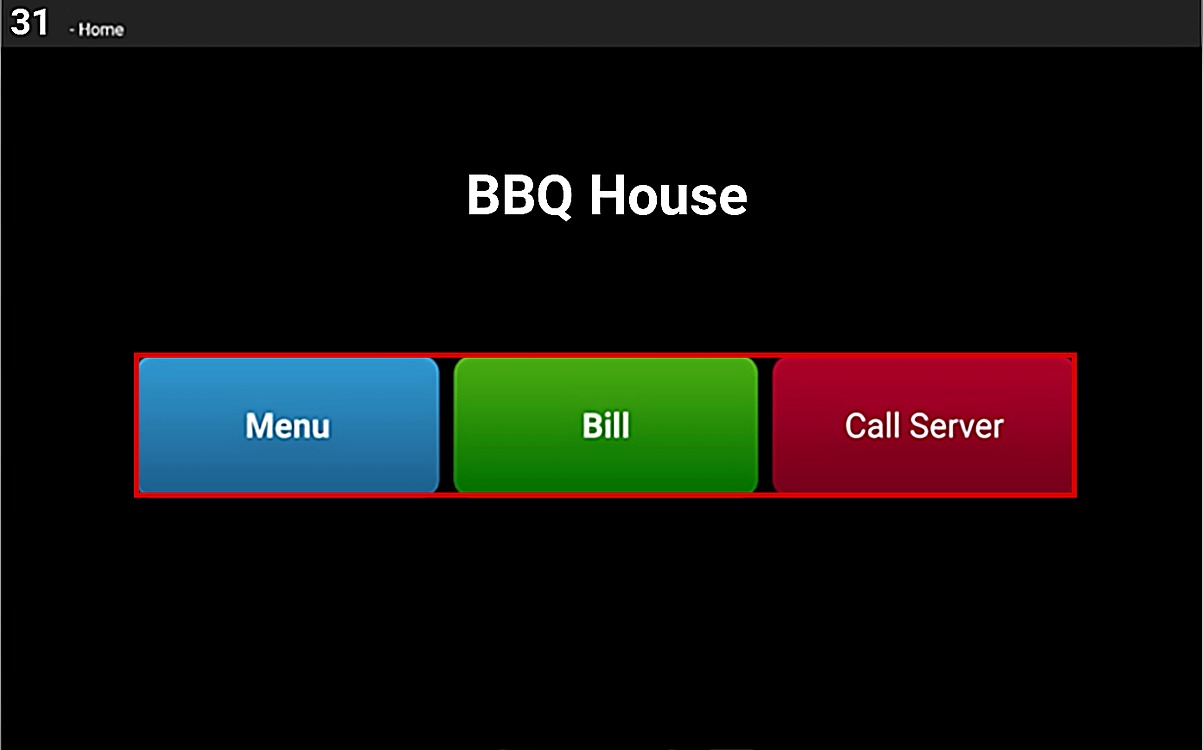
Hint: If the options are not shown, the table is not open yet on the POS.
Place an Order:
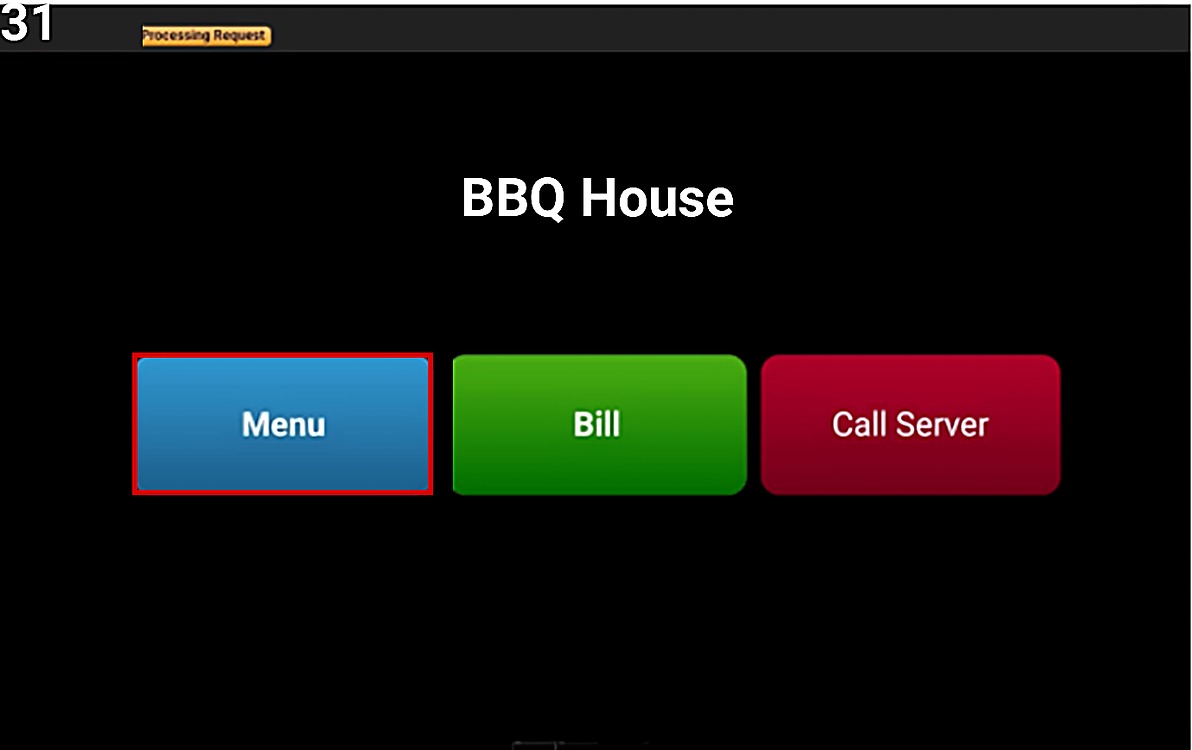
Press MENU to see the menu.
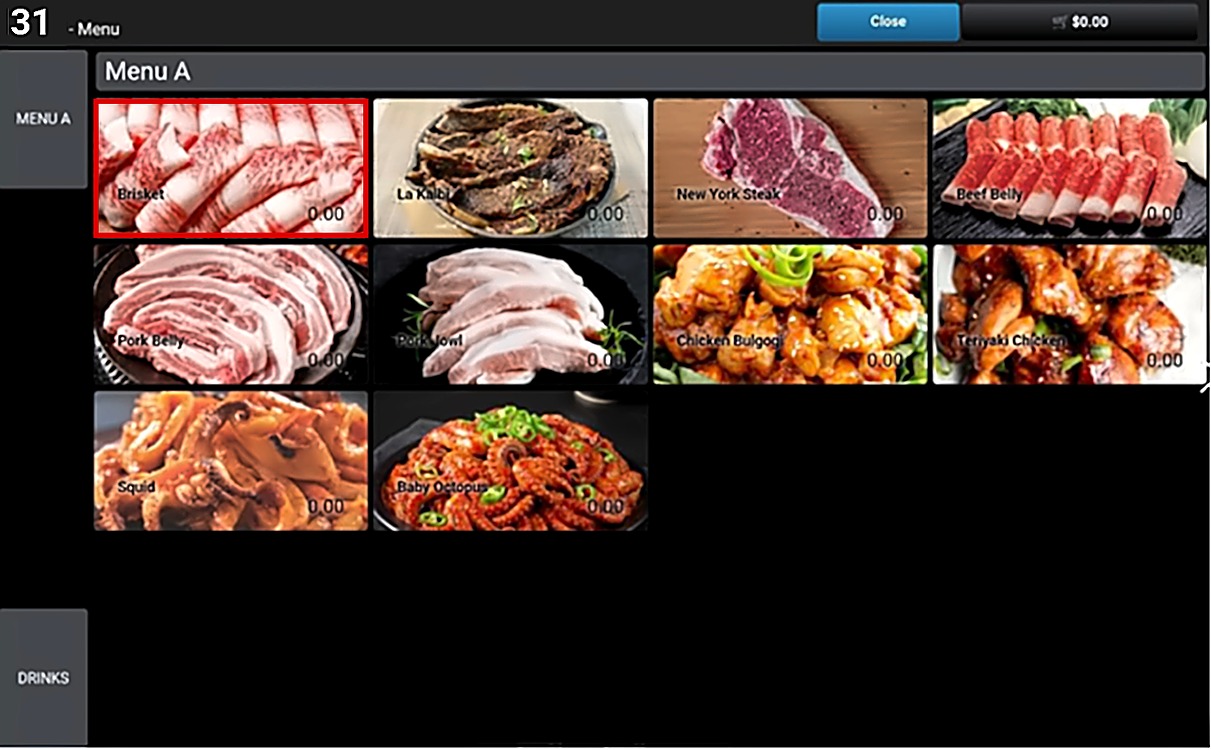
Select the category on the left and press an item.
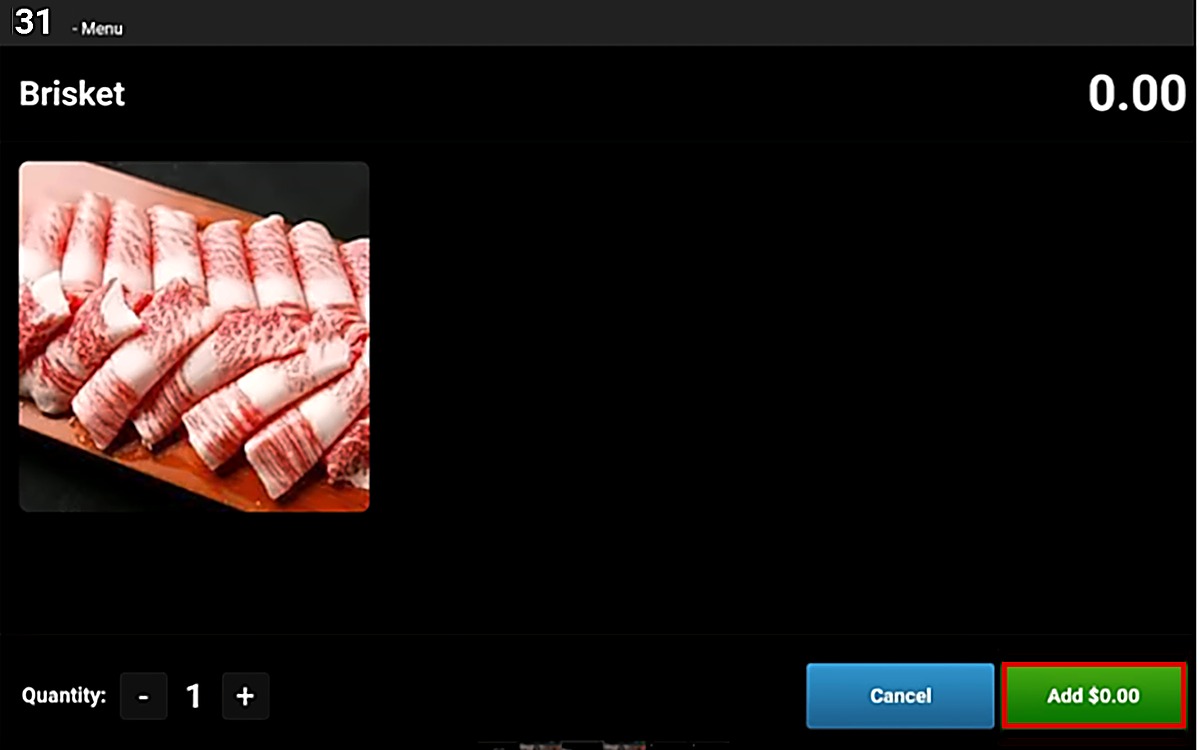
Choose the quantity with - and + and press ADD.
When all the items are added, press the cart at the top right corner to check out.
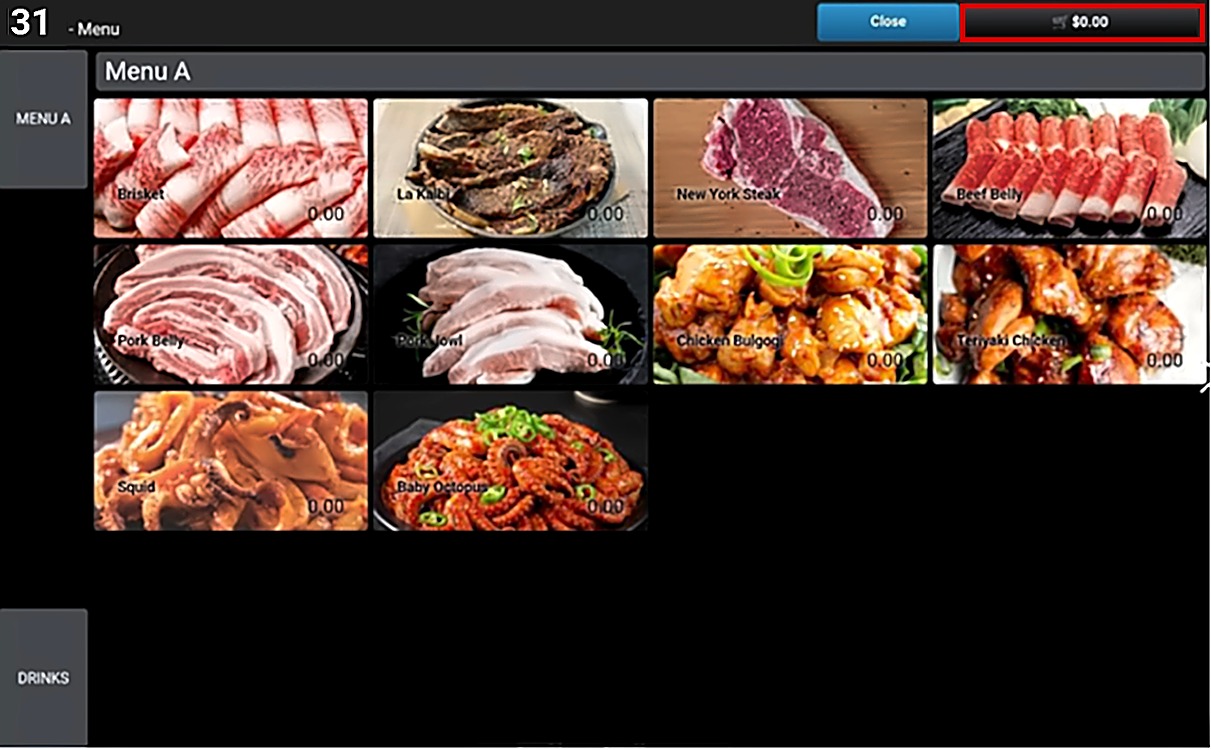
Check the order and press SEND ORDER.
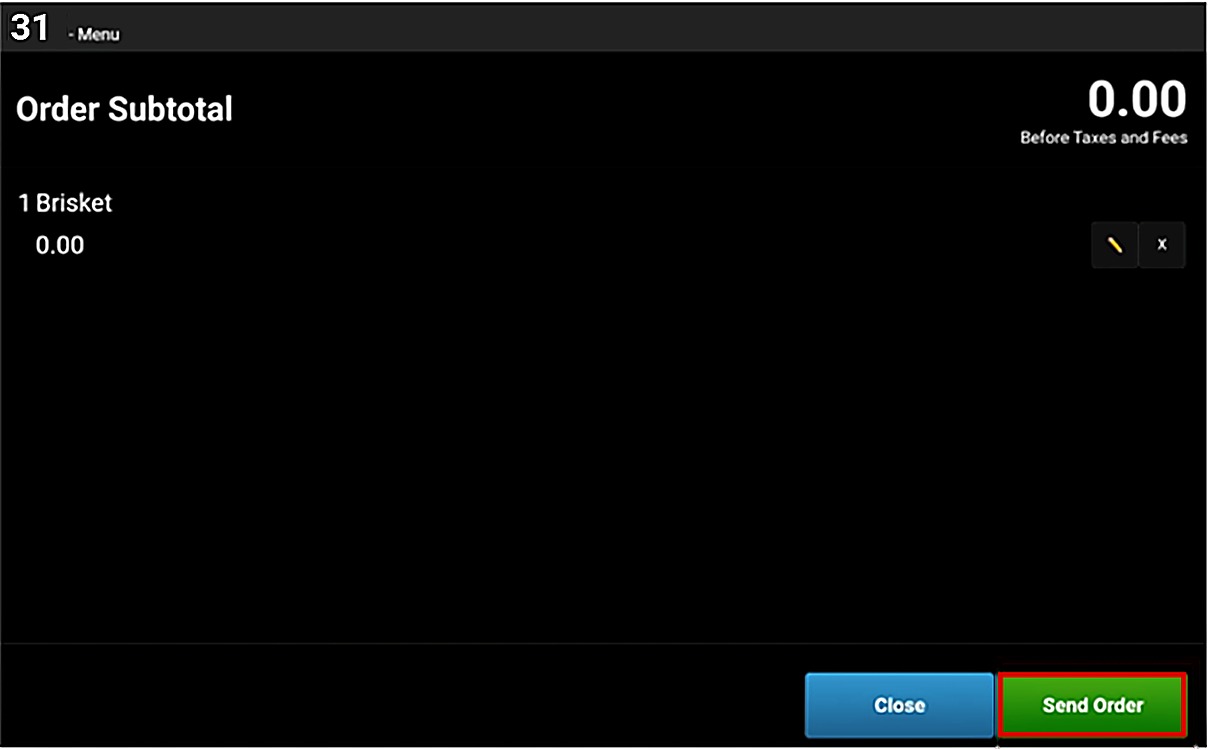
Hint: Press the pencil icon to change an item or the X to remove it before sending the order.
Result:
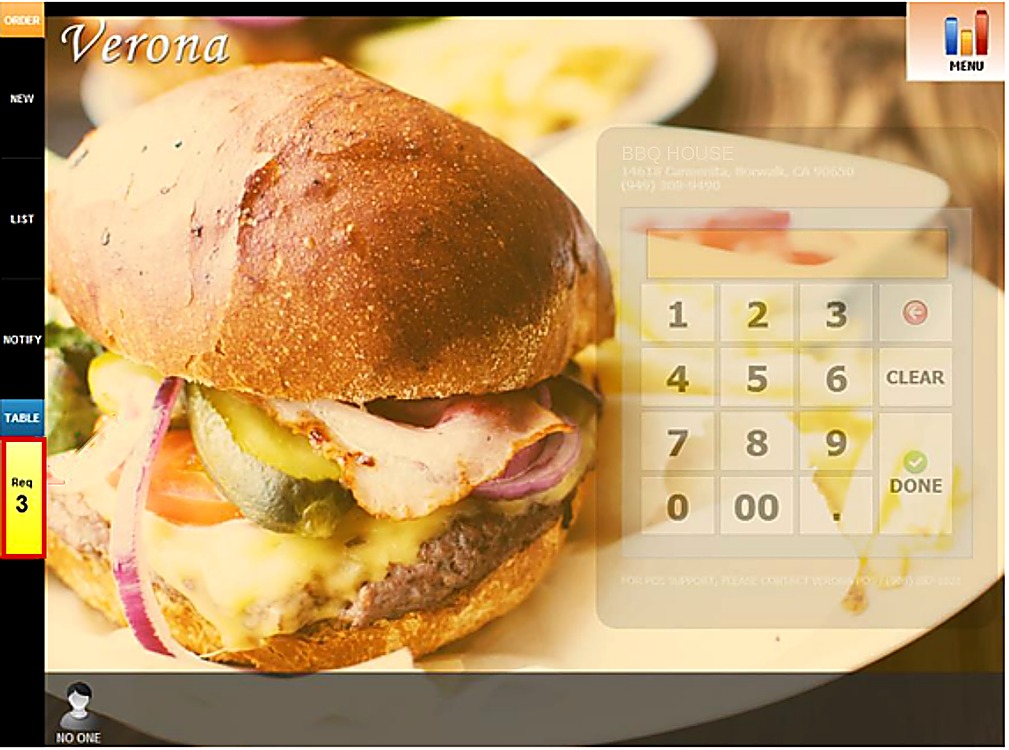
The order is sent to the POS. The requests from the tablet are shown under TABLE, in the Req button on the left, with the number of requests.
To learn how to ask for the bill or call the server from the Table Kiosk, please refer to the Table Kiosk Bill & Request Guide.