Minimum Tips
The Minimum Tips settings let you set suggested minimum tips for different groups on the sales report. Each group can use its own percentage, amount source, categories and number of guests.
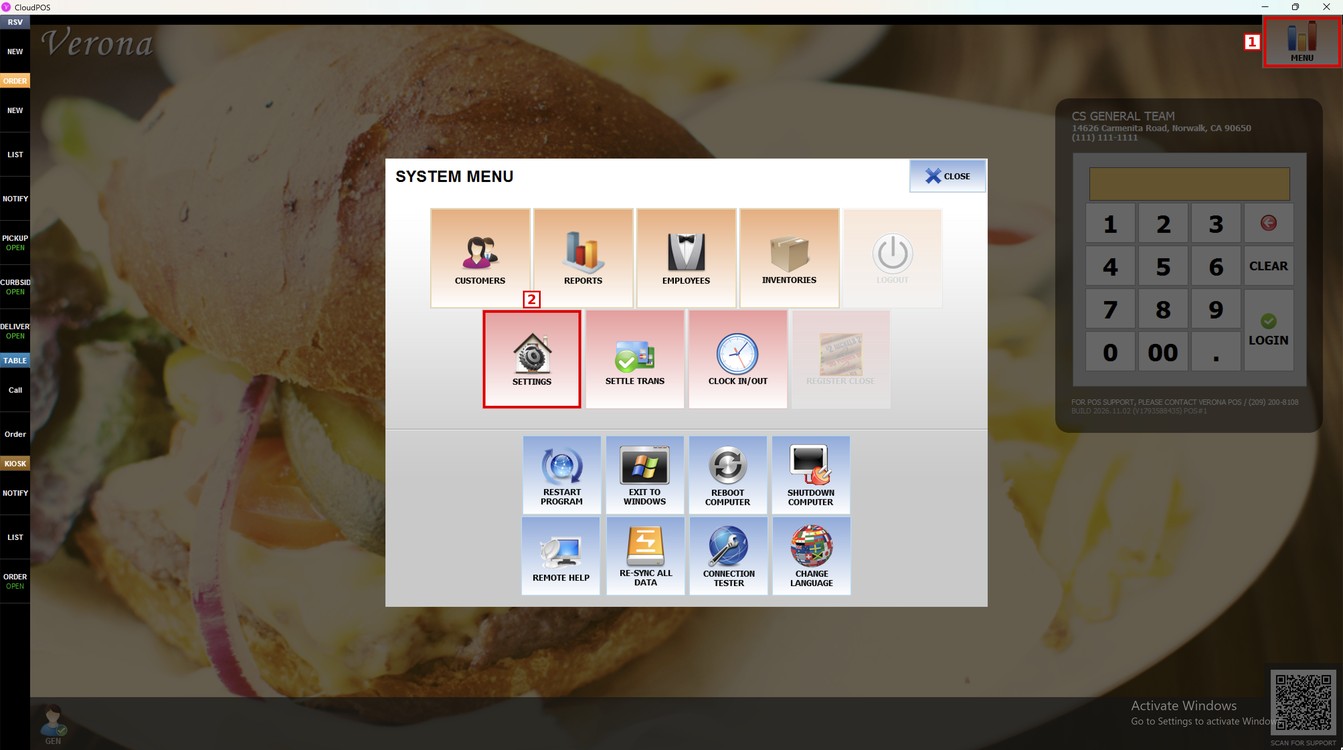
Main Screen> MENU> SETTINGS> MAIN> REPORT> MINIMUM TIPS
Go to MENU and press SETTINGS.
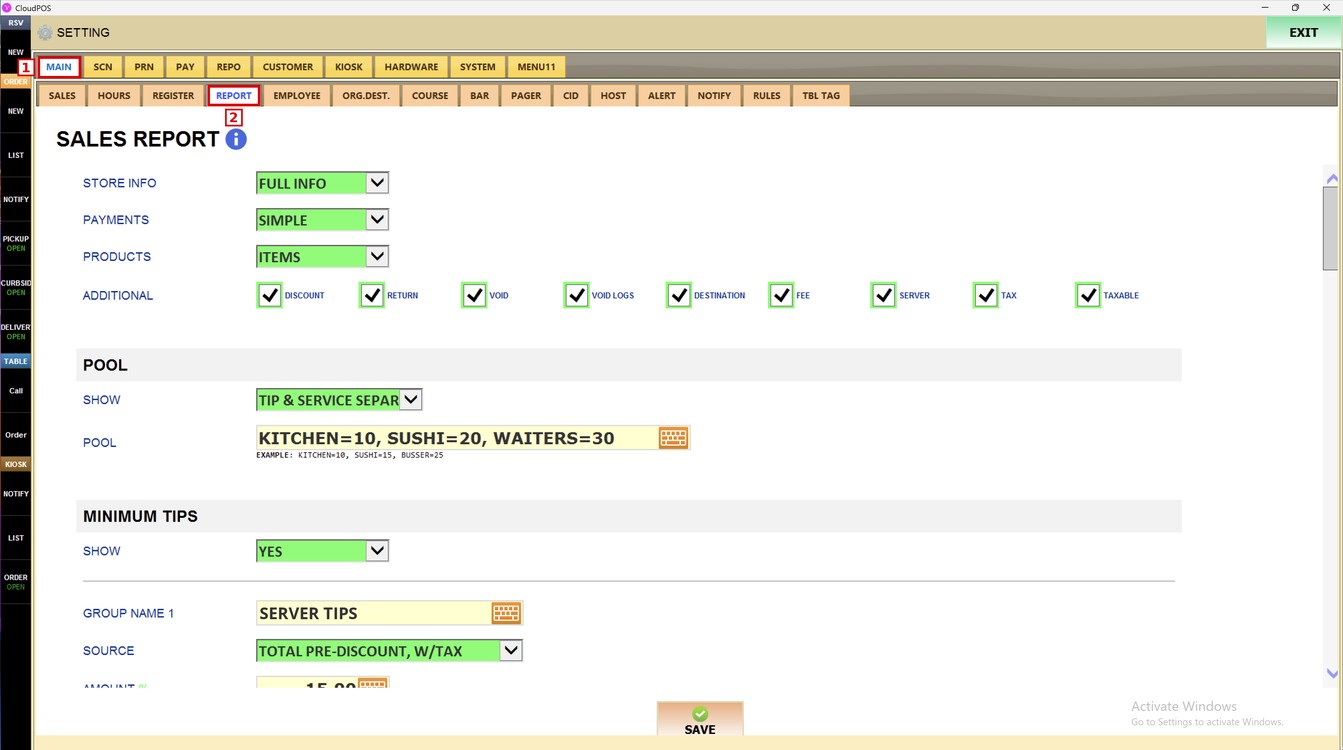
Open the MAIN tab and press REPORT. Scroll down to the MINIMUM TIPS section, under POOL.
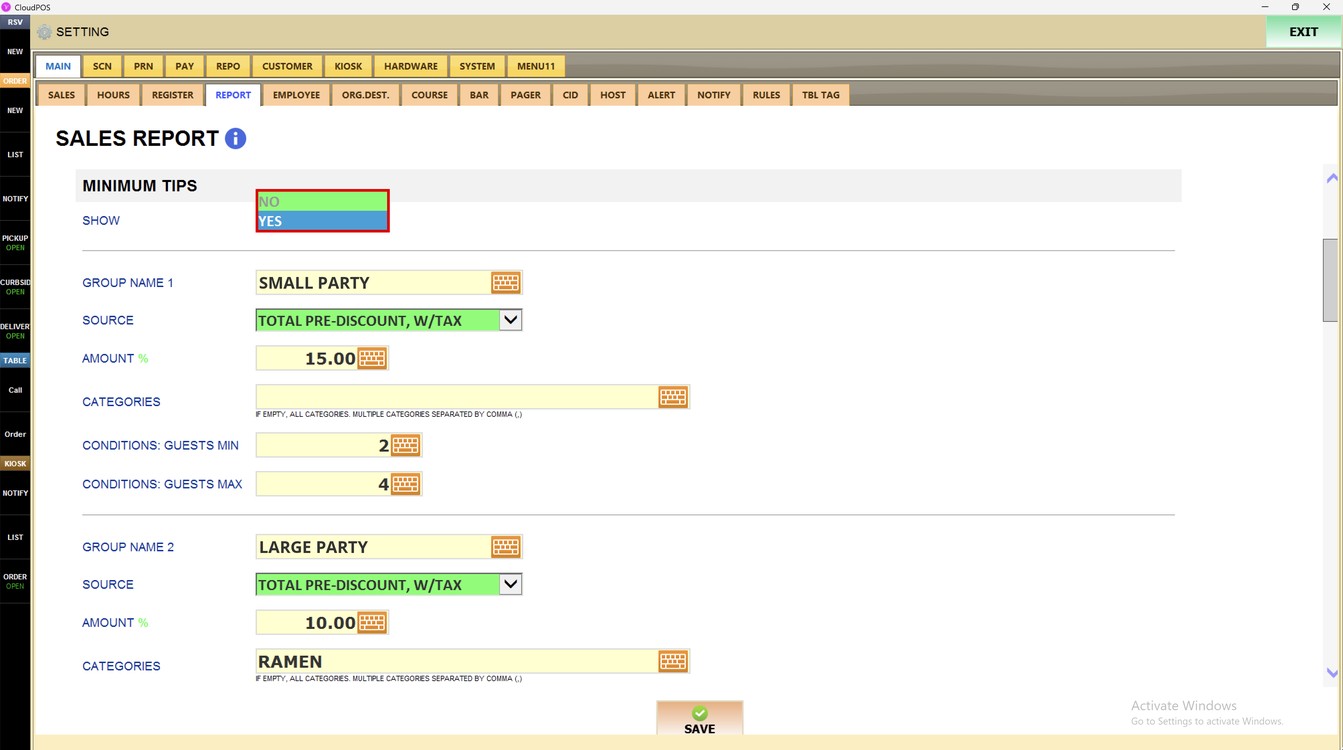
Show:
Turns the minimum tips on or off
1. NO: minimum tips are not used.
2. YES: minimum tips are used with the groups set below.
Group Settings:
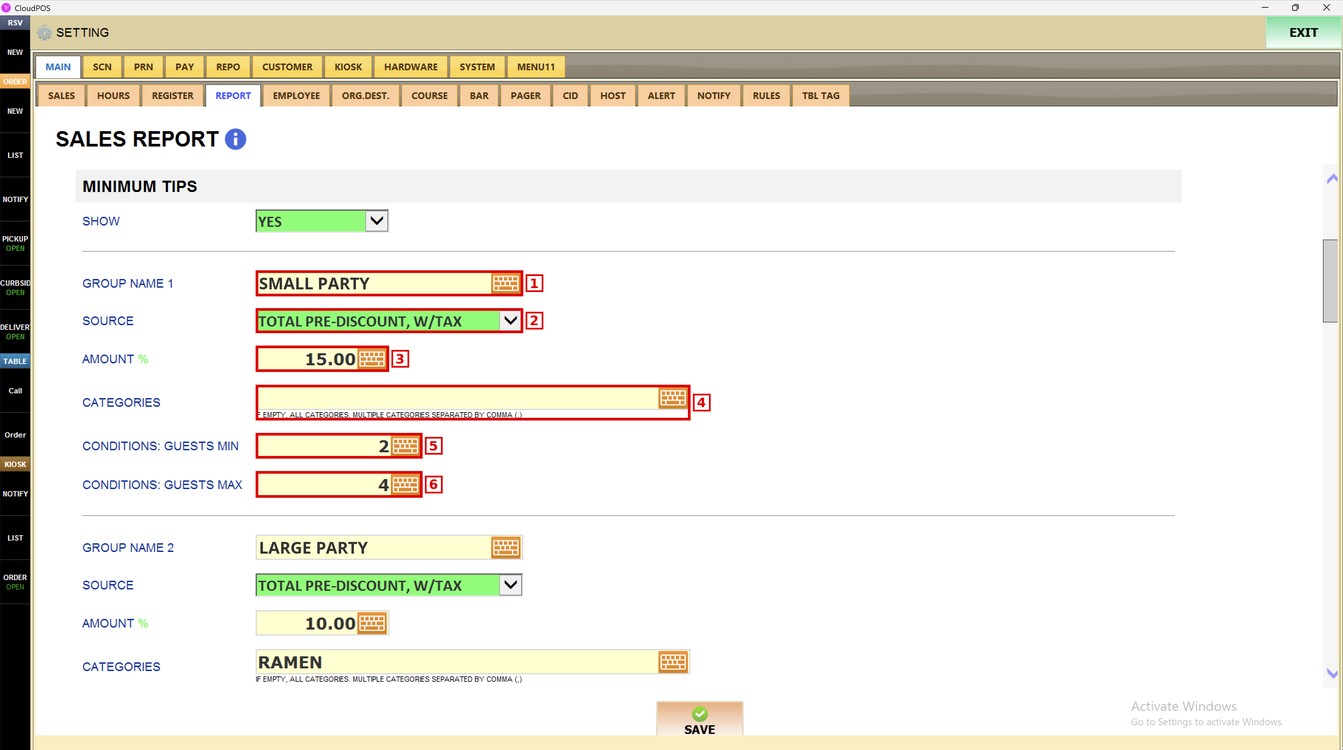
Each group has the following fields:
1. GROUP NAME: name of the group. Press the keyboard icon to type it.
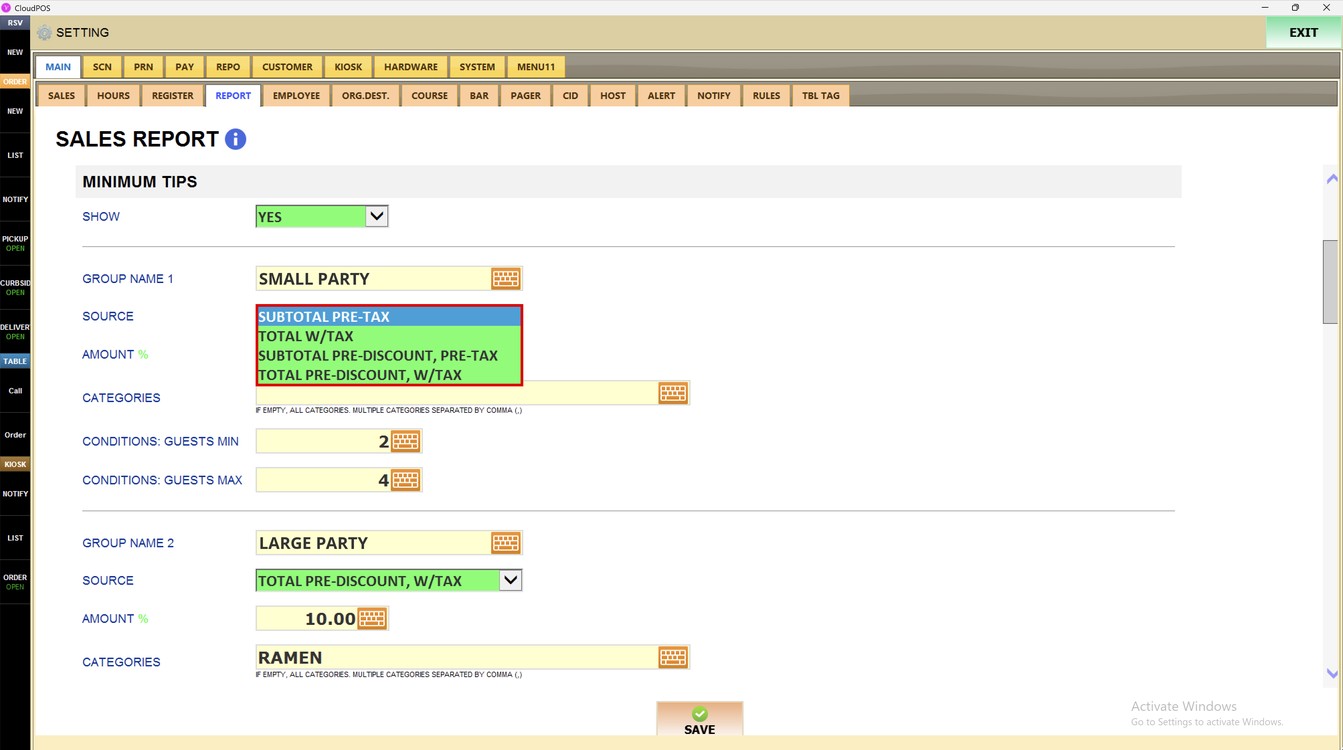
2. SOURCE: amount used to calculate the minimum tip. See the options below.
3. AMOUNT %: percentage applied to the source.
4. CATEGORIES: categories the group applies to. If empty, all categories are included. Separate multiple categories with a comma (,).
5. CONDITIONS: GUESTS MIN: minimum number of guests for the group to apply.
6. CONDITIONS: GUESTS MAX: maximum number of guests for the group to apply.
Hint: Leave a condition empty if you do not want to use it.
Source:
Press the SOURCE dropdown to choose which amount the percentage is calculated on.
1. SUBTOTAL PRE-TAX: subtotal before tax.
2. TOTAL W/TAX: total including tax.
3. SUBTOTAL PRE-DISCOUNT, PRE-TAX: subtotal before discounts and before tax.
4. TOTAL PRE-DISCOUNT, W/TAX: total before discounts, including tax.
More Groups:
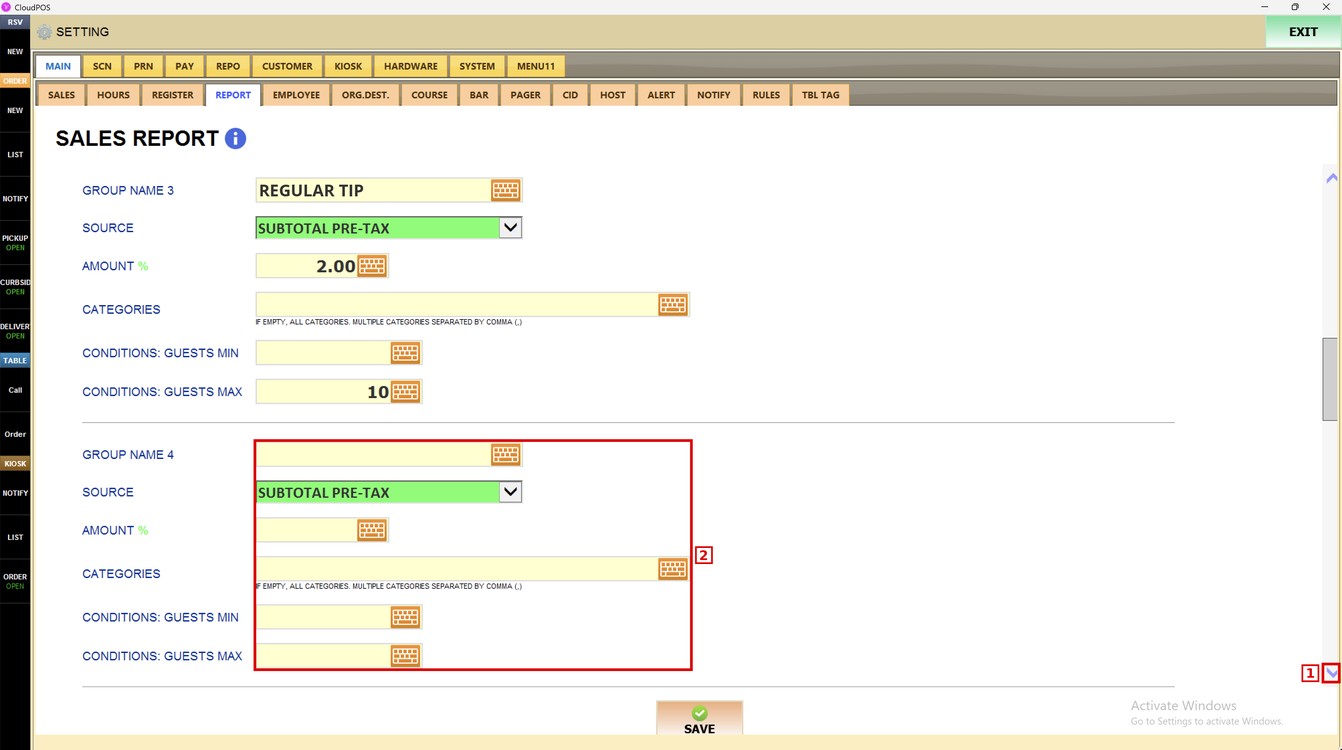
You can set up to five groups.
1. SCROLL ARROW: scroll down to see groups 2, 3, 4, and 5.
2. GROUP 4: fill in the fields the same way to add another group. Leave it empty if you do not need it.
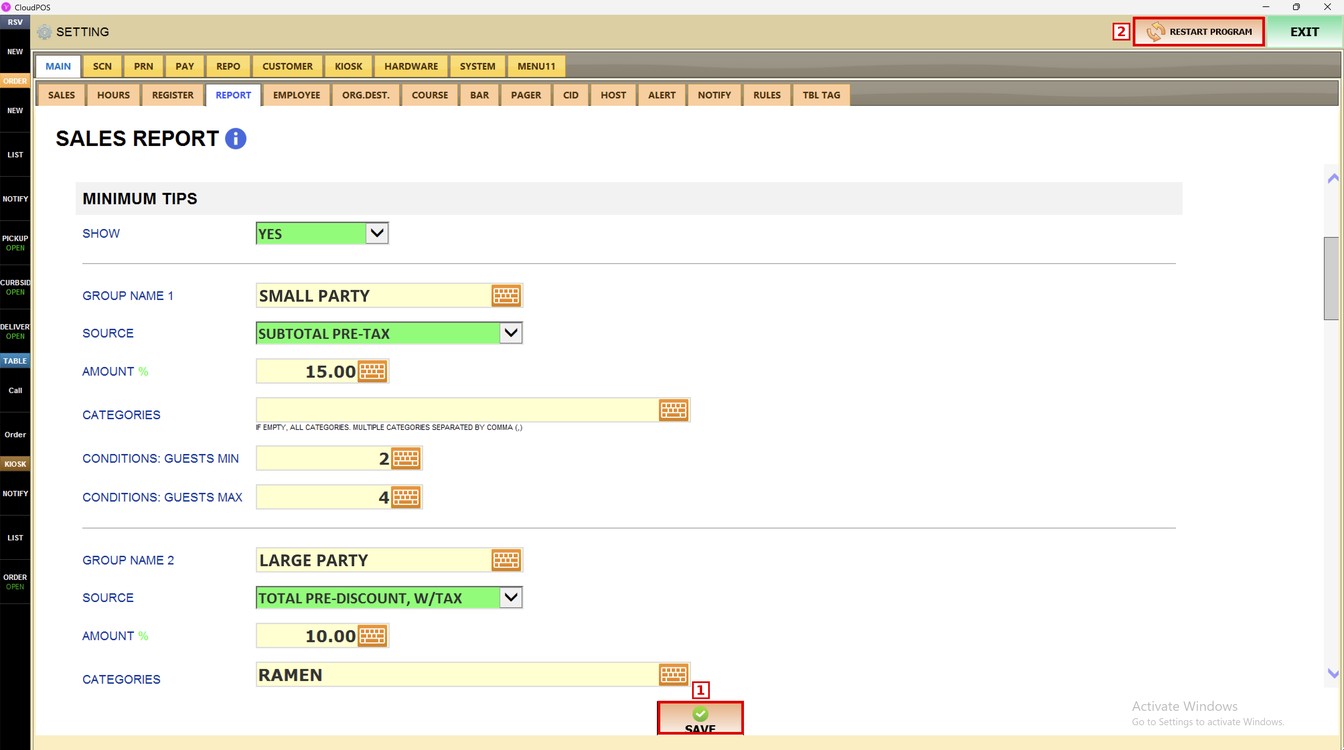
Press SAVE and then RESTART PROGRAM to apply the changes.
To learn how to set the tip pool, please refer to the Pool Guide.