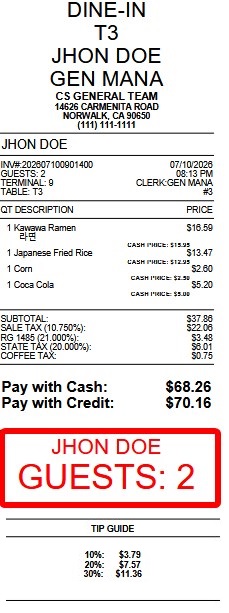
Body Footer
These settings control the custom footer printed in the body section of receipts. You can choose what information is displayed, where it appears on each line, and how it is formatted.
MENU > SETTINGS > PRINT > RECEIPT > BODY FOOTER
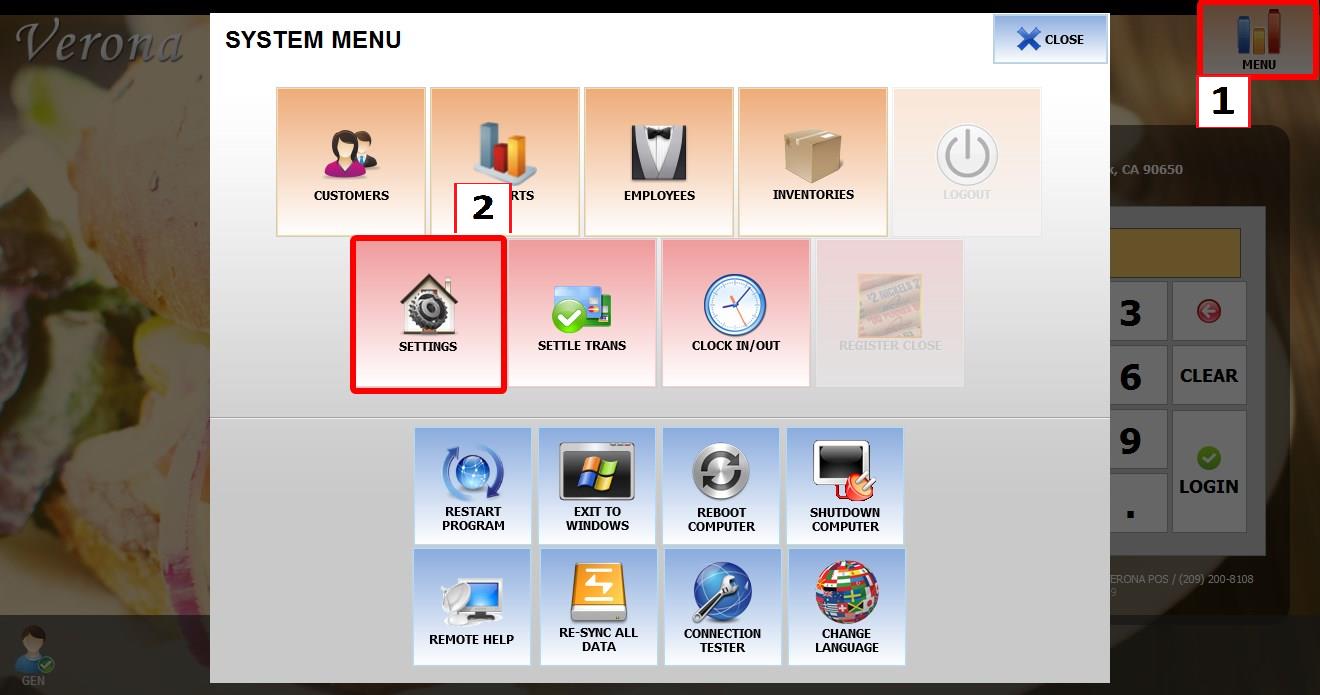
From the MAIN SCREEN, click MENU, then select SETTINGS.
Open the PRINT tab, then RECEIPT, then BODY FOOTER.
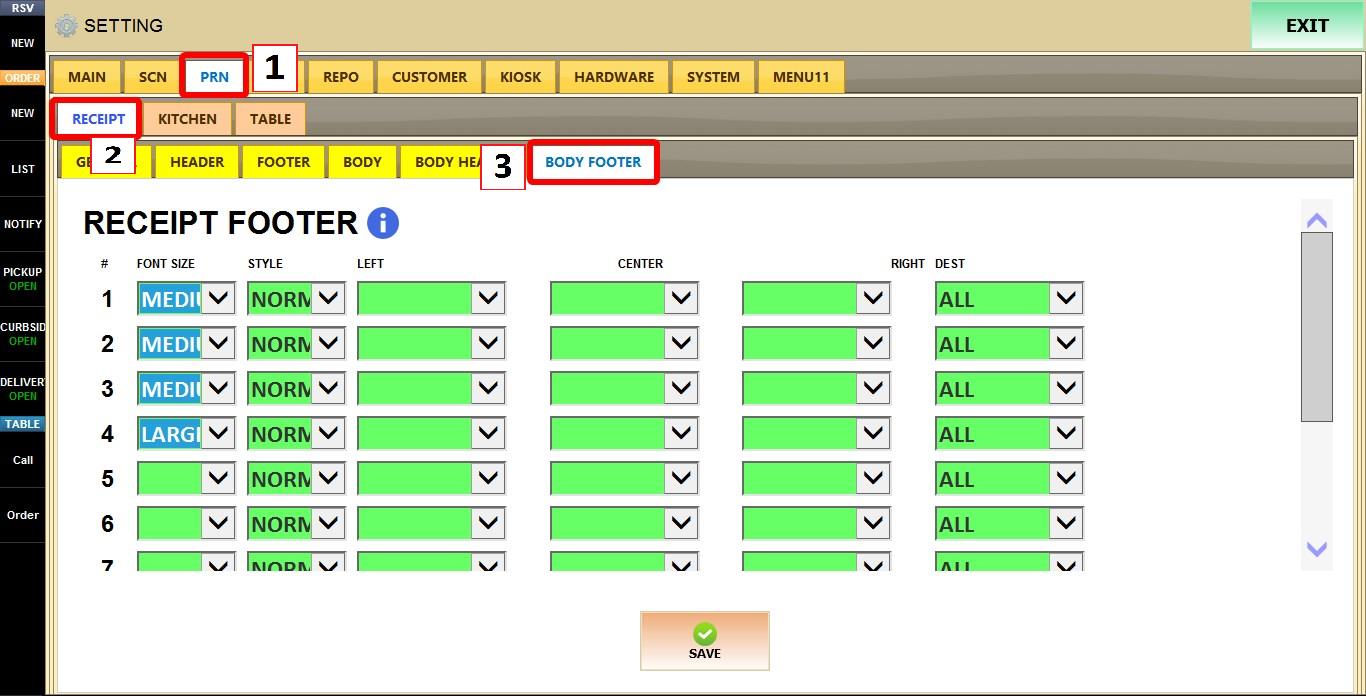
To enable this feature (body footer), refer to the RECEIPT BODY Guide.
RECEIPT FOOTER
This section is used to create a fully customizable receipt body footer.
ROW NUMBER (#)
Each numbered row represents one line that can be configured independently.

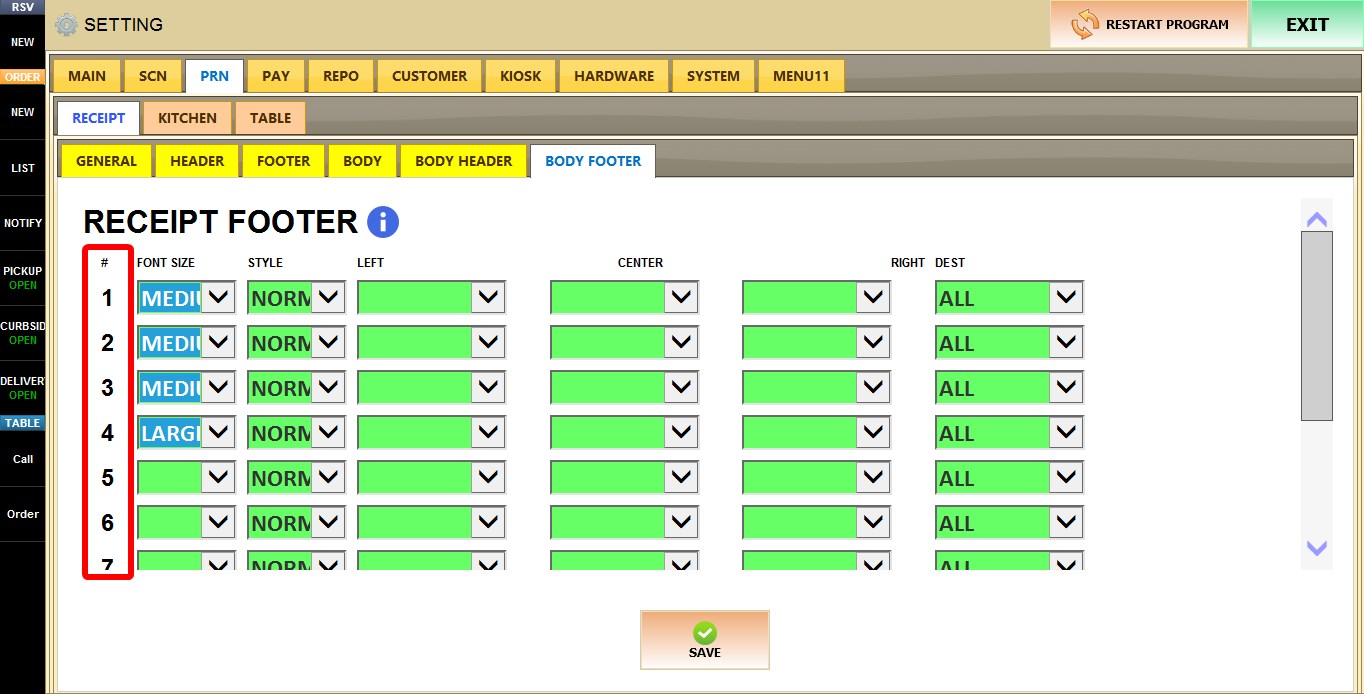
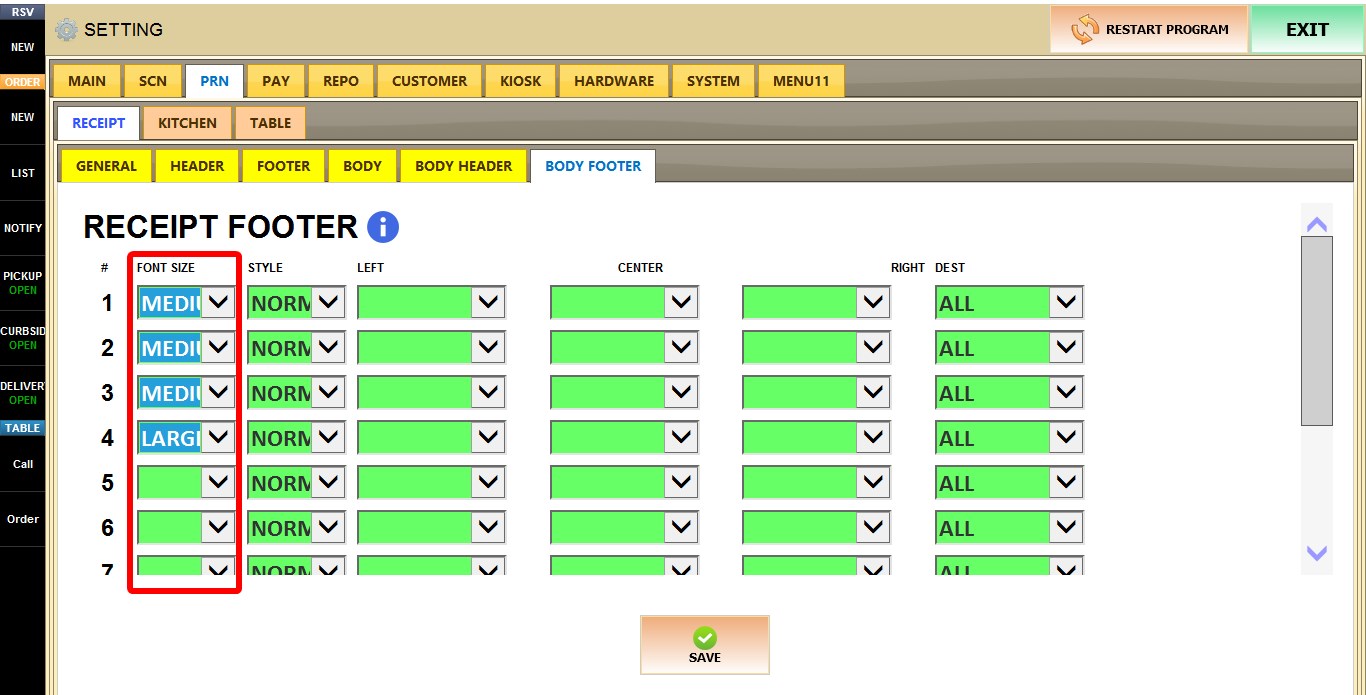
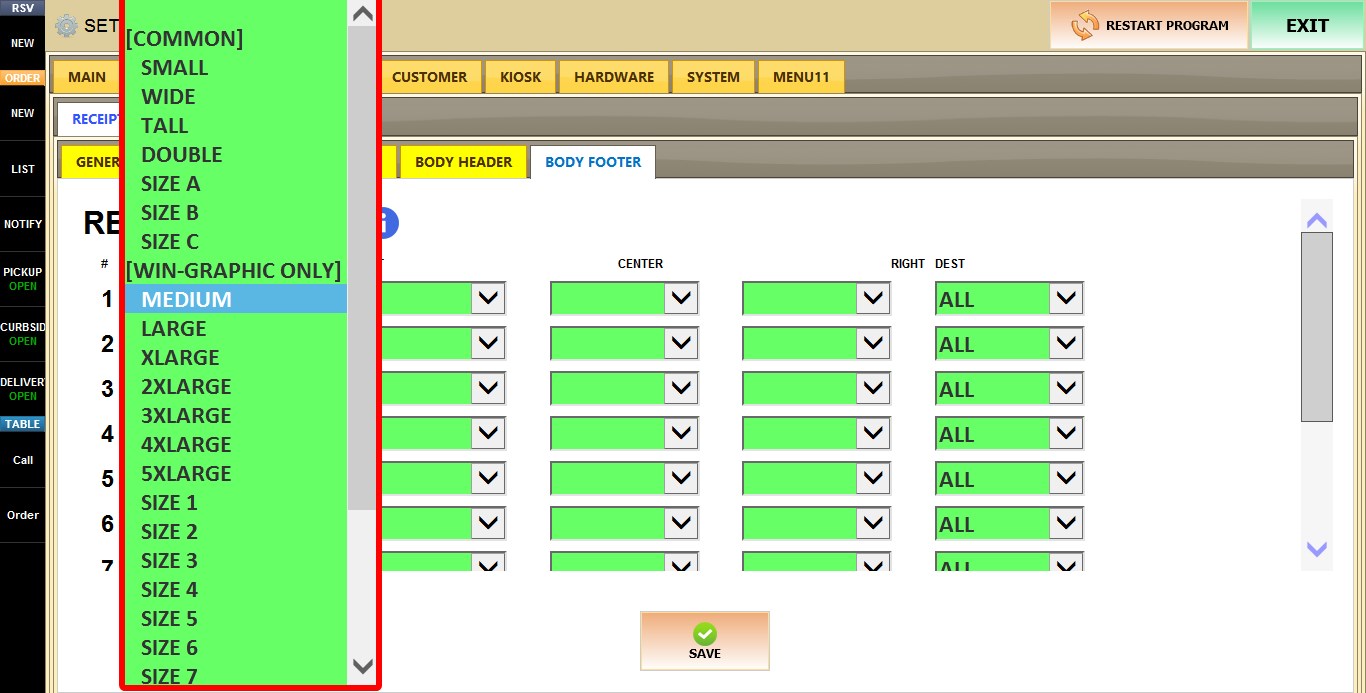
FONT SIZE
Determines the font size used for the selected line. The selected size applies only to that line.
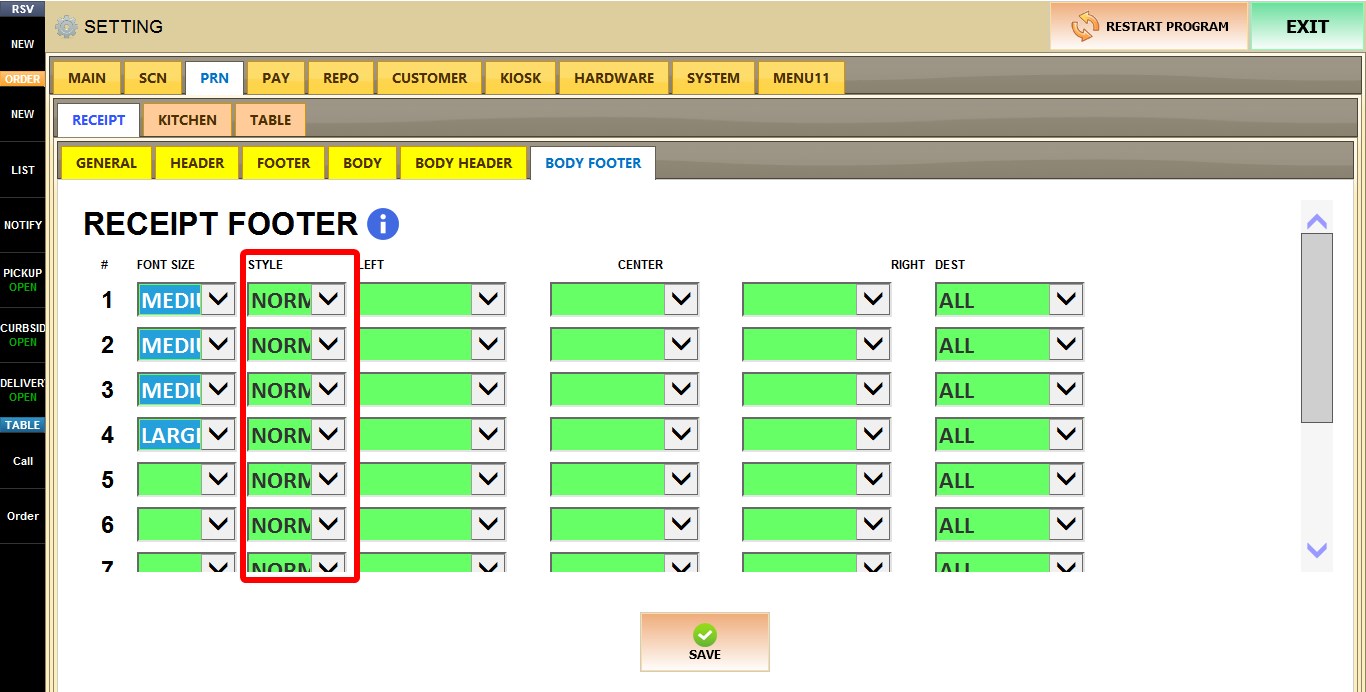
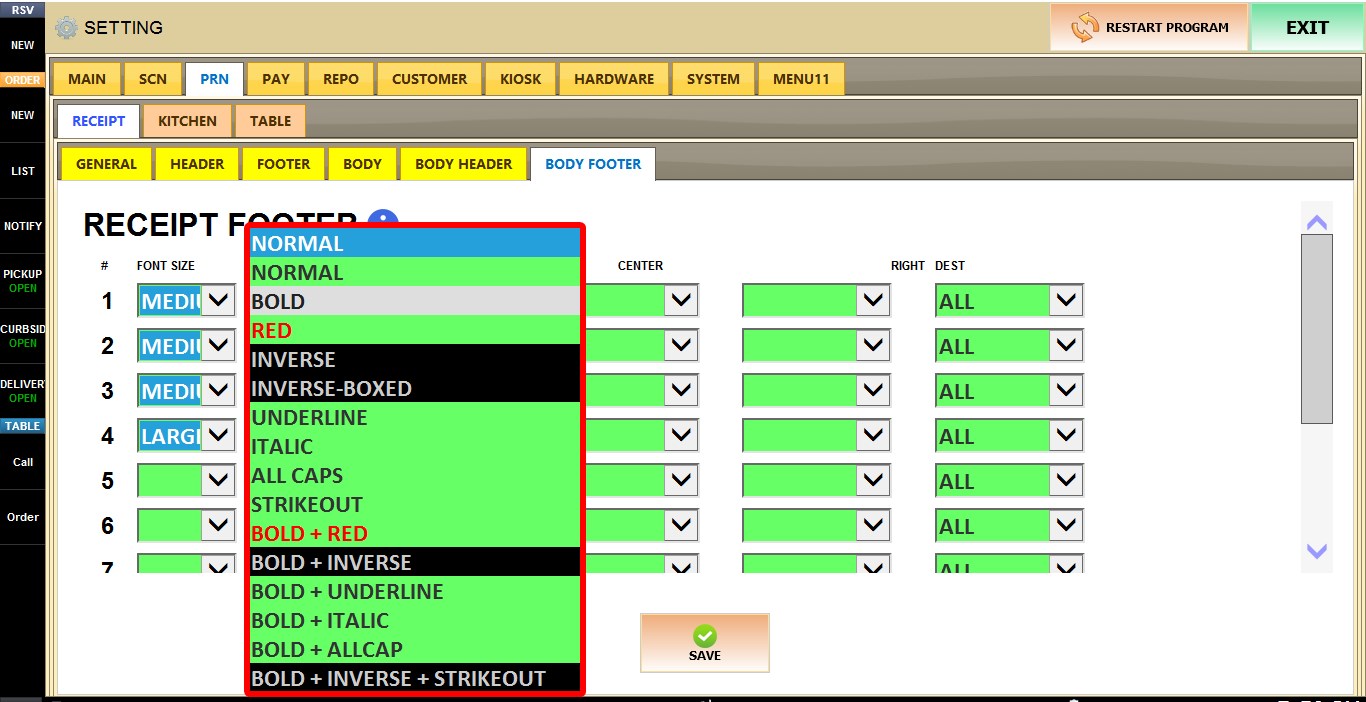
STYLE
Determines the text style used for the selected line. The selected style applies only to that line.
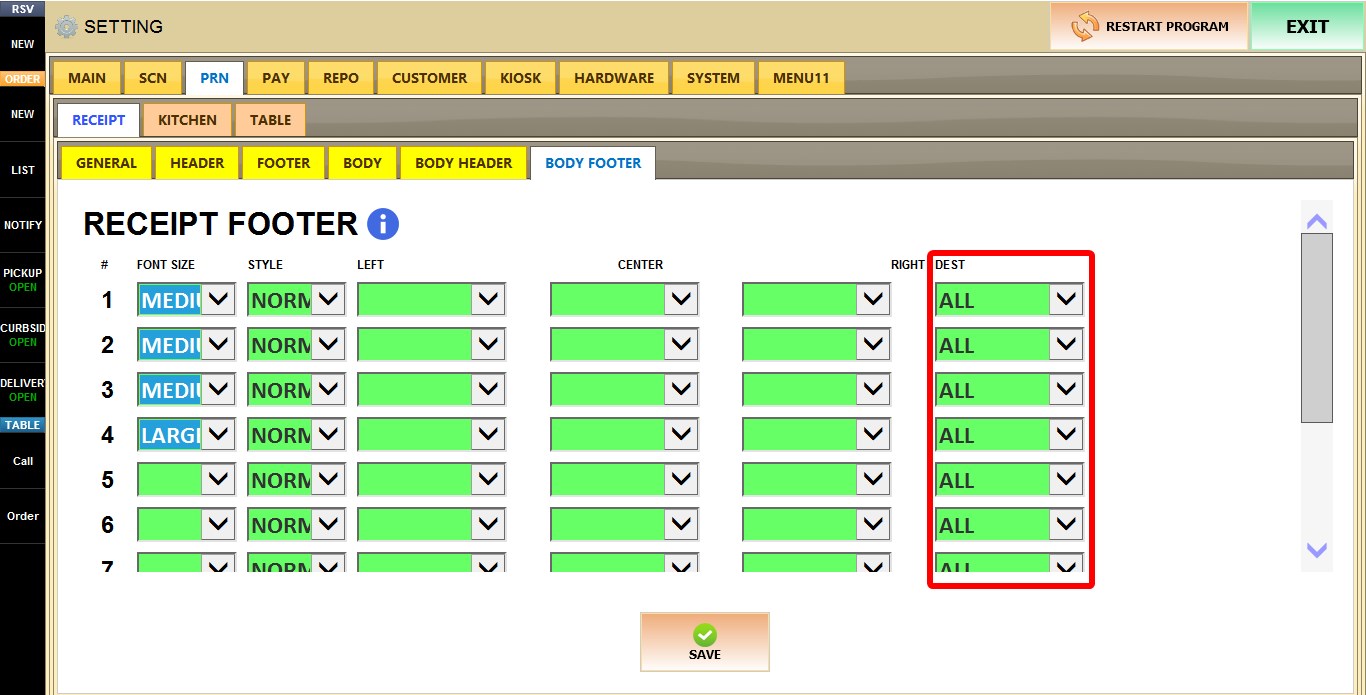
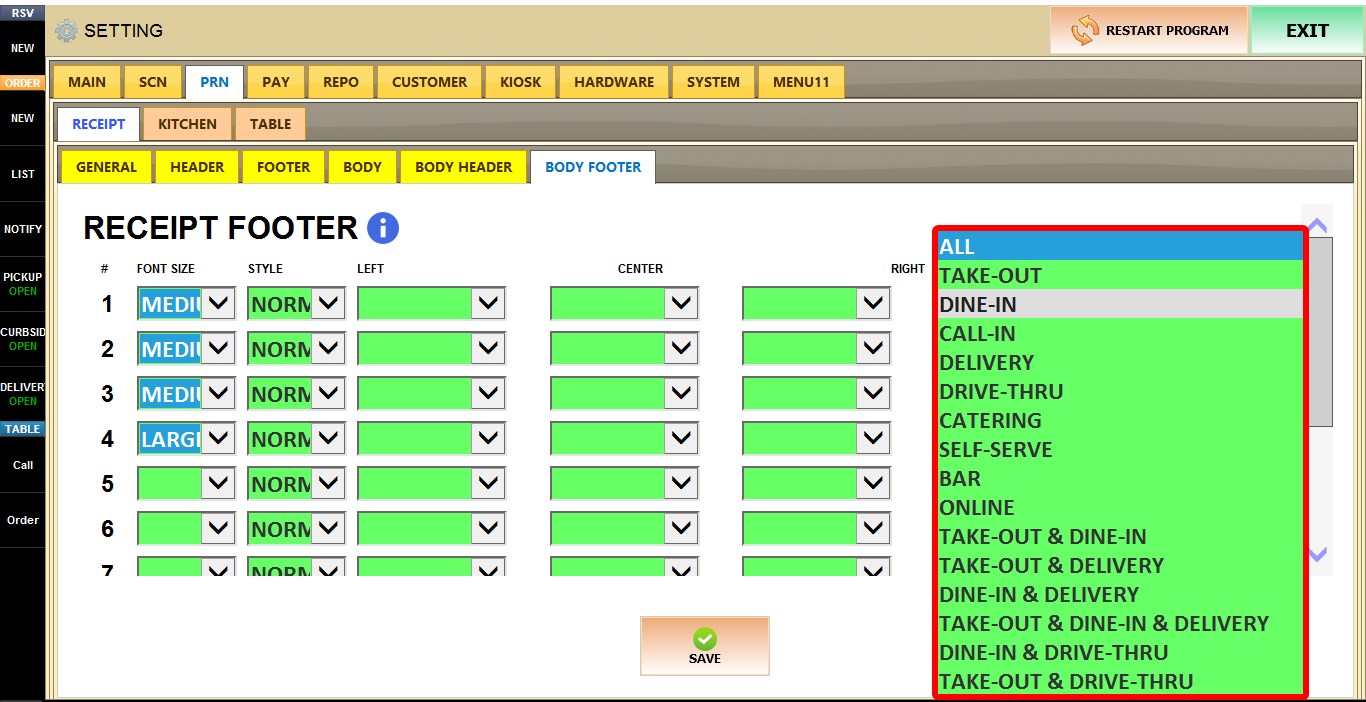
DEST
Determines which order destination this footer configuration applies to, such as DINE-IN, TAKE-OUT, ONLINE, BAR, and other supported destinations.

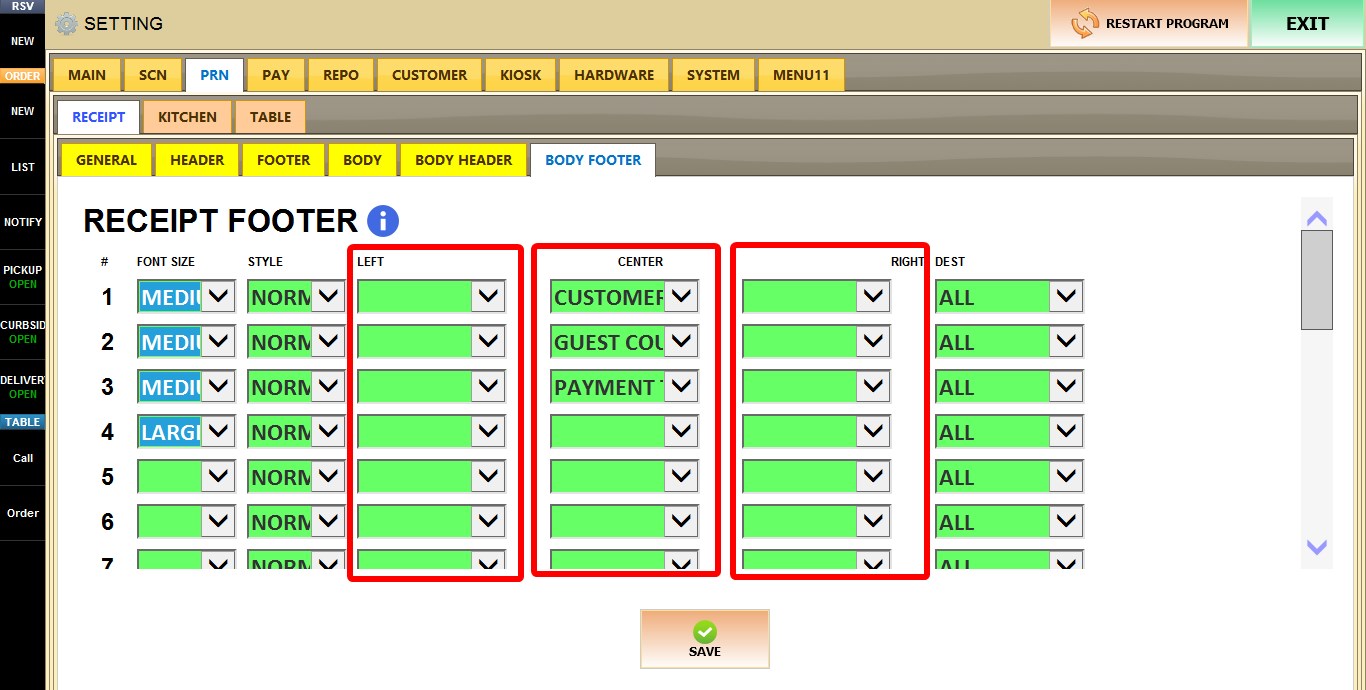
LEFT / CENTER / RIGHT
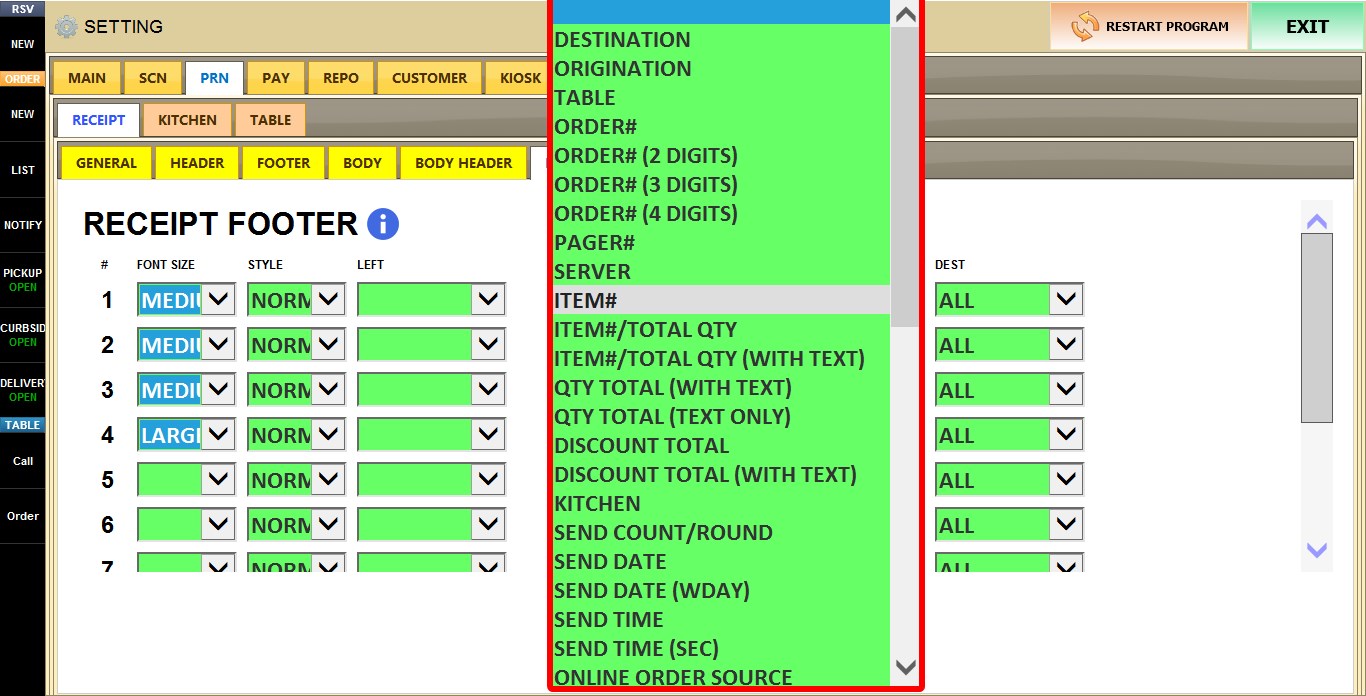
Selects which information is displayed on the left, center, or right side of the body footer. Available elements include:
Order information: (ORDER#, PAGER#, TABLE, SERVER)
Quantity information: (QTY TOTAL, QTY TOTAL (TEXT))
Kitchen information: (KITCHEN, SEND COUNT/ROUND)
Date and time information: (SEND DATE, SEND DATE (WDAY), SEND TIME, SEND TIME (SEC), READY DATE, READY TIME, READY DATE TIME, FUTURE TIME (TEXT, IF))
Customer information: (CUSTOMER NAME, CUSTOMER NAME (NO GUEST), CUSTOMER PHONE)
Destination information: (DESTINATION, ORIGINATION), and additional labels such as READY BY (TEXT).
USE TERMINAL SPECIFIC SETTING
When enabled, the current terminal uses its own custom footer configuration instead of the store-wide settings.
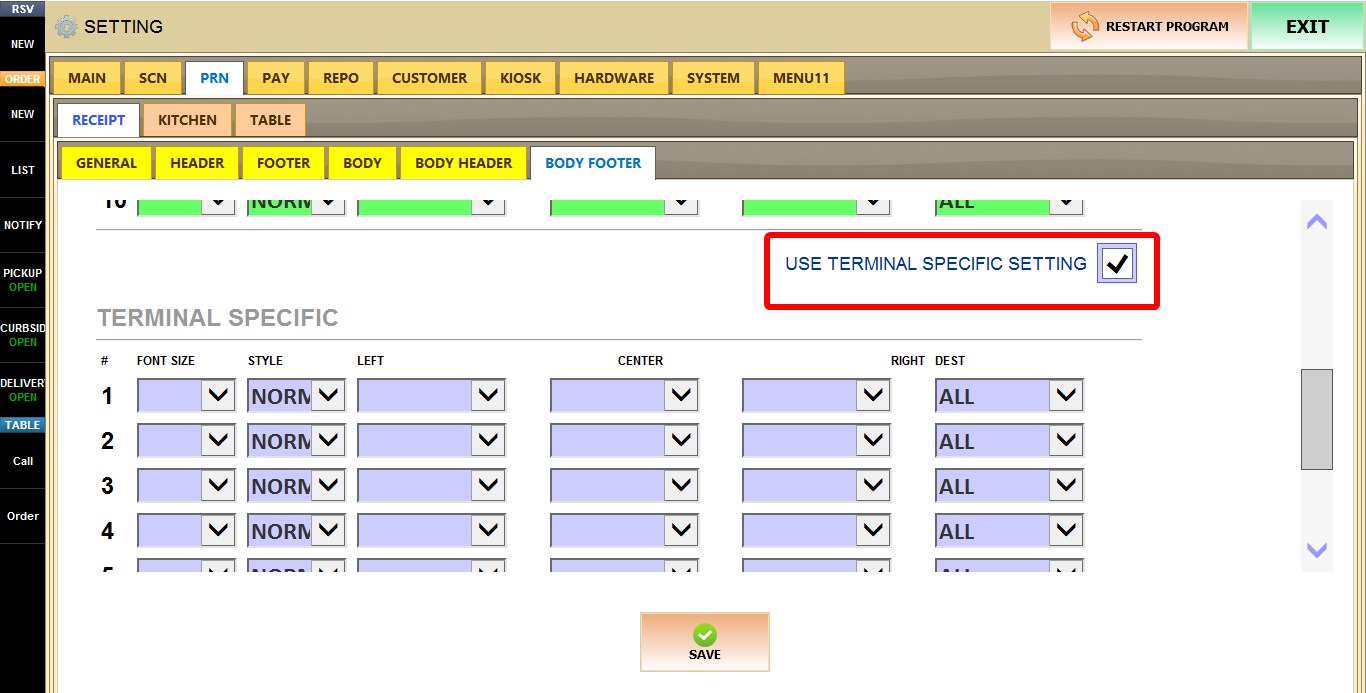
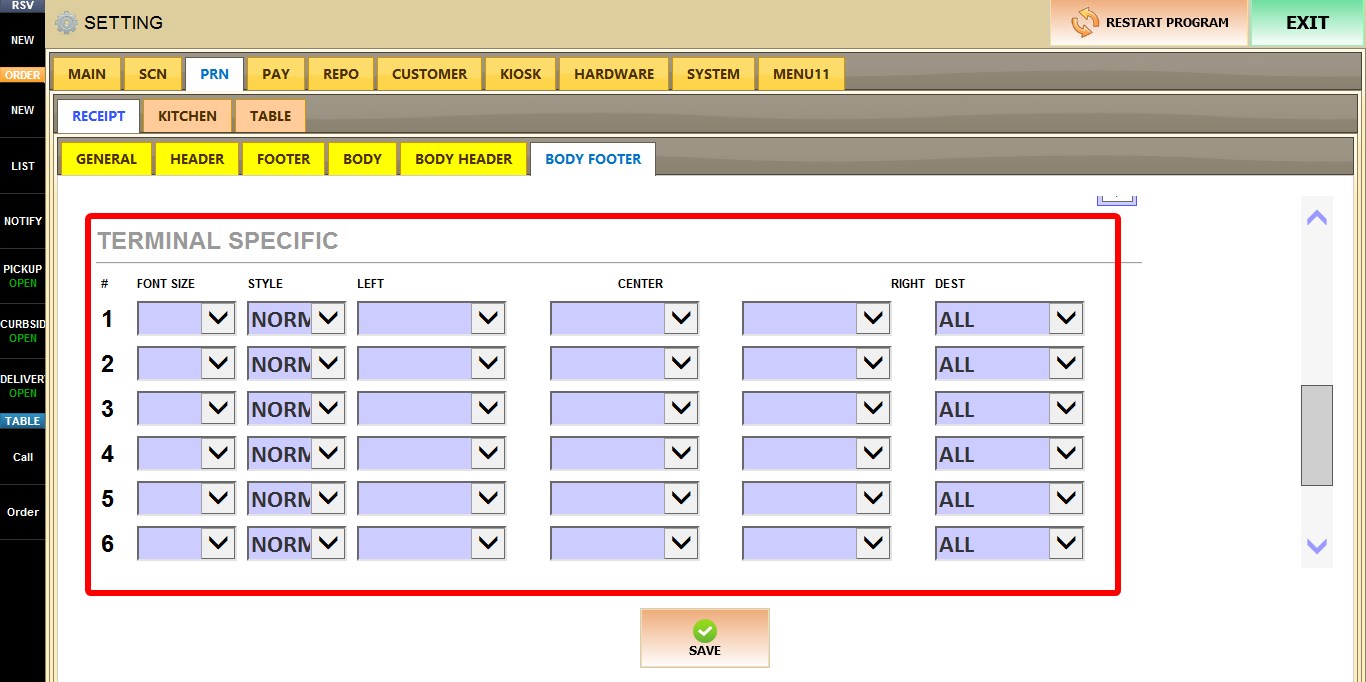
A second configuration table becomes available, allowing you to configure FONT SIZE, STYLE, DEST, LEFT, CENTER, and RIGHT independently for this terminal only.
After you are done configuring the settings, click SAVE, then RESTART THE PROGRAM for the changes to take effect.

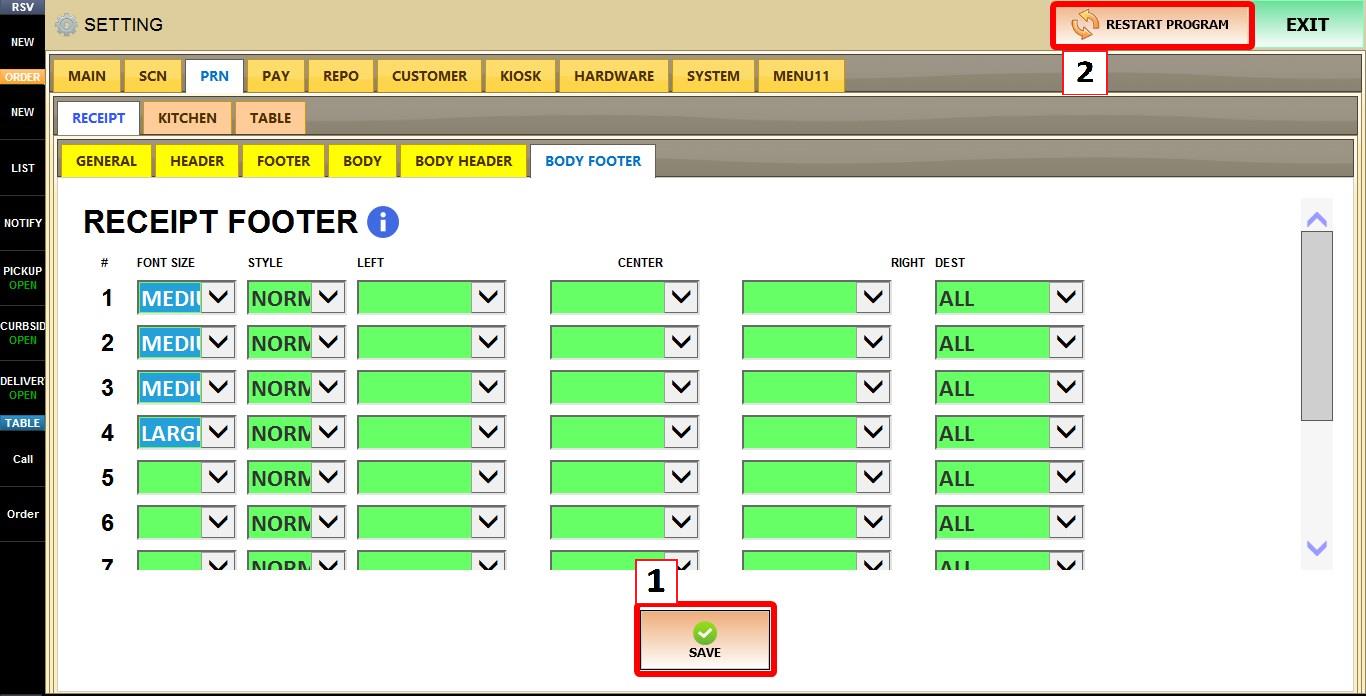
RESULT