Split Log
The Split Log displays every ticket split performed during the selected period. Use this log to review when tickets were split, who performed the split, and how items were distributed between the resulting tickets.
MAIN SCREEN > MENU > REPORTS > SALES > LOGS
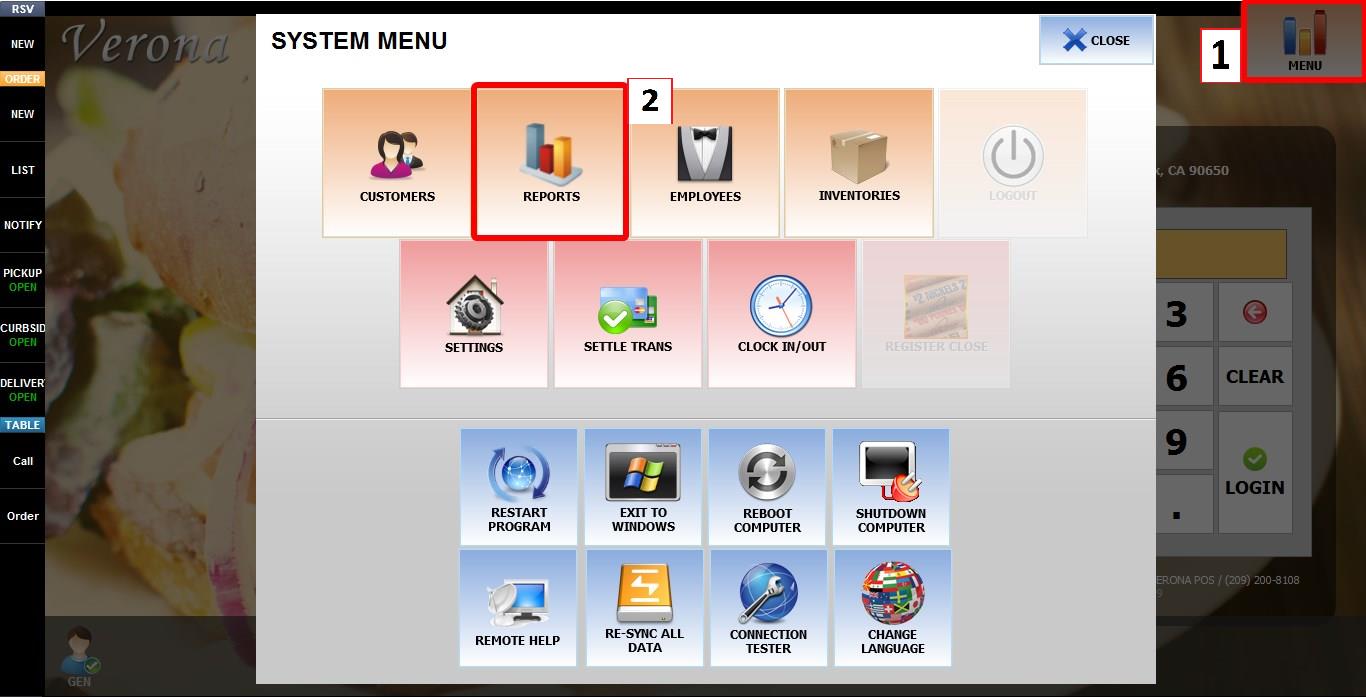
From the MAIN SCREEN, click MENU, then select REPORTS.
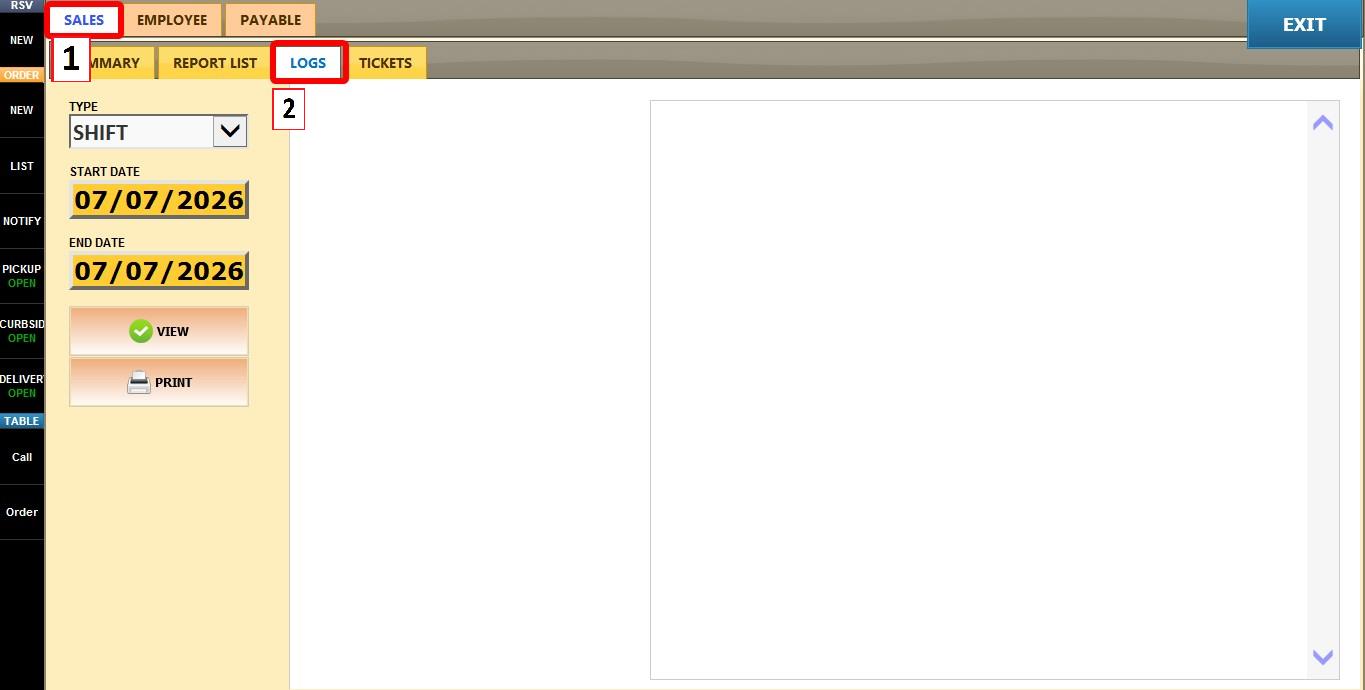
Open the SALES tab, then click LOGS.
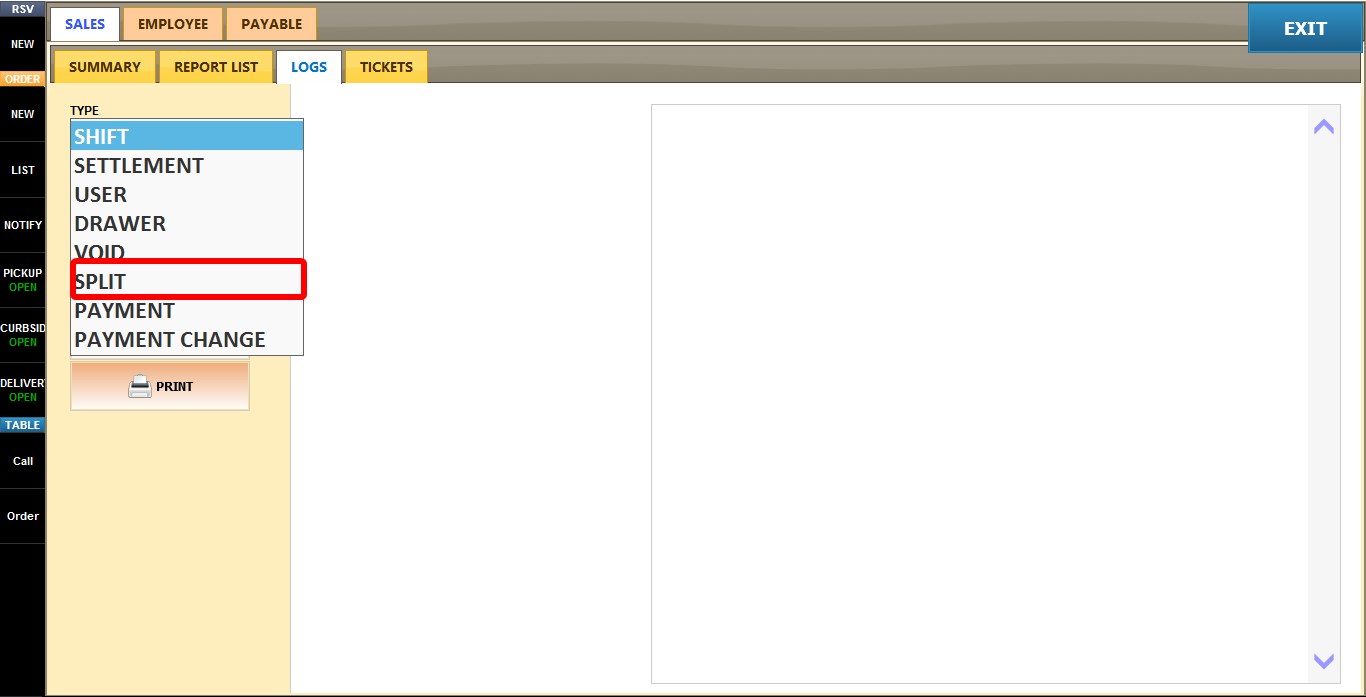
Click the TYPE dropdown. And Select SPLIT.
Click VIEW to display the log or refresh it after changing the selected date range.
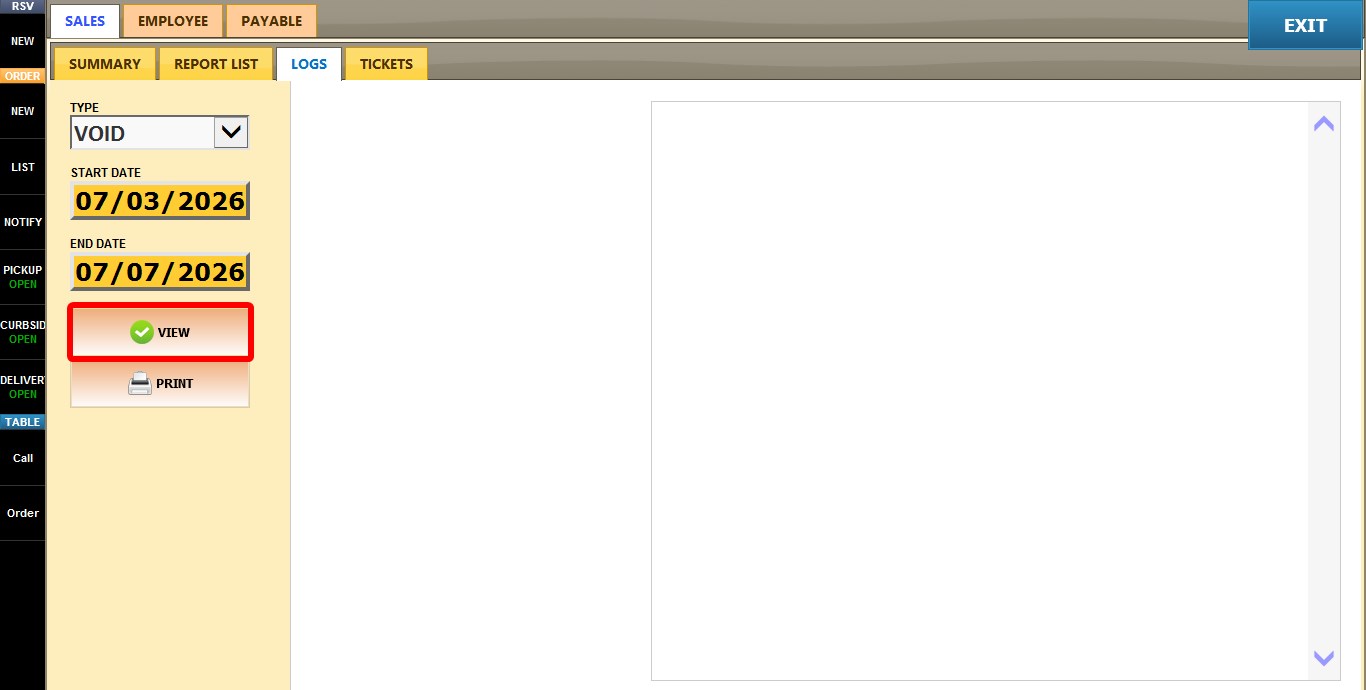
You will see displayed a list of all ticket split events within the selected period, including the date and time the split occurred, the employee who performed it, and the original ticket number.
Select any entry from the list to view the complete split details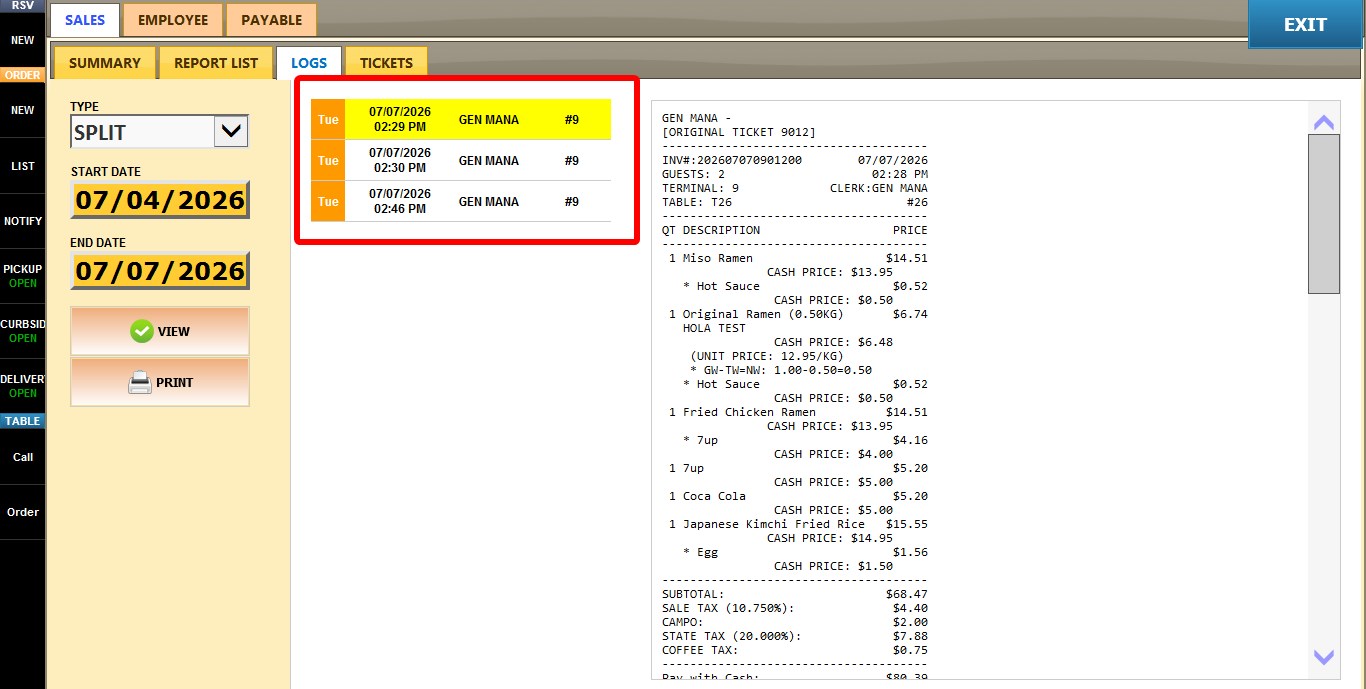
After selecting a split event from the list above, the right panel displays the complete split history for that ticket, including the original ticket and all split tickets created from it. Below are the details
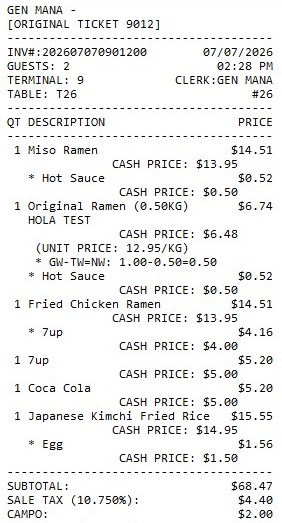
ORIGINAL TICKET
Displays the original ticket before it was split, including all items, quantities, taxes, service charges, and payment totals.
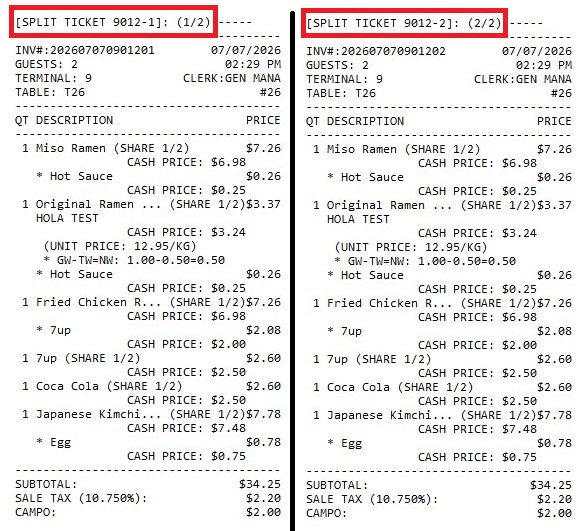
SPLIT TICKETS
Displays each new ticket created from the original ticket after the split. Each section shows the items assigned to that split, along with its subtotal, taxes, service charges, and payment totals.
FILTERS
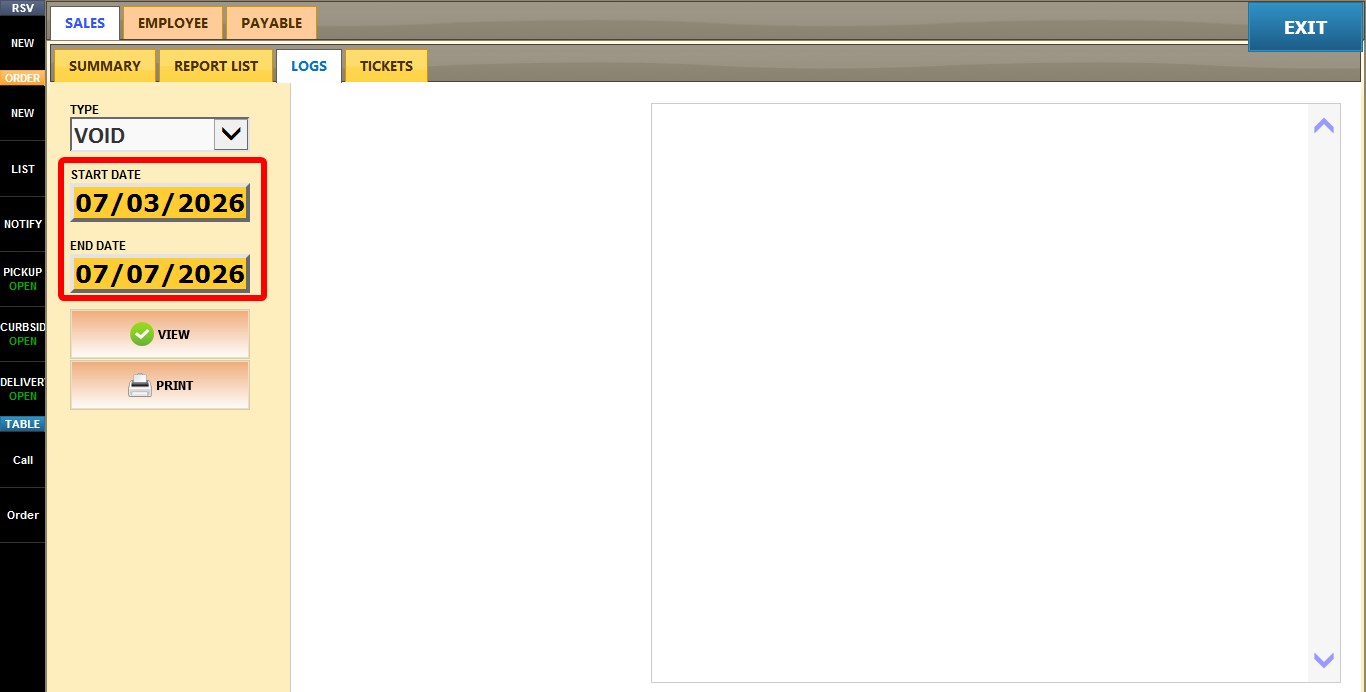
START / END
Allows you to select a custom date range for the log.
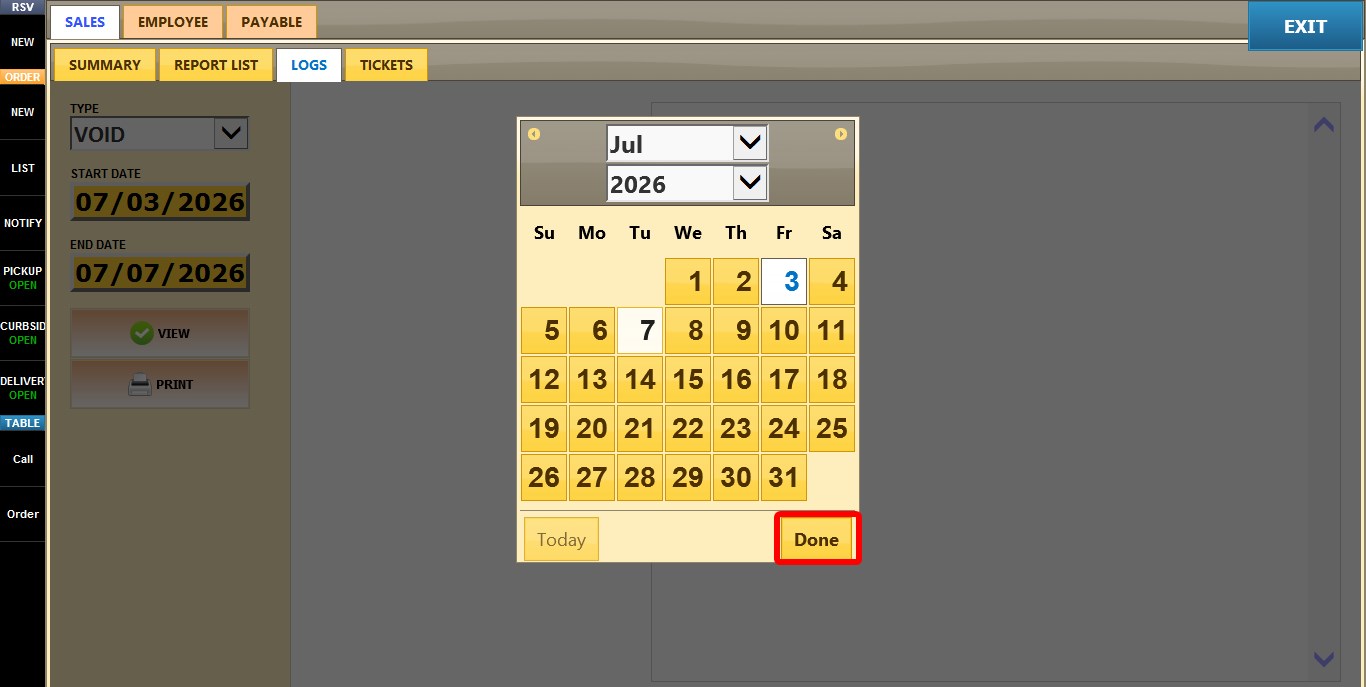
Click either START or END to open the calendar.
Select the desired date and click DONE.
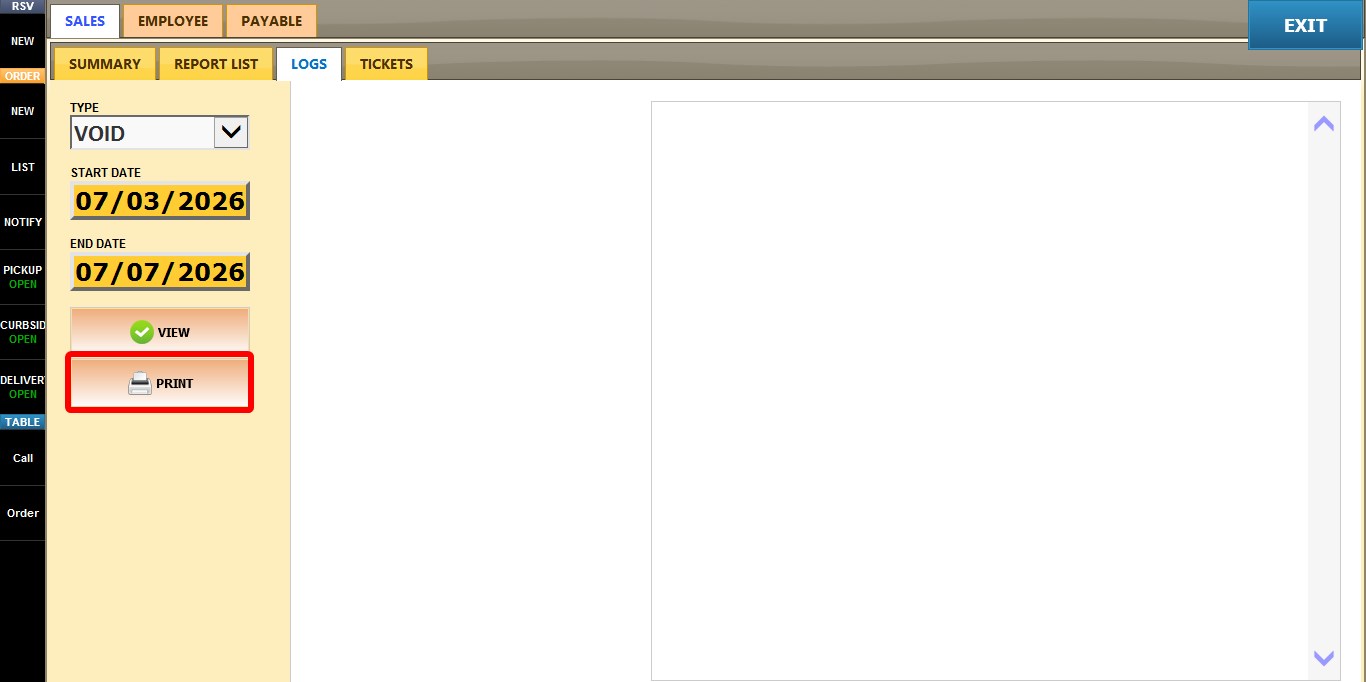
Prints the currently displayed Split Log, including the details of the selected split transaction.