Main Layout
The Layout settings control how the kiosk ordering screen looks: the screen orientation, the main title, the images or videos shown on the main screen, the ticket view, the header size and color, and the size of the action buttons. Use them to adapt the kiosk to the screen and to the look of the store.
MENU> SETTINGS> KIOSK> ORDER> LAYOUT
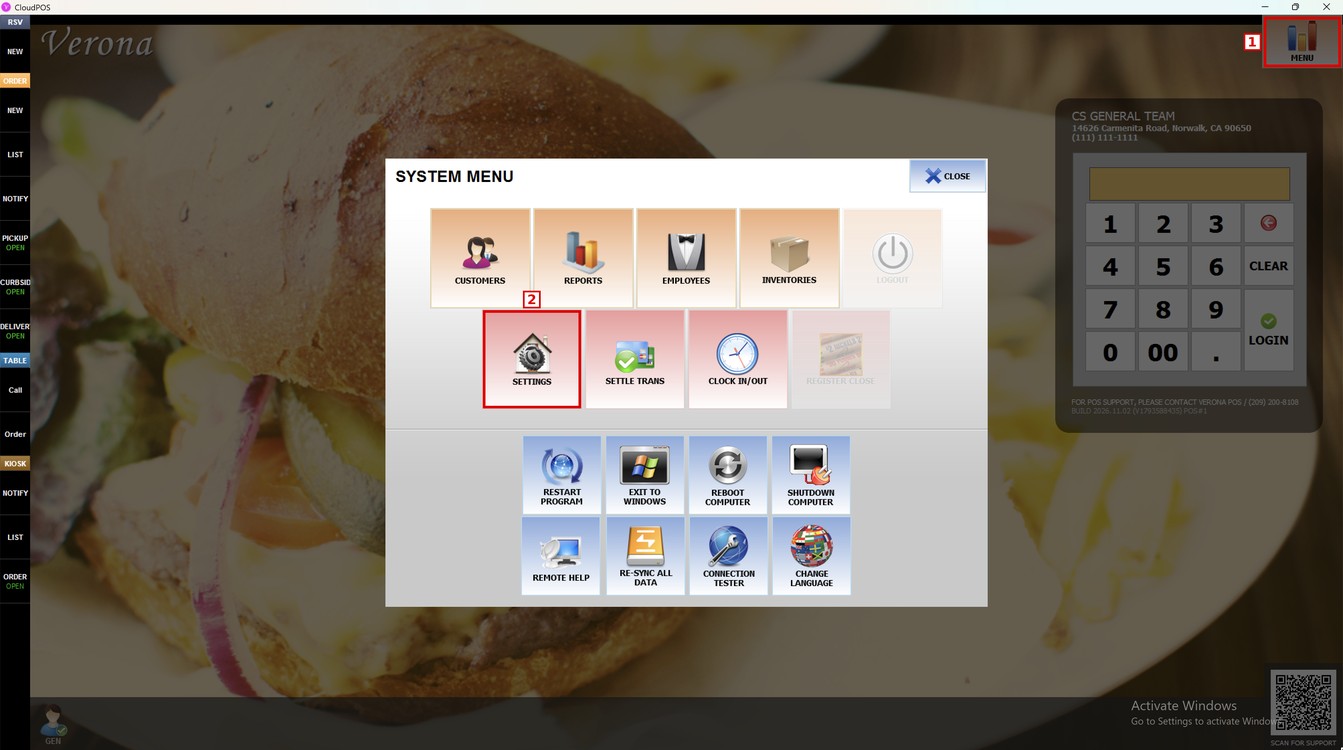
Go to MENU and press SETTINGS.
Press the KIOSK tab and then the ORDER subtab. The settings are in the LAYOUT section.
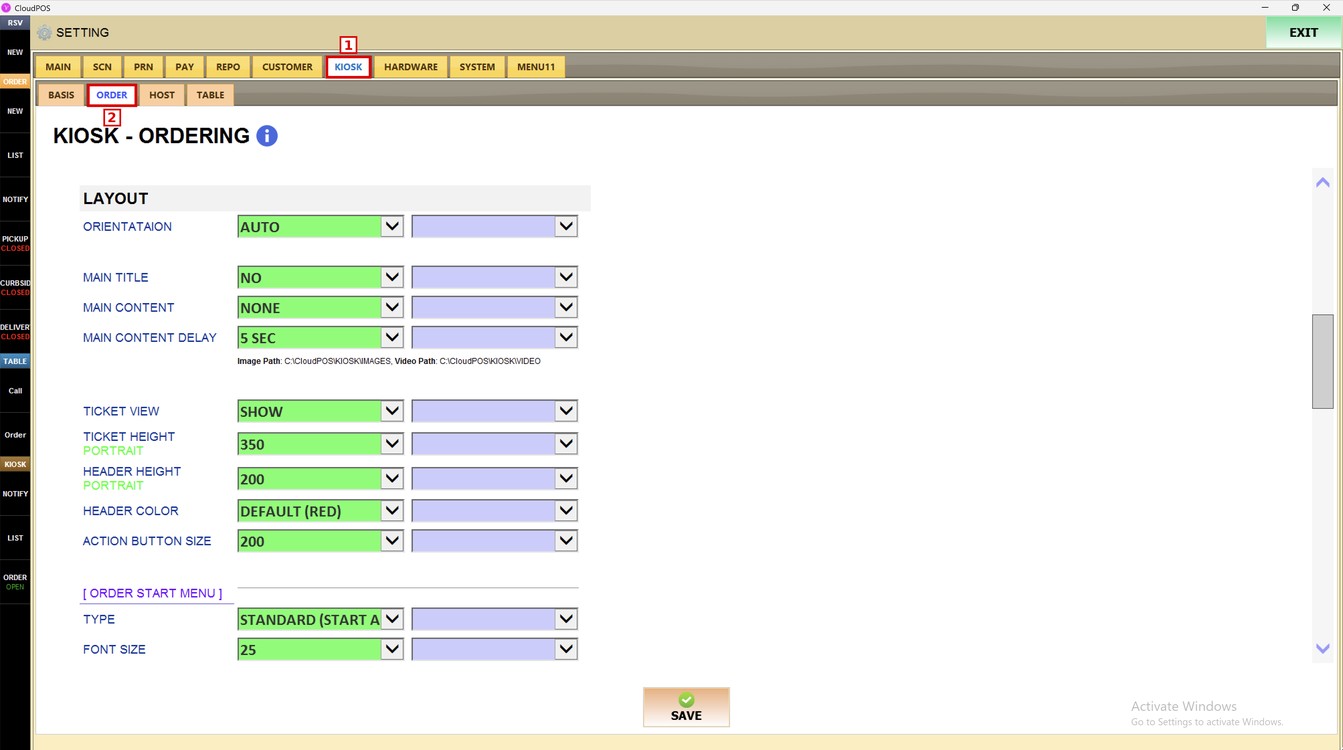
Each setting has two dropdowns. The first one (green) is the setting used by all the kiosks of the store. The second one is the setting used only by this kiosk. Leave it empty to use the store setting.
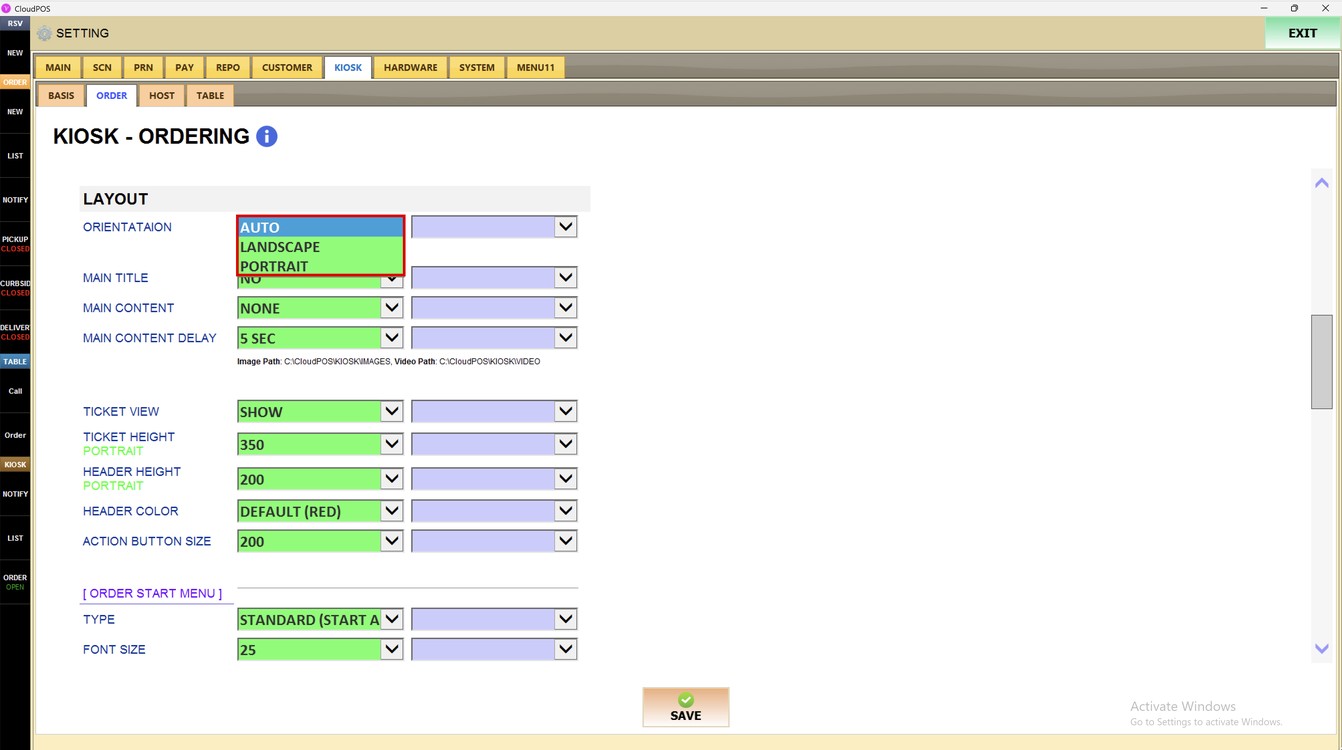
Orientation:
Sets the orientation of the kiosk screen.
1. AUTO: The kiosk uses the orientation of the screen.
2. LANDSCAPE: The kiosk always shows the ordering screen horizontally.
3. PORTRAIT: The kiosk always shows the ordering screen vertically.
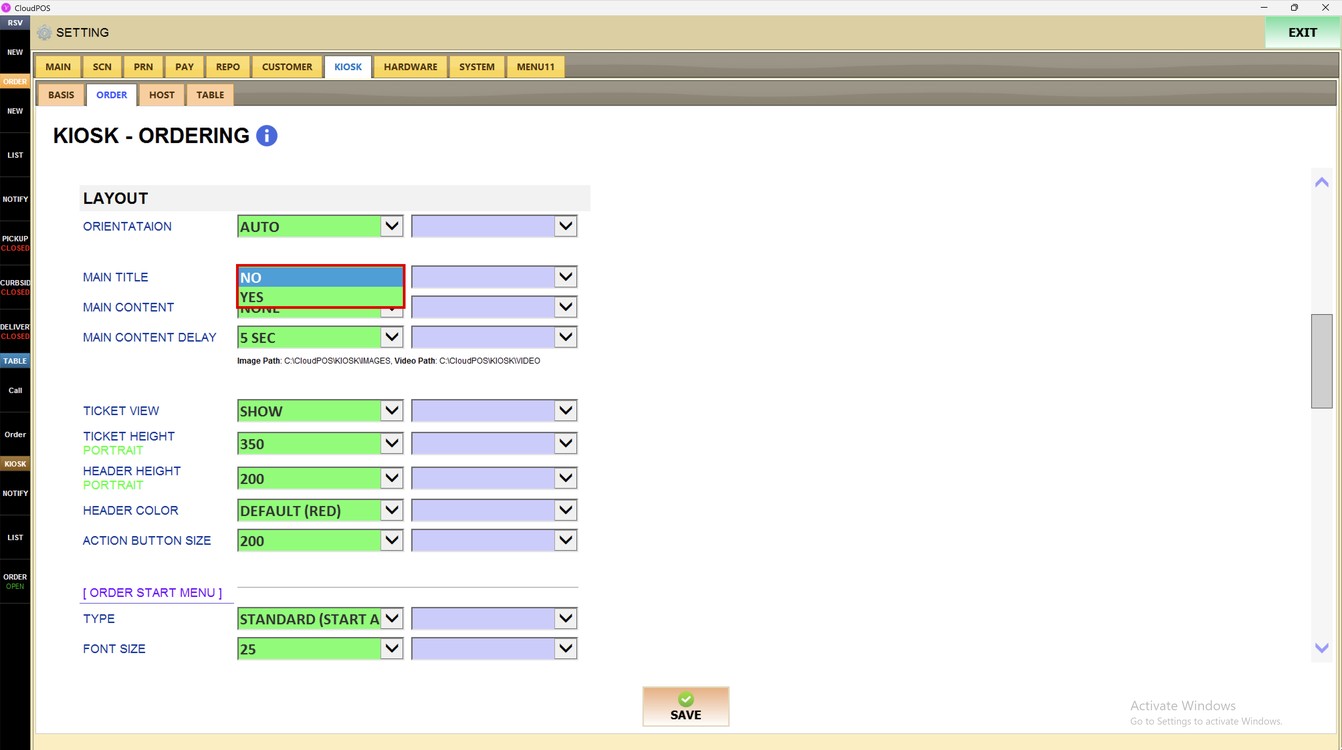
Main Title:
Shows or hides the title on the main screen of the kiosk.
1. NO: The main title is not shown.
2. YES: The main title is shown.
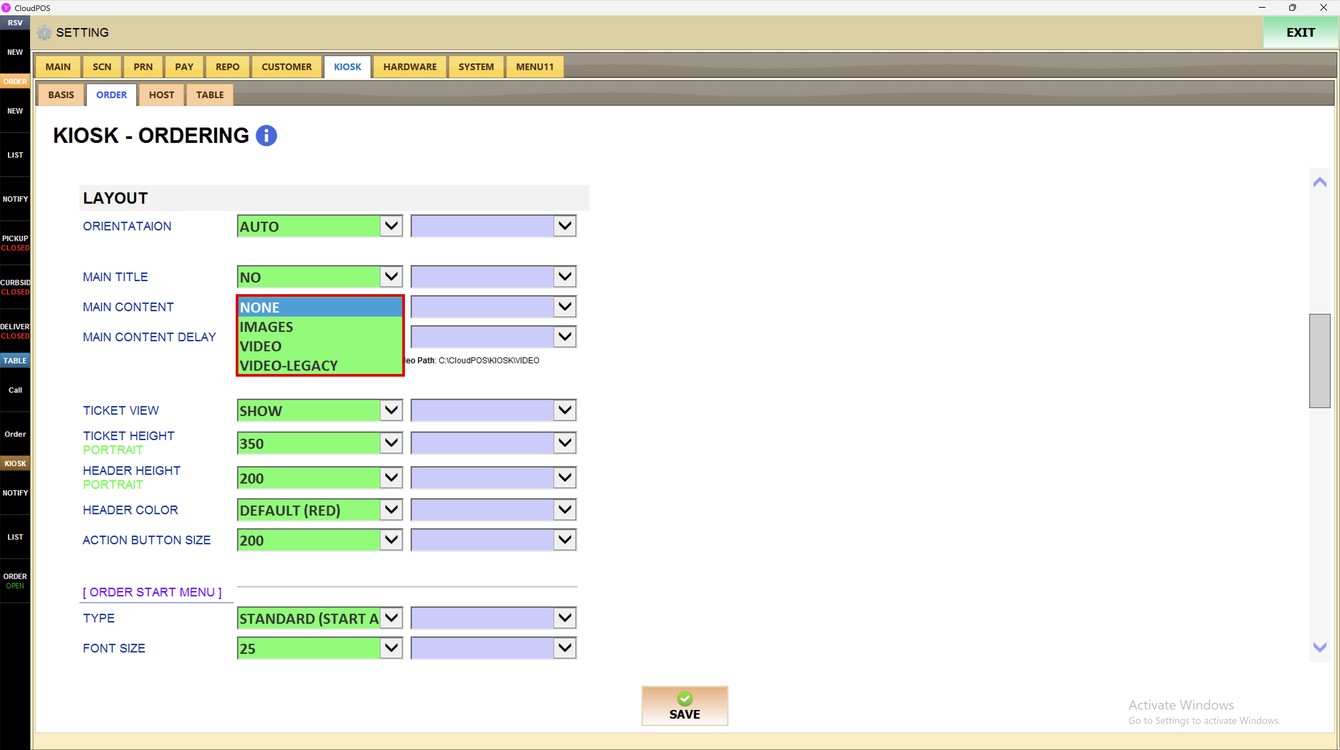
Main Content:
Sets what the kiosk shows on the main screen while it is waiting for a customer.
1. NONE: No images or videos are shown.
2. IMAGES: The kiosk shows the images saved in the image folder.
3. VIDEO: The kiosk plays the videos saved in the video folder.
4. VIDEO-LEGACY: The kiosk plays the videos with the previous video player. Use it if a video does not play with the VIDEO option.
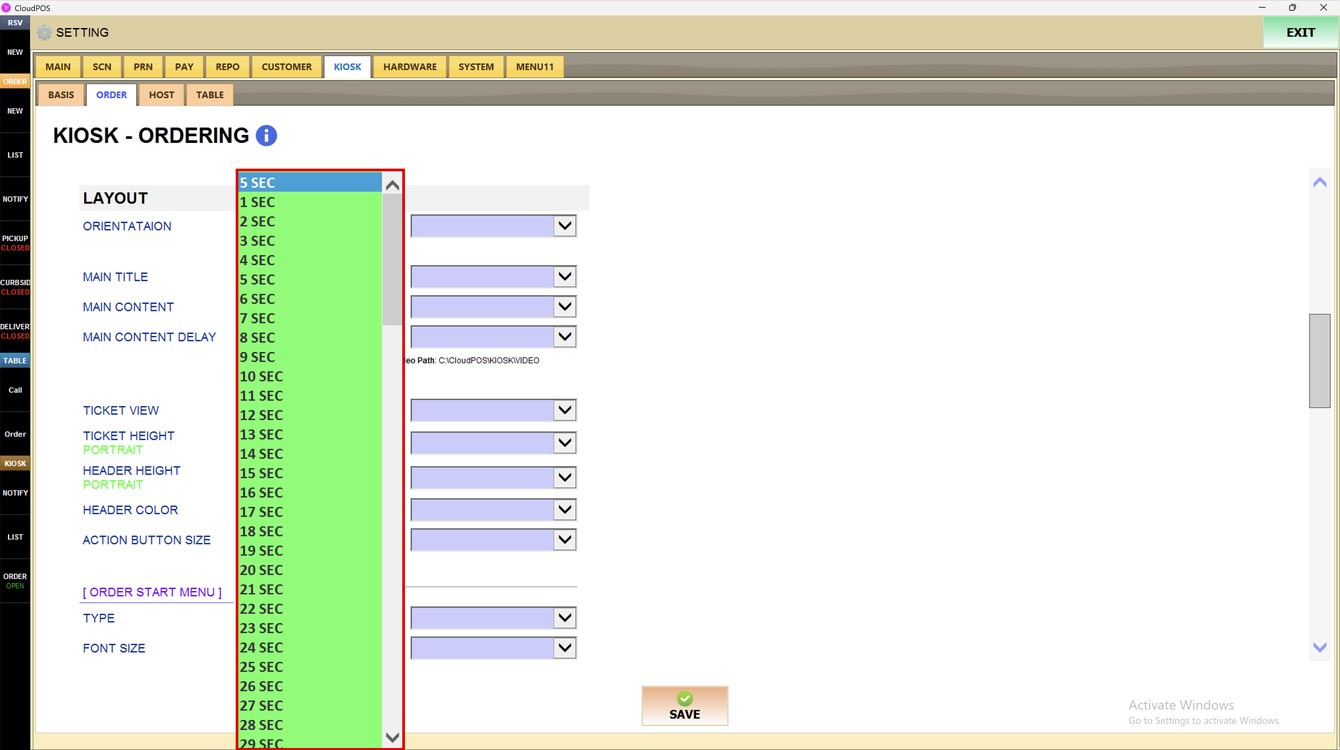
Main Content Delay:
Sets how many seconds each image stays on the screen before the next one is shown. Choose from 1 SEC to 30 SEC.
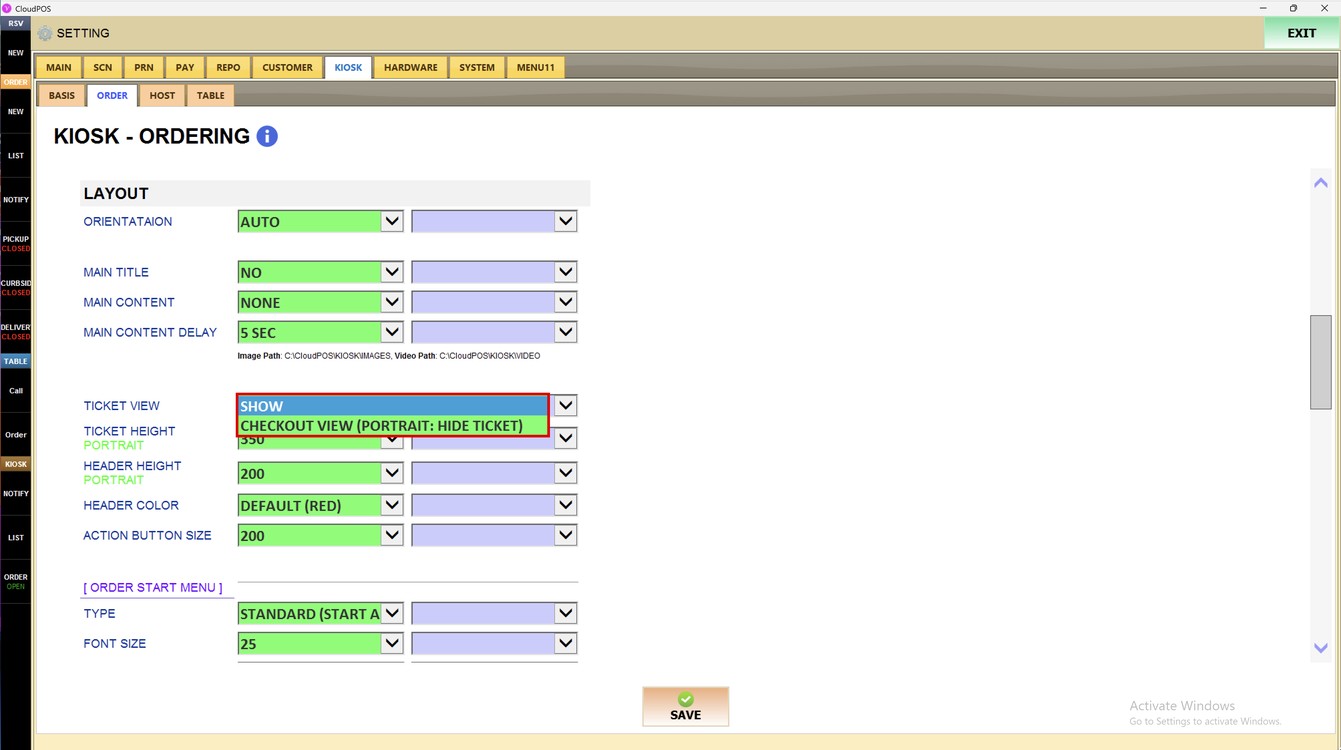
Ticket View:
Sets how the ticket is shown on the ordering screen.
1. SHOW: The ticket is always shown next to the menu.
2. CHECKOUT VIEW (PORTRAIT: HIDE TICKET): In portrait orientation, the ticket is hidden while the customer orders and is shown at checkout.
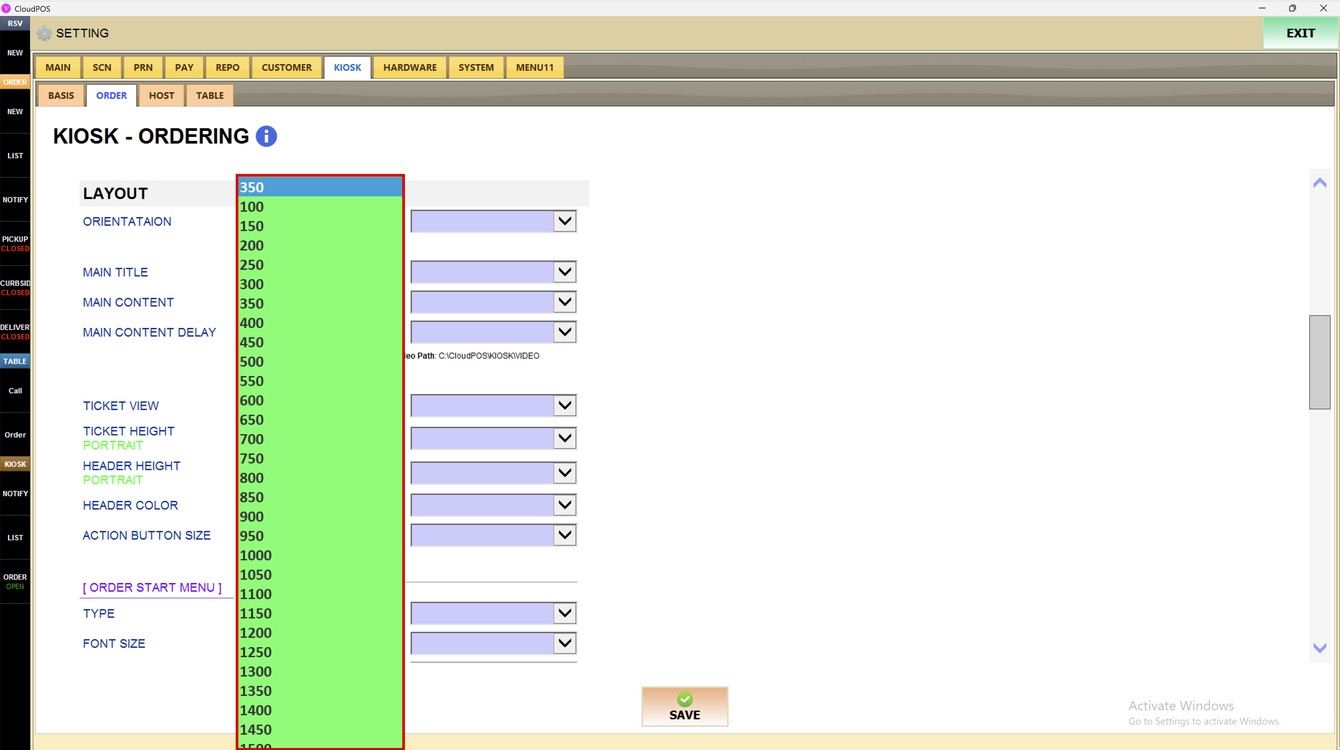
Ticket Height Portrait:
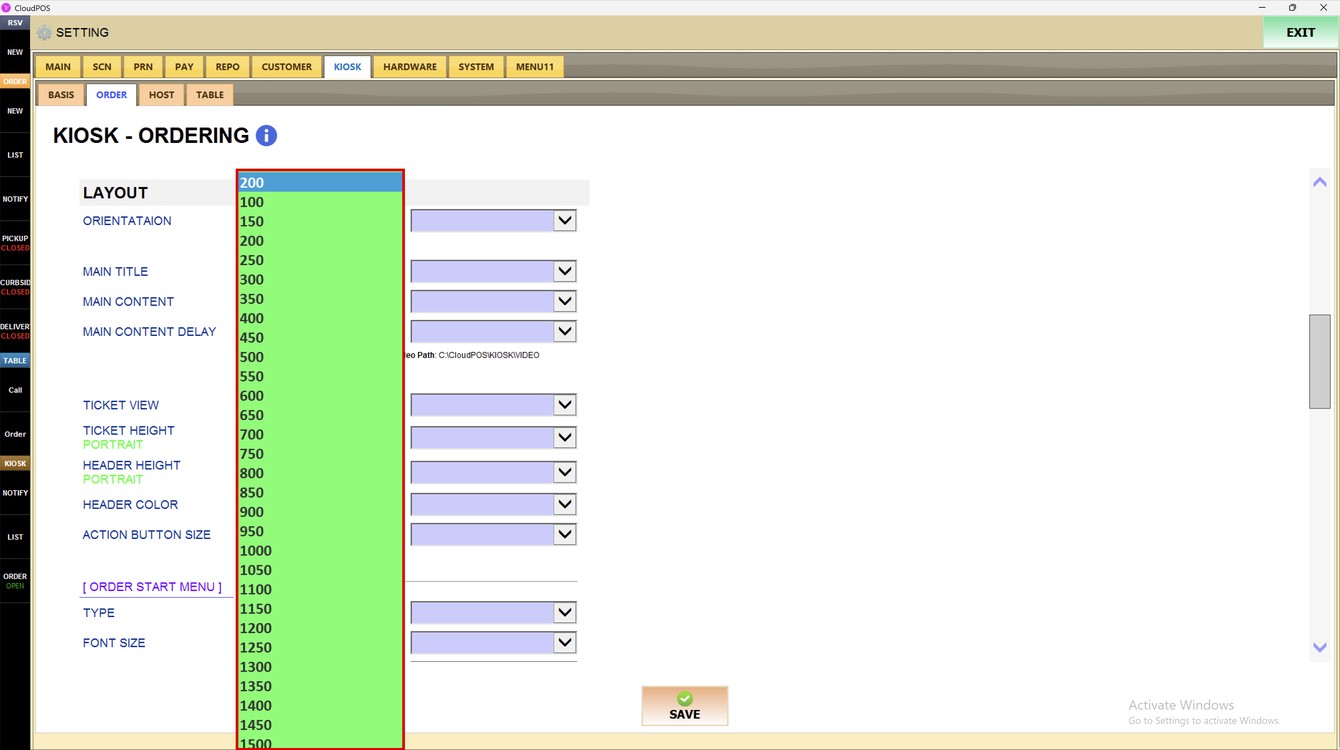
Sets the height of the ticket area when the kiosk is in portrait orientation. Choose from 100 to 1500; a higher number shows a bigger ticket.
Header Height Portrait:
Sets the height of the header at the top of the screen when the kiosk is in portrait orientation. Choose from 100 to 1500.
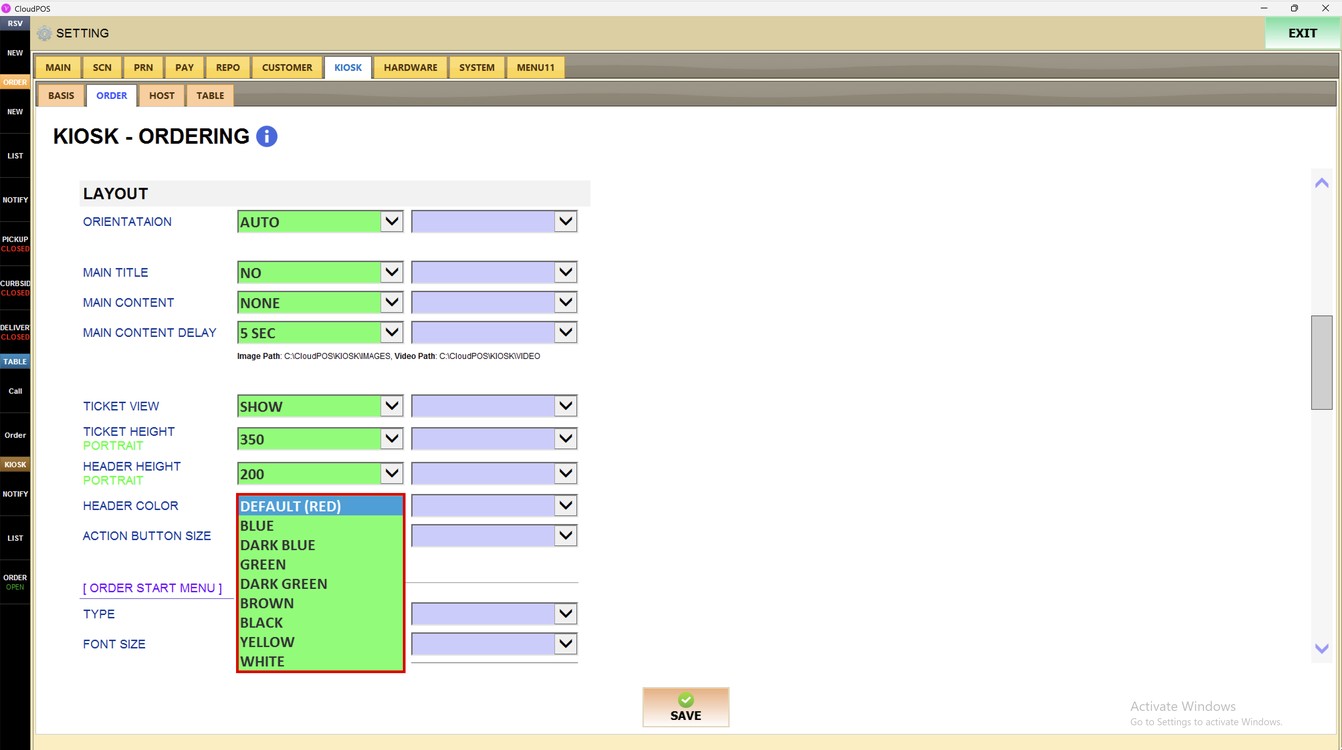
Header Color:
Sets the color of the header of the ordering screen. Choose DEFAULT (RED), BLUE, DARK BLUE, GREEN, DARK GREEN, BROWN, BLACK, YELLOW or WHITE.
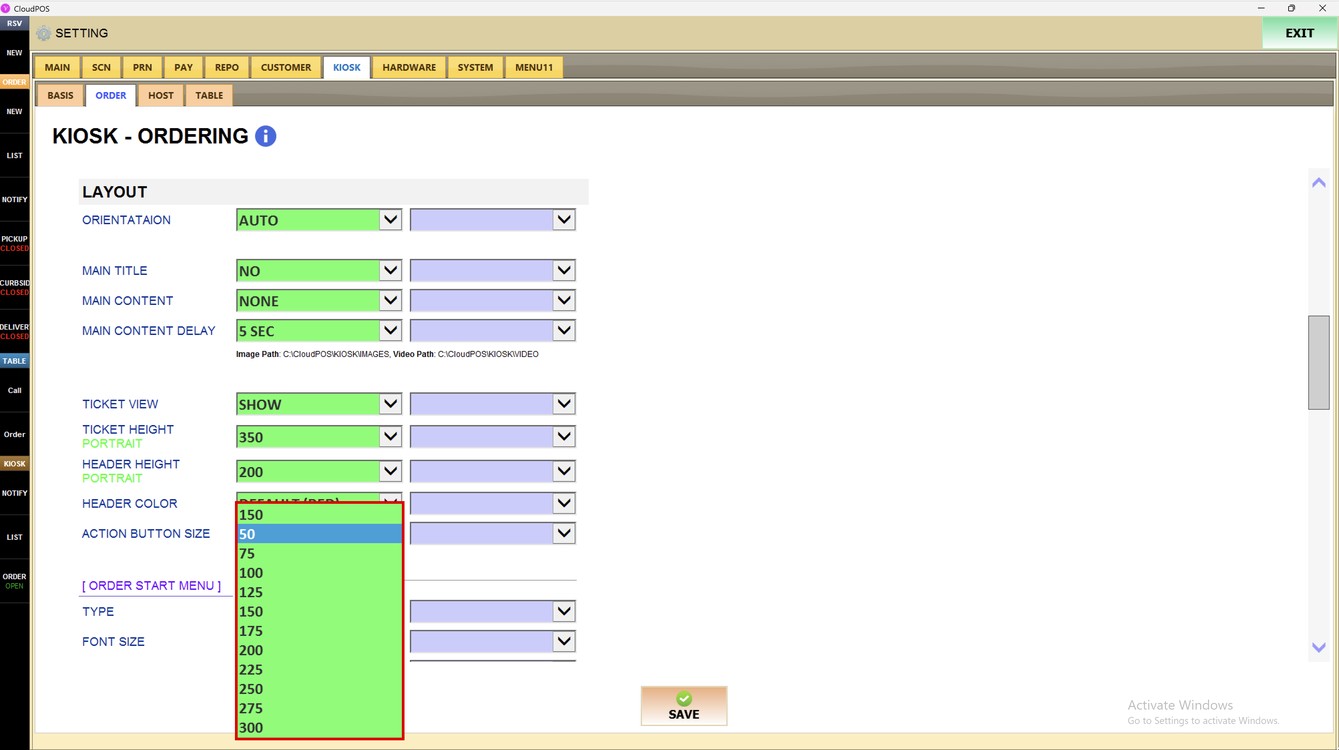
Action Button Size:
Sets the size of the action buttons of the ordering screen. Choose from 50 to 300; a higher number shows bigger buttons.
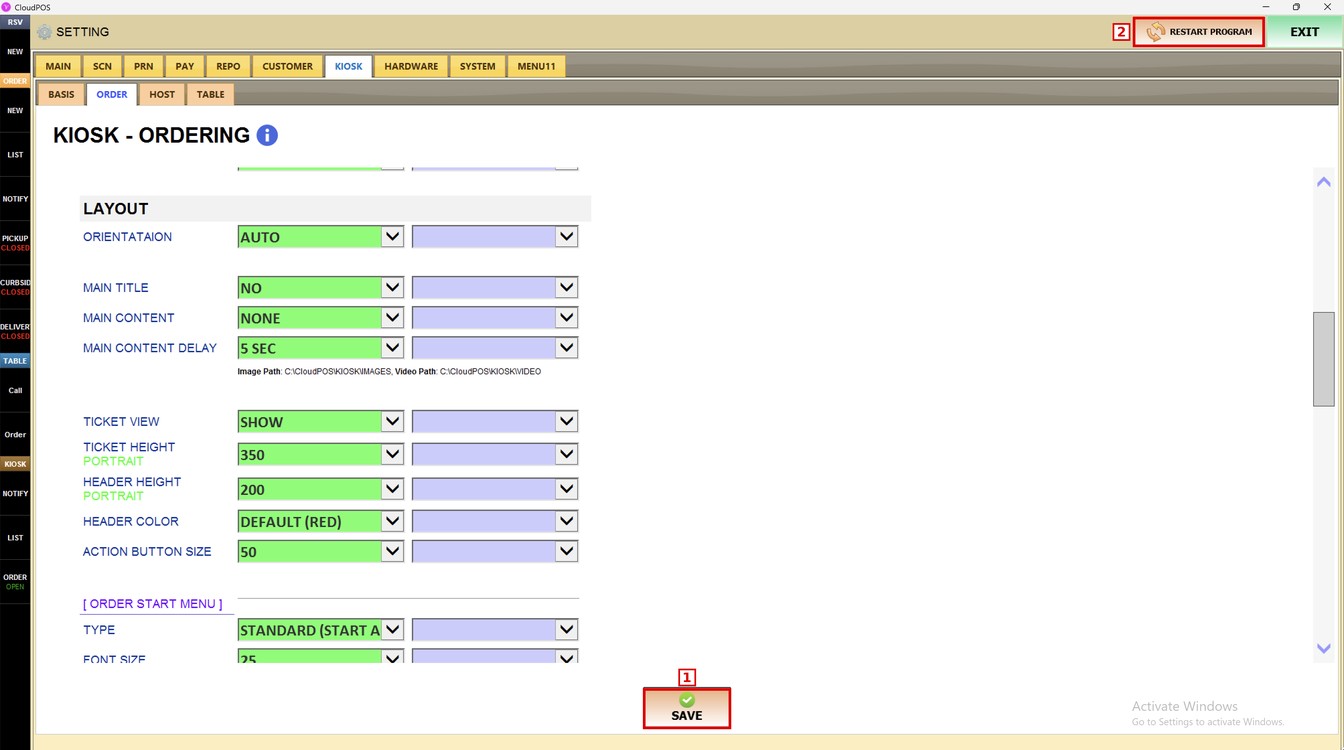
Press SAVE and then RESTART PROGRAM to apply the changes.
To learn how to set up the kiosk ordering features, please refer to the Kiosk Features Guide.