Menu
The OLO Menu setting selects the POS menu that is synced with OLO, so the customers see the same items when they order online.
MENU> SETTINGS> MENU11> OLO> MENU
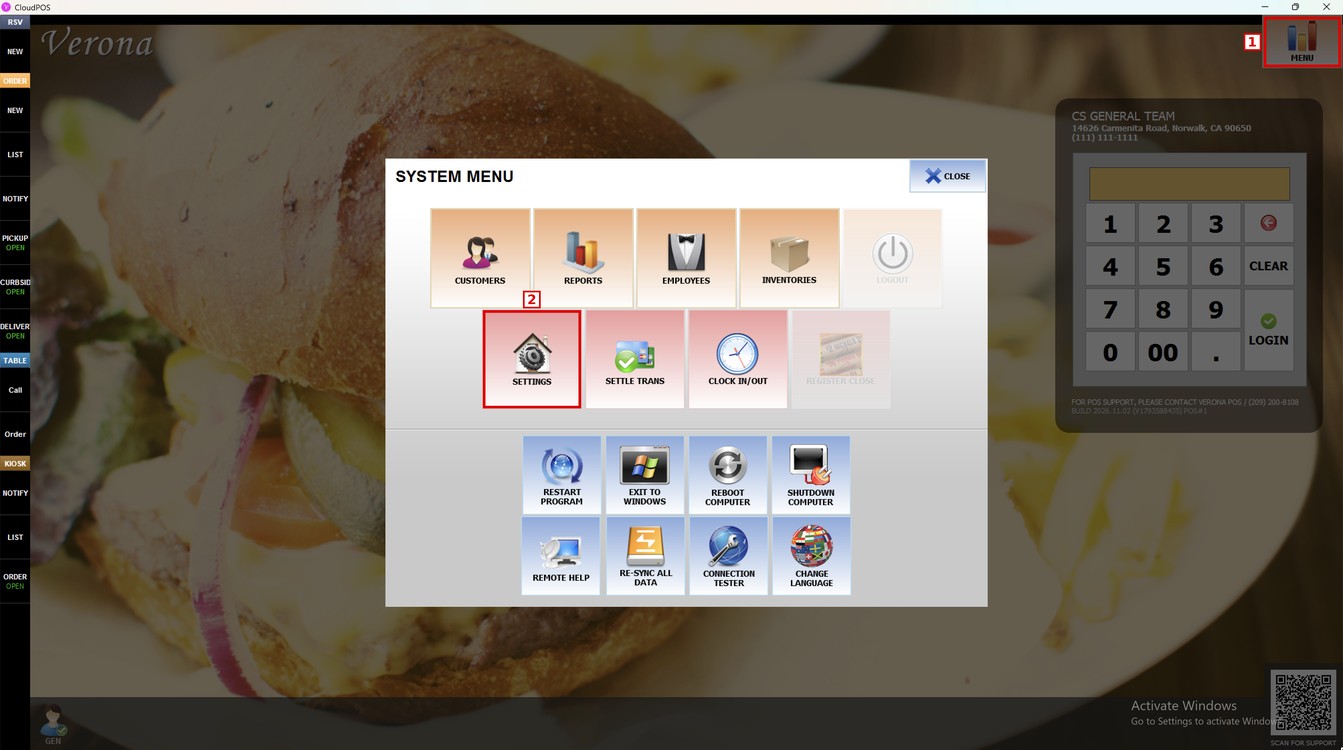
Go to MENU and press SETTINGS.
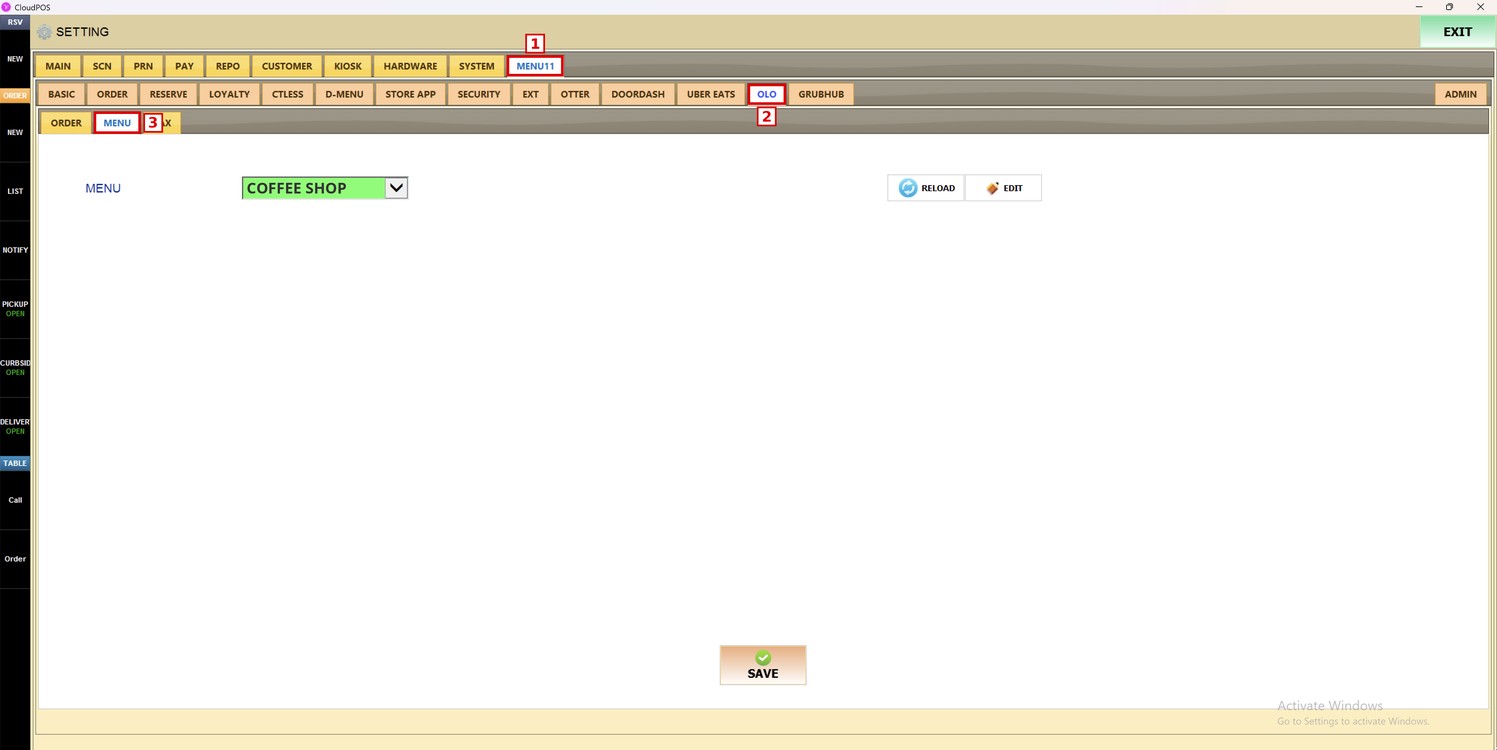
Press the MENU11 tab, then the OLO subtab, and then MENU.
Menu:
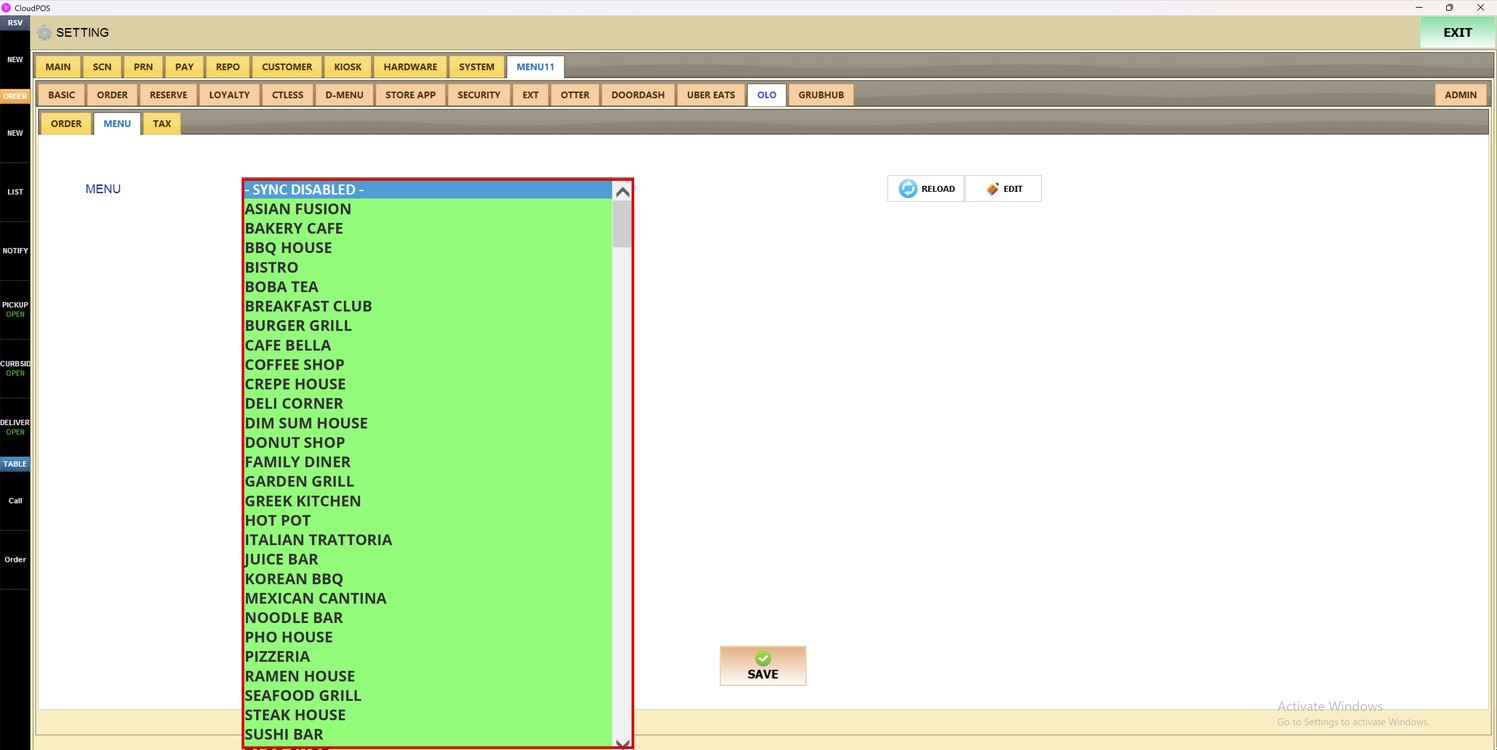
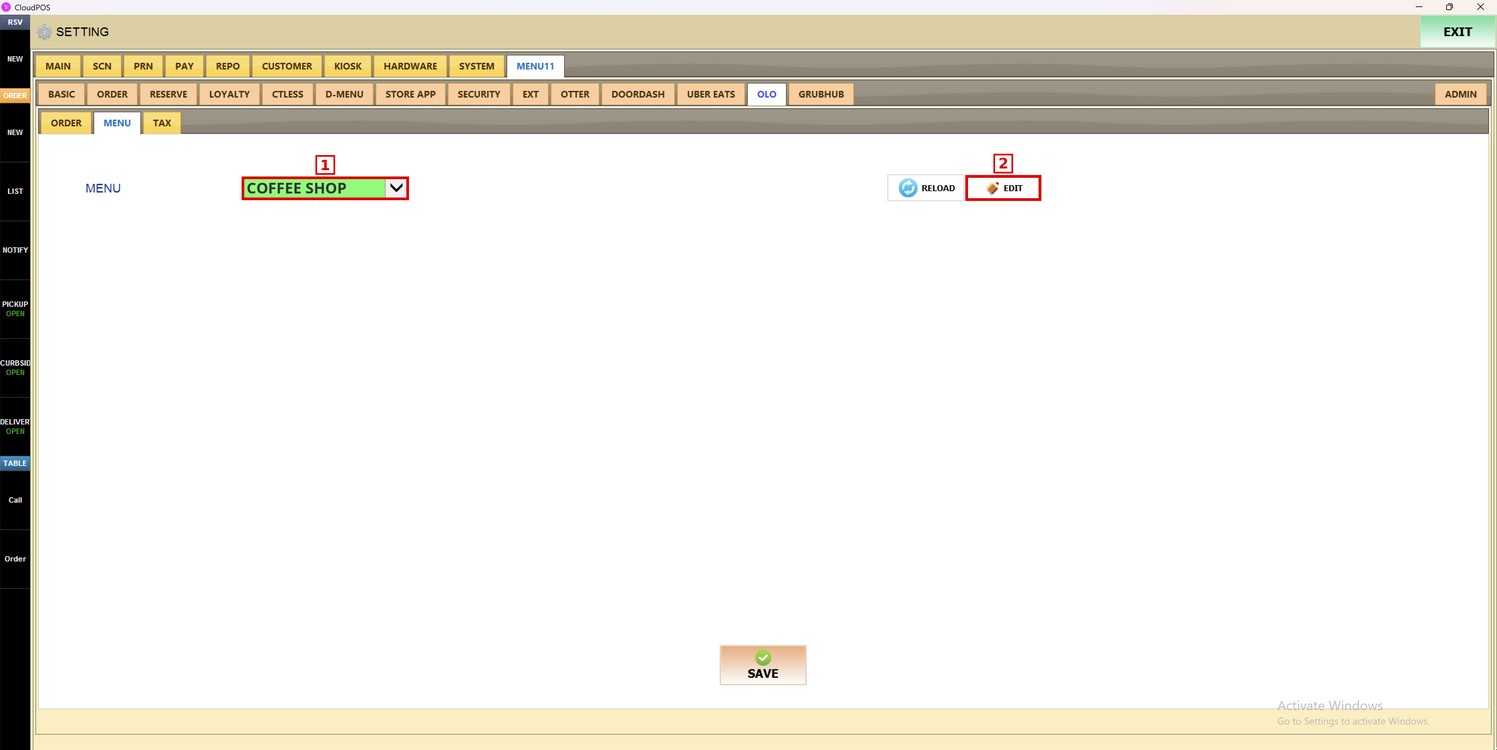
Press the MENU dropdown and select the menu of the store. Select - SYNC DISABLED - to stop syncing a menu with OLO.
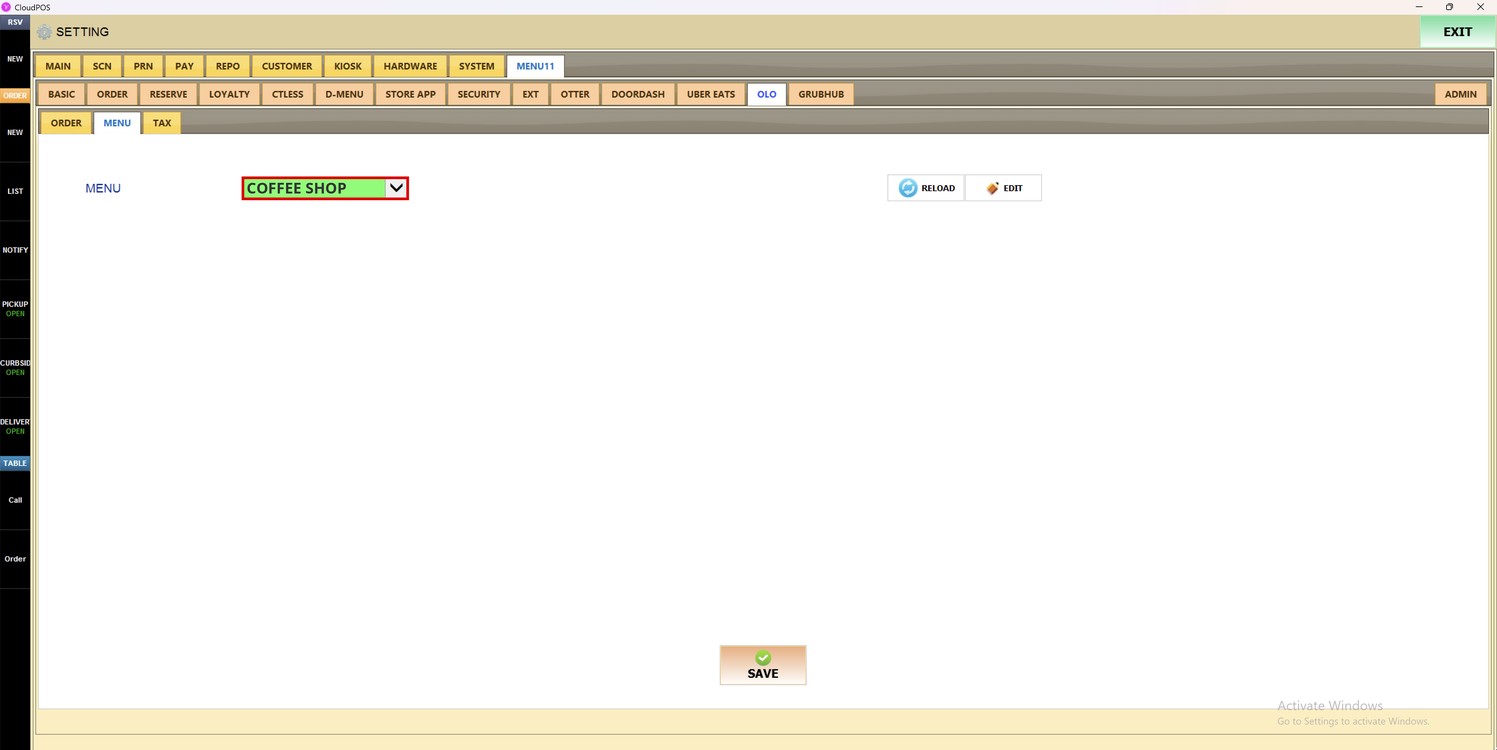
The selected menu is shown in the dropdown.
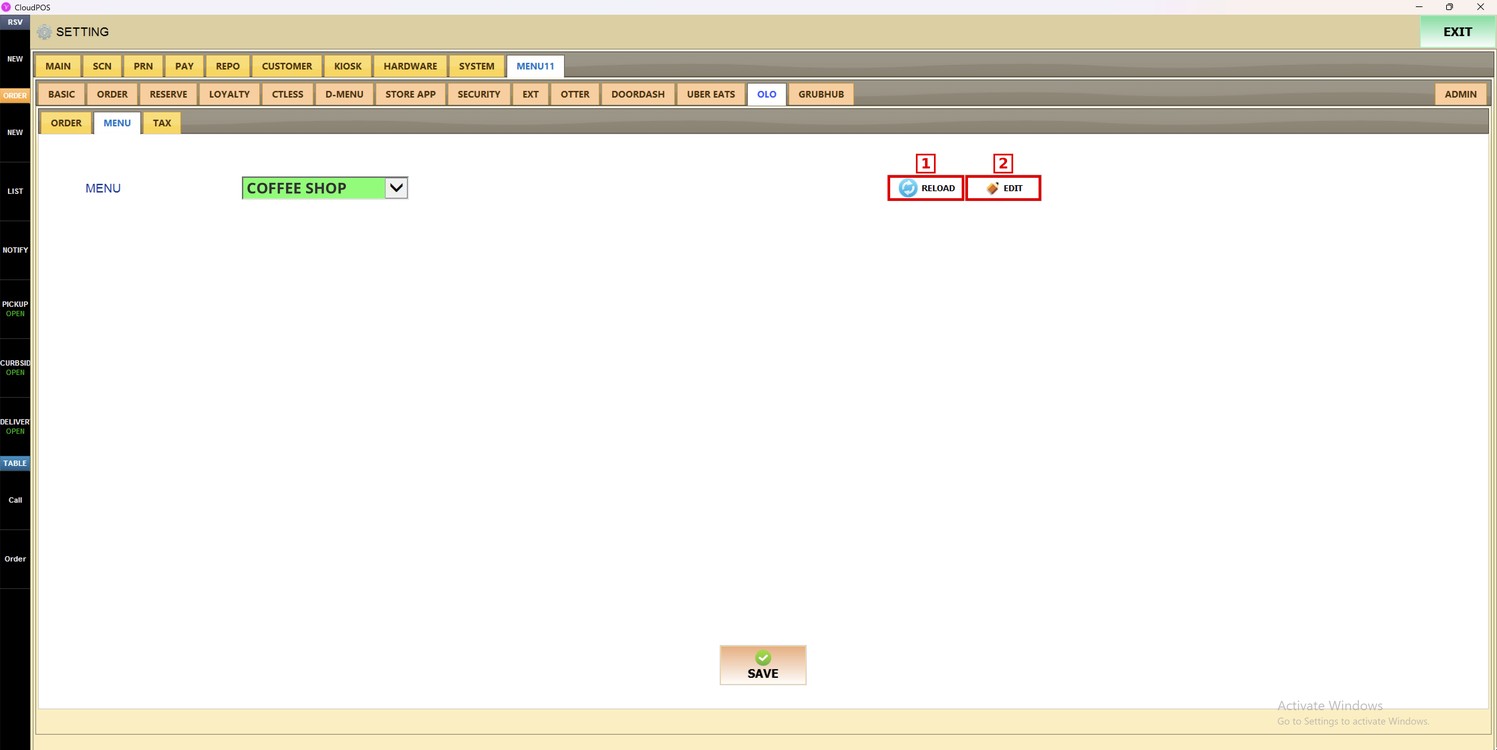
Reload and Edit:
1. RELOAD: Reloads the list of menus.
2. EDIT: Opens the selected menu in the menu editor.
EDIT:
Select the menu in the MENU dropdown and press EDIT.
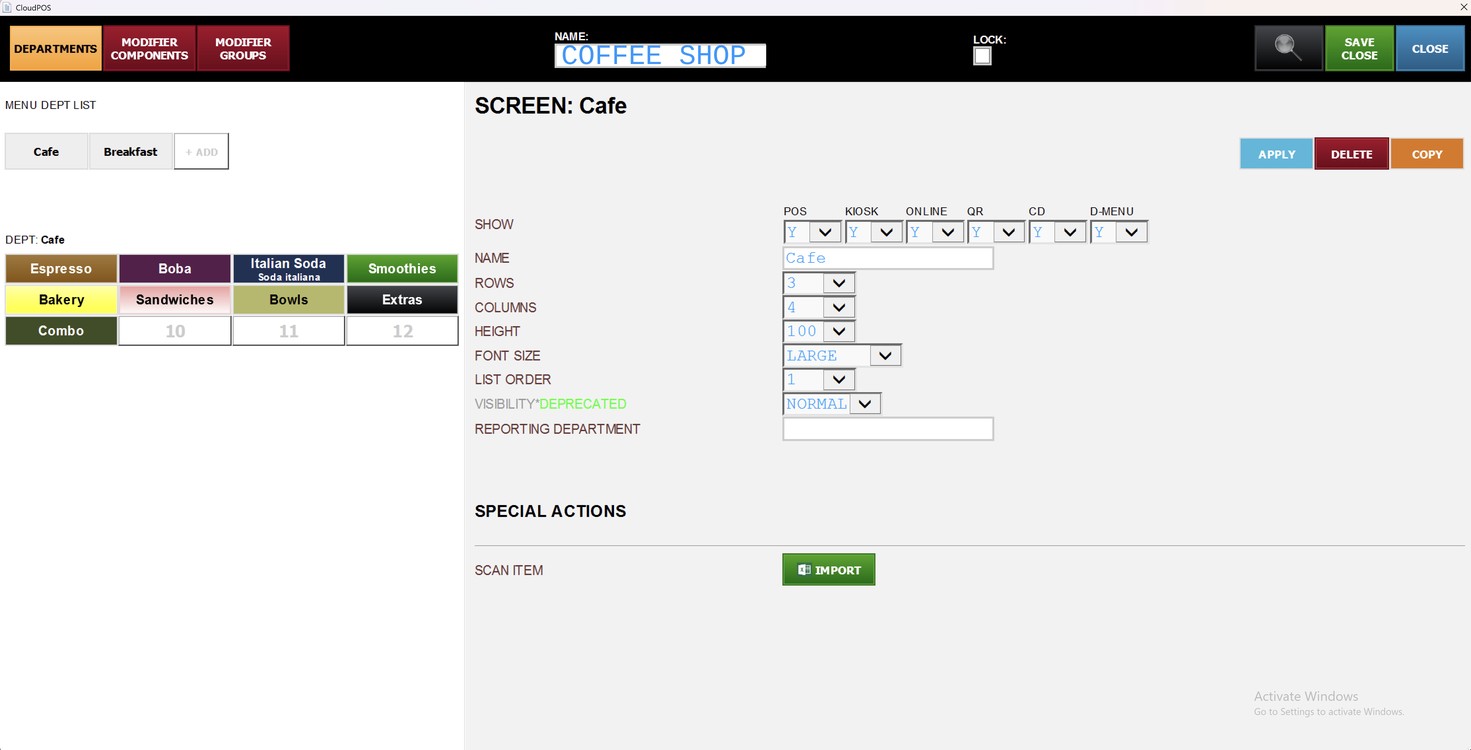
The menu editor of the selected menu opens. Here you can change the departments, items and modifiers of the menu. Press SAVE CLOSE to save the changes and go back to the settings, or CLOSE to exit without saving.
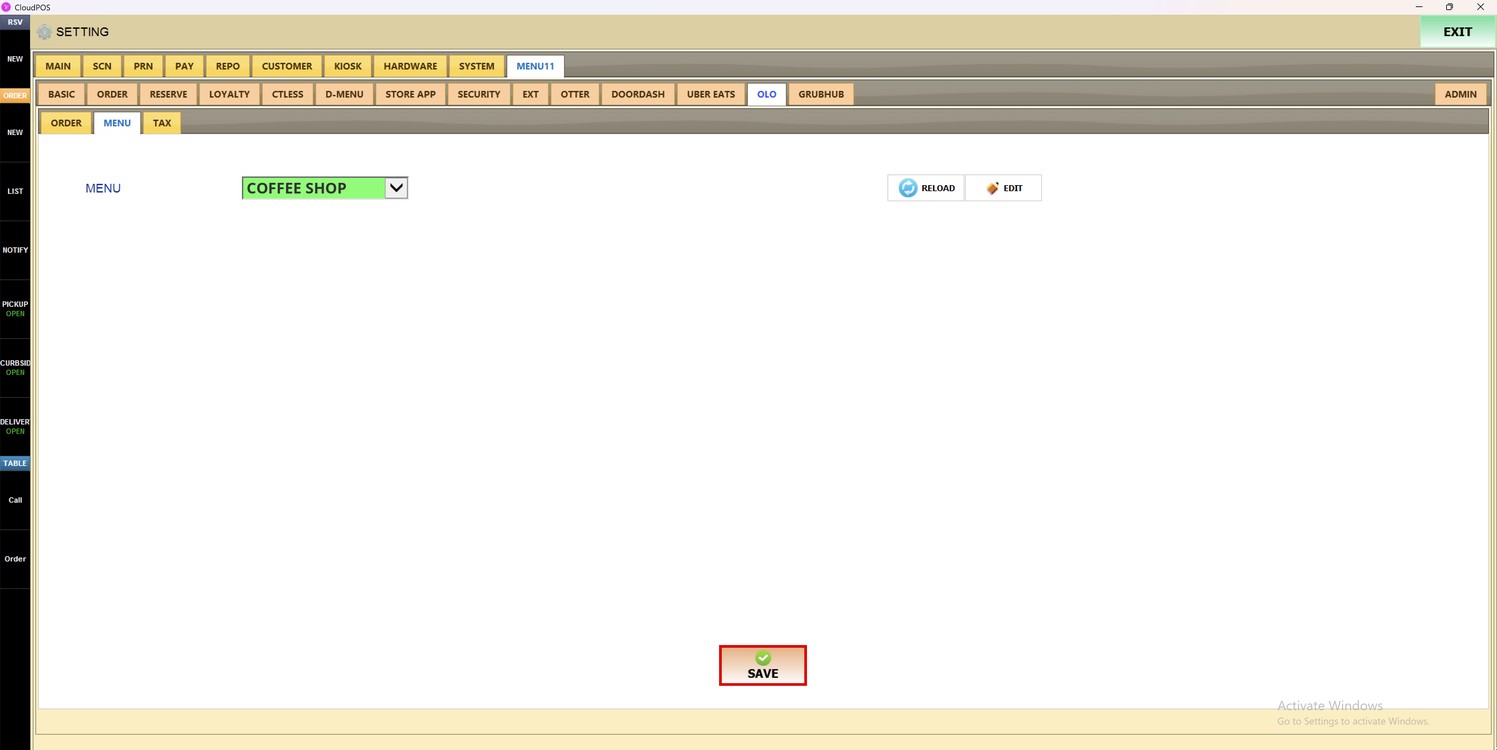
Press SAVE to save the changes.
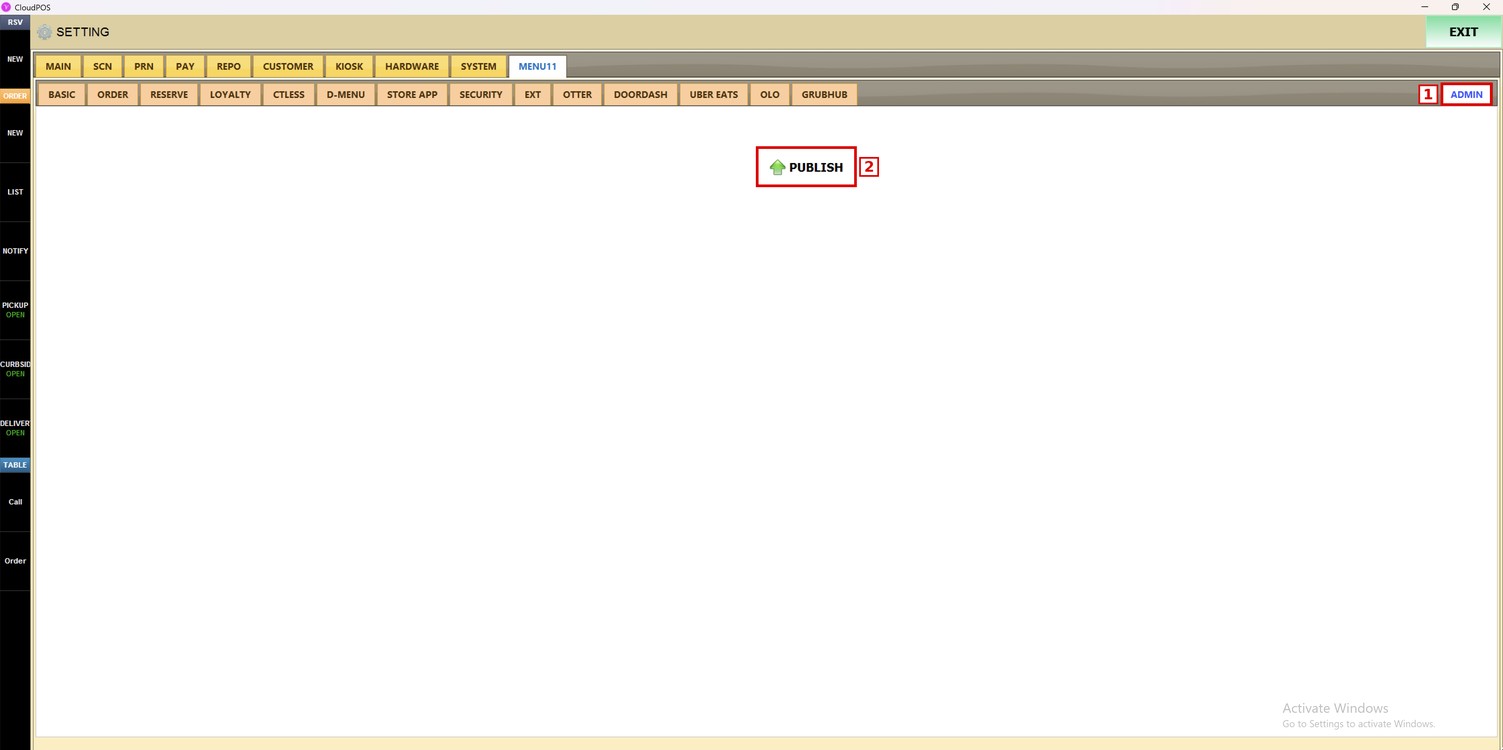
Press the ADMIN subtab and then PUBLISH to apply the changes.
To learn how to set up the OLO orders, please refer to the OLO Order Guide.