Payment
The Online Ordering Payment settings allow you to configure which payment methods customers can use when placing orders through your online ordering site. From this section, you can enable cash or credit card payments, apply convenience fees, and customize the tip options presented during checkout.
Main Screen>MENU>SETTINGS>MENU11>ORDER>PAYMENT
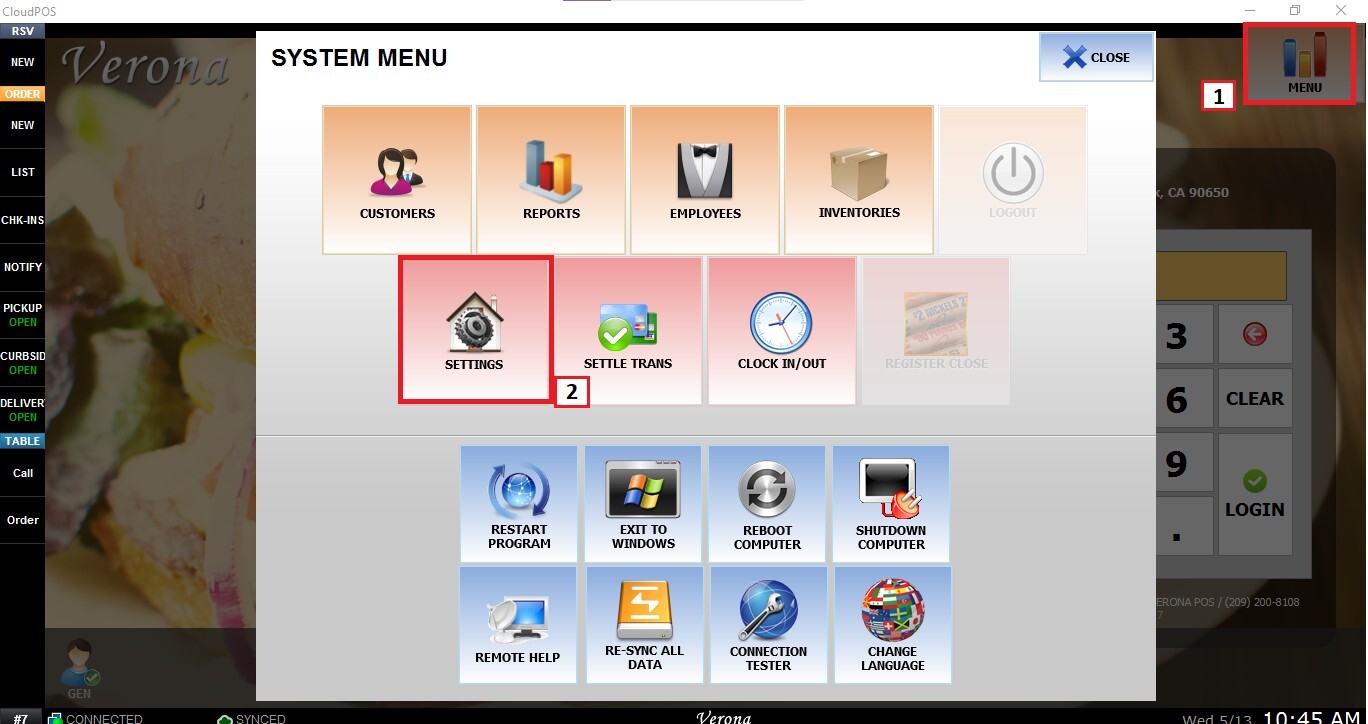
From the Main Screen, go to MENU and then SETTINGS
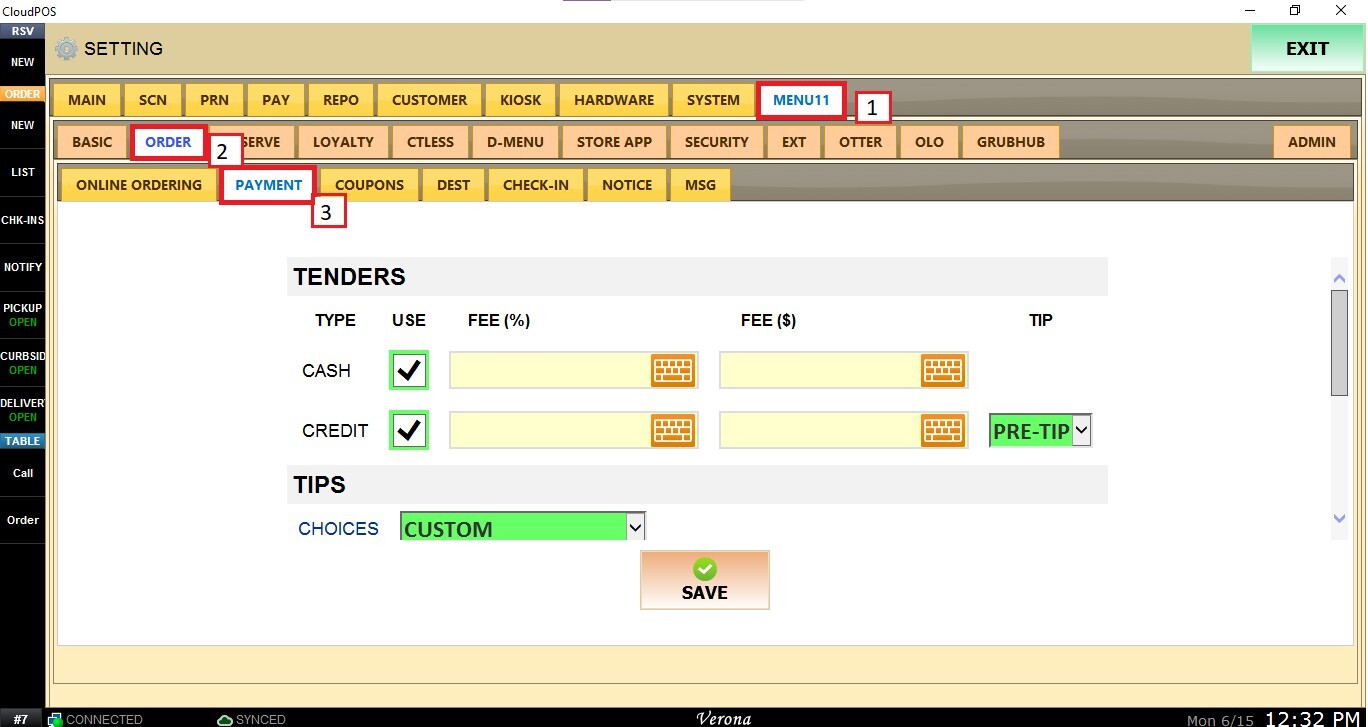
Go to MENU11, click ORDER, and open the PAYMENT tab.
Tender
This section determines which payment methods will be available to customers when placing online orders.
CASH: Check the USE box to allow customers to pay with cash when they arrive to pick up their order.
Note: Cash payments are collected at the store and are not processed online.
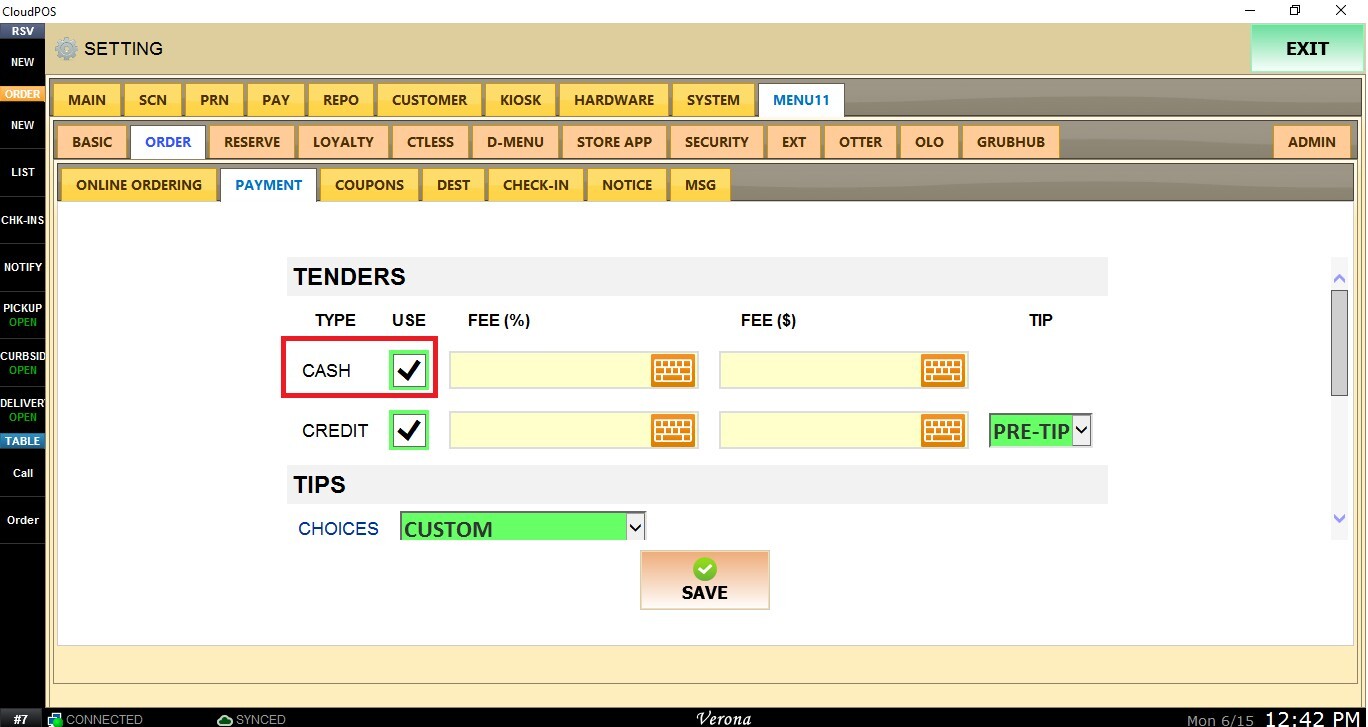
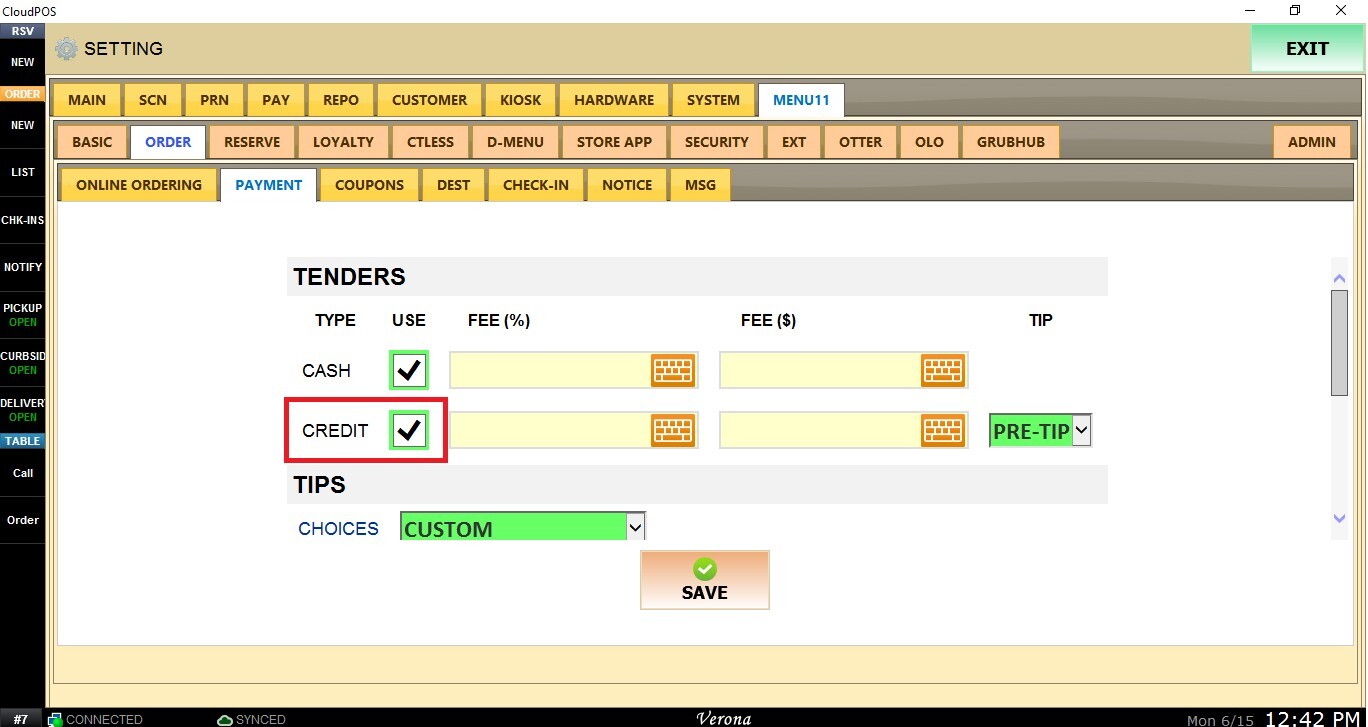
CREDIT: Check the USE box to allow customers to pay online using a credit card during checkout.
Note: Credit payments are processed before the order is submitted, providing a more secure payment experience.
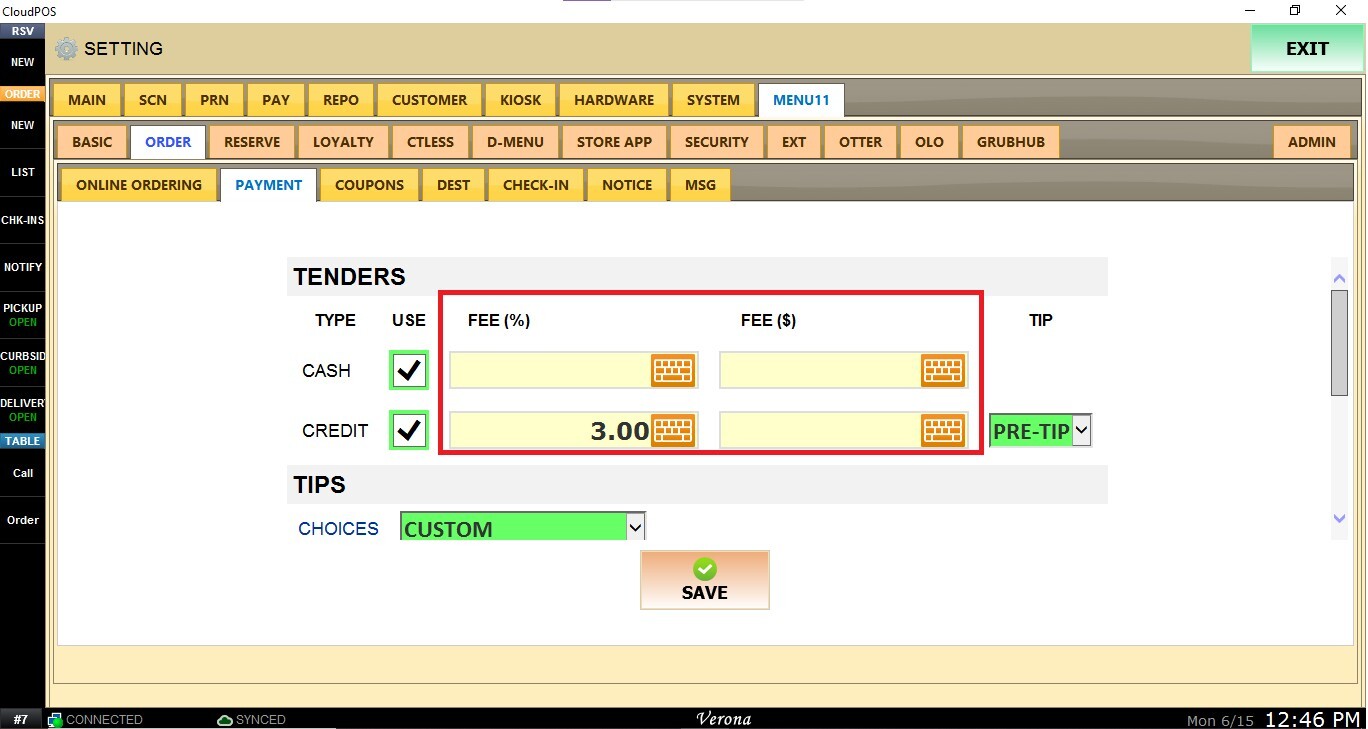
FEES: For both Cash and Credit payment methods, you can optionally apply additional fees.
- Fee (%): Adds a percentage-based fee to the order total.
- Fee ($): Adds a fixed dollar amount to the order total.
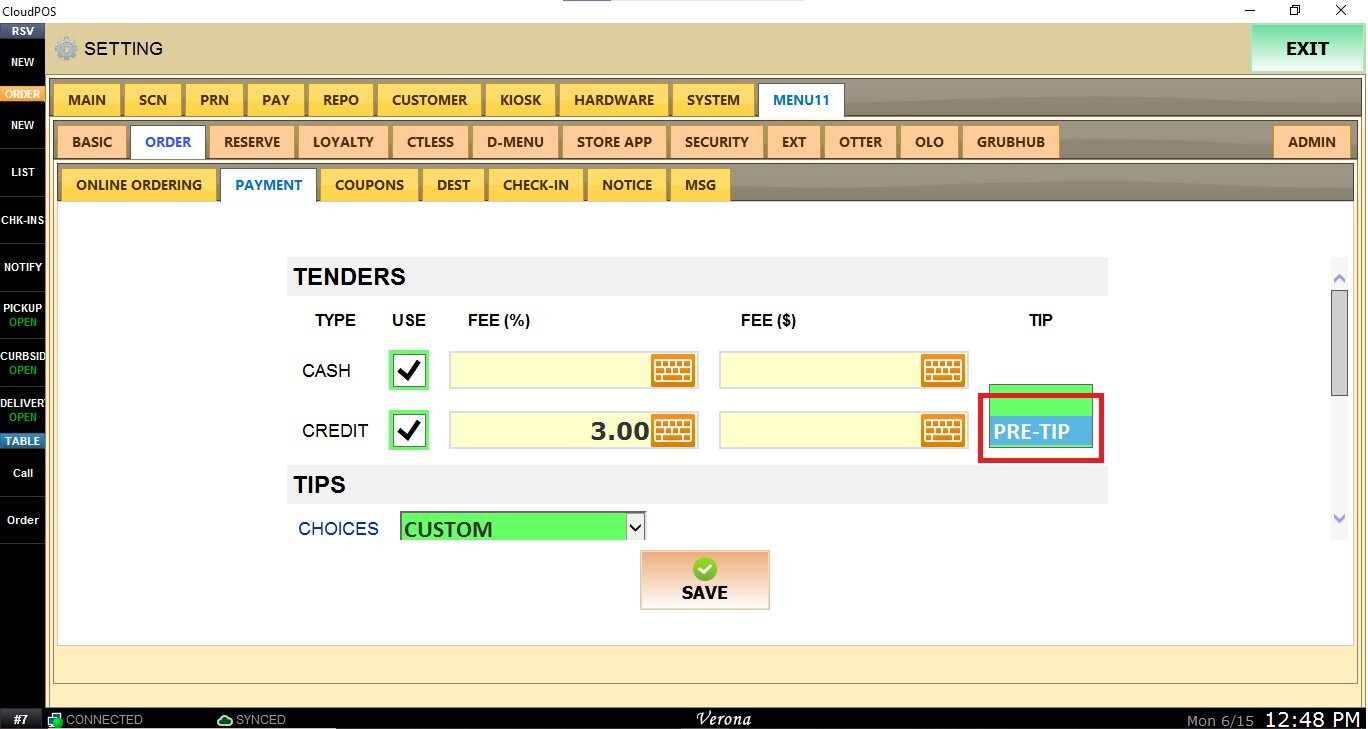
PRE-TIP OPTION: When Credit payments are enabled, you can activate PRE-TIP to allow customers to leave a tip during the online checkout process before submitting their order.
TIPS
This section controls how tip options are displayed to customers when paying online.
On CHOICES, open the drop-down menu and select one of the available options:
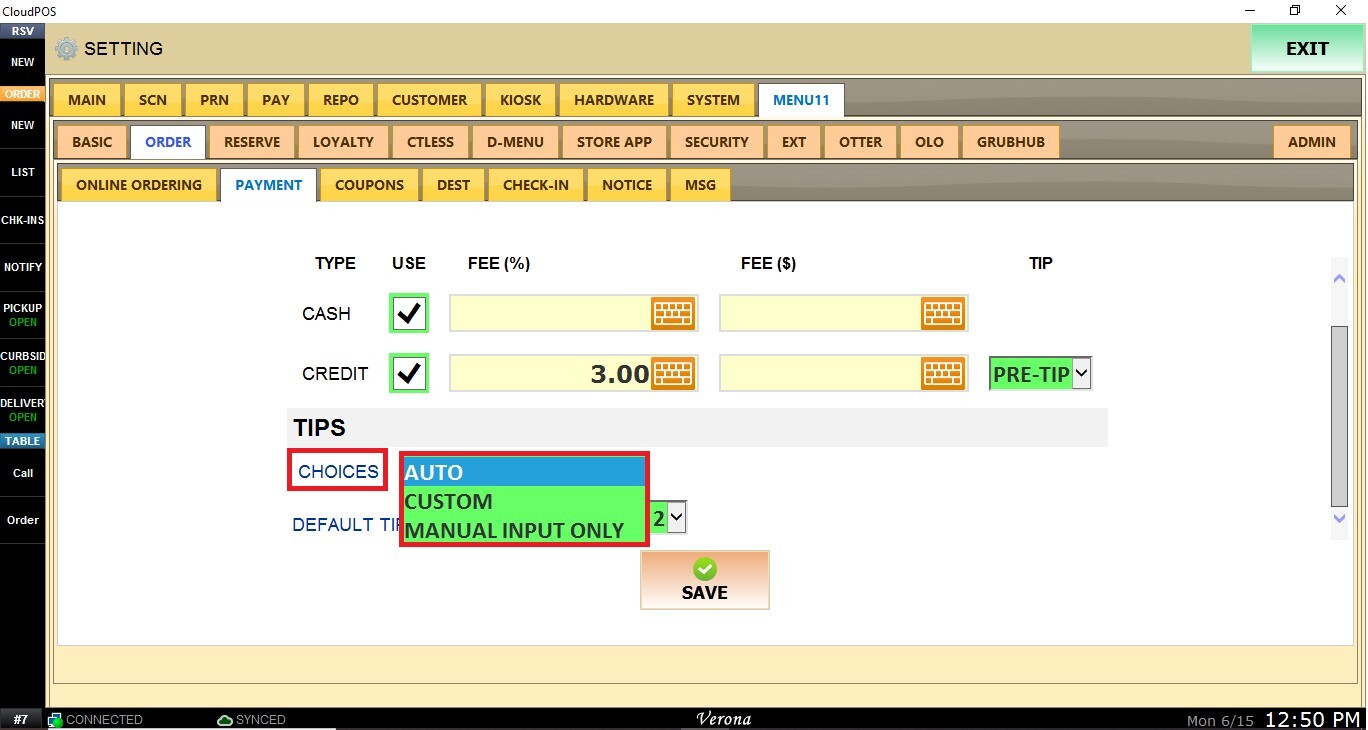
AUTO: Uses the predefined tip options configured by your payment processor
Note: Tip percentages and amounts in Auto mode are controlled by the payment processor. Contact your payment provider if changes are required.
CUSTOM: Allows you to create your own tip options and percentages.
MANUAL INPUT ONLY: Customers will not be presented with preset tip options and must manually enter their desired tip amount.
Custom Tip Configurations
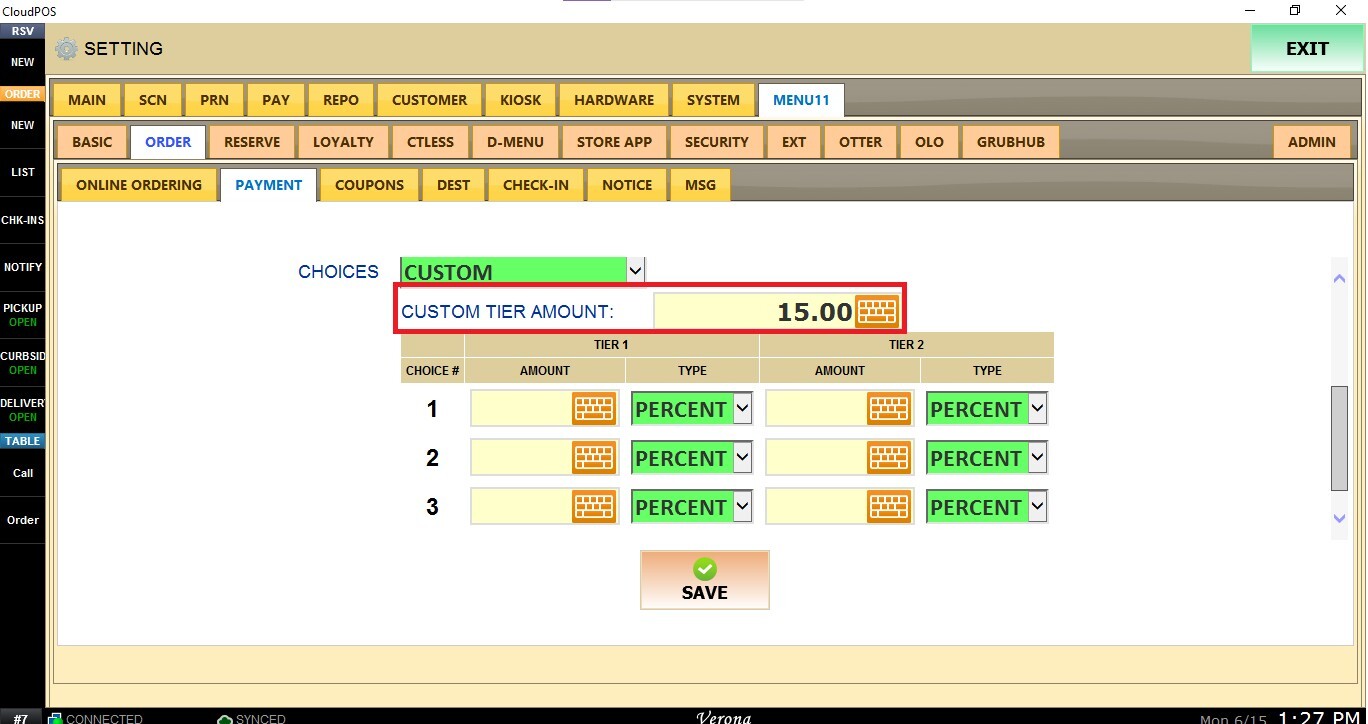
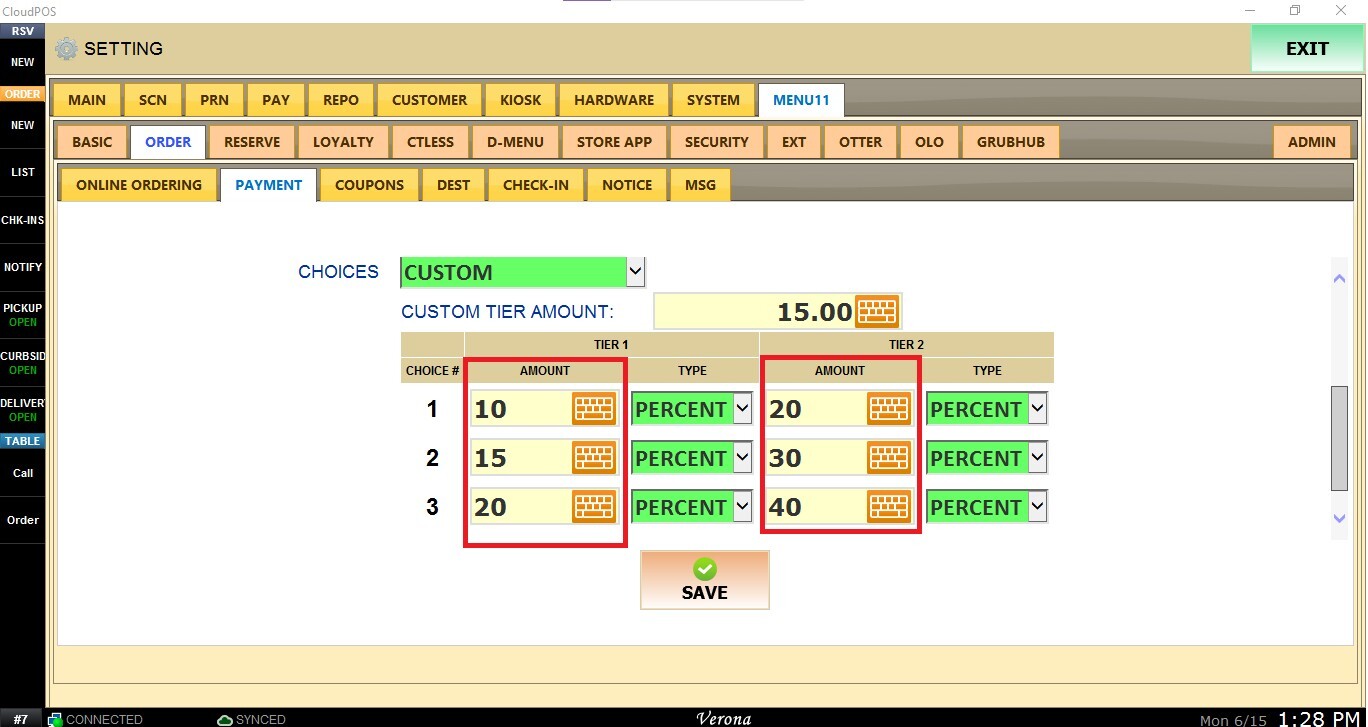
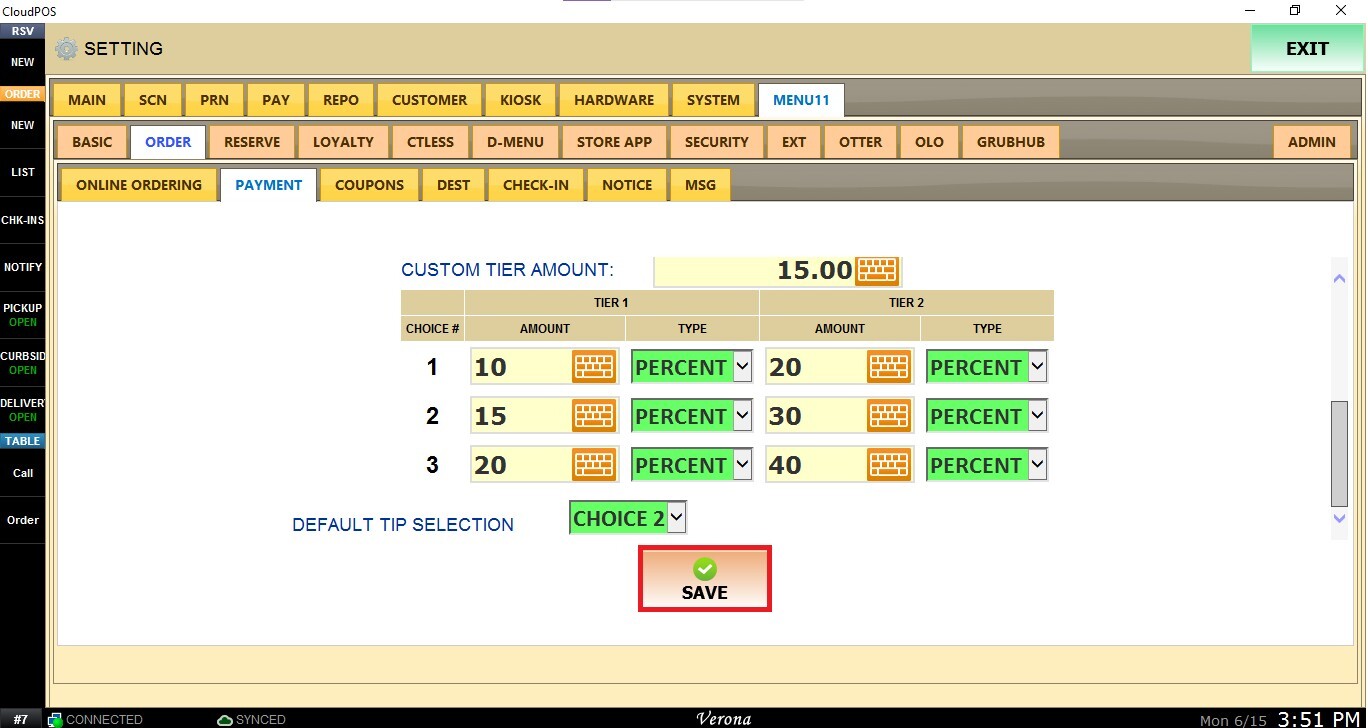
When CUSTOM is selected, you can configure two sets of tip options (Tier 1 and Tier 2) and define when each tier will be displayed.
Custom Tier Amount: Determines which tip tier customers will see based on their order total.
- Orders below the configured amount will display the Tier 1 tip options.
- Orders equal to or greater than the configured amount will display the Tier 2 tip options.
Each tier allows you to create multiple tip choices for customers. Enter the desired value in the AMOUNT field.
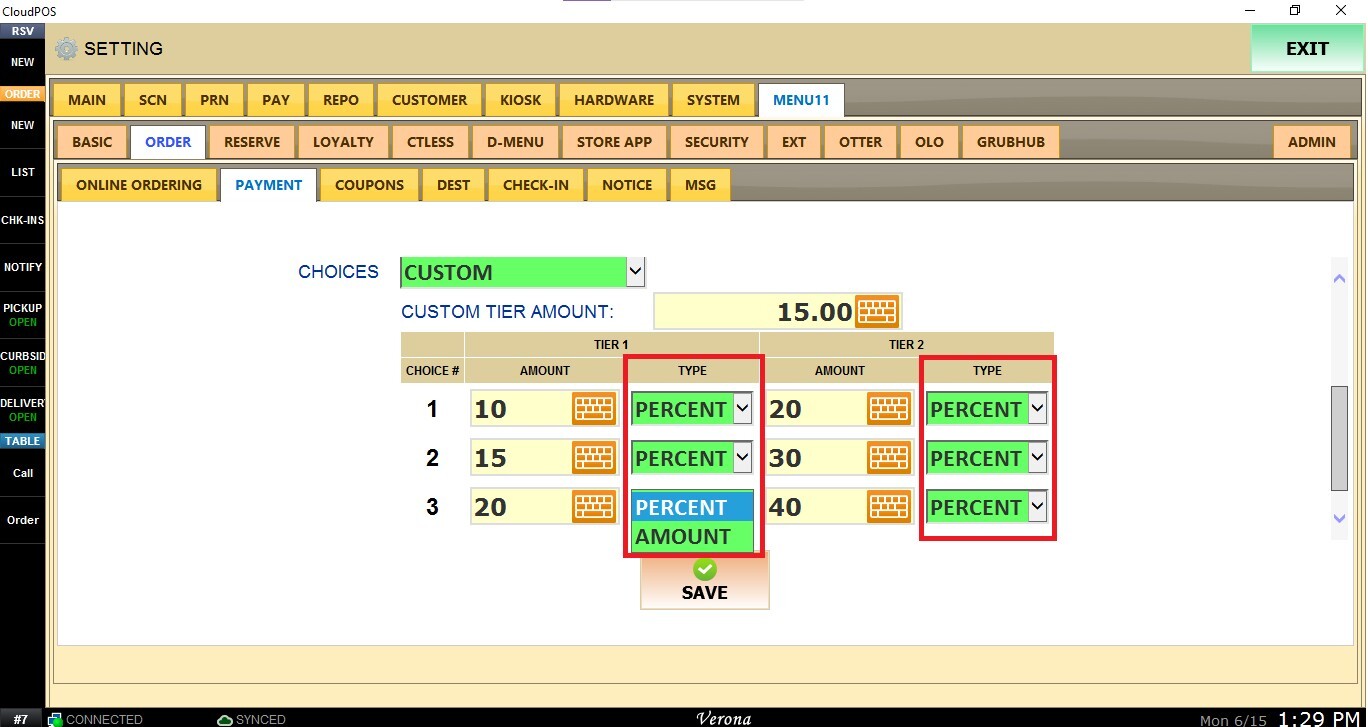
Select the TYPE from the drop-down menu:
PERCENT: Calculates the tip as a percentage of the order total.
AMOUNT: Applies a fixed dollar amount as the tip.
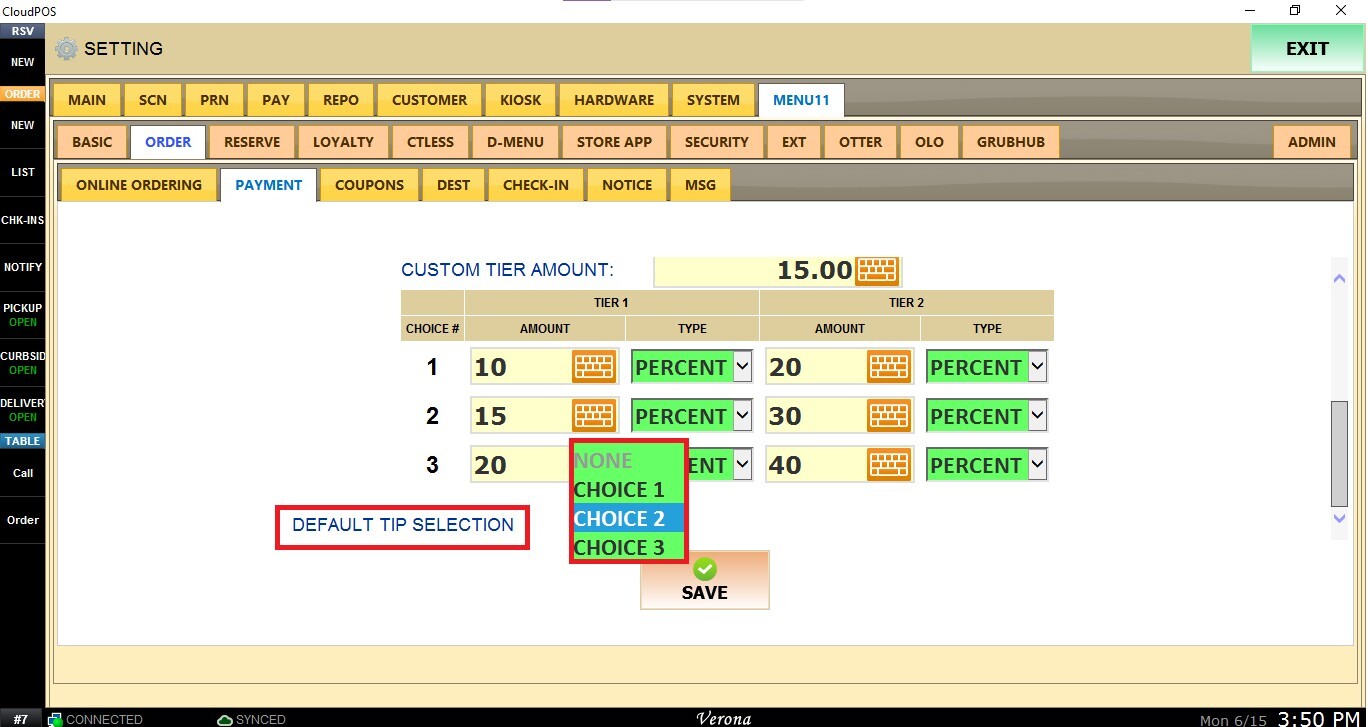
Default Tip Selection
Allows you to choose which tip option will be pre-selected when customers reach the tip screen during online checkout.
Open the drop-down menu and select one of the available options:
NONE: No tip option is selected by default. Customers must choose a tip amount manually.
CHOICE 1: Automatically selects the first tip option configured in the Custom Tip table.
CHOICE 2: Automatically selects the second tip option configured in the Custom Tip table.
CHOICE 3: Automatically selects the third tip option configured in the Custom Tip table.
After configuring, click SAVE.
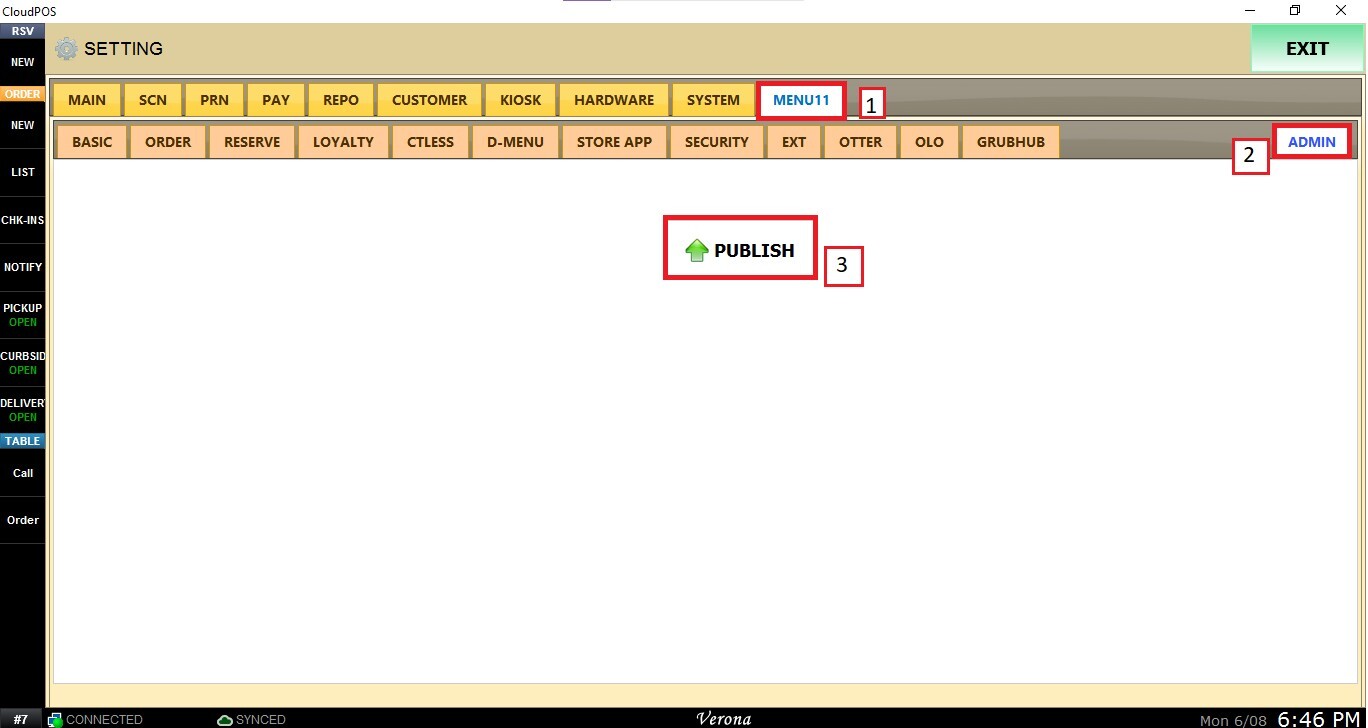
Then navigate to the MENU11 tab, select ADMIN, and click PUBLISH to apply the changes.