Table Kiosk Assigning Table
Each Table Kiosk tablet must be assigned to a table so the orders placed on it go to the right table on the POS. Assign the table from the admin screen of the tablet.
Table Kiosk> Table Number> Admin Code> CHANGE TABLE> Table
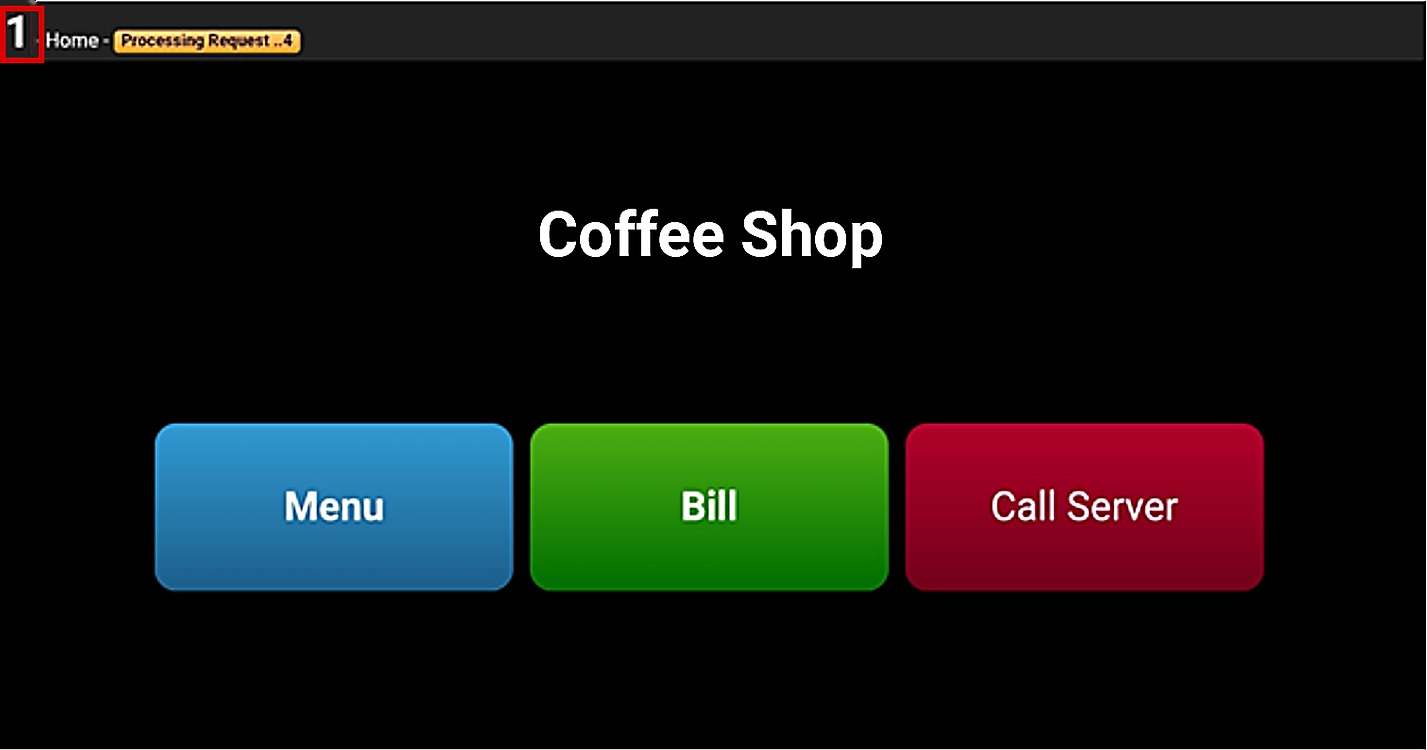
On the Table Kiosk home screen, press the table number at the top left corner.
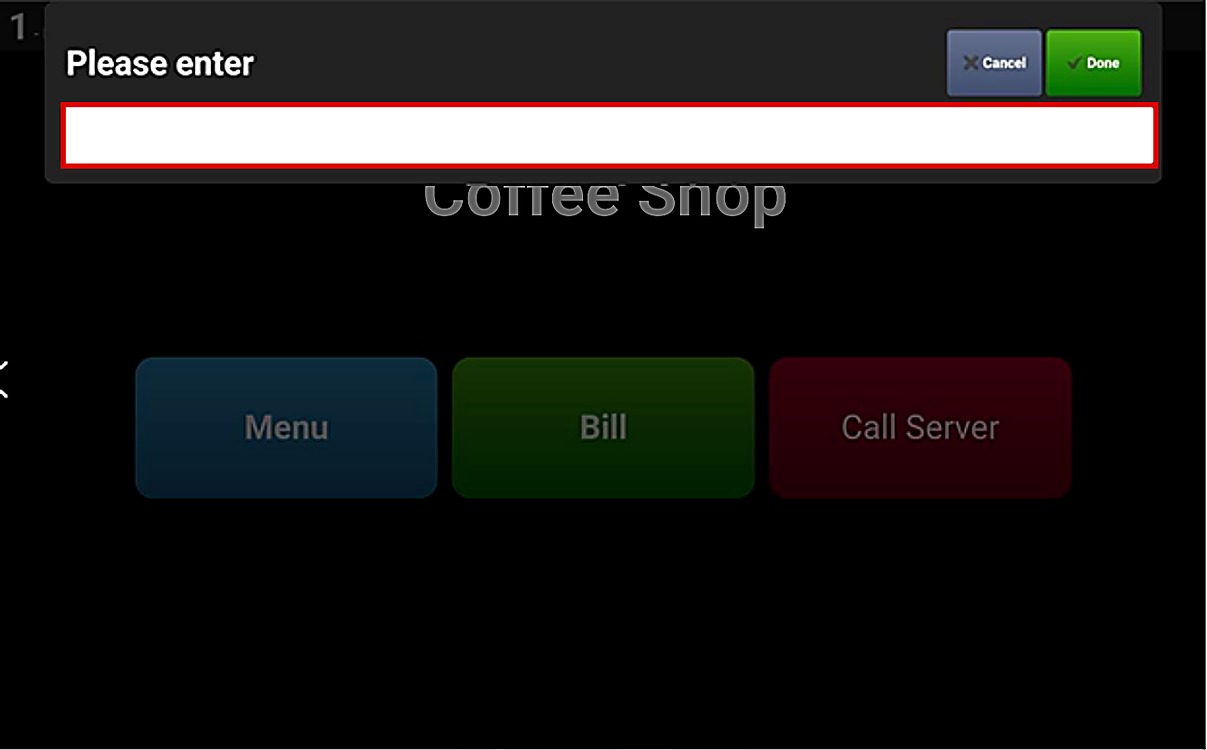
The Please enter window opens. Press the field to enter the admin code.
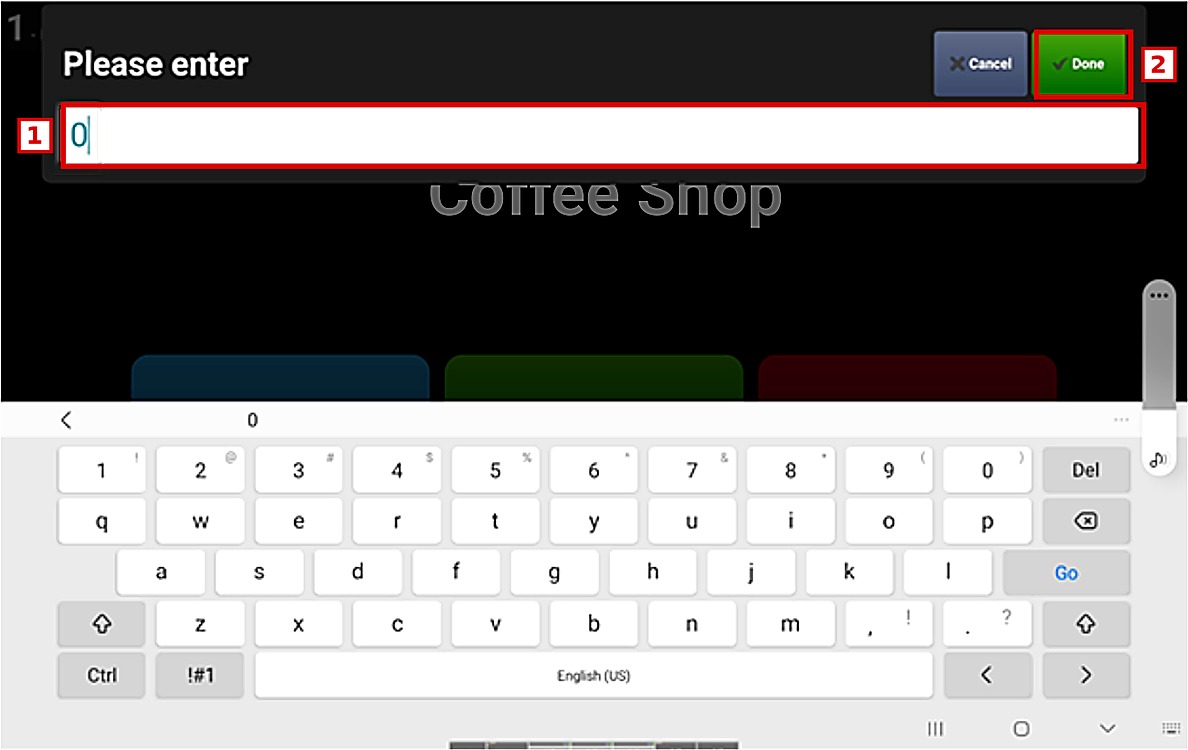
Enter the admin code (1) and press DONE (2). In this example the code is 0.
Hint: The admin code is the one created in the Kiosk settings of the POS. To learn how to create it, please refer to the Table Kiosk POS Setup Guide.
The Admin screen opens. Press CHANGE TABLE.
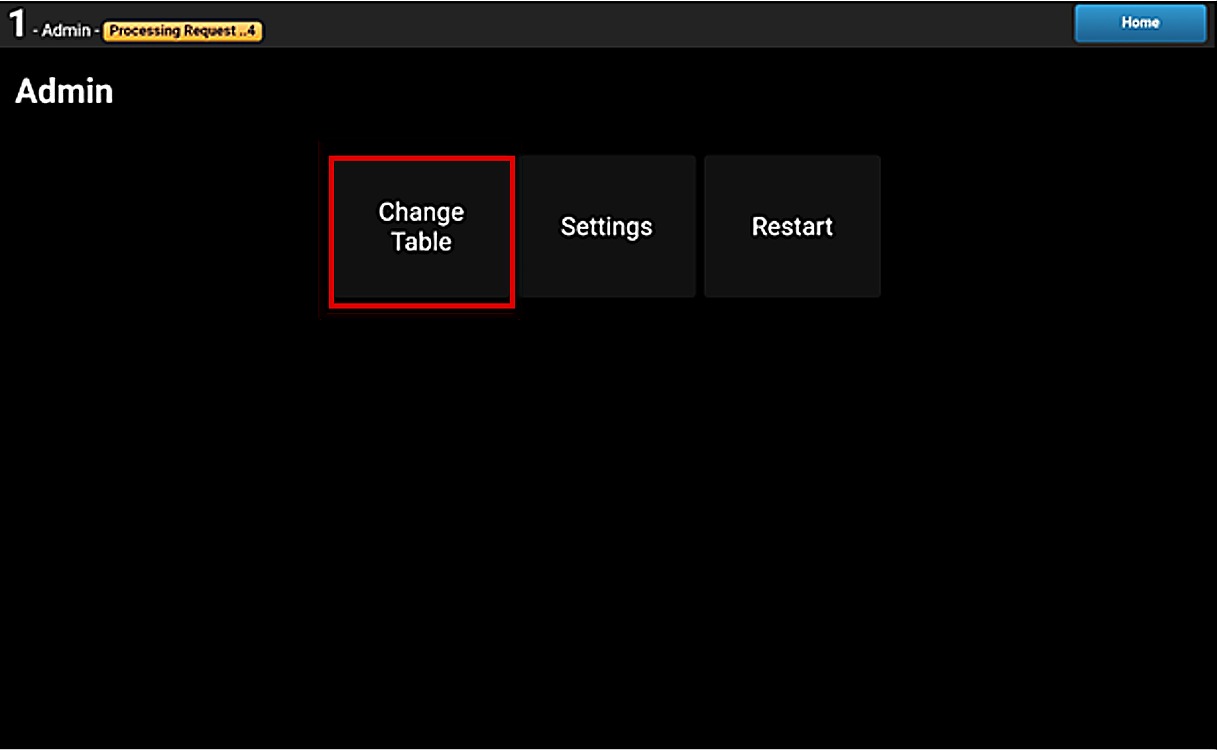
Hint: From the Admin screen you can also open SETTINGS or RESTART the Table Kiosk.
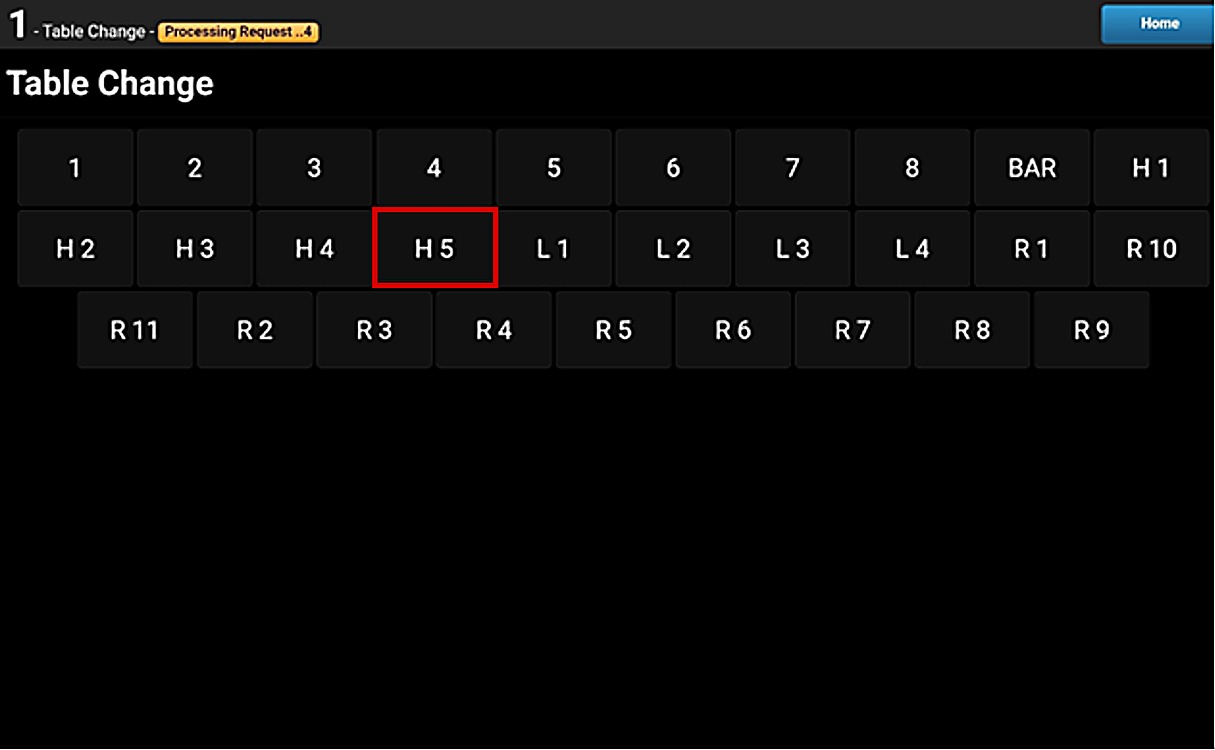
Select the table for this tablet. In this example the table is H 5.
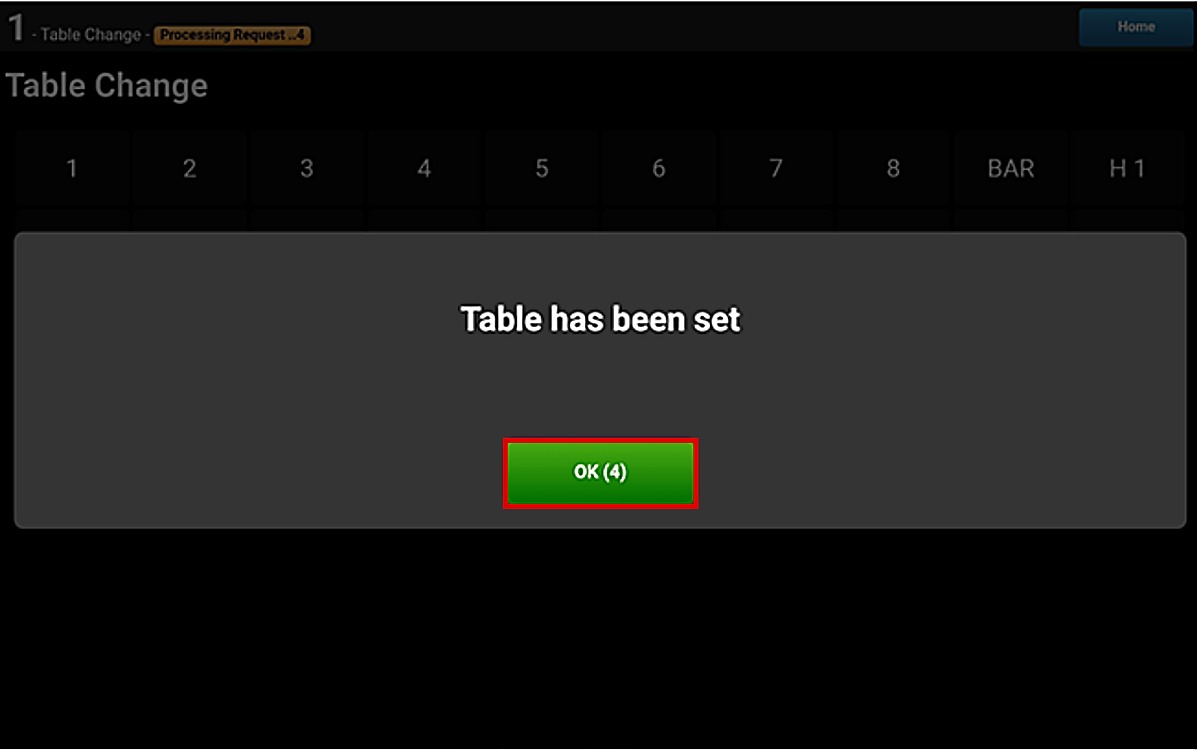
The message Table has been set is shown. Press OK.
Result:
The table number shows at the top left corner of the Table Kiosk home screen.

Note: After the table is set on the tablet, open the same table on the POS and place an order to enable the ordering options on the tablet.
To learn how to place an order on the Table Kiosk, please refer to the Placing an Order on a Table Kiosk Guide.