Pool
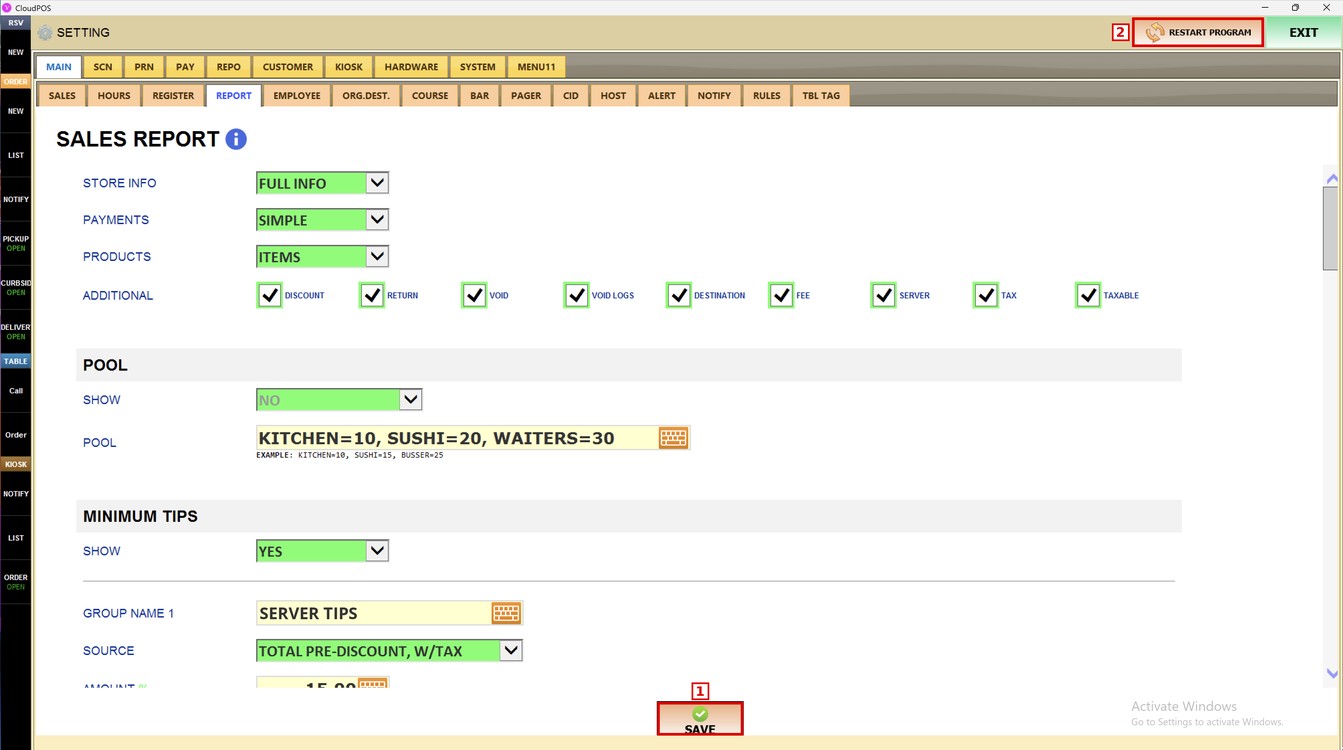
The Pool settings control how the tip pool is shown on the sales report. Use them to choose whether tips and service charges are pooled and to set the groups that share the pool and their percentages.
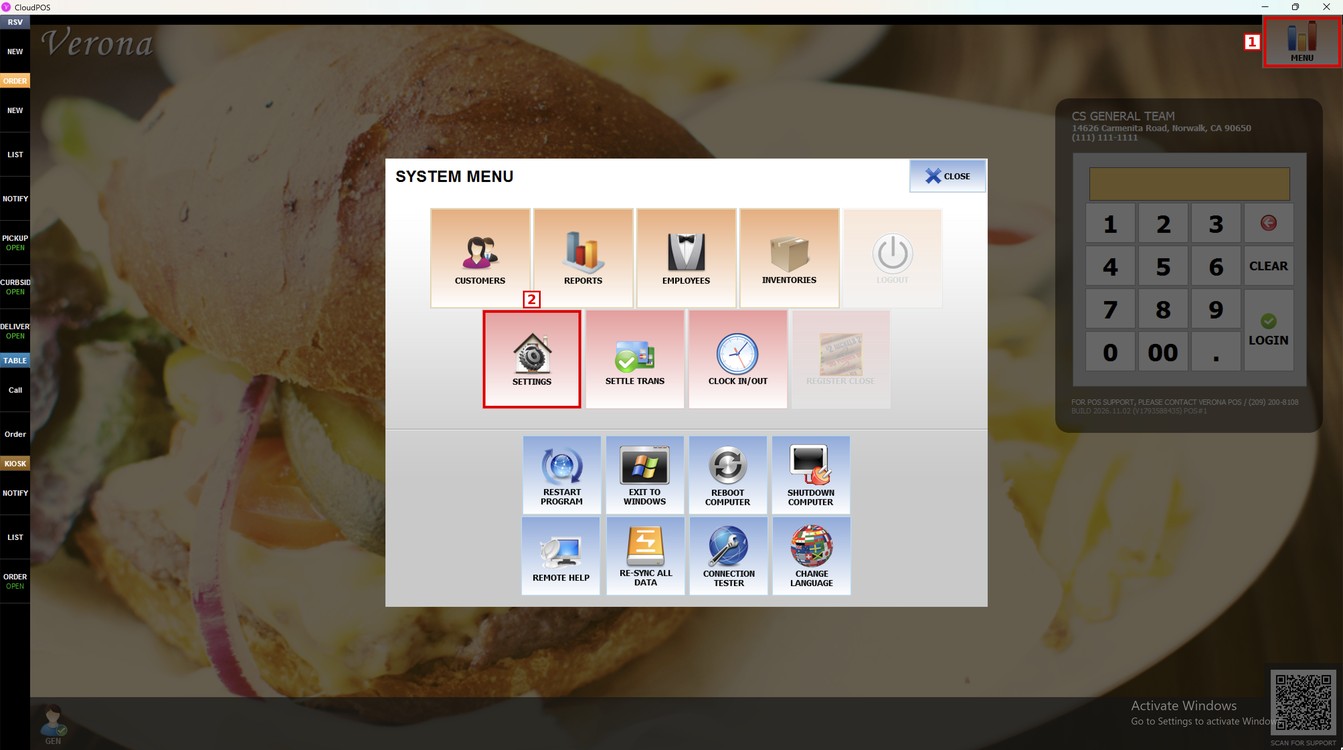
Main Screen> MENU> SETTINGS> MAIN> REPORT> POOL
Go to MENU and press SETTINGS.
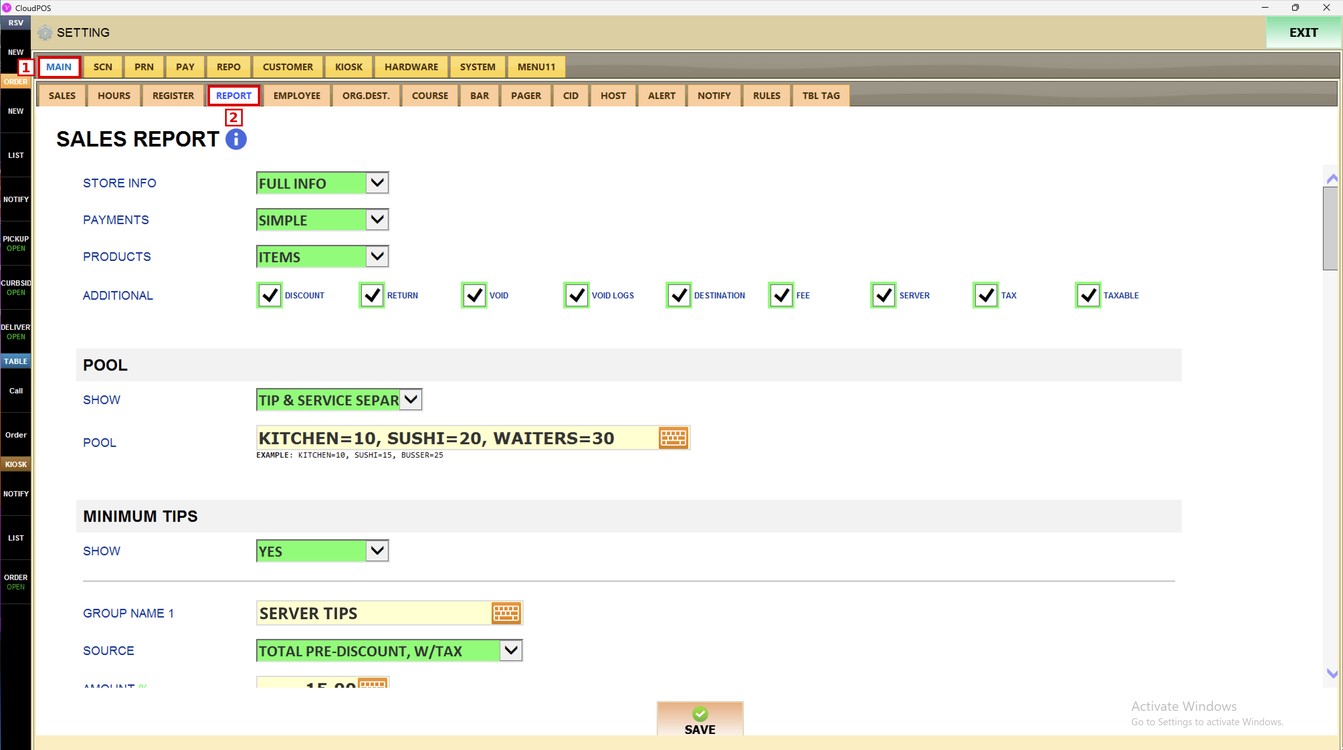
Open the MAIN tab and press REPORT. The POOL section is under SALES REPORT.
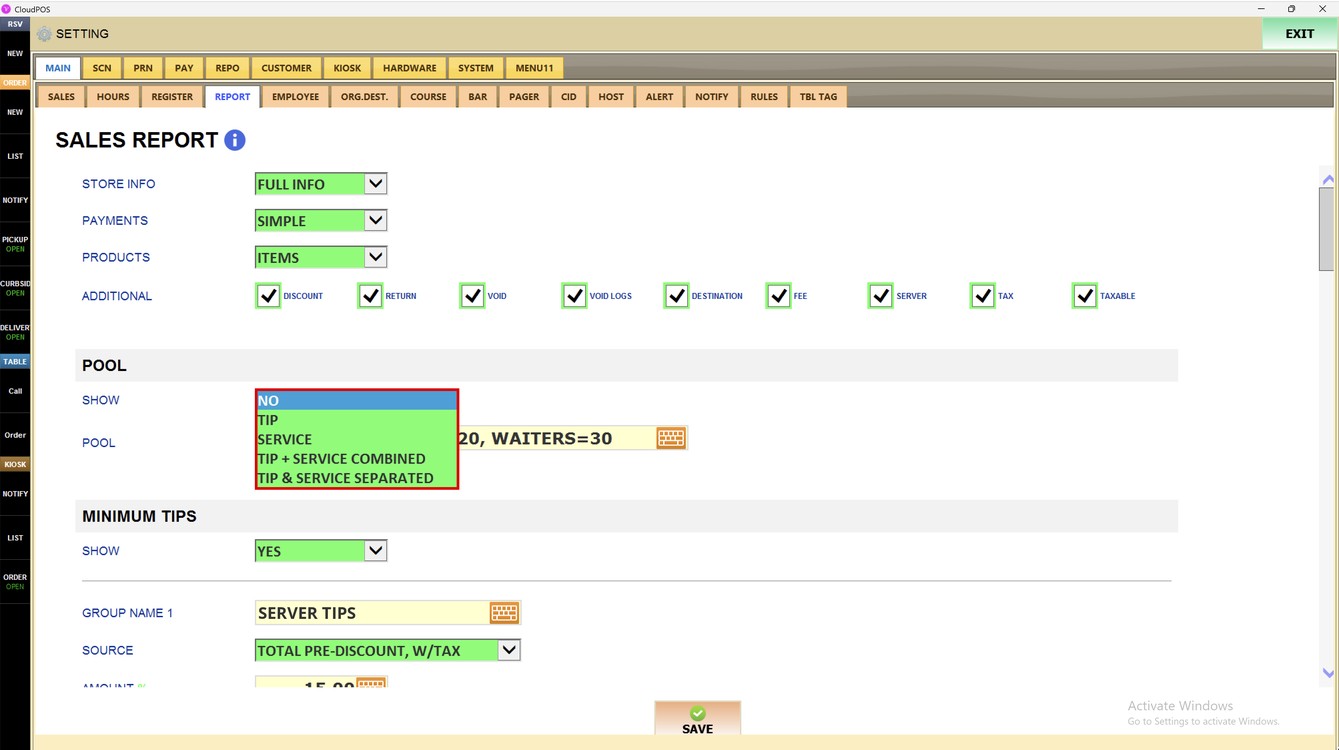
Show:
Sets what is included in the pool on the sales report.
1. NO: the pool is not shown.
2. TIP: shows the pool of tips.
3. SERVICE: shows the pool of service charges.
4. TIP + SERVICE COMBINED: shows tips and service charges together in one pool.
5. TIP & SERVICE SEPARATED: shows the pool of tips and the pool of service charges separately.
Pool:
Enter the groups that share the pool and the percentage for each one. Press the keyboard icon to type. Write each group as NAME=PERCENTAGE and separate the groups with commas.
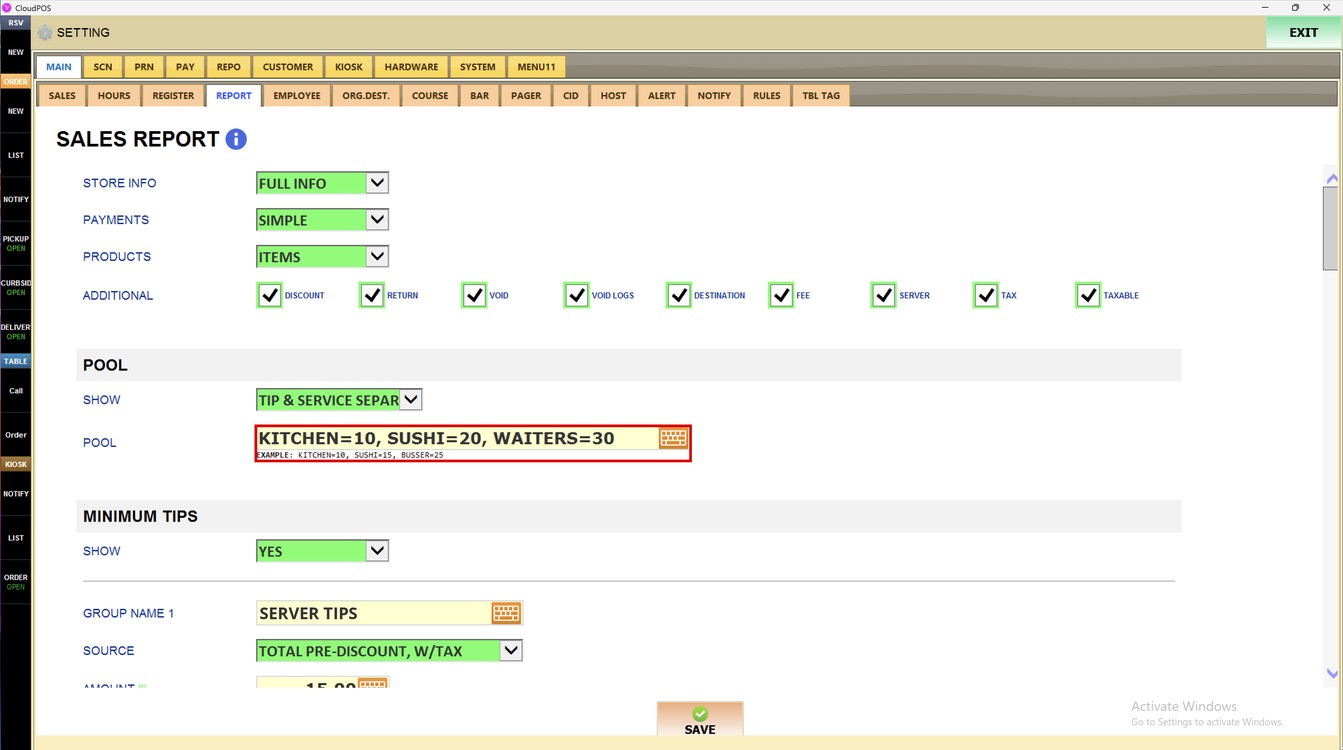
Hint: Example: KITCHEN=10, SUSHI=15, BUSSER=25.
Press SAVE and then RESTART PROGRAM to apply the changes.
To learn how to set what is printed on the sales report, please refer to the Sales Report Guide.