Hourly Item
This report displays hourly sales for each menu item, allowing you to identify when specific products sell the most and compare item performance throughout the day.
Main Screen > MENU > REPORTS > REPORT LIST > TYPE (Dropdown Menu) > HOURLY ITEM
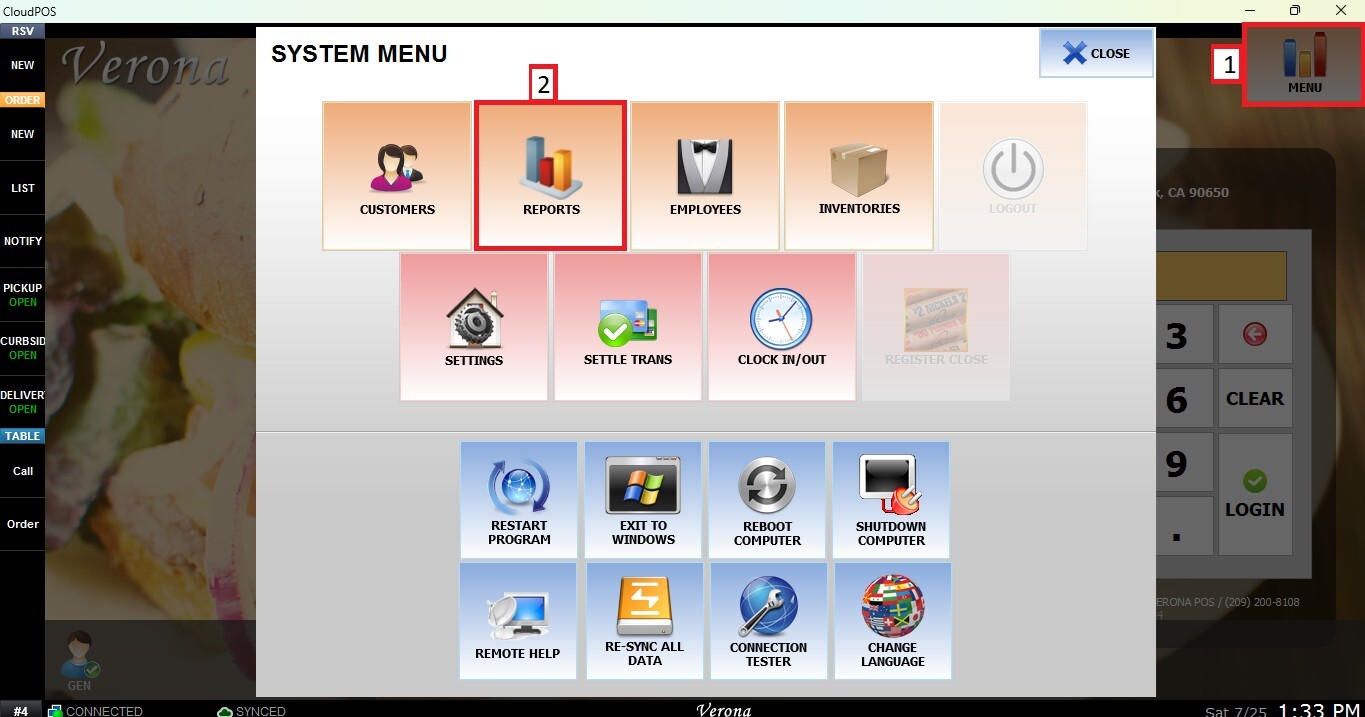
From the Main Screen, click MENU, then select REPORTS.
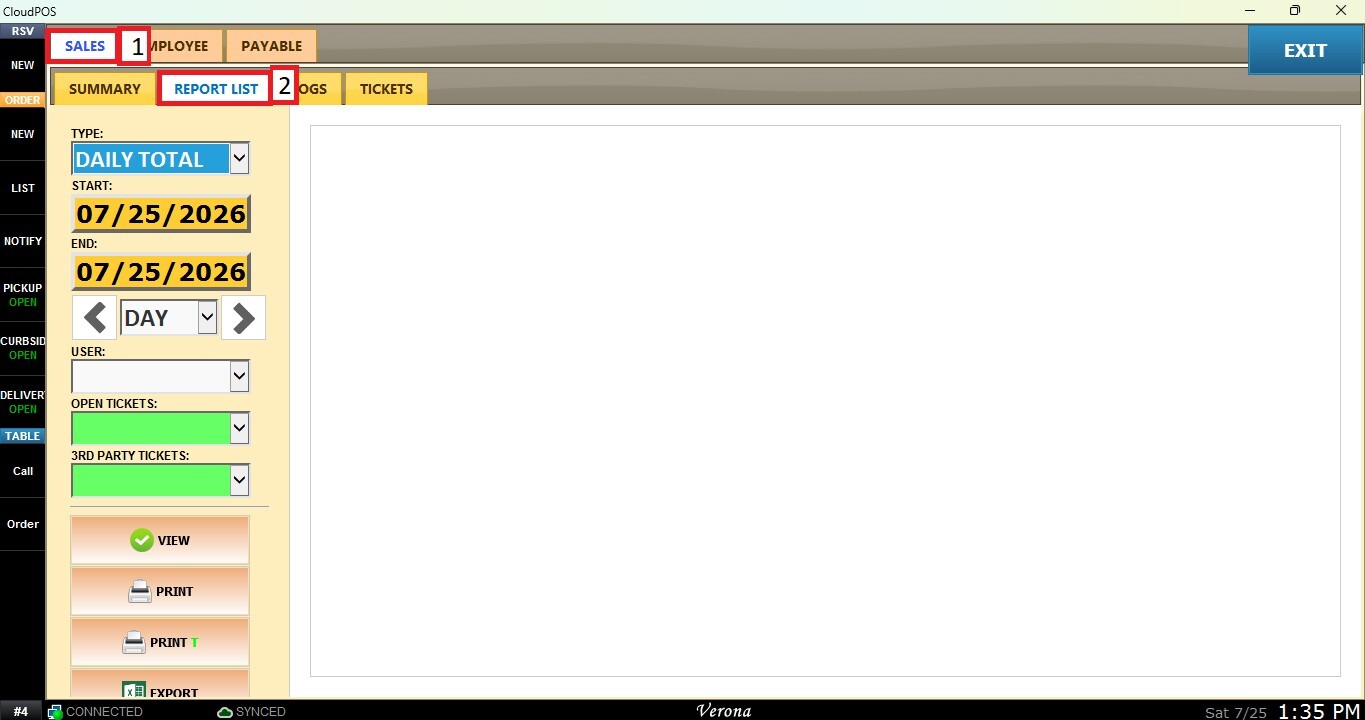
Under the SALES tab and select REPORT LIST.
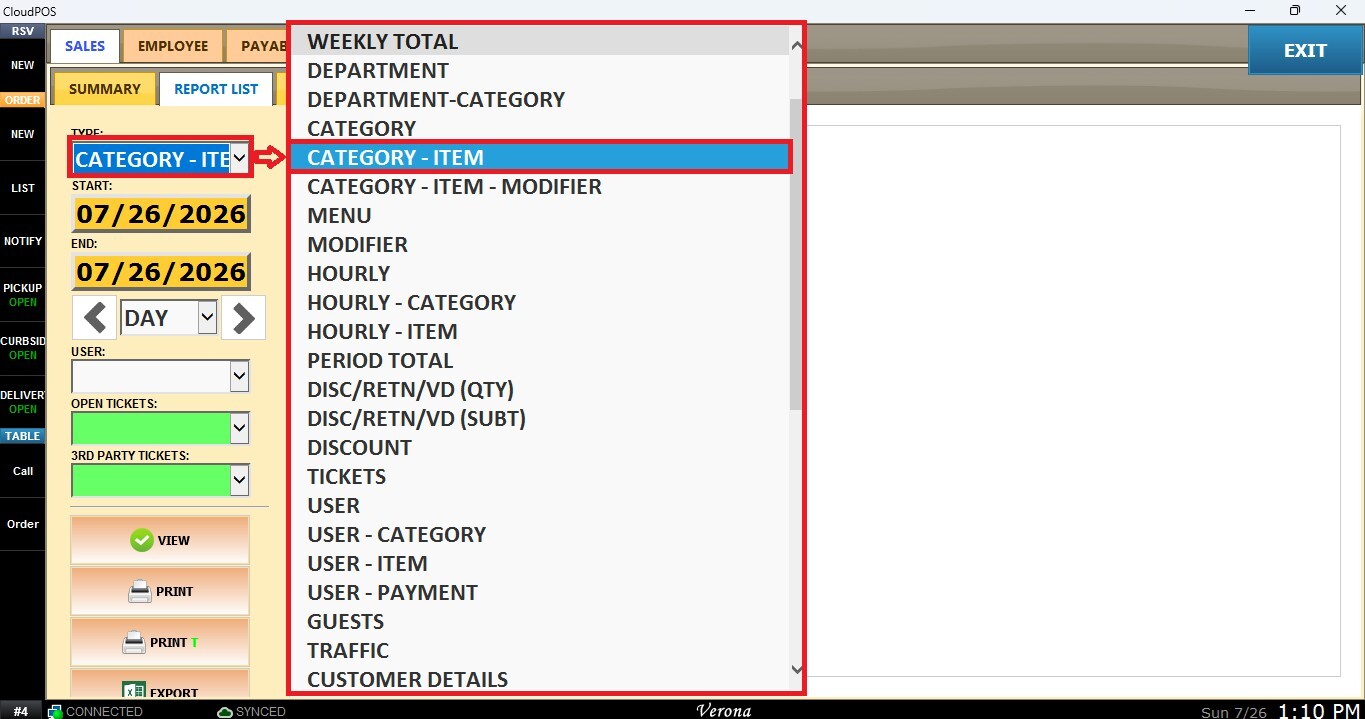
From the TYPE dropdown menu, select HOURLY ITEM.
Filters
Use the panel on the right side to customize how the report is displayed.
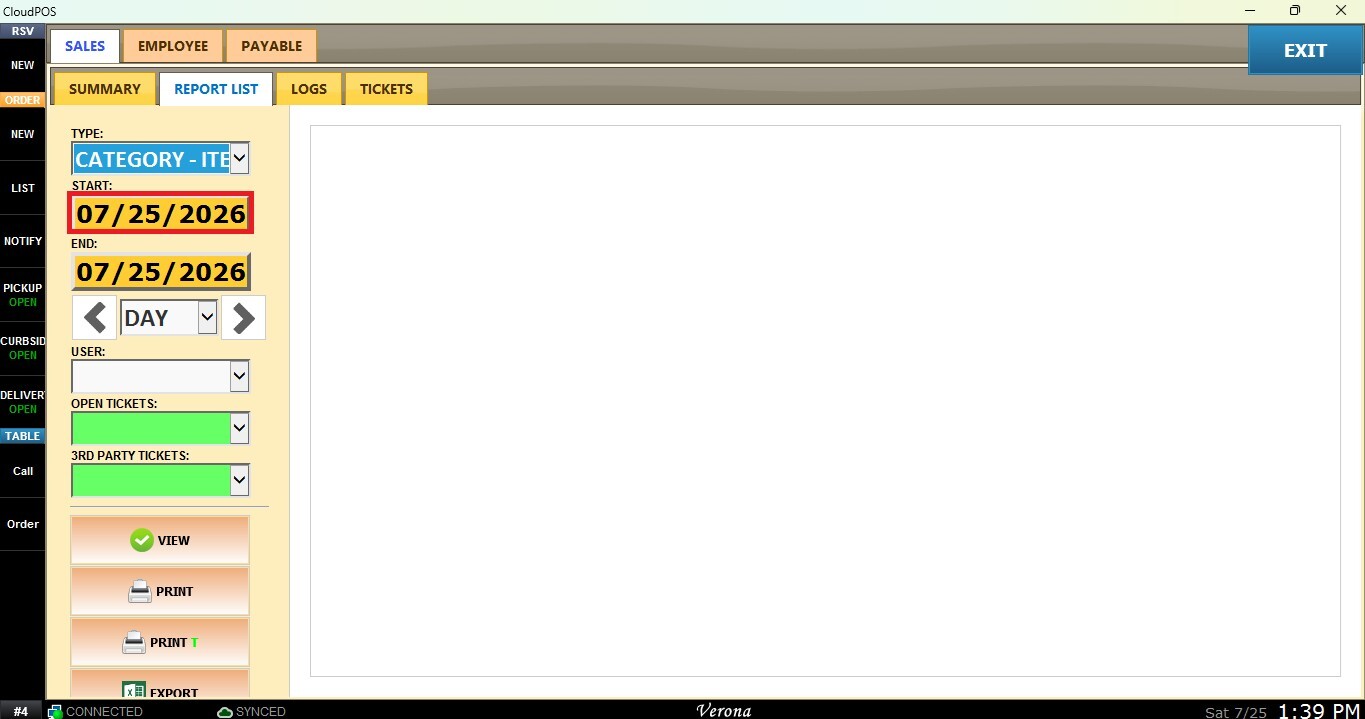
1. Custome Date Range: Allows you to review sales within a specific date range.
Click the START field to select the beginning date.
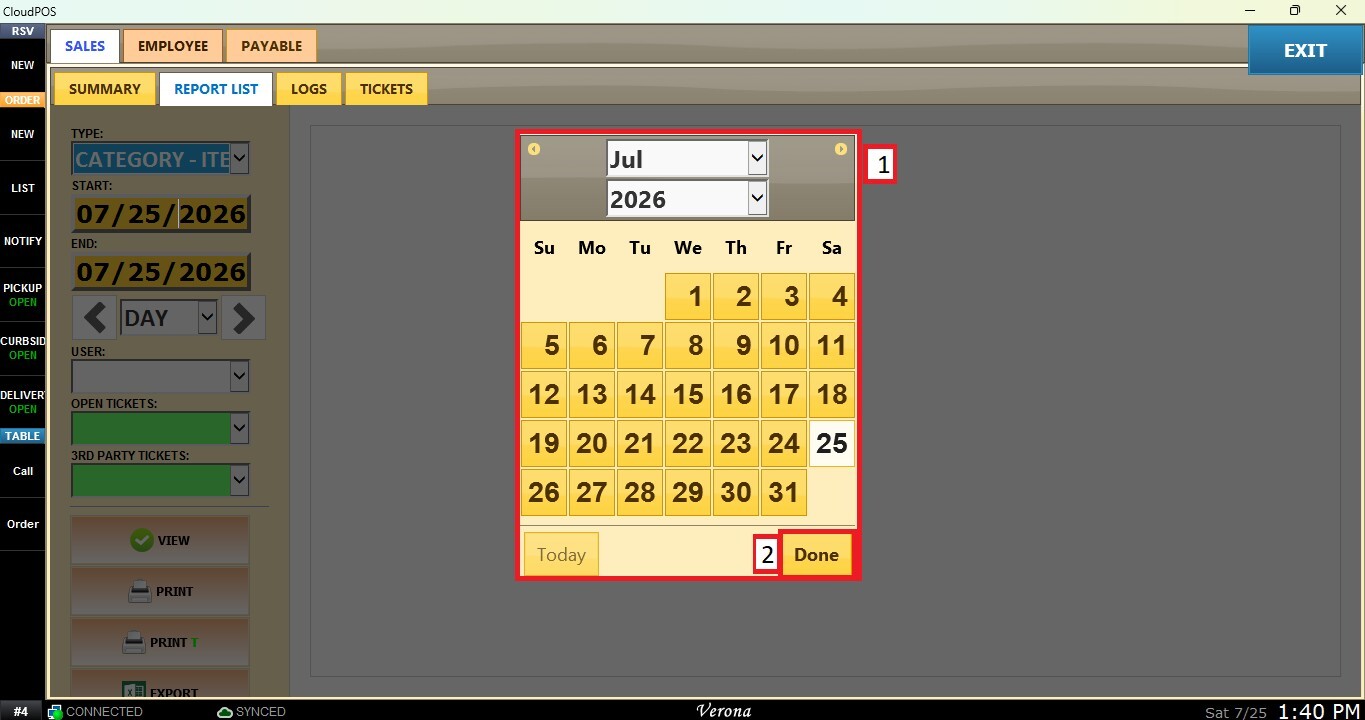
A calendar window will appear. Select the desired day, month, and year, then click DONE.
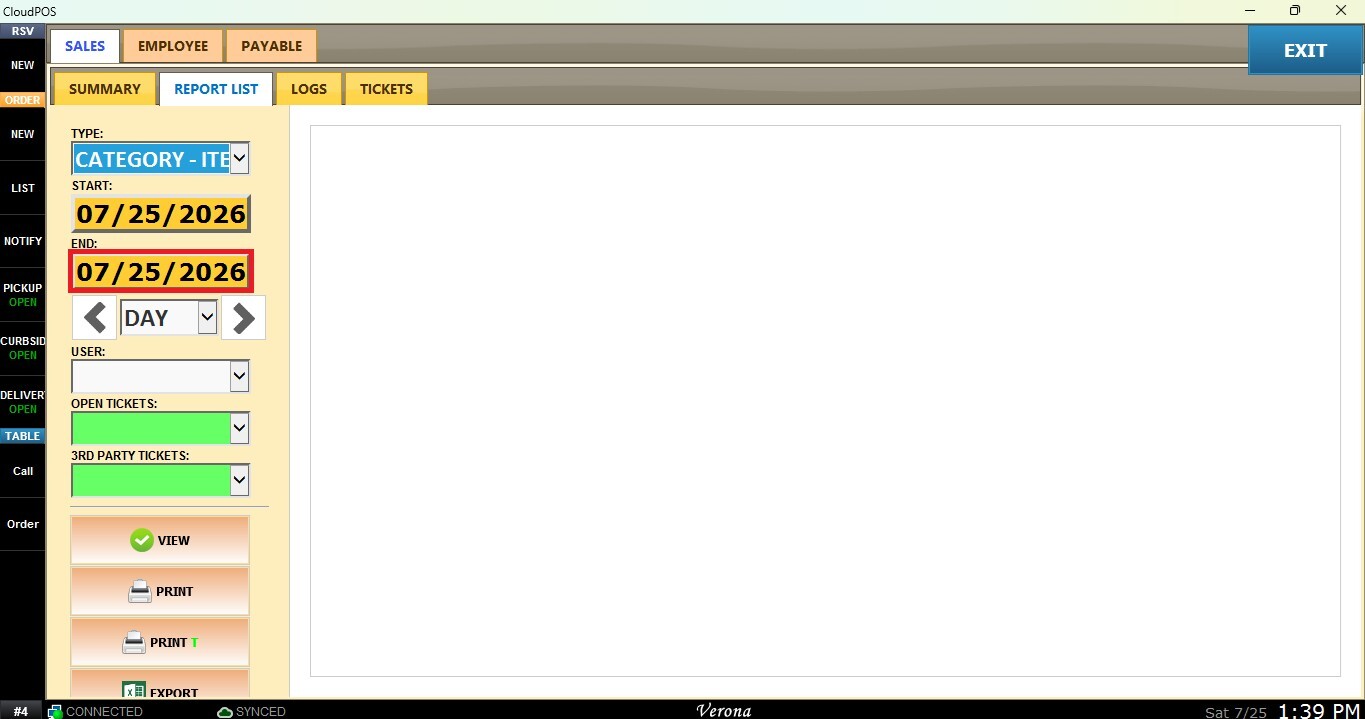
Repeat the same process using the END field to select the ending date.
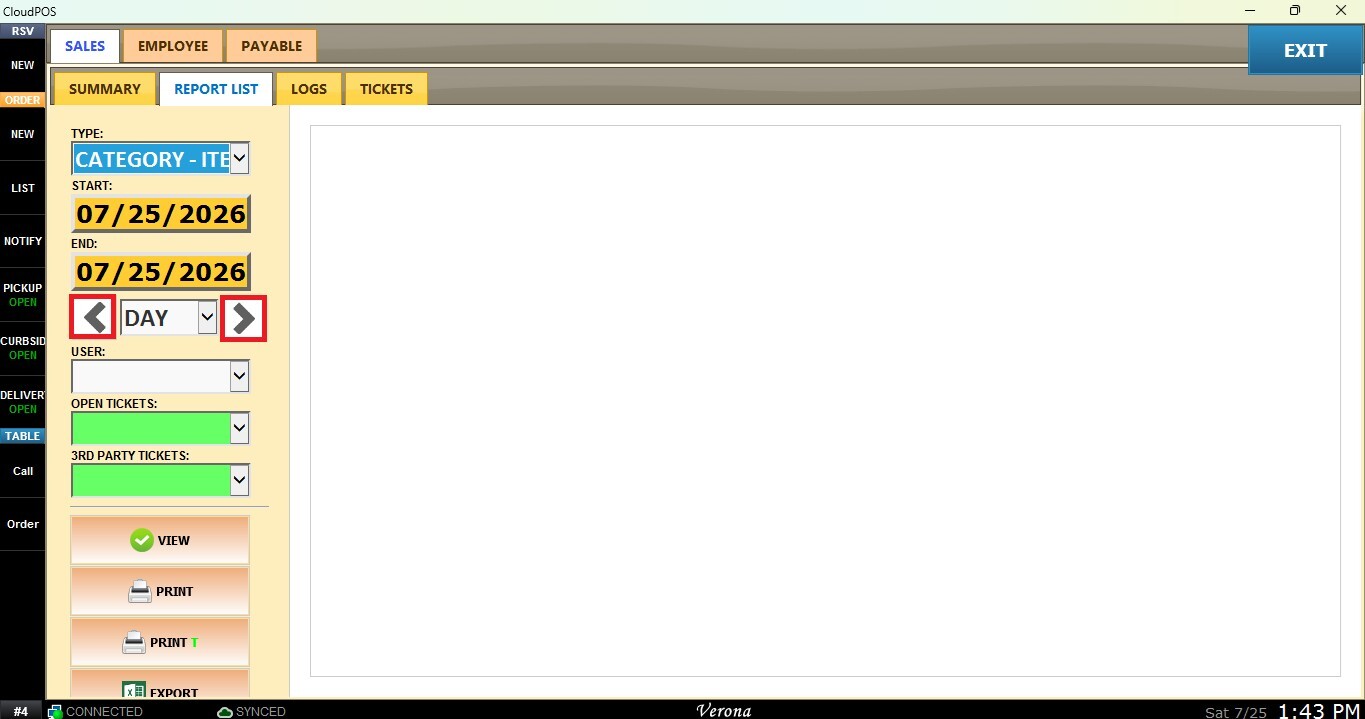
2. Time Frame Filter: Allows quick filtering by predefined periods such as Day, Week, Month, Quarter, or Year. Select the desired time frame from the dropdown.
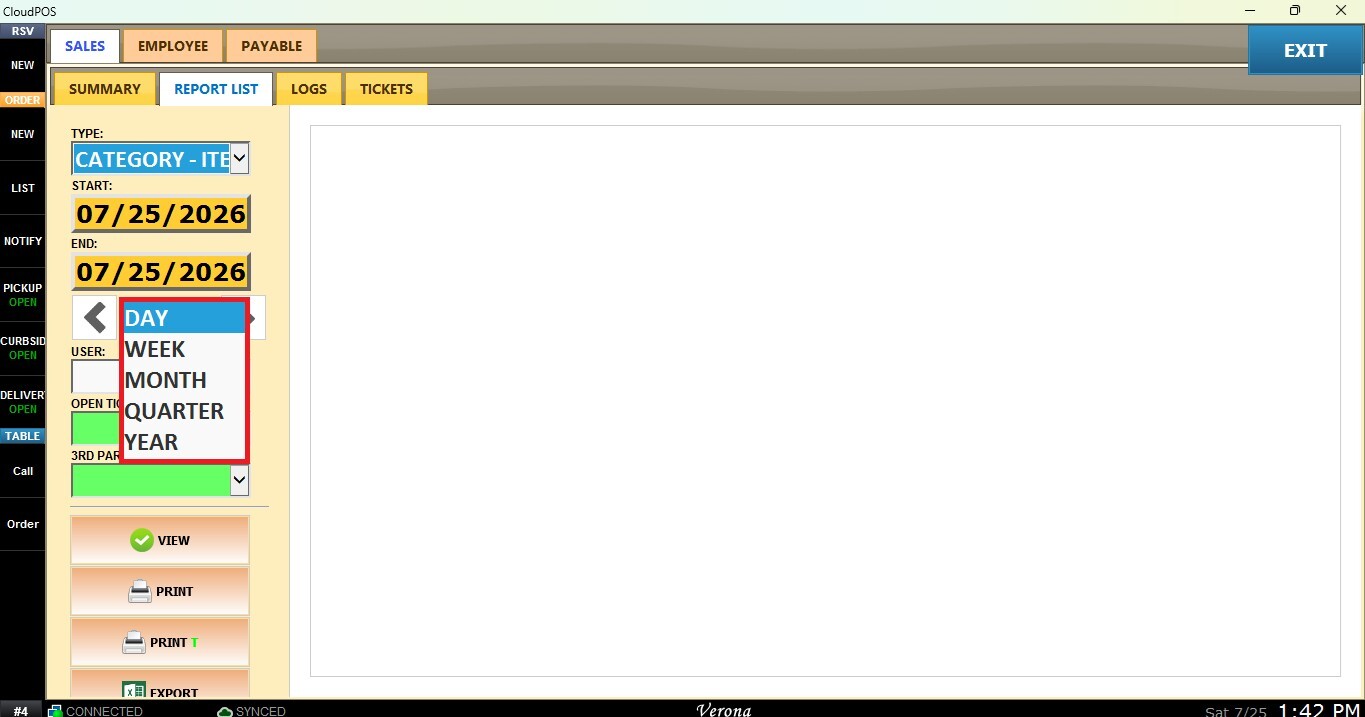
Use the navigation arrows to move forward or backward through the selected periods.
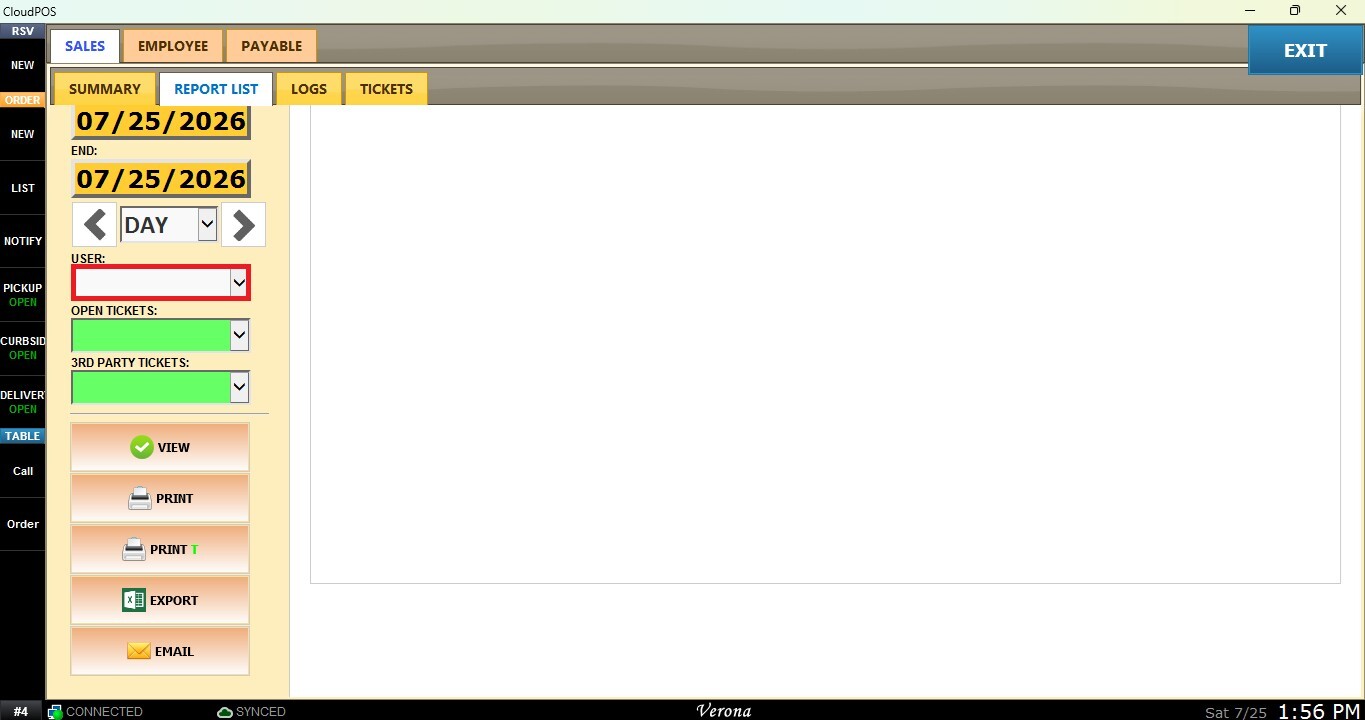
3. User (employee) Filter: Displays sales linked to a specific staff member.
Click the USER field and choose the employee.
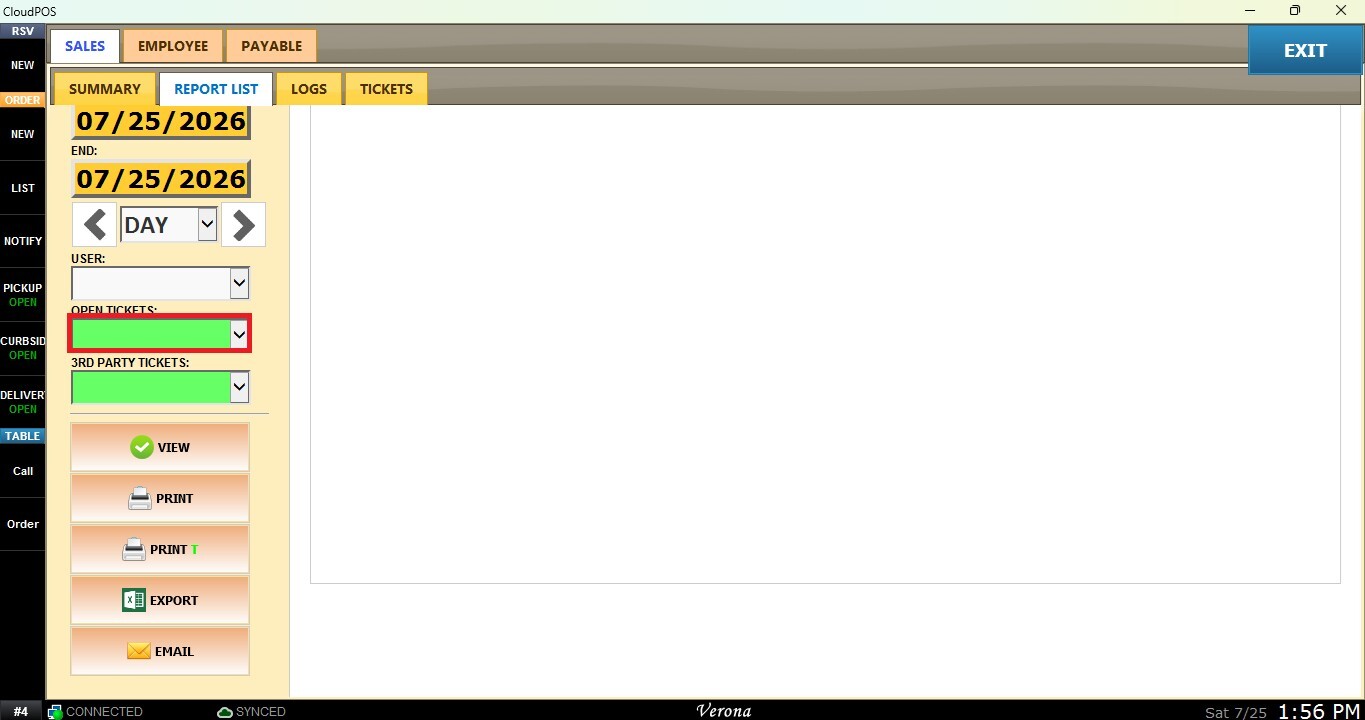
4. Open Tickets Filter: Allows you to filter the report based on the ticket status. Select YES to display only open tickets, or leave the field empty to include all tickets regardless of their status.
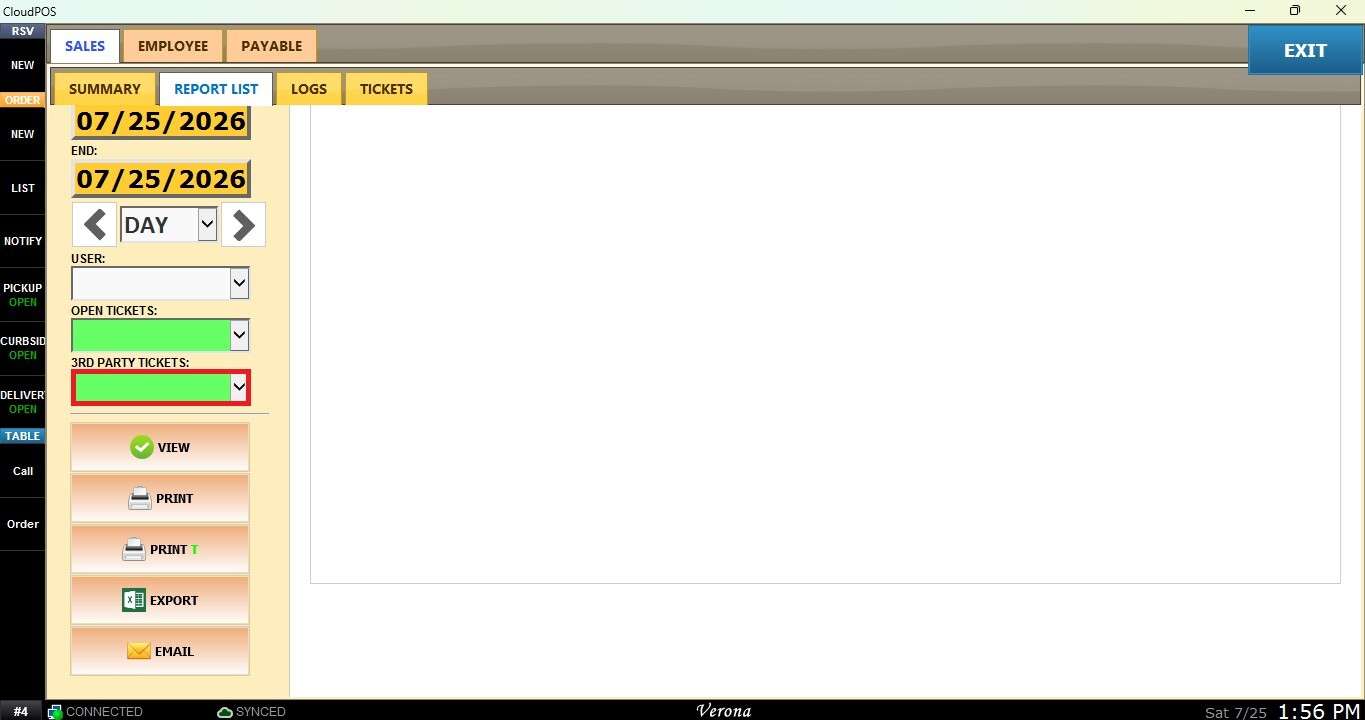
5. 3rd Party Tickets Filter: Allows you to filter the report by third-party orders. Select YES to display only third-party tickets, or leave the field empty to include all tickets.
View
After configuring the desired filters, click VIEW to refresh the report.
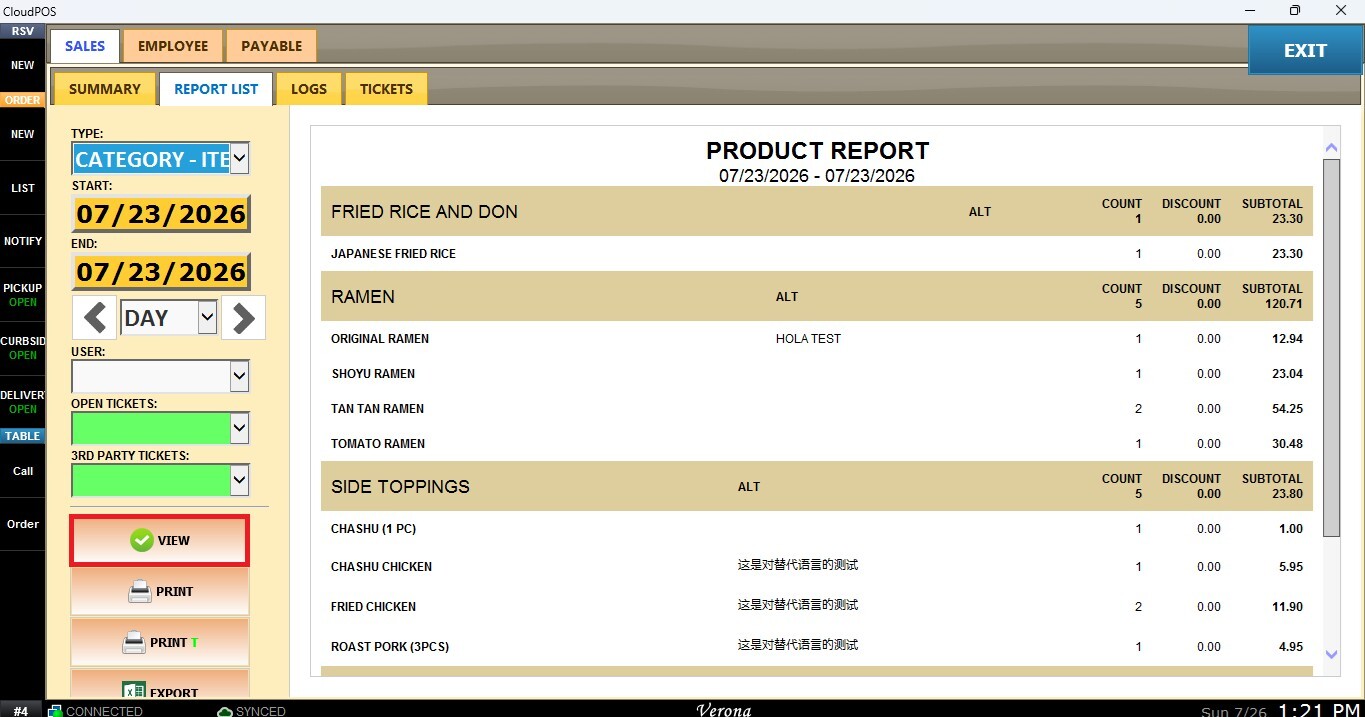
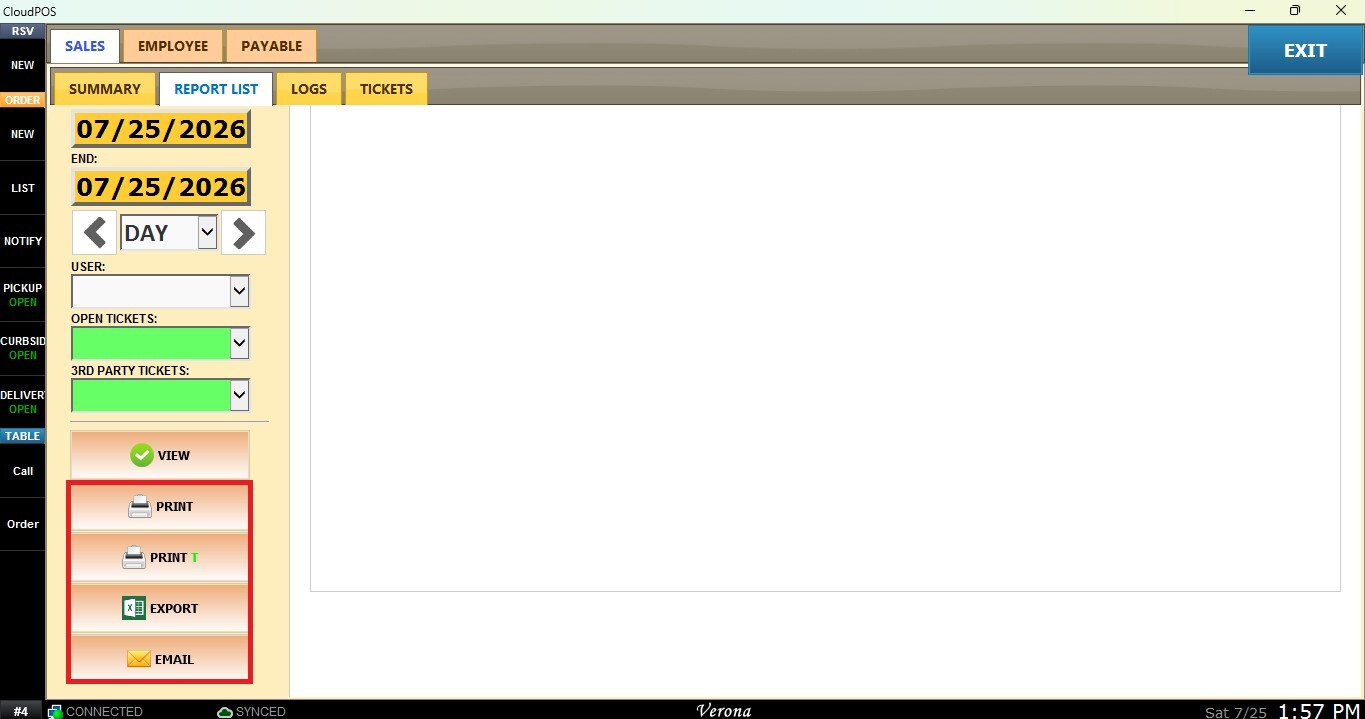
You may also choose to PRINT, EXPORT or EMAIL the report currently being displayed.