Select a Table
This guide explains how to select a table and open a new dine-in ticket from CloudPOS Mobile.
CloudPOS Mobile > HOME > TABLES
From the Home Screen, tap TABLES to open the table map.
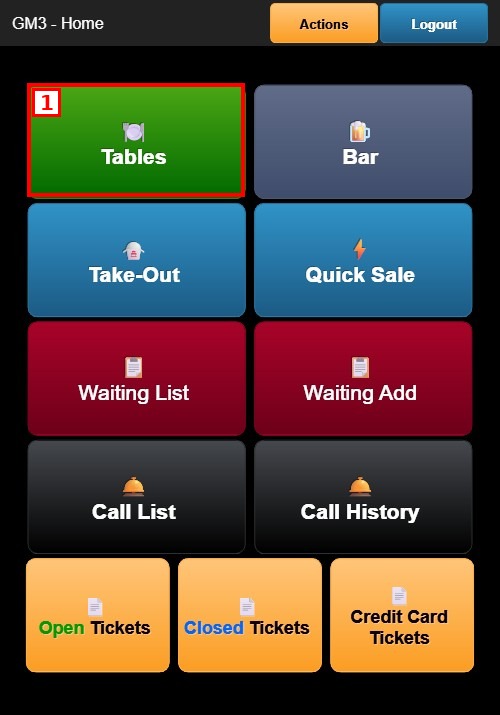
Table Map:
The table map shows the sections at the top (e.g., DINE IN, SUSHIBAR) and the tables of the selected section below, labeled with their names (e.g., A1, B2, C3). The default section is DINE IN.
Opening a New Table:
Tap an available (gray) table. A guest count window appears; tap the number of guests (1 to 9) and tap DONE. A new ticket is created for the table.
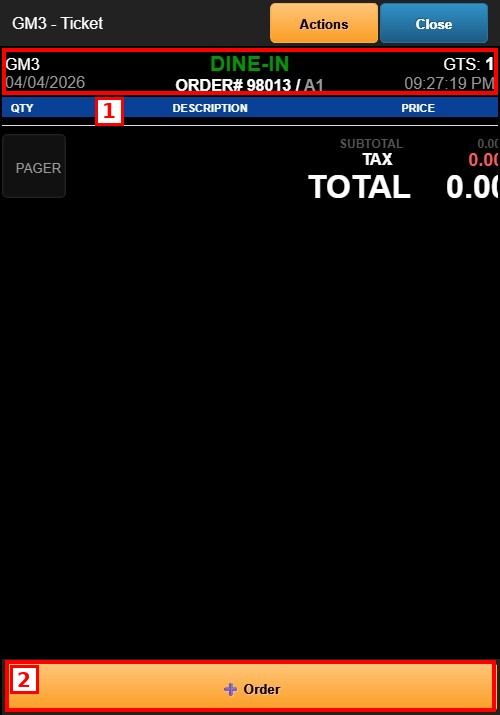
1. TICKET HEADER: Shows the order type (DINE-IN), order number, table (e.g., A1), guest count (GTS) and time.
2. ORDER: Opens the menu to start adding items to the ticket.
Opening an Existing Table:
Tap an occupied (blue) table to open its existing ticket, with the current items, totals and available actions.
Closing the Table Map:
Tap CLOSE in the header to return to the Home Screen.