Payment
The Payment settings control how customers pay with QR contactless dining: the payment method, the billing information requested for online payments, and the tip options shown to the customer.
MENU > SETTINGS > MENU11 > CTLESS > PAYMENT
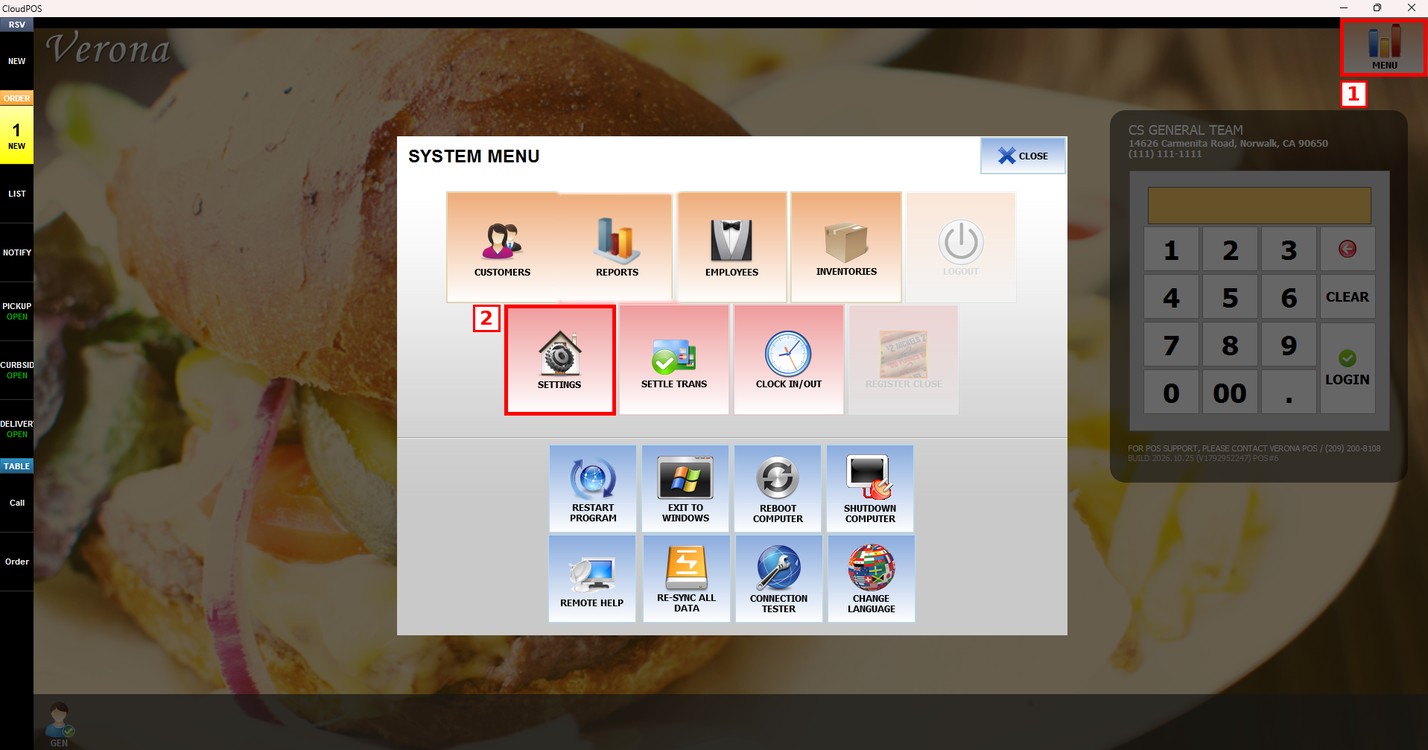
Go to MENU and press SETTINGS.
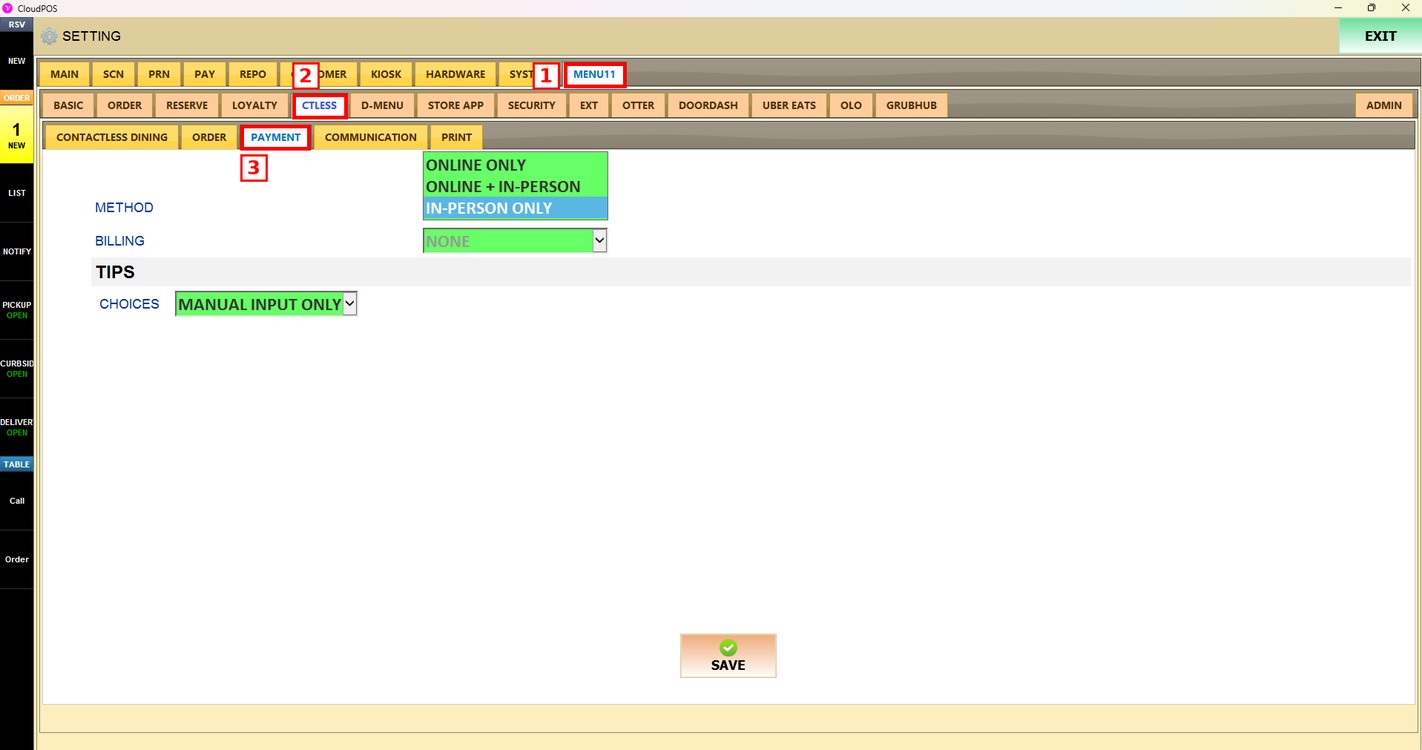
Press the MENU11 tab, then the CTLESS subtab, and then PAYMENT.
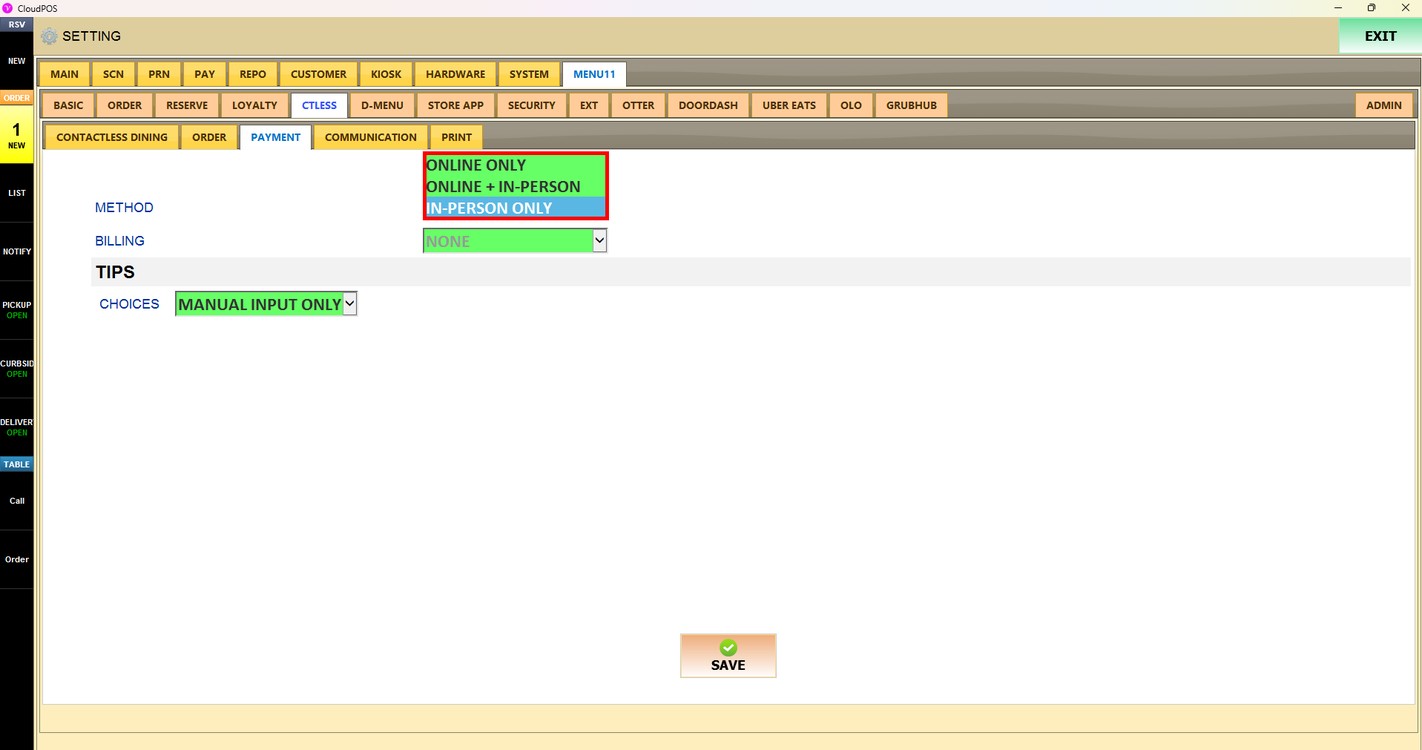
Method:
Sets how customers can pay their bill.
1. ONLINE ONLY: Customers can view and pay their bill with their mobile device. This option is available only if online payment is set up.
2. ONLINE + IN-PERSON: Customers can pay with their mobile device or request the check to pay in person.
3. IN-PERSON ONLY: Online payment is turned off. Customers can only view their bill and request the check.
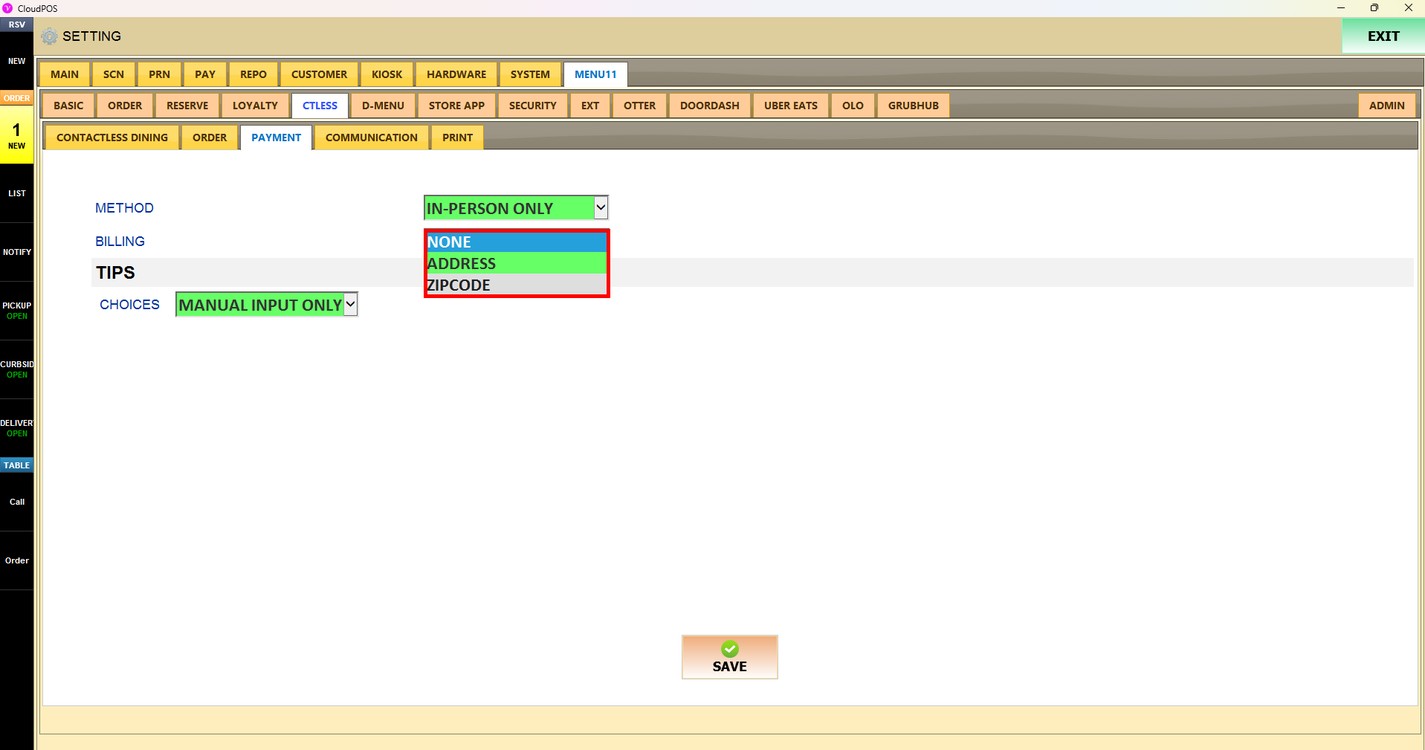
Billing:
Sets the billing information requested when the customer pays online.
1. NONE: Only the credit card information is requested.
2. ADDRESS: The full billing address is requested.
3. ZIPCODE: Only the ZIP code is requested.
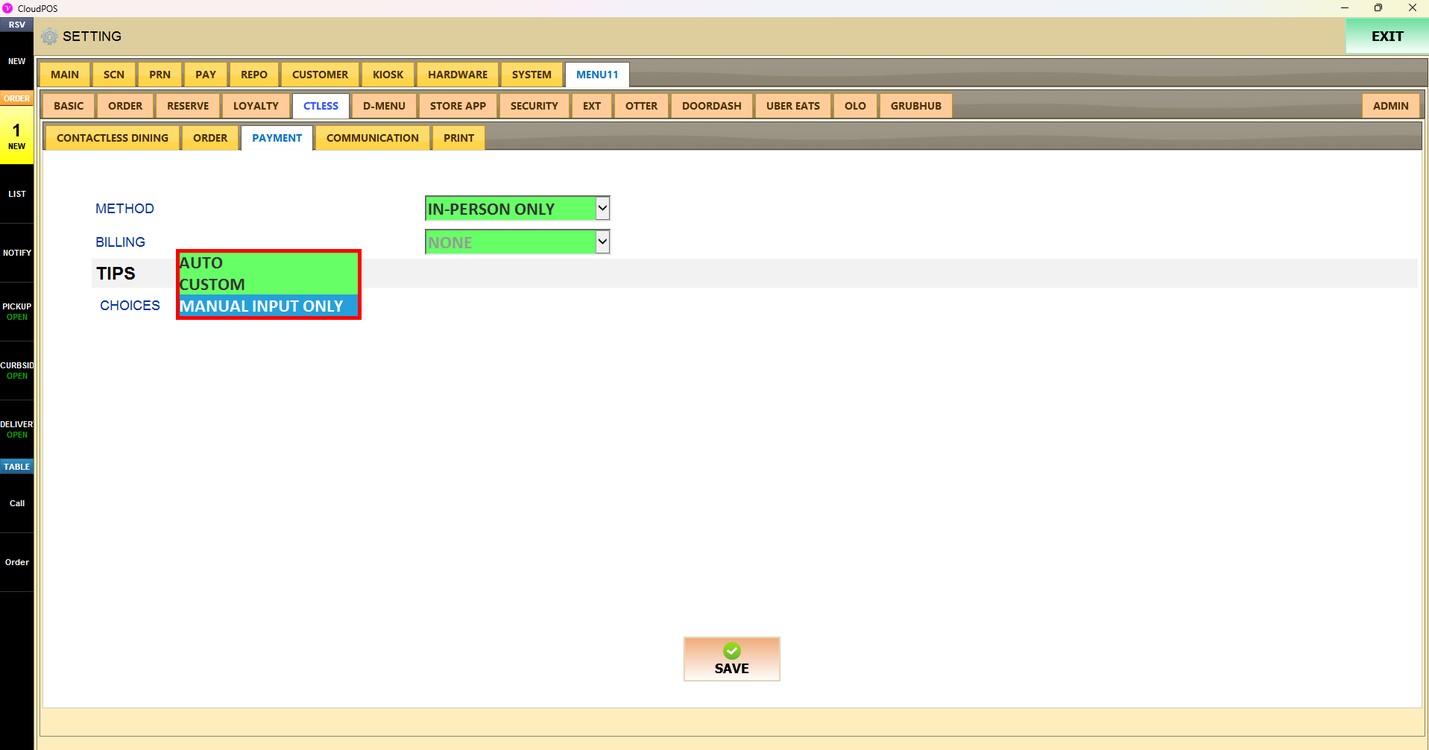
Tips - Choices:
Sets the tip options shown when the customer pays.
1. AUTO: Shows the default tip options: 18%, 20%, and 25%.
2. CUSTOM: Shows the tip options set in the custom table below.
3. MANUAL INPUT ONLY: The customer can only enter the tip amount manually.
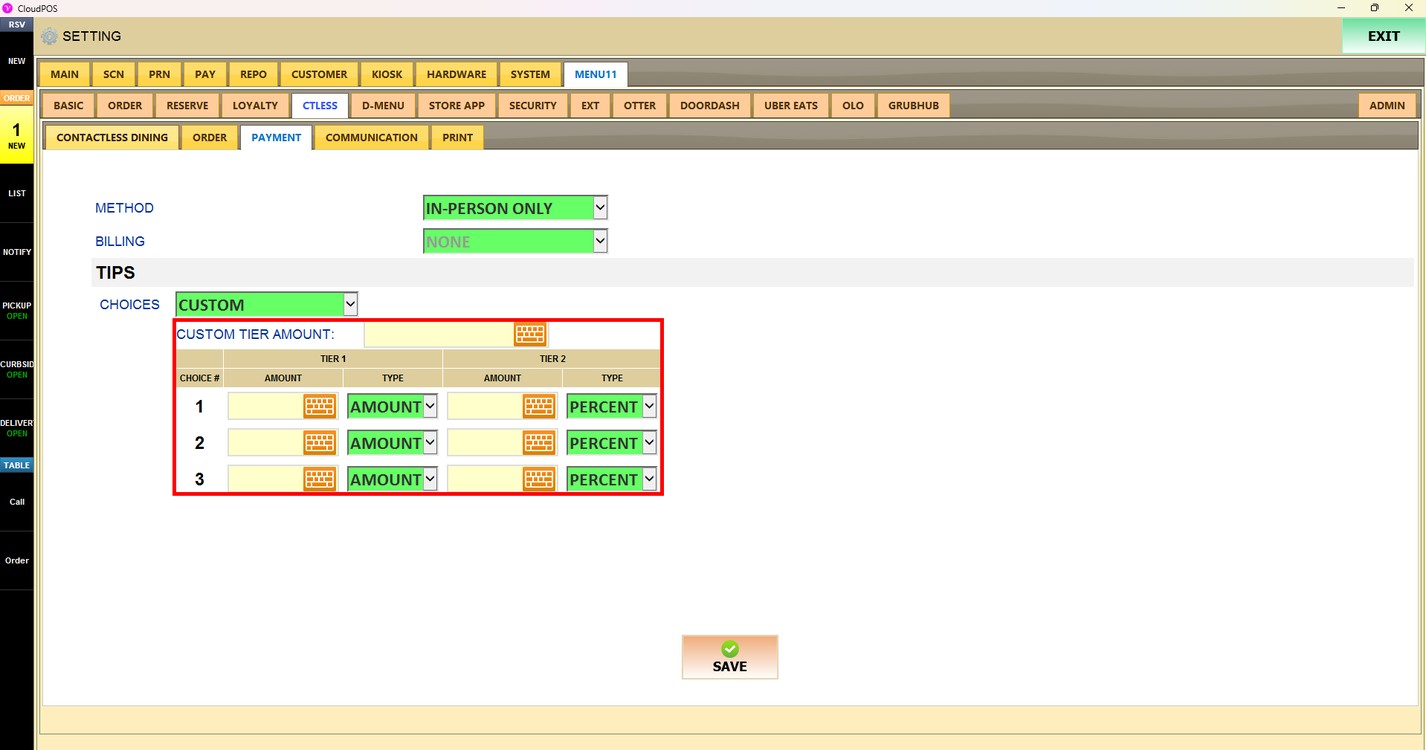
Custom Tips:
When CHOICES is set to CUSTOM, set up to three tip choices for each tier:
1. CUSTOM TIER AMOUNT: Press the keyboard icon and enter the bill amount that separates Tier 1 from Tier 2. Tier 1 choices are shown for bills below this amount, and Tier 2 choices for bills of this amount or more.
2. AMOUNT: Press the keyboard icon and enter the value of each tip choice.
3. TYPE: Choose AMOUNT for a fixed amount or PERCENT for a percentage of the bill.
Press SAVE to apply the changes.
Publish the changes:
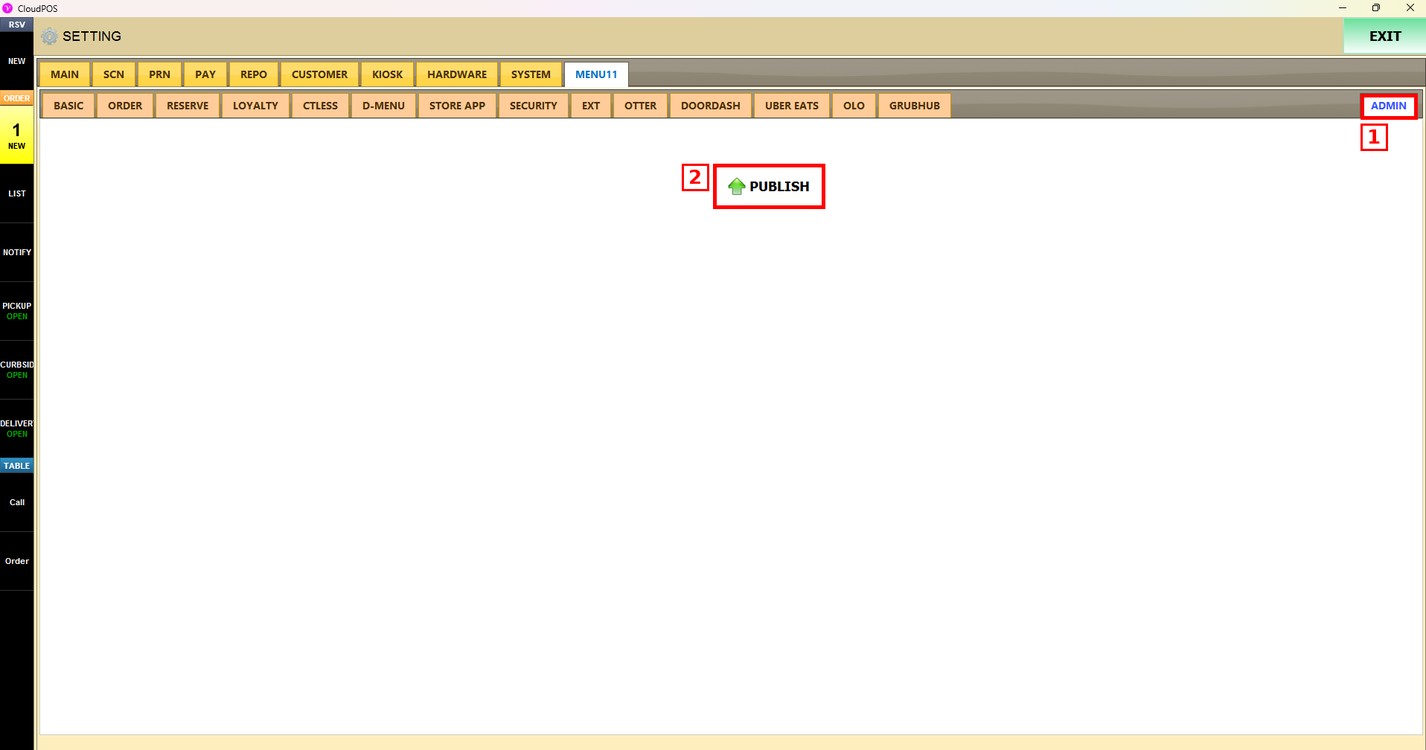
After saving, press the ADMIN tab and press PUBLISH. The changes are updated only after they are published.