Payable
The Payable report displays all gift cards in the system, showing each card's current balance and the date it was last used. It also gives a summary of the total balance and the number of active gift card accounts, and lets the user review the full transaction history of any card.
MAIN SCREEN> MENU> REPORTS> PAYABLE> GIFT CARD
From the Main Screen, click MENU, then select REPORTS.
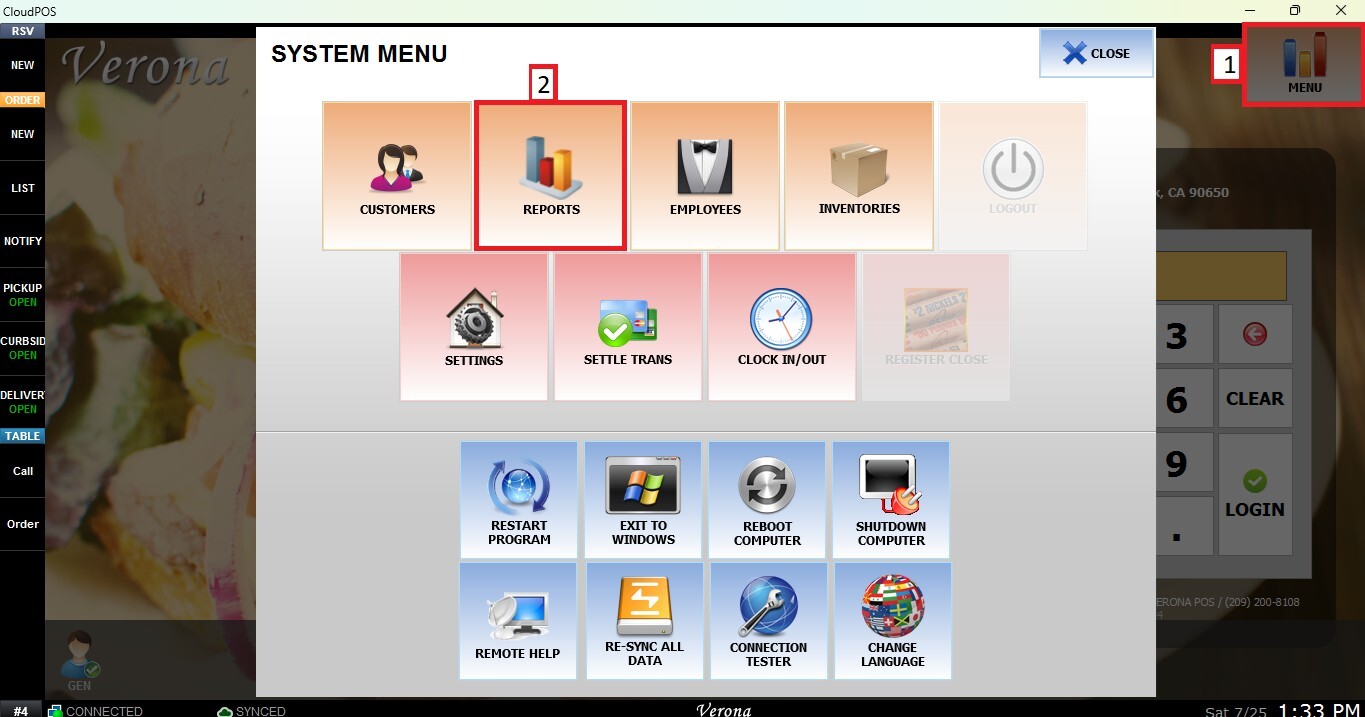
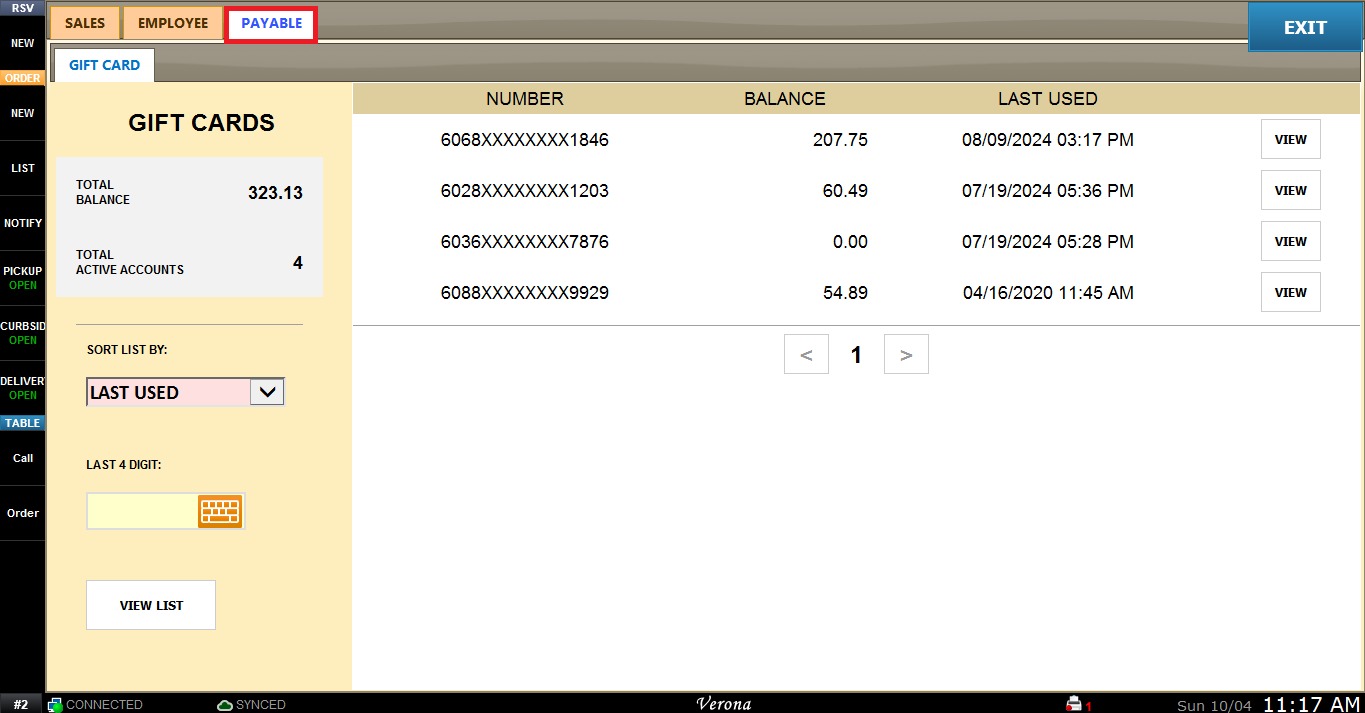
Select the PAYABLE tab. The GIFT CARD report will open.
The panel on the left shows a summary of all gift cards, including the TOTAL BALANCE (the combined balance of all gift cards) and the TOTAL ACTIVE ACCOUNTS (the number of gift card accounts in the list).
The list on the right displays each gift card with its NUMBER (partially hidden for security), its current BALANCE, and the date and time it was LAST USED. Use the arrows below the list to move between pages.
Filters and Buttons
Use the panel on the left side to customize how the list is displayed.
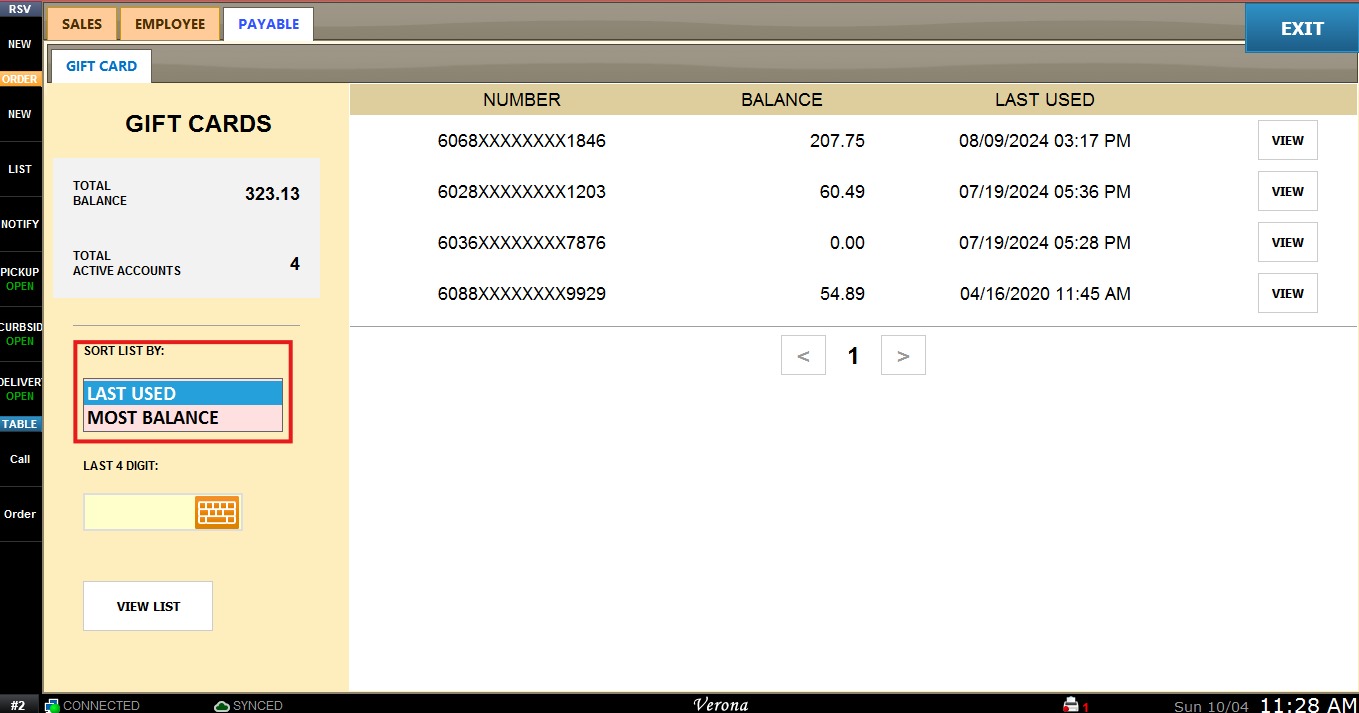
1. SORT LIST BY: Allows the user to choose the order of the list. Select the desired option from the dropdown menu:
- LAST USED:Displays the most recently used cards first.
-MOST BALANCE: Displays the cards with the highest balance first.
2. LAST 4 DIGIT: Allows the user to find a specific gift card by entering the last four digits of its number.
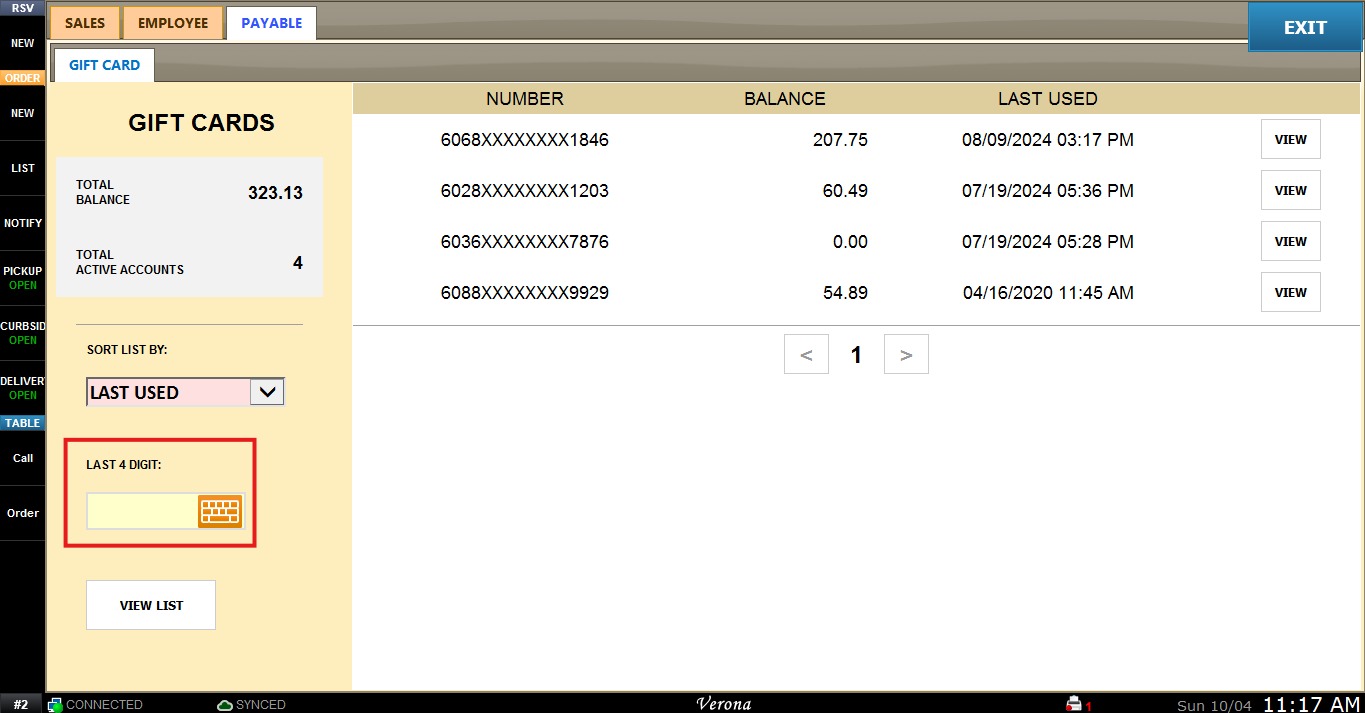
View
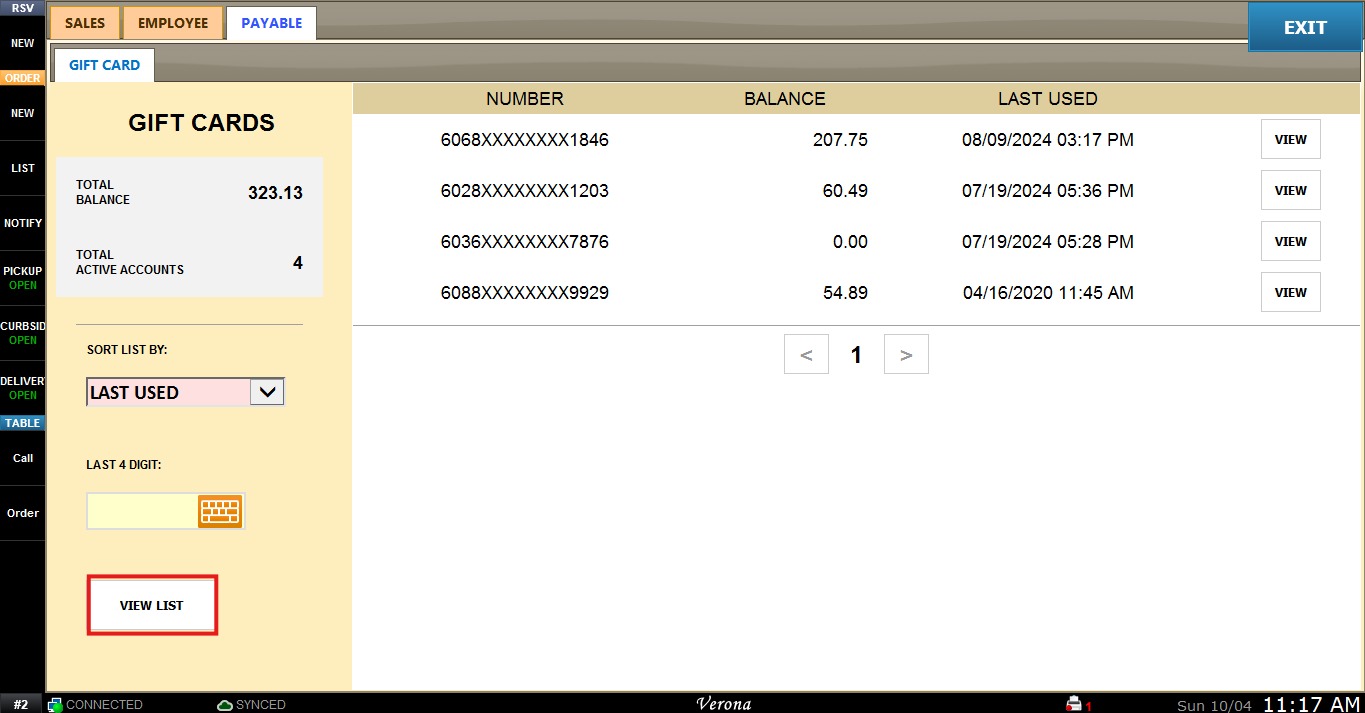
After configuring the desired filters, click VIEW LIST to refresh the list.
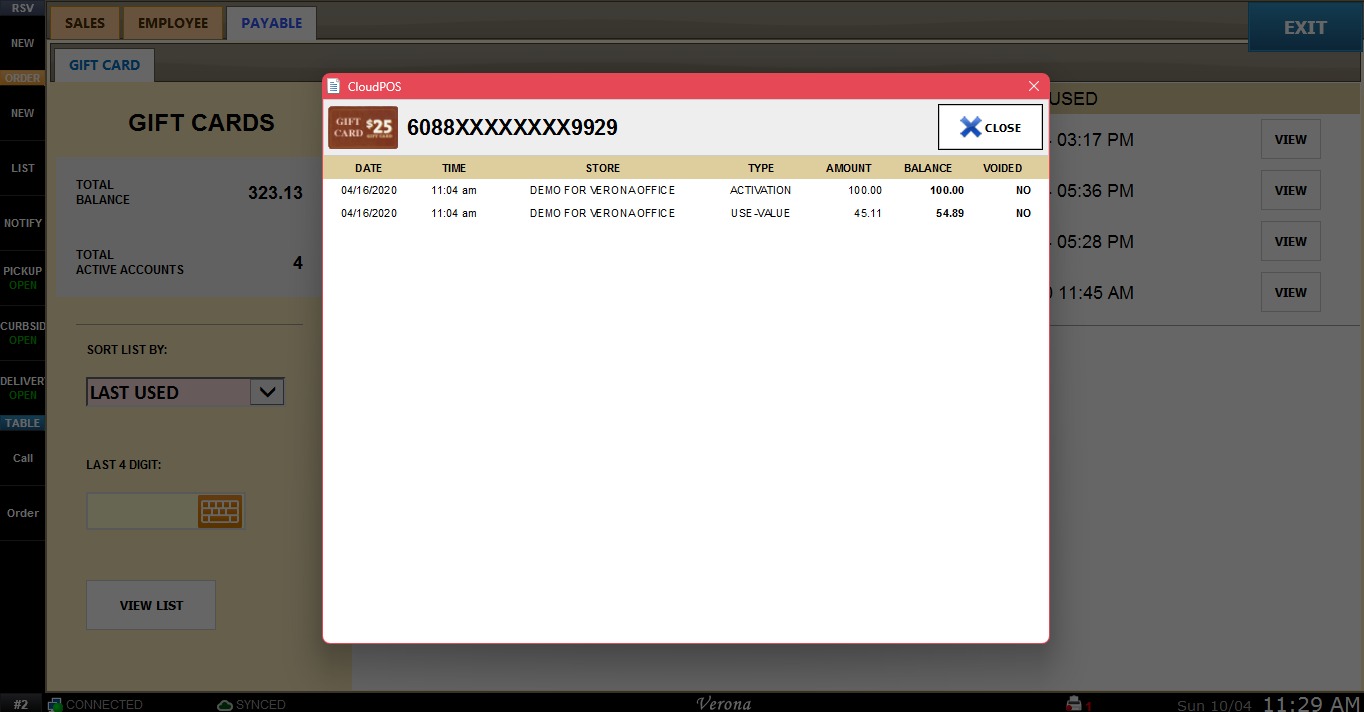
To review the history of a specific card, click VIEW next to it.
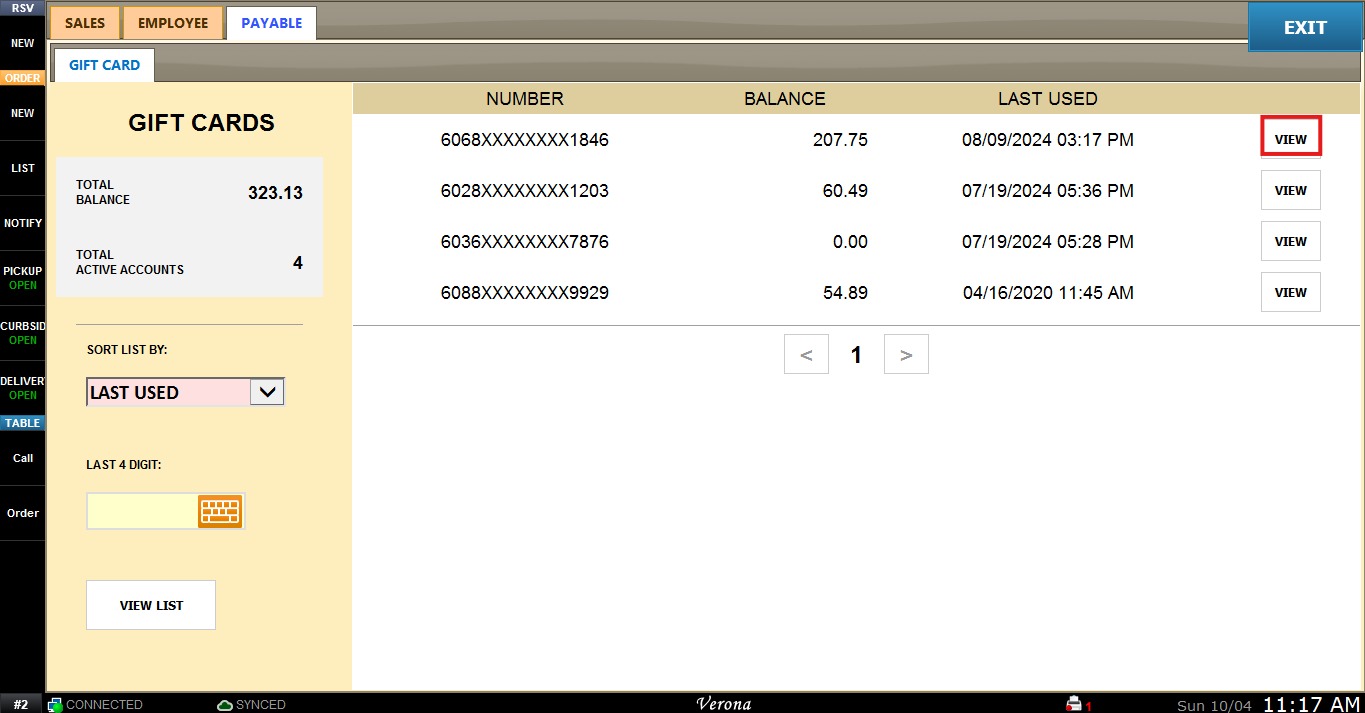
A window will open showing every transaction on that card, with the following columns: DATE, TIME, STORE, TYPE (e.g., ACTIVATION, USE-VALUE), AMOUNT, BALANCE, and VOIDED (whether the transaction was voided). Click CLOSE to return to the list.